An iPhone 13 backup over 100GB can cause confusing storage warnings, even when your phone still has free space. The number may represent one large device backup, backups from several devices, or total iCloud usage. Before deleting anything, identify which storage category is actually full.
Quick Answer
Open Settings > [your name] > iCloud > Storage (or Manage Account Storage) > Backups. Select your iPhone 13 and check Next Backup Size against available iCloud space. If space is insufficient, exclude unnecessary app data or remove obsolete backups. Check Settings > General > iPhone Storage separately for on-device storage problems.
Key Takeaways
- A total of 100GB under iCloud storage does not necessarily mean your current iPhone backup is 100GB.
- Photos and messages already syncing through iCloud generally do not appear again in the daily device backup.
- Deleting a device backup also turns off iCloud Backup for that device.
- A Mac or Windows computer offers another way to back up your iPhone without using iCloud backup storage.
Is the Storage Error From iPhone or iCloud?
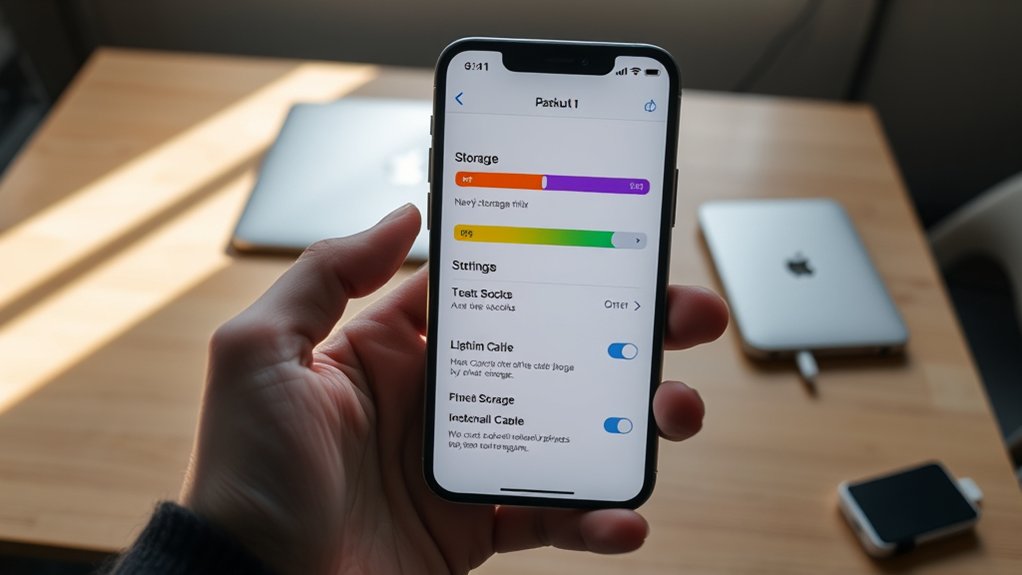
An iPhone 13 can have plenty of internal storage but still fail an iCloud backup. That happens because device storage and iCloud storage are separate, with different limits and purposes.
An out-of-storage backup error often points to iCloud limits, not a full iPhone 13.
Three storage locations can cause confusion:
- iCloud storage: Holds device backups, iCloud Photos, iCloud Drive files, and other synced information. When it is full, new iCloud backups may fail.
- iPhone storage: Holds installed apps, downloaded files, photos, system data, and other local content. Filling it affects the phone itself.
- Computer storage: Matters when creating a local backup on a Mac or Windows PC. An insufficient amount of computer disk space can stop that backup.
For example, your iPhone might have significant free space while your iCloud account has almost none. In that case, deleting apps from the phone will not necessarily fix the cloud backup error.
Likewise, buying more iCloud storage does not increase the physical capacity of your iPhone.
Apple explains these separate backup destinations in its comparison of iCloud and computer backups.
Check iPhone 13 and iCloud Storage
To diagnose an iPhone 13 backup storage problem, check local storage, total iCloud usage, and the estimated size of the next backup. Comparing these figures tells you where to focus.
- Check iPhone storage. Open Settings > General > iPhone Storage. Review the space used, available capacity, and the largest categories.
- Check total iCloud storage. Open Settings > [your name] > iCloud. Review the storage bar showing used and available space.
- Open backup details. Tap Storage or Manage Account Storage, depending on your iOS version. Select Backups.
- Select your current iPhone. Choose the iPhone 13 and find Next Backup Size. Apple notes that calculating this estimate may take a few minutes.
- Compare the figures. Check whether the estimated backup requires more space than your iCloud account currently has available.
Apple’s iCloud backup troubleshooting instructions identify Next Backup Size as an important check when a storage alert appears.
Pay attention to which figure displays 100GB. The total amount used by iCloud, the space occupied by all device backups, and the estimated next backup size are different measurements.
Also, Settings > General > About may show device capacity and available space. However, iPhone Storage provides a clearer breakdown of what is consuming local storage.
Why iPhone 13 Backup Looks Over 100GB
An iPhone 13 backup can exceed 100GB when it contains a large amount of data that is not already synced to iCloud. However, a 100GB total under iCloud storage may include much more than the current phone’s backup.
The most common contributors are:
- Photos and videos: A large photo library can be included in device backups when iCloud Photos is not enabled.
- App data: Messaging apps, games, downloaded content, and other apps can store substantial information.
- Messages and attachments: Conversations with videos and photos can increase backup size when Messages in iCloud is not enabled.
- Device settings and other data: iCloud Backup also protects selected settings, Home Screen organization, and information that does not already sync.
- Other device backups: Backups belonging to older iPhones or iPads may continue occupying space in the same account.
Apple’s explanation of what iCloud backs up makes an important distinction between synchronized data and device backup data.
Are Photos and Messages Included in iCloud Backup?
Whether photos and messages appear in your device backup depends on how you use iCloud.
If iCloud Photos is enabled, your photo library syncs separately. Those photos and videos are generally not duplicated inside the daily iCloud device backup.
If iCloud Photos is disabled, the Photos library may instead be included in the device backup.
Messages work similarly. When Messages in iCloud is active, messages sync separately. Otherwise, they may be stored in the device backup.
Important distinction: Moving photos into iCloud Photos can make the device backup smaller without reducing total iCloud storage usage. The photos still consume cloud storage.
A backup over 100GB does not automatically mean the phone is damaged or that its storage system has failed. Start by finding the largest categories rather than assuming the size is an error.
Fix the Backup Storage Error on iPhone 13
If your iPhone 13 reports insufficient storage during an iCloud backup, start with the least disruptive fixes. The goal is to make enough iCloud space available while keeping a reliable copy of important information.
- Confirm the warning. Check whether it specifically says there is not enough iCloud storage or refers to device storage.
- Review Next Backup Size. Compare the estimated backup with your available iCloud capacity.
- Review included apps. Find large app backups that contain data you no longer need to preserve.
- Check old device backups. Identify backups from phones or tablets you no longer use.
- Free unnecessary iCloud content. Review unused files, large attachments, and other stored information before considering a paid plan.
- Retry the backup. Connect to Wi-Fi, open Settings > [your name] > iCloud > iCloud Backup, and select Back Up Now.
Keep your iPhone connected to a reliable Wi-Fi network during the attempt. Power is also recommended, especially for larger backups.
Once the backup finishes, check the date and time displayed under Back Up Now. This confirms when your most recent successful iCloud backup completed.
If the estimate still exceeds your available iCloud space after careful cleanup, you can either reduce the data being backed up further or consider a larger iCloud+ storage plan.
Lower Backup Size Without Buying More iCloud
You can often reduce an oversized iCloud backup without purchasing additional storage. The most effective changes involve identifying large backup contributors and excluding data that you have safely stored elsewhere.
Start with the backup itself before deleting personal photos, messages, or files.
Find Backup Storage Source
The iCloud Backups screen helps identify which device is using storage. Select your iPhone 13 to inspect its backup information and the app data included in it.
- Open Settings > [your name] > iCloud.
- Tap Storage or Manage Account Storage.
- Select Backups, then choose your iPhone 13.
- Review the available app backup list and storage information.
- Check whether Photo Library appears as a significant backup contributor.
If Photo Library uses a large amount of backup space, first confirm whether iCloud Photos is enabled. That setting determines whether photos are synchronized separately or may be included in the backup.
Also review the other devices listed under Backups. You may find an old device backup that is no longer needed for recovery.
Remember that the size of an app under Settings > General > iPhone Storage is not necessarily identical to its iCloud backup size. Local app usage can include downloaded or cached content that is not all stored in the backup.
Reduce Backup Data
The safest way to shrink an iCloud backup is to stop backing up nonessential app data that you can afford to lose or already have saved elsewhere. You can change app backup selections without deleting the app from your iPhone.
Warning: Turning off backup for an app removes its existing backed-up information from iCloud. Deleting a device backup also turns off iCloud Backup for that device. Make sure you have another usable copy of important data before making either change.
To remove unnecessary app data from future backups:
- Open Settings > [your name] > iCloud > Storage or Manage Account Storage > Backups.
- Select your current iPhone 13.
- Review the list of apps included in the backup.
- Turn off backup for an app whose data you no longer need to preserve.
- Tap Turn Off when prompted to confirm.
Some apps are always included in iCloud Backup and cannot be turned off individually.
For old backups, return to Backups, select a device you no longer need to restore, and choose Turn Off and Delete from iCloud. The wording may vary slightly by software version.
| Action | Path | Result |
|---|---|---|
| Delete old backups | iCloud > Storage > Backups > [old device] | Frees space used by an obsolete device backup |
| Disable app backup | Backups > [current device] > app list | Excludes selected app data and removes its existing backup data |
Apple confirms these options in its official iCloud storage management guide.
Be especially careful with the current device’s backup. If you delete it, turn iCloud Backup back on afterward if you still want automatic cloud backups.
If an app contains important personal records, game progress, messages, or files, confirm that its information is protected before excluding it.
Manage iCloud Space
Reducing backup size is only one way to recover iCloud capacity. Photos, messages, files, and other synced data share the same storage allowance, so cleaning those categories can also make room for backups.
Open Settings > [your name] > iCloud and review the storage breakdown. If Recommended for You appears, examine its cleanup suggestions.
- iCloud Drive: Remove files you no longer need after saving any copies you want to keep.
- Photos: Review unnecessary videos, duplicate pictures, and other large media.
- Messages: Remove old conversations or large attachments that are no longer important.
- Old backups: Delete obsolete device backups after confirming they are unnecessary.
- iCloud Mail: Review unwanted email and large attachments if Mail consumes meaningful storage.
Does Optimize iPhone Storage Reduce iCloud Usage?
No. Optimize iPhone Storage primarily reduces storage used on the phone, not the amount occupied in iCloud.
When iCloud Photos is enabled, this feature keeps full-resolution originals in iCloud and stores smaller versions on your iPhone when needed.
To review the setting, open Settings > [your name] > iCloud > Photos. Depending on your iOS version, choose Optimize Storage directly or find it under iPhone Storage.
Apple explains the difference in its iCloud Photos documentation.
If your goal is specifically to reduce an iCloud backup, review what the backup includes. If your goal is to free space on the phone itself, Optimize iPhone Storage may help.
Deleting photos while iCloud Photos is syncing can remove them from your other synchronized devices. Save copies outside the synced library before permanently removing valuable media.
For large photo and video collections, transferring files to a computer or another trusted storage service may provide an alternative. Verify that the transferred files open correctly before deleting the originals.
What to Try if iPhone 13 Backup Fails
If your iPhone 13 backup still fails after you reduce its size, the problem may involve Wi-Fi, software, or another backup condition. Work through the checks below before taking more disruptive action.
Check Storage Source
First, confirm that iCloud Backup is enabled and that the correct Apple Account is signed in. Then identify whether the error is caused by storage capacity or an unsuccessful connection.
- Open Settings > [your name] > iCloud > iCloud Backup.
- Make sure Back Up This iPhone is enabled.
- Connect to a stable Wi-Fi network.
- Restart the iPhone if the backup continues to fail.
- Open Settings > General > Software Update and install an available compatible update.
- Try a different reliable Wi-Fi network if the first connection fails.
If the backup option is unavailable or grayed out, check whether the device is still restoring information. Also review Settings > General > VPN & Device Management for a profile that may restrict backups.
These problems require different fixes from a genuine insufficient-storage warning.
Verify Backup Size
Next Backup Size estimates how much space the upcoming backup needs. If that estimate exceeds available iCloud storage, a successful backup may require less included data or more cloud capacity.
For example, if the next backup requires 100GB but your account has substantially less free space, the phone cannot complete that backup under the current storage conditions.
After changing app backup selections, revisit the backup details and allow the estimate to recalculate.
Do not confuse this number with the combined size of all existing device backups. You may need to free space from an old backup even if your current device’s next backup is relatively small.
If the phone reports plenty of available iCloud space and the backup still fails, investigate the connection and software rather than repeatedly deleting files.
Free Up Space
If the warning concerns your iPhone’s internal storage, open Settings > General > iPhone Storage and follow the available storage recommendations. Deleting unnecessary local files is useful here, but it is not a substitute for freeing iCloud space.
Options include:
- Removing downloaded movies, videos, or other files you no longer need.
- Deleting unnecessary large message attachments.
- Offloading unused apps to remove their installed app files while retaining their documents and data.
- Moving valuable media to another verified storage location before deleting local copies.
- Reviewing large apps and their documents to identify unusual storage use.
Offloading an app can improve local storage availability, but it does not guarantee a reduction in the app’s iCloud backup data.
Back Up Your iPhone 13 to a Computer Instead
If you cannot make enough room in iCloud, a computer backup provides another option. It stores the backup on your Mac or Windows PC rather than using your iCloud backup allowance.
On a Mac:
- Connect your iPhone 13 with a suitable cable.
- Open Finder and select your iPhone in the sidebar.
- Trust the computer if prompted.
- Under General, select the option to back up your iPhone to the Mac.
- Choose Encrypt local backup if you want the extra protected data included, then save the encryption password securely.
- Click Back Up Now and confirm completion.
See Apple’s Mac backup instructions for the official procedure.
On a Windows PC:
- Connect the iPhone to your computer.
- Open the Apple Devices app, or use iTunes if appropriate for your setup.
- Select your connected iPhone and trust the computer if prompted.
- Open General in Apple Devices or Summary in iTunes.
- Choose Encrypt local backup if you need to preserve protected information such as Health data and saved passwords.
- Select Back Up Now and check the completion status.
Apple provides the full steps in its Windows iPhone backup guide.
Make sure the computer has enough free disk space. Also, keep any encryption password safe because losing it may prevent you from restoring that encrypted backup.
Computer backups and iCloud backups do not always contain exactly the same information. Data already syncing through iCloud, such as iCloud Photos, may not be included in the computer backup.
If every method fails, record the exact error message and contact Apple Support. Avoid erasing or restoring the device until you have confirmed that important information is safely backed up.
Frequently Asked Questions
Why Are My iPhone Backups So Large?
iPhone backups can become large because they contain app data, device settings, messages, and sometimes photos and videos. The exact contents depend on which information already syncs to iCloud. Review the current device’s backup details and included apps to find the largest contributors before removing anything.
My iPhone System Data Is Over 100GB. What Should I Do?
System Data over 100GB is a local storage issue, not automatically an iCloud backup problem. Check Settings > General > iPhone Storage, restart the phone, review large apps and temporary data, and update iOS if an update is available. Apple’s storage-category guide explains how caches and system files use space. If the figure remains unusually large, contact Apple Support before considering a restore.
Why Is My iPhone Telling Me Storage Is Full When It’s Not?
Your iPhone may have free internal storage while its iCloud account is full. These are separate storage systems, so an iCloud backup error does not mean the phone itself has run out of space. Compare Settings > General > iPhone Storage with the storage information under your iCloud settings.
Should You Delete iPhone Backups?
Delete an iPhone backup only when you are confident it is no longer needed for recovery. Removing an old device backup can free iCloud space, but deleting the current device’s backup also disables iCloud Backup for that device. Preserve a reliable backup before removing important recovery information.
Does Optimize iPhone Storage Reduce iCloud Backup Size?
Optimize iPhone Storage mainly reduces the space photos occupy on your device. It does not directly reduce the amount of storage used by your iCloud Photos library. If iCloud Photos is enabled, photos sync separately from the daily device backup, but they still count toward your total iCloud storage.
Can I Back Up My iPhone 13 Without iCloud?
Yes. You can back up an iPhone 13 to a Mac using Finder or to a Windows PC using Apple Devices or iTunes. A computer backup uses the computer’s available storage instead of your iCloud backup allowance. Enable encrypted local backups when you need supported sensitive data included.
Conclusion
An iPhone 13 backup over 100GB does not automatically mean the phone itself is full. Start by comparing local storage, total iCloud usage, and Next Backup Size. Apple provides 5GB of free iCloud storage, which may be insufficient for a large backup. Review included apps, preserve important data, remove obsolete backups where appropriate, and retry. If iCloud space remains insufficient, use a computer backup or consider a larger iCloud+ plan.
Sources
- Apple Support — Backup Methods for iPhone or iPad: Explains iCloud and computer backup storage, contents, and differences.
- Apple Support — If You Can’t Back Up to iCloud: Confirms Next Backup Size, insufficient-storage troubleshooting, Wi-Fi checks, and software update advice.
- Apple Support — What Does iCloud Back Up?: Identifies the information included in backups and the differences between backup and syncing.
- Apple Support — Manage Your iCloud Storage: Confirms free storage capacity, managing app backups, deleting old backups, and the effects of deletion.
- Apple Support — Set Up and Use iCloud Photos: Explains photo syncing, deletion behavior, and on-device storage optimization.
- Apple Support — Back Up Your iPhone with Your Mac: Provides Finder backup steps and encryption guidance.
- Apple Support — Back Up Your iPhone with Windows: Covers Apple Devices, iTunes, and encrypted computer backups.
- Apple Support — Check Storage on iPhone and iPad: Explains local storage categories, cached data, and device storage management.

