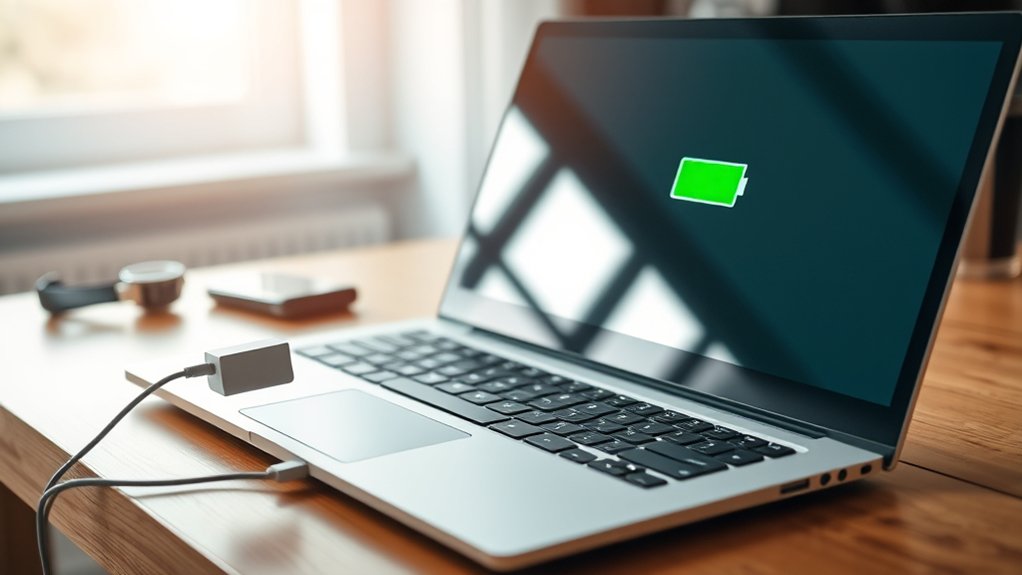
Lenovo Rapid Charge helps supported laptops recharge faster, reducing the time you spend waiting near a power outlet. However, charging speed depends on your laptop model, battery, power adapter, and charging settings. Some Lenovo laptops can reach 80% battery in less than an hour, while others offer different fast-charging features.
Quick Answer
Lenovo Rapid Charge is a fast-charging feature available on selected ThinkPad, ThinkBook, Yoga, and other Lenovo laptops. Standard Rapid Charge can restore up to 80% battery in less than one hour on supported models. You need a compatible charger, suitable cable, and supported charging hardware. Actual speeds depend on the device and charging conditions.
Key Takeaways
- Rapid Charge support varies by laptop model and battery configuration, even within the same product family.
- A 65W charger works for many supported laptops, but larger models may require 100W, 135W, or another specified adapter.
- Lenovo also offers Rapid Charge Pro and other faster charging modes with different performance benchmarks.
- Advertised charging speeds commonly assume the laptop is turned off, sleeping, or hibernating.
- Conservation Mode and moderate charging temperatures can help protect battery health during long-term use.
What Is Lenovo Rapid Charge?
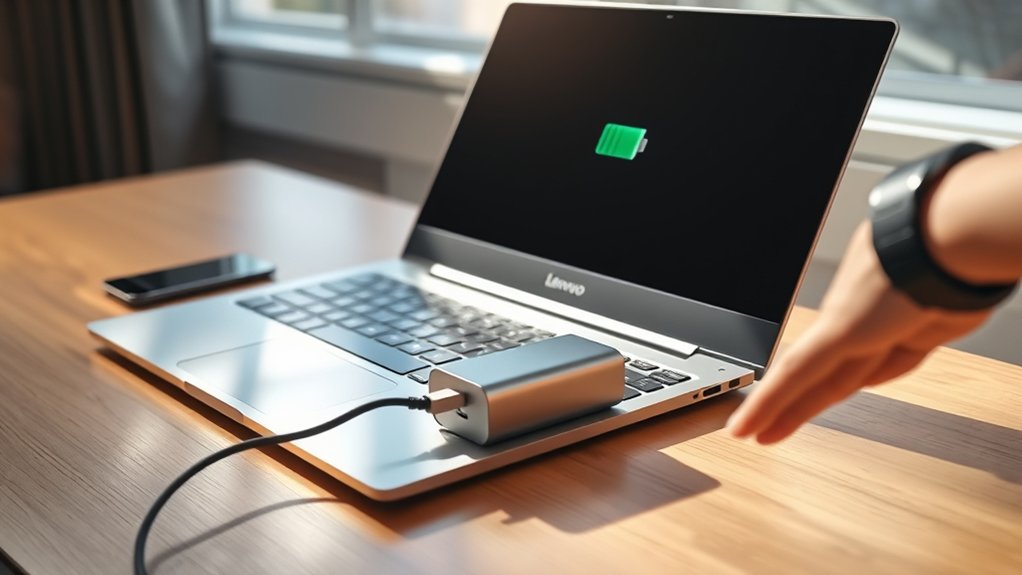
Lenovo Rapid Charge is a built-in laptop charging feature that restores battery power faster than standard charging. On supported models, it can charge a battery from 0% to 80% in less than one hour and reach 100% in less than two hours under specified conditions.
It works through the laptop’s charging controller and battery management system. These components manage how much electrical power enters the battery while monitoring charging conditions.
The laptop must support the feature internally. Simply connecting a more powerful charger cannot add Rapid Charge to an unsupported device.
Lenovo’s Yoga Pro 7 user guide lists these typical charging times:
- Normal charging: About 2–4 hours for a full charge.
- Rapid charging: Less than one hour to reach 80%.
- Full charge in Rapid Charge mode: Less than two hours.
These figures describe supported charging modes, not guaranteed performance across every Lenovo laptop.
The main benefit is convenience. A quick charge during a short break can provide enough battery power for meetings, travel, presentations, or other work away from an outlet.
However, faster charging can produce additional heat. Modern charging controls help manage this, but battery temperature and charging habits still affect long-term battery health.
Which Lenovo Models Support Rapid Charge?
Many Lenovo ThinkPad, ThinkBook, and Yoga laptops support Rapid Charge, but compatibility is not universal. Some Lenovo Legion, IdeaPad, and other systems also include fast-charging modes.
The exact model and battery configuration matter more than the product family name.
- ThinkPad laptops: Many professional ThinkPad models support Rapid Charge. For example, the ThinkPad T14 Gen 6 Intel specifications list Rapid Charge support for both its 52.5Wh and 57Wh batteries, with charging up to 80% in one hour.
- ThinkBook laptops: Selected ThinkBook models offer Rapid Charge or Rapid Charge Pro. The ThinkBook 14 Gen 9 IRL specifications list Rapid Charge Pro for the 48Wh battery, capable of charging up to 50% in 30 minutes with a compatible 65W adapter.
- ThinkBook 14 and 16 Gen 9: Lenovo’s ThinkBook 14/16 Gen 9 user guide describes Rapid Charge mode, including charging to 80% in less than one hour. However, Lenovo specifically notes that the mode is not available on every configuration.
- Yoga laptops: Selected Yoga models, including the Yoga Pro 7 (14-inch, Gen 10), offer a Rapid Charge mode. Charging performance and adapter requirements depend on the configuration.
- Legion laptops: Selected gaming laptops include faster charging modes. Lenovo’s Legion 5i 16-inch Gen 10 guide describes Super Rapid Charge Pro, with reference charging times of less than 30 minutes to 80% and less than 60 minutes to 100%.
For ThinkBook models, battery configuration deserves special attention. A product family may offer multiple battery capacities, but the published fast-charging claim may apply to only one of them.
Before buying a laptop specifically for fast charging, identify its full model number and battery option. Then compare the battery and power adapter sections of Lenovo’s Product Specifications Reference (PSREF).
This prevents a common mistake: assuming every laptop with the same family name offers identical charging performance.
What Charger Do You Need for Rapid Charge?
Lenovo Rapid Charge requires a power adapter that meets the laptop’s charging specifications. Many supported laptops use a 65W USB-C Power Delivery adapter, but higher-powered models may require substantially more.
A charger must provide a compatible voltage, current, and connection type. Wattage alone does not guarantee fast charging.
| Charger type | What to expect |
|---|---|
| Standard low-power 5V USB charger | Generally unsuitable for Lenovo laptop Rapid Charge; may not charge the laptop at all. |
| Compatible 65W or higher laptop charger | Can support Rapid Charge when its connector, power output, and charging protocol match the laptop. |
For example, Lenovo specifies different adapter requirements for two ThinkPad models:
- ThinkPad Z13 Gen 2: Supports Rapid Charge using a 65W adapter.
- ThinkPad Z16 Gen 2: Supports Rapid Charge using a 135W adapter.
Both examples appear in Lenovo’s ThinkPad Z13 and Z16 charging documentation.
For USB-C charging, look for compatibility with USB Power Delivery (USB PD). This standard allows a laptop and charger to negotiate a suitable power level.
Qualcomm Quick Charge support alone does not guarantee Lenovo laptop compatibility. It is mainly associated with phone and other compatible-device charging systems.
Some Lenovo laptops also use dedicated rectangular or other proprietary charging connectors. Those models require the correct adapter and connector rather than an ordinary USB-C charger.
Before replacing the original charger, check:
- The laptop’s specified adapter wattage.
- The required output voltage and current.
- Whether the charging connection uses USB-C or a dedicated Lenovo connector.
- Whether the adapter supports the required charging protocol.
- Whether the laptop’s warranty or service guidance places requirements on replacement accessories.
A compatible Lenovo-approved adapter is the simplest choice. A suitable third-party adapter may also work, but its advertised wattage must match the laptop’s actual charging requirements.
Does Your Charging Cable Affect Rapid Charge?
Yes. A USB-C charging cable can limit Lenovo Rapid Charge speed when its power rating is lower than the charger or laptop requires.
Even a powerful adapter may deliver reduced charging performance if the cable cannot safely carry the necessary current.
For example, a USB-C cable rated for 60W is not suitable for delivering the full 65W output of a 65W charger. A correctly rated higher-power cable is needed.
The USB Implementers Forum’s cable guidance explains that certified USB-C cables have different power capabilities. Its current certification labeling includes 60W and 240W power ratings.
Follow these guidelines when choosing a replacement cable:
- Match the wattage: Choose a cable rated for at least the power your charger and laptop need.
- Check USB PD compatibility: Use a suitable USB-C cable for USB Power Delivery charging.
- Choose reliable construction: A certified, well-made cable is preferable to an unmarked cable with unknown specifications.
- Inspect the connectors: Avoid cables with damaged plugs, loose connections, or visible wear.
- Confirm the charging port: Not every USB-C port necessarily accepts power input, even if it supports data transfer.
A higher-rated cable does not force extra power into the laptop. The charging system still controls the power it accepts.
Also, a cable rated for higher wattage cannot compensate for an underpowered adapter or an unsupported charging feature.
If the Lenovo charger has a permanently attached cable, replace the complete adapter with a compatible unit rather than attempting to modify the cable.
How Fast Is Lenovo Rapid Charge?
Standard Lenovo Rapid Charge can reach approximately 80% battery in one hour or less on supported models. Some newer or specialized Lenovo charging technologies offer different benchmarks.
The advertised speed is usually measured under controlled conditions, often with the computer sleeping, hibernating, or powered off.
Charge Time Benchmarks
Lenovo uses several fast-charging names, and their performance figures are not interchangeable. The correct benchmark depends on the laptop and battery configuration.
| Charging mode | Published benchmark | Example |
|---|---|---|
| Normal charging | Typically 2–4 hours for 0% to 100% | Lenovo Yoga Pro 7 charging guide |
| Rapid Charge | Less than 1 hour to 80%; less than 2 hours to 100% | Supported Yoga Pro 7 configurations |
| Rapid Charge Pro | Up to 50% in 30 minutes | ThinkBook 14 Gen 9 IRL, 48Wh battery |
| Super Rapid Charge Pro | Less than 30 minutes to 80%; less than 60 minutes to 100% | Lenovo Legion 5i 16-inch Gen 10 guide |
These are manufacturer reference figures, not results measured independently for this article. Charging conditions and supported configurations can differ.
Another important detail is that charging commonly slows as the battery approaches full capacity. Therefore, reaching 80% quickly does not mean the remaining 20% will charge at the same rate.
Real-World Speed Factors
Actual Lenovo Rapid Charge performance depends on several conditions. Even a compatible laptop may charge more slowly than its advertised benchmark during normal use.
The main factors are:
- Battery capacity: A larger battery may need more time to store the same percentage of its capacity.
- Computer workload: Gaming, video editing, or other demanding tasks consume power that would otherwise be available for battery charging.
- Adapter output: An underpowered charger may reduce charging speed, particularly while the laptop is running.
- Battery temperature: Charging controls may reduce power when the battery becomes too hot or too cold.
- Battery condition: Age, battery wear, and charge-management settings can affect charging behavior.
- Starting charge level: Charging from a nearly empty battery differs from topping up a battery that is already mostly full.
For a fair comparison with Lenovo’s published figures, use the specified adapter and test with the laptop in the recommended power state.
Rapid Charge Limits
Rapid Charge cannot overcome the laptop’s built-in charging limits. The battery management system controls how quickly the battery accepts power.
This means installing a 100W charger on a laptop designed for 65W charging does not automatically produce faster results.
Other limits include:
- Unsupported laptop hardware cannot gain Rapid Charge through a software setting alone.
- A charge limit may prevent the battery from reaching 100%.
- High battery temperatures may cause charging to slow.
- Heavy system power use can reduce the power available for charging.
These limits are part of normal battery and power management, rather than proof that the charger is defective.
How Do You Enable Lenovo Rapid Charge?
On supported Lenovo laptops, Rapid Charge can often be enabled through Lenovo Vantage or Lenovo PC Manager. Available controls and menu names vary by model.
Lenovo’s Yoga Pro 7 Gen 10 documentation provides the following Lenovo Vantage procedure.
- Open Lenovo Vantage: Search for Lenovo Vantage using the Windows search box and launch the application.
- Open device settings: Select Device Settings, then Power.
- Find charging options: Locate the Charging section.
- Select Rapid Charge: Choose Rapid Charge if the mode is available for your laptop.
- Connect the correct adapter: Use the power adapter and cable specified for your device.
On some Lenovo systems, charging modes are managed through Lenovo PC Manager or another supported Lenovo utility. The exact controls may be different.
To confirm that the mode works, observe the battery percentage over a charging session. Charging should be faster under comparable conditions than it is in Normal mode.
If Rapid Charge does not appear in the application, it may be unavailable on your specific model or configuration.
Why Is Lenovo Rapid Charge Not Working?
Lenovo Rapid Charge may be unavailable or slower than expected because of charging settings, an incompatible adapter, a limited cable, or battery temperature.
Start with the simplest checks before assuming a hardware fault.
- Confirm model support: Check the exact laptop model and battery configuration against Lenovo’s specifications.
- Check the power adapter: Verify that its output matches the required wattage and charging protocol.
- Inspect the cable and connection: Reconnect the charger securely and test with the supplied cable when possible.
- Review charging mode: Open the supported Lenovo battery utility and confirm that Normal or Conservation Mode is not restricting your intended charging behavior.
- Reduce system activity: Close demanding applications or test charging while the laptop is sleeping or powered off.
- Check battery temperature: Allow an unusually hot laptop to cool in a ventilated location before testing again.
- Check software updates: Use Lenovo’s supported update tools to check for relevant battery-management, firmware, or system updates.
If the laptop still charges unusually slowly with the original adapter, the problem may involve the charging port, battery, adapter, or internal charging system.
Contact Lenovo support or a qualified repair technician if the battery repeatedly fails to charge, the port is damaged, or the adapter behaves abnormally.
Warning: Stop using an adapter or cable that is damaged, produces a burning smell, or becomes abnormally hot. Do not attempt to repair or modify a laptop power adapter yourself.
When Should You Use Rapid Charge?
Rapid Charge is most useful when you need to restore battery power quickly before leaving an outlet. It is especially convenient before travel, meetings, or work that requires several hours away from a charger.
For a laptop that remains plugged in throughout the day, Normal or Conservation Mode may better suit your routine.
| Situation | Best Choice | Main Benefit |
|---|---|---|
| Busy morning before leaving | Rapid Charge | Restores useful battery power during a short charging window. |
| Working at a desk all day | Normal or Conservation Mode | Supports routine charging without prioritizing maximum speed. |
| Quick boost before a meeting | Rapid Charge | Reduces waiting time before unplugged work. |
Rapid Charge can also help during airport layovers, short breaks between classes, and preparation for presentations or video calls.
It is not necessary to avoid Rapid Charge completely during regular use. Lenovo designs supported laptops to manage charging power and temperature.
However, using Normal or Conservation Mode when speed is unnecessary can reduce exposure to high charging rates and prolonged full-charge conditions.
The best approach is to choose the charging mode that fits your immediate needs rather than keeping the fastest option enabled without a reason.
How Can You Protect Battery Health?
You can help preserve Lenovo laptop battery health by limiting heat exposure and avoiding unnecessary time at full charge. Rapid Charge itself is a supported feature, but battery temperature and charging habits matter over the long term.
For frequent desk use, charging limits can be more useful than maximizing charging speed.
Use Charge Thresholds
Battery charge thresholds reduce the amount of time a lithium-ion battery spends at a high state of charge. This can help slow long-term battery wear.
Some Lenovo laptops offer adjustable charge thresholds, while others provide a predefined Conservation Mode.
On supported Lenovo models, Conservation Mode may keep the battery near 75%–80% rather than continuously charging to 100%.
Exact limits depend on the laptop and battery-management software. They should not be assumed to be 65% across every Lenovo system.
A practical approach is:
- Open the supported Lenovo battery-management application.
- Find the available charging modes or battery charge thresholds.
- Enable Conservation Mode or set a suitable charge limit when the laptop spends long periods plugged in.
- Return to Normal or Rapid Charge mode before travel if you need the battery charged closer to 100%.
For general lithium-ion battery care, avoiding unnecessary deep discharges and keeping the battery away from prolonged full-charge conditions can help reduce wear.
Many users aim for an approximate 20%–80% operating range when convenient. However, you do not need to follow that range rigidly or avoid charging to 100% when you need the extra runtime.
Charging to full capacity before a long trip is a normal and reasonable use of a laptop battery.
Limit Heat Exposure
Heat is an important factor in battery aging. Higher temperatures can accelerate lithium-ion battery degradation, especially during prolonged charging or demanding workloads.
Lenovo recommends a battery charging temperature range of 10°C to 35°C (50°F to 95°F) in several ThinkPad and Yoga charging guides.
To reduce unnecessary heat exposure:
- Charge the laptop on a firm surface with adequate airflow.
- Avoid placing it on bedding or soft materials that block ventilation.
- Keep it away from direct sunlight and other heat sources.
- Reduce demanding workloads if the laptop becomes unusually hot while charging.
- Use a compatible, properly functioning charging adapter.
- Check battery status and temperature in Lenovo Vantage when the feature is available.
Warmth during charging is not automatically a problem. However, excessive heat, repeated charging interruptions, or sudden battery swelling require attention.
For users who frequently work while connected to power, Conservation Mode can offer a practical way to reduce time spent at full charge.
Combining suitable charging limits with moderate temperatures provides a sensible balance between fast charging and long-term battery care.
Frequently Asked Questions
Is Rapid Charge Bad for Battery Lenovo?
Lenovo Rapid Charge is not inherently bad for the battery when used on a supported laptop with a compatible charger. However, repeated exposure to high battery temperatures can accelerate battery aging. Use suitable charging settings, maintain airflow, and choose Conservation Mode when fast charging is unnecessary.
Should I Turn on Rapid Charge?
Turn on Rapid Charge when you need battery power quickly and your Lenovo laptop supports it. It is useful before travel, meetings, and other unplugged activities. For long periods of desk use, Normal or Conservation Mode may better suit your charging needs.
Is Smart Rapid Charging Good or Bad?
Smart rapid charging is generally useful when the laptop manages power and temperature correctly. It reduces charging time while built-in controls regulate the process. Its main tradeoff is potential additional heat, so charging habits and battery temperature remain important for long-term battery health.
Should You Charge a Lithium-Ion Battery to 100% Before First Use?
No, modern lithium-ion laptop batteries do not require a full charge before first use. You can begin using the laptop with its existing battery level and recharge it as needed. A full charge is useful when you want maximum runtime, but it is not a required preparation step.
Does Lenovo Rapid Charge Work While the Laptop Is On?
Yes, supported Lenovo laptops can charge while powered on, but charging may be slower than the advertised Rapid Charge benchmark. Running applications consumes power and leaves less available for the battery. Lenovo commonly measures reference charging speeds while the computer is sleeping, hibernating, or turned off.
Conclusion
Lenovo Rapid Charge is a useful feature when you need to restore battery power without waiting for a full charging cycle. Supported laptops can charge substantially faster than in Normal mode, but performance depends on the model, battery configuration, adapter, and charging conditions.
For the best results, use the correct charger, enable the appropriate charging mode, and keep the laptop cool. Choose Rapid Charge for convenience and Conservation Mode when long-term battery care matters more than speed.
Sources
- Lenovo Yoga Pro 7 (14-inch, Gen 10) User Guide: Charging modes, normal and rapid charging benchmarks, Lenovo Vantage settings, temperature guidance, and Conservation Mode.
- Lenovo PSREF: ThinkPad T14 Gen 6 Intel: Battery capacities, Rapid Charge support, and charging performance.
- Lenovo PSREF: ThinkBook 14 Gen 9 IRL: Rapid Charge Pro performance, 48Wh battery configuration, and 65W adapter specifications.
- Lenovo ThinkBook 14 and 16 Gen 9 User Guide: Rapid Charge mode, charging benchmarks, compatibility limitations, and Conservation Mode.
- Lenovo ThinkPad Z13 and Z16 Gen 2 Charging Guide: Model-specific 65W and 135W adapter requirements and recommended charging temperatures.
- USB Implementers Forum: Cables and Connectors: USB-C cable certification, power capabilities, and labeling requirements.
- Lenovo Legion 5i 16-inch Gen 10 User Guide: Super Rapid Charge Pro reference speeds and available battery charging modes.