Your Toyota RAV4 Hybrid may have a center multimedia touchscreen, a multi-information display behind the steering wheel, or a fully digital gauge cluster. Each screen has different settings and update procedures. Before changing anything, identify your model year and multimedia system so you can follow the correct Toyota instructions.
Quick Answer
Start by identifying your RAV4 Hybrid’s model year and multimedia system. Most 2023–2025 models can check for updates through the Software Update menu and may use Wi-Fi, the vehicle’s data connection, or an eligible USB package. Earlier systems and the redesigned 2026 system follow different instructions, so verify the method in Toyota’s vehicle-specific portal or owner’s manual.
Key Takeaways
- Do not assume every 2022-or-newer RAV4 uses the same over-the-air update process.
- Toyota introduced its newer Audio Multimedia system across the RAV4 lineup for the 2023 model year, while the 2026 redesign uses another updated system.
- Use Toyota’s official software portal or your exact multimedia manual to confirm whether Wi-Fi, the vehicle’s data connection, USB, or dealer service applies.
- A frozen center touchscreen can often be restarted by holding the POWER/VOLUME knob for at least three seconds.
- A blank instrument cluster is a separate and potentially safety-related issue that should be checked for recalls by VIN.
At a Glance
| Time Required | About 5–10 minutes to check settings; installation time varies by system, connection, and update size |
| Difficulty | Easy for settings and eligible wireless updates; moderate for USB updates |
| Tools Needed | Model year or VIN, vehicle-specific manual, stable Wi-Fi where supported, and a compatible USB drive plus computer if required |
| Cost | Often $0 for an eligible owner-installed update; dealer charges may apply unless covered by a recall, service campaign, warranty, or dealer policy |
Warning: Park in a safe place before changing display settings or starting an update. Do not operate the touchscreen while driving. During an active USB installation, do not remove the USB drive or switch the vehicle off unless the on-screen instructions specifically say it is safe.
Understanding Your RAV4 Hybrid Displays
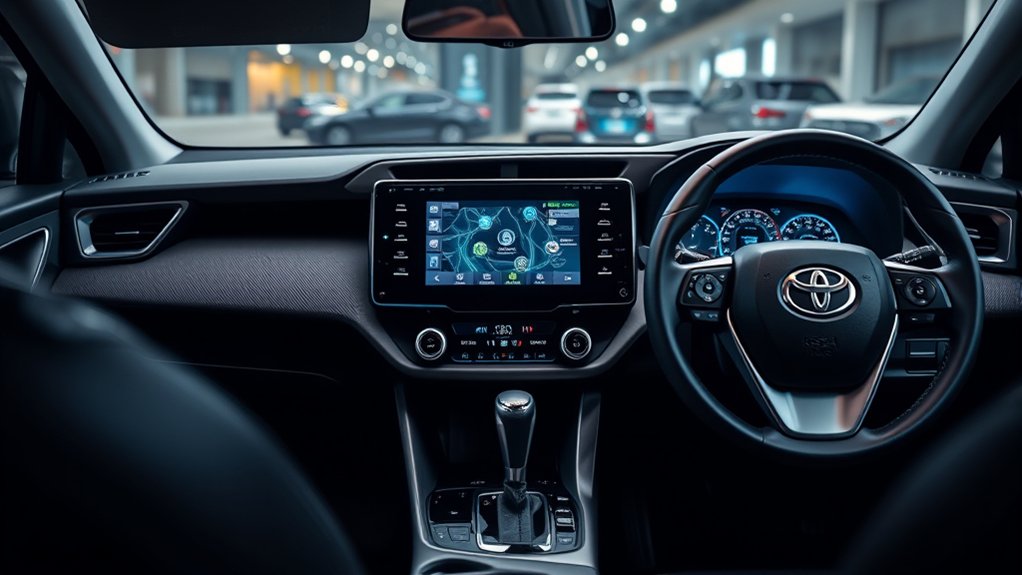
The phrase RAV4 Hybrid display can refer to more than one screen. Knowing which screen has a problem prevents you from following the wrong update or reset procedure.
- Audio Multimedia touchscreen: The center screen used for audio, phone pairing, navigation, Apple CarPlay, Android Auto, cameras, and many vehicle settings.
- Multi-information display or digital gauge cluster: The driver-facing screen that shows speed, warnings, fuel economy, trip data, safety-system status, and hybrid information.
- Hybrid energy monitor: A page available on the driver display, center screen, or both, depending on model year and equipment. It shows energy movement between the engine, electric motors, hybrid battery, and wheels.
- Phone-projection screen: Apple CarPlay or Android Auto content displayed through the center screen. It does not replace the RAV4’s native settings system.
On many models, the steering-wheel switches control the driver display while the touchscreen controls the multimedia system. Available layouts, menu names, screen sizes, and profile features vary by year and trim.
The correct update method depends on the installed multimedia system—not simply on whether the vehicle is called a RAV4 Hybrid.
Which RAV4 Hybrid Update Method Applies?
Toyota has used several multimedia generations in the RAV4. Use this table as a starting point, then confirm the procedure in your exact manual.
| Model years | Typical system | Best way to check for updates |
|---|---|---|
| 2018–2022 | Earlier Toyota multimedia systems; equipment varies by trim and market | Use the Toyota Software Updates portal and the exact Navigation and Multimedia System Owner’s Manual. Some updates require USB or dealer assistance; not every system has a downloadable update. |
| 2023–2025 | Toyota Audio Multimedia with wireless Apple CarPlay and Android Auto on U.S. RAV4 models | Open the system’s Software Update menu. Eligible systems can use the vehicle’s data connection or Wi-Fi, with a Toyota-provided USB process available for some updates. |
| 2026 and newer redesign | Next-generation Toyota Audio Multimedia with a redesigned interface and customizable widgets | Use the on-screen Software Update menu and follow DCM or Wi-Fi instructions. The current 2026 manual describes an activation stage that can briefly immobilize the vehicle. |
Note: Canadian and other non-U.S. vehicles may use different portals, update availability, connected services, or menu names. Use the manual supplied for the vehicle’s original market.
Checking for RAV4 Hybrid Display Updates
Start with Toyota’s official resources rather than downloading files from an owner forum or third-party website.
- Record the model year and VIN. The VIN appears near the lower driver-side windshield and on the driver-door label.
- Open Toyota’s owner resources. Use the Toyota Manuals and Warranties page to locate the correct multimedia manual.
- Check the center screen. Look under Settings for a menu named Software Update, Software Information, or a similar term.
- Check Toyota’s portal. Enter the requested vehicle information at the Toyota Audio Multimedia Software Updates portal.
- Review open recalls. If the driver display is blank or fails at startup, enter the VIN at the NHTSA recall lookup and Toyota’s recall page.
If the system reports “No updates available,” that usually means Toyota is not offering a newer package for that exact system at that time. It does not mean every Toyota uses the same version number.
Pro Tip: Photograph the software-information screen and your preferred audio, brightness, phone, and home-screen settings before updating. Toyota notes that some settings may return to their defaults after certain updates.
How to Perform an Over-the-Air Update
Use this procedure only when your RAV4 displays an update notification or includes a Software Update menu that supports the vehicle’s data connection or Wi-Fi.
Preparing Your Vehicle
- Park outdoors or in a safe, well-ventilated location where the vehicle can remain stationary.
- Make sure the 12-volt electrical system is in normal condition and the vehicle is not showing a low-voltage warning.
- Remove unnecessary USB devices from the media ports.
- If the system requires Wi-Fi, connect it to a trusted network with a stable signal.
- Temporarily disconnect wireless Apple CarPlay or Android Auto if it prevents the multimedia system from maintaining its Wi-Fi connection.
- Read the update notice and any restrictions shown on the screen before accepting.
Do not assume the hybrid gasoline engine must run continuously. The required vehicle power mode differs by system. Follow the on-screen instructions and the vehicle-specific multimedia manual.
Installing the Update
- Touch the update notification, or open Settings and select Software Update.
- Review the available version, update notes, and terms.
- Select the download or update option shown by the system.
- Leave the vehicle parked while the download and installation continue.
- Avoid using the multimedia system unless necessary because it may respond slowly during the update.
- Allow the system to restart or complete an activation step when prompted.
- After completion, return to the Software Update screen and check the update history or installed version.
Toyota does not publish one universal RAV4 update time. Download and installation time can change with the connection, system generation, and update content. Use the estimate displayed in the vehicle and do not interrupt the process simply because it exceeds a time quoted by an unofficial guide.
Warning for 2026 models: Toyota’s current 2026 RAV4 multimedia manual says the vehicle may be immobilized for up to three minutes during the update’s activation process. Park in a safe place before selecting Activate and wait for the completion message.
USB Update Process for Eligible RAV4 Systems
A USB update is not limited to one group of model years, and it is not available for every RAV4. Use it only when Toyota’s portal or your multimedia system provides a USB update for the exact vehicle.
Required USB Specifications
Do not apply a universal 32 GB rule. Toyota’s 2023 RAV4 multimedia manual calls for a compatible USB drive with more than 2 GB of available space, while another update package may have different requirements.
For the most reliable result:
- Use a good-quality USB drive without unrelated files.
- Follow the file-system and capacity instructions supplied with the downloaded package.
- Do not rename the update files.
- Place the files in the location specified by Toyota. On systems that require the files in the root directory, do not put them inside a new folder.
- Use the vehicle’s data/media USB port rather than a charge-only port.
Downloading the Correct Update Files
- Open the vehicle’s Software Update menu and check whether it offers an option such as Output Info to USB Memory.
- If required, insert the USB drive and allow the vehicle to write its system information to the drive.
- Move the USB drive to an internet-connected computer.
- Visit the official Toyota Software Updates portal.
- Enter the requested vehicle or system information and download only the package Toyota provides.
- Copy the update package to the USB drive exactly as directed.
If Toyota’s portal returns no eligible update, do not substitute a file intended for another model, year, region, or head unit.
Installing a USB Update
- Park the RAV4 safely and place it in the power mode specified by the update instructions.
- Insert the prepared USB drive into the correct media port.
- Open Settings and select the software-update option shown by your system.
- Select Update Software or the equivalent command.
- Review and accept the update details.
- Do not remove the USB drive or turn off the vehicle while the system says it is copying or installing data.
- If a restart is required, leave the USB drive connected until the screen says it can be removed.
- Confirm the completion message, update history, and installed version.
Note: Toyota’s multimedia firmware portal does not provide navigation and map updates. Map data may use a separate connected service, update product, or dealer procedure depending on the system.
Troubleshooting RAV4 Hybrid Display Issues
Begin with the least destructive step. A factory reset can erase paired phones, profiles, favorites, navigation destinations, and other saved information.
Restart a Frozen or Slow Touchscreen
When the center multimedia system is extremely slow or unresponsive, press and hold the POWER/VOLUME knob for at least three seconds. Release it when the system restarts.
This is a restart, not a factory reset. It should not intentionally erase your saved data.
No Update Appears
- Confirm that the vehicle has the update-capable multimedia system described in the manual.
- Check that Wi-Fi is enabled and connected where Wi-Fi is required.
- Disconnect wireless phone projection if it is taking over the Wi-Fi connection.
- Check Toyota’s portal for the exact vehicle rather than relying only on the screen.
- Remember that Toyota releases updates as needed; there may be no newer package.
- Ask a dealer to check for Technical Service Bulletins, service campaigns, or dealer-only software when a known problem continues.
USB Drive Is Not Recognized
- Confirm that you are using the media/data port rather than a charging-only port.
- Remove hubs, adapters, and extension cables.
- Check the required drive format and available space in Toyota’s instructions.
- Make sure the update files are not inside an extra folder when Toyota requires them in the root directory.
- Verify that the files were not renamed, unzipped incorrectly, or downloaded for another system.
- Try another compatible USB drive if the first one remains unreadable.
The Update Stalls or Is Interrupted
Do not repeatedly remove power or disconnect the USB drive. Some wireless updates resume the next time the vehicle starts, while an interrupted USB installation may require the same drive to remain connected. Follow the message on the display.
Contact a Toyota dealer if the system remains on the update screen, repeatedly reboots, displays an error code, or loses major functions after the update.
Apple CarPlay or Android Auto Will Not Connect
- Restart the phone and multimedia system.
- Confirm Bluetooth and Wi-Fi are enabled for a wireless connection.
- For a wired connection, use a data-capable cable in good condition.
- Delete the phone from the RAV4 and delete the RAV4 from the phone, then pair them again.
- Install current phone operating-system updates.
- Check Toyota’s phone-compatibility information if the problem started after changing phones.
The Screen Looks Dim or Washed Out
- Check the day/night display setting and brightness control.
- Make sure the dashboard illumination control is not set unusually low.
- Clean the screen gently with a soft lens-cleaning or microfiber cloth.
- View the screen without polarized sunglasses. Toyota notes that polarized lenses can make an LCD appear dark or difficult to see.
- Adjust camera brightness separately if only the rear or panoramic camera image is too dark.
The Driver Gauge Display Is Blank
A blank driver display is not the same as a frozen center touchscreen. The gauge display carries speed, warning lights, malfunction indicators, and other safety information.
Do not rely on a multimedia restart to correct a blank instrument cluster. Check the VIN at NHTSA.gov/Recalls and Toyota’s recall lookup, then contact a dealer. Certain Toyota vehicles have been recalled because a 12.3-inch instrument display may remain blank at startup.
Use a Factory Reset Only as a Last Resort
Menu names vary by generation:
- Some earlier systems use Setup > General > Delete Personal Data.
- Some 2023-style Toyota Audio Multimedia systems place System Reset under Info & Security.
- Later systems may place the reset command in profile or system settings.
Read the confirmation screen carefully. A factory reset can remove personal information, profiles, phones, favorites, and customized settings, and the deleted information may not be recoverable.
Customizing Your RAV4 Display Settings
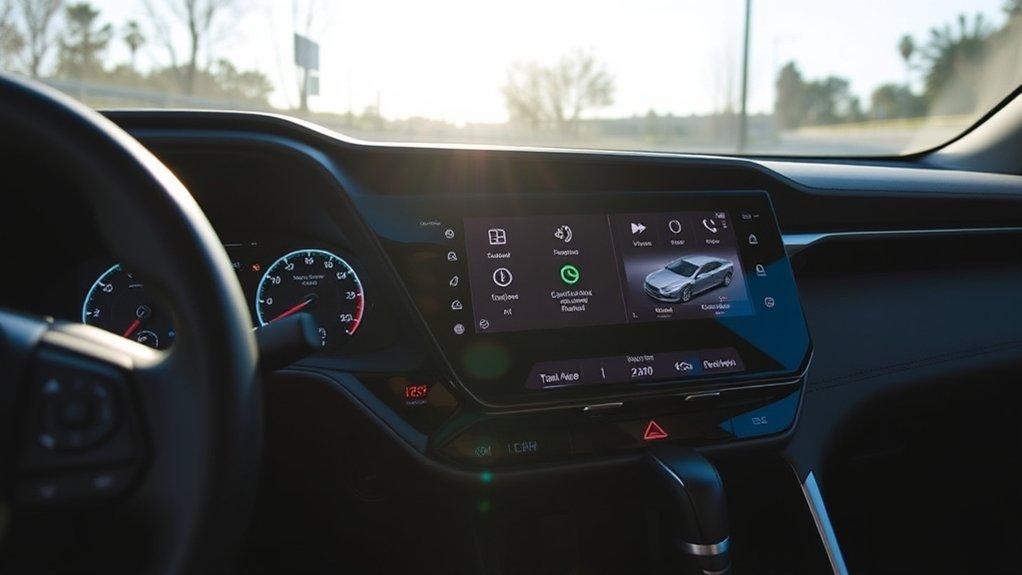
Customization options depend on which screen you are using.
Center Multimedia Screen
- Adjust screen brightness and contrast for day and night use.
- Change camera brightness or contrast where equipped.
- Pair phones and choose the primary Bluetooth device.
- Rearrange supported shortcuts, applications, or widgets.
- Adjust sound balance, tone, and voice-guidance volume.
- Choose whether compatible phones launch Apple CarPlay or Android Auto.
- Review update notifications and automatic-download settings where available.
Driver Display or Digital Gauge Cluster
- Use the steering-wheel controls to select fuel-economy, trip, safety-system, compass, audio, and hybrid-information pages.
- Choose the energy monitor or fuel-consumption screen when available.
- Adjust units, warning sensitivity, and driver-assistance display options supported by the trim.
- On digital clusters, choose an available gauge layout or information arrangement.
Use Hybrid Information Effectively
The energy monitor shows what the hybrid system is doing; it does not let you manually command power to a specific motor or wheel. Use it to learn how gentle acceleration, coasting, and regenerative braking affect energy flow.
For longer-term tracking, use an average fuel-economy or trip screen rather than watching the animated energy arrows continuously. This reduces distraction and gives you more useful data over a full trip.
Use Driver Profiles Where Supported
On supported Toyota Audio Multimedia systems, a Toyota account can save some profile settings in the cloud. A compatible profile may load in another supported Toyota, but not every vehicle setting transfers between generations, trims, or regions.
After an update or profile transfer, verify important settings such as paired devices, display brightness, audio preferences, units, and driver-assistance options.
How Dealers Assist With RAV4 Display Updates
A Toyota dealer can identify the multimedia head unit, compare its software with Toyota’s service information, and determine whether a dealer-only update applies.
Dealer assistance is especially useful when:
- The Toyota portal does not provide an owner-installable package.
- The update repeatedly fails or the system continually reboots.
- The display problem matches a Technical Service Bulletin.
- The update affects an ECU, instrument cluster, safety system, recall, or service campaign.
- The center screen, amplifier, camera, USB port, antenna, or display hardware may be faulty.
- A factory reset and correct software update do not solve the problem.
During a service visit, ask the advisor to check the VIN for open recalls, service campaigns, and applicable multimedia or combination-meter software updates. A recall repair is performed without charge, while ordinary diagnostic work or optional updates may be handled under warranty, dealer policy, or customer-pay service.
When to Visit the Dealer for Help
Schedule professional service when any of the following occurs:
- The instrument cluster remains blank. Important warnings and vehicle information may be hidden.
- The screen restarts repeatedly. A boot loop can indicate corrupted software, unstable power, or hardware failure.
- The update reports an error and will not resume. Do not install files from another Toyota in an attempt to recover it.
- Cameras or safety information disappear. A rear-camera, panoramic-view, or warning-display fault deserves prompt diagnosis.
- The touchscreen has dead areas, lines, discoloration, or physical damage. Software is unlikely to repair damaged display hardware.
- The USB port cannot read any known-good device. The port or multimedia hardware may need testing.
- A recall, campaign, or dealer-only update is open. Let the dealer complete the approved repair.
Frequently Asked Questions
Can I use my smartphone to control the RAV4 display?
A compatible phone can provide Apple CarPlay or Android Auto apps for navigation, calls, messages, music, and other supported functions. The Toyota app can also operate selected remote vehicle features on eligible vehicles. However, a phone does not generally control native display brightness, gauge layouts, the hybrid energy monitor, or all vehicle settings.
How do I restart a frozen RAV4 multimedia screen?
On RAV4 systems with a POWER/VOLUME knob, press and hold the knob for at least three seconds. This restarts the multimedia system without intentionally erasing saved data. If the display does not restart or continues freezing, check for an update and arrange dealer diagnosis.
How do I reset the RAV4 display to factory settings?
The path depends on the multimedia generation. Earlier systems may use Setup, General, and Delete Personal Data. Some newer systems use Info & Security and System Reset, while later systems may place it under profile settings. Check the exact manual and back up important information because a factory reset can remove phones, profiles, destinations, favorites, and preferences.
Will a Toyota multimedia update affect my warranty?
Installing an update supplied by Toyota for the correct vehicle does not automatically void the vehicle warranty. However, damage caused by an incorrect file, unauthorized modification, improper repair, or interrupted installation may not be covered. Use Toyota’s official portal and follow the vehicle-specific instructions.
Can I transfer my settings to a new RAV4?
Some supported Toyota Audio Multimedia systems can store compatible profile settings in the cloud through a linked Toyota account. Not every preference transfers between model years, multimedia generations, trims, or regions, so review all important settings after loading the profile in another vehicle.
Are there costs associated with display updates?
An eligible owner-download or over-the-air update is often provided without an installation charge, but availability and pricing are determined by Toyota. A dealer may charge for diagnosis or an update that is outside warranty coverage. Recall and safety-campaign repairs are completed without charge.
Why does my RAV4 say no software update is available?
The installed software may already be current, Toyota may not have released a newer package for that head unit, or the vehicle may require a different update route. Check the official portal and exact multimedia manual. There is no universal RAV4 software-version number that applies to every year and system.
Does a multimedia software update also update the navigation maps?
Not necessarily. Toyota’s public multimedia firmware portal states that navigation and map updates are not supplied through that portal. Depending on the system, maps may update through a connected navigation service, a separate product, or a Toyota dealer.
Is a blank gauge cluster the same as a frozen multimedia screen?
No. The center multimedia screen handles entertainment, phone, navigation, and settings, while the gauge cluster displays speed, warnings, and vehicle status. If the gauge cluster remains blank, check the VIN for recalls and contact a Toyota dealer rather than relying only on a multimedia restart.
Conclusion
The safest way to optimize or update a Toyota RAV4 Hybrid display is to identify the screen and multimedia generation first. Earlier RAV4 systems, 2023–2025 Toyota Audio Multimedia units, and the redesigned 2026 system do not share one universal update procedure.
Use Toyota’s vehicle-specific manual and software portal, follow every on-screen instruction, and avoid unsupported files or fixed version targets found online. Restart a frozen center screen with the POWER/VOLUME control, reserve a factory reset for last, and contact a dealer when the instrument cluster is blank, an update repeatedly fails, or a recall or dealer-only repair may apply.
Sources
- Toyota Audio Multimedia System Updates — official overview of over-the-air, USB, and dealer update options
- Toyota Software Updates Portal — vehicle-specific multimedia update eligibility and downloads
- 2023 Toyota RAV4 Multimedia Owner’s Manual — software-update menus, Wi-Fi and USB procedures, restart instructions, profiles, and reset information
- 2026 Toyota RAV4 Multimedia Owner’s Manual — next-generation update, activation, profile, widget, and screen-setting instructions
- Toyota Connected Services — official Apple CarPlay, Android Auto, Toyota app, and connected-service information
- NHTSA Recall Lookup — VIN-based search for open vehicle safety recalls
