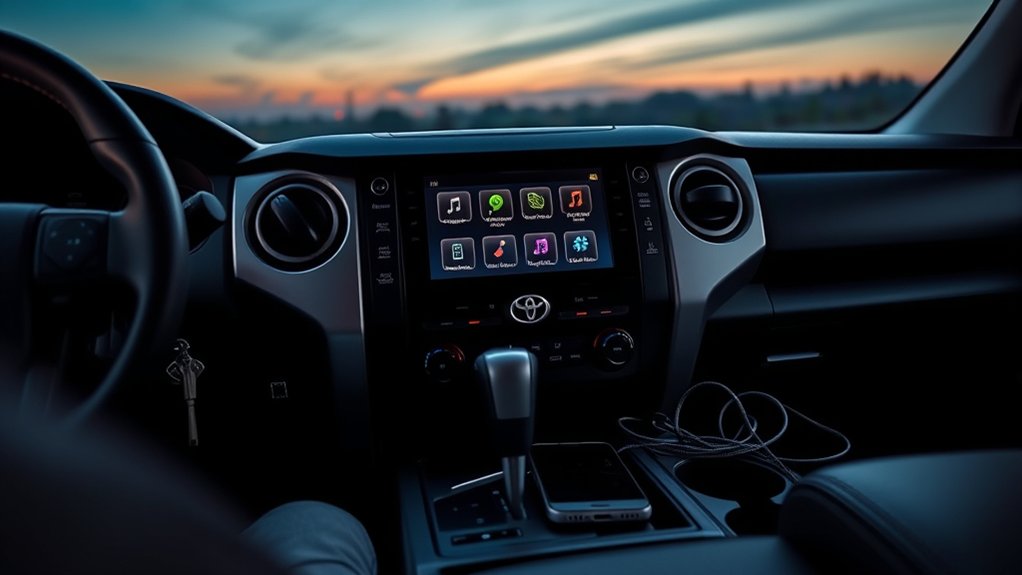
If Toyota Tundra Apple CarPlay is not working, the correct fix depends first on the truck’s model year and connection type. Most 2020–2021 Tundras use wired CarPlay through the USB media port, while 2022–2026 models support factory wireless CarPlay. Checking the wrong connection can waste time, so identify your system before changing settings or replacing equipment.
Quick Answer
Park the truck, confirm whether your Tundra uses wired or wireless CarPlay, enable Siri, and restart the iPhone and multimedia system. For wired CarPlay, use the USB media/data port and a known-good certified data cable. For wireless CarPlay, turn on Bluetooth, Wi-Fi, and Auto-Join, then forget and re-pair the truck if needed.
Key Takeaways
- 2020–2021 Tundras generally use wired CarPlay; 2022–2026 models support factory wireless CarPlay.
- A USB port or cable can charge an iPhone without carrying the data required for CarPlay.
- Wireless CarPlay requires both Bluetooth and Wi-Fi, plus Auto-Join for the CarPlay network.
- Siri and CarPlay must not be blocked by the iPhone’s Screen Time restrictions.
- Test another cable or iPhone before assuming the Tundra’s radio needs repair.
At a Glance
| Time Required | 10–25 minutes |
| Difficulty | Easy |
| Tools Needed | Compatible iPhone, vehicle key, and a known-good data cable for wired testing |
| Cost | Usually $0; approximately $10–$30 if a replacement data cable is needed |
Warning: Park the Tundra in a safe location before pairing devices, deleting connections, changing iPhone settings, or updating the multimedia system. Do not troubleshoot the display while driving.
Confirm Your Tundra’s CarPlay Type First
Factory Apple CarPlay arrived on the U.S.-market Toyota Tundra for the 2020 model year. The connection method then changed with the redesigned 2022 truck.
| Tundra model year | Typical factory CarPlay setup | Where to begin |
| 2019 and older | No factory Apple CarPlay on the original U.S.-spec system | Troubleshoot the installed aftermarket radio or confirm whether a compatible replacement system is required. |
| 2020–2021 | Wired Apple CarPlay through the USB media/data port | Check the cable, phone connector, and correct USB media port. |
| 2022–2026 | Factory wireless Apple CarPlay, with USB data connectivity also supported by the multimedia system | Check Bluetooth, Wi-Fi, Siri, the vehicle’s CarPlay setting, and the saved pairing. |
Equipment can vary by country, radio replacement, and individual vehicle configuration. Check the multimedia manual for your VIN and model year when your controls do not match the steps below. Apple also maintains a current CarPlay vehicle compatibility list.
Common Reasons for Toyota Tundra Apple CarPlay Issues
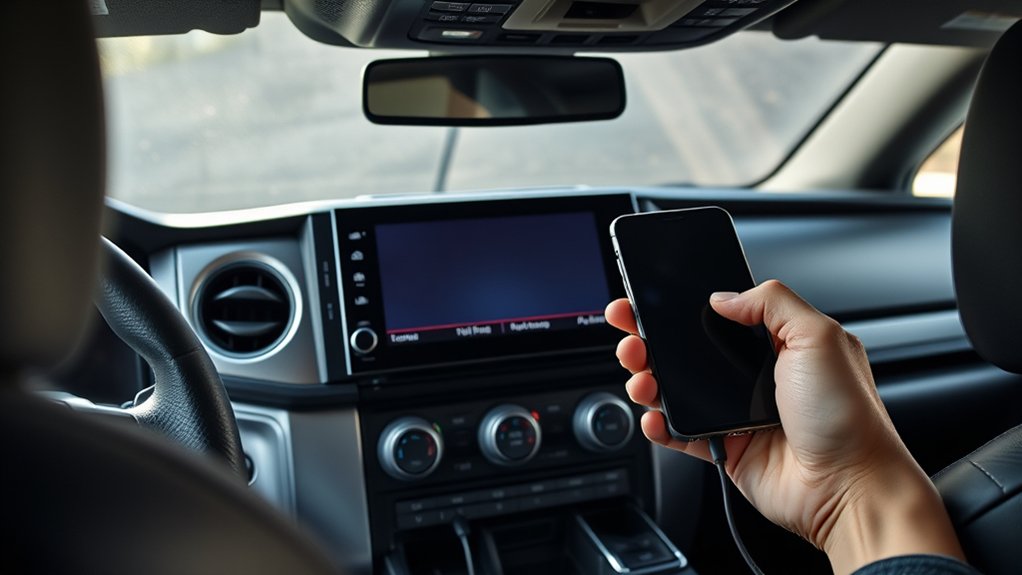
When Apple CarPlay stops working in a Toyota Tundra, the failure normally comes from the connection, an iPhone setting, the saved pairing, or outdated multimedia software. The most common causes include:
- Wrong USB port: The phone is connected to a charge-only port instead of the USB media/data port.
- Power-only or damaged cable: The cable charges the phone but cannot maintain a stable data connection.
- Bluetooth or Wi-Fi is off: Both are required to establish and maintain wireless CarPlay.
- Auto-Join is disabled: The iPhone sees the CarPlay Wi-Fi network but does not reconnect to it automatically.
- Siri is disabled: CarPlay setup and voice functions require Siri.
- CarPlay is restricted: Screen Time restrictions can prevent the vehicle from detecting CarPlay.
- The phone is saved only for calls or audio: The Tundra’s device profile may have “Use for Apple CarPlay” turned off.
- Corrupted pairing information: The saved connection on the iPhone or Tundra may need to be deleted and created again.
- Outdated software: The iPhone or Toyota multimedia system may need an available update.
- Aftermarket equipment: Wireless adapters, USB hubs, radio interfaces, and replacement head units can add another failure point.
Note: Wireless charging and wireless CarPlay are separate functions. Placing an iPhone on the charging pad does not pair or start CarPlay.
Immediate Troubleshooting Steps for CarPlay Connectivity
Follow these steps in order and test CarPlay after each one. Stop when the connection begins working normally.
1. Complete the Basic iPhone Checks
- Place the Tundra in Park and keep the vehicle on while testing.
- Unlock the iPhone and confirm that it is compatible with CarPlay.
- Open Settings > Siri or Settings > Apple Intelligence & Siri, depending on the iOS version, and make sure Siri is enabled.
- Open Settings > Screen Time > Content & Privacy Restrictions > Allowed Apps & Features. If restrictions are active, confirm that CarPlay is allowed.
- Restart the iPhone.
- Turn the Tundra fully off, open and close the driver’s door, wait briefly, and restart the vehicle.
- If CarPlay does not open automatically, select the CarPlay icon on the multimedia screen.
These checks follow Apple’s official CarPlay troubleshooting guidance.
2. Troubleshoot Wired CarPlay on a 2020–2021 Tundra
- Find the USB media port. Use the port identified for media or smartphone data, not a rear-seat, console, or other charge-only port.
- Connect directly. Remove USB hubs, extension cables, splitters, and unnecessary adapters.
- Try another data cable. Use a genuine Apple or properly certified cable that supports both charging and data.
- Inspect both connectors. Look for a loose fit, damaged cable ends, or visible debris. Do not insert metal tools into the phone or vehicle port.
- Reconnect with the phone unlocked. Accept any permission prompt that appears on the iPhone or Tundra screen.
- Test a second compatible iPhone. If another phone works with the same port and cable, the original iPhone or its settings are the likely cause.
Pro Tip: A cable is not proven good merely because it charges the phone. Test it with a known data connection or replace it temporarily with another certified data cable.
3. Troubleshoot Wireless CarPlay on a 2022–2026 Tundra
- On the iPhone, open Settings > Bluetooth and turn Bluetooth on.
- Open Settings > Wi-Fi and turn Wi-Fi on.
- Tap the information button beside the CarPlay network and verify that Auto-Join is enabled.
- On the Tundra display, open Settings > Bluetooth & Devices.
- Select the iPhone and confirm that Use for Apple CarPlay is turned on.
- If the phone is not listed, choose Add Another Device or the equivalent option, select the iPhone, and confirm the matching PIN.
- Accept the CarPlay prompts on both screens.
- When several phones are saved, temporarily disable Bluetooth on the phones you do not want the Tundra to select.
Toyota’s current multimedia instructions require Siri for CarPlay and direct owners to enable Bluetooth and Wi-Fi for a wireless connection. The exact wording and menu layout can vary slightly by software version.
4. Forget the Connection and Pair It Again
If the connection previously worked but has become unreliable, delete the saved relationship on both sides:
- On the iPhone, open Settings > General > CarPlay.
- Select the Toyota Tundra and tap Forget This Car.
- Open the Tundra’s Bluetooth & Devices menu.
- Select the iPhone and remove or delete it from the vehicle.
- Restart the iPhone and Tundra.
- Set up wired or wireless CarPlay again using the correct method for the truck.
Deleting both records is more effective than removing only the Bluetooth connection because it clears the saved CarPlay permissions and device profile.
Why the iPhone Charges but CarPlay Does Not Work
Charging confirms only that electrical power is reaching the iPhone. CarPlay also needs a working data path. The phone may therefore charge without launching CarPlay when:
- The iPhone is connected to a charge-only USB port.
- The cable supports power but not data.
- The cable’s data conductors are damaged.
- A USB hub or adapter interrupts communication.
- The phone connector is loose or contaminated.
- The Tundra’s CarPlay setting for that phone is disabled.
- A 2022-or-newer truck is running wireless CarPlay from a different saved phone while the connected phone is only charging.
Toyota’s multimedia manual states that a USB port intended only for charging cannot run smartphone applications and that the wireless charging pad does not start wireless CarPlay. Use the USB media/data port specified in the Toyota multimedia manual.
What to Do When CarPlay Connects but Glitches
CarPlay Connects but Has No Sound
- Raise the Tundra’s multimedia volume and make sure mute is off.
- Adjust the volume while navigation guidance or a call is actively speaking because those volume levels may be controlled separately.
- Open a built-in Apple app such as Music, Maps, or Podcasts to determine whether only one third-party app is affected.
- Close and reopen the affected app on the iPhone.
- Disconnect and reconnect CarPlay, then restart both systems if audio remains unavailable.
CarPlay Shows a Black or Blank Screen
- Select the CarPlay icon manually from the Tundra’s multimedia menu.
- Return to the Toyota home screen and reopen CarPlay.
- Disconnect the USB cable or wireless session and reconnect it.
- Restart the iPhone and cycle the vehicle off and back on.
- Test another compatible iPhone to determine whether the display problem follows the phone.
CarPlay Keeps Disconnecting
- For wired systems, replace the cable and confirm that the plug does not move loosely in either port.
- For wireless systems, verify that Bluetooth, Wi-Fi, and Auto-Join remain enabled.
- Remove duplicate or unused phone profiles from the Tundra.
- Check whether the problem occurs only in one app. If it does, update or reinstall that app rather than resetting the entire multimedia system.
- Remove a third-party wireless CarPlay adapter and test the factory connection directly.
Updating Your iPhone and Tundra
Software updates can correct compatibility, security, and stability problems, but avoid relying on a specific iOS version number because the current release changes over time.
Update the iPhone
- Back up important iPhone data.
- Connect the phone to power and a reliable internet connection.
- Open Settings > General > Software Update.
- Install the latest update offered for that iPhone.
- Restart the phone and test CarPlay again.
Update the Tundra Multimedia System
Newer Toyota Audio Multimedia systems may support over-the-air updates through the display. Other eligible systems use an update downloaded to a compatible USB drive. Check the truck’s exact model year and system through Toyota’s Audio Multimedia System Updates portal.
- Follow only the update instructions supplied for the exact vehicle and multimedia unit.
- Do not remove power or the USB drive while an installation is underway.
- Do not assume that a navigation-map update and a multimedia firmware update are the same product.
- Contact a Toyota dealer when no update is listed but the system repeatedly freezes, reboots, or fails with multiple compatible phones.
Top Accessories to Enhance CarPlay Performance in Your Tundra
Accessories should be considered only after the factory connection has been tested. The following items can help in the right situation:
- Certified data cable: A short, high-quality cable can reduce loose connections and eliminates a common wired-CarPlay failure point.
- Correct connector type: Use a direct USB-A-to-Lightning, USB-A-to-USB-C, or USB-C data cable that matches the truck and iPhone whenever possible. Extra adapters can create another point of failure.
- Wireless CarPlay adapter for a 2020–2021 truck: An adapter may add wireless operation to a working factory wired-CarPlay system, but compatibility and startup reliability vary. Confirm that the adapter specifically supports the Tundra’s factory radio.
- Aftermarket multimedia receiver: This is mainly relevant to 2019-and-older Tundras without factory CarPlay. Verify dash fitment, cameras, factory amplifiers, microphones, USB ports, and steering-wheel controls before installation.
- Phone mount: A secure mount can keep the phone accessible without placing it in a cup holder or loose storage area, although the display and voice controls should remain the main interfaces while driving.
Note: A third-party wireless adapter cannot repair a faulty USB media port. The factory wired connection must work reliably before the adapter can operate.
User Experiences and Solutions From Tundra Owners
Owner discussions commonly point to cable replacement, deleting both saved pairings, and updating the phone or multimedia system. Those reports can help identify patterns, but they should not replace a controlled test.
The most useful approach is to change only one variable at a time:
- Test another known-good data cable.
- Test the correct USB media port.
- Test another compatible iPhone in the Tundra.
- Test the original iPhone in another CarPlay-equipped vehicle, when possible.
- Remove aftermarket adapters and reconnect directly.
If two compatible iPhones fail in the same Tundra but work in another CarPlay vehicle, the Tundra’s USB port, saved device settings, multimedia software, or hardware becomes the more likely cause. If one iPhone fails in several CarPlay vehicles while other phones work, focus on that iPhone’s settings, connector, software, or Apple support options.
When to Contact Toyota, Apple, or an Installer
Contact a Toyota dealer or Toyota support when:
- Multiple compatible iPhones fail in the Tundra.
- The multimedia system freezes, reboots, or loses other functions.
- The USB media port is loose, damaged, or has no data connection.
- No applicable software update is available and re-pairing does not help.
- The truck displays a persistent multimedia error message.
Contact Apple support when:
- The same iPhone fails in more than one CarPlay vehicle.
- The iPhone’s connector is damaged or unreliable.
- CarPlay remains unavailable after restrictions, Siri, software, and pairing have been checked.
Contact the equipment manufacturer or installer when:
- The truck uses a replacement radio, wireless adapter, amplifier interface, or custom USB extension.
- CarPlay stopped after aftermarket equipment was installed or updated.
- Factory features such as cameras or steering-wheel controls also stopped working.
Frequently Asked Questions
Why does my Toyota Tundra Apple CarPlay work only sometimes?
Intermittent CarPlay is commonly caused by a loose or failing data cable, a damaged connector, disabled Wi-Fi Auto-Join, competing saved phones, corrupted pairing information, or outdated software. Test the connection after each change so you can identify the actual cause.
Why is my Toyota Apple CarPlay not working?
First confirm the vehicle’s connection type. A 2020–2021 Tundra generally needs a data cable connected to the USB media port. A 2022–2026 Tundra can use wireless CarPlay and requires Siri, Bluetooth, Wi-Fi, and the vehicle’s Apple CarPlay setting to be enabled.
How do I fix glitchy Apple CarPlay?
Restart the iPhone and Tundra, replace the wired data cable or check wireless Auto-Join, remove duplicate phone profiles, update both systems, and test another iPhone. Use a full multimedia reset only after these steps and after confirming what saved settings the reset will erase.
Why is Apple CarPlay not working even though my phone is charging?
Charging requires power, but CarPlay also requires data. The phone may be connected to a charge-only port, a power-only cable, or a damaged cable. Connect directly to the Tundra’s USB media/data port with a known-good certified data cable.
Which Toyota Tundra years have wireless Apple CarPlay?
The redesigned 2022 Tundra introduced factory wireless Apple CarPlay, and Toyota continues to offer it on 2023–2026 models. Factory-equipped 2020–2021 Tundras generally use a wired USB connection.
Does Apple CarPlay require a Toyota subscription?
No Toyota Connected Services subscription is normally required to use Apple CarPlay. The iPhone may still need cellular data for live maps, streaming, messages, and other online functions, and normal carrier charges can apply.
Conclusion
When Toyota Tundra Apple CarPlay is not working, begin with the truck’s model year instead of replacing equipment immediately. Check the USB media port and data cable on a 2020–2021 Tundra, or Bluetooth, Wi-Fi, Auto-Join, Siri, and the saved device profile on a 2022–2026 model. Restarting, deleting both saved connections, updating the software, and testing another phone will resolve or isolate most problems. If several compatible phones fail in the same truck, have Toyota inspect the multimedia system or USB data connection.
Sources
- Apple Support: If You Need Help With CarPlay — Official connection, settings, restart, restriction, and re-pairing steps.
- Toyota Support: How to Set Up Apple CarPlay — Official wired and wireless setup guidance.
- Toyota Tundra Multimedia Owner’s Manual — USB data-port, cable, Siri, Bluetooth, Wi-Fi, and malfunction guidance.
- Toyota Audio Multimedia System Updates — Official vehicle-software update portal.
- Toyota: 2026 Tundra Multimedia Features — Confirms standard wireless Apple CarPlay on the current Tundra.
- National Highway Traffic Safety Administration: Distracted Driving — Safety guidance for avoiding phone and infotainment distraction while driving.