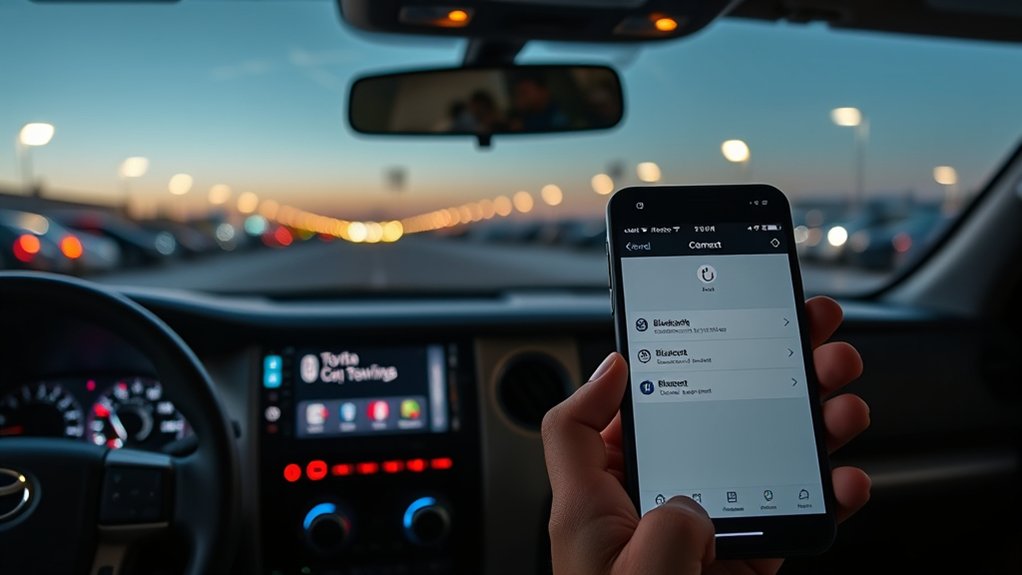
If your Toyota Tundra shows your phone as paired but will not connect, drops calls, or refuses to play music, the cause is usually a stale pairing record, a disabled permission, competing devices, or outdated phone or multimedia software. The exact menus and reset procedure vary by model year and head unit, so work through the fixes below in order.
Quick Answer
Restart the phone and Tundra multimedia system, delete the saved connection from both devices, and pair them again while the truck is parked. Approve calls, contacts, messages, and media permissions. If every phone fails, check for a Toyota software update, open recall, or head-unit fault.
Key Takeaways
- Delete the old pairing from both the phone and the truck before reconnecting.
- Calls, music, contacts, and messages use separate permissions, so one feature can fail while the others work.
- Test a second phone to determine whether the problem is in the original phone or the Tundra.
- Use a factory reset only after simpler fixes because it removes saved devices and personal settings.
- Check Toyota’s software and recall tools when the display freezes, turns black, reboots, or fails with every phone.
At a Glance
| Time Required | 10–30 minutes for basic troubleshooting |
| Difficulty | Easy; no mechanical work is normally required |
| Tools Needed | Your phone, the vehicle key, and optionally a known-good data cable or Toyota-approved USB drive |
| Cost | Usually free; dealer diagnosis may cost extra unless covered by a warranty, recall, or service campaign |
Quick Fixes to Get Tundra Bluetooth Working Again
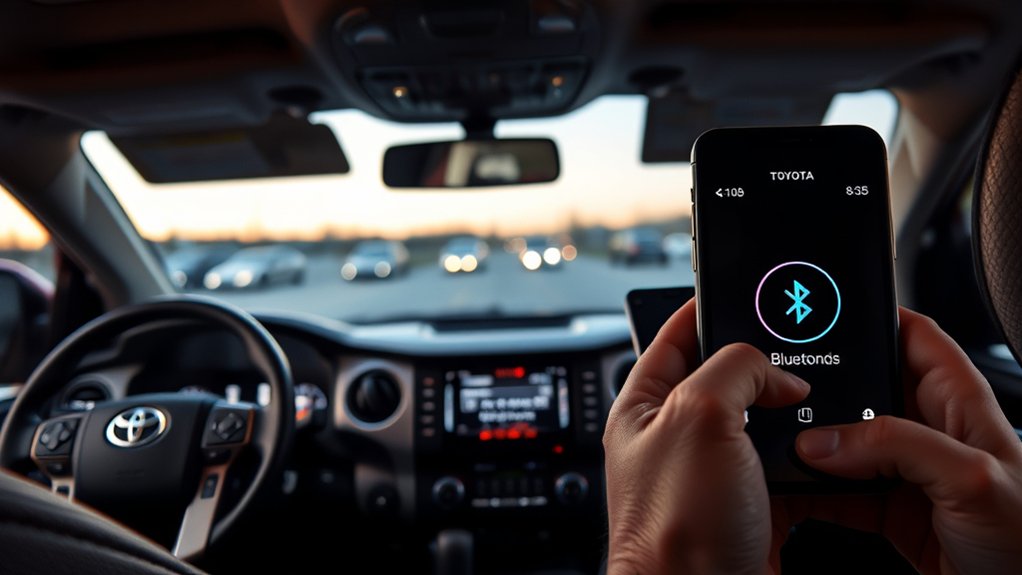
Start with these steps before changing advanced settings:
- Park the truck and place it in Park before using the phone or multimedia menus.
- Turn Bluetooth off and back on on the phone.
- Restart the phone to clear a temporary Bluetooth or operating-system fault.
- Restart the multimedia system. On many Toyota units, pressing and holding the power/volume knob until the system restarts performs a soft reboot. If your unit does not respond, use the procedure in the multimedia manual for your model year.
- Remove competing connections. Disconnect earbuds, headphones, smartwatches with call audio, wireless adapters, and other nearby phones.
- Select the correct source. If calls connect but music does not play, choose Bluetooth Audio on the Tundra and confirm that Media Audio is enabled for the vehicle in the phone’s Bluetooth settings.
- Delete and re-pair the connection if the problem remains.
Warning: Do not troubleshoot menus, enter pairing codes, or handle your phone while driving. Complete these steps while safely parked.
Identify the Bluetooth Symptom First
Bluetooth can be paired successfully even when one individual feature is disabled. Match the symptom to the most likely next step.
| Symptom | Likely Cause | Best Next Step |
|---|---|---|
| Phone is listed but will not connect | Stale pairing record or another preferred phone | Delete the connection on both devices and re-pair |
| Calls work but music does not | Media Audio disabled or wrong source selected | Enable Media Audio and select Bluetooth Audio |
| Music works but calls do not | Phone-call permission disabled or audio routed elsewhere | Enable Phone Calls and select the Tundra during a test call |
| Contacts or messages are missing | Contact or message access was denied | Enable sharing permissions and reconnect |
| Connection drops repeatedly | Software conflict, competing device, or corrupt profile | Restart, remove other devices, update, and re-pair |
| Every phone fails | Multimedia software, configuration, or hardware issue | Check updates, recalls, factory reset options, and dealer service |
Step-by-Step Troubleshooting for Bluetooth Issues
1. Check Basic Phone and Vehicle Settings
Confirm that Bluetooth is enabled and Airplane Mode is off. Keep the phone unlocked during the initial pairing process and place it close to the center display. Battery-saving modes can restrict background connections on some phones, so temporarily disable aggressive power saving while testing.
If your Tundra stores more than one driver or phone, verify that your phone is selected as the active or preferred device. Another phone in the cabin may connect first and block automatic connection to yours.
2. Delete and Re-Pair the Phone Correctly
Removing only one side of the saved connection may leave an outdated security record on the other device. Delete both records:
- Open the Tundra’s Bluetooth or Devices menu and remove the affected phone.
- Open the phone’s Bluetooth settings and forget or unpair the Toyota entry.
- Restart the phone and multimedia system.
- Return to the Tundra’s Add Device or Register Device menu.
- Select the Toyota system on the phone and confirm that the pairing numbers match.
- Approve the requested permissions for calls, contacts, messages, notifications, and media.
Menu names vary among older Entune-era radios and 2022-and-newer Toyota Audio Multimedia systems. Follow the on-screen prompts rather than relying on a menu name from a different model year.
3. Check Phone Permissions
On an iPhone, open Settings > Bluetooth, tap the information button beside the Toyota connection, and review the available options. For CarPlay settings, open Settings > General > CarPlay.
On Android, open the saved Toyota device under Connected devices or Bluetooth. Confirm that Phone Calls, Media Audio, Contact Sharing, and any nearby-device permissions are enabled. The wording differs by phone manufacturer and Android version.
If you denied access during the original pairing, deleting and pairing again is often the fastest way to display the permission prompts a second time.
4. Fix Calls Without Music or Music Without Calls
Bluetooth calling and Bluetooth music use different profiles. During a test call, use the phone’s audio selector and choose the Toyota system. For music, select Bluetooth Audio on the truck and confirm that the phone has Media Audio enabled.
Also check whether the phone is still sending audio to earbuds, a smartwatch, a portable speaker, or a wireless CarPlay or Android Auto adapter. Disconnect those accessories while testing.
5. Fix Contact and Message Sync
Allow contact sharing in the phone’s Bluetooth settings, then disconnect and reconnect. A large contact database may take time to complete its first sync, especially on an older head unit. Avoid repeatedly switching the ignition off while the initial transfer is running.
If calls and music work but contacts never appear, remove the pairing, restart both devices, and approve contact access when prompted. Message display also depends on the phone, operating system, notification permissions, and the capabilities of the installed head unit.
6. Test a Second Phone
Pro Tip: Pair a second, updated phone for a few minutes. If it works normally, focus on the original phone’s settings or software. If both phones fail in the same way, focus on the Tundra’s multimedia system.
7. Avoid Hidden Diagnostic Menus
Some Toyota head units have service or diagnostic menus accessed through special button or lighting sequences. These procedures are model-specific and are not required for normal Bluetooth pairing. Do not change hidden settings unless you are following the correct Toyota service information or working with a qualified technician.
How to Reset Your Infotainment System Correctly
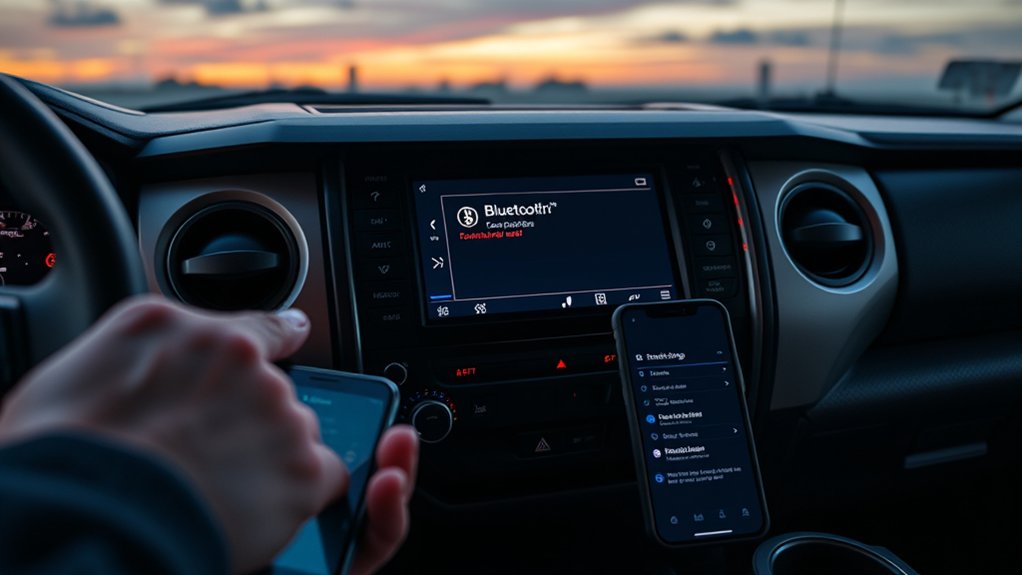
Use the least destructive reset first:
Soft Reboot
On many Toyota multimedia units, pressing and holding the physical power/volume knob until the display restarts performs a soft reboot. The exact response varies by head unit, so consult the correct Toyota owner or multimedia manual if your system does not restart this way.
Remove One Device Profile
Delete the affected phone from the truck and delete the truck from the phone. This preserves the other vehicle settings and should be attempted before resetting all personal data.
Reset the Phone’s Network Settings
If the phone cannot connect reliably to other Bluetooth devices either, consider resetting its network settings. This can erase saved Wi-Fi networks, Bluetooth devices, and related network preferences, so review the phone manufacturer’s instructions first.
Factory-Reset the Multimedia System
Use a factory or personal-data reset only after re-pairing, permissions, restarts, and updates have failed. It may erase saved phones, favorites, user profiles, audio settings, navigation preferences, and other personal data. Record anything important before confirming the reset.
Note: Disconnecting the 12-volt battery is not a routine Bluetooth fix. It can erase settings and may create additional initialization work. Use it only when the correct Toyota procedure or a qualified technician specifically requires it.
Why Firmware and Software Updates Matter
Phone operating systems and vehicle multimedia systems change over time. An update can correct compatibility, stability, call-audio, display, or reconnection problems.
For U.S.-market vehicles, enter the vehicle information at the official Toyota Audio Multimedia Software Updates portal. Toyota provides downloads only for eligible systems and may require a compatible USB drive. Other updates may be available through the vehicle’s update menu or a Toyota dealer, depending on the model year and installed hardware.
Do not install files intended for another model, year, region, or head-unit part number. Keep the vehicle powered as instructed during an update and do not remove the USB drive or interrupt the process unless Toyota’s directions say it is safe.
Why Device Management Matters
Remove phones that are no longer used, particularly devices belonging to previous owners. Too many saved devices can make it unclear which phone should connect automatically, even when the system can technically store all of them.
When several family phones are present, set the primary device or user profile where that option is available. Turn off Bluetooth temporarily on the other phones while testing automatic connection.
Renaming phones with clear labels such as “Driver iPhone” or “Work Android” can also prevent selecting the wrong device during pairing.
Common Bluetooth Connection Problems in a Toyota Tundra
Frequent Disconnections and Reconnects
Repeated dropouts can come from a damaged pairing record, outdated software, aggressive phone battery management, or another device taking control of call or media audio. Work through these checks:
- Restart both the phone and multimedia system.
- Remove and rebuild the pairing on both sides.
- Temporarily disconnect earbuds, watches, adapters, and other saved phones.
- Install current phone operating-system and Toyota multimedia updates.
- Disable battery optimization for Android Auto, music, phone, or Bluetooth system services while testing.
- Test another phone to isolate the source of the fault.
Device Compatibility Challenges
Compatibility cannot be judged reliably by saying one phone brand is always better than another. Results depend on the phone model, operating-system build, Bluetooth profiles, permissions, carrier customization, vehicle year, and head-unit software.
If an issue began immediately after a phone update, restart the phone, update all relevant apps, delete the old pairing, and pair again. If the same problem affects several unrelated phones, the vehicle side becomes the more likely cause.
Long Connection Delay After Starting
Give the system a brief period to boot before opening multiple audio apps. Confirm that another phone has not connected first. Removing unused devices and setting the correct primary phone can shorten the selection process.
If the delay lasts several minutes on every drive, update both systems and test after deleting all unused profiles. Persistent delays with multiple phones justify professional diagnosis.
Using Android Auto or Apple CarPlay When Supported
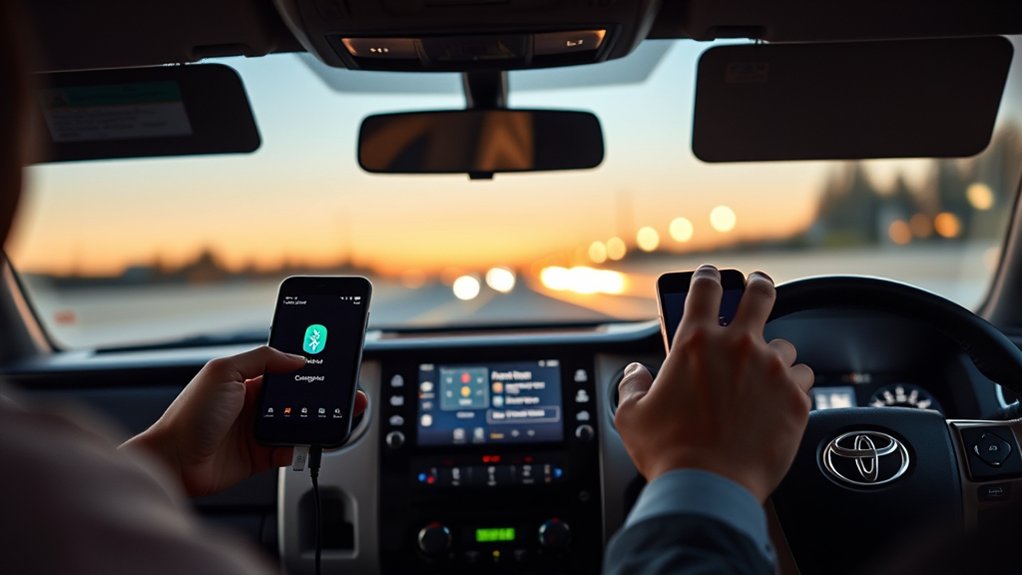
Android Auto and Apple CarPlay can provide navigation, calls, messages, and media through a compatible Tundra display. They are useful alternatives to basic Bluetooth audio, but support varies by model year, trim, market, and head unit.
Wired Connections
Use a short, high-quality data cable rather than a charge-only cable. Try the vehicle’s designated data USB port, inspect the connector for debris, and unlock the phone during initial setup. A cable that charges successfully can still fail to carry data.
Google’s Android Auto requirements specify a compatible phone, compatible vehicle or stereo, and a high-quality USB cable for wired use.
Wireless Connections
Wireless projection requires compatible hardware and uses more than a basic Bluetooth audio link. Keep both Bluetooth and Wi-Fi enabled. Apple’s CarPlay setup instructions tell users of wireless systems to place the stereo in wireless or Bluetooth mode and confirm that Wi-Fi is on.
Google also requires a compatible phone and car for wireless Android Auto, including the necessary Wi-Fi support. If wireless projection is unstable, test a wired connection where the vehicle supports one.
When Android Auto or CarPlay Will Not Help
Phone projection will not repair a frozen display, failing touchscreen, reboot loop, greyed-out Bluetooth menu, or damaged multimedia hardware. Wireless projection may also fail when the underlying Bluetooth or Wi-Fi setup is faulty.
When to Seek Professional Help
Schedule service when:
- The Bluetooth or Devices menu is missing or greyed out.
- The display repeatedly freezes, turns black, or restarts.
- The microphone or speakers fail with every phone.
- Several updated phones cannot pair.
- A factory reset does not restore normal operation.
- An update fails or the vehicle does not recognize the correct update media.
- The problem began after electrical, battery, audio, or dashboard work.
Some recent Tundra model years have been included in multimedia-display software recalls. These campaigns are not necessarily the cause of an ordinary Bluetooth pairing failure, but they are important when the center screen freezes, turns black, or fails to display correctly.
Check the 17-character VIN using the official Toyota Safety Recall and Service Campaign lookup and the NHTSA recall database. A model year alone does not confirm that a specific truck is included.
If a second phone fails in exactly the same way, the Tundra’s multimedia system—not the original phone—is the more likely source of the problem.
Frequently Asked Questions
Why is my Toyota Tundra Bluetooth not connecting?
Common causes include a stale pairing record, another preferred phone connecting first, disabled call or media permissions, phone software problems, or outdated multimedia software. Restart both systems, delete the connection from both devices, and pair again.
Why is my phone paired but not connecting automatically?
Another saved phone may have higher priority, or the stored pairing record may be corrupt. Turn off Bluetooth on other nearby phones, select yours as the primary device if that option exists, and rebuild the pairing on both sides.
Why do calls work but Bluetooth music does not play?
Call audio and media audio are separate functions. Select Bluetooth Audio as the source in the Tundra and enable Media Audio for the Toyota connection in the phone’s Bluetooth settings.
Why are my contacts or text messages not appearing?
Contact sharing or notification access was probably denied. Enable the relevant permissions and reconnect. If the prompts do not return, delete the pairing and register the phone again.
How do I reset Bluetooth in a Toyota Tundra?
First perform a soft reboot of the compatible multimedia unit, then delete the phone from the truck and the truck from the phone. Use a full personal-data or factory reset only after simpler steps fail because it removes saved settings.
Should I disconnect the battery to reset the radio?
Not as a routine Bluetooth fix. Battery disconnection can erase settings and may require additional initialization. Use the correct model-specific Toyota procedure or have a qualified technician diagnose the system.
Conclusion
Most Toyota Tundra Bluetooth problems can be resolved by restarting both systems, deleting the old pairing from the phone and truck, pairing again, and approving every required permission. Troubleshoot calls, music, contacts, and phone projection separately because each uses different settings.
If multiple phones fail, the display freezes, or the Bluetooth menu is unavailable, move beyond repeated pairing attempts. Check the official Toyota software portal and VIN recall tools, then arrange professional diagnosis when the system still does not operate normally.
Sources
- Toyota Manuals and Warranties — model-specific owner and multimedia instructions
- Toyota Audio Multimedia Software Updates — eligibility and USB update resources
- Toyota Safety Recall and Service Campaign Lookup — VIN-specific Toyota campaigns
- National Highway Traffic Safety Administration Recall Lookup — recalls, investigations, complaints, and manufacturer communications
- Apple Support: Use CarPlay With Your iPhone — wired and wireless CarPlay setup requirements
- Google Android Auto Help — phone, cable, Wi-Fi, and vehicle compatibility requirements