
Last updated: September 19, 2026 — reviewed against Toyota Tundra feature documentation, owner guidance, and current camera-display recall notices.
Toyota Tundra Trailer Backup Guide helps an equipped truck manage trailer reversing in two ways: Guidance mode provides information for manual steering, while Straight Path Assist can control steering to help the trailer back in a straight line. You still control speed and braking, and you remain responsible for mirrors, camera checks, obstacles, clearance, and stopping.
Quick Answer
On an equipped Toyota Tundra, select or register the correct trailer, turn on Trailer Backup Guide, and follow the display prompts. Once the trailer is detected, shifting to Reverse activates Guidance mode. Straight Path Assist can then provide steering assistance for straight-line backing while you continue controlling speed, braking, clearance, and stopping.
Key Takeaways
- Panoramic View Monitor is a separate camera system; Trailer Backup Guide itself includes Guidance mode and Straight Path Assist on equipped trucks.
- Straight Path Assist provides steering assistance for straight backing. It does not control the brake pedal or eliminate the driver’s responsibility for safe operation.
- A first-time trailer setup may require calibration before Trailer Backup Guide can track the trailer correctly.
- Toyota documentation allows the driver to make a steering adjustment while Straight Path Assist is active; after the steering input is released, the system can resume with a revised straight-back target.
- Feature availability, controls, trailer compatibility, and screen wording vary by model year and equipment, so follow the exact prompts and owner documentation for your truck.
At a Glance
| Main Modes | Guidance mode for manual steering; Straight Path Assist for steering assistance during straight backing |
| Driver Still Controls | Speed, braking, gear selection, clearance checks, obstacle avoidance, and stopping |
| First-Use Setup | Select or add the correct trailer and complete calibration when the truck requests it |
| Availability | Available equipment; exact controls and supported trailer configurations vary by model year, grade, package, and software |
Warning: Trailer backup technology is a driver aid, not a substitute for mirrors, a walk-around, direct observation, or a spotter. Cameras can have blind spots or distorted depth perception. Stop immediately if a person, object, warning, camera image, or trailer position is unclear.
What Do the Toyota Tundra Trailer Backup Features Actually Do?

Toyota’s towing-assistance features perform different jobs. Panoramic View Monitor improves visibility around the truck. Trailer Backup Guide uses the rear camera to help track the connected trailer and provides Guidance mode for manual steering. Straight Path Assist is the steering-assistance function within Trailer Backup Guide. An available Wireless Trailer Camera can add a view from the rear of the trailer itself.
Panoramic View Monitor
The Toyota Tundra Panoramic View Monitor is an available camera system that uses cameras at the front, sides, and rear of the truck to provide a 360-degree view around the vehicle. Depending on model year and equipment, towing-oriented views can help with hitch alignment, the pickup bed, and areas beside a connected trailer.
These views improve visibility, but they do not show every obstacle and should not be treated as exact clearance measurements.
Trailer Backup Guide: Guidance Mode and Straight Path Assist
Toyota’s 2024 Tundra Quick Reference Guide describes Trailer Backup Guide as providing either manual-steering guidance through Guidance mode or steering control through Straight Path Assist.
Guidance mode activates after the selected trailer has been detected and the truck is shifted into Reverse. It assists the driver with trailer-direction information while the driver steers manually.
Straight Path Assist can then provide steering control to help back the trailer in a straight line. The driver remains responsible for speed, braking, clearance, surroundings, and stopping.
Straight Path Assist Steering Override
Toyota’s documented system allows the driver to make a steering input while Straight Path Assist is active to adjust the trailer direction. After the driver releases the steering wheel, Straight Path Assist can resume using a revised straight-back target. Use smooth inputs and follow the instructions displayed by your exact Tundra.
Straight Path Assist helps with steering during straight-line trailer backing. The driver still controls speed, braking, clearance, and stopping.
Wireless Trailer Camera
The Toyota Wireless Trailer Camera System, where equipped, is a separate camera mounted toward the rear of the trailer. Toyota says the factory-installed system can stream a live view from behind the trailer to the digital rearview mirror, with camera playback also available on the multimedia screen.
How to Confirm Which Features Your Tundra Has
- Check the towing, trailer, and camera menus on the center display and Multi-Information Display.
- Look for a physical Trailer Backup Guide switch and an on-screen Straight Path Assist control.
- Review the correct Toyota owner documentation for your exact model year.
- Do not assume that Panoramic View Monitor automatically means the truck also has Trailer Backup Guide or Straight Path Assist.
Note: Button locations, screen labels, supported trailer types, available camera views, and activation sequences can change with model year, grade, package, display system, and software version. Follow your truck’s prompts rather than forcing a sequence from another model year.
How Do You Set Up and Calibrate Trailer Backup Guide?
Before activating Trailer Backup Guide, complete the physical hitch inspection and make sure the correct trailer is selected in the truck. First-time use of a trailer may also require calibration so the system can determine the trailer’s position and geometry.
Complete the Hitch and Trailer Check
- Confirm the coupler is fully seated and latched. Install the required latch pin or lock.
- Attach the safety chains correctly. Follow the trailer manufacturer’s instructions and applicable local rules.
- Connect the electrical plug. Test the brake lights, turn signals, running lights, and electric trailer brakes when fitted.
- Attach the breakaway cable separately. Do not loop it around a removable part of the hitch.
- Raise and secure the tongue jack. Remove stabilizers or wheel chocks only when you are ready to move.
- Secure the cargo. Confirm doors, ramps, latches, and tie-downs are locked.
- Check tire condition and pressure. Inspect both truck and trailer tires before towing.
Select or Register the Correct Trailer
On documented Tundra systems, trailer information is managed through Trailer Settings in the Multi-Information Display. Add the trailer if it has not been saved before, or select the correct saved trailer before beginning the Trailer Backup Guide procedure.
Do not assume that selecting one trailer profile is appropriate for a different trailer. Hitch geometry and trailer dimensions affect how the system calculates trailer movement.
Compatibility note: Toyota’s documented 2022 Tundra/Tundra Hybrid system states that Trailer Backup Guide supports ball-hitch trailers and does not support fifth-wheel or gooseneck trailers. Because equipment can change by model year, verify this limitation in the owner documentation for your exact truck before relying on it.
Complete First-Time Calibration When Requested
Toyota’s documented 2022 system requires calibration when a selected trailer is used for the first time. Once completed, the calibration can be retained for future use with that trailer. Follow your truck’s displayed instructions because later software and model years can change the exact workflow.
- Move to a large, open area and activate Trailer Backup Guide.
- Drive forward slowly and keep the steering straight when instructed.
- Stop with the truck and trailer straight and confirm the camera alignment reference matches the center of the trailer.
- Drive forward through the calibration turn requested by the display.
- Straighten the truck and trailer again and stop when instructed to complete calibration.
For the documented procedure and model-specific limitations, consult the Toyota Tundra/Tundra Hybrid owner documentation and the manual supplied with your exact vehicle.
Prepare the Backing Area
- Walk the full route and look for children, pets, curbs, posts, branches, drop-offs, overhead hazards, and soft ground.
- Plan where the truck’s front end will swing as the trailer changes angle.
- Open windows when useful so you can hear a spotter and outside activity.
- Clean the tailgate, mirror, grille, and trailer-camera lenses with a soft cloth.
- Adjust the side mirrors so you can see both trailer sides.
- Begin with the truck and trailer as straight as the available space allows.
Pro Tip: Practice first with empty boxes or cones in a large parking area. Watch the same reference points in the camera image and mirrors so you learn how quickly your trailer reacts to small steering changes.
Use a Spotter Safely
Agree on simple hand signals before moving. The spotter should remain visible in a mirror, stay clear of the trailer’s path, and never stand between the truck and trailer. If you lose sight of the spotter, stop immediately.
How Do You Activate Trailer Backup Guide and Straight Path Assist?
On Toyota’s documented Tundra system, the basic operating sequence is straightforward. Screen wording and controls can differ by model year, so use this as an orientation and follow the prompts shown by your truck.
- Stop in a large, clear area. Keep your foot on the brake and confirm the trailer is safely connected.
- Add or select the trailer. Use Trailer Settings in the Multi-Information Display and choose the correct saved trailer.
- Turn on Trailer Backup Guide. Press the Trailer Backup Guide switch on an equipped truck.
- Continue or reselect the trailer when prompted. Complete calibration first if the truck requires it.
- Wait for trailer detection, then shift to Reverse. Guidance mode becomes available when the trailer is detected and the truck is placed in Reverse.
- Select Straight Path Assist when needed. On the documented interface, its control appears at the lower right of the multimedia display.
- Reverse slowly while controlling the brake. Watch the mirrors, camera image, trailer corners, spotter, and surrounding area continuously.
- Stop if the system warns, loses trailer tracking, or becomes unavailable. Correct the condition before continuing.
Warning: Do not routinely silence parking or obstacle alerts. Stop and identify why the truck is warning you. A warning may relate to an obstacle, vehicle, camera limitation, parking-support function, or lost trailer tracking.
How Does Straight Path Assist Work While You Back Up?
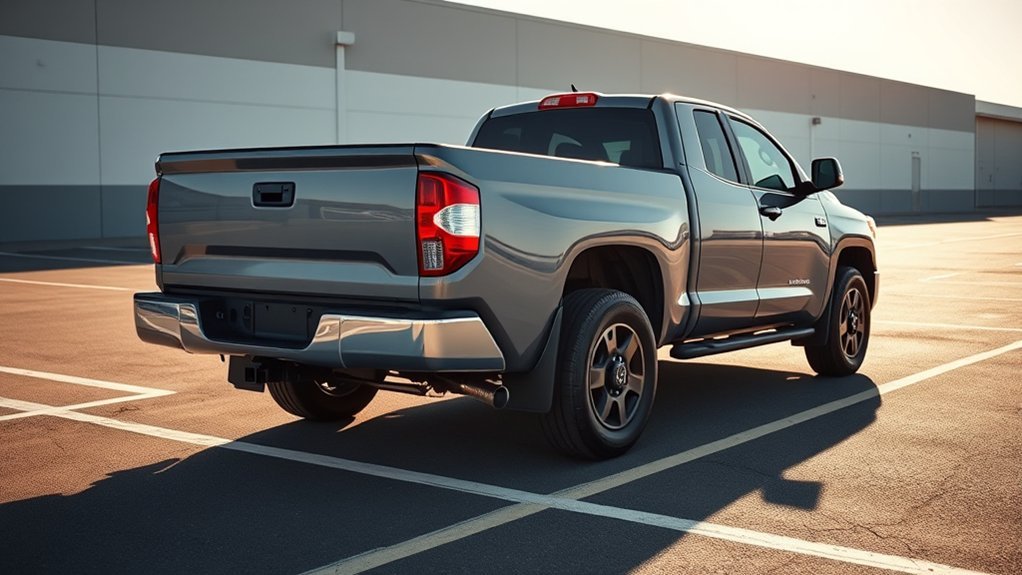
Straight Path Assist is intended to control steering so the trailer continues along a straight backing target. It works best after the trailer has been positioned toward the path you want. The system does not take responsibility for vehicle speed or braking.
What Straight Path Assist Controls
- It can provide steering control for straight-line trailer backing.
- The driver continues controlling vehicle speed and braking.
- The driver must continue checking mirrors, cameras, trailer corners, people, and obstacles.
- The driver can make a steering input to adjust the trailer direction on the documented system.
- After the steering input is released, Straight Path Assist can resume with the revised straight-back target.
Best Practices for Straight Path Assist
- Start in an open area with enough room around both the truck and trailer.
- Begin with the trailer pointed toward the intended backing path.
- Reverse very slowly so you have time to react to warnings and trailer movement.
- Watch both mirrors and the camera display instead of staring at only one screen.
- Keep your foot ready to stop immediately.
- Use smooth steering adjustments rather than abrupt corrections.
- For a sustained turn or angled parking maneuver, use Guidance mode or manual steering as directed by the truck rather than expecting Straight Path Assist to automatically follow a curved parking path.
When Should You Stop Using Assistance?
Stop relying on the assistance whenever the trailer is not being tracked correctly, a required camera image is unavailable, the system shows a warning, the trailer approaches an unsafe angle, or people and obstacles cannot be kept clearly outside the backing path.
Do not use the technology to rescue a poor starting position. Pulling forward and realigning the combination is usually safer than allowing the trailer angle to continue increasing while you reverse.
How Do You Back Manually When Assist Is Not the Right Tool?
Manual trailer control remains necessary for turns, angled spaces, situations where Trailer Backup Guide is unavailable, and any time the system cannot track the trailer reliably. For a more detailed manual technique guide, see How to Back Up a Trailer With a Toyota Tundra.
Backing Straight Manually
- Start with the truck and trailer aligned.
- Hold the steering wheel near the bottom with one hand.
- Move that hand slightly toward the side where you want the rear of the trailer to travel.
- Pause after each small input and watch the trailer respond.
- Return the wheel toward center before the trailer builds too much angle.
- Stop and pull forward whenever the combination becomes difficult to correct.
The hand-at-the-bottom method reduces the mental reversal that confuses many new trailer drivers. Moving your hand left sends the trailer’s rear left; moving it right sends the trailer’s rear right.
Turning Into a Space
Plan the maneuver before moving. Leave room for the front of the truck to swing, start with a small steering input, and watch both trailer corners. Avoid rapid left-right steering corrections. If the trailer angle develops faster than expected, stop and pull forward to reset.
Preventing and Recovering From a Jackknife
A jackknife develops when the angle between the truck and trailer becomes too sharp to recover safely while continuing backward.
- Stop as soon as the angle begins increasing faster than expected.
- Hold the brake and check both sides of the truck and trailer.
- Shift to a forward gear when the route ahead is clear.
- Pull forward until the truck and trailer are nearly straight.
- Reposition the combination and begin the backing maneuver again.
Pro Tip: A pull-forward correction is a normal part of trailer backing. Resetting early gives you more room and usually requires less steering than trying to recover after the hitch angle becomes severe.
When Should You Use Manual Steering Instead?
There is an important difference between making a temporary steering adjustment while Straight Path Assist is active and fully leaving the assistance mode for a manual maneuver.
Adjusting the Straight-Back Target
On Toyota’s documented system, the driver can override Straight Path Assist with a steering-wheel input to change the trailer direction. After the steering wheel is released, Straight Path Assist can resume with a revised straight-back target.
Fully Returning to Manual Control
- Bring the truck to a stop whenever you need to change modes or the situation is unclear.
- Follow the displayed control or prompt to leave Straight Path Assist when a sustained manual maneuver is required.
- Check the mirrors, cameras, trailer corners, and spotter.
- Continue at very low speed with small steering corrections.
- Pull forward to reset before the trailer approaches an unrecoverable angle.
Situations That Call for Manual Control
- Backing around a corner or into an angled site
- Using a trailer or hitch configuration not supported by the assistance system
- Correcting a rapidly growing hitch angle
- Operating when trailer tracking or a required camera view is unavailable
- Following precise directions from a spotter
- Any situation where the system’s path is not the path you need
How Do You Troubleshoot Toyota Tundra Trailer Backup Problems?

The Trailer Backup Feature Does Not Appear
- Confirm that the specific truck is equipped with Trailer Backup Guide.
- Stop the truck and check Trailer Settings and the towing controls again.
- Check the correct model-year owner documentation for the physical switch and menu location.
- Do not assume Panoramic View Monitor automatically means Trailer Backup Guide is installed.
- If a previously available feature disappears repeatedly, restart the truck and arrange diagnosis if the problem continues.
The Truck Does Not Detect the Trailer
- Confirm that the correct saved trailer is selected.
- Make sure first-use calibration has been completed if the truck requests it.
- Clean the rear camera lens and remove mud, snow, water drops, or other obstructions.
- Confirm the tailgate and trailer setup match the operating conditions specified in your manual.
- Move to a clear area with adequate lighting and follow the displayed detection prompts again.
The Camera Image Is Blurry, Dark, or Distorted
- Clean the affected lens with a soft, damp cloth.
- Remove snow, ice, mud, water drops, or condensation.
- Reduce glare by changing the truck’s position when practical.
- Use mirrors and direct observation because low light and wide-angle lenses can affect distance perception.
The Truck Beeps or Displays an Obstacle Warning
Stop and inspect the area. The warning may come from parking sensors or another parking-support system rather than Trailer Backup Guide itself. Check the truck’s front swing, trailer corners, hitch area, nearby traffic, pedestrians, and low objects that may be difficult to see on the display.
Straight Path Assist Will Not Engage
- Confirm that Trailer Backup Guide and Straight Path Assist are installed on the truck.
- Verify that the correct trailer is selected and detected.
- Complete calibration if the display requests it.
- Follow every condition listed in the truck’s warning or status message.
- Check whether the rear camera is dirty, blocked, or unavailable.
- Use Guidance mode or manual control rather than repeatedly attempting activation in a confined area.
The Trailer Begins Turning Too Sharply
Brake to a stop. Do not continue reversing while making increasingly large corrections. Pull forward until the truck and trailer are straight enough to begin the maneuver again with a smaller initial steering input.
The Reversing Display Is Green, Black, or Stuck on a Camera View
Toyota announced a recall on October 1, 2025 involving certain 2022–2025 Tundra and Tundra Hybrid vehicles whose 14-inch multimedia display could show a half-green, full-green, or full-black image while reversing. Toyota stated that dealers would provide a free multimedia-display software update. See the October 2025 Toyota recall announcement.
Toyota announced another recall on January 23, 2026 involving certain 2024–2025 Tundra and Tundra Hybrid vehicles. Under certain conditions, the multimedia display can remain stuck on a camera view or show a black image, preventing the required rearview image from appearing in Reverse. Toyota stated that dealers would update the Parking Assist ECU software free of charge. See the January 2026 Toyota recall announcement.
Recall coverage is VIN-specific. Check your truck through the Toyota recall lookup or the NHTSA recall database rather than assuming every truck from the listed model years is affected.
Warning: Do not continue backing solely from memory if a required camera image disappears, freezes, turns green, turns black, or remains stuck on the wrong view. Stop, use direct observation, and have the underlying problem corrected.
Related Guides
Frequently Asked Questions
What is Toyota Tundra Trailer Backup Guide with Straight Path Assist?
Trailer Backup Guide is an available towing-assistance system. Guidance mode provides trailer-direction information while the driver steers manually, while Straight Path Assist can provide steering control to help the trailer back in a straight line. The driver still controls speed, braking, clearance, and stopping.
How do I activate Trailer Backup Guide on a Toyota Tundra?
On Toyota’s documented system, add or select the correct trailer in Trailer Settings, turn on Trailer Backup Guide, continue or reselect the trailer when prompted, and wait for trailer detection. Shift to Reverse to use Guidance mode, then select the Straight Path Assist control on the multimedia display when you want straight-backing steering assistance. Follow the exact prompts for your model year.
Does Straight Path Assist control the brakes?
No. Straight Path Assist provides steering assistance for straight trailer backing. The driver remains responsible for vehicle speed, braking, clearance, surrounding traffic and obstacles, and stopping the truck.
Can I steer while Straight Path Assist is active?
Toyota’s documented system allows the driver to override Straight Path Assist with the steering wheel to adjust trailer direction. After the steering input is released, Straight Path Assist can resume with a revised straight-back target. Follow the operating instructions for your exact model year.
Does Toyota Tundra Trailer Backup Guide work with a fifth-wheel or gooseneck trailer?
Toyota’s documented 2022 Tundra/Tundra Hybrid system states that Trailer Backup Guide does not support fifth-wheel or gooseneck trailers. Because equipment and limitations can change, check the owner documentation for your exact model year before relying on that limitation.
Why will Straight Path Assist not engage?
Confirm that the truck has the feature, that the correct trailer is selected and detected, and that required calibration is complete. Clean the rear camera, follow any displayed warning, and use Guidance mode or manual steering if the system remains unavailable.
What should I do if the Tundra rearview display turns green, black, or freezes?
Stop backing and use direct observation rather than relying on a missing or incorrect image. Certain Tundras are covered by Toyota camera-display software recalls announced in October 2025 and January 2026. Check the truck’s VIN in Toyota’s or NHTSA’s recall database to determine whether a free recall repair applies.
Do the Tundra’s cameras eliminate the need for a spotter?
No. Cameras can have blind areas and distorted depth perception, and their image quality can be reduced by dirt, glare, darkness, rain, snow, or other conditions. A properly positioned spotter provides another view around trailer corners and nearby obstacles.
Conclusion
Toyota Tundra Trailer Backup Guide is easiest to understand as one system with two forms of assistance: Guidance mode helps while you steer manually, and Straight Path Assist can control steering for a straight backing path. Select the correct trailer, complete calibration when requested, move slowly, and keep using mirrors, cameras, direct observation, and a spotter when practical. If tracking is lost, a warning appears, or the camera display becomes unreliable, stop and correct the problem before continuing.
Sources
- 2026 Toyota Tundra — current Toyota feature descriptions for Panoramic View Monitor and Trailer Backup Guide with Straight Path Assist.
- Toyota 2024 Tundra / Tundra Hybrid Quick Reference Guide — Trailer Backup Guide modes and activation sequence.
- Toyota Tundra / Tundra Hybrid Owner Documentation — saved-trailer setup, Trailer Backup Guide calibration, steering override, and documented hitch limitations.
- 2025 Toyota Tundra Adds TRD Rally Package and More — Panoramic View Monitor and factory Wireless Trailer Camera information.
- Toyota October 2025 Tundra/Tundra HEV Camera-Display Recall — green/black display condition and free software remedy.
- Toyota January 2026 Tundra/Tundra Hybrid Camera-Display Recall — stuck-camera/black-image condition and Parking Assist ECU software remedy.
- Toyota Recall Lookup — VIN-specific Toyota recall verification.
- NHTSA Recall Lookup — VIN- or license-plate-specific U.S. recall verification.

