
A laptop’s condition can be checked through Windows Device performance and health, battery diagnostics, boot timing, thermal behavior, and hardware inspection. A healthy unit shows a recent scan, green status marks, stable boot under 30 seconds, at least 15 percent free storage, and full-charge battery capacity close to design values. Sustained heat above 85°C, rapid battery drain, fan noise, or failing ports suggest decline. The following sections outline the key checks and warning signs.
Run a 5-Minute Laptop Health Check
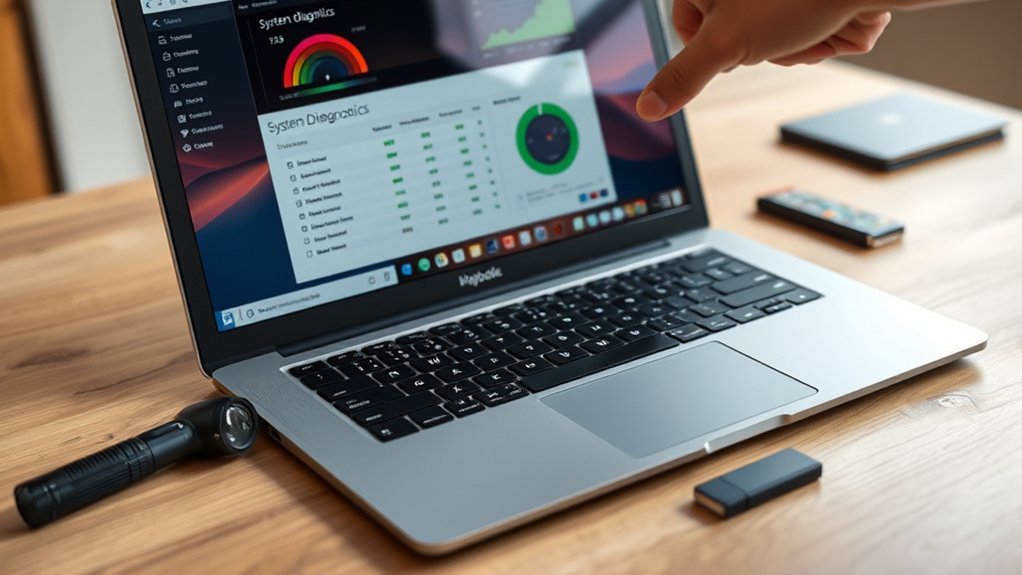
Start with Windows Security by opening Device performance & health, which runs a quick diagnostic across core system indicators. This module surveys storage headroom, battery condition, and baseline reliability telemetry, giving a fast status readout without external utilities.
For users seeking autonomy from sluggish behavior, it provides a controlled checkpoint to keep your device operational under normal load. Attention should center on available disk capacity, since constrained storage throttles paging, updates, and application responsiveness.
Use this checkpoint to counter sluggish performance, prioritizing free disk space to preserve paging, updates, and application responsiveness.
Battery diagnostics should also be reviewed to identify abnormal drain vectors or warning states that could shorten mobile uptime. A green check denotes nominal hardware-adjacent conditions; a yellow mark means intervention is required, so make sure corrective prompts are applied.
Regular upkeep, including software patching and disk cleanup, helps stabilize throughput and extend service life. If performance differs from the last time the system was inspected, repeated scans can isolate emerging degradation before it escalates into persistent instability or downtime.
Check Windows Device Health Report
- Confirms the last health scan timestamp for current diagnostic relevance.
- Flags detected issues affecting stability, storage availability, or battery condition.
- Presents remediation recommendations to restore efficient operating margins.
- Tracks disk capacity and battery health for sustained portable usability.
The report’s scan time indicates how fresh the telemetry is, which matters when judging present condition.
Storage monitoring alerts the user when free capacity becomes restrictive and suggests cleanup actions.
Battery assessment examines endurance behavior and surfaces guidance for extending service life.
For users seeking freedom from guesswork, this panel provides direct evidence on whether the laptop is operating within healthy limits.
Measure Laptop Boot Speed and Performance
Measure boot performance by timing the interval from power-on to the point where the operating system is fully loaded and responsive, with sub-30-second startup generally indicating healthy baseline behavior. This metric reveals whether the platform delivers responsive, friction-free computing rather than sluggish dependence on hidden bottlenecks.
| Tool | Diagnostic Use |
|---|---|
| Task Manager | Reviews startup impact |
| BootRacer | Measures precise boot phases |
| Windows Security | Runs health check |
Windows Task Manager and BootRacer expose boot-stage latency and isolate slow services, shell extensions, or login items. Effective startup program management disables nonessential applications, reducing I/O contention and CPU scheduling delays during initialization. For boot performance optimization, updated firmware, drivers, and operating system updates improve hardware compatibility, patch defects, and streamline startup sequencing. Windows Security can supplement analysis by flagging broader performance degradation. If repeated tests show expanding boot times, the laptop may be signaling storage wear, driver conflicts, or software accumulation that compromises operational freedom and sustained system efficiency over time.
Test if the Laptop Battery Is Healthy
A healthy laptop battery is verified by comparing current full-charge capacity against its original design capacity, with sustained degradation below roughly 80% typically indicating material wear and probable replacement planning.
This metric can be audited through Windows Battery Report by running `powercfg /batteryreport`, which exposes wear level, runtime history, and usage behavior.
- Compare full-charge capacity versus design capacity for clear replacement indicators.
- Generate a Battery Report to inspect discharge trends and cycle-related stress.
- Watch for rapid percentage drops during light workloads; instability signals chemical decline.
- Inspect for swelling, casing distortion, or connector damage requiring immediate isolation.
Physical inspection remains essential because deformation or puncture risk overrides software diagnostics. Proper ventilation and clean vents support electrochemical stability and longer service life.
Practical battery calibration tips include occasional full discharge-recharge validation, while charge cycle optimization favors avoiding needless deep cycles.
A battery that drains abruptly under basic productivity tasks is not delivering dependable mobile autonomy anymore.
Check Laptop Heat and Fan Noise
Inspect thermal behavior and acoustic output to assess whether the cooling system is operating within design limits. Temperature telemetry from monitoring utilities should remain controlled; sustained CPU readings above 85°C often indicate degraded heatsink contact, dust saturation, or broader cooling faults.
Monitor temperatures and fan noise closely; sustained CPU heat above 85°C often signals compromised cooling efficiency.
Surface thermals can be verified with a temperature gun or thermal imaging app to isolate chassis hotspots and map inefficient heat dissipation patterns.
Acoustic diagnostics are equally revealing. Grinding, rattling, or abnormally loud whirring may signify bearing wear, blade obstruction, or debris accumulation. A fan that runs continuously at elevated RPM suggests insufficient heat transfer capacity and demands closer inspection.
Clear air intake and exhaust paths must be confirmed, since blocked vents intensify thermal load and throttle performance. Practical fan maintenance tips include checking vent cleanliness and airflow consistency.
Effective overheating solutions rely on disciplined thermal management strategies, giving users clearer control over hardware reliability rather than remaining constrained by concealed cooling failures.
Check Storage, RAM, and Free Space
Several core resource checks reveal whether a laptop is constrained by capacity rather than compute throughput. A detached diagnostic begins in File Explorer under This PC, where each volume reports remaining capacity; low free space often triggers write-amplification, paging pressure, and sluggish application response.
Task Manager, opened with Ctrl + Shift + Esc, exposes memory consumption on the Performance tab, helping determine whether sustained RAM saturation signals upgrade necessity or immediate RAM optimization techniques.
- Inspect This PC for drive-by-drive free space and bottleneck risk.
- Open Task Manager to verify RAM utilization under live workload conditions.
- Run Disk Cleanup to purge transient files and reclaim usable capacity.
- Review Settings > System > Storage for category breakdowns and recommendations.
Further validation may use Windows storage dashboards and third-party performance monitoring tools such as CCleaner for granular telemetry.
These storage management tips support informed intervention, freeing the system from avoidable resource captivity and restoring balanced operational headroom across memory and storage subsystems.
Inspect the Laptop Screen, Keyboard, and Ports
Begin with the display and external hardware, since visible defects often correlate with deeper mechanical wear. A proper screen clarity assessment checks for dead pixels, pressure spots, backlight inconsistency, discoloration, and surface abrasions. These faults reduce visual fidelity and may signal panel fatigue or impact damage.
The lid hinges should articulate smoothly with stable resistance; looseness, creaking, or asymmetry can indicate structural stress. Casing inspection should note cracks, dents, warped panels, or separated seams, all of which suggest previous mishandling and possible concealed board-level strain.
Next, perform a keyboard keypress evaluation by actuating every key individually. Each switch should register consistently without chatter, sticking, or excessive travel deviation. Missing caps or uneven feedback can impair input reliability.
Conclude with port functionality testing: inspect USB, HDMI, Ethernet, audio, and charging interfaces for bent pins, oxidation, looseness, or debris, then validate each port using known-good peripherals to confirm stable electrical and data transmission.
Tell If Your Laptop Is Still in Good Shape
A laptop in good operating condition typically completes boot initialization in about 30 seconds, launches applications without latency or instability, and maintains normal thermal output under standard workloads.
Battery health is indicated by multi-hour runtime consistency, while abrupt capacity loss usually points to cell wear or power subsystem degradation.
Storage status should also be verified, as drives with less than 15% free capacity often exhibit throughput reduction, process slowdown, and increased error frequency.
Performance Warning Signs
Multiple performance anomalies can indicate that a laptop is no longer operating within normal hardware parameters. Diagnostic review should isolate slow performance symptoms, overheating causes, and application stability issues before broader failure occurs. Liberation from unreliable hardware begins with recognizing measurable deviations in system behavior.
- Boot sequences extending far beyond baseline timings suggest degraded system responsiveness.
- Frequent freezes, crashes, or unhandled errors indicate application stability issues and possible component stress.
- Persistent chassis heat under light workloads points to overheating causes such as fan obstruction or thermal interface breakdown.
- Recurrent low-space alerts can throttle virtual memory operations and impair throughput.
These indicators, observed together, imply compromised thermal regulation, storage efficiency, or processing consistency. A laptop in good shape maintains predictable latency, stable execution, and controlled operating temperatures under ordinary use patterns daily.
Battery And Storage Check
Several battery and storage metrics provide a direct indication of whether a laptop remains within acceptable operating condition. Built-in diagnostics should be checked for full-charge capacity versus design capacity; a steep deviation signals cell wear and possible replacement.
Charge-cycle count also matters, since lithium-ion packs commonly degrade after roughly 300 to 500 cycles. These readings support practical battery longevity tips and informed maintenance decisions.
Storage status should be verified in system settings, with at least 15 to 20 percent free space preserved to prevent throughput degradation and latency spikes.
Disk cleanup utilities can purge redundant data and restore responsiveness, forming part of effective storage optimization strategies. Windows Security alerts and performance monitoring tools may expose battery faults or disk constraints, enabling users to act early and preserve operational freedom.
Frequently Asked Questions
How to Check if a Laptop Is Good Condition?
A laptop in good condition shows strong Battery performance, clear Screen clarity, and solid Build quality. One should assess boot latency, thermal behavior, storage headroom, charging stability, and chassis integrity to verify reliable hardware freedom.
How Do I Check if My Laptop Is Healthy?
To check laptop health, one inspects Windows Security diagnostics, battery performance, cooling system thermals, storage availability, responsiveness, crash frequency, and software updates. Consistent uptime, rapid boot, and stable temperatures signal dependable hardware and operational autonomy.
How to Know if a Laptop Is Good Quality?
Naturally, excellence is “proven” by marketing; actually, a good-quality laptop is determined through performance benchmarks, durable build materials, and credible customer reviews, plus battery health, port integrity, thermal stability, responsive boot behavior, and warranty coverage.
How to Run a Laptop Diagnostic Test?
A laptop diagnostic test is run via built-in utilities or OEM boot menus, executing CPU, RAM, storage, battery health, performance metrics, and hardware compatibility checks. Results decode system integrity, enabling informed autonomy from unreliable hardware constraints.
Conclusion
A laptop in good condition behaves like a stable system baseline: fast boot cycles, low thermal variance, healthy battery wear levels, and no critical SMART or Device Health flags. By comparison, degraded units often reveal the opposite long before total failure. Particularly, battery capacity below roughly 80% of design can feel like losing one out of every five minutes of portable runtime. In hardware terms, consistent diagnostics across power, storage, thermals, and I/O usually indicate a serviceable machine.
