
Is your Acer Aspire hot underneath during everyday use? Some warmth is normal, especially while charging, streaming, multitasking, or running demanding applications. However, a laptop that becomes painfully hot, slows down, or shuts off unexpectedly may have a cooling problem.
The key is understanding the difference between internal CPU temperatures and the heat you feel on the laptop’s outer case. Both matter, but they tell you different things about your Aspire’s cooling performance.
Quick Answer
Yes, an Acer Aspire getting warm underneath is usually normal. CPU temperatures can reach 70–85°C during demanding work without indicating a fault. However, there is no universal overheating cutoff for every Aspire model. Watch for sustained temperatures near your processor’s limit, frequent slowdowns, unexpected shutdowns, or unusually loud fans during light use.
Key Takeaways
- The underside temperature is not the same as the internal CPU temperature.
- Short CPU temperature spikes during intensive work are not automatically signs of overheating.
- Blocked vents, dust, demanding software, and hot rooms can make an Aspire warmer.
- Compare temperatures during light and heavy use before deciding whether repair is necessary.
- Fan failure, repeated shutdowns, or persistent thermal throttling deserve professional attention.
What’s a Normal Acer Aspire Temperature?
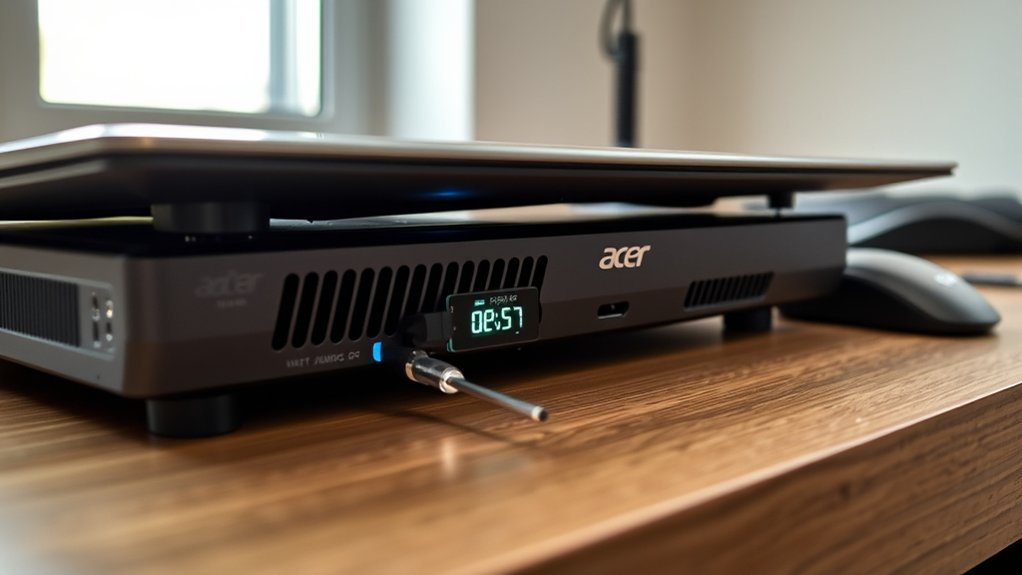
A normal Acer Aspire CPU temperature depends on the processor, workload, room temperature, and cooling design. The original guide’s 50–85°C range is a useful reference for many active workloads, but lighter use can produce lower readings.
Acer’s published laptop cooling guidance gives the following general temperature examples. They describe possible operating behavior, not guaranteed limits for every Aspire.
| Activity | Example CPU temperature | What to expect |
|---|---|---|
| Idle or very light use | 35–55°C | Usually moderate fan activity |
| Office work and streaming | 45–70°C | Warm case and changing fan speed |
| Demanding games or rendering | 75–95°C | Higher fan speed; check processor-specific limits |
These broad examples should be interpreted alongside Acer’s official overheating guidance. A short temperature increase during gaming does not mean your laptop is damaged.
Duration matters more than one isolated number. If temperatures settle after a demanding task ends, the cooling system may be working as intended. Repeated crashes, severe slowdowns, or high temperatures during simple tasks deserve closer attention.
How Do You Check Acer Aspire Temperatures?
You can check Acer Aspire CPU temperatures with hardware monitoring software. This is more reliable than judging heat by touching the underside, because the case and processor operate at different temperatures.
One option is CPUID HWMonitor, which can display CPU and GPU temperature readings where compatible sensors are available. Open Hardware Monitor is another option mentioned in the original guide.
- Open a temperature monitor. Find the CPU temperature sensor and note its current reading.
- Check light-use temperatures. Leave demanding applications closed and observe whether readings settle.
- Test your usual workload. Open the application or game that makes the laptop warm. Compare its temperature with the lighter-use reading.
- Check CPU usage. Press Ctrl + Shift + Esc to open Windows Task Manager. Look at Processes and Performance to identify demanding applications.
- Compare readings with your CPU’s specifications. Look for sustained heat near the manufacturer’s limit, especially if performance falls or the system becomes unstable.
Task Manager is useful for finding programs that use too much processing power, but it does not provide a standard CPU temperature display. A separate monitoring utility is normally needed for that measurement.
For a fair comparison, test the laptop in similar conditions. Keep the same power mode, room environment, and desk placement. This helps you see whether cleaning or changing settings actually improves cooling.
What Surface and CPU Temps Are Normal?
An Acer Aspire’s underside can feel much cooler than its CPU, even when both are functioning normally. CPU temperature describes heat inside the processor. Surface temperature describes the warmth of the keyboard, palm rest, or bottom panel.
There is no single normal underside temperature for every Acer Aspire. Real measurements show how much results can differ between models.
- Acer Aspire 5 A515-58GM-76S8: Independent testing recorded a maximum underside temperature of 36.8°C under load. See the Aspire 5 temperature measurements.
- Acer Aspire 3 A315-24P-R77Z: Under intensive testing, the underside reached a maximum hotspot temperature of 63.6°C. The same review measured 33.2°C as its maximum bottom temperature at idle. See the Aspire 3 temperature measurements.
These are measurements from specific configurations under particular test conditions, not normal targets for every laptop. They show why the same CPU temperature can produce very different external heat levels.
A warm area near the exhaust vent is also different from an unusually hot palm rest. Heat distribution depends on internal component placement, airflow, and chassis construction.
If you want to measure the underside itself, a suitable infrared thermometer can help compare the same location before and after a workload. CPU monitoring software measures internal sensors, not the outer case.
Do not keep a laptop on your lap if its underside becomes uncomfortably hot. Move it to a desk or stand, even when the internal temperature appears acceptable.
When Is an Acer Aspire Overheating?
An Acer Aspire may be overheating when it cannot maintain stable performance because of excessive heat. Warning signs include repeated shutdowns, persistent slowdowns, and unusually high fan activity during ordinary tasks.
The temperature alone does not always prove a problem. Each processor has a thermal limit, and many modern CPUs temporarily operate near that limit during demanding work.
According to Intel’s processor temperature guidance, maximum junction temperatures vary by model and are commonly around 100–110°C. Intel processors can automatically reduce their power and clock speed to manage heat.
AMD processors have their own limits. For example, the AMD Ryzen 7 7730U specifications list a maximum operating temperature of 95°C. That does not mean every AMD-powered Aspire has the same limit.
This explains why a CPU reading of 92°C is not automatically dangerous on every Acer laptop. It is closer to the rated maximum of some processors than others.
Thermal throttling happens when the processor reduces speed or power to manage temperature. Some throttling under extreme loads is expected, but repeated performance drops during routine work may indicate a cooling problem.
Watch for a pattern rather than one reading:
- Temperatures stay unusually high even after demanding applications close.
- The CPU slows noticeably during simple tasks.
- The cooling fan remains excessively loud during light activity.
- The laptop repeatedly freezes, restarts, or shuts down.
- Heat increases compared with the laptop’s previous normal behavior.
If several symptoms happen together, begin with airflow and workload checks before considering hardware repair.
Why Does an Acer Aspire Get Hot?
An Acer Aspire becomes hot because its processor, graphics hardware, and other components produce heat while working. The cooling system removes that heat using airflow through the fan and vents.
Heavy software workloads increase heat output. Restricted airflow, dust, charging activity, and high room temperatures can make the laptop feel even warmer.
Heavy Workload Heat
Gaming, video editing, streaming, and running several demanding applications can increase CPU power use. As processing demand rises, the fan may spin faster and the underside may become noticeably warm.
CPU and memory usage percentages do not have fixed thresholds that define heavy work across all Aspire models.
| Metric | Heavy-load behavior |
|---|---|
| CPU usage | Varies by application, processor, and background activity |
| CPU temperature | Often around 70–85°C during demanding work, but may be higher on some models |
High RAM usage can make multitasking less responsive, particularly when Windows must move data between memory and storage. However, the percentage of RAM used does not directly determine CPU temperature.
If your Aspire becomes hot during gaming but cools after the game closes, the increase may reflect normal demand. If it stays hot while doing almost nothing, inspect background processes and airflow.
Blocked Airflow Causes
Blocked airflow makes an Acer Aspire run hotter because the cooling system cannot move heat away efficiently. Dust can collect in intake vents, exhaust openings, and the fan assembly.
Using the laptop on a bed, blanket, or couch may block the underside vents. The computer can then trap warm air around its case instead of exhausting it.
Other contributing factors include hot rooms, direct sunlight, and a cooling fan that is not working correctly. These conditions may cause increased fan noise or slower performance.
Check whether air can move freely through the vents before assuming that the processor or motherboard is faulty.
How to Reduce Acer Aspire Heat
You can often reduce Acer Aspire heat without replacing any parts. Start by improving airflow and reducing unnecessary processor demand, then check whether temperatures improve.
- Use a firm desk. Keep the laptop on a hard, flat surface with its vents unobstructed.
- Close unused applications. Shut unnecessary browser tabs and demanding background programs.
- Choose a suitable power mode. In Windows 11, open Settings > System > Power & battery. Select Balanced or Best power efficiency when maximum performance is unnecessary.
- Keep the room cooler. Avoid direct sunlight and excessively hot environments.
- Consider a laptop stand. A stable stand that leaves intake openings clear can improve ventilation. A cooling pad may also help, although results depend on the laptop’s vent layout.
- Monitor the result. Compare CPU temperatures under the same workload before and after making changes.
Microsoft explains the available settings in its Windows power mode instructions. Best performance favors speed, while the efficiency-focused option reduces power demand.
Changing fan curves or processor power limits is not necessary for basic troubleshooting. Those adjustments depend on the exact hardware and can create problems if applied incorrectly.
How to Clean Vents and Improve Airflow
Cleaning the cooling vents can improve heat removal when dust blocks airflow. Start with the outside of the laptop rather than opening the case.
The exact vent layout differs among Aspire 3, Aspire 5, and other models. Inspect the sides, rear edge, and underside before cleaning.
Clear Dust Buildup
Dust can collect around the vent grille, fan blades, and heatsink fins. Cleaning visible debris may reduce fan noise and improve cooling, particularly if the laptop has been used in a dusty environment.
Warning: Shut down the Acer Aspire completely and disconnect its charger before cleaning. Use compressed air carefully, avoid liquid discharge, and do not allow strong airflow to overspin the fan. Internal cleaning and thermal paste replacement are best left to a qualified technician unless you have the correct service instructions and experience.
- Inspect the vents. Look for visible dust, lint, or debris along the air intake and exhaust openings.
- Remove loose dirt. Use a soft brush or dry microfiber cloth around the external grille without pushing debris deeper inside.
- Use compressed air carefully. Follow the can’s instructions, keep it upright, and use brief controlled bursts. Prevent the fan from spinning freely if you can safely access it.
- Recheck temperatures. After cleaning, restart the laptop and compare CPU readings during the same tasks.
For more detailed maintenance advice, see Acer’s laptop fan cleaning instructions.
If the vents are clear but the laptop still overheats, dust may be trapped deeper in the cooling assembly. Internal cleaning might then be necessary.
Improve Vent Placement
Good vent placement means keeping the laptop’s intake and exhaust areas open while it operates. A hard desk is usually better than fabric because soft materials can cover openings.
On some Aspire models, much of the intake air enters through the bottom panel. Raising the computer on a suitable stand can help the cooling system draw in fresh air.
Make sure the stand does not cover the laptop’s feet or ventilation openings. If a cooling pad has fans, its airflow arrangement should suit the computer’s design.
After changing the placement, compare temperatures while performing the same task. You may also notice less fan noise when airflow improves.
When Should You Repair Your Acer Aspire?
Your Acer Aspire may need professional repair if overheating continues after basic troubleshooting. Repeated shutdowns, serious throttling, or a malfunctioning fan are stronger warning signs than a warm underside alone.
Seek further diagnosis if you notice any of these problems:
- Repeated shutdowns or restarts: The laptop powers off unexpectedly during demanding tasks or ordinary use.
- Persistent thermal throttling: Processing speed repeatedly falls because the cooling system cannot control temperatures.
- Abnormal fan behavior: The fan makes grinding or rattling noises, stops working, or runs at maximum speed during very light use.
- High temperatures after cleaning: The laptop remains unusually hot despite clear vents, reduced workloads, and suitable room conditions.
Possible repair needs include removing dust from the internal heatsink, replacing a failing fan, or examining degraded thermal paste. These faults require different fixes, so proper diagnosis comes before replacing components.
If your Acer Aspire is still under warranty, consider Acer’s authorized service channels before opening the case. The correct procedure depends on the specific model and applicable warranty terms.
Take particular care if you notice unusual heat near the battery, a swollen case, smoke, or a burning smell. Stop using the laptop, disconnect external power when safe, and arrange professional inspection.
Frequently Asked Questions
Is It Normal for a Laptop to Get Hot Underneath?
Yes, it is normal for a laptop to feel warm underneath during use. The processor, graphics hardware, and charging system produce heat that can reach the outer case. However, excessive heat combined with shutdowns, severe slowdowns, or unusual fan behavior may indicate a cooling problem.
At What Temperature Should I Worry About My Laptop?
You should investigate when CPU temperatures remain near the specific processor’s thermal limit, particularly if performance becomes unstable. Temperatures above 90°C deserve attention, but they are not automatically unsafe on every model. Compare the reading with the CPU manufacturer’s specifications and check for throttling or shutdowns.
What Is the Most Common Problem of an Acer Laptop?
There is no verified single most common problem across all Acer laptop models. Overheating, battery problems, keyboard faults, and screen issues can occur for different reasons. If your Aspire runs unusually hot, begin by checking its workload, cooling vents, and fan before assuming that a component has failed.
Is 92 Degrees Hot for a CPU Laptop?
Yes, 92°C is a high CPU temperature, but it does not automatically mean the processor is overheating. Some CPUs have maximum rated temperatures above that level, while others are closer to their limit. Check your exact processor specification and whether the temperature causes sustained throttling or instability.
Why Is My Acer Aspire Hot Even When I Am Not Gaming?
An Acer Aspire can become hot during light use because background applications, charging, blocked vents, or high room temperatures increase heat. Open Task Manager to identify demanding processes and check that the vents are clear. Persistent heat during genuinely light workloads may require further inspection.
Conclusion
An Acer Aspire feeling warm underneath is usually normal, but the right temperature depends on the processor, workload, and cooling design. Internal CPU heat and external case temperature are different measurements, so neither should be judged without context.
Start by checking temperatures, reducing unnecessary workloads, and keeping the vents clear. If overheating continues or causes repeated shutdowns and performance problems, have the cooling system inspected before further damage occurs.
Sources
- Acer: How to Prevent and Recognize Overheating of a Notebook: Normal heat behavior, airflow, warning signs, and maintenance.
- CPUID: HWMonitor: Hardware temperature and sensor monitoring.
- Intel: Information About Processor Temperature: Processor-specific thermal limits and temperature control.
- AMD: Ryzen 7 7730U Specifications: Example processor maximum operating temperature.
- Notebookcheck: Acer Aspire 5 A515-58GM Review: Independent surface temperature measurements.
- Notebookcheck: Acer Aspire 3 A315-24P Review: Measured underside temperatures during idle and intensive testing.
- Microsoft: Change the Power Mode for Your Windows PC: Windows performance and efficiency settings.
- Acer: How to Clean a Laptop Fan: Fan cleaning, vent maintenance, and cooling checks.
