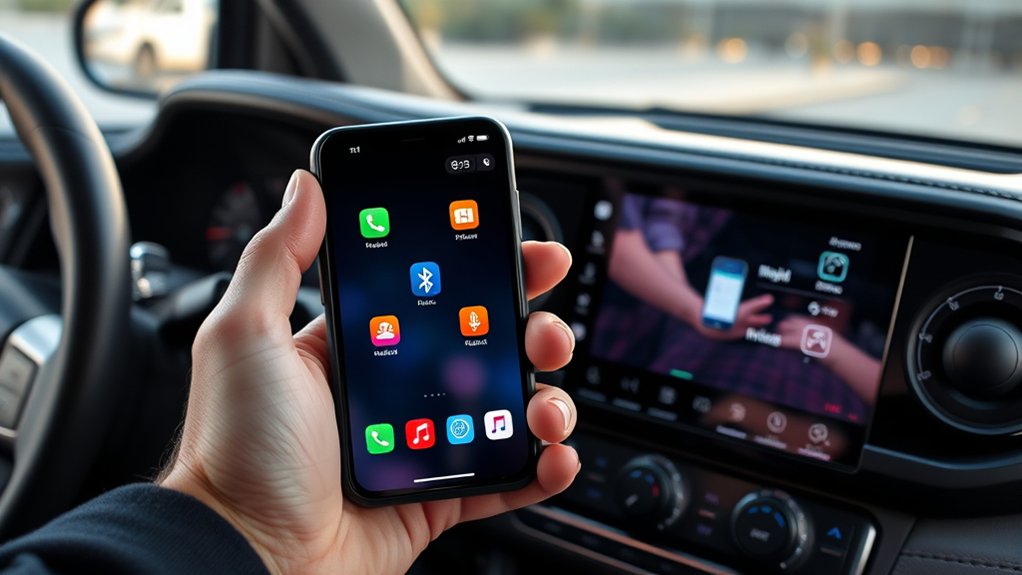
To put a phone on the 2026 Toyota Tacoma screen, the user should first confirm the infotainment system supports Bluetooth, Apple CarPlay, or Android Auto. With the truck in Park and ignition on, Bluetooth and Wi-Fi should be enabled on the phone, then paired through Settings > Bluetooth > Add Device. For CarPlay, connect an iPhone with a certified cable or use wireless CarPlay if equipped. Additional steps below cover switching devices and fixing connection problems.
Check If Your Tacoma Supports CarPlay
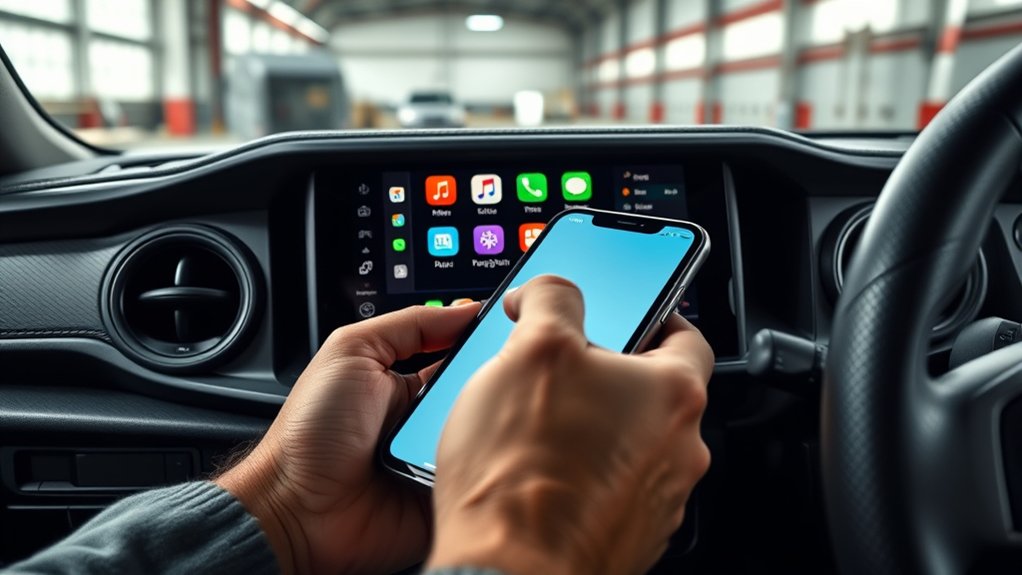
Before attempting phone integration, the owner should confirm whether the 2026 Toyota Tacoma’s infotainment system supports Apple CarPlay by checking the user manual, reviewing the system settings, or identifying the CarPlay logo on the dashboard display.
This verification establishes CarPlay compatibility without guesswork and allows the driver to use the truck’s infotainment features with greater independence. The manual typically lists supported smartphone functions, while the settings menu may show Apple CarPlay as an available option. A visible CarPlay logo on the screen or surrounding interface is also a direct indicator that the feature is installed.
Because seamless operation depends on current software, the iPhone should also be running the latest iOS version. Newer Tacoma models commonly include built-in Apple CarPlay, but confirmation remains essential before proceeding.
Pair Your Phone to the Tacoma Screen
To pair a phone to the Toyota Tacoma screen, the vehicle should be in Park with the ignition on.
Then Bluetooth and Wi‑Fi should be enabled on the phone to support wireless connection methods.
The user can open the phone’s Bluetooth menu, select the Tacoma, confirm the displayed pairing code, and proceed to CarPlay or Android Auto setup if supported.
If pairing fails, the standard corrective steps include verifying wireless settings, removing old device entries, and restarting both the phone and the infotainment system.
Enable Bluetooth And Wi-Fi
Most setup issues are avoided by enabling wireless functions on both devices first. On the 2026 Toyota Tacoma screen, the user opens Settings, selects Bluetooth, and verifies that pairing is enabled.
On the iPhone, Wi-Fi setup begins in Settings by switching on both Wi-Fi and Bluetooth. This prepares an untethered connection path and reduces unnecessary Bluetooth troubleshooting later.
Next, the Tacoma Bluetooth menu should be opened and Add New Device selected. The vehicle then searches for nearby phones.
On the iPhone, the user enters Bluetooth settings, locates the Tacoma in the available device list, and taps it to connect. If prompted, the pairing code must be confirmed on both screens.
After pairing, Tacoma Wi-Fi should also remain enabled to support deeper system integration and reliable wireless communication overall.
Connect Through CarPlay
Connect the iPhone to the 2026 Toyota Tacoma screen through CarPlay by first confirming that the phone is running at least iOS 13 and that Bluetooth is enabled on both the iPhone and the vehicle infotainment system.
For wired connection methods, attach the iPhone to the Tacoma USB port with a certified Lightning cable. The CarPlay interface should launch on the display automatically.
If the iPhone requests permission, select “Allow” to authorize integration. This grants access to key CarPlay benefits, including direct access to Maps, Music, and Messages from the Tacoma screen, reducing dependence on handheld use.
For wireless connection methods, verify that the Tacoma supports wireless CarPlay, then complete Bluetooth and Wi-Fi setup through the infotainment prompts. Once paired, the system provides a more independent, cable-free operating environment.
Fix Pairing Problems
Begin by verifying that the phone’s Bluetooth function is enabled and set to discoverable mode. Then open the Tacoma infotainment settings, select Bluetooth, and choose “Add Device” to start pairing. Confirm that the numeric pairing code shown on the Tacoma screen exactly matches the code displayed on the phone before approval.
To resolve persistent failures and restore control, check these points:
- Review Bluetooth compatibility issues if the phone does not appear or disconnects unexpectedly.
- Clear old pairings in Tacoma Bluetooth menus and inspect Device memory settings to prevent device conflicts.
- Restart both the phone and infotainment system to eliminate temporary software glitches.
This sequence isolates common faults efficiently. If pairing still fails after these steps, updating the phone’s software may improve connection stability and pairing reliability.
Set Up Apple CarPlay in the Tacoma
For a straightforward Apple CarPlay setup in the 2026 Toyota Tacoma, the iPhone should be connected to the vehicle’s USB port with a compatible Lightning cable on wired systems. Once linked, the CarPlay interface typically launches automatically on the infotainment screen and displays supported apps. This direct connection enables essential CarPlay features while reducing dependence on the handset itself during travel.
Connect your iPhone via a compatible Lightning cable, and the Tacoma infotainment display should launch CarPlay automatically.
Siri must remain enabled on the iPhone, since its Voice command capabilities provide hands-free control over navigation, audio playback, calls, and messages with minimal distraction.
If the Tacoma uses a wireless CarPlay adapter, Bluetooth and Wi-Fi should both be active on the iPhone before pairing begins. That configuration removes cable constraints and supports a more liberated in-cabin workflow.
For consistent operation, iOS updates should be installed regularly, and the Tacoma infotainment software should remain current. Keeping both platforms updated helps prevent launch failures, lag, and intermittent connection loss over time.
Set Up Android Auto in the Tacoma
Verify that the Android phone is running Android 6.0 (Marshmallow) or later, then attach it to the 2026 Toyota Tacoma with a USB cable to initiate Android Auto setup. This establishes the data link required for secure interface launch and confirms baseline phone compatibility before any in-dash controls are used.
Once connected, the user should follow the prompts displayed on the phone to install the Android Auto app if it is absent. Then, on the Tacoma infotainment display, select the Android Auto icon to open the interface and access core Android Auto features with fewer distractions and greater operational freedom.
- Confirm the phone software is current for stable performance.
- Enable Bluetooth to activate hands-free calling and messaging functions.
- Check compatibility with the specific Tacoma configuration for reliable operation.
These steps allow the system to mirror supported functions efficiently while preserving driver control. Proper setup reduces friction and delivers a cleaner, more independent mobile-to-vehicle experience overall.
Manage Multiple Phones on the Tacoma
Most Tacoma owners using more than one handset should note that the 2026 Toyota Tacoma can store multiple Bluetooth-paired phones, though only one device can remain active for calling and media playback at any given time.
For efficient device management, each phone should first be paired through the Tacoma’s Settings menu, then Bluetooth, where saved devices can be reviewed and selected. This setup gives drivers more control over which handset governs daily communication.
To reduce confusion, previously connected phones that are no longer needed should be deleted from the Bluetooth list. Removing dormant entries can simplify switching and preserve a cleaner connection environment.
Delete unused paired phones from the Bluetooth list to simplify switching and maintain a cleaner, more manageable connection environment.
If several phones remain paired, manual reconnection may still be necessary, especially after remote start use or when changing from one handset to another. Practical phone prioritization is thus advised.
Assigning one preferred device for CarPlay or Android Auto can streamline operation and support a more independent, uninterrupted in-cabin workflow during routine travel.
Fix Bluetooth, CarPlay, and Android Auto Issues
Bluetooth pairing problems should first be addressed by verifying that the 2026 Toyota Tacoma is connected to the correct phone in the settings menu and by removing unused paired devices that may interfere with recognition.
CarPlay connection fixes require a direct USB connection to the Tacoma’s USB port with the iPhone accessible so the system can complete automatic detection.
If Bluetooth, CarPlay, or Android Auto issues continue, software updates and an infotainment system reset are standard corrective steps.
CarPlay Connection Fixes
Start by confirming that the iPhone is paired to the Toyota Tacoma with Bluetooth enabled, since CarPlay often depends on a stable initial device handshake. Effective CarPlay troubleshooting begins there, especially when a wireless connection fails unpredictably.
The system should then be checked to verify CarPlay is enabled in Tacoma settings, because some trims require manual activation before the interface appears.
To restore consistent operation, apply these corrective steps:
- Delete previously connected phones from CarPlay settings to eliminate device conflicts.
- Restart both the iPhone and the Tacoma infotainment unit to clear temporary software faults.
- Use a wired USB connection if wireless CarPlay drops repeatedly, particularly at highway speeds.
These measures help reclaim dependable screen access while minimizing interference, instability, and recurring connection interruptions during daily driving.
Bluetooth Pairing Problems
Resolve pairing faults by first confirming that the iPhone or Android device is compatible with the 2026 Toyota Tacoma infotainment system and supports Apple CarPlay or Android Auto. This foundational check eliminates common pairing mistakes and restores control over the connection process.
Next, remove all prior Bluetooth pairings from the truck and phone, then restart both systems before initiating a fresh pairing request.
Additional Bluetooth troubleshooting tips include verifying that Bluetooth is enabled, the phone remains within close range, and unnecessary connected devices are disconnected, since signal competition can destabilize CarPlay or Android Auto sessions.
If failures persist, install current software updates on both the handset and Tacoma system. For drivers seeking more reliable wireless performance, a dedicated adapter such as the MMB Carplay Box 2.0 can reduce lag and dropouts.
Stop CarPlay and Bluetooth Disconnects
Frequent CarPlay and phone audio dropouts in the Toyota Tacoma usually trace back to connection conflicts rather than a single hardware fault.
When several phones remain paired, the infotainment system may alternate between profiles, forcing manual reconnection and limiting driver freedom. Correcting CarPlay settings and tightening Device management typically restores connection stability.
- Remove unused phones from CarPlay settings and Bluetooth memory so the truck recognizes one primary device.
- Check for software updates on both the phone and Tacoma head unit, since outdated firmware can interrupt authentication and audio routing.
- Test whether remote start issues trigger disconnects after ignition takeover; if so, reconnect only after the vehicle is fully started.
If instability continues, adapter benefits should be considered. A dedicated wireless interface such as the MMB Carplay Box 2.0 has earned favorable reports for more reliable pairing, steadier sessions, and fewer random dropouts than mixed multi-device setups in daily driving conditions.
Play Video on the Tacoma Screen Safely
Once connection stability is under control, video playback on the 2026 Toyota Tacoma screen should be handled with equal attention to compatibility and safety. The primary requirement is adapter compatibility with the Tacoma’s OEM wired CarPlay system, since mismatched hardware can trigger interruptions, black screens, or failed mirroring sessions.
A reliable unit such as the MMB Carplay Box 2.0, listed at $71.99, is commonly used for streaming support.
For disciplined video playback safety, operation should be limited to stationary conditions, including rest stops, parked breaks, or campsite use. This approach preserves driver focus and supports a more liberated travel setup without compromising road awareness.
Devices that mirror a phone seamlessly while reducing input demands are preferred. Users should remain cautious with low-cost mirroring products, as some report lag or unstable connectivity at higher speeds.
Any solution chosen should maintain consistent performance, minimize distraction potential, and function predictably before video use is considered routine under normal ownership conditions.
Choose a Tacoma Video Adapter That Works
Because adapter performance depends on the Tacoma’s factory interface, selection should begin by confirming compatibility with the truck’s OEM wired CarPlay system. This baseline determines whether wireless mirroring will function reliably and whether video apps can be accessed without unnecessary restriction.
Buyers seeking liberation from cables should compare adapter features, processing power, and wireless stability before purchase.
- MMB Carplay Box 2.0: At $71.99, it supports wireless CarPlay and Android Auto, making it a practical entry option for seamless phone mirroring.
- CarlinKit 8+128G: Around $200, it adds 8GB RAM and broader streaming app support, suited to users prioritizing speed and flexibility.
- Connectivity check: Mixed user reviews report lag and connection loss, especially at higher speeds, so real-world stability matters more than marketing claims.
For stronger streaming performance, a phone hotspot can supply more consistent data access than relying solely on unstable in-vehicle connections during extended video use.
Frequently Asked Questions
How Do I Project My Phone on My Toyota Screen?
Connect the phone via USB for CarPlay or pair wirelessly if supported; verify phone connectivity and screen compatibility first. For liberated, stable projection, use a reliable adapter, disconnect conflicting devices, and reconnect manually if necessary.
What Are Some Hidden Features in the 2026 Toyota Tacoma?
Like a hidden toolkit, the 2026 Toyota Tacoma includes a digital rearview mirror, multi-terrain monitor, Wi-Fi hotspot, ambient lighting, plus advanced infotainment with wireless smartphone integration—subtle tech enhancements that expand driver autonomy and operational control.
How to Mirror iPhone to Tacoma Screen?
Enable CarPlay, verify iPhone compatibility, then pair wirelessly or connect by USB. For screen mirroring beyond native CarPlay, use an MMB CarPlay Box 2.0, maintain hotspot stability, update software, and operate only while stationary.
How Do I Add a Phone to a Toyota Tacoma?
Why wait? To add a phone to a Toyota Tacoma, one facilitates Bluetooth connectivity, confirms phone compatibility, connects by USB or wireless pairing, then follows infotainment prompts. Updated phone software guarantees reliable, unrestricted access afterward.
Conclusion
Connecting a phone to a 2026 Toyota Tacoma screen depends first on trim support, then on correct Bluetooth, Apple CarPlay, or Android Auto setup. The common theory that every Tacoma screen mirrors any phone automatically is false; factory systems limit functions by software, cable quality, and safety rules. Reliable operation usually comes from updated phone software, approved USB connections, and clearing old pairings. For video playback, only compatible adapters should be used, and only when parked safely.

