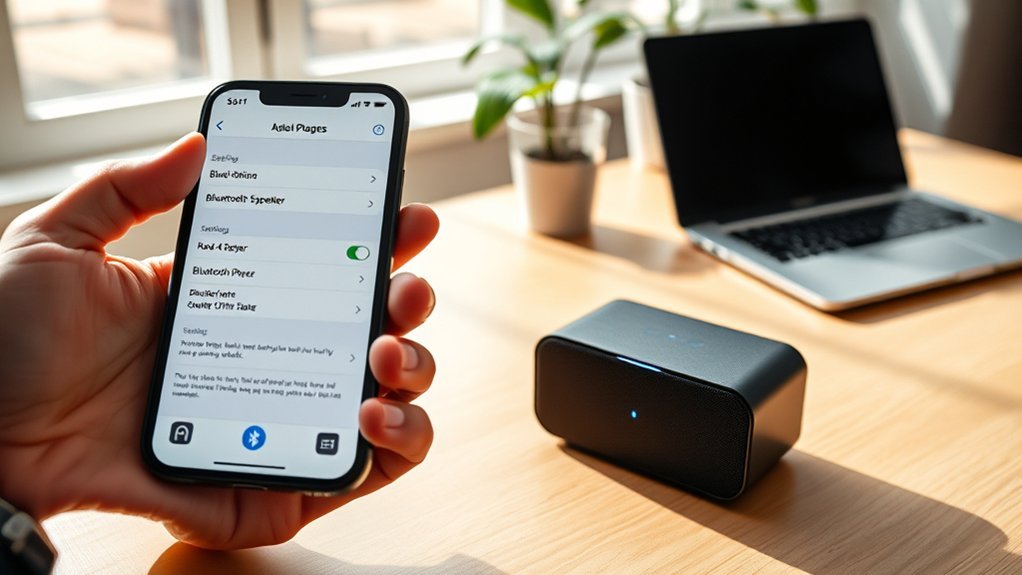
To connect an iPhone to a 2023 Toyota RAV4, Bluetooth, Siri, and CarPlay should first be enabled on the iPhone, and CarPlay should be allowed in the RAV4 settings. For wireless setup, the user should open the RAV4 Bluetooth devices menu, add the iPhone, confirm the pairing code, and approve permissions. For USB setup, an Apple-certified cable should be used in the data port. If problems occur, restart both devices and verify software updates for best results.
Check iPhone and RAV4 CarPlay Settings
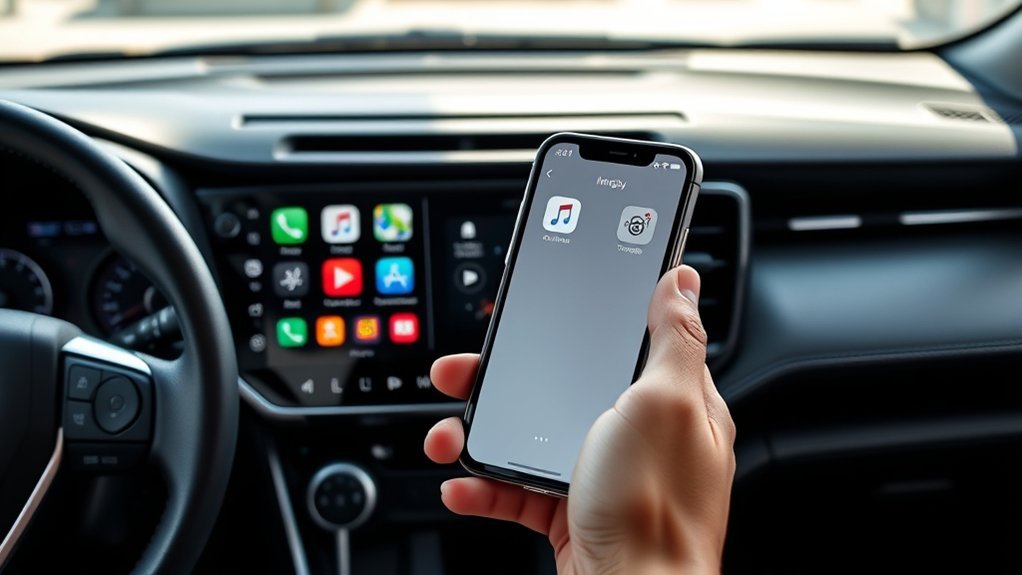
Begin by verifying the required iPhone and RAV4 settings before attempting a CarPlay connection. This preliminary check removes friction and gives the driver greater control over the Apple CarPlay setup process.
First, the iPhone should have Bluetooth enabled. Next, CarPlay must be active under Settings > General > CarPlay. Siri must also be enabled through Settings > Siri & Search, since voice support is integral to system operation.
The vehicle should then be inspected. On the RAV4 multimedia display, Apple CarPlay must be enabled within the settings menu. The vehicle must remain in Park (P) during setup, as some functions stay restricted until the transmission position is safe.
Finally, the iPhone should be updated to the latest iOS version to reduce compatibility faults and improve stability. Completing these checks establishes a clean baseline, minimizes avoidable errors, and prepares the system for a more independent in-vehicle experience.
Connect iPhone to RAV4 Wirelessly
Activate Bluetooth on the iPhone first, then open the RAV4 multimedia display and navigate to Settings (gear icon) > Bluetooth & devices > Add another device. This sequence initiates a direct wireless pairing path inside the multimedia system.
When the device list appears, the iPhone should be visible. Select it to begin the connection request and move control away from unnecessary barriers.
Next, follow the prompts shown on both the iPhone and RAV4 screens. Confirm the pairing code if requested, then approve any permissions needed for contacts, notifications, or wireless access. These prompts finalize Bluetooth registration between both systems and establish a stable operational link.
Follow both screens’ prompts, confirm the pairing code, and approve permissions to complete registration and secure a stable wireless connection.
After pairing completes, verify that CarPlay is enabled on the iPhone by opening Settings > General > CarPlay. Select the RAV4 if listed and confirm access.
Once enabled, the multimedia system can launch CarPlay features wirelessly, giving the driver a cleaner, cable-free interface with fewer physical constraints.
Connect iPhone to RAV4 With USB
Connect the iPhone to the RAV4 using an Apple-certified USB cable inserted into the vehicle’s USB port designated for data, since charge-only ports will not support Apple CarPlay. This method lets the driver connect iphone to rav4 with usb and bypass unnecessary friction. After connection, the multimedia display should present a CarPlay authorization prompt; it must be accepted to proceed.
| Step | Required action |
|---|---|
| 1 | Use Apple-certified cable in data USB port |
| 2 | Accept CarPlay prompt on RAV4 screen |
| 3 | Verify Settings > General > CarPlay on iPhone |
| 4 | Update iPhone and RAV4 software |
If CarPlay does not launch, CarPlay activation should be confirmed on the iPhone under Settings > General > CarPlay. Bluetooth should also remain enabled if the system requests it during setup. For reliable operation and greater control, both the iPhone and the RAV4 multimedia system should run the latest software versions available.
Use Bluetooth for Music and Calls
When a USB connection is not preferred, Bluetooth provides a direct method for audio and call integration. On the iPhone, Bluetooth should be enabled first.
On the RAV4 display, Menu should be pressed, followed by Setup. From there, Bluetooth should be selected, then Add New Device to begin pairing. The system will present a PIN on both screens. Connection should be completed only after confirming that the displayed numbers match exactly.
- Enable Bluetooth on the iPhone before opening the RAV4 pairing menu
- Select Add New Device on the vehicle screen to initiate discovery
- Verify the matching PIN to authorize secure pairing
After pairing, the iPhone can stream music through the RAV4 audio system and support hands-free calling without cables.
This arrangement gives the driver more freedom of movement while keeping communication and entertainment integrated. For uninterrupted operation, the iPhone’s Bluetooth setting should remain enabled throughout the drive at all times.
Troubleshoot RAV4 CarPlay Connection Issues
Begin troubleshooting by confirming that the iPhone has Bluetooth enabled, is running the latest iOS version, and has CarPlay turned on under Settings > General > CarPlay with the RAV4 listed. This establishes control over the connection pathway and removes common software barriers.
| Check | Action |
|---|---|
| iPhone status | Enable Bluetooth; update iOS |
| CarPlay setting | Confirm RAV4 appears in CarPlay |
| RAV4 system | Allow CarPlay in multimedia settings |
| Vehicle position | Shift to Park (P) during setup |
| Persistent failure | Restart iPhone and RAV4; contact Toyota support |
Next, the vehicle’s multimedia menu should be reviewed to verify that CarPlay is permitted. Setup should occur only while the RAV4 is in Park, because some functions remain restricted otherwise. If CarPlay still does not launch, both devices should be restarted to clear temporary faults. When the issue continues, Toyota’s Audio & Connected Services Support offers model-specific guidance, enabling an unblocked path forward.
Frequently Asked Questions
Why Won’t My iPhone Connect to My Toyota RAV4?
Connection Issues usually stem from disabled Bluetooth, outdated iOS, inactive CarPlay, temporary system glitches, or the vehicle not being in Park. Freedom comes through checking each setting methodically, then restarting both devices to restore pairing.
How Do I Connect My iPhone to My Toyota RAV4?
To connect an iPhone to a Toyota RAV4, place the vehicle in Park, enable iPhone Bluetooth, open Settings, Bluetooth & devices, select Add device, choose the iPhone, confirm prompts; for Wireless Troubleshooting, verify updates.
Why Won’t My iPhone Connect to My Car Through Bluetooth?
An eternity of failed pairing usually means settings or software conflict. For Bluetooth Troubleshooting, one should verify Bluetooth is enabled, vehicle is parked, compare PINs, update iPhone software, then restart both devices to restore connection.
My Toyota RAV4 Has Bluetooth That Isn’t Connecting. What Can I Do?
To resolve Bluetooth Connection Issues, one should verify Bluetooth is enabled on both devices, place the RAV4 in Park, match PINs exactly, restart phone and infotainment system, then update iPhone iOS for compatibility and pairing freedom.
Conclusion
Connecting an iPhone to a 2023 RAV4 is, ironically, simplest when each “smart” feature is checked in order. First, confirm CarPlay, Siri, Bluetooth, and USB permissions. Next, attempt wireless pairing; if unstable, use a certified USB cable. Then verify audio, calls, and prompts through Bluetooth or CarPlay. Finally, restart both devices and review RAV4 infotainment settings. In a system built for convenience, precision remains the fastest route to making convenience actually work as intended.
