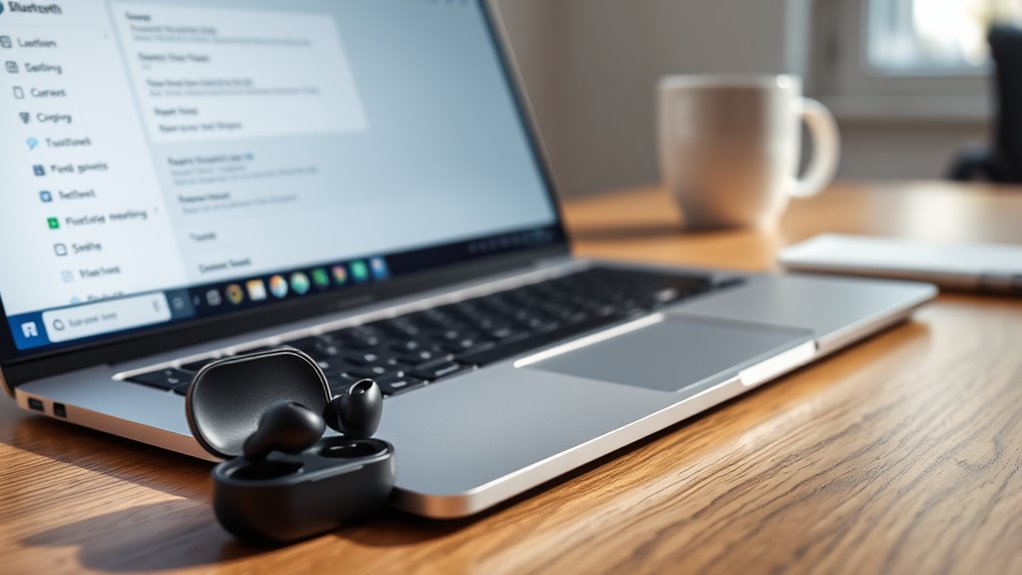
To reconnect forgotten earbuds on a Chromebook, open Bluetooth settings from the Status bar and make sure Bluetooth is on. Put the earbuds in pairing mode by placing them in the case and reopening the lid, or using the model’s pairing button. Then select Pair new device and choose the earbuds from the list. If they do not appear, forget the old device, restart the Chromebook, and try again. More details can help with stubborn connections.
Key Takeaways
- Open Chromebook Bluetooth settings from the Status bar.
- Put the earbuds back into pairing mode.
- Select Pair new device to search for them again.
- Choose the earbuds from the detected list and complete pairing.
- If they still do not appear, forget the old device and restart the Chromebook.
Put Your Earbuds in Pairing Mode
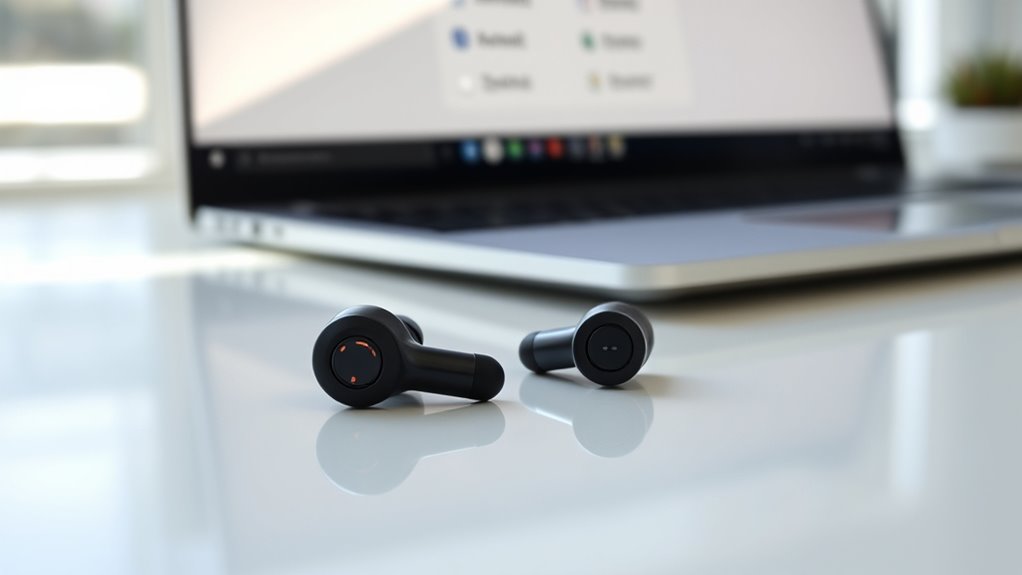
To begin pairing, the earbuds should be placed in their charging case, then the lid closed and reopened to trigger pairing mode, usually shown by flashing lights.
Before the Chromebook can pair new device, it is wise to make sure the earbuds are no longer connected to any previously linked device. Some models require a button press or a tap on a specific touch area after the case opens, so the user should check the design and follow its pairing cue.
The earbuds should stay close to the Chromebook so the Bluetooth scan can detect them reliably. When pairing mode is active, the earbuds will appear in the Bluetooth list on the Chromebook.
From there, they can be selected for connection. This simple step supports access without unnecessary barriers, giving the user a direct path to wireless freedom and a more independent listening setup.
Reconnect Forgotten Earbuds on Chromebook
| Step | Action |
|---|---|
| 1 | Open Bluetooth settings |
| 2 | Confirm pairing mode |
| 3 | Select Pair new device |
| 4 | Choose the earbuds |
| 5 | Complete pairing |
After successful pairing, the earbuds should reconnect automatically in the future, reducing dependence on repeated setup and restoring easier wireless use.
Fix Chromebook Bluetooth Pairing Issues
If the earbuds are not pairing with a Chromebook, the first step is to confirm that Bluetooth is enabled by checking the Status bar for the Bluetooth icon and turning it on if needed.
Then, the Chromebook user should open Bluetooth settings from the Status bar and choose Pair new device. This allows the system to search for nearby earbuds and restore a direct connection without delay.
Open Bluetooth settings from the Status bar and choose Pair new device to search for nearby earbuds.
If the earbuds do not appear, they should be placed in pairing mode, often shown by flashing lights, and kept close to the Chromebook.
When a device was previously linked, it may help to forget earbuds in Bluetooth settings and try again. This clears old data that can block a fresh pairing.
If the connection still fails, restarting the Chromebook can reset temporary glitches and improve Bluetooth performance.
These steps give the user a clearer path to freedom from stubborn pairing problems.
Check Connected Devices in Bluetooth Settings
Bluetooth settings can show which devices are already paired, helping to identify earbuds that may reconnect quickly.
The “Currently connected” section confirms an active link, while “Previously connected devices” may list earbuds that are no longer connected.
Any forgotten or unwanted devices can be removed to keep the list organized and make reconnection easier.
View Paired Devices
To view paired earbuds and other connected devices on a Chromebook, the user can open the Status bar in the bottom-right corner and select the Bluetooth icon.
In the Bluetooth menu, the device list shows paired devices and any items currently connected. It is important to note that this view helps the user manage connections with more control.
Previously paired earbuds may appear even when not active, making it easier to review saved options. Selecting a specific device opens choices such as rename, disconnect, or remove.
If a device should no longer remain in the list, the Forget option can be used next to its name. This keeps Bluetooth settings organized and supports more independent device management.
Confirm Current Connection
After reviewing paired earbuds in the Bluetooth menu, the next step is confirming whether they are actively connected. The first thing is to click the Status bar at the bottom right of the Chromebook, then open Bluetooth]③ on the left. This reveals connected devices and shows whether the earbuds are free to work now.
- Check the “Currently connected” section for the earbuds.
- Confirm the battery power is sufficient for steady audio.
- If they do not appear, select “Pair new device” and keep the earbuds nearby in pairing mode.
This quick check helps the user reclaim control without confusion. When the earbuds appear in the list, the connection is active; when they do not, the Chromebook is signaling that another pairing step may be needed.
Remove Forgotten Devices
Opening the Status bar on the Chromebook and selecting the Bluetooth icon reveals the list of connected devices, making it easy to check whether the forgotten earbuds are still linked. If they appear under Currently connected, the next step is to open Settings from the Status bar, then choose Bluetooth from the left sidebar.
There, the device can be selected and the Forget option used to clear it from the list. This simple reset supports better Device management strategies and can resolve common Bluetooth troubleshooting tips.
If Earbud compatibility issues continue, the earbuds can be placed in pairing mode again and reconnected by choosing Pair new device. This approach helps the user regain control, remove old links, and restore a clean, usable connection.
Forget and Re-Pair Saved Earbuds
If a Chromebook is not connecting to saved earbuds, the saved pairing can be removed and set up again. This simple reset is one of the most practical earbud troubleshooting tips for handling Bluetooth connection issues without frustration.
On the Chromebook, open the Status bar, choose Bluetooth, and select the earbuds’ name. Use the Forget option to clear the old link.
- Put the earbuds in the charging case.
- Open the lid and watch for pairing mode indicators, such as flashing lights.
- Return to Bluetooth settings and choose Pair new device.
When the earbuds appear in the list, select them and follow any on-screen steps, including a PIN if requested.
After pairing, the Chromebook should reconnect automatically in the future. This gives the user more control and a cleaner wireless setup.
Use Earbud Controls After Pairing
Once the earbuds are paired, their built-in controls let the user manage audio and calls without reaching for the Chromebook. These earbud functionality tips support freedom from constant screen contact.
A double tap on either earbud handles music playback controls by playing or pausing audio. For track changes, the left earbud can be pressed for 1.5 seconds to return to the previous song, while the right earbud moves to the next track. Triple tapping either earbud activates the voice assistant, giving hands-free access to tools and commands.
Call management features are equally direct: double press either earbud to answer a call, then double press again to end it. To refuse an incoming call, press and hold either earbud for 1.5 seconds.
These simple gestures keep control close at hand and help the user stay mobile, efficient, and in command.
Frequently Asked Questions
How Do I Pair My Earbuds With My Chromebook?
He pairs earbuds by enabling Bluetooth in Chromebook settings, opening the earbuds case in pairing mode, then selecting Pair new device. If issues arise, Bluetooth troubleshooting and earbud compatibility checks usually resolve the connection.
What Does Ctrl+Alt+Z Do on a Chromebook?
What else could it do? On a Chromebook, Ctrl+Alt+Z turns ChromeVox on or off, activating accessibility features through keyboard shortcuts, so users can hear screen text without digging through Chromebook settings.
Is There a Way to Unforget a Bluetooth Device?
No, a forgotten Bluetooth device cannot usually be unforgotten; it must be paired again. Bluetooth troubleshooting tips, Device management strategies, and Forgotten device solutions all point to re-pairing, with the earbuds in pairing mode nearby.
Why Can’t My Chromebook Find My Headphones?
The Chromebook may miss the headphones because of common connectivity issues: Bluetooth off, low battery, pairing mode disabled, or another device connected. Bluetooth troubleshooting tips include checking Chromebook audio settings, restarting both devices, and re-pairing.
Conclusion
Reconnecting forgotten earbuds on a Chromebook is usually quick once pairing mode is activated and Bluetooth settings are checked. In many cases, Bluetooth issues are the main reason devices do not reconnect on the first try. One useful statistic is that most wireless connection problems are resolved by simply forgetting the device and pairing it again. With a few simple checks, the earbuds can be linked again and used normally for calls, music, and videos.

