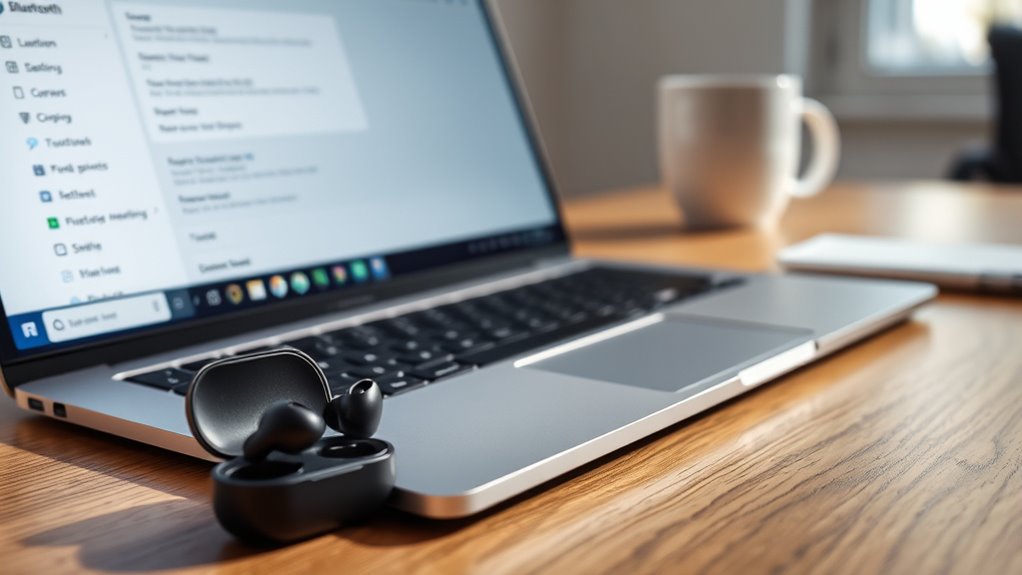
Accidentally selected Forget for your earbuds and now cannot find them on your Chromebook? You can reconnect forgotten earbuds on a Chromebook without installing another app. The key is to put the earbuds back into pairing mode so ChromeOS can detect them as a new Bluetooth device.
Quick Answer
If you forgot your earbuds on a Chromebook, turn on Bluetooth, activate the earbuds’ pairing mode, and select Pair new device from the Bluetooth menu. Choose your earbuds and complete the connection. If they were only disconnected, select them under Previously connected instead. A forgotten device must be paired again.
At a Glance
| Difficulty | Beginner-friendly |
| Tools Needed | Bluetooth-enabled Chromebook and charged wireless earbuds |
| Cost | Free using built-in Bluetooth settings |
Key Takeaways
- For earbuds removed with Forget, you must create a new Bluetooth pairing.
- Earbuds saved under Previously connected may only need the Connect option.
- Opening the charging case does not put every earbud model into pairing mode.
- If your Chromebook cannot find the earbuds, check whether another device is using them.
- Successful Bluetooth pairing does not always mean the correct audio output is selected.
Put Your Earbuds in Pairing Mode
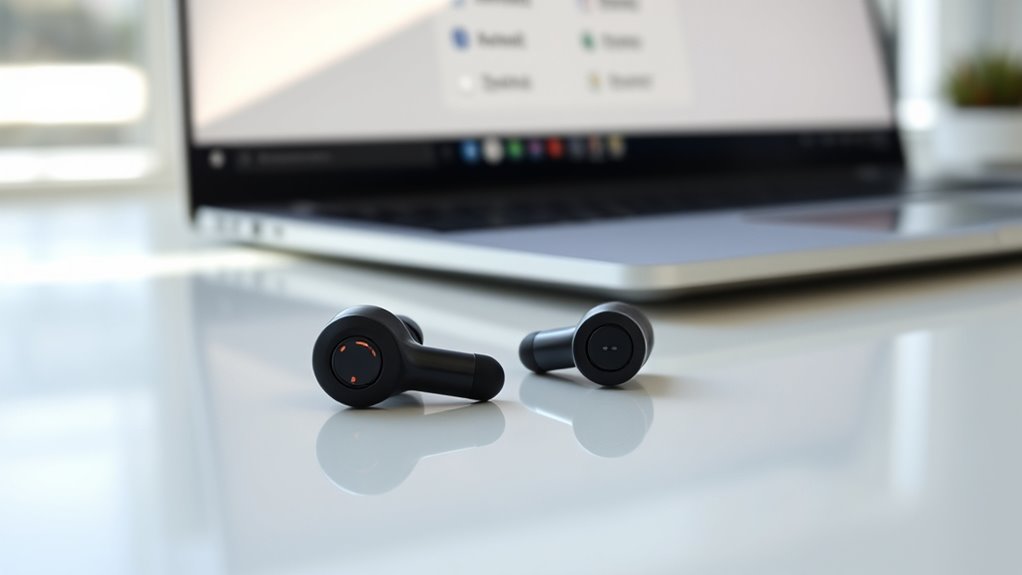
Your earbuds must be in pairing mode before a Chromebook can discover them. Pairing mode makes the earbuds visible to nearby Bluetooth devices. Simply turning them on may reconnect them to an older device instead.
For many wireless earbuds, the charging case is used to begin pairing. Place the earbuds inside the case and open its lid. Depending on the model, you may also need to press a pairing button or touch the earbuds.
A flashing indicator light or spoken pairing message often confirms that the earbuds are discoverable.
Prepare the Earbuds Before Pairing
- Charge the earbuds: Make sure both earbuds and their charging case have enough power.
- Disconnect other devices: Temporarily turn off Bluetooth on a phone or computer that might already be using the earbuds.
- Activate pairing mode: Open the charging case and use the model’s pairing button or touch controls if required.
- Check the indicator: Look for a flashing light or listen for an audio prompt confirming pairing mode.
- Keep the earbuds nearby: Place them close to the Chromebook while searching.
Some earbuds use a button on the charging case, while others use a touch-sensitive area on the earbuds themselves. The correct gesture depends on the model.
The official Chromebook Bluetooth pairing guide confirms that an accessory must be discoverable and in pairing mode before pairing begins.
If opening the case does not activate pairing mode, follow the instructions for your exact earbud model. Repeatedly opening and closing the lid will not help if a separate button or gesture is required.
How to Reconnect Forgotten Earbuds on Chromebook
To reconnect earbuds that you previously forgot, pair them as a new Bluetooth device. ChromeOS no longer has the old pairing record, so selecting Pair new device creates a fresh connection.
Use the Chromebook’s Quick Settings menu to complete the process.
| Step | Action |
|---|---|
| 1 | Select the time at the bottom-right corner, open Bluetooth, and turn it on. |
| 2 | Confirm that your earbuds are in pairing mode. |
| 3 | Select + Pair new device. |
| 4 | Choose the earbuds from the available Bluetooth devices. |
| 5 | Follow the on-screen instructions and confirm the connection. |
After the pairing process finishes, reopen the Bluetooth menu. Your earbuds should appear under Currently connected.
Play a short audio clip to make sure the sound reaches the earbuds instead of the Chromebook’s speakers.
If the earbuds appear under Previously connected rather than Currently connected, select their name and choose Connect.
Previously paired Bluetooth devices may reconnect automatically, but this behavior varies. It depends on the earbuds, their connection settings, and whether another device is using them.
Fix Chromebook Bluetooth Pairing Issues
If your Chromebook cannot find or connect to your earbuds, the problem is usually related to pairing mode, a saved connection, or a temporary Bluetooth issue. Start with the simplest checks before attempting more advanced troubleshooting.
The following fixes address common problems, including earbuds that do not appear, fail to pair, or repeatedly disconnect.
1. Check Bluetooth and Earbud Power
Open Quick Settings by selecting the time in the bottom-right corner. Make sure the Bluetooth switch is turned on.
Also confirm that the earbuds have enough battery power to remain active during pairing. A low battery can interrupt the process or prevent the earbuds from entering pairing mode.
2. Disconnect the Earbuds From Other Devices
Some earbuds reconnect to a previously used phone or computer as soon as they turn on. This can prevent the Chromebook from discovering or connecting to them.
Open Bluetooth settings on the other device and disconnect the earbuds. Then activate pairing mode again and search from the Chromebook.
Earbuds that support connections to multiple devices may behave differently, but checking for an active connection elsewhere is still useful.
3. Restart Bluetooth
Turn Bluetooth off from the Chromebook’s Quick Settings menu, then turn it back on. This can clear a temporary connection problem.
If the earbuds still fail to connect, turn the earbuds off and on using their normal power controls. You can also restart the Chromebook.
These steps are consistent with the official Chromebook hardware and Bluetooth troubleshooting instructions.
4. Check for ChromeOS Updates
Outdated system software can sometimes contribute to Bluetooth problems. If the basic steps do not work, check whether a ChromeOS update is available.
- Open Settings on the Chromebook.
- Select About ChromeOS.
- Choose Check for updates.
- Install any available update and restart when prompted.
- Try connecting the earbuds again.
Google explains the procedure in its ChromeOS update instructions.
5. Check for Wireless Interference
If the earbuds pair but the connection keeps dropping, reduce the distance between them and the Chromebook.
Keep the earbuds away from nearby wireless devices or appliances that may interfere with Bluetooth signals. Closing unused apps and browser tabs may also help when the Chromebook is under heavy load.
6. Consider a Hardware Reset Only if Necessary
If Bluetooth itself continues to malfunction after restarting and updating, a Chromebook hardware reset may help. This resets hardware components rather than simply removing an earbud pairing.
Warning: A Chromebook hardware reset may delete some files in the Downloads folder. Back up important local files first. Do not perform a factory reset simply because your earbuds were forgotten.
On most Chromebooks, turn the device off, hold the Refresh key, and tap Power. Release Refresh when the Chromebook starts. Some models use different procedures, so follow the official Chromebook hardware reset guide for your device.
If Bluetooth remains unavailable or fails with multiple known-working accessories, contact the Chromebook manufacturer. If only one pair of earbuds has trouble, contact the earbud manufacturer.
Check Connected Devices in Bluetooth Settings
Chromebook Bluetooth settings separate devices that are currently connected from devices saved for later use. Checking these sections helps you determine whether the earbuds need reconnecting or complete re-pairing.
The distinction matters because a disconnected device is not necessarily a forgotten device.
View Paired Devices
To see saved Bluetooth devices, select the time at the bottom-right corner of the screen. Open the Bluetooth menu, or select Settings and then Bluetooth.
You may see the following groups:
- Currently connected: Devices that have an active Bluetooth connection to the Chromebook.
- Previously connected: Devices that were paired before but are not currently connected.
- Devices saved to your account: Compatible Fast Pair accessories associated with your account, when that feature is supported.
Some settings screens also provide options to rename, disconnect, or forget a paired device.
If the earbuds are still saved under Previously connected, you do not need to remove them immediately. Try selecting their name and choosing Connect first.
Confirm Current Connection
A successful connection should place your earbuds under Currently connected in the Bluetooth menu. This confirms that the Chromebook has established an active Bluetooth link.
Use these checks to confirm the connection:
- Look for the earbud name under Currently connected.
- Make sure the earbuds have enough battery power.
- Play audio and listen for sound through the earbuds.
If the earbuds are listed as connected but you cannot hear anything, the problem may be the Chromebook’s audio-output selection rather than Bluetooth pairing.
What if the Earbuds Connect but Have No Sound?
Chromebooks can connect to wireless earbuds while continuing to use another audio-output device. Selecting the earbuds as the output can restore sound without another pairing attempt.
- Select the time at the bottom-right corner of your Chromebook.
- Find the volume slider in Quick Settings.
- Select Audio settings next to the slider.
- Under Output, choose your Bluetooth earbuds.
- Make sure the volume is not muted.
The selected output device should display a green check mark. For more details, see the official Chromebook audio settings guide.
If audio works but the microphone does not, check the Input section and select the appropriate microphone. Some earbuds offer different audio features depending on the app and connection mode.
Remove Saved Devices or Old Pairings
If an earbud pairing is saved but no longer works, removing that record can help you start fresh. This is different from reconnecting an earbud that has already been forgotten.
Open Settings, select Bluetooth, and find the earbuds under the connected or previously connected devices.
Select the earbuds and choose Forget. Confirm the action if ChromeOS asks.
The earbuds will disappear from the Chromebook’s saved pairing list. You can then put them in pairing mode and add them again.
If the earbuds were already forgotten, there is no old entry left to remove. Go directly to Pair new device instead.
Forget and Re-Pair Saved Earbuds
Forgetting and re-pairing can help when the Chromebook remembers the earbuds but cannot establish a stable connection. Removing the saved record gives the Chromebook a chance to create a fresh pairing.
Use this method if the earbuds appear under Previously connected but selecting Connect repeatedly fails.
- Open Settings and select Bluetooth.
- Select your earbuds from the saved-device list.
- Choose Forget to remove the old pairing.
- Return the earbuds to pairing mode using their case or controls.
- Select Pair new device and choose the earbuds.
- Complete any confirmation or PIN instructions shown on the screen.
When pairing finishes, check the Currently connected section and test the audio.
Do not confuse Forget with Disconnect. Disconnect ends the active connection but normally keeps the pairing information. Forget removes the saved pairing from the Chromebook.
If your earbuds support Fast Pair, they may also have an account-associated entry under Devices saved to your account. This is separate from the normal connected-device list.
If a fresh pairing still fails, the earbuds themselves may need a reset. Follow the manufacturer’s model-specific instructions, since reset gestures and their effects vary.
Use Earbud Controls After Pairing
Once your earbuds are connected, their built-in buttons or touch controls may let you manage music, calls, and other features without opening Chromebook settings.
However, earbud controls are model-specific. Not every model uses the same tapping pattern, and some gestures can be customized.
Control Music Playback
Many wireless earbuds support basic media commands directly from their touch surfaces or buttons.
- Play or pause: Often handled by a single tap, double tap, or button press, depending on the model.
- Next track: May require a double tap, a long press, or another assigned gesture.
- Previous track: Some earbuds use a triple tap or a separate left-earbud gesture.
- Voice assistant: Supported models may use a long press, multiple taps, or another assigned control.
For example, some earbud instructions assign a press lasting about 1.5 seconds to track changes. On certain designs, the left earbud returns to the previous track while the right advances to the next one.
Other models use different controls entirely, so this arrangement should not be treated as universal.
Answer and End Calls
Supported earbuds may also let you answer, end, or reject calls through their physical buttons or touch controls.
- Answer a call: Use the tap or press assigned to incoming calls.
- End a call: Repeat the appropriate call-control gesture.
- Reject a call: Some models use a press-and-hold gesture.
For certain earbuds, double pressing answers or ends a call, while a longer press rejects an incoming call. These controls depend on the model and may not work the same way in every Chromebook app.
If a gesture performs an unexpected action, check the earbud instructions instead of repeatedly changing Chromebook Bluetooth settings. Pairing controls and playback controls are separate features.
Frequently Asked Questions
How Do I Pair My Earbuds With My Chromebook?
Turn on Bluetooth on your Chromebook and put your earbuds in pairing mode. Select the time at the bottom-right corner, open Bluetooth, and choose Pair new device. Select your earbuds from the list and follow the on-screen instructions to complete pairing.
What Does Ctrl+Alt+Z Do on a Chromebook?
Ctrl+Alt+Z turns ChromeVox, the built-in Chromebook screen reader, on or off. ChromeVox reads screen content aloud to help users with visual impairments. This shortcut does not control Bluetooth pairing or reconnect forgotten earbuds.
Is There a Way to Unforget a Bluetooth Device?
No, Chromebooks do not provide a normal Unforget button for restoring a deleted Bluetooth pairing. You must put the accessory in pairing mode and pair it again. If the device was only disconnected, it may still appear under Previously connected.
Why Can’t My Chromebook Find My Headphones?
Your Chromebook may not find the headphones because they are not in pairing mode, have a low battery, or are connected to another device. Bluetooth may also be disabled. Check those conditions before restarting the Chromebook or re-pairing the headphones.
Why Are My Earbuds Connected but Not Playing Sound?
The Chromebook may be sending sound through its built-in speakers or another output device. Open Audio settings from Quick Settings and select your earbuds under Output. Also check the volume and mute settings before attempting to pair the earbuds again.
Can I Reconnect Earbuds Without Pairing Them Again?
Yes, if the earbuds are still saved on your Chromebook. Open Bluetooth settings, find the earbuds under Previously connected, and select Connect. If you previously selected Forget, you need to put the earbuds in pairing mode and create a new connection.
Conclusion
To reconnect forgotten earbuds on a Chromebook, activate pairing mode and add the earbuds through Bluetooth settings. If the earbuds are still saved, try Connect before removing their pairing record.
If the connection fails, check the earbud battery, nearby devices, and Bluetooth settings first. Once the earbuds appear under Currently connected, test the audio output to confirm they are ready for music, videos, and calls.
Sources
- Chromebook Help: Connect Chromebook to Bluetooth Devices: Official pairing instructions, connected-device management, forgetting devices, and Fast Pair.
- Chromebook Help: Fix Hardware and System Problems: Bluetooth connection failures, battery checks, wireless interference, and troubleshooting.
- Chromebook Help: Update Your Chromebook’s Operating System: Checking for ChromeOS updates and completing installation.
- Chromebook Help: Reset Your Chromebook Hardware: Hardware reset instructions and potential risks to downloaded files.
- Chromebook Help: Adjust the Volume on Your Chromebook: Selecting Bluetooth audio output, microphone input, and volume settings.
- Chromebook Help: Use the Built-in Screen Reader: ChromeVox functionality and the Ctrl+Alt+Z keyboard shortcut.