A light red iPhone screen is a popular night-mode tweak that cuts blue light and feels softer on the eyes. It can reduce glare, support melatonin, and make late scrolling less harsh. To enable it, go to Settings > Accessibility > Display & Text Size > Color Filters, then choose Color Tint and push the sliders toward red. A triple-click shortcut or automation can switch it on fast, with more display tricks worth knowing just ahead.
Key Takeaways
- Use iPhone Accessibility settings to enable Color Filters and choose Color Tint for a light red screen.
- Adjust the Intensity and Hue sliders to create a softer red color instead of a strong red filter.
- Turn on the Accessibility Shortcut for quick triple-click toggling of the red tint.
- Use Shortcuts automation to activate the red tint automatically at night or before sleep.
- Combine Night Shift, Reduce Transparency, and lower brightness for a more comfortable low-light display.
Why Use a Red iPhone Screen
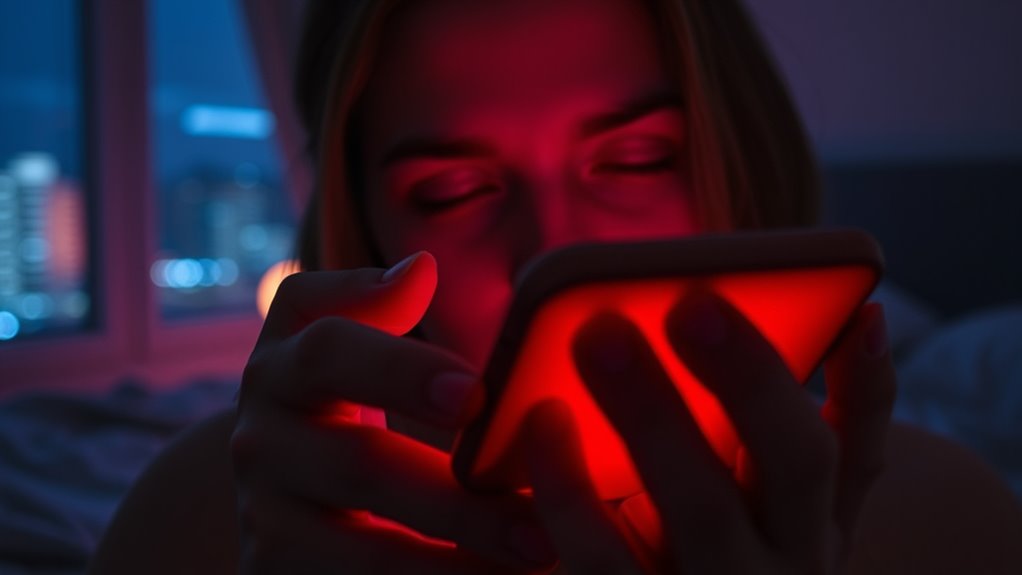
A red iPhone screen is often used to cut eye strain by reducing exposure to harsh blue light, especially at night.
The appeal is simple: red light feels softer, cleaner, and less invasive, giving the eyes a break from the glare that dominates modern screens. For people chasing a freer rhythm, it offers a calmer way to stay connected without the usual visual fatigue.
Red light also mirrors sunset tones, nudging the body toward rest and supporting melatonin release, which can make sleep feel more natural. Some studies suggest it may even sharpen night vision by helping the eyes adapt in low light.
For extended scrolling, it can ease headaches and make the display feel more wearable. The result is a more relaxed, less punishing screen experience that fits nighttime life better.
How to Turn Your iPhone Screen Red
The red-screen look starts in Settings, where Color Filters can be enabled under Accessibility and then shifted to a strong Color Tint for that muted glow.
For a faster routine, the Accessibility Shortcut can be set to Color Filters, letting the side button handle the switch in a triple-click.
It is a sleek setup that keeps the display ready for low-light moments without extra friction.
Enable Color Filters
Sliding into iPhone settings, Color Filters can give the screen a bold red tint in just a few taps. To enable the effect, move through Settings > Accessibility > Display & Text Size > Color Filters, then switch it on. Choose Color Tint, then push Intensity and Hue toward maximum red for a clean, liberated glow.
| Step | Path | Result |
|---|---|---|
| 1 | Settings | Enter controls |
| 2 | Accessibility | Open display options |
| 3 | Color Filters | Activate feature |
| 4 | Color Tint | Select red mode |
| 5 | Sliders | Deepen red tint |
The look lands fast, turning the display into a statement. If the vibe needs to end, Color Filters can be switched off just as easily, restoring the standard screen without drama.
Set Up Quick Toggle
For a faster switch to red, the iPhone’s Accessibility Shortcut puts Color Filters within instant reach. In Settings > Accessibility > Accessibility Shortcut, select Color Filters, and the move is set. A triple-click on the side button, or home button on older models, flips the display from standard to red in seconds.
For a stronger effect, the red look can be tuned in Settings > Accessibility > Display & Text Size > Color Filters, where Intensity and Hue can be pushed to maximum.
Those wanting automation can build a personal shortcut in the Shortcuts app, triggering red mode by time or sleep schedule. The result is simple: less friction, more control, and a screen that bends to the user’s rhythm.
Set Up a Red Tint Shortcut
A red tint shortcut can be set up in seconds through Settings > Accessibility > Accessibility Shortcut**, where Color Filters** is selected for instant access.
With that choice locked in, a triple click on the side button, or the home button on older models, becomes a fast switch for the red screen.
The effect feels current, clean, and quietly rebellious: standard display one moment, warm red light mode the next.
Standard display one moment, warm red light the next—clean, current, and quietly rebellious.
Inside Color Filters, the Intensity and Hue sliders let the user shape the tint, from subtle warmth to a deeper crimson edge.
This shortcut supports long sessions after dark, keeping the screen softer and less aggressive.
It also helps reduce blue light exposure, which may ease eye strain and support better sleep.
The result is a streamlined, liberated viewing setup without extra steps or visual clutter.
Automate Red Tint on iPhone
Automation begins in the Shortcuts app, where a new Personal Automation can be created in the Automation tab.
A trigger time, such as a set hour or Sleep Mode, gives the red tint a sleek, hands-free schedule.
Once the timing is set, the iPhone can switch into the red look exactly when needed.
Create Automation
Within the Shortcuts app, the iPhone can be set to shift into a red tint on its own by building a personal automation under the Automation tab.
To create automation, the user selects a trigger such as Time of Day or Sleep Mode, then adds the action by searching for Set Color Filter. From there, the red tint option is chosen and paired with turn on Color Filters, giving the display a low-key, night-ready look.
To keep the setup truly effortless, Ask Before Running should be disabled, so the change happens without prompts.
The result is a cleaner, freer screen routine: instant red tint at chosen moments, softer brightness for late-night scrolling, and reduced blue light exposure when the world goes dark.
Choose Trigger Time
When should the red tint kick in? In Shortcuts, the user can open the Automation tab and choose trigger time with intent, not guesswork.
A Time of Day trigger lets the red screen land exactly at evening hours or before sleep, syncing the phone to a freer, softer rhythm. Sleep Mode works too for a more fluid handoff.
After the trigger is selected, the next move is clean: add the action Set Color Filter and pick the red tint that fits.
Disable Ask Before Running so the automation moves silently, without permission prompts.
The result is effortless control: the iPhone shifts into a red tint on schedule, easing glare, supporting eye comfort, and keeping the night feel unbroken.
Why Red Tint Helps at Night
At night, a red tint gives the screen a softer edge by cutting blue light, which can interfere with melatonin and throw off sleep. This red tint keeps blue light low, limiting the harmful effects of blue on the body’s clock and supporting a steadier wind-down. The result feels cleaner, calmer, and more aligned with late-night freedom.
| Benefit | Why it matters | Night impact |
|---|---|---|
| Less glare | Softer visual load | Easier scrolling |
| Better rhythm | Supports melatonin | Smoother sleep |
| Sharper low light | Eyes adapt faster | Less strain |
Research also points to better night vision and reduced discomfort in dim rooms. A 2021 study noted that even a few minutes of red light can boost visual acuity, making late use feel less harsh. For users who stay active after dark, red light is not a gimmick; it is a sleek, practical upgrade.
How to Turn Off Red Tint
- Open Settings and head to Accessibility.
- Tap Display & Text Size for display controls.
- Disable Color Filters to turn off the red tint.
- Triple-click the side button if an Accessibility Shortcut is set.
A hard reset may also reset display settings, offering a clean slate for a more liberated viewing experience.
Other iPhone Display Settings to Try
Beyond a red-tint fix, a few iPhone display tweaks can reshape the whole screen experience.
Night Shift shifts the panel toward warmer tones after dark, easing blue light and helping the body unwind.
For users chasing sharper contrast, Smart Invert can flip the interface into a darker style while leaving images largely intact, a clean move for late-night scrolling.
Color Filters open a more personal lane, letting the screen be tuned for color vision needs or simply a different visual mood.
Reduce Transparency cuts the gloss, turning see-through layers into solid blocks so text and controls read faster.
On newer iPhones, smoother display dimming can also reduce flicker at low brightness, which feels easier on tired eyes.
Together, these settings offer more than comfort; they give the display a freer, more intentional look.
Frequently Asked Questions
What Is the Secret iPhone Setting That Everyone Should Know?
The secret iPhone setting is Color Filters in iPhone accessibility features, a hidden camera settings-style tweak for a red tint. It delivers night mode benefits, reduces blue light, and feels like quiet liberation after dark.
What Is iPhone Secret Red Mode?
iPhone red mode is a hidden display settings tweak that floods the iPhone color with crimson tones, cutting blue light and easing strain. Trend-savvy users enable it for calmer nights, sharper freedom, and better sleep.
Is Red Light on iPhone Good for You?
Yes, red light on an iPhone can offer health benefits, especially eye strain relief and sleep improvement. It cuts blue light, feels gentler at night, and supports a calmer, freer screen experience.
Does Red Light on Camera Mean Someone Is Watching iPhone?
Like a traffic signal, the red camera indicator usually means the camera is active, not that someone is watching. It addresses privacy concerns, revealing light meanings clearly; users should review app permissions and updates.
Conclusion
In the end, using a red iPhone screen can feel as smooth as switching to night mode for the whole day. It gives the display a softer look, supports late-night use, and fits today’s trend toward easier, eye-friendly tech. With shortcuts, automations, and display settings, the feature is simple to control. Whether the goal is comfort or style, the red tint offers a quick, modern way to change the iPhone experience.

