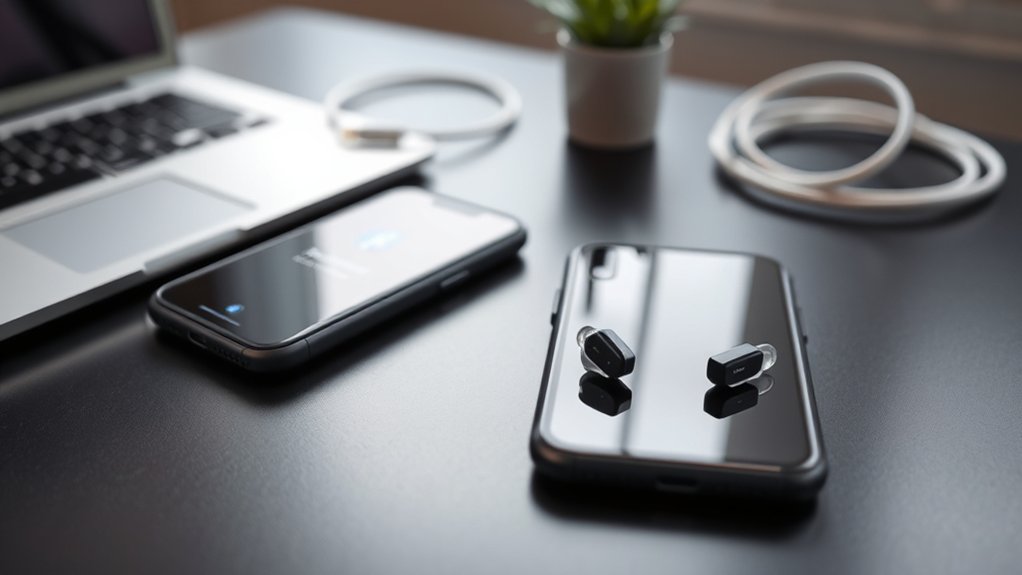
Pairing Phonak hearing aids with an iPhone is a systematic process that begins with enabling Bluetooth in the iPhone’s settings. Users must restart their hearing aids before selecting the device names that appear in the Bluetooth list. Troubleshooting involves confirming pairing mode and restarting both devices if issues persist. The MyPhonak app enhances the experience by allowing real-time adjustments and tracking health data. For more insights on optimizing this pairing experience, further details can be explored.
How to Pair Phonak Hearing Aids With Your iPhone
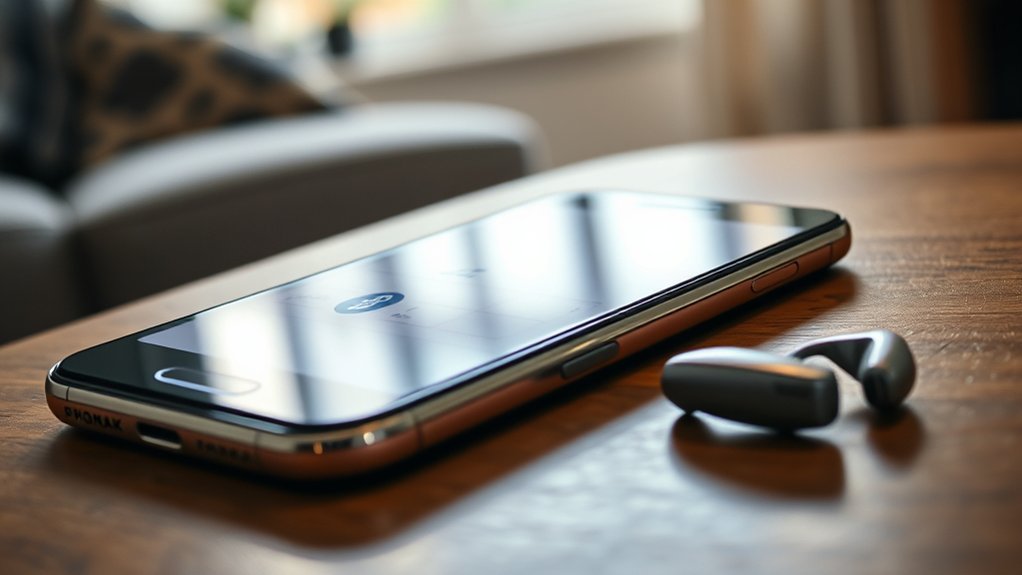
Pairing Phonak hearing aids with an iPhone is a straightforward process that enhances the user experience by enabling seamless audio streaming.
To begin, users must verify that Bluetooth is activated in the iPhone’s Settings menu. Next, the hearing aids should be restarted, either by placing them in the charger for 10 seconds or by pressing the reset buttons, which allows them to enter pairing mode.
Once the hearing aids are ready, users should wait for the device names—such as R-Phonak or L-Phonak—to appear in the Bluetooth devices list on their iPhones. Selecting the appropriate hearing aid will prompt a confirmation beep, indicating successful pairing.
For those utilizing Infinio Ultra hearing aids, the myPhonak app can facilitate this process by auto-pairing for streaming, further simplifying connectivity.
This accessible pairing method empowers users, enhancing their auditory experience and overall quality of life.
Step-by-Step Guide to Restarting Your Hearing Aids
Restarting hearing aids is a critical step in guaranteeing peak connectivity and functionality. This process can resolve minor issues and prepare the devices for ideal performance.
Restarting your hearing aids is essential for optimal connectivity and performance, helping to resolve minor issues effectively.
Here’s a concise guide for both rechargeable and replaceable battery hearing aids:
- For Rechargeable Hearing Aids:
- Place them in the charger for 10 seconds before removing them, confirming the charger is powered.
- Alternatively, press the lower button until the indicator shows red, then green.
- For Replaceable Battery Hearing Aids:
- Open the battery doors for 5 seconds, then close them to restart.
Once restarted, verify the hearing aids are in pairing mode and detectable by your iPhone’s home screen. They remain in pairing mode for 3 minutes, allowing ample time to initiate the Bluetooth connection.
Consulting a hearing care professional can provide further assistance if needed.
Enabling Bluetooth for Pairing on Your iPhone
After ensuring the hearing aids are restarted and in pairing mode, the next step involves enabling Bluetooth on the iPhone. To do this, users should navigate to the “Settings” app from the home screen.
Within the iPhone settings overview, tapping on “Bluetooth” allows the user to slide the toggle to the “on” position, activating the Bluetooth compatibility features vital for connecting devices.
After enabling Bluetooth, it is essential that the hearing aids remain in pairing mode for a maximum of three minutes. Users should observe the Bluetooth device list for the hearing aid’s name, which may display as R-Phonak or L-Phonak.
Selecting the appropriate hearing aid will prompt a confirmation beep, indicating successful pairing. This process not only enhances hearing aid functionality but also fosters a seamless connection, empowering users to enjoy improved auditory experiences through their iPhones.
Troubleshooting Common Pairing Issues With Phonak Hearing Aids
Troubleshooting common pairing issues with Phonak hearing aids often involves addressing several key factors.
Ensuring that Bluetooth settings are correctly configured and verifying that the hearing aids are in proper pairing mode can greatly improve connection success.
Additionally, restarting both the hearing aids and the iPhone may resolve persistent issues, facilitating a smoother pairing process.
Common Pairing Mistakes
Many users encounter common pairing mistakes when attempting to connect their Phonak hearing aids to an iPhone. To guarantee the best pairing frequency and sound optimization, consider the following:
- Pairing Mode: Confirm hearing aids are in pairing mode for 3 minutes by restarting them correctly.
- App Compatibility: Note that the myPhonak app may auto-pair for streaming, bypassing manual pairing.
- Bluetooth Activation: Verify Bluetooth is activated on the iPhone and that the hearing aids are within range.
If issues persist, users should restart both devices, and check that the hearing aids are detectable.
It’s crucial to enable the Auto-on feature in the myPhonak app for rechargeable models to enhance connection reliability.
Bluetooth Settings Verification
Verifying Bluetooth settings is a fundamental step in resolving common pairing issues with Phonak hearing aids.
First, users must confirm Bluetooth is activated on their iPhone by heading to “Settings” and toggling the switch to “on.”
Next, check that the hearing aids are in pairing mode; for rechargeable models, this requires a brief restart.
After restarting, users should wait for their hearing aids, identified as R-Phonak or L-Phonak, to appear in the Bluetooth devices list.
Additionally, the myPhonak app may auto-pair the devices, bypassing manual settings.
Confirming the Auto-on feature is essential for hearing aid compatibility.
Regular iPhone software updates can also alleviate potential Bluetooth connectivity issues, enhancing overall functionality.
Hearing Aids Restart Process
Restarting Phonak hearing aids is an essential step in resolving pairing issues, particularly when connectivity problems arise. Effective troubleshooting techniques include:
- For rechargeable hearing aids: Place them in the charger for 10 seconds, ensuring the charger has power, then remove them.
- For replaceable battery hearing aids: Open the battery doors for 5 seconds before closing them to initiate a restart.
- Ensure pairing mode: Restarting keeps the hearing aids in pairing mode for only 3 minutes, so prompt action is necessary.
Regular hearing aid maintenance is vital, including timely battery replacement.
Additionally, users should confirm that their hearing aids are detectable in their iPhone’s Bluetooth settings before attempting to connect, optimizing the pairing process.
Getting to Know the MyPhonak App
The MyPhonak App serves as a detailed tool for users seeking to optimize their hearing experience. This app features an overview that includes real-time adjustments to hearing aid programs, allowing users to tailor their settings for various environments.
With a dropdown menu, individuals can choose between automatic and manual settings, enhancing user experience insights.
Moreover, the app offers a three-band equalizer and four preset options—Default, Comfort, Clarity, and Surrounding—facilitating personalized sound quality adjustments.
The app features a three-band equalizer and four presets—Default, Comfort, Clarity, and Surrounding—for tailored sound quality adjustments.
Accessibility options are further enhanced through health tracking features, enabling users to monitor wear time, daily steps, and set health goals using motion sensors embedded in the hearing aids.
Additionally, MyPhonak provides robust support through FAQs, how-to videos, and remote assistance, ensuring that users can easily connect with hearing care professionals for any technical issues.
This extensive approach empowers users, fostering a sense of autonomy in managing their hearing health.
How to Pair Your Phonak Hearing Aids Using the MyPhonak App
Optimizing the hearing experience through the MyPhonak app also involves the critical step of pairing Phonak hearing aids with a mobile device. This process enhances the utilization of hearing aid features and app functionalities, leveraging Bluetooth connectivity for effective audio streaming.
To successfully pair the devices, follow these steps:
- Activate Pairing Mode: Restart the hearing aids via the charger or power button to enable detection.
- Download the App: Install the MyPhonak app from the Google Play Store or Apple App Store, granting necessary permissions.
- Confirm Pairing: Once the app detects the hearing aids, confirm the pairing to link both devices.
This pairing process not only allows audio streaming but also provides access to customization options, such as volume adjustments and monitoring wear time, thereby offering a thorough management solution for users.
Customizing Your Hearing Aid Settings for Better Sound
Customizing hearing aid settings is vital for enhancing overall sound quality and personal comfort. The myPhonak app enables users to refine their hearing experience through various features. By selecting from a dropdown menu of hearing aid programs, individuals can tailor settings for situations like “Sphere Speech in Loud Noise” or “Speech in Car,” achieving effective ambient noise management.
| Feature | Description |
|---|---|
| Equalizer Options | Four presets: Default, Comfort, Clarity, Surrounding |
| Volume Control | Independent volume adjustments for each aid |
| Tap Control Customization | Assign actions for enhanced convenience |
Sound quality refinement is further supported by a three-band equalizer for precise adjustments. Regular maintenance reminders within the app guarantee that users can maintain peak performance, allowing for a fully personalized hearing experience. This combination empowers users to achieve true hearing aid personalization.
Health Tracking With the Myphonak App
The MyPhonak app offers robust health tracking features that allow users to monitor wear time of their hearing aids, providing valuable insights into usage patterns.
Additionally, it integrates daily activity monitoring through motion sensors, encouraging users to maintain an active lifestyle.
Wear Time Tracking
While many users seek to enhance their hearing experience, the MyPhonak app offers a valuable tool for tracking wear time, which is essential for fostering consistent usage.
This feature provides insights that can greatly improve user engagement and motivation. Key benefits include:
- Detailed Analytics: Users can monitor total wear time and daily activity levels through motion sensors.
- Personalized Goals: The app allows users to set individual health objectives related to wear time, promoting better hearing health.
- Facilitated Discussions: Wear time data enhances conversations with hearing care professionals for tailored adjustments.
Daily Activity Monitoring
Daily activity monitoring through the MyPhonak app offers users a thorough overview of their hearing aid usage and physical activity. By leveraging motion sensor utilization, the app tracks daily steps while providing insights into hearing aid wear time. Users can set personal health goals, fostering a more active lifestyle and encouraging consistent usage. The app also delivers analytics on wear time and calories burned, empowering users to recognize their daily activity trends.
| Feature | Description |
|---|---|
| Daily Wear Time | Insights into hearing aid usage duration |
| Step Tracking | Monitors daily steps through motion sensors |
| Health Goal Integration | Allows users to set and track personal goals |
| Activity Analytics | Data on calories burned and activity levels |
| Shareable Reports | Enables sharing with healthcare professionals |
Tips for Extending Battery Life of Your Phonak Hearing Aids
Extending the battery life of Phonak hearing aids requires a combination of thoughtful usage and regular maintenance. Implementing effective battery maintenance tips can greatly enhance performance and longevity. Here are three key strategies:
- Enable Auto-on Feature: This energy-saving feature activates the hearing aids only when worn, conserving battery life.
- Regular Cleaning: Keeping hearing aids clean prevents debris buildup that can affect performance and drain batteries more quickly.
- Temperature Control: Limit exposure to extreme temperatures, as both heat and cold can adversely impact battery health.
Additionally, utilizing the myPhonak app allows users to monitor battery usage and adjust settings for ideal energy consumption.
Charging rechargeable hearing aids fully and avoiding complete drainage can further extend battery longevity.
Common Pairing and Connectivity Questions?
How can users effectively troubleshoot common pairing and connectivity issues with their Phonak hearing aids and iPhones?
To enhance pairing experiences, users should first verify that Bluetooth is enabled on their iPhone and wait approximately three minutes for the hearing aids to remain in pairing mode.
If issues persist, restarting the hearing aids by placing them in the charger or using the power button can be beneficial.
It’s vital to check that the hearing aids are detectable and not connected to another device.
The myPhonak app may auto-pair during initial setup, potentially bypassing manual pairing steps.
Users should look for an audible beep from the hearing aids as confirmation of successful connection, indicating readiness for calls and streaming.
Following these connectivity tips can streamline the process, guaranteeing peak app functionality and user satisfaction.
Frequently Asked Questions
Can I Answer the Phone Using myPhonak Hearing Aid?
Yes, one can answer phone calls using myPhonak hearing aids. However, ensuring Bluetooth connectivity and adjusting hearing aid settings are essential for the best phone call clarity and a seamless experience. Troubleshooting may be necessary for issues.
How Do I Hear My iPhone on My Hearing Aid?
Connecting an iPhone to hearing aids is like opening a treasure chest; proper Bluetooth connectivity options guarantee seamless audio streaming. Compatibility and quality enhance the experience, offering liberation through clearer conversations and immersive sound.
What Does the Button on a Phonak Hearing Aid Do?
The button on a Phonak hearing aid controls essential hearing aid features, enabling volume adjustments, program switching, and device compatibility functions. It enhances user experience through auditory feedback and customizable sensitivity settings, fostering independence and ease of use.
Conclusion
In the intricate dance between technology and human experience, successfully pairing Phonak hearing aids with an iPhone opens up a world of auditory clarity and personalized sound. By understanding the nuances of connectivity, users can navigate potential pitfalls with ease and harness the full capabilities of the MyPhonak app. As one fine-tunes their hearing aids, they not only enhance their auditory environment but also embrace a seamless integration of sound and life, ensuring every moment resonates with clarity.

