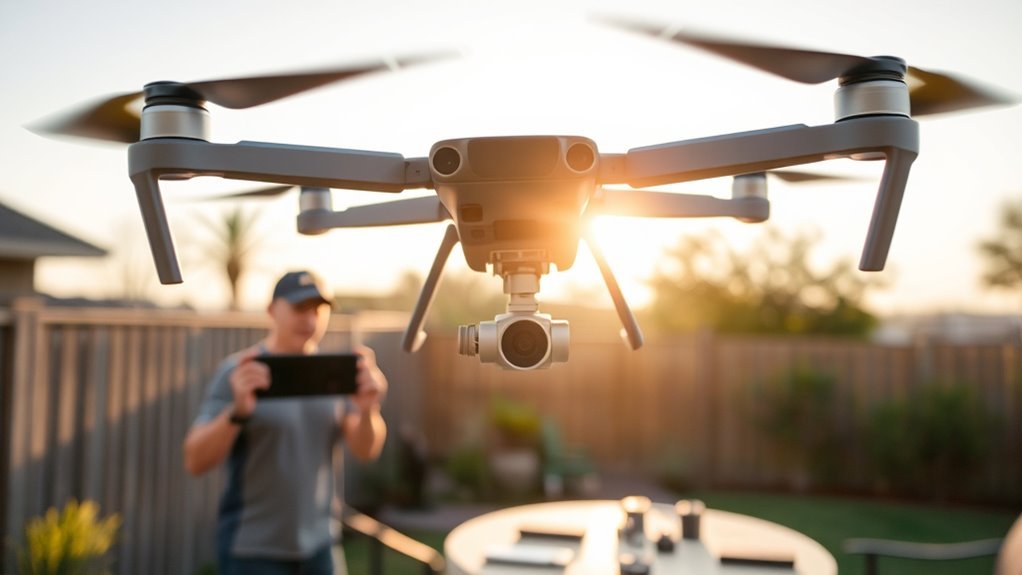
Before a DJI drone’s first flight, the setup sequence matters as much as the flight itself. The battery should be charged, DJI Fly installed, and activation completed before any takeoff attempt. Firmware updates, controller pairing, and safety checks follow next. Then come the key app settings that shape altitude, return behavior, camera control, and obstacle response, each one affecting how the aircraft performs once it leaves the ground.
What You Need to Fly for the First Time
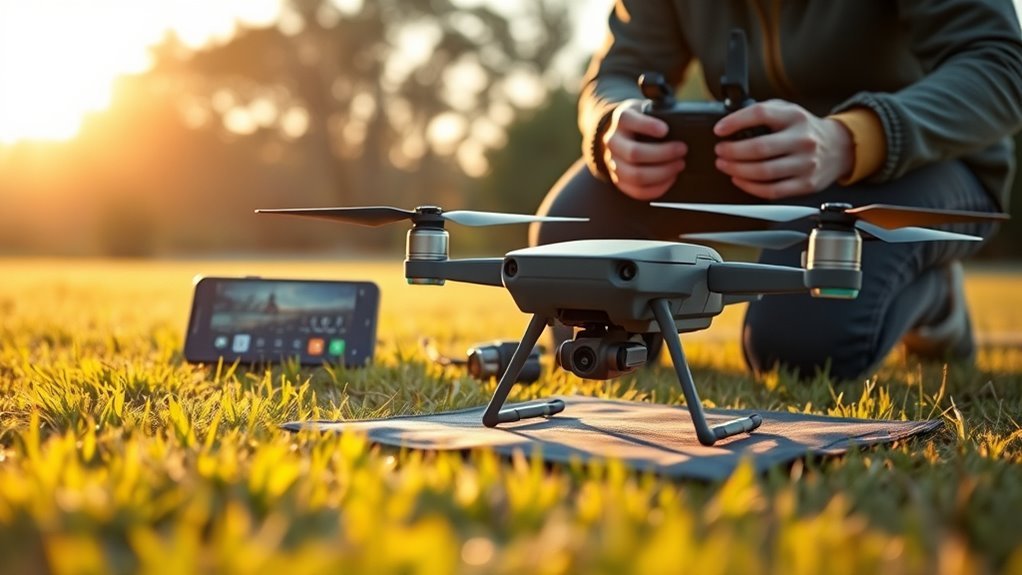
Before a DJI drone is flown for the first time, the aircraft should be fully charged with the battery securely installed to prevent power-related interruptions during operation.
A complete setup also requires the DJI Fly app, installed on a compatible smartphone running iOS 11.0 or Android 7.0 or later. During activation, the app guides the operator through connecting to the drone’s Wi-Fi and completing any firmware updates needed for readiness.
The next step is a pre-flight check: inspect the airframe, confirm compass and gimbal calibration, and verify that obstacle detection and return-to-home functions are enabled.
In the settings, limits on altitude and distance should be reviewed and adjusted to match local rules and the intended mission. These technical steps preserve control, reduce risk, and support a first flight that is deliberate rather than constrained by avoidable faults.
With preparation completed, the drone can be flown with greater confidence and operational freedom.
Install DJI Fly on Your Phone
Installing DJI Fly on a phone is the next required step for first-time use, since the app is the control interface for setup, pairing, and flight management. The DJI Fly app is free on iOS through the App Store and on Android through the DJI website, with iOS 11.0+ or Android 7.0+ required. Android users must complete manual installation and may need to allow unknown sources in security settings.
- Enable Bluetooth before opening the app for smoother connection.
- Follow the on-screen prompts to connect the drone.
- Check updates inside the app for fixes and features.
- Review the user interface, including speed and safety options.
After installation, the app should be opened and examined carefully. Its menus organize flight status, device connection, and operational settings, allowing the pilot to govern the aircraft with informed control.
Once installed, explore the app’s menus to monitor flight status, device connection, and essential settings.
Regular updates are especially important on Android, where the Play Store does not deliver them.
Activate Your DJI Drone in DJI Fly
To activate the DJI drone, it should be fully charged and connected to DJI Fly on a smartphone through Wi‑Fi or USB‑C. After which, the app will present the required setup prompts.
The user must sign in with a DJI account or create one, then complete any requested firmware updates and pre-flight checks, including compass calibration, to finish the activation steps.
Activation status should be verified in the app before flight, and the system can then be configured with limits such as maximum altitude and distance.
Drone Activation Steps
Activating a DJI drone in DJI Fly begins with downloading the app from the App Store for iOS devices or from the DJI website for Android devices, while confirming that the mobile device meets the required operating system version, iOS 11.0 or later or Android 7.0 or later.
Connect the mobile device to the remote controller by USB, then open the DJI Fly app. The activation sequence requires a DJI account, entered through the app’s prompts.
- Verify the connection before proceeding.
- Check firmware updates and install them for peak performance.
- Confirm the drone serial number exactly.
- Accept the terms and conditions to complete activation.
After these steps, the aircraft is ready for first flight, with setup aligned for controlled, independent operation.
Fly App Connection
With the drone activation requirements confirmed, the next step is establishing the DJI Fly app connection on a compatible mobile device running iOS 11.0 or later or Android 7.0 or later.
The DJI Fly app should be installed from the App Store on iOS, or from the DJI website on Android, since Google Play is not supported.
After powering on the drone and remote controller, open the app and follow the prompts to complete the connection by Wi‑Fi or USB.
The interface then guides activation, account confirmation, and required firmware updates. Each step should be completed carefully to preserve system integrity and support safe, independent flight.
Once linked, the app becomes the control center for setup, enabling precise preparation before takeoff and helping the pilot maintain operational freedom.
Verify Activation Status
Before first flight, the DJI drone’s activation status should be verified in the DJI Fly app to confirm that full functionality is enabled. Open the DJI Fly app, connect the aircraft, and observe the confirmation message that signals successful activation. This step initiates essential functions and preserves operational freedom by ensuring the system is ready for controlled use.
- verify activation status after connection
- use a stable internet connection for activation
- sign in with a DJI account in app settings
- update flight parameters and safety features after activation
If activation fails, the device should be checked for the latest app version and network reliability.
Once activated, the user can review app settings, refine flight parameters, and adjust safety features to support confident, independent flight.
Connect the Remote Controller and Drone
To connect the remote controller and drone, both devices should be powered on with the drone’s battery fully charged and properly installed.
The operator then holds the power button on the remote controller until it beeps, then repeats the action on the drone to begin the pairing process.
Once the link is established, the DJI Fly app should be opened on the smartphone and connected to the remote controller by USB or Wi-Fi, depending on the device.
The app guides the user through activation steps, including safety disclaimers and, when required, calibration prompts.
After connection, the interface presents key flight data, such as battery level, GPS signal strength, and any firmware updates noted by the system.
This setup establishes a controlled, informed launch path, allowing the pilot to proceed with greater autonomy and awareness before takeoff.
Update Firmware Before You Fly
Before the first flight, the firmware version on both the aircraft and remote controller should be checked in the DJI Fly app to confirm they are current.
If updates are available, both units should be updated fully, with the drone battery sufficiently charged to complete the process without interruption.
After the update finishes, a restart of the aircraft and controller should be performed before proceeding with calibration and flight checks.
Check Firmware Version
The drone’s firmware should be verified through the DJI Fly app by connecting the aircraft and opening the settings menu, where the current version is displayed. This check firmware version step confirms readiness after drone activation and before first flight.
If the DJI Fly app indicates a newer package, update firmware promptly to improve performance and reduce software faults. Stable connectivity is essential during download, and the system may alert the user automatically.
Regular review also supports flight stability and obstacle detection, both critical for controlled operation.
- Confirm the version number in the settings menu.
- Accept update firmware prompts from the DJI Fly app.
- Use a stable Wi-Fi connection for downloads.
- Recheck after installation to verify performance gains.
Update Aircraft And Remote
With the firmware version confirmed in DJI Fly, the next step is to update the aircraft and remote controller if newer software is available. Connect both devices in the DJI Fly app, open the Firmware Update section, and follow the on-screen installation prompts. Keep the battery sufficiently charged so the firmware update is not interrupted, preserving performance and allowing the aircraft to gain new features and fixes.
| Item | Action | Purpose |
|---|---|---|
| Aircraft | Check update | Match current software |
| Remote | Install update | Sync control features |
| Battery | Charge before start | Prevent interruption |
| DJI Fly app | Monitor prompts | Confirm availability |
| Firmware update | Complete installation | Improve performance |
Regularly check the DJI Fly app for updates before each flight.
Restart After Update
Once the firmware update completes, the drone should be restarted to guarantee the new software is fully integrated and operating correctly.
The DJI Fly app typically prompts the update before first flight, and that instruction should be followed without delay. A clean restart helps reset system parameters, clear minor glitches, and confirm stable functionality.
It also assures the remote controller and app remain synchronized with the drone for reliable connectivity.
- Restart the drone immediately after every firmware update.
- Confirm the DJI Fly app, drone, and controller share matching versions.
- Verify improved performance and newly added features before takeoff.
- Inspect for abnormal behavior before the first flight.
This disciplined sequence supports safer operation and preserves the freedom to fly with confidence.
Choose the Right Flight Mode for Your Skill Level
Selecting the appropriate flight mode is essential for matching drone behavior to pilot experience and filming goals.
In the flight settings, Beginner Mode should be used first because it limits altitude and distance, helping new pilots practice within a controlled envelope.
Positioning Mode follows for users with some pilot experience; GPS stabilization improves hovering and supports basic aerial photography with cleaner framing.
Tripod Mode reduces movement speed dramatically, giving precise control for detailed shots and deliberate composition.
CineSmooth Mode further refines motion by combining slow travel with gentle gimbal response, producing cinematic footage without sacrificing stability.
Sport Mode is reserved for advanced operators who need rapid acceleration and responsive handling; it expands freedom in open areas but removes some protective features.
Each mode serves a distinct purpose, so selection should reflect skill, subject, and desired visual result rather than habit.
Set Your Speed and Altitude Limits
In the DJI Fly app, the Max Flight Speed setting should be adjusted to establish a controlled pace, especially for beginner flights where lower speeds improve handling and reduce risk.
The Max Altitude option sets a ceiling for flight operations and should be configured in accordance with local regulations, with 120 meters (400 feet) commonly used as the default legal limit.
Reviewing both speed limits and altitude caps before takeoff helps guarantee safer, more predictable first-flight performance.
Speed Limits
Speed limits in the DJI Fly app help define how the drone responds in flight, and they can be adjusted through the “Flight Safety” settings to match pilot experience and local rules.
These speed limits, along with altitude limits, support flight safety while preserving control and freedom in the air. In most models, the DJI Fly app allows maximum speed settings from 8 to 36 mph, letting operators tune flight performance for dense urban corridors or open terrain.
- Select lower speeds for tight spaces.
- Increase limits only when conditions are clear.
- Review settings before every flight.
- Confirm compliance with local regulations.
Pilots should align settings with pilot skill, mission goals, and airspace rules.
Regular review keeps operations deliberate, lawful, and efficient.
Altitude Caps
Altitude caps in the DJI Fly app are configured under the “Flight Safety” settings to prevent the drone from climbing beyond approved heights, helping maintain safe operation and alignment with local regulations. Users can define altitude limits by drone model, with maximum altitude typically ranging from 0 to 500 meters, depending on jurisdiction. These flight settings support compliance and reduce risk during open-air operations.
| Setting | Purpose | Effect |
|---|---|---|
| Altitude cap | Restrict climb | Improves safety |
| Maximum altitude | Legal ceiling | Preserves compliance |
| Return-to-home | Auto response | Regains control |
| Review settings | Adapt to conditions | Sustains performance |
When limits are exceeded, warning alerts may appear and return-to-home can engage automatically. Regular adjustment of altitude limits and speed values lets pilots preserve freedom while operating within controlled boundaries.
Calibrate the Gimbal and Control Sticks
Before the first flight, the DJI Fly app should be opened with the drone connected so the gimbal calibration can be accessed through the Camera settings. This process requires the drone to remain powered on and positioned on a flat, stable surface to prevent calibration errors.
To calibrate the gimbal, follow the app prompts exactly and confirm each adjustment for stable camera performance. Recalibration is recommended after transport or major temperature changes, because stability can shift and image horizon drift may appear.
Control sticks should then be configured in the DJI Fly app under Control or Advanced Settings, where sensitivity, stick limits, and exponential response can be tuned to suit precise handling.
- calibrate the gimbal before launch
- protect performance with surface stability
- refine control sticks for responsive freedom
- review settings after travel or weather shifts
Turn On Safety Features in DJI Fly
With the gimbal and control inputs configured, the DJI Fly app should next be used to activate the drone’s safety functions before takeoff.
In the safety features menu, enable Obstacle Avoidance so the aircraft can use its sensors to detect hazards and reduce collision risk during autonomous movement.
Turn on Return to Home to send the drone back to the launch point if the signal drops or the battery becomes low, preserving control under pressure.
Turn on Return to Home so the drone can safely return if signal weakens or battery drops.
Set a Maximum Flight Altitude that aligns with local rules and keeps the aircraft within a disciplined operating ceiling.
Review Geofencing settings to block launches or movement near restricted airspace, protected sites, or other sensitive zones.
Battery Level Alerts should also be enabled so warnings appear before power reaches critical levels, allowing a timely landing.
These DJI Fly app controls create a safer flight envelope and support more independent, responsible operation.
Configure Camera and Storage Settings
Next, the DJI Fly app should be used to configure the camera and storage settings before takeoff. In camera settings, the operator can tune ISO, shutter speed, and white balance to match ambient light and preserve detail.
Selecting an appropriate video resolution and frame rate, such as 4K at 30fps or 1080p at 60fps, guarantees the recording matches the intended purpose. The storage location should then be assigned, either to internal memory or an external microSD card, so files remain organized and accessible without dependence on a single medium.
Picture format should be chosen deliberately: JPEG for convenience or RAW for greater post-processing freedom.
- Adjust ISO to control exposure noise.
- Set shutter speed to stabilize motion rendering.
- Verify the storage location before arming the aircraft.
- Check for a firmware update to keep the camera current.
Check Battery and Return-to-Home Settings
A final preflight battery check should confirm that the drone is fully charged and ready for its initial sortie. In the DJI Fly app, review battery status before takeoff; it should show the remaining battery percentage and estimated flight time. This information supports disciplined battery management and helps the pilot launch with confidence.
| Check | Purpose |
|---|---|
| Remaining battery percentage | Verifies usable charge for the mission |
| Estimated flight time | Supports range planning and safe return margins |
| Battery management tools | Help monitor battery health and performance |
Set the Return-to-Home function before flight and select an RTH altitude high enough to clear local obstacles. This altitude should protect the aircraft if the connection is lost or the battery drops low. Enable Return-to-Home so the drone can automatically guide itself back to the takeoff point. Consistent use of these controls preserves autonomy, improves safety, and reinforces a practical, liberating flight workflow.
Change These DJI Fly Settings First
Before takeoff, the DJI Fly app should be configured to match the flight environment and the pilot’s operating style. In the DJI Fly app, the first adjustments should prioritize safety, legal compliance, and control freedom. Set the maximum altitude limit to a conservative value that respects local rules and prevents unnecessary climb.
Increase the return-to-home altitude so the aircraft can clear trees, buildings, or other hazards during recovery. Enable obstacle detection whenever the aircraft and conditions support it, since this adds a protective layer against collisions.
- Select the preferred control mode, such as Mode 1 or Mode 2, to align with the pilot’s flying style.
- Tune gimbal settings for tilt speed and smoothness to improve camera performance.
- Verify the return-to-home altitude after every location change.
- Recheck obstacle detection before each flight in unfamiliar airspace.
These settings create a more intuitive launch sequence and support disciplined, liberated operation with fewer surprises.
Frequently Asked Questions
What Is the DJI Activation Code?
The DJI activation code is a unique alphanumeric identifier used to complete the DJI activation process and satisfy Drone registration requirements.
It grants access to Fly app features, supports Firmware update procedures, and enables account linkage.
Common troubleshooting tips include checking the box, app prompts, and support logs.
First flight tips, Battery maintenance advice, and Safety guidelines compliance help guarantee controlled operation.
It is essential for full functionality, warranty access, and liberated flight readiness.
Can FAA Know You Flew a DJI Drone?
Yes, the FAA can know a DJI drone was flown through the registration process, remote ID broadcasts, and flight logs stored by the aircraft or app.
Drone regulations, airspace restrictions, local laws, and safety guidelines all support traceability after an incident. Operators should assume enforcement access if required.
Drone insurance may help with liability, but it does not hide identity. Compliance preserves autonomy, reduces risk, and protects lawful flight.
Is the DJI Fly App No Longer Available?
The DJI Fly app is still available, though availability depends on platform and region.
DJI app updates continue through the App Store on iOS and via DJI’s website on Android, with Fly app features, user interface changes, and Drone flight restrictions evolving over time.
Smartphone compatibility should be checked before installation.
Fly app alternatives are limited, so DJI community feedback and troubleshooting common issues remain important for independent, informed flight.
Do I Have to Calibrate My Drone Every Time I Fly It?
No, calibration is not required before every flight, like a compass not needing a new north each dawn.
Calibration frequency depends on environmental factors and drone behavior. A pre-flight checklist should include checking DJI Fly prompts for compass calibration or IMU calibration.
If GPS accuracy is steady and the aircraft is normal, flight may proceed.
Calibration supports safe flying and preserves drone performance, but unnecessary repeats waste time and freedom.
Conclusion
Before the maiden ascent, the drone should be treated like a ship leaving harbor: batteries full, firmware current, and controls charted in DJI Fly. The pilot, like a careful navigator, must set altitude limits, speed caps, obstacle sensing, and Return to Home before the winds of flight begin. Such preparation turns uncertainty into discipline, and discipline into safe airtime. In this small ritual, the machine learns its boundaries, and the flight starts with order, not risk.
