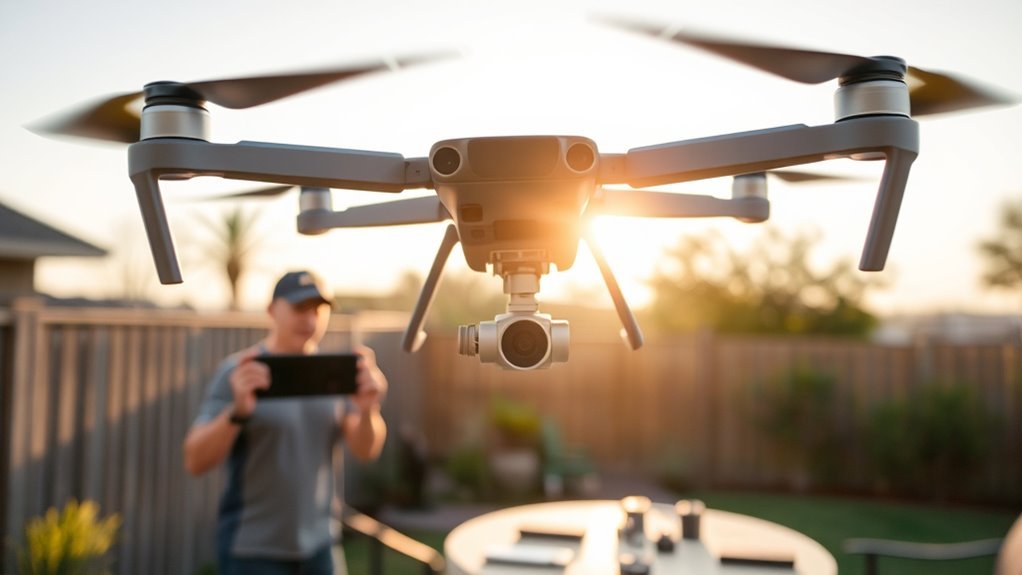
For a DJI drone first flight, do these steps in order: charge the battery and controller, install DJI Fly, sign in with a DJI account, activate the drone online, install firmware updates, then set Max Altitude, Auto RTH Altitude and Obstacle Avoidance. Plan extra time for the firmware update, which can take 10 to 15 minutes.
What You Need for Your DJI Drone First Flight
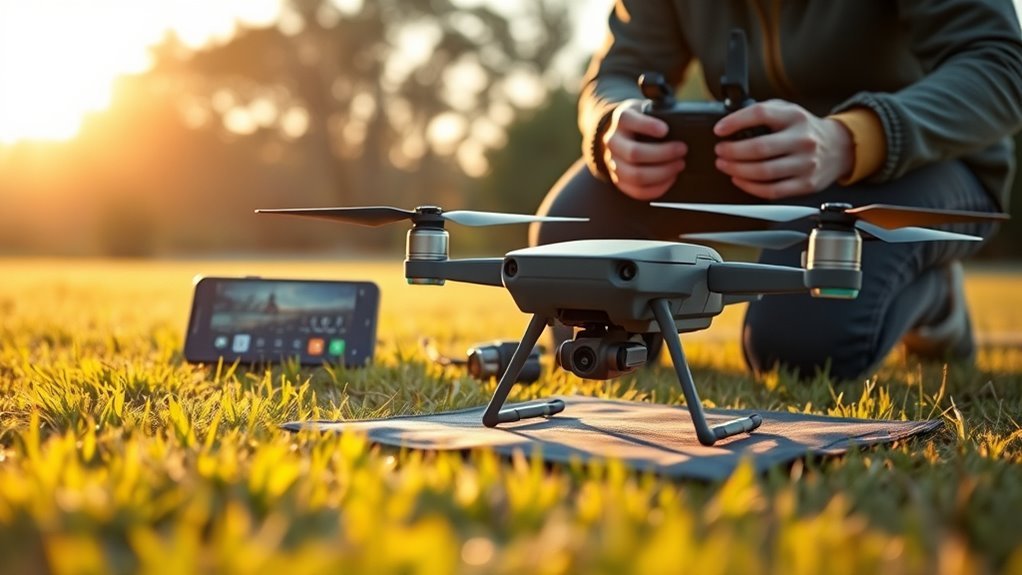
- A charged battery and controller. On the Mini 4 Pro, charge the battery until at least three LEDs are on.
- A controller. The DJI RC 2 has a built-in screen and the DJI Fly app. The RC-N1, RC-N2 and RC-N3 hold your phone.
- A DJI account. You can create one in the app.
- An internet connection. Wi-Fi or mobile data works. You need it for activation and updates.
- A microSD card, unless your drone has enough built-in storage. The Mini 5 Pro has 48 GB.
- An open outdoor spot away from people, roads and airports.
Install DJI Fly on Your Phone
DJI Fly runs on iPhone and Android. On iPhone, get it from the App Store. On Android it is not on Google Play. Download it from DJI’s website, open the file, and allow installs from unknown sources when your phone asks. The current Android file asks for Android 7.0 or later. If you use the RC 2, the app is already built in.
DJI Fly is the app for the Mini, Air, Mavic 3, Mavic 4, Neo, Flip and Avata drones. Enterprise drones use DJI Pilot 2, and older drones such as the Phantom 4 and Mavic 2 use DJI GO 4. Check DJI’s page for your model if you are not sure.
Activate Your DJI Drone in DJI Fly
Activation links your drone to your DJI account. It needs an internet connection. DJI’s Air 3S manual says to power on the aircraft, then the controller, then follow the prompts in DJI Fly.
Drone Activation Steps
- Power on the drone: press the power button once, then press and hold it.
- Power on the controller the same way.
- Open DJI Fly. If you use an RC-N model, connect your phone to the controller with the cable first.
- Choose your language, connect to Wi-Fi, and sign in or create a DJI account.
- Follow the prompts to activate. The app links the drone and the controller for you.
- Install any firmware update when the app asks.
Fly App Connection
- RC 2: nothing to connect. The app is built in.
- RC-N1, RC-N2 and RC-N3: plug your phone into the controller with the USB-C or Lightning cable.
- Neo: you can connect your phone over Wi-Fi, which reaches about 50 m. For longer range use the RC-N3, the RC 2 or goggles.
If the drone and controller do not link, open the Connection Guide in DJI Fly and follow the steps.
Verify Activation Status
Activation is done when the prompts stop and you see the live camera view. Before takeoff, wait for the GNSS indicator to turn white and for the app to say Home Point Updated. If activation fails, check your internet connection, update DJI Fly, restart both devices and sign in again.
Connect the Remote Controller and Drone
Activation usually links the controller and drone for you, so you do not need a separate pairing step. After they connect, check four things on the camera screen:
- The battery level of the drone and the controller.
- The GNSS (satellite) indicator. It should be white.
- The home point message.
- Any firmware update prompt.
Update Firmware Before You Fly
Update both the aircraft and the controller before your first flight. In DJI Fly, an update prompt appears in the top-left corner. Tap Update to update all devices. Keep the battery charged and keep both devices on until it finishes.
If you fly a DJI drone in the US, updates still arrive. The FCC allows already-authorized DJI drones to keep getting firmware updates until at least 1 January 2029. Read will DJI drones still get firmware updates for details.
Check Firmware Version
Open Settings, then the About tab. It shows your firmware versions and an option to check the aircraft for updates.
Update Aircraft And Remote
- Connect the drone and the controller in DJI Fly.
- Tap Update in the top-left corner.
- Do not turn anything off during the update.
- Wait for the devices to restart.
Restart After Update
The devices restart on their own. When they reconnect, check the camera view and look for any calibration prompt. If they do not reconnect, turn both off, then on again.
Choose the Right Flight Mode for Your Skill Level
Most DJI drones have a mode switch on the controller with three positions:
- Normal: standard flying with obstacle avoidance on. Start here.
- Cine: slows flight inputs and gimbal movement for smoother video.
- Sport: faster, but obstacle sensing is off. Skip it until you know the drone well.
Some drones also have a Beginner Mode. On the Avata 2 it is in the Control tab and limits speed and altitude.
Set Your Speed and Altitude Limits
Altitude and distance limits are in the Safety tab. Speed comes mainly from the flight mode and your stick settings.
Speed: Use the Mode Switch and Stick Settings
Stay in Normal or Cine for your first flights. In the Control tab you can lower stick sensitivity (gain and expo) to make the drone respond more gently. The default stick mode is Mode 2.
Altitude Caps
- Max Altitude: set 120 m (about 400 ft). It is measured from your takeoff point.
- Max Distance: set it so the drone always stays in sight.
- Auto RTH Altitude: the Air 3S manual lists a default of 100 m. Set it above the tallest tree or building near you.
Calibrate the Gimbal and Control Sticks
You do not need to calibrate before every flight. Do it when the app asks or when something looks wrong.
- Gimbal: if the horizon looks tilted. Go to Control, then Gimbal Calibration. Remove the gimbal cover and put the drone on a flat, stable surface.
- Compass: go to Safety, then Sensors, then Compass. Stand in an open area away from metal, power lines and magnets.
- IMU: go to Safety, then Sensors, then IMU. Use a flat surface and at least 50 percent battery, and do not move the drone.
- Control sticks: the Control tab has a remote controller calibration option. Use it only if the sticks seem off center.
Turn On Safety Features in DJI Fly
- Obstacle Avoidance Action (Safety tab): choose Brake, Bypass or Off. Brake is the simplest choice for a first flight.
- Max Altitude and Auto RTH Altitude (Safety tab): set them as shown above.
- Return to Home: it starts if the signal is lost or the battery runs low. You can also start it yourself.
DJI no longer blocks takeoff in most restricted areas. It now shows Enhanced Warning Zones instead of hard No-Fly Zones, so you must check the airspace yourself. In the US, use the FAA’s B4UFLY app, and use LAANC for controlled airspace.
Configure Camera and Storage Settings
Open the Camera tab and set the basics:
- Video: 4K at 30 fps is a good default. Use 60 fps for fast action.
- Color mode: Normal is the easiest. D-Log M needs color grading.
- Photo format: JPEG for sharing. RAW (if your drone offers it) for editing.
- Storage: choose the microSD card and check that it has free space.
Check Battery and Return-to-Home Settings
Check the battery level on the camera screen before takeoff, and land early. DJI’s flight times are best-case numbers. On the Mini 5 Pro, the standard battery is rated for 36 minutes and the Plus battery for 52 minutes.
Weight matters in the US. The Mini 5 Pro with the Plus battery weighs more than 249 g, which changes the registration rules below. Before the flight, set a safe Auto RTH Altitude. If the battery gets low, the drone starts Return to Home on its own.
Change These DJI Fly Settings First
Use this checklist on the day of your first flight:
- Charge the drone and the controller.
- Install DJI Fly and sign in.
- Activate the drone online.
- Update the aircraft and controller firmware.
- Safety: set Max Altitude to 120 m (400 ft).
- Safety: set Auto RTH Altitude above the tallest obstacle nearby.
- Safety: set Obstacle Avoidance Action to Brake.
- Camera: choose 4K at 30 fps, Normal color and your microSD card.
- Controller: set Normal mode. Wait for a white GNSS indicator and Home Point Updated.
- Check the airspace and your local rules.
Our DJI Fly settings guide explains each setting in more detail.
US Rules Before Your First Flight
- Registration: all drones must be registered, except drones of 0.55 lb (250 g) or less flown under the recreational exception. Part 107 drones are always registered.
- Remote ID: registered drones must comply with Remote ID.
- TRUST test: recreational flyers must pass the free TRUST test and carry proof.
- Height and sight: fly at or below 400 ft in uncontrolled airspace and keep the drone in sight. Use LAANC to get authorization in controlled airspace.
On 22 December 2025 the FCC added all foreign-made drones and critical components to its Covered List. That blocks new models from FCC authorization, so new models cannot be legally marketed, imported or sold in the US. It does not ban owning or flying a drone you already have. Read is DJI banned in the US for details. Rules outside the US differ, so check your own country’s aviation authority.
Frequently Asked Questions
Do I Need Internet to Activate a DJI Drone?
Yes. DJI’s Air 3S manual says an internet connection is required for activation. Use Wi-Fi or mobile data on your phone or on the RC 2. You do not type an activation code. The app activates the drone after you sign in.
Can the FAA Know You Flew a DJI Drone?
Not in real time by default. Remote ID applies to registered drones. Such a drone broadcasts its ID and location, plus the location of the controller, so nearby people and law enforcement with a receiver can see it while it flies. The FAA says this helps find the control station when a drone flies unsafely.
Is the DJI Fly App No Longer Available?
It is available. Get it from the App Store on iPhone. On Android, download it from DJI’s website, because it is not on Google Play.
Do I Have to Calibrate My Drone Every Time I Fly It?
No. Calibrate the compass or IMU when the app asks, after a long trip to a new area, or after a firmware update. Use the gimbal calibration only if the horizon looks tilted. The menu paths are in the calibration section above.
Conclusion
Charge everything, install DJI Fly, activate online and update the firmware. Then set Max Altitude, Auto RTH Altitude and Obstacle Avoidance Action. Fly in Normal mode in an open area, and check the airspace rules before every flight.
Last checked: October 2026.

