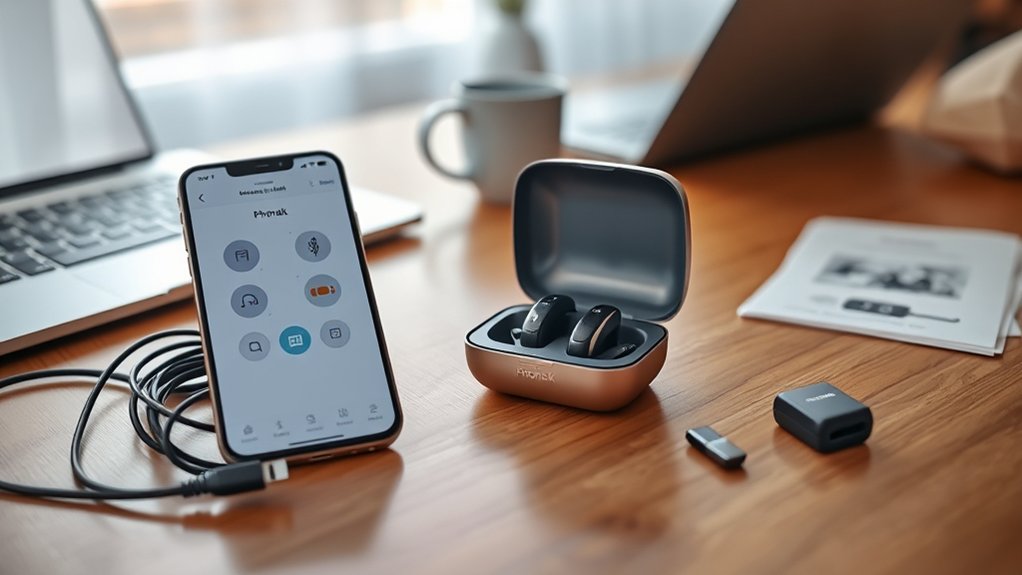
The myPhonak app connects compatible Phonak hearing aids, such as Audéo Marvel, Audéo Paradise, and Naída Link CROS, to smartphones by Bluetooth. It requires iPhone 6s or later with iOS 15.0+, or Android 10.0+ with Bluetooth 4.2. Setup involves installing the app, enabling Bluetooth, signing in, and restarting the hearing aids for pairing mode. If connection fails, remove old pairings and restart both devices. Additional sections cover customization, remote care, tracking, and privacy considerations.
Check If Your Hearing Aids Work With myPhonak
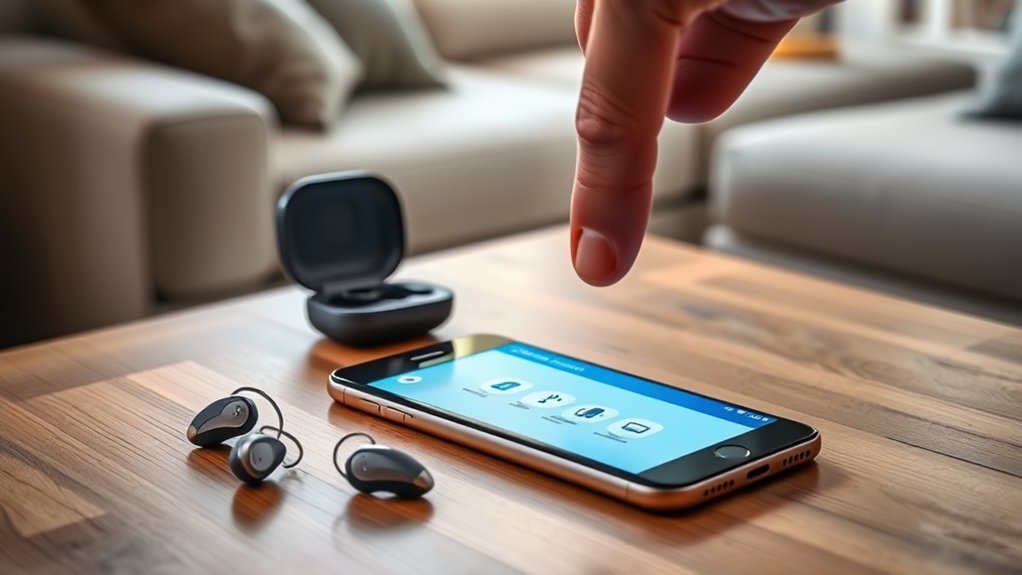
To determine whether hearing aids are compatible with the myPhonak app, users should first verify that the devices are supported Phonak models, such as Audéo Marvel, Audéo Paradise, or Naída Link CROS. This establishes the baseline for compatible hearing functionality and reduces preventable setup failure.
For hearing aid users seeking greater autonomy, model verification is the essential first filter.
A second requirement is account readiness. Access to the myPhonak app may depend on registration of a myPhonak account, particularly when full feature use is intended.
Once eligibility is confirmed, the app can enable evidence-based controls such as sound modification, remote control, and custom program settings. These tools support individualized listening management without repeated clinic visits.
For stable performance, both hearing aids and the paired smartphone should run current firmware and software versions. Maintaining updates helps preserve Bluetooth connection reliability, feature access, and consistent operation across supported Phonak devices over time.
Check Phone Compatibility for the myPhonak App
Phone compatibility for the myPhonak app depends on specific operating system and Bluetooth standards.
The app supports iPhones running iOS 15.0 or later and Android smartphones with Bluetooth 4.2 and Android 10.0 or later.
Verifying these device requirements before installation helps determine whether app pairing and core hearing-aid functions are likely to operate as intended.
Device And OS Requirements
Compatibility should be verified before installing the myPhonak app. myPhonak requires a Bluetooth enabled smartphone: iPhone 6s or newer with iOS® Version 15.0 or later, or a handset running Android OS 10.0 or newer with Bluetooth 4.2. Operating systems should be updated to reduce instability and support reliable access.
| Requirement | Minimum specification |
|---|---|
| Apple devices | iPhone 6s+, iOS 15.0+ |
| Android devices | Android 10.0+, Bluetooth 4.2 |
Supported hearing aids include Audeo Marvel, Audeo Paradise, and Naida Link CROS. Full functionality also requires a myPhonak account, enabling personalized adjustments and remote support. Location services may be used by the app; this can increase battery consumption, so phone settings should be reviewed. These checks help users proceed with fewer constraints and greater control daily.
Bluetooth Compatibility Check
Before installation, Bluetooth support and software version should be verified against myPhonak requirements. An effective bluetooth compatibility check confirms that the smartphone app runs on iPhone models using iOS 16 or newer, or Android devices using Bluetooth 4.2 with Android 10.0 or newer.
Operating systems should remain current to preserve stable connectivity and full feature access.
The myPhonak app is engineered for Phonak hearing aids, including Audeo Marvel, Audeo Paradise, and Naida Link CROS. However, compatibility may differ by smartphone model and operating system combination.
For informed, friction-free use, individuals should review specific device support before download. Reliable sources include the Phonak website and official app store listings.
This verification supports seamless pairing, functional independence, and fewer avoidable connection failures in everyday listening environments and routines.
Download and Sign In to the myPhonak App
Download the free myPhonak app from the Apple App Store or Google Play Store, then follow the on-screen instructions to create an account and access personalized features and remote support. This platform is designed specifically for Phonak devices and is available without additional cost, supporting models such as Audeo Marvel and Audeo Paradise.
Account registration is required to enable personalized features that can increase autonomy and streamline clinician-guided care.
Account registration unlocks personalized features that support greater autonomy and more streamlined clinician-guided care.
Before initiating the app workflow, Bluetooth should be enabled on the smartphone, and the hearing aids should remain nearby to support a stable connection environment. Within the myPhonak app, users select “Connect” and proceed through the guided prompts.
The pairing process commonly includes turning the hearing aids off and back on so the app can detect them correctly. These preparatory steps establish the conditions for reliable communication while preserving a straightforward setup path that supports independent use and informed self-management over time.
Pair Your Phonak Hearing Aids to Bluetooth
Pairing Phonak hearing aids to Bluetooth begins with verification that the smartphone supports the myPhonak app, specifically iOS 16 or later or Android 10 or later, and that Bluetooth is enabled.
The standard procedure includes removing prior Phonak entries from Bluetooth settings, restarting the app and hearing aids, and selecting the single available Phonak connection presented for the devices.
If pairing or reconnection fails, a repeat restart of the smartphone and hearing aids, followed by app-guided prompts or referral to Phonak support or a hearing care professional, is indicated.
Bluetooth Compatibility Check
To establish a reliable Bluetooth connection, the smartphone should first be verified as compatible: iPhone models require iOS 16 or later, while Android devices need Bluetooth 4.2 and Android 10.0 or newer.
This Bluetooth compatibility check reduces avoidable pairing failures and supports consistent performance for hearing aids within the myPhonak app ecosystem.
- Confirm the hearing aids are supported by the myPhonak app, including Audeo Marvel, Audeo Paradise, and Naida Link CROS.
- Install the myPhonak app from the Apple App Store or Google Play Store, then create an account for full feature access.
- If compatibility appears correct but connection remains unstable, restart both devices and review available hearing-aid firmware updates.
These measures provide a controlled foundation for independent, frustration-limiting use before device-specific pairing begins later.
Pairing Steps By Device
Once device compatibility has been confirmed, pairing can proceed in a controlled sequence. The smartphone should have Bluetooth enabled and should run iOS 15.0 or later, or Android 10.0 or later.
Existing Phonak entries in Bluetooth settings should be removed first, reducing conflict and enabling a cleaner, more autonomous connection path for hearing aids.
The hearing aids should then be turned off and back on, which reactivates pairing mode for about 90 seconds. Within that interval, the user opens the myPhonak app, selects “Connect,” and follows the on-screen prompts.
The app typically displays a single connection representing both hearing aids. Pairing is considered complete when the displayed number of connections corresponds to the number of hearing aids in use, confirming stable Bluetooth recognition across the active devices during setup.
Reconnection Problem Solving
Begin with the least disruptive measure: the myPhonak app should be force closed and reopened to refresh the Bluetooth session and clear minor connection faults.
- If reconnection fails, remove the hearing aids from the smartphone’s Bluetooth list before pairing again.
- Restart the hearing aids by turning them off and on, then select the Phonak entry newly shown in Bluetooth settings.
- Confirm that both the smartphone operating system and myPhonak app are fully updated to current releases.
This sequence reduces legacy pairing conflicts and restores user control with minimal interruption.
If instability persists after these steps, escalation is appropriate. Phonak’s Bluetooth support resources or a hearing care professional can assess device-specific variables, firmware status, and environmental interference.
Such intervention supports reliable function and preserves independent daily communication, autonomy, and confidence.
Fix myPhonak App Pairing Problems
Resolve myPhonak app pairing problems by first verifying that the hearing aids are fully charged and placed in pairing mode, since they are typically discoverable for only about 90 seconds after power-on.
This time-limited window is a common cause of failed initial pairing attempts and should be checked before additional intervention. If the myPhonak app does not detect the devices, restarting the hearing aids can restore discoverability and support a stable Bluetooth connection.
When disconnections persist, force close the app, then restart both the app and the hearing aids to reset temporary communication faults.
Next, open the phone’s Bluetooth settings and forget all Phonak entries to remove outdated pairings that may block reconnection. After this reset, the myPhonak app will prompt a fresh setup sequence; following each on-screen instruction precisely improves success rates.
If pairing problems continue, contact Phonak’s Bluetooth support line or a hearing care professional for advanced troubleshooting assistance promptly.
Customize Sound in the myPhonak App
Customize sound in the myPhonak app through its Remote Control and personalized program features, which allow real-time adjustment of volume and listening settings across different environments. This function gives users direct authority over the hearing experience, reducing dependence on static defaults and supporting context-specific listening performance.
- Remote Control enables immediate changes to volume and program settings from a smartphone.
- Saved preferences allow rapid switching between favored listening profiles in recurring environments.
- Custom programs based on professional fittings align amplification with individual hearing loss patterns.
The myPhonak app helps users customize sound for speech, noise, and everyday shifts with measurable precision. Stored configurations streamline repeated use, while individualized fittings promote ideal audibility and comfort.
In addition, the app tracks hearing aid use and related activity goals, reinforcing consistent engagement with amplification. For users seeking greater autonomy, these tools support a more liberated, responsive, and evidence-based hearing experience without unnecessary complexity or manual device adjustment during demanding daily listening situations.
Use Remote Support With Your Hearing Professional
Remote Support in the myPhonak app enables users to meet virtually with a hearing care professional for real-time guidance, troubleshooting, and hearing aid adjustments. This remote support pathway reduces dependence on clinic visits and expands access to timely, individualized care. In most countries, the myPhonak app supports live video consultations, allowing professionals to fine-tune hearing aids based on direct user feedback and observed communication needs.
| Feature | Clinical value |
|---|---|
| Virtual appointments | Convenient access |
| Live video | Immediate troubleshooting |
| Remote adjustments | Precise fine-tuning |
| Broad availability | Greater accessibility |
| User feedback | Better communication outcomes |
For users seeking greater autonomy, remote support can be especially useful when immediate assistance is required or mobility limits in-person care. By enabling rapid professional input, the myPhonak app helps preserve continuity, improve communication, and support evidence-based optimization of hearing aids in everyday environments. This approach promotes flexible, user-centered care with reduced travel burden.
Use Find My Hearing Aids and Health Tracking
Within the myPhonak app, device security and self-monitoring are supported through Find My Hearing Aids and integrated health tracking tools. Among Phonak Infinio users, 75% reportedly value find my hearing aids, reflecting its practical role in recovering misplaced devices through real-time location visibility.
Paired through Bluetooth, the myPhonak app connects reliably with compatible iPhone and Android smartphones, expanding access without adding procedural burden.
- Find My Hearing Aids: real-time device location assists efficient recovery and reduces interruption to daily communication.
- Health tracking: users can set goals for hearing aid wear time and activity, reinforcing consistent habits and greater autonomy.
- Self-assessment and listening control: an Online Hearing Test, plus individualized sound modifications and custom programs, supports evidence-based adjustment across environments.
Together, these functions help users monitor performance, maintain continuity of hearing support, and exercise more informed control over their listening experience with less dependence on guesswork daily.
Understand myPhonak App Privacy and Limits
Several practical considerations define the privacy profile and functional limits of the myPhonak app. The myPhonak app may collect user data, including identifiers and usage data, with scope determined by activated features. This creates a variable data footprint rather than a fixed one, which users seeking greater autonomy should understand before enabling optional tools.
Developer disclosures describe privacy practices, but those practices may change through app updates or feature-specific workflows. Full access to some functions requires registration, introducing additional personal information into the system.
In regulatory terms, the app maintains compliance with United States medical device requirements, including FDA standards, which supports baseline safety and governance. However, compliance does not eliminate all practical limits. Data handling remains contingent on feature selection, account status, and evolving disclosures.
For users prioritizing control, the evidence supports reviewing permissions, registration requirements, and update notes before relying on advanced app functions or connected care features.
Frequently Asked Questions
What Are the Compatibility Requirements for the myPhonak App?
Compatibility requires a Bluetooth-enabled smartphone: iPhone 6s+ with iOS 15.0+ or Android Bluetooth 4.2 with OS 10.0+. Accessibility features, User interface, Battery management, and Troubleshooting tips vary; account registration enables personalized functions and support.
What App Is Needed to Connect Phonak Hearing Aid?
The required app is myPhonak for connecting Phonak hearing aids. App features support control and remote care. Pairing tips and Troubleshooting issues improve access, while User reviews indicate generally reliable performance and practical autonomy benefits.
What Is the Best App for Controlling myPhonak Hearing Aids?
The best app for controlling myPhonak hearing aids is the myPhonak app, offering robust Hearing Aid Features, optimized User Experience, regular App Updates, and practical Troubleshooting Tips, supporting autonomous, precise, evidence-based hearing management for users.
How Do I Connect myPhonak Hearing Aids to My Phone via Bluetooth?
Like opening a clear channel through fog, one connects myPhonak aids by enabling Bluetooth, installing myPhonak, and pairing in-app. Bluetooth troubleshooting tips, Hearing aid maintenance, Audio streaming benefits, and User experience feedback support autonomous, reliable use.
Conclusion
In conclusion, successful use of the myPhonak app depends on three factors: device compatibility, correct Bluetooth pairing, and informed feature setup. When these elements are verified, users can access sound adjustments, remote care, location tools, and selected health functions with greater reliability. As the adage says, “measure twice, cut once”: careful setup reduces later troubleshooting. Privacy terms and feature limits should also be reviewed, since app performance varies by phone model, operating system, and hearing aid generation.

