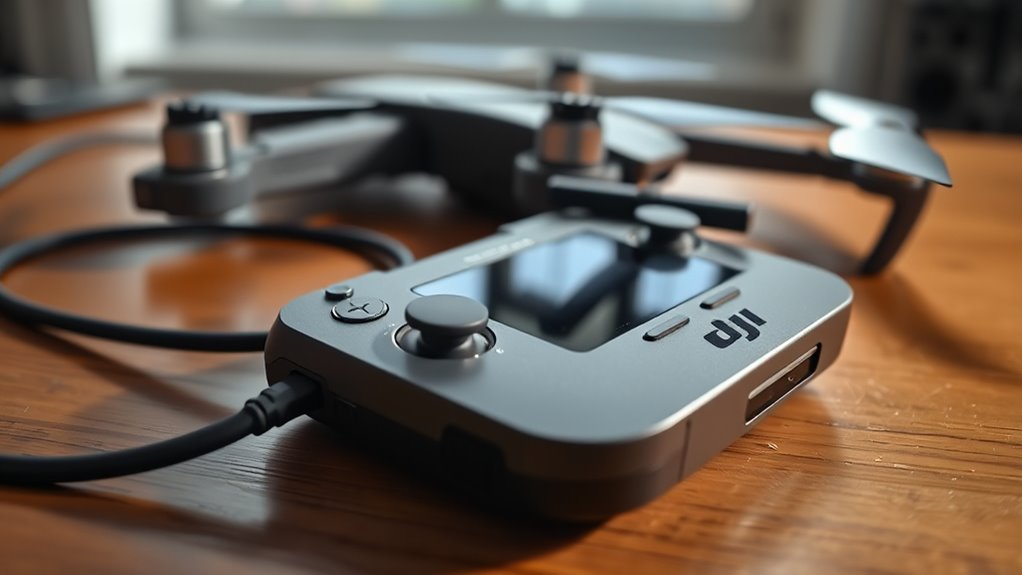
When your DJI RC is not charging or the controller will not turn on, start with the charging path before assuming the battery has failed. DJI RC and current RC-N controllers use USB-C charging, and the LED behavior can tell you whether the controller is charging, low on power, disconnected from the aircraft, or experiencing another problem.
Quick Answer
If your DJI RC or RC-N controller will not charge, start by using the correct USB-C charging port, a known-good cable, and a compatible charger. Then check the battery LEDs and use DJI’s press-once, press-and-hold power sequence. If charging still fails with known-good power gear, the port or internal hardware may need service.
At a Glance
| Time Required | About 90 minutes for DJI RC; about 3.5 hours for RC-N1, RC-N2, RC-N3, and RC-N1C for a full charge under DJI’s stated conditions. |
| Tools Needed | Known-good USB-C cable, compatible USB charger, working wall outlet, and a bright light for inspecting the port. |
Why Your DJI RC Won’t Charge
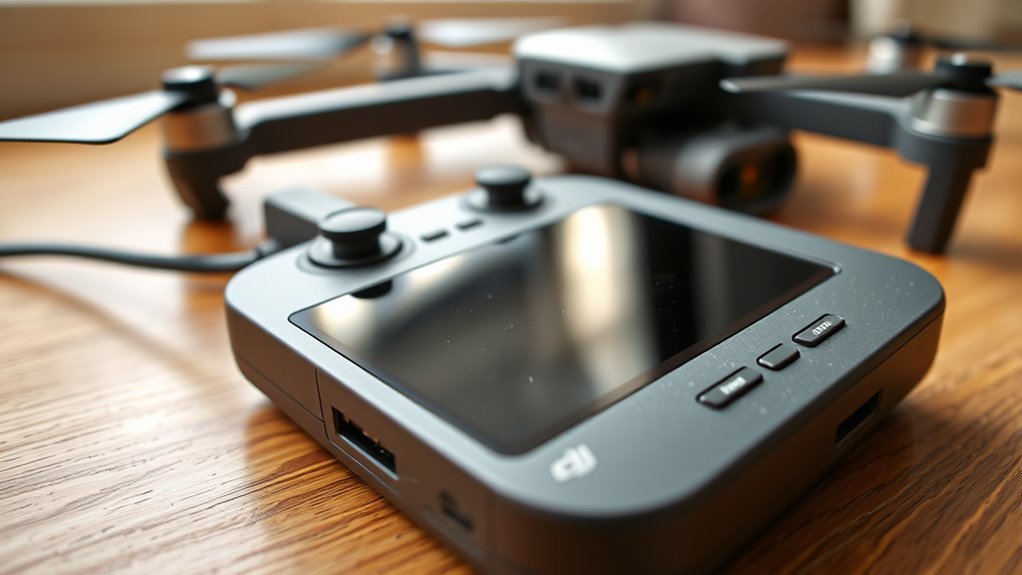
A DJI RC that will not charge usually has a problem somewhere between the wall outlet and the controller’s internal battery. Common possibilities include a faulty charger, damaged cable, dirty or damaged USB-C port, drained battery, or internal hardware fault.
One important correction is the port type. According to the DJI Remote Controller Charging Guide, DJI RC and RC-N3/RC-N1/RC-N2/RC-N1C controllers charge through USB-C. Micro-USB applies to certain older controllers such as the MR1SS5 and MR1SD25.
Use a charger and cable that meet DJI’s requirements for your specific controller model.
If the controller shows no charging response, test the simple external causes first. DJI’s own troubleshooting guidance points to the outlet, power adapter, charging port, or controller hardware as the main areas to isolate.
Check the Cable, Port, and Charger
Start with the complete charging path. A controller cannot charge normally if the outlet, charger, cable, or USB-C connector is failing.
- Try another wall outlet. This rules out a dead or unreliable power source.
- Use a known-good USB-C cable. A cable can fail internally even when the outside looks normal.
- Try a compatible charger. The charger should meet the power requirements for your controller rather than simply fitting the USB-C connector.
- Inspect the controller port. Look for lint, dirt, bent contacts, looseness, corrosion, or visible physical damage.
- Reconnect the cable firmly. The plug should seat securely without needing pressure or an unusual angle.
DJI’s remote-controller charging troubleshooting recommends testing the power source and adapter before concluding that the controller itself needs repair.
If the controller charges only when the connector is pushed sideways or held at an angle, stop repeatedly stressing the port. That behavior points more strongly toward a physical connection problem.
How to Tell If Your DJI RC Is Fully Charged
Do not use the green status light as the main charging indicator. On DJI RC, DJI RC 2, and related screen controllers, a solid green status LED means the remote controller is connected to the aircraft.
During normal charging, DJI says the battery-level LEDs blink successively. When charging is complete, the battery-level LEDs turn off.
Power Indicator Lights
The four battery LEDs show a battery range when you check the controller’s power level. DJI’s remote-controller LED guide lists four illuminated LEDs as 76–100%, three as 51–75%, two as 26–50%, and one as 0–25%.
On DJI RC-series controllers with a separate status LED, the colors have other meanings. Solid red means the aircraft is disconnected, blinking blue means the controller is linking, and solid green means it is connected. A blinking yellow status light means the controller battery is low.
This distinction matters because a green status light does not prove the battery is fully charged.
Charging Time Expectations
Charging time depends on the controller model and charger. DJI publishes substantially different figures for DJI RC and RC-N controllers, so a 90-minute expectation should not be applied to every remote.
| Controller | Charging Port | DJI-Stated Full-Charge Time |
|---|---|---|
| DJI RC | USB-C | About 1.5 hours with a 5 V/3 A charger |
| RC-N1 / RC-N2 / RC-N3 / RC-N1C | USB-C | About 3.5 hours at up to 10 W |
| MR1SS5 / MR1SD25 | Micro-USB | About 2 hours at up to 10 W |
For DJI RC specifically, the official DJI RC specifications list a 5,200 mAh lithium-ion battery, about 1.5 hours of charging with a 5 V/3 A charger, and up to four hours of operating time.
DJI lists the DJI RC charging-temperature range as 5°C to 40°C (41°F to 104°F). If the controller is extremely hot or cold, bring it into the supported range before troubleshooting further.
Fix a DJI RC That Powers Off Fast
If the controller starts and then shuts down, first make sure you are using DJI’s correct power-on sequence. Press the Power button once, then press it again and hold it. Simply holding the button from the beginning can look like a power failure.
The DJI power-on failure guide says an incorrect startup method, a drained battery, or controller damage can cause the remote to fail to start normally.
| Check | Action |
|---|---|
| Port condition | Check the USB-C port for dirt or physical damage |
| Power source | Test a known-good charger, cable, and wall outlet |
| Shutdown behavior | Seek DJI inspection if it still shuts down after a full charge |
If it can charge normally, let it reach a full charge and try the proper startup sequence again. If it cannot charge normally even after changing the charger and cable, the fault is more likely to require inspection.
What Weird Charging LEDs Mean
DJI controller LEDs can show battery level, charging progress, aircraft connection status, firmware activity, or warnings. The same group of LEDs can have different meanings depending on whether the controller is charging, powered on, or trying to link with the aircraft.
That is why a moving or blinking LED pattern should be interpreted in context rather than treated as a universal error code.
Charging Light Patterns
While compatible DJI controllers are charging, the battery-level LEDs blink successively. When the battery is fully charged, DJI says those battery LEDs turn off.
On RC-N controllers, the battery LEDs also serve as status indicators during normal use. Slow blinking can mean the aircraft is disconnected, while LEDs lighting one by one with a beeping sound can indicate that the controller is linking to the aircraft.
On DJI RC, the separate status LED provides additional information. Solid green means connected, solid red means disconnected, blinking blue means linking, and blinking yellow means the controller battery is low.
Blink Codes Explained
The safest approach is to use DJI’s documented LED patterns rather than assuming every blink sequence represents a battery defect. Battery-level LEDs mainly show charge range, while the separate status LED on DJI RC communicates connection and warning states.
The original draft associated six blinks followed by faster flashes with battery-health trouble. DJI’s current published LED guide for DJI RC and RC-N controllers does not document that specific pattern, so it should not be used by itself to diagnose a failed battery.
If you see an undocumented sequence repeatedly, record a short video of it and note the controller model before contacting DJI. That gives support a precise symptom to work from.
Low Power Signals
One illuminated battery LED corresponds to DJI’s lowest displayed range of 0–25%. On DJI RC-series controllers, a blinking yellow status LED specifically indicates a low remote-controller battery.
If the controller has enough power to start but shuts off shortly afterward, charge it completely before assuming the internal battery has failed. If it still shuts down after a verified full charge, hardware inspection becomes more appropriate.
No LED response at all can mean the battery is discharged, but it can also indicate a problem with the charger, cable, port, or controller. Test those external parts before drawing a conclusion.
How to Tell If the USB-C Port Is Damaged
For DJI RC and current RC-N controllers, inspect the USB-C port, not a Micro-USB port. Older MR1SS5 and MR1SD25 controllers are among the DJI models that use Micro-USB instead.
Use a bright light to check for packed lint, corrosion, bent or damaged contacts, cracking around the connector, or debris that prevents the plug from seating fully. Do not force a tool deep into the connector.
Next, test more than one known-good cable. A healthy connector should hold the plug securely and charge without requiring you to push, twist, or hold the cable at an angle.
If multiple known-good cables behave the same way and the port feels loose, recessed, or intermittent, the controller may have a damaged connector or internal charging circuit.
Last-Step Fixes for DJI RC Charging Problems
Once the charger, cable, outlet, temperature, and port have been ruled out, move to software checks only if the controller can still power on. Firmware cannot fix a physically broken charging connector.
- Charge to the expected full state. Give the controller enough time for its model rather than assuming every DJI remote needs 90 minutes.
- Use the correct power-on sequence. Press once, then press again and hold.
- Check DJI Fly for firmware updates. This is reasonable if the controller powers up and otherwise behaves normally.
- Consider a factory reset only for persistent software problems. Back up important files before erasing the controller.
For DJI RC with a built-in screen, DJI’s factory-reset instructions give the path as Settings > System > Reset options > Erase all data (factory reset). A factory reset is not a repair for a loose USB-C port or failed charging hardware.
When to Contact DJI Support
Contact DJI when the controller still shows no charging or power response after you have tested a known-good outlet, compatible charger, cable, and the controller’s charging port. DJI’s own troubleshooting path recommends service when those checks do not resolve the problem.
Service is also appropriate when the connector is physically loose or damaged, the controller repeatedly shuts down after a verified full charge, or it cannot charge with known-good accessories.
Before submitting the controller, note its exact model, LED behavior, charger and cable combinations tested, and what happens when you use the correct power-on sequence. If the controller contains locally stored files, back them up first because DJI notes that devices may be formatted during repair.
You can start through DJI’s Online Repair Request.
Key Takeaways
- DJI RC and current RC-N controllers use USB-C charging; Micro-USB applies to some older DJI remotes.
- The battery LEDs turn off after charging completes; a green DJI RC status LED means the aircraft is connected.
- DJI RC takes about 1.5 hours to charge under DJI’s stated conditions, while RC-N1/N2/N3/N1C models are listed at about 3.5 hours.
- Use the press-once, then press-and-hold sequence before diagnosing a controller as unable to power on.
- If a known-good outlet, charger, cable, and port check do not restore charging, DJI inspection is the next step.
Frequently Asked Questions
Why Is My DJI Drone Controller Not Turning On?
A DJI controller may not turn on because the startup sequence is wrong, its battery is discharged, it is not charging correctly, or the controller is damaged. Press the Power button once, then press it again and hold it. If there is no LED response, charge the controller and test another compatible charger before seeking repair.
How to Get Drone Battery Out of Hibernation Mode?
For DJI Intelligent Flight Batteries that support hibernation protection, reconnecting the battery to the correct charging system allows it to wake and recharge. This advice applies to compatible aircraft batteries, not automatically to the sealed internal battery in a DJI RC or RC-N controller. Follow the instructions for your exact aircraft battery model.
How to Fix a Controller When It’s Not Charging?
Start by testing another outlet, known-good USB-C cable, and compatible charger, then inspect the USB-C port for dirt or damage. Watch for the normal successive battery-LED charging pattern. If multiple known-good charging accessories produce no response, DJI recommends sending the controller for diagnosis.
How Do You Factory Reset a DJI RC?
On DJI RC, DJI’s documented factory-reset path is Settings > System > Reset options > Erase all data (factory reset). Back up important files first. Holding the Power button for about 10 seconds is not DJI’s published factory-reset method for DJI RC and should not replace the documented menu procedure.
Conclusion
Most DJI RC and RC-N charging problems should be checked from the outside in: outlet, charger, USB-C cable, charging port, battery level, and the correct power-on sequence. If those checks do not restore charging or the controller still shuts down after a full charge, stop guessing and submit the controller to DJI for inspection.
Sources
- DJI Remote Controller Charging Guide: USB-C and Micro-USB model differences, charging LED behavior, power ratings, and charging times.
- DJI Remote Controller Status LEDs and Battery Level Indicators: battery-level ranges and status-light meanings.
- DJI Remote Controller Powering on Failure: correct power-on procedure and DJI troubleshooting steps.
- DJI RC Specifications: battery capacity, charging time, operating time, and charging-temperature range.
- DJI Factory Reset Guidelines: official DJI RC factory-reset procedure.
- DJI Failure to Charge the Remote Controller: outlet, adapter, charging-port, and repair troubleshooting.
- DJI Online Repair Request: official repair-service submission page.

