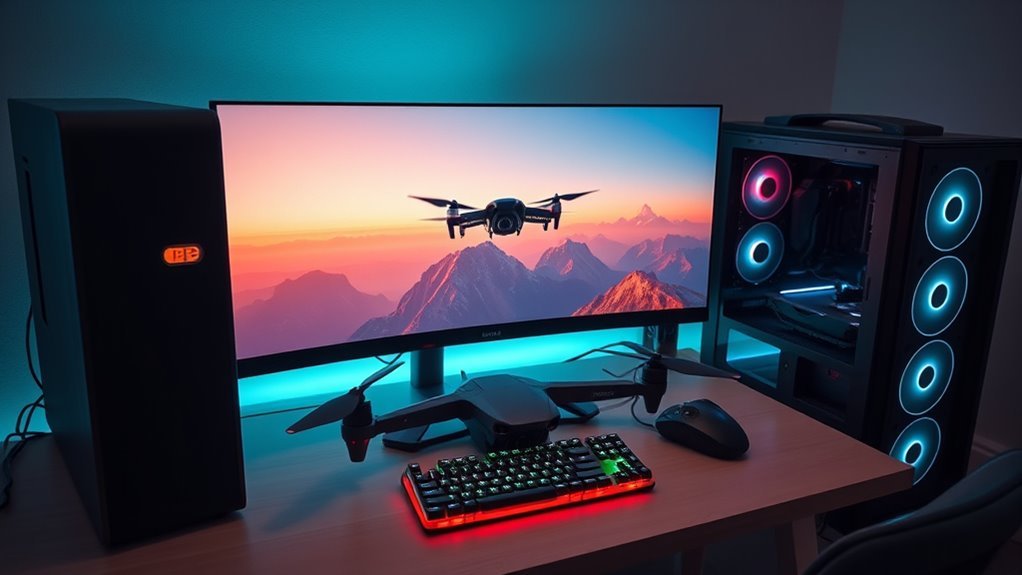
A free FPV drone simulator for PC lets you practice racing, freestyle, throttle control, and recovery skills without crashing a real quad. In 2026, FPV SkyDive remains one of the clearest free-to-play desktop choices, while several popular alternatives are paid or offer only free demos. The best results come from matching the simulator to your PC, calibrating your controls correctly, and keeping frame rate and input response stable.
Quick Answer
For a genuinely free FPV drone simulator on PC, FPV SkyDive is a strong starting point. Its base simulator is free-to-play and supports racing, freestyle, controller calibration, and multiple platforms. A radio transmitter gives the most realistic stick practice, but the current PC version also supports keyboard and mouse control.
Key Takeaways
- FPV SkyDive is free-to-play; optional extra content is sold separately.
- FPV Freerider has a free demo, but the full desktop simulator is paid.
- PC requirements vary widely between simulators, so there is no single universal minimum specification.
- A USB-capable FPV radio is best for building transferable stick habits, although SkyDive now supports keyboard and mouse controls.
- Correct calibration, rates, camera angle, frame rate, and input latency matter more than maximum graphics quality.
At a Glance
| Time Required | About 10–20 minutes for installation, controller detection, and calibration |
| Difficulty | Easy to moderate |
| Tools Needed | Compatible PC, simulator, and optionally an FPV radio plus a data-capable USB cable |
| Cost | $0 for the FPV SkyDive base simulator; optional DLC and other simulators cost extra |
What Is a Free FPV Drone Simulator?
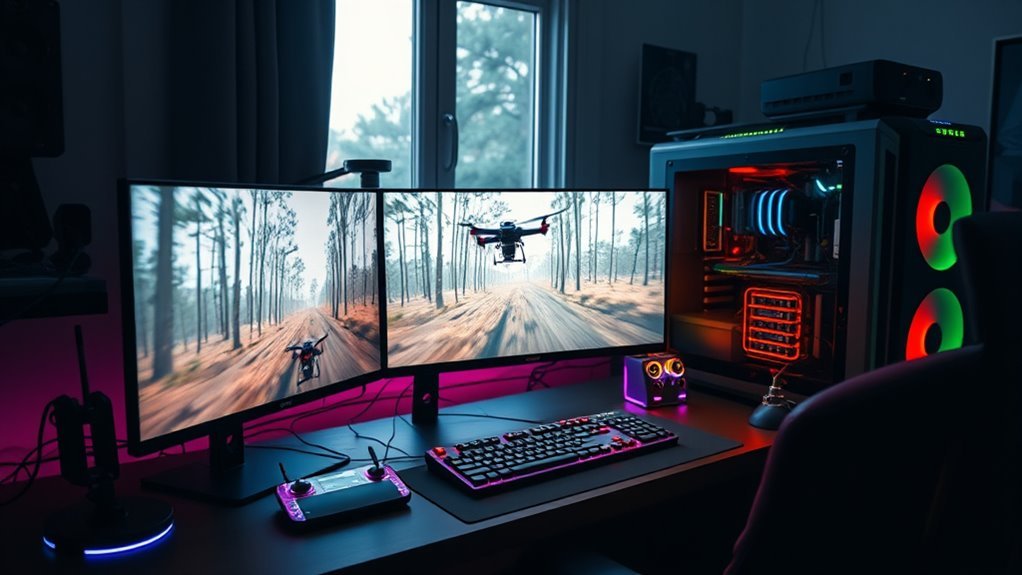
A free FPV drone simulator is software that lets you practice first-person-view drone flight in a virtual environment without putting a real quad, battery, propellers, or camera equipment at risk.
The simulator shows the view from the virtual drone and models factors such as throttle, momentum, roll, pitch, yaw, drag, and collisions. A good simulator can help you rehearse basic orientation, racing lines, freestyle moves, recoveries, and repeated gate practice.
Many simulators include racing and freestyle modes. Using the same style of radio transmitter you fly with outdoors is particularly useful because the stick positions and movements are closer to real FPV flying than a normal gamepad.
Platform support is broader than it once was. ORQA currently offers FPV SkyDive on Windows, macOS, Linux, Steam Deck, iOS, and Android. Other simulators have their own supported operating systems, so compatibility should always be checked before installation.
Note: Simulator physics can closely imitate a quad, but a PC cannot reproduce every real-world variable. Wind, battery sag, RF interference, video-link breakup, sunlight, depth perception, unexpected obstacles, and real crash consequences still require separate practice and judgment.
Best Free FPV Drone Simulator Options
For pilots who specifically want a fully free-to-play FPV simulator, FPV SkyDive is one of the most straightforward choices. The base program is free and includes drone racing and freestyle practice. ORQA also sells optional Flight School, Track Builder, Micro Drone, and Drone Soccer content, so “free-to-play” does not mean every expansion is free.
FPV Freerider is another familiar name, but the desktop version should not be described as completely free. Its developer provides a limited free demo, while the full FPV Freerider currently costs $5.99 USD or more on itch.io. FPV Freerider Recharged currently costs $9.99.
Other well-known simulators such as Liftoff, VelociDrone, TRYP FPV, and The Drone Racing League Simulator are paid products. They may provide more specialized racing, graphics, tracks, physics tuning, multiplayer features, or content, but they are not required for learning basic FPV controls.
| Simulator | Free Status | Best Fit |
|---|---|---|
| FPV SkyDive | Free-to-play base simulator; optional paid DLC | Free racing, freestyle, and beginner practice |
| FPV Freerider | Free demo; full version paid | Simple FPV practice and lower-cost paid option |
| Liftoff | Paid | Detailed customization, freestyle, racing, and multiplayer |
| VelociDrone | Paid | Racing-focused practice and broad tuning options |
| DRL Simulator | Paid | Structured racing practice and DRL-style courses |
| Liftoff: Micro Drones | Paid | Micro-drone and indoor-style flying |
Prices can vary by country, currency, sale, and storefront, so use the current product page rather than relying on an old fixed price.
What PC Specs Do You Need?
There is no universal PC specification for an FPV simulator. Some lightweight programs can run on modest hardware, while newer simulators with large 3D environments require substantially faster graphics hardware.
An SSD can reduce loading time, but it is not automatically a minimum requirement. More important during actual flying are stable frame rate, consistent frame time, and low controller latency.
Minimum Hardware Needs
The safest approach is to check the requirements for the exact simulator you want to install. Current published examples show how different the minimums can be:
| Simulator | Published Minimum |
|---|---|
| FPV SkyDive | Intel Core i5, 8GB RAM, GTX 650 2GB or better, DirectX 11, about 2GB storage on Windows |
| VelociDrone | 1.7GHz processor, Intel HD 530 graphics, 4GB RAM, roughly 37GB installed storage |
| Liftoff | Intel 8th-gen or AMD Ryzen 1st-gen 2.4GHz+, 8GB RAM, RTX 2060 or RX Vega 56 with 4GB VRAM, DirectX 11, 25GB storage |
| TRYP FPV | Quad-core 2.4GHz processor, 8GB RAM, GTX 960 or RX 460, DirectX 12, 25GB storage on Windows |
FPV SkyDive’s Steam page still shows older Windows versions in its legacy game requirements, but Steam itself stopped supporting Windows 7 and Windows 8 in 2024. For a current Steam-based setup, Windows 10 or Windows 11 is the safer assumption.
Recommended PC Requirements
Recommended specifications also vary. FPV SkyDive lists an Intel Core i5-6500 or better and GTX 970 or better for Windows. VelociDrone recommends roughly a 3.2GHz processor, GTX 1050 Ti, and 8GB RAM. Liftoff’s current recommended configuration lists 16GB RAM and newer CPU hardware.
Instead of buying hardware around one generic “4-core and 8GB” rule, choose the simulator first and check its current requirements.
Pro Tip: If the simulator feels delayed, reduce resolution, shadows, anti-aliasing, vegetation, and other graphics options before changing your flight settings. A steady frame rate is more useful for FPV training than prettier graphics with frequent stutter.
How to Connect Your Radio Controller
A real FPV radio usually gives more useful practice than a keyboard or conventional gamepad because its gimbals and throttle behavior resemble the controls used on an actual quad.
Most modern radios that support simulator use appear to the computer as a USB joystick or HID input device. The exact procedure depends on the radio firmware and connector.
USB Joystick Setup
- Check radio support. Confirm that your transmitter can work as a USB joystick or can connect through a supported simulator dongle.
- Use a data-capable cable. Radios may use USB-C, Micro-USB, Mini-USB, or another interface. A charging-only cable will not carry controller data.
- Connect the radio to the PC. If your firmware asks which USB function to use, choose the joystick or HID option.
- Turn off RF output when appropriate. EdgeTX recommends turning off the internal and external RF modules when the radio is being used as a USB joystick.
- Confirm OS detection. Make sure Windows, macOS, or Linux can see the controller before troubleshooting the simulator.
- Open the simulator’s controller menu. Select the radio and run its calibration routine.
- Move every stick through its full travel. Center roll, pitch, and yaw when requested and verify that throttle covers the full intended range.
- Map roll, pitch, yaw, and throttle. Reverse any axis that moves in the wrong direction.
A good setup should show smooth input movement from one endpoint to the other, with centered axes staying still when you release the sticks.
- The USB cable should remain secure without pulling on the radio connector.
- The operating system should show the transmitter as an input device.
- The simulator’s calibration screen should respond smoothly to all four main axes.
- RF transmission can be disabled when your radio firmware recommends doing so for simulator use.
If the controller is not detected, do not immediately assume the simulator is faulty. Try another known data-capable USB cable, another USB port, and the radio manufacturer’s current firmware instructions.
Compatible Radio Controllers
Compatibility matters more than the brand name. A radio that presents itself correctly as a USB joystick can work with many simulators.
Popular simulator setups include radios from RadioMaster, FrSky/Taranis, Spektrum, FlySky, Futaba, Jumper, DJI, and others, but exact support varies between software and radio models.
Liftoff’s support documentation, for example, explains that recognized controllers can receive default mappings while other devices can be configured manually.
Taranis Q X7 users and owners of similar radios should follow the firmware currently installed on their transmitter rather than assuming an old OpenTX-only procedure. Many radios now use EdgeTX, while older units may still use OpenTX.
For the most useful training, choose a transmitter with smooth gimbals, reliable USB joystick support, and enough adjustment to reproduce the rates you use on your real quad.
How to Make FPV Practice Feel Real
Realism depends on more than the simulator’s physics engine. Your controller setup, rates, camera angle, frame rate, and training routine all affect how well practice transfers to a real quad.
Start by using the same flight mode you plan to fly in real life. For most freestyle and racing practice, that means Acro/Rate mode rather than a self-leveling mode.
Next, copy or closely match your real quad’s roll, pitch, and yaw rates when the simulator supports the same rate model. Liftoff, for example, supports multiple rate systems, while FPV Freerider lets users adjust input rates, camera settings, and physics.
Camera angle also matters. A steep camera angle encourages faster forward flight because the quad must tilt farther to put the horizon in view. Beginners may find a moderate angle easier while learning throttle and turns.
- Practice low, controlled lines around virtual objects rather than only flying at full throttle.
- Use repeated gates or reference points to improve corner entry and exit consistency.
- Practice rolls, flips, power loops, and recoveries separately before combining them.
- Use multiplayer or timed racing only after basic throttle and line control becomes consistent.
FPV goggles can increase immersion when a simulator and display setup support them, but they are not required. A responsive monitor and correctly configured radio can provide excellent training.
FPV SkyDive version 2.9 added four no-controller PC layouts: mouse only, keyboard + mouse, mouse + keyboard, and keyboard only.
Those controls make it easier to try FPV before buying hardware. However, pilots who plan to fly a real quad will usually build more transferable stick habits with an actual radio transmitter.
FPV Simulator Setup Problems to Fix Fast
Most FPV simulator problems fall into four groups: the controller is not detected, the axes are mapped incorrectly, the computer cannot maintain smooth performance, or another input layer such as Steam Input is interfering.
Controller Not Detected
First confirm that the computer itself sees the radio. If the operating system cannot detect it as an input device, the simulator normally cannot detect it either.
- Try another data-capable USB cable.
- Try another USB port.
- Select USB Joystick/HID on the radio if prompted.
- Check the current instructions for your radio firmware.
- Restart the simulator after connecting the radio.
Sticks Move the Wrong Way
Run the simulator calibration again and check roll, pitch, yaw, and throttle one at a time. Reverse only the axis that moves opposite to the on-screen indicator.
Do not continue training with incorrect mappings. It can build the wrong reflexes quickly.
Throttle or Axes Do Not Reach Full Range
Recalibrate the controller and move each stick through its full physical travel when requested. Also check whether the transmitter is using unusual endpoints, trims, curves, or mixes.
FPV Freerider’s developer recommends using a normal default radio setup with its newer input system rather than special modified endpoints.
Simulator Lags or Stutters
Reduce graphics quality before changing the flight model. Lower resolution, shadows, reflections, vegetation, render distance, and anti-aliasing until frame delivery becomes stable.
Update the GPU driver when appropriate and close unnecessary background programs. If the PC is below the simulator’s published minimum requirement, try a lighter simulator rather than forcing demanding graphics settings.
Steam Controller Conflicts
Some radios can be detected by Windows but behave incorrectly inside a Steam game because Steam’s controller layer changes the input. Liftoff specifically documents Steam controller overrides as a possible cause of detection and mapping problems.
If a radio works in the operating system but not in the simulator, check the simulator’s current support documentation before changing firmware or buying another controller.
No Radio Controller Yet
You can still start practicing. Current FPV SkyDive releases support keyboard and mouse layouts in addition to controllers. These modes are useful for testing the simulator and learning basic orientation before purchasing an FPV radio.
Once you decide to continue with real FPV flying, switching to a proper radio is worthwhile because the gimbals and throttle behavior more closely match a real aircraft.
Frequently Asked Questions
Which FPV Drone Simulator Is Best for PC?
The best choice depends on the goal. FPV SkyDive is a strong free-to-play starting point. Liftoff offers broad customization and freestyle/racing content, while VelociDrone is popular for focused racing practice. TRYP FPV emphasizes detailed modern graphics and large environments. Check current hardware requirements before choosing.
What Is the Best Free Drone Simulator for PC?
FPV SkyDive is one of the clearest choices when you specifically need a free-to-play FPV simulator for PC. Its base game is free and supports freestyle, racing, controller calibration, and multiple input methods. FPV Freerider is not fully free on desktop; it provides a limited free demo and a paid full version.
What Are the System Requirements for Drone Simulators?
Requirements vary considerably. FPV SkyDive lists an Intel Core i5, 8GB RAM, and GTX 650 2GB as its Windows minimum, while VelociDrone lists a 1.7GHz processor, Intel HD 530, and 4GB RAM. Liftoff’s current requirements are substantially higher. Always check the exact simulator’s current specification instead of relying on one generic rule.
What Is a Good FPV Drone Controller for a PC Simulator?
A good simulator controller is an FPV radio that can operate as a reliable USB joystick and has smooth gimbals. RadioMaster, FrSky/Taranis, Spektrum, FlySky, Futaba, Jumper, DJI, and other radios may work depending on the model and simulator. Verify current firmware, USB support, and simulator compatibility before buying.
Is FPV SkyDive Really Free?
Yes. The base FPV SkyDive simulator is free-to-play. ORQA also sells optional DLC such as Flight School, Track Builder, Micro Drone Edition, and Drone Soccer, so additional content can cost money.
Can I Use an FPV Simulator Without a Radio Controller?
Yes. FPV SkyDive version 2.9 supports mouse-only, keyboard-and-mouse, mouse-and-keyboard, and keyboard-only control layouts. These are useful for trying FPV, but an actual radio transmitter is generally better for developing stick habits that transfer to a real quad.
Conclusion
A free FPV drone simulator for PC is one of the lowest-risk ways to learn throttle control, orientation, racing lines, freestyle movements, and recovery techniques. FPV SkyDive is a practical free-to-play choice, while FPV Freerider, Liftoff, VelociDrone, DRL Simulator, TRYP FPV, and Liftoff: Micro Drones provide other options at different prices and hardware requirements.
For useful practice, focus on correct controller calibration, matching your real rates and camera angle, maintaining stable frame rates, and repeating specific drills rather than simply flying randomly. A simulator can build strong habits, but real-world FPV still adds wind, batteries, radio links, obstacles, safety considerations, and other conditions that software cannot completely reproduce.
Sources
- ORQA — FPV SkyDive — free status, platform availability, and current product information.
- Steam — FPV SkyDive — system requirements, features, DLC, and controller information.
- FPV Freerider Developer Page — current price, free demo, platforms, controller support, and features.
- VelociDrone Official Store — current license price and minimum/recommended system requirements.
- Liftoff Support — transmitter detection, controller setup, and Steam Input troubleshooting.
- EdgeTX User Manual — USB Joystick — USB joystick modes, channel behavior, and RF-module guidance.

