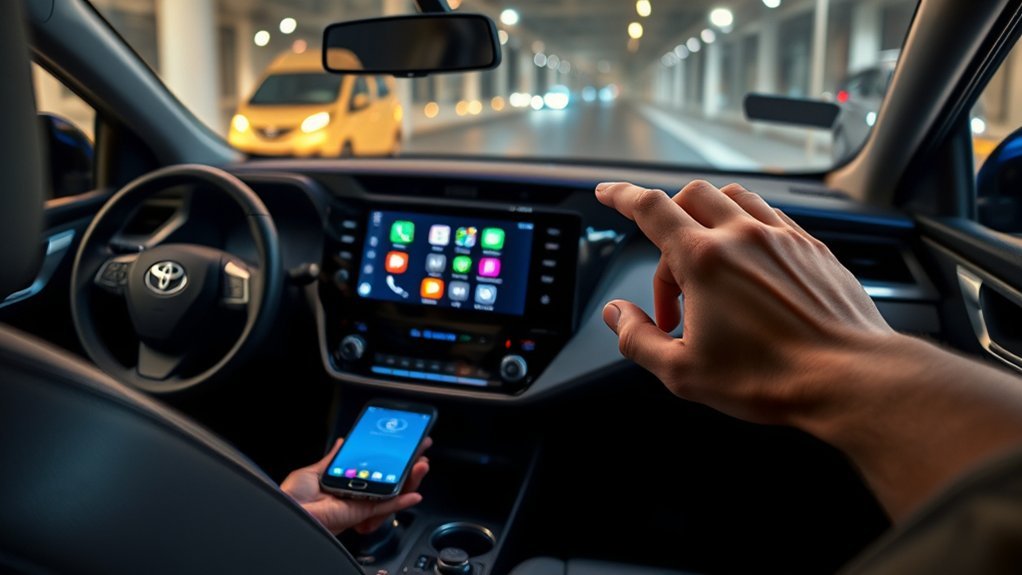
Adding apps to a Toyota RAV4 depends on the multimedia system installed in your vehicle. On most compatible models, you do not download apps directly to the dashboard. Instead, you install supported apps on your phone and display them through Apple CarPlay or Android Auto. The Toyota app serves a different purpose by managing your vehicle profile and available Connected Services.
Quick Answer
Install compatible apps on your smartphone, then connect the phone through Apple CarPlay or Android Auto. Use the Toyota app for vehicle registration and available Connected Services. The former Entune App Suite was retired, so downloading Entune is no longer the correct method for adding apps to a RAV4.
Key Takeaways
- Check your RAV4’s model year, trim, market, and installed multimedia system before following setup instructions.
- Apple CarPlay and Android Auto display compatible apps that are already installed on your phone.
- Bluetooth alone normally supports calls and audio streaming, not full dashboard app projection.
- The Toyota app manages your vehicle profile and available Connected Services. It is not an open app store for the dashboard.
- Toyota retired the Entune App Suite services on October 30, 2023.
At a Glance
| Time Required | About 5 to 15 minutes for normal phone setup |
| Difficulty | Easy |
| Tools Needed | Compatible smartphone, mobile data, and a data-capable USB cable if using a wired connection |
| Cost | Usually no Toyota fee for CarPlay or Android Auto; app subscriptions, mobile data, and some Connected Services may cost extra |
Warning: Park your RAV4 before pairing a phone, accepting permissions, entering account details, arranging apps, or changing multimedia settings. Do not attempt the initial setup while driving.
Identify Your RAV4 Multimedia System First
Toyota has used several multimedia systems across different RAV4 generations. Your vehicle’s model year can provide a clue, but the installed screen and head unit determine which features you can use.
Look for the following items on the home screen or settings menu:
- Apple CarPlay or Android Auto icon: Your phone can display supported navigation, communication, and media apps through smartphone projection.
- “Hey Toyota,” user profiles, or Toyota Audio Multimedia: Your RAV4 has a newer Toyota multimedia platform with features that may include wireless phone projection and over-the-air updates.
- Entune or App Suite menu: Your RAV4 has a legacy system. The old Entune App Suite service has been retired, although basic radio, Bluetooth, and built-in functions may continue to work.
- Bluetooth but no CarPlay or Android Auto: The factory system may support calls and music streaming without showing phone apps on the dashboard.
For an exact feature list, enter your model year or VIN on Toyota’s Manuals and Warranties page. Check the multimedia or navigation manual rather than relying only on the vehicle’s model year.
Understanding How Apps Work in a Toyota RAV4
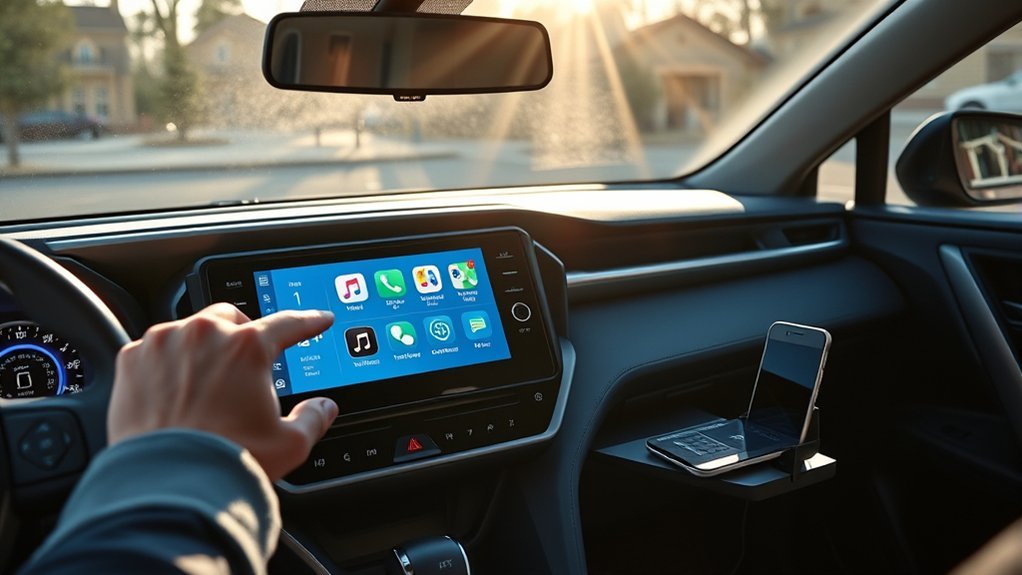
Most RAV4 systems do not have an open app store like a phone or tablet. You normally add an app by installing it on your smartphone. If the app supports Apple CarPlay or Android Auto, it can appear on the vehicle display when the phone is connected.
You usually add the app to your phone, not to the RAV4’s dashboard.
The current setup route depends on what you want to do:
| What You Want | Correct Method |
|---|---|
| Use maps, music, messages, podcasts, or other supported iPhone apps | Apple CarPlay |
| Use supported Android navigation, communication, or media apps | Android Auto |
| Register the vehicle or manage available remote and maintenance features | Toyota app and Connected Services |
| Play any phone audio without displaying its full interface | Bluetooth audio |
| Use an older system labeled Entune App Suite | The former online App Suite is no longer available; use remaining built-in features or another compatible connection method |
How to Add iPhone Apps With Apple CarPlay
Apple CarPlay can show compatible iPhone apps on a supported RAV4 display. Installing an app on your iPhone does not guarantee that it will appear. The developer must provide a CarPlay-compatible version.
- Check compatibility. Confirm that your RAV4’s multimedia system supports CarPlay.
- Install the desired app on your iPhone. Navigation, audio, messaging, parking, charging, and podcast apps are common examples, but availability varies.
- Enable Siri. CarPlay uses Siri for many hands-free functions.
- Connect the iPhone. Use the vehicle’s data USB port for wired CarPlay. If your RAV4 supports wireless CarPlay, follow the vehicle prompts to pair the phone.
- Accept the prompts. Approve CarPlay access on the iPhone and multimedia display.
- Open CarPlay. Select the CarPlay tile or icon if it does not open automatically.
Apple’s official CarPlay setup guide explains both wired and wireless connections.
Add, Remove, or Rearrange CarPlay Apps
You can control which supported apps appear and change their order from your iPhone:
- Open Settings on the iPhone.
- Select General, then CarPlay.
- Select your Toyota.
- Tap Customize.
- Add, remove, or drag compatible apps into your preferred order.
The new arrangement should appear the next time you connect the iPhone. Essential Apple functions may not be removable.
How to Add Android Apps With Android Auto
Android Auto is integrated into current Android phones, so most users do not need to download a separate Android Auto app. You install compatible apps through Google Play, then connect the phone to a supported RAV4 system.
- Confirm compatibility. Check that the phone and RAV4 support Android Auto.
- Update your phone. Install available Android system, Google Play services, and app updates.
- Install compatible apps. Only apps approved for Android Auto can appear on the vehicle screen.
- Connect the phone. Use a reliable data-capable USB cable for a wired system. For a wireless system, keep Bluetooth and Wi-Fi enabled during setup.
- Accept permissions. Follow the instructions on the phone and vehicle display while parked.
- Open Android Auto. Tap its icon on the RAV4 display if it does not start automatically.
Google provides separate instructions for wired and wireless connections in its Android Auto setup guide.
Pro Tip: A cable that charges your phone may not support data. If CarPlay or Android Auto does not start, try a short, high-quality data cable and make sure you are using the vehicle’s media USB port rather than a charge-only port.
Register and Link Your Toyota Account
The Toyota app is used for vehicle ownership features rather than general dashboard app installation. Depending on the RAV4 and active services, it may provide maintenance information, vehicle alerts, remote functions, last parked location, or subscription management.
- Download the current Toyota app from the Apple App Store or Google Play.
- Create an account or sign in with your Toyota credentials.
- Select Add Vehicle.
- Follow the prompts to add your RAV4, which may include entering or scanning the VIN.
- Review which Connected Services are supported by your exact vehicle.
- Complete any activation steps shown in the app or vehicle display.
Feature availability varies. Adding a RAV4 to the Toyota app does not automatically add third-party apps to the dashboard.
Integrated Streaming and Connected Services
Some RAV4 models equipped with Toyota Audio Multimedia may offer native features such as Integrated Streaming, Drive Connect, Remote Connect, Service Connect, or Wi-Fi Connect. These are separate from Apple CarPlay and Android Auto.
Some services require an active trial or paid subscription. A separate Apple Music, Amazon Music, mobile-data, or other content subscription may also be required. Review the current terms in the Toyota app or on Toyota’s Audio Multimedia and Connected Services page.
What Happened to the Entune App Suite?
Toyota retired the former Entune App Suite services on October 30, 2023. Instructions that tell you to download Entune, link Pandora or Yelp, or install Entune apps on the vehicle are no longer current.
Toyota’s retirement information is available on the official Toyota App Suite Retirement page.
If your RAV4 still has an Entune-labeled screen:
- Bluetooth calling and audio streaming may continue to work.
- AM, FM, SiriusXM, USB audio, and built-in navigation may continue according to the installed equipment.
- Retired cloud-based App Suite functions may no longer connect.
- Downloading the Toyota app will not add CarPlay or Android Auto hardware to an unsupported head unit.
- A dealer can confirm whether Toyota released an official update for your exact system.
- An older RAV4 may require a professionally installed aftermarket receiver to gain modern smartphone projection.
How to Connect Your Phone to the Multimedia System
Your phone may connect through USB, wireless smartphone projection, or basic Bluetooth. These connection types serve different purposes.
Pairing Your Phone With Bluetooth
Bluetooth is useful for hands-free calls, contacts, and audio streaming. Menu names vary between RAV4 systems, but the general process is:
- Park the vehicle and turn on the multimedia system.
- Enable Bluetooth on your phone.
- Open the vehicle’s phone, Bluetooth, or device settings.
- Select the option to add or register a new device.
- Choose your Toyota from the phone’s list of available devices.
- Confirm that the pairing code matches on both screens.
- Allow access to contacts, calls, messages, and audio as needed.
Bluetooth pairing does not necessarily activate CarPlay or Android Auto. Follow the separate wired or wireless setup instructions if you want supported phone apps to appear on the display.
Current App Installation Process
For CarPlay or Android Auto, complete the installation on the smartphone:
- Download the desired app from the phone’s official app store.
- Open the app and complete its login or permission setup.
- Check whether the app supports CarPlay or Android Auto.
- Connect the phone to the RAV4.
- Open the CarPlay or Android Auto launcher on the vehicle display.
You should not need to press a separate “install” button on the RAV4 for each smartphone app. Compatible apps normally become available through the phone-projection interface.
Install and Update Toyota Multimedia Software
Multimedia software updates are different from installing phone apps. Newer Toyota Audio Multimedia systems may receive over-the-air updates, while some older units may require a USB update or dealer service.
Because the update process varies, use the multimedia manual for your exact year and system. Do not assume that an update will add CarPlay, Android Auto, or wireless capability. Those features may depend on hardware that a software update cannot change.
Before starting an available update:
- Park in a safe, well-ventilated location.
- Read the full on-screen instructions.
- Maintain stable vehicle power as directed.
- Do not unplug a USB device or shut down the system while an update is being installed.
- Contact a Toyota dealer if the update fails or the display repeatedly restarts.
Note: A multimedia software update and a navigation map update are not always the same package. Check the manual before downloading or installing either one.
Comparing the Toyota App, CarPlay, Android Auto, and Bluetooth
| Method | Main Purpose | Can You Add Any App? | Possible Cost |
|---|---|---|---|
| Apple CarPlay | Displays supported iPhone apps | No, only CarPlay-compatible apps | No Toyota subscription; app or data charges may apply |
| Android Auto | Displays supported Android apps | No, only Android Auto-compatible apps | No Toyota subscription; app or data charges may apply |
| Toyota app | Vehicle profile and available Connected Services | No | Some supported services require a trial or subscription |
| Bluetooth | Calls, contacts, messages, and audio streaming | No dashboard app projection | Normally no vehicle fee |
| Legacy Entune App Suite | Former Toyota app-integration service | No, service retired | Not applicable |
Troubleshoot App and Connection Problems
If an app or phone does not appear on the RAV4 screen, work through these checks:
- Verify vehicle support. Check the exact multimedia manual rather than assuming every RAV4 supports the feature.
- Confirm app compatibility. Not every phone app has a CarPlay or Android Auto version.
- Use the correct USB port. Some vehicle USB ports provide charging only.
- Replace the cable. Try a short, undamaged data cable.
- Enable required phone features. Turn on Siri for CarPlay. Keep Bluetooth and Wi-Fi enabled during wireless Android Auto setup.
- Unlock the phone. Complete the first connection while the phone is unlocked and the vehicle is parked.
- Review permissions. Allow the requested phone, contact, notification, microphone, and location access.
- Restart both systems. Restart the phone, then turn the RAV4 off and back on safely.
- Forget and reconnect the device. Remove the Toyota from the phone and remove the phone from the vehicle before pairing again.
- Install updates. Update the phone operating system, affected apps, and vehicle multimedia software when an official update is available.
- Check account status. If a native Toyota service is missing, confirm that the correct driver profile is active and that any required trial or subscription has not expired.
If several compatible phones fail in the same vehicle, the problem may involve the USB port, antenna, multimedia software, or head unit. A Toyota dealer or qualified automotive electronics technician can test the hardware.
Related Guides
Frequently Asked Questions
Can I use Entune without a smartphone?
The online Entune App Suite has been retired, so its former app services are no longer available with or without a smartphone. Your RAV4’s remaining radio, Bluetooth, USB audio, or built-in navigation features may still work according to the installed system.
Are all phone apps compatible with a Toyota RAV4?
No. Apple CarPlay displays apps that Apple permits for CarPlay, while Android Auto displays apps approved for Android Auto. Other apps can remain available on the phone but will not show a full interface on the vehicle screen.
How do I troubleshoot an app that does not appear?
Confirm that the app supports CarPlay or Android Auto, update the phone and app, check permissions, reconnect the phone, and try another data cable or USB media port. Also verify that your exact RAV4 multimedia system supports the connection method.
Is there a subscription fee for RAV4 apps?
Toyota does not require a Toyota subscription simply to use compatible Apple CarPlay or Android Auto. However, mobile data, premium phone apps, music services, Integrated Streaming, and some Toyota Connected Services may require separate subscriptions.
Can I add apps after purchasing my RAV4?
Yes. You can install additional compatible apps on your smartphone at any time. They may appear through CarPlay or Android Auto the next time you connect. You cannot make an unsupported app compatible by installing it on the phone.
Can a software update add CarPlay or Android Auto to an older RAV4?
Only if Toyota released an official update for that exact head unit. Many older systems lack the required hardware, so an update cannot add the feature. Check with Toyota using your VIN before paying for an update or replacing the receiver.
Conclusion
The correct way to add apps to a Toyota RAV4 is usually to install compatible apps on your smartphone and connect through Apple CarPlay or Android Auto. Use the Toyota app for vehicle registration and supported Connected Services, not as a general dashboard app store.
Owners of older Entune-equipped RAV4 models should not rely on instructions for downloading the retired Entune App Suite. Check your exact multimedia manual, identify the connections your head unit supports, and use Bluetooth, smartphone projection, built-in functions, or a suitable hardware upgrade accordingly.
Sources
- Toyota App Suite Retirement — Entune App Suite retirement information
- Toyota Audio Multimedia and Connected Services — CarPlay, Android Auto, Bluetooth, Connected Services, and subscription guidance
- Toyota App — account registration, adding a vehicle, and available app functions
- Toyota Manuals and Warranties — model- and VIN-specific owner and multimedia manuals
- Apple Support: Use CarPlay With Your iPhone — wired and wireless CarPlay setup and app customization
- Google Android Auto Help — wired and wireless Android Auto setup
