
To set the clock on a Toyota RAV4, first match the procedure to the controls in your vehicle. Older RAV4s may use physical H and M buttons, many factory touchscreen systems use a Clock menu with time-zone and GPS controls, and newer displays may place date and time inside the main Settings menu. If manual adjustment is unavailable on a GPS-controlled system, turn off Auto Adjust by GPS or automatic time first.
Last updated: September 11, 2026
Quick Answer
To set a Toyota RAV4 clock, use the H and M buttons if your dash has them. On many factory touchscreen systems, open the clock or general settings and adjust the time there. GPS-equipped systems may require you to turn off Auto Adjust by GPS before manual adjustment. Also check the time zone, daylight saving setting, and 12/24-hour format if the displayed time is still wrong.
Key Takeaways
- Match the instructions to the controls you see, not only the RAV4 model year.
- Physical H and M buttons adjust older clock displays directly; some older units also have a :00 minute-rounding button.
- Factory touchscreen systems may include Time Zone, Daylight Saving Time, Auto Adjust by GPS, and 12/24-hour format controls.
- If a GPS-controlled clock will not let you change the hour or minute manually, turn off Auto Adjust by GPS first.
- A clock that is exactly one hour wrong usually points to the daylight saving or time-zone setting.
- If the clock repeatedly resets after the vehicle is turned off, have the 12-volt battery and electrical system checked.
At a Glance
| Time Required | About 1 to 3 minutes |
| Difficulty | Easy |
| Tools Needed | None |
| Cost | No cost |
Warning: Set the clock while parked. Do not navigate touchscreen menus while driving.
Identify Your RAV4 Clock Controls

RAV4 clock controls have changed across generations, trims, markets, and multimedia packages. The fastest way to choose the right procedure is to look at the controls in front of you.
| What You See | Use This Method | Common Issue |
|---|---|---|
| H, HR, M, MIN, or :00 buttons | Adjust the clock directly with the physical buttons | Clock may need ACC or ON power |
| MENU/Setup touchscreen | Open the Clock or General settings | GPS auto-adjust may lock manual controls |
| Gear-shaped Settings icon | Open Settings and look for Date & Time, General, or System | Menu labels vary by multimedia version |
| Clock mainly in the gauge cluster | Use the steering-wheel meter controls | Cluster and multimedia settings may be separate |
- Physical H and M buttons: The clock is adjusted directly with hour and minute buttons near the display.
- Touchscreen with a Menu button: Clock controls are usually inside the clock or general settings.
- Touchscreen with a gear-shaped Settings icon: Date and time controls may appear under General, System, or Date & Time.
- Clock shown in the gauge cluster: Some settings use the steering-wheel arrow buttons and multi-information display.
Toyota has used different head units within the same general model period, so two RAV4s may not show identical menu labels. The most reliable reference is the owner’s or multimedia manual for your exact model year and installed display.
Note: RAV4 Hybrid and plug-in hybrid models normally follow the clock-setting method used by their installed display. The powertrain type does not determine the menu path.
How to Set the Clock on a Toyota RAV4
Method 1: Use Physical H and M Buttons
Use this method when your dashboard has buttons marked H, HR, M, MIN, or similar clock controls. Toyota’s older RAV4 manuals document direct H and M adjustment, and some versions also have a :00 button for rounding to the nearest hour.
- Park the RAV4 and switch the ignition to ACC or ON.
- Press H or HR until the correct hour appears.
- Press M or MIN until the correct minute appears.
- If your clock has a :00 button, use it only when you want to round the displayed time to the nearest hour. On Toyota’s documented older system, 1–29 minutes rounds down and 30–59 minutes rounds up.
- Wait a few seconds and confirm the clock keeps the new time.
Method 2: Use the Touchscreen Clock Settings
Use this method when your RAV4 has a factory touchscreen with a Menu, Setup, or General settings screen. On Toyota’s documented 2019–2021 U.S. multimedia systems, the Clock menu can include the time zone, daylight saving setting, Auto Adjust by GPS, manual hour/minute controls, and 12/24-hour format.
- Switch the ignition to ACC or ON.
- Open the multimedia Menu or Setup screen.
- Open General or select the displayed clock if your system makes the clock selectable.
- Select Clock.
- If you want to set the hour and minute manually, turn Auto Adjust by GPS off when that option is present.
- Adjust the hour and minute.
- Confirm the Time Zone and Daylight Saving Time settings.
- Select the 12-hour or 24-hour format if your system provides that option.
- Return to the home screen and confirm the new time.
Toyota’s 2021 RAV4 multimedia documentation also shows that selecting the clock from the Menu screen can open the clock settings. See the Toyota 2021 RAV4 multimedia manual for the documented interface.
Method 3: Use Settings and Date & Time
Newer Toyota multimedia interfaces use a settings-focused layout rather than the older Menu and Setup design. The exact labels can vary by software version, model year, market, and display.
- Tap the Settings gear icon.
- Look for General, System, or Date & Time.
- Choose automatic or manual time if that choice is available.
- If manual adjustment is disabled, turn off automatic date/time or automatic time-zone control as required by your system.
- Set the hour, minute, time zone, daylight saving option, and time format shown on your screen.
- Exit the menu and verify the clock.
Method 4: Use the Instrument-Cluster Controls
If the clock is controlled through the gauge cluster, use the steering-wheel meter-control buttons to open the settings display. Look for Clock, Date & Time, Meter Settings, or a clock symbol. Select the hour, minute, or 12/24-hour option shown by your display, then save or exit according to the on-screen prompts.
Because Toyota has used different multi-information displays, follow the exact labels in your RAV4 rather than assuming every cluster uses the same button sequence.
Pro Tip: When your screen does not match any path above, note the model year, trim, multimedia screen style, and whether the vehicle has factory navigation. Those details make it much easier to find the correct Toyota manual.
Why Is My RAV4 Clock One Hour Wrong?
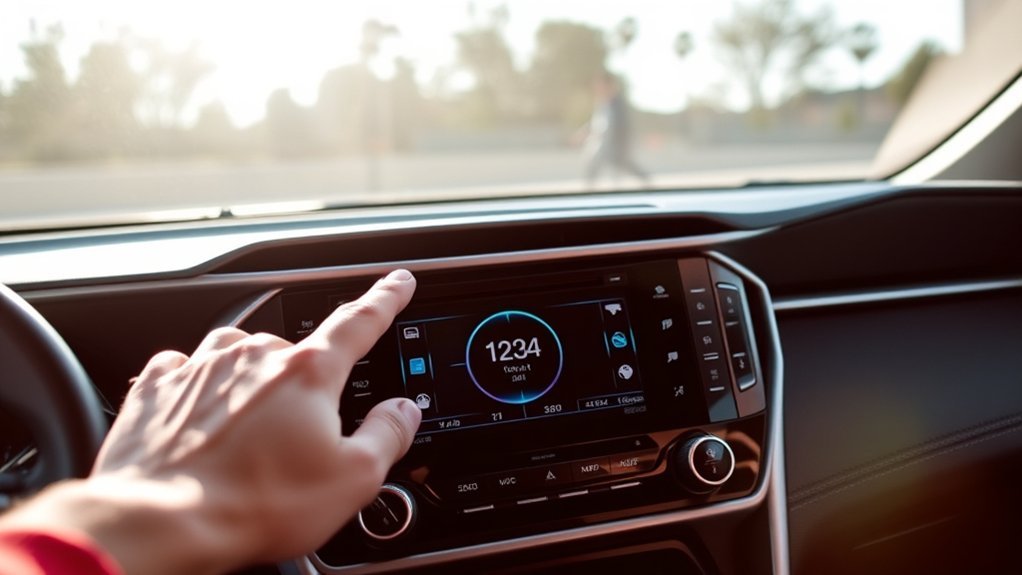
If your RAV4 clock is wrong by exactly one hour, check the daylight saving setting before changing the hour manually. If it is wrong by several hours, confirm the selected time zone. Toyota multimedia systems that support GPS clock adjustment can also use automatic time-zone controls, so a wrong zone or DST setting may override a manual correction.
- Auto Adjust by GPS: Leave it enabled when automatic time is working correctly. Turn it off when you need manual hour/minute control on a supported system.
- Automatic time zone: Use it when supported and when location-based updates are working correctly.
- Daylight saving time: Confirm that the setting matches your location and current local rules.
- 12/24-hour format: Change the display format if your multimedia system provides the option.
- Manual time: Use manual adjustment when automatic settings are unavailable or producing the wrong result.
After changing these settings, compare the display with an authoritative time source and check whether the dashboard and multimedia screen agree.
How Do You Fix a RAV4 Clock That Will Not Update Automatically?
Automatic clock behavior depends on the installed multimedia system. On systems with GPS clock adjustment, confirm the automatic-time settings before assuming the clock itself has failed.
- Confirm that Auto Adjust by GPS or automatic date and time is enabled if your system provides it.
- Check the selected time zone or automatic time-zone option.
- Check the daylight saving setting.
- If the clock is still wrong, turn automatic adjustment off temporarily and set the time manually.
- Restart the multimedia system using its normal power control, then recheck the clock.
- Review Toyota’s official multimedia support resources for software guidance applicable to your system.
If the clock remains wrong after the settings are correct, contact a Toyota dealer when the menu is frozen, options are missing, the touchscreen does not respond normally, or the system repeatedly changes to the wrong time.
Troubleshoot Manual Clock Problems
The Clock Option Is Grayed Out
Automatic time may be controlling the clock. On Toyota systems with Auto Adjust by GPS, turn that feature off before trying to change the hour or minute manually. Some menu functions may also be restricted while the vehicle is moving, so make the change while parked.
The New Time Does Not Save
Return to the home screen and wait several seconds before switching the ignition off. If the clock immediately reverts, check whether automatic time, time zone, GPS adjustment, or daylight saving settings are overriding your manual entry.
The Clock Resets After the Vehicle Is Turned Off
A clock that repeatedly loses its setting can indicate interrupted 12-volt power, a weak battery, a loose electrical connection, or a multimedia fault. Older Toyota RAV4 manuals specifically note that loss of electrical power can reset the clock. On newer vehicles, the exact behavior depends on the installed system.
Do not treat the clock alone as proof that the battery is failing. Have the battery and charging system tested if you also notice slow starting, dim lights, other settings resetting, or repeated electrical problems.
Warning: Do not disconnect the 12-volt battery only to reset the clock or touchscreen. Battery disconnection can erase saved settings and may require vehicle systems to be reinitialized.
Two Screens Show Different Times
Some RAV4 displays synchronize their clocks, while other configurations can use separate settings. Check both the multimedia clock and the instrument-cluster settings. If only one display can be adjusted, use the Toyota manual for that exact display or have the system checked.
How RAV4 Clock Features Differ
Older RAV4 clock systems generally use direct physical controls. Toyota’s older manuals document H and M buttons and, on some vehicles, a :00 button for rounding the minutes. Later multimedia systems added selectable time zones, daylight saving controls, GPS-based clock adjustment, and 12/24-hour format settings.
Toyota’s newer multimedia platform uses a different interface and supports over-the-air software updates on compatible vehicles. Because the hardware and software have changed over time, instructions written for one RAV4 may not match another. Match the guide to the controls in front of you and confirm the procedure in the year-specific owner’s or multimedia manual.
What Happens to the RAV4 Clock After Battery Power Is Lost?
Loss of 12-volt electrical power can reset the clock or other saved settings, depending on the RAV4’s age and installed head unit. Toyota’s older RAV4 documentation explicitly states that the clock resets after its electrical power source is disconnected. Newer multimedia systems may behave differently, so recheck the clock, time zone, daylight saving option, and automatic-time setting after battery service.
If the clock begins resetting repeatedly without intentional battery disconnection, look for other signs of a 12-volt electrical problem rather than repeatedly correcting the time.
More Tips for Using Your RAV4 Display
- Make changes while parked and keep the screen visible without blocking your view.
- Use the vehicle’s normal restart or power control before trying more disruptive troubleshooting.
- Record saved radio stations and custom settings before service that may interrupt 12-volt power.
- Use the exact model year and trim when searching Toyota’s digital manuals.
- Check Toyota’s multimedia support pages for software and connected-service guidance.
Official Resources for RAV4 Owners
Toyota provides year-specific owner’s manuals, multimedia manuals, digital manuals, and support resources. Select your exact RAV4 year and model before following a menu path because the same vehicle name can use different displays.
- Toyota Manuals and Warranties: Find the owner’s and multimedia manual for your vehicle.
- Toyota Audio and Connected Services Support: Check multimedia and connected-service guidance.
- Official U.S. Time: Compare your vehicle clock with an authoritative time source.
Related Guides
Frequently Asked Questions
Can I adjust the RAV4 clock without starting the engine?
Usually, yes. Switch the ignition to ACC or ON so the clock or multimedia display has power. The exact ignition mode and available settings vary by model year, so keep the vehicle parked and follow the manual for your system.
Does the RAV4 clock reset when the battery is disconnected?
It can. Older Toyota documentation specifically notes that loss of electrical power resets the clock, while newer multimedia behavior can vary. Recheck the time and other saved settings after battery service, but do not disconnect the battery only to fix a clock-setting problem.
How do I change the clock between 12-hour and 24-hour format?
Open the Clock or date-and-time settings and look for a 24-Hour Time Format or similar option. Toyota documents this control on supported multimedia systems, but not every RAV4 display provides both formats.
Will the clock update automatically after a software update?
It depends on the multimedia system and its automatic-time settings. After an update, verify the time zone, daylight saving option, and automatic or GPS time setting instead of assuming the displayed time will remain correct.
Can I set more than one time zone on the RAV4 clock?
Most factory RAV4 displays use one active local time zone. Some multimedia systems let you choose the time zone manually or update it automatically, but they do not normally display several vehicle clock zones at once.
Why is my RAV4 clock exactly one hour wrong?
Check the daylight saving setting first. Also confirm the selected time zone and automatic-time settings if the problem returns after the system updates itself. Changing the hour manually may only hide the underlying setting problem.
Conclusion
To set your Toyota RAV4 clock, first identify whether your vehicle uses physical H and M buttons, a factory touchscreen Clock menu, a newer Settings and Date & Time screen, or instrument-cluster controls. On GPS-controlled systems, turn off Auto Adjust by GPS when you need manual hour and minute control. If the displayed time is still wrong, check the time zone and daylight saving setting before troubleshooting the hardware.
For the exact menu path, use Toyota’s owner’s or multimedia manual for your model year and installed display.
Sources
- Toyota Manuals and Warranties — year-specific owner’s manuals, multimedia manuals, and digital manuals.
- Toyota 2021 RAV4 Audio & Multimedia Manual — documented Menu-screen access to RAV4 clock settings.
- Toyota Audio and Connected Services Support — official multimedia and connected-service support.
- Toyota Next-Generation Multimedia System — background on Toyota’s newer interface and over-the-air updates.
- NIST Official U.S. Time — authoritative time comparison resource.

