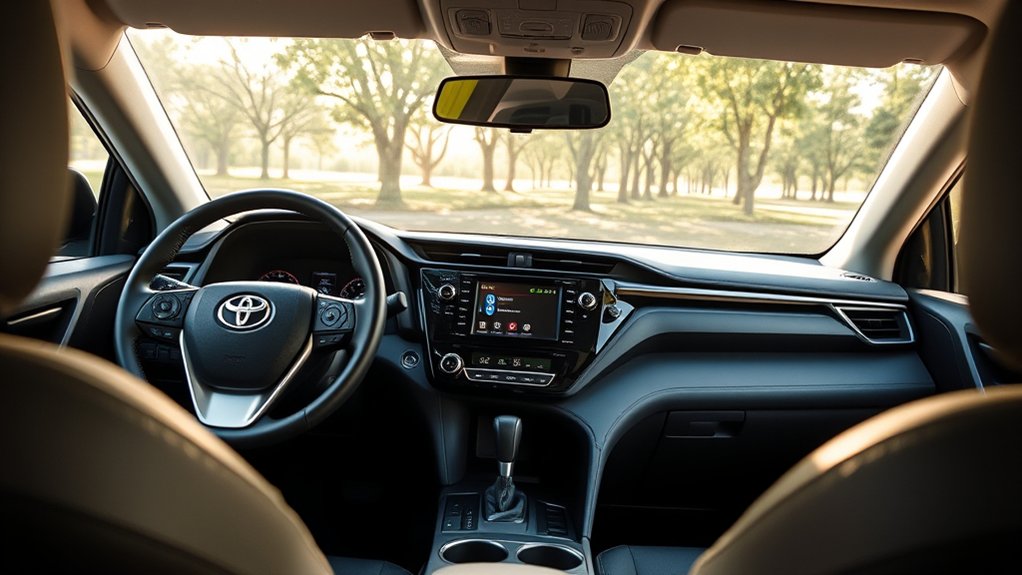
Last reviewed: September 19, 2026 — checked against current Toyota U.S. RAV4, Bluetooth, and multimedia documentation.
Yes. Factory-equipped U.S.-market Toyota RAV4 LE models have included Bluetooth since the LE grade debuted for the 2013 model year. Bluetooth supports hands-free calling and wireless audio streaming, while contacts, messages, simultaneous-device support, and menu paths vary by multimedia generation and phone. Imported vehicles and RAV4s with replacement radios may differ.
Quick Answer
Yes. Every factory-equipped U.S.-market RAV4 LE has included Bluetooth since Toyota introduced the LE grade for 2013. Toyota documented Bluetooth as standard across the 2013 RAV4 lineup, and current RAV4 multimedia systems continue to support Bluetooth calling and audio. Check your exact multimedia system if the vehicle was imported or its original radio was replaced.
Key Takeaways
- Toyota made Bluetooth standard across the U.S. RAV4 lineup when the LE grade debuted for 2013.
- Older Display Audio and Entune systems use different menu paths from newer Toyota Audio Multimedia systems.
- Current systems can support more than one Bluetooth phone, but device limits vary by multimedia generation.
- Bluetooth handles supported calls and audio; Apple CarPlay and Android Auto are separate smartphone-projection systems.
- For persistent problems, check feature permissions first, then remove the pairing from both devices, restart them, and pair again.
At a Glance
| Time Required | Usually a few minutes; timing varies by phone and multimedia system |
| Difficulty | Easy |
| Tools Needed | A compatible Bluetooth smartphone and your RAV4’s multimedia screen |
| Subscription | Basic Bluetooth pairing, calling, and audio streaming do not require a Toyota Connected Services subscription |
Does Every Toyota RAV4 LE Have Bluetooth?
Yes for factory-equipped U.S.-market models. Toyota introduced the LE grade with the redesigned 2013 RAV4 and stated that Bluetooth connectivity was standard across the lineup. Toyota’s 2014 documentation then specifically listed Bluetooth hands-free phone connectivity and audio streaming as standard equipment on the RAV4 LE.
Bluetooth has continued through later multimedia generations. The 2025 RAV4 LE uses an 8-inch Toyota Audio Multimedia touchscreen, and Toyota says that system supports dual Bluetooth phone connectivity. The redesigned 2026 RAV4 introduces Toyota’s newest Audio Multimedia system and continues simultaneous dual Bluetooth phone connectivity.
| Model Year / Generation | What Toyota Documents | What It Means for the LE |
|---|---|---|
| 2013 | Toyota introduced the LE grade and listed Bluetooth connectivity as standard on all RAV4 models. | The first U.S. RAV4 LE had factory Bluetooth. |
| 2014 | Toyota specifically listed Bluetooth hands-free phone connectivity and audio streaming for the LE. | Both supported calling and Bluetooth audio were standard LE functions. |
| 2023–2025 | The RAV4 moved to Toyota Audio Multimedia, with dual Bluetooth phone connectivity documented for current systems. | Menu paths differ from older Entune/Display Audio systems, and supported systems can manage two phone connections. |
| 2026 | The redesigned RAV4 uses Toyota’s newest Audio Multimedia system with simultaneous dual Bluetooth phone connectivity. | Bluetooth remains part of the current RAV4 connectivity package, but the interface is newer. |
You should still verify the exact vehicle when buying used. Equipment can differ outside the United States, and a previous owner may have replaced the original radio with an aftermarket unit that has different Bluetooth controls or no Bluetooth support.
Check the multimedia screen for a Phone, Setup, Menu, Settings, Bluetooth, or Bluetooth & Devices option. You can also use the Toyota Bluetooth and Connected Services support resources or consult the multimedia owner’s manual for your model year.
Note: The instructions on your own screen and in your model-year multimedia manual take priority over generic directions. Toyota has used several multimedia systems, so buttons and menu names can differ even though the basic pairing process is similar.
How to Connect Your Smartphone to the RAV4 LE’s Bluetooth
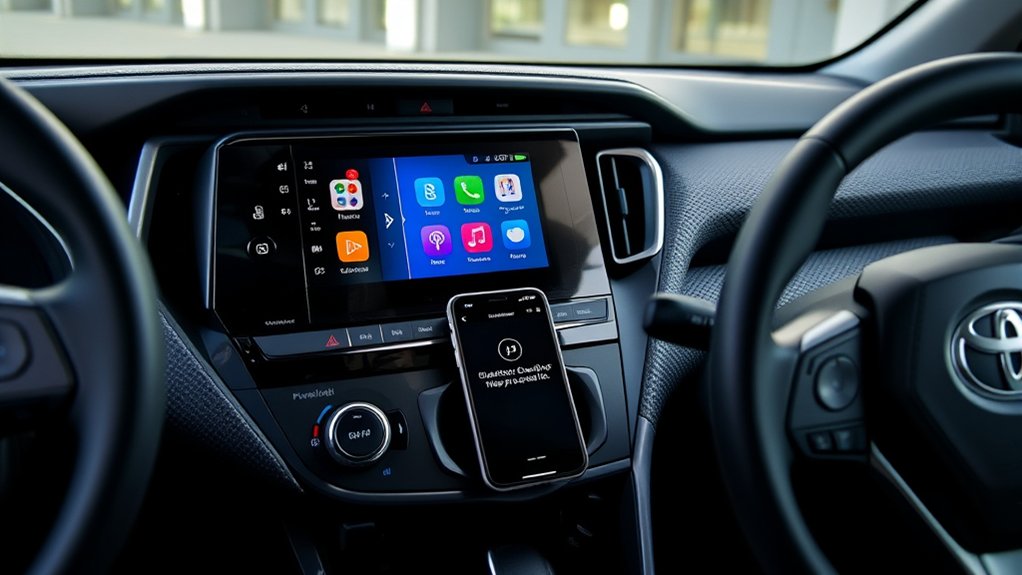
Park the RAV4, apply the parking brake, and turn on the multimedia system. Unlock your phone and enable Bluetooth before starting the vehicle-side process. The correct menu path depends mainly on which Toyota multimedia generation is installed.
Warning: Do not pair a phone, delete devices, read messages, or change multimedia settings while driving. Hands-free operation reduces the need to hold a phone, but calls, messages, and infotainment tasks can still divert attention from driving.
Pairing a Newer Toyota Audio Multimedia System
On Toyota Audio Multimedia systems using the current Bluetooth & Devices interface, Toyota’s pairing guide uses the following basic sequence:
- Open Settings on the RAV4 touchscreen.
- Select Bluetooth & Devices.
- Select Search for devices. If a device is already registered, the system may first show Add another device.
- Select your phone when its name appears.
- Check that the pairing code displayed on the phone matches the code on the vehicle screen.
- Approve the pairing request.
- Approve access to calls, contacts, messages, and media only for the functions you want to use.
Toyota’s current Audio Multimedia Bluetooth guide states that the applicable system can store up to five devices and connect two at the same time. Exact connection roles and limits can vary by vehicle and software, so use your RAV4’s own multimedia manual for the final authority.
Pairing a Legacy Display Audio or Entune System
- Press Menu, Home, or Setup on the multimedia unit.
- Select Setup and then Bluetooth.
- Select Add, Add New Device, or Register Device.
- Open your phone’s Bluetooth settings and select the Toyota device name.
- Confirm or enter the PIN shown on the vehicle screen.
- Approve contact, call-history, message, and media permissions when requested.
Toyota’s official legacy Bluetooth pairing guide shows the common process of opening the Bluetooth menu, adding a device, selecting the phone, and confirming the matching PIN. Toyota also provides a Toyota Audio Multimedia Bluetooth guide for the newer interface.
A successful Bluetooth setup requires more than registering the phone: confirm the matching code and grant the individual permissions needed for calls, contacts, messages, and media.
What Can Bluetooth Do in a Toyota RAV4 LE?
Bluetooth lets compatible phones use supported calling and audio functions without a cable. Depending on the RAV4’s multimedia generation and the phone, you may be able to:
- Make and receive calls through the vehicle’s microphone and speakers.
- Stream music, podcasts, audiobooks, and navigation audio.
- View synchronized contacts and recent call history.
- Use steering-wheel controls to answer, end, or adjust a call.
- Control supported audio functions from the multimedia screen.
- Receive or hear supported message notifications.
These functions use different Bluetooth profiles. HFP is commonly used for hands-free calling, PBAP for contacts and call history, MAP for supported messaging, A2DP for stereo audio, and AVRCP for compatible media controls. Because the functions are separate, calls can work even when music does not, or audio can work while contacts fail to synchronize.
Is Bluetooth the Same as Apple CarPlay or Android Auto?
No. Bluetooth is the wireless connection used for supported calls, contact functions, and audio streaming. Apple CarPlay and Android Auto are smartphone-projection platforms that can place compatible navigation, messaging, music, and other apps on the multimedia display. Newer RAV4 models can use Bluetooth as part of wireless phone integration, but the technologies are not interchangeable.
If you are trying to determine which RAV4 years support phone projection rather than basic Bluetooth, see which Toyota RAV4 models have Apple CarPlay and Android Auto.
Bluetooth can reduce the need to touch your phone, but it does not make every activity safe while driving. Keep interactions brief and wait until you are parked before changing device or multimedia settings.
Which Bluetooth Menu Does Your RAV4 LE Use?
The RAV4 has used multiple multimedia generations. Identifying the interface first prevents you from following instructions written for a different model year.
| RAV4 Era | Typical Multimedia Family | Bluetooth Menu to Look For |
|---|---|---|
| 2013–2022 | Display Audio, Entune, or Entune 3.0 depending on year/equipment | Common paths begin with Menu or Setup, followed by Bluetooth and Add/Register Device. Follow the labels displayed in your vehicle. |
| 2023–2025 | Toyota Audio Multimedia | Look for Settings > Bluetooth & Devices and the option to search for or add a device. |
| 2026 | Newest-generation Toyota Audio Multimedia | Use the Bluetooth & Devices controls shown in the current system and follow the vehicle’s displayed prompts and multimedia manual. |
For a broader walkthrough that is not LE-specific, see the dedicated guide on how to set up Bluetooth in a Toyota RAV4.
Pro Tip: If several household phones have similar device names, rename your phone before pairing. A recognizable name makes device selection and connection-priority settings easier to manage.
How Do You Fix Bluetooth Pairing Problems in a RAV4 LE?
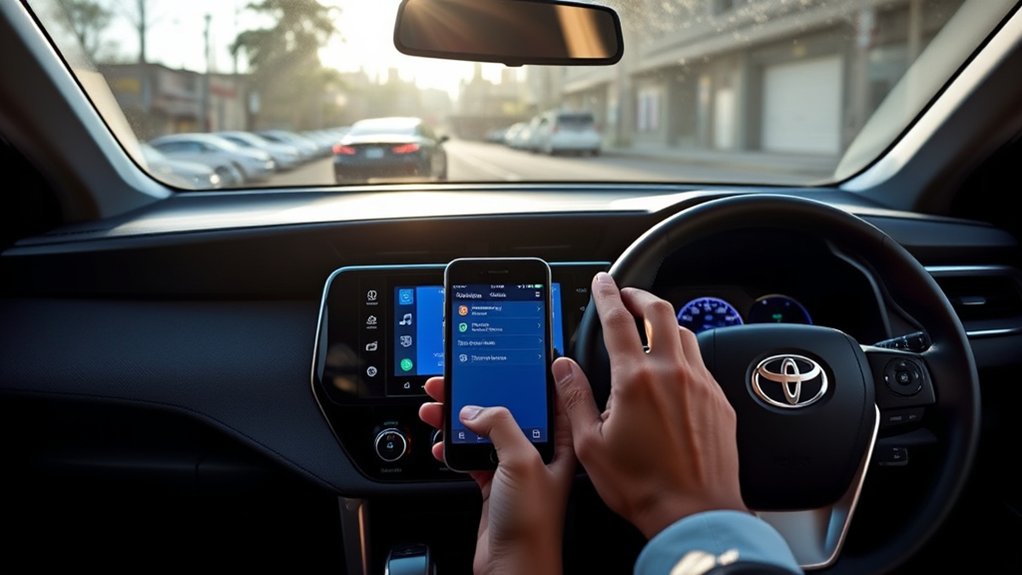
Start with the least disruptive checks. Confirm that the correct phone and media permissions are enabled, test the connection, and only then delete devices or reset settings. This helps identify the actual cause instead of changing several variables at once.
Check Bluetooth Compatibility and Permissions
Confirm that Bluetooth is active on the phone and that airplane mode is off. Keep the phone unlocked during the first connection attempt. If a phone operating-system update is pending, review and install it before diagnosing a persistent compatibility problem.
Open the phone’s saved Bluetooth entry for the RAV4 and check its permissions. Calls may fail when phone-call access is disabled, while music may fail when media audio is disabled. Contacts and recent calls normally require contact-sharing permission plus compatible Bluetooth support.
Use Toyota’s Bluetooth support and compatibility resources to check available functions and pairing guidance.
Remove Old Devices
A full device list or damaged pairing record can prevent a clean connection. Remove unused phones from the RAV4 and delete the Toyota entry from your phone before pairing again.
- On the phone, open Bluetooth settings and select the saved Toyota or RAV4 entry.
- Select Forget, Unpair, or Remove Device.
- On a newer RAV4 system, open Settings > Bluetooth & Devices, choose the phone, and select the available option to forget or remove it.
- On a legacy system, open the Bluetooth registered-device list and remove the phone using the menu labels shown by that system.
Removing a Bluetooth pairing does not erase the contacts, photos, messages, or other personal data stored on the phone.
Restart Devices Before Pairing
Turn the phone completely off and back on. Then switch the vehicle off and allow the multimedia system to shut down before restarting the vehicle.
Enable Bluetooth again and repeat the pairing process. If another previously paired phone keeps connecting first, temporarily disable Bluetooth on that device while you test the phone you want to use.
Why Do Calls Work but Bluetooth Music Does Not?
- Confirm that media audio is enabled for the RAV4 in the phone’s Bluetooth settings.
- Select Bluetooth Audio as the source on multimedia systems that require a separate source selection.
- Start playback from the phone and check both phone and vehicle volume.
- If wireless Apple CarPlay or Android Auto is active, check whether it is controlling the media session instead.
- Try a second audio app to determine whether the failure is app-specific.
Why Does Music Work but Calls Do Not?
- Confirm that phone-call access is enabled in the phone’s saved RAV4 Bluetooth settings.
- Make the phone the active calling device when your multimedia system provides that option.
- Check whether call audio is being routed to the handset, speakerphone, earbuds, smartwatch, or another connected device.
- Temporarily disconnect competing headsets or watches while testing.
Why Will Contacts or Call History Not Sync?
Open the RAV4 entry in your phone’s Bluetooth settings and allow contact sharing when that option is offered. iPhone and Android wording varies by operating-system version and manufacturer, so follow the permissions displayed by the phone rather than expecting one universal label.
Contact transfer also depends on multimedia-system compatibility and memory as well as the way the phone stores contact information. Some contact photos, labels, favorites, or special characters may not transfer exactly as they appear on the phone.
Why Will the Phone Not Reconnect Automatically?
Check whether another registered phone is being connected first. Newer Toyota systems can manage more than one saved device and may use driver profiles, primary-device settings, or other connection preferences.
Open the device-management menu, select your phone, and confirm that it is enabled for the function you need. If automatic reconnection still fails, connect the device manually once, restart the vehicle, and test it again.
What If the RAV4 Cannot Find the Phone?
- Keep the phone inside the cabin and near the dashboard during setup.
- Keep the phone’s Bluetooth settings page open while searching.
- Turn Bluetooth off and back on.
- Check whether the phone is already connected to another vehicle or accessory.
- Cancel the RAV4 search and begin a new device search.
What If the Phone Cannot Find the RAV4?
- Make sure the RAV4 is on its device-registration or search screen.
- Select Add, Register, Search for devices, or Add another device again, depending on the installed system.
- Delete unused registered devices if the system has reached its device limit.
- Restart the phone and multimedia system before searching again.
Should You Update the RAV4 Multimedia System?
A multimedia software update can address documented software problems or improve compatibility, but update availability and installation methods depend on the RAV4’s model year and installed multimedia unit. Do not install a file intended for a different vehicle or head unit.
Why Multimedia Updates Matter
Updates can correct software bugs, improve stability, revise menus, or improve compatibility with newer device software. They do not guarantee that every phone and feature will work, so phone compatibility and permissions still need to be checked.
How to Check for Updates
Use only a method supported by your vehicle:
- Vehicle-supported update: On an eligible newer system, open the settings area and look for the software-update controls offered by the vehicle.
- USB update: Enter the requested vehicle information in Toyota’s multimedia software update portal and follow the vehicle-specific instructions.
- Dealer update: Ask a Toyota dealer to check the multimedia system when an appropriate update is unavailable to the owner or the unit is not operating normally.
For detailed RAV4-specific preparation and update methods, see how to update Toyota RAV4 multimedia software.
Keep the vehicle parked and follow Toyota’s instructions throughout an update. Do not remove a USB drive, interrupt power, or substitute software from another model unless the official instructions explicitly direct you to do so.
When to Visit a Toyota Service Center
Professional diagnosis makes sense when:
- The multimedia screen freezes, repeatedly restarts, or remains blank.
- No compatible phone can pair after the pairing records have been removed and the documented setup process repeated.
- The microphone, speakers, steering-wheel controls, or USB ports also malfunction.
- The Bluetooth option has disappeared from a factory multimedia system.
- An applicable software update repeatedly fails.
- The problem began after electrical, battery, or multimedia-system repairs.
Bring the phone, vehicle identification number, and a clear description of the failed steps. If possible, record the multimedia software version before the appointment so the technician can reproduce the problem more efficiently.
How Can You Keep the Bluetooth Connection Stable?
| Tip | Action |
|---|---|
| Keep software current | Keep suitable phone software current and use Toyota’s vehicle-specific resources for applicable multimedia updates. |
| Remove unused devices | Delete phones you no longer use when the registered-device list becomes crowded or confusing. |
| Manage device priority | Set your main phone as the preferred or primary device when the installed multimedia system provides that option. |
| Keep the phone in the cabin | Keep the phone inside the passenger area rather than relying on a long-distance Bluetooth connection. |
| Limit competing connections | Temporarily disconnect earbuds, watches, or other paired vehicles when diagnosing call or audio routing. |
| Restart after persistent errors | Restart both the phone and multimedia system before moving to more disruptive troubleshooting. |
Bluetooth and Wi-Fi operate in nearby radio-frequency bands, and multiple wireless functions can occasionally complicate troubleshooting. Change one setting or connection at a time so you can identify which change actually solves the problem.
Bluetooth Features and Compatibility Checks
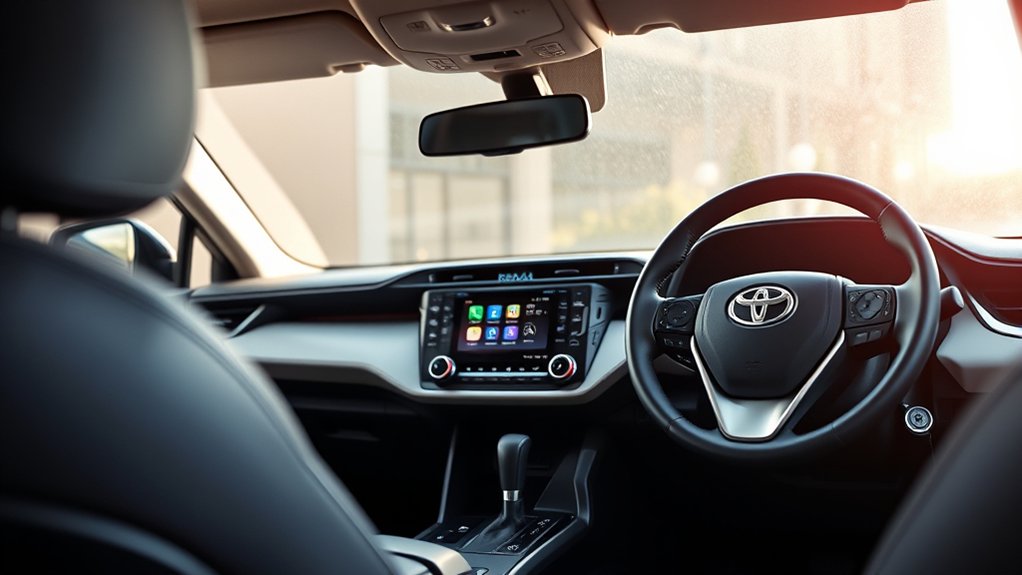
Before assuming the multimedia system is faulty, confirm which function is failing. Bluetooth calling, streaming audio, contacts, messaging, and automatic reconnection rely on different permissions and capabilities.
- Hands-free calling: Requires a compatible phone connection and permission to use calls.
- Audio streaming: Uses a compatible Bluetooth media connection such as A2DP.
- Contacts and call history: Usually require compatible contact-transfer support and permission from the phone.
- Messages: Availability depends on the phone, operating system, permissions, and multimedia system.
- Multiple phones: Current Toyota Audio Multimedia systems can support multiple registered devices, but the exact simultaneous-use rules depend on the system and configuration.
- Automatic connection: Can be affected by device priority, driver profiles, and other nearby paired phones.
- Connection security: Approve pairing only when you recognize the device and the displayed codes match.
Frequently Asked Questions
What year did the Toyota RAV4 LE get Bluetooth?
The U.S.-market RAV4 LE had factory Bluetooth from its first model year, 2013. Toyota documented Bluetooth connectivity as standard across the 2013 RAV4 lineup. Imported vehicles or RAV4s with replacement multimedia units may differ.
Can I connect multiple devices to the RAV4 LE’s Bluetooth?
Yes on supported systems. Toyota’s current Audio Multimedia Bluetooth guide states that the applicable system can store up to five devices and connect two at the same time. Older RAV4 multimedia systems may have different limits, so check the manual for your exact model year.
Is Bluetooth the same as Apple CarPlay or Android Auto?
No. Bluetooth supports functions such as hands-free calling and audio streaming. Apple CarPlay and Android Auto are smartphone-projection platforms that provide a broader app-based interface for compatible navigation, messaging, calling, and media functions.
Does Bluetooth work with every smartphone and operating system?
No manufacturer can guarantee full operation with every phone and software version. Basic calling or audio may work while contacts, messages, or media controls do not. Compatibility depends on the phone, operating system, permissions, model year, and multimedia system.
Why does my RAV4 connect for calls but not music?
Calls and media use different Bluetooth functions. Confirm that media audio is enabled for the RAV4, select Bluetooth Audio when your multimedia system requires it, and check whether another device or wireless projection session is controlling playback.
Why are my contacts not appearing after pairing?
Contact sharing may be disabled. Open the phone’s saved RAV4 Bluetooth entry and allow contact synchronization when that option is available. Phone compatibility, multimedia memory, permissions, and contact formatting can also affect what transfers.
Does using Bluetooth require a Toyota subscription?
Basic Bluetooth pairing, hands-free calling, and Bluetooth audio streaming do not require a Toyota Connected Services subscription. Your mobile carrier or individual apps may still charge for calls, data, or subscription content.
Does the 2026 Toyota RAV4 support two Bluetooth phones?
Toyota documents simultaneous dual Bluetooth phone connectivity for the 2026 RAV4’s newest Audio Multimedia system. The 2026 multimedia manual also documents registration of up to five Bluetooth devices, with connection rules depending on the driver and device configuration.
Conclusion
Factory-equipped U.S.-market Toyota RAV4 LE models have had Bluetooth since the LE grade arrived for 2013. The basic purpose remains the same—supported hands-free calling and wireless audio—but Toyota has changed the multimedia interface and expanded device-management capabilities over the years.
If you only need to pair a phone, first identify whether your RAV4 uses an older Display Audio/Entune interface or newer Toyota Audio Multimedia, then follow the matching menu path while parked. If one Bluetooth feature works and another does not, check that feature’s phone permission before deleting the entire pairing.
Sources
- Toyota: All-New 2013 RAV4 World Debut — documents standard Bluetooth connectivity across the 2013 U.S. RAV4 lineup.
- Toyota: 2014 RAV4 Features and Equipment — documents Bluetooth hands-free phone connectivity and audio streaming on the RAV4 LE.
- Toyota: 2023 RAV4 Multimedia Updates — documents the newer Toyota Audio Multimedia generation used across the RAV4 lineup.
- Toyota: 2025 RAV4 Features — documents the LE’s Toyota Audio Multimedia system and dual Bluetooth phone connectivity.
- Toyota: All-New 2026 RAV4 — documents the newest Toyota Audio Multimedia system and simultaneous dual Bluetooth phone connectivity.
- Toyota Audio Multimedia Bluetooth Pairing Guide — supports the Bluetooth & Devices pairing path and newer-system device-management guidance.
- Toyota Legacy Bluetooth Pairing Guide — supports the basic legacy device-registration and PIN-confirmirmation process.
- Toyota 2026 RAV4 Multimedia Owner’s Manual — documents Bluetooth registration, device limits, and current multimedia controls.
- Toyota Multimedia Software Update Portal — provides supported vehicle-specific multimedia update information.
- National Highway Traffic Safety Administration: Distracted Driving — supports the warning to avoid phone and infotainment setup tasks while driving.
