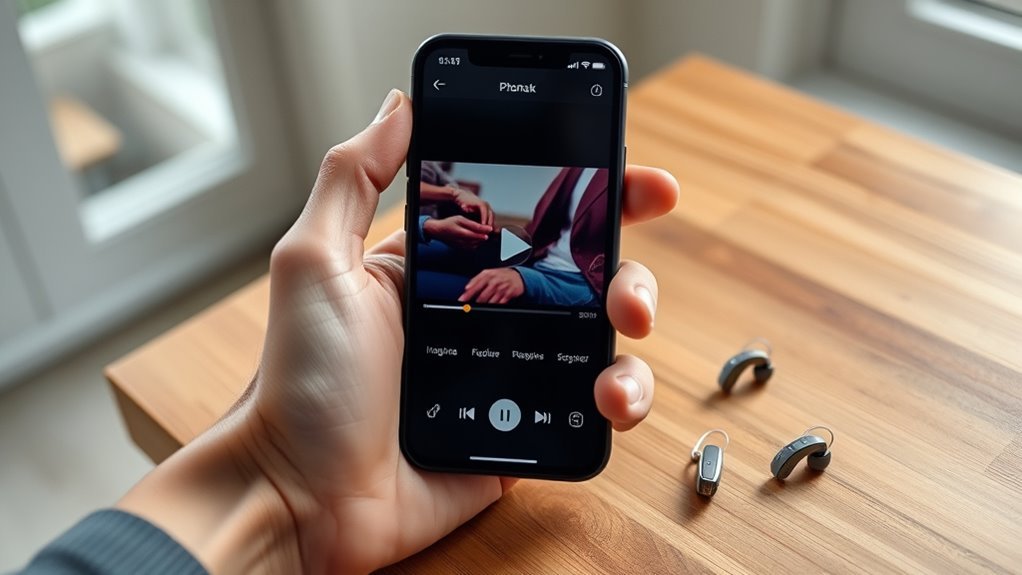
Want to connect Phonak hearing aids to YouTube on an iPhone? You can stream video sound directly to compatible Phonak hearing aids using Bluetooth. The key is setting up the correct audio connection, which can differ from the connection used by the myPhonak app. This guide explains pairing, playback controls, volume adjustments, and fixes when YouTube sound does not reach your hearing aids.
Quick Answer
To play YouTube through Phonak hearing aids on iPhone, turn on Bluetooth, pair your hearing aids for audio streaming, and start a YouTube video. Select your Phonak hearing aids as the audio output if sound plays through the phone. Use iPhone volume buttons for playback and myPhonak for supported hearing-aid adjustments.
At a Glance
| Difficulty | Basic Bluetooth setup |
| Tools Needed | iPhone, compatible Phonak hearing aids, YouTube, and optionally the myPhonak app |
How to Pair Phonak Hearing Aids With an iPhone
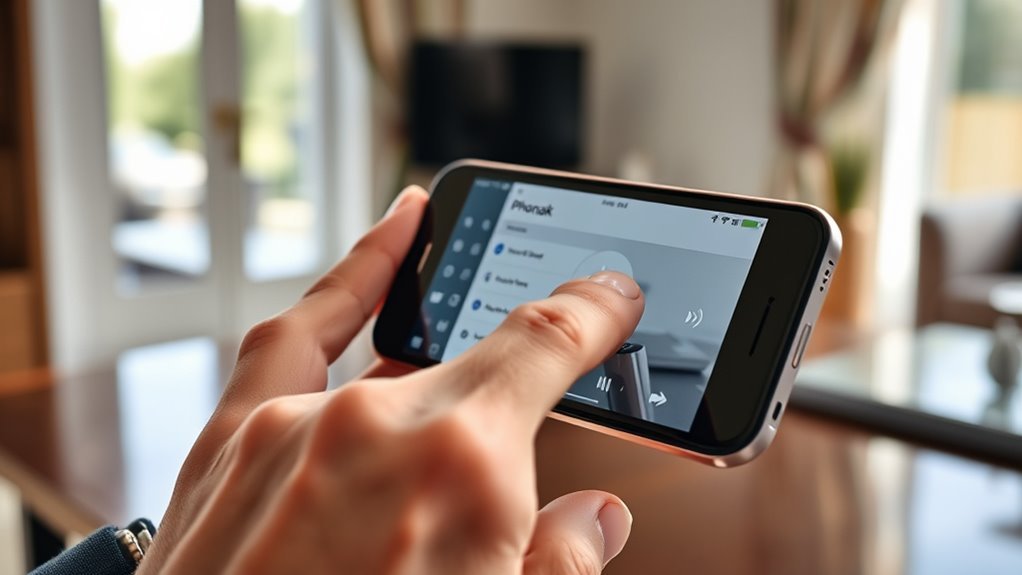
You can pair compatible Phonak hearing aids directly through your iPhone’s Bluetooth settings. For many Phonak models, this connection handles phone calls and media audio, including YouTube.
Follow these steps to establish the streaming connection:
- Open Bluetooth settings. On your iPhone, go to Settings > Bluetooth and turn Bluetooth on.
- Restart your hearing aids. For rechargeable models, place them in a powered charger for at least 10 seconds, then remove them. For models with replaceable batteries, open the battery doors for 5 seconds and close them.
- Wait for pairing mode. Phonak says the hearing aids remain discoverable for approximately 3 minutes after restarting.
- Find the hearing aid. Look under Other Devices for a name such as R-Phonak hearing aid or L-Phonak hearing aid. Your hearing care professional may have customized the name.
- Select the device. Tap its name and accept any pairing request that appears.
- Confirm the connection. A confirmation beep indicates successful pairing. The hearing aid should appear in the iPhone’s connected Bluetooth devices.
Phonak’s official iPhone pairing instructions explain these steps and the different restart methods.
If you wear two compatible Phonak hearing aids, you normally need only one standard Bluetooth audio pairing. The hearing aids communicate with each other so audio can reach both devices.
Important model difference: Phonak Infinio Ultra hearing aids and newer supported models can enable streaming during initial myPhonak pairing. Earlier generations generally require a separate media-streaming Bluetooth connection.
Once pairing is complete, play a short video to confirm sound reaches your hearing aids rather than the iPhone speaker.
How to Open myPhonak on iPhone
The myPhonak app lets you control supported Phonak hearing aids from your iPhone. It can display device information and provide access to hearing programs, volume adjustments, and other sound controls.
However, myPhonak is not the YouTube audio player. Your iPhone handles media playback through its Bluetooth connection.
Open and Pair the myPhonak App
Install myPhonak from the App Store and open it after turning on Bluetooth. If your hearing aids have not been connected to the app, complete its pairing process.
- Open myPhonak and follow its initial setup instructions.
- On the Home screen, select Pair hearing aids.
- Restart your hearing aids using the instructions shown for your battery type.
- Wait until your hearing aids appear in the app.
- Select Pair and accept the iPhone’s Bluetooth pairing requests for each hearing aid.
- Finish setup and return to the app’s main control screen.
For rechargeable devices, Phonak provides a detailed myPhonak pairing guide.
On older compatible models, the app may display See instructions or Optional settings after pairing. Follow that option to establish the separate connection needed for phone calls and media streaming.
Check Hearing Aid Connection
Open myPhonak and confirm that your hearing aids appear as connected devices. You can also review their available battery and device information.
If you use two hearing aids, check that both are recognized by the app. A missing device may indicate a pairing issue, low battery, or a temporary connection problem.
There is an important distinction between two Bluetooth connection types:
- Media streaming connection: Carries YouTube sound, music, and phone calls.
- Bluetooth Low Energy connection: Lets myPhonak communicate with each hearing aid for remote adjustments.
On some earlier Phonak models, the app connections appear with names beginning with LE_. These entries may show Not Connected when myPhonak is closed. That does not necessarily mean YouTube streaming has failed.
Phonak explains the separate connections in its Bluetooth and app connection guide.
Access Streaming Controls
During streaming, myPhonak can provide sound adjustments supported by your hearing aids. Available features depend on the model, hearing programs, and app configuration.
The main controls serve different purposes:
| Control | Function |
|---|---|
| Volume | Adjusts hearing-aid loudness; iPhone controls media output volume |
| Audio settings | Adjusts supported sound features, such as equalizer or ambient balance |
| Battery status | Shows available battery information for supported devices |
Some hearing aids also support customized listening programs and sound adjustments for speech or music.
If the Find my hearing aids feature is supported and enabled on your model, it may help locate a misplaced device.
These features make myPhonak useful for personal sound control, but Bluetooth media pairing remains essential for models that require it.
How to Play YouTube Audio Through Phonak Hearing Aids
Once the streaming connection is active, YouTube audio should play through your Phonak hearing aids automatically. You do not need a special YouTube setting or a separate YouTube-to-hearing-aid pairing process.
- Confirm that your hearing aids are powered on and connected to your iPhone.
- Open the YouTube app.
- Select a video and start playback.
- Listen for audio through your hearing aids.
- If the sound comes from the phone, open iPhone Control Center and locate the media playback controls.
- Tap the audio output or playback destination control and select your Phonak hearing aid if it appears.
Apple’s Bluetooth audio playback guide confirms that the audio destination can be changed from Control Center or the Lock Screen while media is playing.
When you select a streaming-capable hearing aid, the video stays on the iPhone screen while sound plays through the hearing aids.
If Phonak does not appear as a playback destination, return to Bluetooth settings and check whether the hearing aid has actually connected for media audio.
How to Adjust YouTube Volume With myPhonak
There are two useful ways to change how loudly you hear YouTube: adjust the iPhone’s media volume or change supported hearing-aid settings in myPhonak.
These controls are related, but they do not perform exactly the same job.
- Adjust iPhone media volume. While YouTube is playing, press the iPhone volume buttons to raise or lower playback loudness.
- Open myPhonak. Return to the app while your hearing aids remain connected.
- Find the hearing-aid volume control. Use the available slider to adjust the hearing aids to a comfortable level.
- Check the result. Return to YouTube and listen to a short section of speech or music.
Depending on your hearing aids, myPhonak may also allow individual sound adjustments or an ambient balance setting.
Ambient balance changes the relationship between streamed audio and sounds around you. This can help when you want clearer dialogue without completely losing awareness of your surroundings.
The official myPhonak app overview describes supported volume, equalizer, and ambient balance features.
Start at a comfortable volume and increase it gradually. If dialogue remains unclear, increasing loudness alone may not solve the problem.
How to Use myPhonak Controls During YouTube Playback
myPhonak can help you adjust how your hearing aids reproduce YouTube sound while the video plays. The available controls depend on your hearing-aid model and its programmed features.
Adjust the Sound Profile
If an equalizer is available, you can change the balance of low, middle, and high frequencies. Small adjustments may help speech or music sound more comfortable.
For example, try a modest adjustment and replay the same section of dialogue. Compare clarity rather than simply choosing the loudest setting.
Choose the Appropriate Hearing Program
Compatible Phonak hearing aids can switch automatically to a Bluetooth streaming program when media audio starts.
Some models offer additional sound adjustments for streamed audio. Changes to ordinary hearing programs may not remain active when Bluetooth streaming takes over.
Manage Calls and Notifications
Incoming calls and notification sounds can interrupt your YouTube listening. Phonak gives phone calls higher priority than ordinary media streaming.
If alerts are distracting, use your iPhone’s notification and sound settings to manage them. Muting hearing-aid microphones in myPhonak does not automatically silence incoming calls or phone notifications.
For uninterrupted listening, review which iPhone apps are allowed to produce audible alerts.
Check Phonak Compatibility and Battery Before Streaming
Not every Phonak hearing aid supports the same Bluetooth features. Before troubleshooting YouTube, confirm that your particular model supports direct streaming from an iPhone.
Phonak uses standard Bluetooth audio profiles for compatible wireless calling and music streaming. The myPhonak app uses Bluetooth Low Energy for remote control.
These are different capabilities, so app compatibility alone should not be treated as proof that media streaming has been configured.
According to Phonak’s phone compatibility information:
- Compatible Phonak hearing aids can stream audio from devices supporting standard Bluetooth audio profiles.
- myPhonak requires Bluetooth Low Energy support.
- Current myPhonak compatibility guidance specifies iOS 16 or newer for supported iPhones.
- The hearing-aid model determines which app and streaming features are available.
Battery condition also matters. Check the available battery status in myPhonak if your device supports it. Recharge rechargeable hearing aids or replace depleted disposable batteries before further testing.
Keep your iPhone and hearing aids within normal Bluetooth range, and make sure your iPhone software and myPhonak app are updated.
Note: If streaming works but speech remains difficult to understand, ask your hearing care professional to review your hearing-aid settings and firmware. Your prescribed hearing settings should not be replaced with random adjustments simply to increase YouTube volume.
How to Fix Phonak YouTube Streaming Issues on iPhone
Most basic YouTube streaming problems involve the Bluetooth connection, the selected audio output, or separate myPhonak pairing. Start with the simplest checks before removing an existing connection.
Use this table to identify the likely problem and the best first action.
| Action | Purpose |
|---|---|
| Check Bluetooth pairing | Confirms that the media-streaming connection is active |
| Match volume levels | Checks for muted or excessively low playback |
| Update apps and iOS | Helps address software compatibility problems |
Sound Plays Through the iPhone Instead of the Hearing Aids
First, open Control Center while YouTube is playing and select your Phonak hearing aid as the audio destination.
If it is not listed, open Settings > Bluetooth and check whether the streaming connection is active. For older Phonak models, pairing with myPhonak alone may not be enough.
YouTube Plays but There Is No Sound
Make sure the video is playing, raise the iPhone’s media volume slightly, and check the hearing-aid volume.
Next, test sound from another media app. If other apps stream normally, the problem may be specific to YouTube rather than the hearing-aid connection.
Close and reopen YouTube if needed.
Only One Hearing Aid Connects
If only one hearing aid appears in myPhonak, check that both devices are powered on and have sufficient battery power.
Remember that the standard Bluetooth streaming connection may show only one hearing-aid name even when audio reaches both hearing aids. This is normal for supported paired devices.
If sound actually reaches only one side, restart both hearing aids and check their connection status. Persistent problems may require assistance from your hearing care professional.
Audio Keeps Cutting Out or Disconnecting
Move the iPhone closer to your hearing aids and reduce possible wireless interference.
Next, restart the hearing aids and your iPhone. Temporarily disconnect other nearby audio devices if they may be taking over the Bluetooth connection.
Check whether calls, alerts, or sounds from another connected device are interrupting playback.
If the issue continues, use Phonak’s official connection troubleshooting instructions before removing and restoring Bluetooth pairings.
How to Reconnect Phonak Hearing Aids Quickly
If your hearing aids were previously connected, you can often restore streaming without repeating the entire setup. Begin by refreshing the existing Bluetooth connection.
- Open Settings > Bluetooth on your iPhone and confirm Bluetooth is on.
- Check that your Phonak hearing aid appears in the saved devices list.
- Restart your hearing aids and let them reconnect.
- If necessary, turn Bluetooth off and back on through the iPhone Settings app.
- Restart the iPhone if the hearing aids still do not connect.
- Play a YouTube video and confirm the correct audio output.
If these steps fail, you may need to forget the affected Bluetooth connections and pair the hearing aids again.
For some earlier models, this can involve the main streaming entry and separate LE_ entries for myPhonak. Remove connections only as part of a complete re-pairing procedure.
Remember that the myPhonak control connection and the iPhone’s Bluetooth media connection may be separate. Fixing one does not always fix the other.
After re-pairing, open myPhonak to confirm its device connection, then start YouTube and test streaming again.
Routine maintenance includes keeping the devices clean, checking battery condition, and asking your hearing care professional about firmware updates if connection problems continue.
Key Takeaways
- Older Phonak models may use separate Bluetooth connections for media streaming and myPhonak controls.
- One standard Bluetooth audio pairing can stream sound to both hearing aids on supported models.
- An LE_ device showing Not Connected does not always indicate a streaming failure.
- iPhone media volume, hearing-aid volume, and ambient balance control different aspects of listening.
- Re-pairing should be a later troubleshooting step, after checking audio routing and restarting devices.
Frequently Asked Questions
Why Isn’t myPhonak App Connecting to My iPhone?
The app may be missing its own Bluetooth Low Energy connection even when YouTube audio still streams. Charge and restart the hearing aids, open myPhonak, and check its device status. If needed, remove the app pairing and follow Phonak’s pairing steps again.
How Do I Stream Music on My myPhonak Hearing Aid?
Play music in YouTube or another iPhone app after pairing your hearing aids for media audio. myPhonak is a control app, not a music player. It can adjust hearing-aid settings, while the iPhone controls playback and media volume.
What iPhone Settings Affect Hearing Aid Use?
Settings > Bluetooth controls the Phonak media connection, and Control Center lets you select the audio output during playback. The Accessibility > Hearing Devices menu mainly covers Made for iPhone hearing devices, so a standard Bluetooth Phonak model may not appear there.
How Do I Stream Music From My iPhone to My Hearing Aid?
Pair a streaming-compatible Phonak hearing aid with the iPhone, start music, and select the Phonak device as the playback destination if needed. One standard media pairing can deliver audio to both hearing aids. If you hear sound from the phone instead, check the active output.
Apple’s hearing devices documentation explains the separate Made for iPhone hearing-device features and settings.
Conclusion
Connecting Phonak hearing aids to YouTube on iPhone is straightforward once the correct Bluetooth streaming connection is active. Pair your devices, confirm the audio output, and adjust listening volume to a comfortable level. Use myPhonak for supported sound adjustments, and remember that older models may require separate app and streaming connections. If sound still fails, check the Bluetooth connection before attempting a complete reset.
Sources
- Phonak: Pair Hearing Aids With iPhone: Official Bluetooth pairing procedure, restart instructions, and streaming setup.
- Phonak: Pair Rechargeable Hearing Aids With myPhonak: App pairing steps and streaming differences between hearing-aid generations.
- Phonak: Smartphone Bluetooth Connections: Separate streaming and app connections on earlier models.
- Apple: Play Audio on a Bluetooth Accessory: Audio output selection and media playback controls.
- Phonak: myPhonak App: Available volume, equalizer, and ambient balance features.
- Phonak: Bluetooth Compatibility: Phone compatibility and Bluetooth requirements.
- Phonak: Connectivity Troubleshooting: Restarting, removing old pairings, and reconnecting devices.
- Apple: Use Hearing Devices With iPhone: Made for iPhone hearing-device controls and audio routing.

