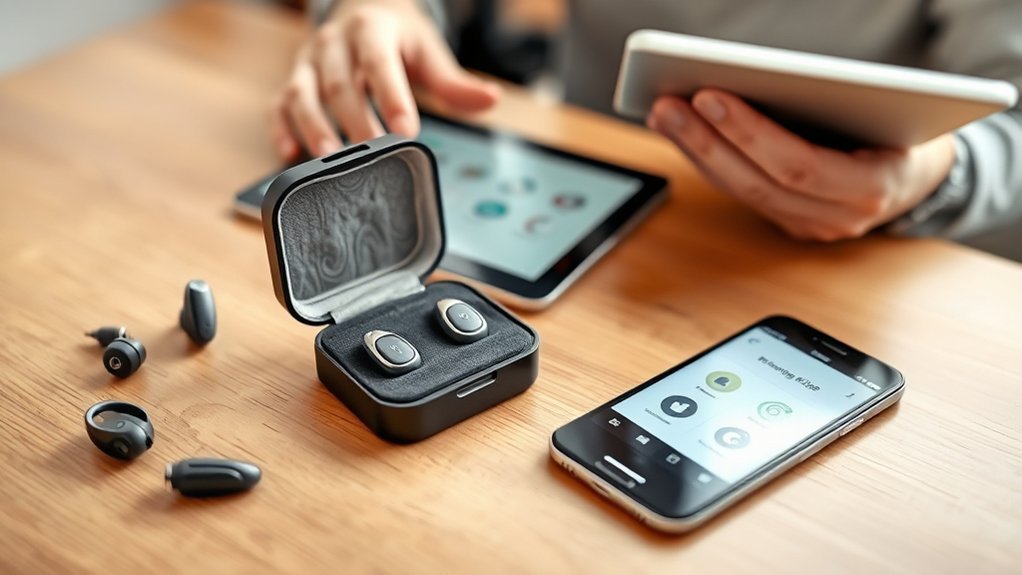
Phonak hearing aid compatibility depends on three things: your hearing aid model, your phone’s Bluetooth features, and the operating system required by the myPhonak app. Many Phonak models connect directly to iPhones, Android phones, tablets, and computers. However, Bluetooth streaming, app controls, and newer features such as Auracast have different compatibility requirements.
Quick Answer
Most Bluetooth-enabled Phonak hearing aids work with compatible iPhones and Android devices for calls and audio streaming. The myPhonak app requires iOS 16 or newer, or Android 10 or newer with Bluetooth 4.2 and Google Mobile Services. Check your exact hearing aid model because app features, simultaneous connections, and Auracast support vary.
Key Takeaways
- Bluetooth audio streaming and myPhonak app control use different wireless connections.
- Paradise, Lumity, Infinio, and EON models support more paired devices than older Marvel models.
- Older hearing aids may need separate pairing steps for app control and audio streaming.
- Auracast compatibility depends on the hearing aid generation, not simply whether Bluetooth is available.
- If an app connection fails, try restarting and re-pairing before considering more advanced troubleshooting.
Understanding Phonak Hearing Aid Compatibility
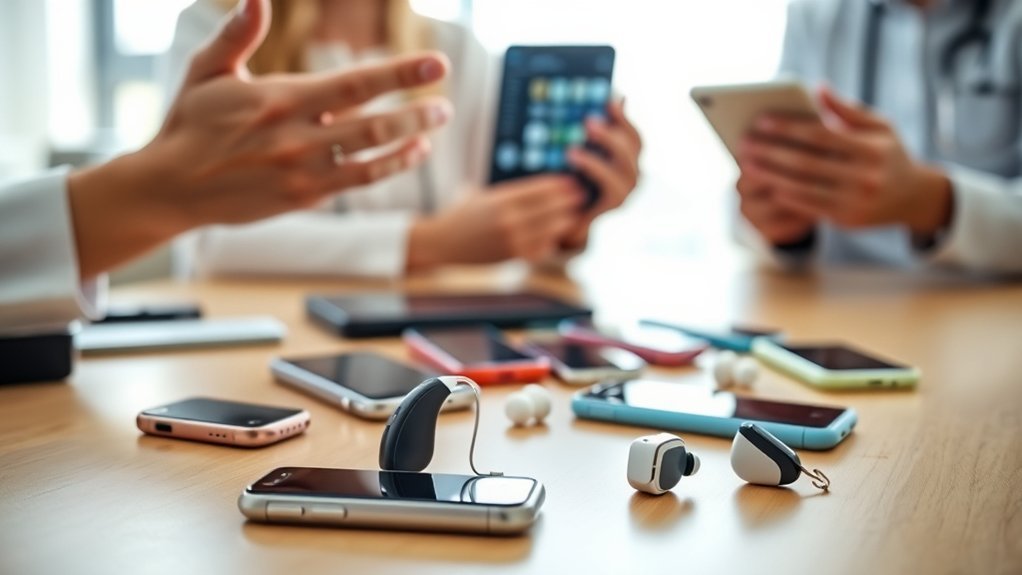
Phonak hearing aids use Bluetooth technology to connect to everyday electronic devices. However, compatibility for phone calls does not automatically mean every myPhonak feature will work.
There are three separate areas to check:
- Bluetooth audio: Used for calls, music, podcasts, and other streamed sound.
- myPhonak app: Used to adjust supported hearing aid settings and manage personalized programs.
- Additional technologies: Features such as Roger microphones and Auracast require compatible hearing aids and, in some cases, additional equipment.
Phonak’s official Bluetooth compatibility requirements distinguish ordinary audio streaming from app connectivity.
Phone Requirements for Bluetooth and myPhonak
For standard calls and media streaming, Phonak hearing aids generally work with devices supporting Bluetooth Classic Audio, including the Hands-Free Profile (HFP) and Advanced Audio Distribution Profile (A2DP).
The myPhonak app uses Bluetooth Low Energy, which has separate operating-system requirements.
| Device or feature | Compatibility requirement |
|---|---|
| iPhone with myPhonak | iOS 16.0 or newer and Bluetooth Low Energy support. |
| Android with myPhonak | Android 10.0 or newer, Bluetooth 4.2 or newer, and Google Mobile Services certification. |
| Calls and music | Compatible Bluetooth Classic Audio connection with HFP and A2DP support. |
| Laptop or tablet | Supported Bluetooth audio profiles and a compatible Phonak hearing aid model. |
A phone may stream audio successfully even if it cannot run the current myPhonak app. This distinction matters when using older smartphones.
Does Every Phonak Hearing Aid Work With myPhonak?
No. App support depends on the specific hearing aid, not just the Phonak brand.
Phonak’s compatible hearing aid list includes supported models from the EON, Infinio, Lumity, Paradise, and Marvel families.
However, some models within a product family have different wireless capabilities. For example, the wireless Virto Paradise P-312 supports direct connectivity, while certain non-wireless Virto variants do not.
Before buying a replacement phone or hearing aid, confirm the complete model name and whether your required features are supported.
Key Bluetooth Features of Phonak Hearing Aids
Compatible Phonak hearing aids can stream calls, music, and podcasts directly from supported Bluetooth devices. They can also reconnect to previously paired devices when both are powered on and within range.
The exact connection options depend on the hearing aid generation.
How Device Pairing Works
Bluetooth pairing creates a trusted wireless connection between your hearing aids and another device. After the first successful pairing, you generally do not need to repeat the process every day.
Phonak’s Bluetooth device connection guide confirms these limits:
| Hearing aid generation | Paired devices | Simultaneous connections |
|---|---|---|
| EON, Infinio, Lumity, Paradise | Up to 8 | Up to 2 |
| Marvel | Up to 2 | 1 |
Having two devices connected does not mean both audio streams will play simultaneously. The hearing aids manage incoming audio according to their connection settings and priorities.
Streaming Audio Quality
Bluetooth streaming sends audio directly to compatible Phonak hearing aids. This allows users to hear phone calls, music, podcasts, and supported computer audio without holding a speaker against the ear.
Audio quality depends on several factors:
- The stability of the Bluetooth connection.
- The distance between the hearing aids and the connected device.
- Interference from nearby wireless equipment.
- Battery condition and the hearing aid’s current settings.
- The quality of the original audio or phone call.
A strong mobile signal helps with cellular calls, but it is not required to stream music already stored on your phone through Bluetooth.
With Infinio Ultra and newer supported models, streaming and calls are enabled automatically during the myPhonak pairing process. Earlier generations generally need an additional Bluetooth pairing for audio.
myPhonak, Auracast, and Roger Technology
These technologies serve different purposes. Understanding the difference prevents confusion when comparing hearing aid features.
myPhonak: Provides remote controls, personalized listening programs, and device information. The available controls depend on the hearing aid model.
Auracast: Allows compatible hearing aids to receive shared Bluetooth broadcast audio. Potential uses include public announcements, television audio, museum tours, and other supported broadcasts.
According to Phonak’s Auracast compatibility requirements, this feature requires myPhonak version 7.5 or newer and supported Audéo E, Audéo E Sphere, or newer compatible devices.
Ordinary Bluetooth streaming does not mean your hearing aids automatically support Auracast.
Roger Technology: Uses compatible wireless microphones to bring speech closer to the listener. It can help in restaurants, classrooms, meetings, and other places where background noise or distance makes conversation difficult.
Phonak explains its Roger wireless microphone technology as a separate listening solution that works with compatible hearing aids and receivers.
Roger and Auracast are not interchangeable. They use different systems and have separate compatibility requirements.
Troubleshooting Bluetooth Issues With Phonak Hearing Aids
Most Phonak Bluetooth problems involve an interrupted connection, incomplete pairing, low battery, or changes after a phone or app update.
Start with simple connection checks before deleting device pairings or reinstalling software.
Common Connection Challenges
Bluetooth problems can appear in several ways. The symptom often helps identify which connection needs attention.
| Problem | What to check |
|---|---|
| App cannot find hearing aids | Bluetooth, battery power, pairing mode, and app permissions. |
| App works but calls do not stream | Audio pairing on older models or streaming settings on newer models. |
| Only one hearing aid connects | Whether both hearing aids were detected and paired in the app. |
| Calls play through phone speaker | The selected audio output during the call. |
| Connection fails after an update | Stored Bluetooth pairings and compatibility between software versions. |
Some Samsung phones running One UI 6.x have also been associated with reported Bluetooth audio-profile and reconnection problems. These issues do not affect every device.
Effective Troubleshooting Techniques
Follow these steps in order. Test the connection after each action so you know which change solved the problem.
- Check power: Confirm both hearing aids are switched on and have enough battery power.
- Check Bluetooth: Make sure Bluetooth is enabled and neither the phone nor the hearing aids are in flight mode.
- Restart the app: Close myPhonak completely and open it again.
- Refresh Bluetooth: Turn the phone’s Bluetooth connection off and back on.
- Restart the devices: Restart the hearing aids, followed by the smartphone.
- Check software: Install applicable phone and myPhonak updates.
- Re-pair if necessary: Remove the old hearing aid connections and complete the pairing process again.
If you need to repair the connection on Android, Phonak provides a dedicated Android pairing recovery procedure.
For iPhone users, the manufacturer’s iPhone connection recovery instructions explain how to remove stored connections and set up the app again.
On Infinio Ultra and newer models, two hearing aid entries may appear in the phone’s Bluetooth list. Earlier generations commonly show three entries, including a separate connection for calls and streaming.
When resetting the pairing, remove every entry belonging to the hearing aids rather than leaving an old connection behind.
Warning: Do not perform a factory reset or change hearing aid fitting settings simply to fix Bluetooth. These actions are different from ordinary phone pairing and may require professional assistance.
If both hearing aids cannot connect together, or the problem continues after re-pairing, contact your hearing care professional. The devices may need a fitting or firmware check.
Getting Started With the myPhonak App
The myPhonak app lets users control supported hearing aid settings from a smartphone. It provides convenient adjustments without replacing the personalized fitting performed by a hearing care professional.
Phonak’s official myPhonak app information covers supported features, compatible devices, and available controls.
How to Connect Your Hearing Aids to myPhonak
- Install myPhonak from the appropriate app store.
- Enable Bluetooth on your smartphone.
- Open the app and follow its initial setup instructions.
- Choose the option to pair your hearing aids.
- Restart the hearing aids as directed to activate pairing mode.
- Wait for both hearing aids to appear if you wear a pair.
- Accept the Bluetooth pairing requests.
- Finish the setup and confirm that both devices appear in the app.
Phonak hearing aids generally remain discoverable for approximately three minutes after entering pairing mode.
For rechargeable models, the app explains how to restart the devices. Hearing aids with replaceable batteries can usually enter pairing mode by opening and closing their battery doors.
Android users may need to enable Location Services during initial Bluetooth pairing. These services are not required for normal app operation after setup.
What Can You Adjust in the App?
Available features vary by hearing aid model and fitting. Depending on compatibility, you may be able to:
- Adjust hearing aid volume.
- Change listening programs.
- Personalize sound settings and save preferred programs.
- Monitor battery status on supported devices.
- Manage Bluetooth streaming options.
- Access Remote Support where available.
- View supported health or activity information.
Some eligible rechargeable models also support firmware updates through the app. Other updates and fitting changes may require your hearing care professional.
The app is useful for personalization, but it is not required for every basic Bluetooth streaming function.
Comparing Android vs. iPhone Compatibility With Phonak
Both Android and iPhone can provide direct Bluetooth streaming with compatible Phonak hearing aids. Neither platform is universally more compatible.
The practical difference depends on the phone’s operating system, Bluetooth implementation, accessibility features, and the hearing aid model.
| Feature | Android | iPhone |
|---|---|---|
| Direct Bluetooth streaming | Available with compatible models. | Available with compatible models. |
| myPhonak requirement | Android 10+, Bluetooth 4.2+, GMS certification. | iOS 16+ with Bluetooth LE. |
| Live captions | Available on supported Android devices. | Available on supported iPhones. |
| Call routing | Controlled through the phone’s available audio settings. | Controlled through the phone’s available audio settings. |
Android Features and Considerations
Android phones, including supported Samsung Galaxy and Google Pixel models, can connect directly to compatible Phonak hearing aids.
Google’s Live Caption feature can display spoken words from media and supported calls as text.
Availability varies by device, language, and software version. Pixel phones also provide additional accessibility options on supported models.
Some users have reported connection difficulties after Samsung One UI updates. If this happens, follow the connection recovery steps rather than assuming the hearing aids are defective.
iPhone Features and Considerations
Compatible iPhones also support Phonak Bluetooth streaming and myPhonak controls.
Apple provides Live Captions on supported iPhones, including the iPhone 11 and newer models. Availability depends on the language and region.
If calls unexpectedly play through the phone speaker, check the audio output during the call and select the connected Phonak hearing aids.
This is a call-routing issue, not necessarily a failure of the hearing aids or the myPhonak app.
For either platform, test calling, music streaming, and app control before deciding that a phone is fully compatible with your needs.
Top Phonak Models for Your Needs
The right Phonak model depends on hearing loss, wearing comfort, listening environments, and desired connectivity. A model that works well for everyday calls may not offer the same features as one intended for severe hearing loss or noisy environments.
These product families illustrate the main differences.
Phonak Audéo Paradise
Audéo Paradise offers direct Bluetooth streaming for calls, music, and other supported audio.
It is a useful reference point for users considering an established receiver-in-canal hearing aid with smartphone connectivity and myPhonak support.
Paradise models can pair with multiple Bluetooth devices, but they should not be assumed to support newer Auracast broadcast features.
Phonak Bolero Marvel
Bolero Marvel is a behind-the-ear hearing aid family with direct Bluetooth connectivity and compatibility with supported Roger accessories.
It includes rechargeable and replaceable-battery options.
Marvel supports fewer simultaneous Bluetooth connections than Paradise and later generations. This matters if you regularly switch between a phone and a computer.
Phonak Naída Paradise
Naída Paradise is designed for users who need more powerful amplification, including people with severe to profound hearing loss.
It combines smartphone streaming with compatible Roger technology and myPhonak controls.
Your hearing care professional can determine whether the available power and fitting options suit your audiogram.
Phonak Virto Paradise
Virto Paradise offers custom in-the-ear designs for users who prefer a different wearing style.
The Virto P-312 includes direct Bluetooth connectivity and myPhonak support. Other Virto Paradise variants may have different wireless features.
Do not assume that every custom Virto device provides the same streaming functions.
Phonak Audéo Lumity
Audéo Lumity focuses on speech understanding in challenging listening environments and includes direct Bluetooth streaming.
It supports myPhonak customization and compatible Roger solutions.
Lumity can be considered alongside Paradise when reviewing established Phonak models, but it does not automatically provide Auracast broadcast reception.
Phonak Infinio Ultra and Audéo EON
Infinio Ultra introduces a more integrated pairing process, while Audéo EON adds support for newer broadcast connectivity features.
Infinio Ultra and newer supported models can enable phone calls and audio streaming during the initial myPhonak setup.
Compatible Audéo EON models also support Auracast broadcast audio through the required myPhonak version.
When comparing these models, distinguish ordinary Bluetooth streaming from broadcast audio and speech-processing features.
Note: An audiologist or qualified hearing care professional can assess your hearing needs, confirm device compatibility, and check whether the selected hearing aid has enough amplification and suitable fitting options. Smartphone compatibility alone does not determine the right hearing aid.
How to Leverage Community Support and Resources
Hearing aid communities can provide practical advice about everyday use, phone pairing, and common software problems.
The community described in the original article reports more than 22,000 members and discussion dating to 2006. However, user experiences should supplement manufacturer guidance rather than replace it.
To get useful help from a community, share the details that matter:
- Identify your hearing aids: Include the complete Phonak model and generation.
- Name your phone: Provide the phone model and operating system.
- Explain the problem: Say whether app control, calls, music, or all Bluetooth functions have stopped working.
- Describe previous attempts: Mention whether you have restarted the devices or re-paired them.
- Ask focused questions: Request advice about the exact symptom rather than general compatibility.
If you choose to share an audiogram, remove your name, date of birth, account numbers, and other identifying information first.
An audiogram can help other users understand the type of hearing loss being discussed, but clinical recommendations should come from a qualified hearing care professional.
Community discussions are particularly useful for finding people using the same hearing aid and smartphone combination.
Exploring Future Purchase Recommendations and Upgrades
Before replacing a phone or upgrading your hearing aids, identify which feature is missing from your existing setup. A newer device may offer useful improvements, but an upgrade is not always necessary to restore basic connectivity.
Use this checklist when comparing options:
- Phone compatibility: Confirm the operating system and Bluetooth requirements.
- Streaming: Test both phone calls and media playback.
- App functionality: Confirm that your exact hearing aid model supports the controls you need.
- Multiple connections: Consider whether you regularly use a phone, tablet, and laptop.
- Accessibility: Review Live Caption, Live Transcribe, and other supported features.
- Auracast: Confirm support on both the hearing aids and the required app version.
- Professional support: Check whether your hearing aids need a firmware update or fitting adjustment.
Google Pixel 8 and Samsung Galaxy S25 FE are examples of Android phones worth checking for compatibility. They should not automatically be considered more reliable than an iPhone without testing the exact hearing aid and software combination.
Likewise, a phone upgrade may not solve a problem caused by incomplete hearing aid pairing or outdated firmware.
Start by confirming the hearing aid model and the specific feature you need. Then test the combination before committing to a replacement.
Frequently Asked Questions
Should Hearing Aid Compatibility Be On or Off?
The iPhone Hearing Aid Compatibility setting is mainly intended to improve acoustic or telecoil use. Turn it on if it improves your sound in that mode; it is not required for Phonak Bluetooth streaming. If streaming fails, check Bluetooth pairing rather than relying on this switch.
Which Phonak Model Is Considered the Best?
No single Phonak model is best for everyone. Audéo Paradise and Lumity offer direct streaming, while Infinio Ultra and EON provide newer processing and connection features. Your hearing loss, ear shape, budget, and listening needs should guide the selection with a hearing care professional.
What Devices Are Compatible With Phonak Devices?
Compatible Phonak Bluetooth models can connect to many iPhones, Android phones, tablets, laptops, and suitable TVs. Calls and media require supported Bluetooth audio profiles, while myPhonak has separate operating-system requirements. Compatibility also depends on the exact hearing aid model.
What Hearing Aid Do Most Audiologists Recommend?
There is no verified universal recommendation from most audiologists. A hearing care professional selects among suitable models after reviewing your audiogram, listening needs, comfort, and desired features. Ask for a demonstration of calls, music, and speech in noise before deciding.
Do You Need the myPhonak App to Stream Audio?
No. Compatible Phonak hearing aids can stream through a supported phone’s Bluetooth connection without the myPhonak app. The app adds remote controls and personalized programs. On older models, streaming and app control may require separate Bluetooth pairings.
Do All Phonak Hearing Aids Support Auracast?
No. Phonak lists Auracast Broadcast for Audéo E and Audéo E Sphere or newer compatible devices with myPhonak version 7.5 or later. Older Paradise and Lumity models should not be assumed to support it, even though they stream standard Bluetooth audio.
Conclusion
Phonak hearing aid compatibility involves more than confirming that a phone has Bluetooth. The hearing aid model, operating system, app requirements, and supported audio features all affect the experience.
Confirm your exact model first, then check the features you need and complete the appropriate pairing process. If problems continue after basic troubleshooting, a hearing care professional can check the fitting, firmware, and device connection.
Sources
- Phonak — Bluetooth Compatibility: Requirements for phone calls, audio streaming, and the myPhonak app.
- Phonak — Compatible Hearing Aid Models: Supported product families and model-specific app compatibility.
- Phonak — Bluetooth Device Limits: Maximum paired devices and simultaneous connections.
- Phonak — Auracast Requirements: Compatible hearing aids and minimum myPhonak version.
- Phonak — Hearing Devices and Solutions: Roger wireless microphone technology and hearing aid solutions.
- Phonak — Android Connection Troubleshooting: Bluetooth recovery and app re-pairing instructions.
- Phonak — iPhone Connection Troubleshooting: Bluetooth recovery and app re-pairing instructions.
- Phonak — myPhonak App: App functions, personalization, remote support, and device requirements.
- Google Accessibility Help — Live Caption: Supported Android captioning features.
- Apple Support — Live Captions on iPhone: Supported iPhone models and captioning features.
- Apple Support — Hearing Aid Compatibility: Acoustic and telecoil compatibility settings.

