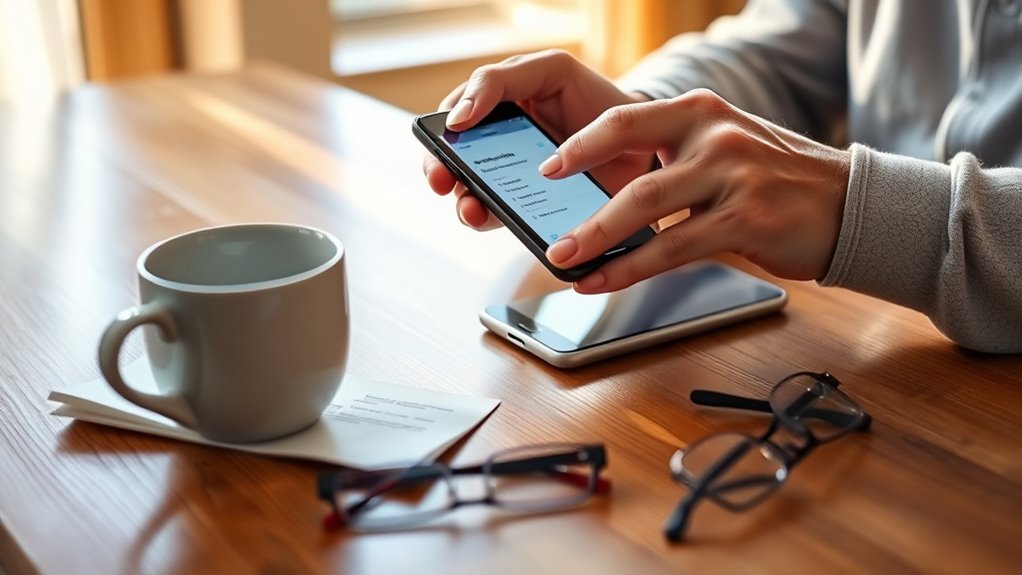
To link Phonak hearing aids to an iPhone, Bluetooth should be turned on, the aids fully charged, and the correct pairing mode used for the model. Rechargeable devices usually pair after a brief charge cycle or button press until the light blinks green. Battery models pair after opening and closing the doors. The iPhone should then detect the aids in Bluetooth settings, and the myPhonak app can finish setup and control. More details can help avoid missed steps.
Key Takeaways
- Update your iPhone to iOS 16 or later, turn on Bluetooth, and install the myPhonak app from the App Store.
- Put rechargeable Phonak hearing aids in the charger for 10 seconds, then remove them to enter pairing mode.
- For battery models, open and close the battery doors for about 5 seconds until you hear a pairing beep.
- Open Bluetooth settings on your iPhone, wait for the Phonak device to appear, then tap it to connect.
- If pairing fails, restart both devices, check battery charge, and remove old Bluetooth pairings before trying again.
What You Need Before Pairing Phonak to iPhone
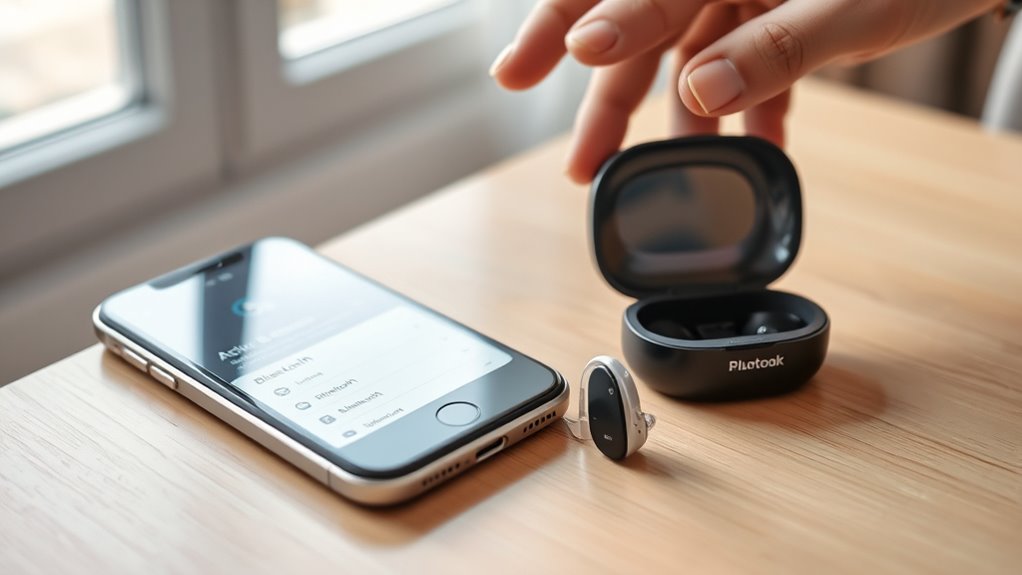
Before pairing Phonak hearing aids to an iPhone, several basic requirements should be confirmed to reduce setup issues and improve reliability.
The iPhone should be updated to iOS 16 or newer, since current software supports the myPhonak app and stable Bluetooth communication. The myPhonak app should be downloaded from the App Store, with Wi‑Fi or cellular data active during installation.
The iPhone should be updated to iOS 16 or newer, with the myPhonak app installed from the App Store.
Phonak rechargeable hearing aids should be fully charged, so low power does not interrupt pairing or later use. Bluetooth on the iPhone should be switched on in Settings.
It is also important to identify the specific hearing aids model, because different devices may use different pairing methods and features. These checks create a cleaner, more independent setup process and help the user move toward easier communication without unnecessary frustration.
When the essentials are ready, pairing becomes more predictable, allowing the iPhone and hearing aids to connect with fewer barriers and better overall confidence.
How to Put Phonak Hearing Aids in Pairing Mode
Phonak hearing aids can be placed in pairing mode by methodically following the appropriate steps for each model type.
For rechargeable devices, placing them in the charger for 10 seconds and then removing them should prompt a blinking green status light.
For models with replaceable batteries, opening and closing the battery doors for 5 seconds typically activates pairing mode.
Once Bluetooth is enabled on the iPhone, the devices should appear shortly in the Bluetooth list, confirming readiness for connection.
Rechargeable Pairing Steps
To activate pairing mode on rechargeable Phonak hearing aids, place each device in the charger for at least 10 seconds, then remove them and confirm that the status lights blink green.
These rechargeable hearing aids are then in Bluetooth pairing mode for about 3 minutes, giving the iPhone a brief window to find them. If the lights do not change, the lower button may be pressed until red appears, then pressed again until green returns.
The charger should remain connected to power, or hold adequate battery, so the process stays reliable. When the iPhone shows a pairing request, accept it to keep the devices connected.
If pairing still fails, recheck battery levels and repeat the steps. A hearing care professional can verify unusual behavior.
Battery Door Pairing
For Phonak models with battery doors, pairing mode is activated by opening each battery door for 5 seconds and then closing it again.
This simple step prepares Phonak hearing aids for Bluetooth discovery by an iPhone. Before beginning, the devices should be charged and ready, so the process can proceed without interruption.
After the battery doors close, a beep should be heard, confirming that pairing mode is active. It remains available for about 3 minutes, giving enough time for the iPhone to detect the hearing aids.
If they do not appear in the Bluetooth list, the battery door sequence can be repeated. The User Guide describes this method clearly, supporting a calm, independent connection.
Pair Phonak in Your iPhone Bluetooth Settings
Bluetooth should be enabled in the iPhone’s Settings before pairing begins, as this allows the device to detect nearby hearing aids.
The Phonak hearing aids should then be placed into pairing mode by opening the battery doors for 5 seconds and closing them again.
Once both steps are complete, the devices can be matched through the Bluetooth settings list.
Turn On Bluetooth
With the iPhone home screen open, the user should tap Settings and go to Bluetooth to switch Bluetooth On. This step is essential to turn On Bluetooth and prepare the phone to detect Phonak hearing aids.
Once enabled, the iPhone may take a few seconds to scan nearby Bluetooth devices. During this brief interval, the user can remain calm; the system is simply establishing readiness for the pairing process.
If the hearing aids are charged and available, they may appear in the list automatically. At that point, selecting the device name begins the connection.
This measured sequence supports efficient access and reduces unnecessary frustration, helping the user move toward independent hearing support with minimal disruption and maximum control.
Put Hearing Aids In Pairing Mode
Next, the hearing aids must be placed in pairing mode so the iPhone can detect them.
To put hearing aids in pairing mode, the user should first guarantee the charger is connected and the devices are fully charged.
For replaceable batteries, open the battery doors for 5 seconds, then close them.
For rechargeable Phonak hearing aids, hold the bottom button until the status light blinks green; if a hearing aid blinks red, repeat the step after confirming power.
On the iPhone, tap on the Settings app, then select Bluetooth and verify Bluetooth Connectivity is enabled.
The hearing aids remain discoverable for about 3 minutes, giving the phone time to find them.
Once listed, select the devices and confirm pairing.
Set Up the myPhonak App on iPhone
Begin by installing the myPhonak app from the App Store on the iPhone: search for “myPhonak,” tap “Get,” and wait for the download to complete.
Once installed, open the myPhonak app with the iPhone connected to Wi-Fi or cellular data so setup remains responsive. The app may show a brief tour; it can be followed or skipped.
Complete the Privacy and Usage sections, then select the correct residency, such as US or other, to tailor the experience.
On the Home screen, tap “Pair hearing aids” to begin Bluetooth pairing with the Phonak devices and prepare for audio streaming.
- Open the app before pairing hearing aids.
- Confirm internet access for smooth setup.
- Finish required permissions and residency prompts.
- Use the Home screen pairing option to proceed.
Fix Phonak Pairing Problems on iPhone
If a Phonak hearing aid does not pair with an iPhone, the first step is to confirm that Bluetooth is turned on in Settings and that the hearing aids are charged and within close range. This restores the path to connect to your hearing with less frustration.
| Check | Action |
|---|---|
| Bluetooth | Set to On |
| Hearing aids | Charge and move near iPhone |
| Pairing mode | Open and close battery doors, or press charger button |
If detection still fails, the Phonak hearing aids should be placed in pairing mode. For replaceable battery models, open and close the battery doors for 5 seconds; for rechargeable models, press the button on the charger. Existing Bluetooth pairing records on the iPhone should then be reviewed. If the devices appear, select Forget This Device before repeating Bluetooth pairing. When resistance persists, restart both the iPhone and the hearing aids, then try again. This method is measured, humane, and designed to return autonomy with minimal delay.
Connect Phonak to iPhone and iPad
To connect Phonak hearing aids to an iPhone or iPad, the myPhonak app should be downloaded from the App Store and Bluetooth must be enabled on the device. This process allows users to connect phonak to iphone with minimal friction and greater independence.
- Place the hearing aids in pairing mode.
- Open the myPhonak app and select Pair hearing aids.
- Confirm the Bluetooth pairing prompt on the iPhone or iPad.
- Wait for the audible beep that signals success.
Depending on the model, pairing mode is entered by charging the hearing aids for 10 seconds or opening and closing the battery doors for 5 seconds.
Depending on the model, pairing mode is entered by charging for 10 seconds or opening and closing the battery doors for 5 seconds.
When the devices appear, they should be selected promptly. After Bluetooth pairing is confirmed, the hearing aids can support audio streaming and calls across both devices.
This clinical sequence is designed to reduce uncertainty and support users seeking relief, control, and a more liberated listening experience.
Use myPhonak for Easier Control
With the myPhonak app, users can manage hearing aid settings directly from an iPhone, including volume adjustments and program selection, with simple Bluetooth connectivity supporting seamless audio streaming for calls and media.
The myPhonak app gives direct control over hearing aids through a clear settings menu, reducing dependence on in-person appointments. After Bluetooth pairing, adjustments can be made discreetly for phone calls, music, and changing environments.
Real-time guidance helps users troubleshoot connection issues and refine performance without unnecessary delay. The app also tracks usage patterns and supports personal health goals, offering a practical route toward greater independence.
For people seeking relief from friction, this level of access can feel liberating. Compatible with iPhones running iOS 16 or newer, the system keeps updates current while preserving reliable access to core tools.
In clinical terms, it converts routine management into a faster, more autonomous process that respects user comfort.
Frequently Asked Questions
Will Phonak Hearing Aid Work With iPhone?
Yes, Phonak compatibility with iPhone models is generally strong; Bluetooth connection enables streaming and hearing aid features. User experiences are often positive, though troubleshooting tips may be needed for iOS 16+ pairing stability.
How to Transfer Sound From Hearing Aid to iPhone?
Sound may be gently redirected by enabling Bluetooth pairing on both devices; app compatibility in myPhonak supports streaming, improving sound quality and user experience. For lingering issues, apply troubleshooting tips and monitor battery life.
What iPhone Settings Affect Hearing Aid Use?
Bluetooth settings, Accessibility features, Audio routing, Volume control, App compatibility, and Notification settings all affect hearing aid use. Proper configuration supports clear calls, stable streaming, and user autonomy, while reducing frustration and missed alerts.
Conclusion
To sum up, linking Phonak hearing aids to an iPhone usually works best when the devices are prepared correctly, paired through Bluetooth, and supported by the myPhonak app. When problems occur, small steps such as restarting, checking compatibility, or re-pairing often restore the connection. With careful setup, the result can feel almost miraculous, like a quiet world suddenly snapping into sharp focus. This process is typically straightforward, and it can greatly improve daily listening comfort and control.

