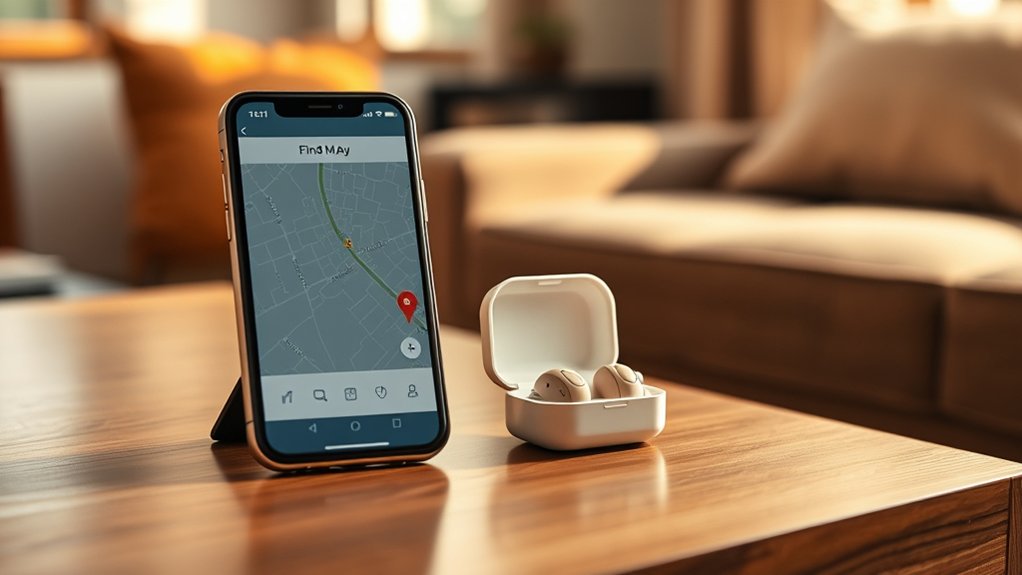
Can you add Phonak hearing aids to Apple Find My on your iPhone? The answer depends on understanding two different tracking systems: Apple’s Find My network and Phonak’s own hearing aid locator. They are not the same feature. This guide explains what actually works, how to set up tracking, and what to do if your hearing aids go missing.
Quick Answer
Phonak does not currently document direct registration of its hearing aids in Apple’s Find My app. Instead, use Find my hearing aids inside myPhonak. Pair your compatible hearing aids, allow location access, and open Devices > Find my hearing aids to see their last connected location and use nearby Bluetooth signal guidance.
At a Glance
| Difficulty | Guided app setup and Bluetooth pairing |
| Tools Needed | Compatible Phonak hearing aids, iPhone with iOS 16 or later, and myPhonak |
| Cost | The myPhonak app is free to download |
Can You Add Phonak Hearing Aids to Apple Find My?
Phonak hearing aids are not documented as accessories that you can register directly with Apple’s Find My network. Their built-in tracking feature works through myPhonak instead. This distinction matters because connecting a hearing aid through Bluetooth does not automatically make it appear in Apple’s Find My app.
According to Apple’s instructions for adding third-party Find My items, a device must specifically support Apple’s Find My system. The manufacturer must provide the instructions needed to make that accessory discoverable.
Phonak uses a different approach. Its hearing aids communicate with the myPhonak app, which can remember where your iPhone last connected to them.
When you return to that area, the app can also help you search using the hearing aids’ Bluetooth signal strength, provided they are powered on and within connection range.
The result is a useful recovery tool, but it is not identical to Apple’s crowdsourced Find My network.
Which Phonak Hearing Aids Support the Finding Feature?
Phonak’s current guidance says its Find my hearing aids function is available for hearing aids compatible with the myPhonak app. It is no longer limited to the Infinio Ultra family. Compatibility still depends on the hearing aid model, app version, and phone software.
The following examples show the main model families and the compatibility distinction.
| Model line | Finder compatibility | What to know |
|---|---|---|
| Phonak EON | Supported through current myPhonak | Includes compatible Audéo EON models |
| Phonak Infinio and Infinio Ultra | Supported | Includes compatible Audéo Infinio and Sphere models |
| Phonak Lumity | Supported through compatible myPhonak models | Includes Audéo Lumity and other listed devices |
| Phonak Paradise and Marvel | Included in current app compatibility listings | Use the current app and verify your exact model |
| Phonak Terra+ | Included in current myPhonak compatibility listings | Requires compatible Bluetooth connectivity |
The manufacturer’s lost hearing aid support guidance explains that the feature displays the last connected location and uses signal strength for nearby searching.
Keep in mind that being compatible with myPhonak does not mean a hearing aid supports Apple’s Find My network.
Some functions also vary by hardware generation. For example, health monitoring, hands-free calling options, and advanced sound adjustments may differ between models.
Update Your iPhone and myPhonak Before Setup
Your iPhone and myPhonak app must meet the current software requirements before you can use the locator reliably. The current App Store listing requires iOS 16.0 or later and a phone with Bluetooth Low Energy support.
Bluetooth Low Energy, often shortened to BLE, provides the wireless connection used for communication between the app and hearing aids.
Follow these steps before pairing:
- Open Settings on your iPhone.
- Go to General > Software Update to check your installed iOS version.
- Install an available compatible iOS update if needed.
- Open the App Store and search for myPhonak.
- Tap Update if an update is available.
- Confirm Bluetooth is enabled under Settings > Bluetooth.
The official myPhonak App Store listing shows version 7.5.2 in its release history. The preceding 7.5.1 release introduced expanded hearing aid support and enabled the finding feature for all compatible Phonak hearing aids.
Older articles may list iOS 15 or earlier app versions. Those requirements should not be treated as the current minimum for a new installation.
After updating, open myPhonak and check whether your hearing aids reconnect. If they do, you normally do not need to remove the existing pairing just because the app was updated.
Pair Your Phonak Hearing Aids to iPhone
Pairing establishes the Bluetooth connection between your iPhone and hearing aids. It allows supported functions such as app control, phone calls, and audio streaming. The exact steps depend on the hearing aid generation.
For newer models, pairing through myPhonak may also configure calls and streaming automatically. Older devices sometimes require an additional Bluetooth connection for audio.
Enable iPhone Bluetooth
Start by turning on Bluetooth in the iPhone’s main Settings app. This lets the phone detect compatible hearing aids when they enter pairing mode.
- Open Settings.
- Tap Bluetooth.
- Turn the Bluetooth switch on.
- Keep the hearing aids close to the iPhone during setup.
- Open myPhonak when you are ready to begin pairing.
Depending on the Phonak generation and connection type, you may see entries representing the left and right hearing aids. Some older generations also create a separate entry for audio streaming.
Do not assume every listed entry needs to be selected manually. Follow the pairing prompts for your model.
Restart Hearing Aids to Enter Pairing Mode
Restarting your hearing aids makes them discoverable for Bluetooth pairing. Phonak specifies a three-minute pairing window after the devices enter pairing mode. Start the search soon after restarting them.
Use the restart method that matches your hearing aids.
| Action | Effect |
|---|---|
| Place rechargeable aids in a powered charger for a few seconds, then remove them | Restarts the hearing aids and opens pairing mode |
| Open and close the battery doors on replaceable-battery models | Restarts the hearing aids and makes them discoverable |
For rechargeable models with suitable buttons, Phonak also describes switching the aid off until its indicator flashes red, then switching it on until it flashes green.
Follow the official rechargeable hearing aid pairing instructions for the correct button sequence.
If the hearing aids do not appear, check their battery level and restart pairing mode before trying again.
Complete Bluetooth Pairing for Calls and Streaming
Once the hearing aids are detected, follow the prompts shown by myPhonak or the iPhone. On Infinio Ultra and newer models, completing the app pairing also enables supported phone calls and audio streaming.
Earlier generations may need a separate connection for streaming. In those cases, myPhonak offers instructions after the main app pairing has finished.
For older models that require the additional step:
- Finish pairing the hearing aids inside myPhonak.
- Select See instructions, or Optional settings in older app versions.
- Restart the hearing aids if the instructions request it.
- Open the iPhone Bluetooth device list.
- Select the hearing aid entry identified by the app’s instructions.
- Approve the Bluetooth pairing request.
A separate audio connection may use one hearing aid entry for streaming to both hearing aids. This differs from the app connection, which can recognize the left and right devices individually.
Play a short audio clip or make a test call to confirm that the intended audio connection works.
Pairing for phone calls is not the same as registering an accessory with Apple Find My. A successful Bluetooth connection does not automatically enable Apple network tracking.
Connect Your Phonak Aids in myPhonak
The myPhonak app provides the connection used for sound control and the hearing aid locator. To use these features, complete pairing inside the app rather than relying only on an entry shown in iPhone Bluetooth settings.
The app guides you through finding both hearing aids and confirming the connection.
Download myPhonak and Prepare the Connection
Install myPhonak from the App Store if you have not already done so. Open the app and complete the introductory screens before starting device pairing.
During initial setup, you may be asked to review privacy information, usage-data preferences, and your country of residence.
You can then continue to the app’s Home section and begin pairing.
Keep Bluetooth on and make sure the hearing aids have enough battery power to finish setup.
Pair Hearing Aids Inside the App
Pairing inside myPhonak connects each hearing aid to the app. This connection is needed for app-based controls and device-location features.
- Open myPhonak.
- From the Home section, select Pair hearing aids.
- Restart your hearing aids using the appropriate method.
- Tap Continue when the devices are in pairing mode.
- Wait for the app to detect both hearing aids.
- Tap the green Pair button.
- Approve each Bluetooth pairing request shown by iOS.
Phonak’s non-rechargeable hearing aid instructions confirm the battery-door restart procedure and the separate iOS pairing confirmations.
| Action | Result |
|---|---|
| Tap Pair hearing aids and complete device discovery | myPhonak identifies the compatible hearing aids |
| Confirm the iPhone’s Bluetooth pairing requests | The hearing aids connect to the app |
If only one hearing aid appears, select I don’t see my devices for help. You can then restart the missing device and repeat the search.
Complete App Connection and Check the Status
After pairing, confirm that myPhonak recognizes your hearing aids. This check helps separate an app connection problem from a problem with locating a misplaced device.
Open the Devices section and review the connected hearing aids. Compatible rechargeable models can also display their battery levels.
The official myPhonak user guide shows the Devices screen and the Find my hearing aids entry.
If your hearing aids are connected and their controls respond, the app pairing has succeeded.
You can then enable or review the locator feature according to the prompts available for your model and app version.
Turn On Bluetooth and Location Access
Bluetooth and Location Services must be configured correctly for the Phonak locator to work as intended. Bluetooth handles communication with nearby hearing aids, while the phone’s location information helps record where they were connected.
On your iPhone, review these settings:
- Open Settings > Bluetooth and make sure Bluetooth is on.
- Go to Settings > Privacy & Security > Location Services.
- Make sure Location Services is enabled.
- Find myPhonak in the list of apps.
- Allow location access as requested by the app.
- Enable Precise Location if available and you want the most useful location record.
Apple’s Location Services instructions explain how to change permissions for individual apps, including access while an app is in use.
During supported myPhonak setup flows, the app may also ask you to activate Find my hearing aids. Accept this prompt if you want to use the feature.
Available location permission choices can differ with iOS and the app version. Select the appropriate supported permission rather than assuming that every iPhone shows identical options.
For a useful last-known-location record, location access needs to be available when the app records the hearing aids’ connection. Nearby finding also depends on Bluetooth communication.
Find Your Phonak Hearing Aids in myPhonak
To locate misplaced Phonak hearing aids, use the Find my hearing aids tool inside myPhonak. The feature can show where the hearing aids were last connected and help you search nearby through Bluetooth signal strength.
It does not require adding your hearing aids to Apple’s Find My app.
Follow these steps:
- Open the myPhonak app on your iPhone.
- Tap Devices in the bottom navigation area.
- Select Find my hearing aids.
- Review the last known location saved by the app.
- Go to that location if it is safe and practical.
- Move around the search area while checking the signal-strength guidance.
- Follow the stronger signal to narrow the possible location.
The locator’s two main functions serve different purposes. The location record helps identify where to start searching, while Bluetooth signal guidance helps narrow the search when the devices are nearby.
| Feature | What it provides | Important limitation |
|---|---|---|
| Last known location | Shows the location associated with the last recorded connection | Does not prove the hearing aid is still there |
| Bluetooth signal guidance | Helps identify whether a powered hearing aid is getting closer | Requires an available Bluetooth signal |
| myPhonak Devices section | Provides access to the hearing aid locator | Requires a supported app and compatible device |
| Apple Find My network | Locates products specifically designed to support Apple’s network | Ordinary Phonak Bluetooth pairing does not enroll hearing aids |
What If the Hearing Aid Is Offline or Has a Dead Battery?
A hearing aid that is switched off or has an empty battery cannot provide an active Bluetooth signal. You may still be able to see its previously recorded location, but nearby signal guidance cannot establish a live connection to a powered-off device.
For example, if your hearing aids last connected at home, the app may point you toward that location even if someone later moved them.
Start by searching the last connected area. Check the charging case, bedside table, couch cushions, clothing, and other places where you normally remove your hearing aids.
Remember that the last known location is a starting point, not a guarantee of the device’s exact position.
Fix Phonak Tracking If It’s Missing or Not Working
If Phonak tracking is missing, first check whether you are looking in the correct app. The feature belongs in myPhonak, not Apple’s Find My. Next, confirm that the hearing aids are compatible, connected, and allowed to use the required phone services.
Work through these fixes in order, starting with the easiest.
1. Check the Correct App and Device Section
Open myPhonak and select Devices. Look for Find my hearing aids.
If you previously searched Apple’s Find My Items tab, the missing listing does not indicate that your Phonak Bluetooth pairing failed.
2. Check Software and Permissions
- Confirm your iPhone meets the app’s iOS requirements.
- Update myPhonak through the App Store if an update is available.
- Make sure Bluetooth is enabled.
- Review location permission for myPhonak.
- Check that the hearing aids are powered on and have sufficient battery power.
- Review any activation prompt for Find my hearing aids shown by the app.
3. Restart the App and Devices
Close myPhonak and open it again. If the hearing aids still fail to connect, turn Bluetooth off and back on, then restart the hearing aids.
Restart your iPhone if the connection remains unavailable.
These actions can clear temporary connection problems without deleting existing pairings.
4. Remove Old Pairings and Reconnect
If the simpler fixes do not work, Phonak recommends removing outdated pairing records and setting up the hearing aids again.
Warning: Removing a Bluetooth pairing disconnects the hearing aids from the phone. You will need to pair them again before using affected app, streaming, or calling functions. Use this step only after simpler connection fixes fail.
- Open Settings > Bluetooth on your iPhone.
- Find the Bluetooth entries associated with your Phonak hearing aids.
- Tap the information icon beside each relevant entry.
- Select Forget This Device for each hearing aid entry.
- Open myPhonak and go to Devices.
- Open Your Devices and select Forget my devices in Product Information.
- Return to the Home section.
- Restart the hearing aids and complete the pairing process again.
Phonak’s official iPhone connection troubleshooting guide explains this reset sequence in detail.
On Infinio Ultra and newer models, Phonak normally expects two Bluetooth entries, one for each hearing aid. Some earlier models use an additional entry for calls and streaming.
If reconnection still fails, Phonak also recommends reinstalling myPhonak and repeating setup.
Note: If your hearing aids remain disconnected, are not recognized as compatible, or have problems with their programmed hearing settings, contact your hearing care professional or Phonak support. Avoid changing clinical hearing-aid settings solely to fix a phone connection problem.
What You Can Do in myPhonak After Setup
Once your hearing aids are connected, myPhonak can do more than help locate them. The app provides everyday sound controls, device settings, and additional features depending on your hearing aid model.
Some of its most useful functions include:
- Volume control: Adjust hearing aid volume directly from your iPhone.
- Program selection: Switch between available listening programs for different environments.
- Sound personalization: Use supported equalizer and advanced sound settings to adjust your listening experience.
- Battery information: View battery status on compatible rechargeable hearing aids.
- Health information: Review supported wearing-time, step, activity, or related health measurements.
- Remote Support: Connect with your hearing care professional for supported remote appointments and hearing aid adjustments.
- Device finding: Review the last connected location and search for misplaced hearing aids using signal guidance.
Not every Phonak model supports every function. Health monitoring and specialized controls depend on the hearing aid generation and available sensors.
Remote Support also depends on service availability and arrangements with your hearing care professional.
After pairing, check the available settings for your specific hearing aids so you know which functions are ready to use.
Key Takeaways
- Check the myPhonak Devices section before changing any Bluetooth pairing settings.
- Infinio Ultra and newer models can configure supported streaming and calls through the app pairing process. Earlier models may require additional setup.
- The saved location and the nearby Bluetooth guide provide different kinds of help when a hearing aid is missing.
- A dead hearing aid battery prevents live Bluetooth signal guidance, even when an earlier location record is available.
- App features such as health tracking and advanced sound controls depend on the exact hearing aid model.
Frequently Asked Questions
Why Isn’t myPhonak Hearing Aid Connecting to My iPhone?
The usual causes are disabled Bluetooth, hearing aids outside pairing mode, an outdated app, or an old connection record. Restart the hearing aids, open myPhonak, and pair again. If that fails, remove old Bluetooth entries and repeat the app setup.
What iPhone Settings Affect Hearing Aid Use?
Bluetooth must be on for pairing and streaming. For the locator, allow myPhonak to use Location Services and enable Precise Location if offered. Accessibility > Hearing Devices controls Made for iPhone devices; it does not add Phonak hearing aids to Apple Find My.
How Do I Use My Phone to Find My Hearing Aid?
Open myPhonak, go to Devices, and select Find my hearing aids. Start with the last connected location shown in the app. If the hearing aid is powered on and within Bluetooth range, follow the signal-strength guide as you search.
Can I Find My Phonak Hearing Aids When Their Batteries Are Dead?
You may still see the last location saved while the hearing aids were connected. A dead battery prevents an active Bluetooth signal, so the nearby strength guide cannot show a live connection. Search the saved area and nearby places where you removed them.
Will Phonak Hearing Aids Appear Under Items in Apple Find My?
Ordinary myPhonak pairing does not register Phonak hearing aids under Items in Apple’s Find My app. Apple’s third-party item setup requires a product that specifically supports its Find My network. Use the locator in myPhonak for these hearing aids.
Conclusion
Phonak hearing aids can be easier to locate when you configure the myPhonak finding feature before anything goes missing. Pair your devices correctly, allow the required location access, and confirm that Find my hearing aids appears under Devices.
If an aid goes missing, start with its last connected location and use Bluetooth signal guidance when the device is nearby and powered on. If the locator or connection fails, follow the troubleshooting steps before resetting your pairings.
Sources
- Apple Support: Add a Third-Party Item in Find My: Explains requirements for products that officially support the Apple Find My network.
- Phonak: How Can I Find My Hearing Aid If I Lost It?: Confirms myPhonak locator compatibility and its last-location and signal-strength functions.
- Apple App Store: myPhonak: Provides current app compatibility, features, and version history.
- Phonak: Pair Rechargeable Hearing Aids on iPhone: Supports rechargeable device pairing, the three-minute discovery window, and streaming configuration.
- Phonak: Pair Non-Rechargeable Hearing Aids on iPhone: Confirms battery-door pairing and Bluetooth confirmation steps.
- Phonak: myPhonak User Guide: Documents app controls, the Devices screen, and the hearing aid finder interface.
- Apple Support: Location Services and GPS: Explains how to manage app location permissions and Precise Location.
- Phonak: Repair Connection Issues with myPhonak on iPhone: Provides official troubleshooting, Bluetooth reset, and re-pairing procedures.

