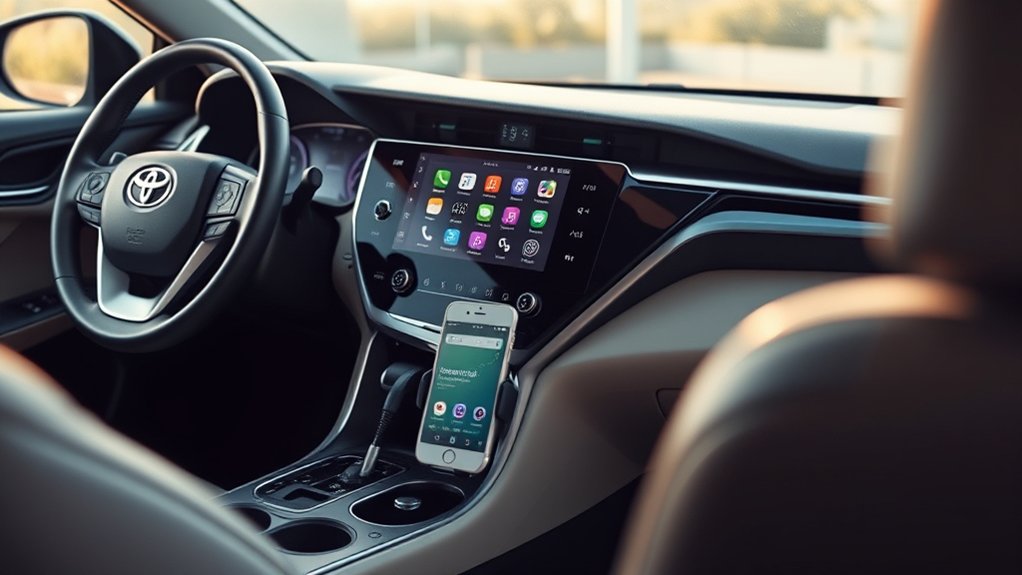
Setting up Android Auto in a Toyota Camry depends on the vehicle’s model year, multimedia system, market, and whether the system supports a wired or wireless connection. Before pairing your phone, confirm that your exact Camry supports Android Auto and identify the USB media port or wireless connection method described in its multimedia owner’s manual.
Quick Answer
Park your Camry, turn on its multimedia system, and connect a compatible Android phone to the USB media port with a data-capable cable. On a Camry that supports wireless Android Auto, pair the phone through Bluetooth & Devices with Bluetooth, Wi-Fi, and Location Services enabled, then approve the prompts on both screens.
Key Takeaways
- Toyota introduced standard Android Auto on the U.S.-market Camry for model year 2020, but the available connection method varies by year.
- The 2024 Camry uses wired Android Auto, while the redesigned 2025 Camry includes standard wireless Android Auto.
- Wired Android Auto needs a compatible Android 9 or later phone, a data connection, a data-capable cable, and the vehicle’s USB media port.
- Wireless Android Auto requires support from both the Camry and phone; Bluetooth pairing alone is not enough.
- Do not pair, reset, or troubleshoot Android Auto while driving.
At a Glance
| Time Required | About 5–10 minutes for the first connection |
| Difficulty | Easy |
| Tools Needed | Compatible Android phone; high-quality data USB cable for a wired connection |
| Cost | No Toyota subscription required; mobile-data, cable, and third-party app charges may apply |
Warning: Complete the initial setup only while the Camry is safely parked. Do not read prompts, pair devices, change settings, or troubleshoot a connection while driving.
Check Your Toyota Camry’s Android Auto Compatibility
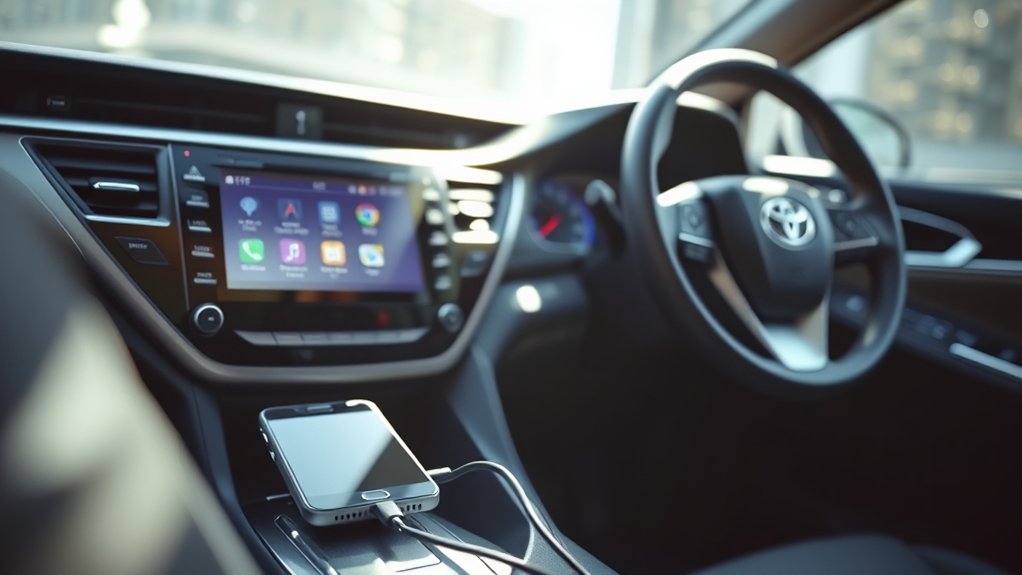
Do not assume every Toyota Camry supports Android Auto or that every compatible Camry supports it wirelessly. Equipment can vary by model year, trim, production date, multimedia system, and sales market.
For U.S.-market vehicles, Toyota states that Android Auto became standard on the 2020 Camry. Toyota describes the 2024 Camry system as wired, while the redesigned 2025 Camry includes standard wireless Android Auto.
| Camry model year | What to expect | Best next step |
|---|---|---|
| 2019 or older | Do not assume factory Android Auto is available. | Check the multimedia manual, original equipment list, and any aftermarket head-unit documentation. |
| 2020–2023 | Factory Android Auto is available, with USB being the expected connection unless the exact manual states otherwise. | Begin with the wired setup instructions below. |
| 2024 | Toyota identifies the factory Android Auto connection as wired. | Use the designated USB media port and a data-capable cable. |
| 2025 and newer | The 2025 redesign includes standard wireless Android Auto and also supports a USB connection. | Choose the wired or wireless procedure that suits your phone and driving routine. |
Note: The dates above describe U.S.-market factory equipment. Canadian and other-market Camrys can differ. Your vehicle’s multimedia manual and on-screen menus are the final authority for its equipment.
Requirements Before Setting Up Android Auto
Prepare the phone and vehicle before beginning. This prevents most first-time connection failures.
For a Wired Connection
- A Camry multimedia system that supports Android Auto.
- An Android phone running Android 9 or later.
- An active mobile-data plan.
- A short, high-quality USB cable that supports data transfer, not only charging.
- The vehicle’s USB media or smartphone-projection port.
- The phone unlocked and available to approve permissions.
Google’s current guidance says Android Auto is integrated into supported Android phones. You normally do not need to install a separate Android Auto app from the Play Store. Update Android, Google Play services, and the integrated Android Auto component when updates are available.
For a Wireless Connection
- A Camry multimedia system that explicitly supports wireless Android Auto.
- A compatible phone, generally running Android 11 or later.
- 5 GHz Wi-Fi support on the phone.
- An active mobile-data plan.
- Bluetooth, Wi-Fi, and Location Services enabled during setup.
- The vehicle in Park with the multimedia system on.
Bluetooth begins the first wireless pairing, but Wi-Fi carries the Android Auto projection. Ordinary Bluetooth audio pairing is not the same as wireless Android Auto.
Identify the Correct USB Port
A Camry can have several USB ports, but some may provide charging only. Use the port identified in the multimedia manual as the USB media port, data port, or smartphone-projection port. It is commonly located near the front of the center console, but the location varies.
If the phone charges but Android Auto does not appear, the wrong port or a charging-only cable is one of the most likely causes.
How to Connect Android Auto With USB
Use this procedure for a wired-compatible Camry, including the factory system in the 2024 Camry.
- Park the Camry. Switch on the vehicle and allow the multimedia system to finish starting.
- Unlock the phone. Confirm mobile data is working and install any pending Android or Google Play services updates before connecting.
- Connect the data cable. Plug one end into the Camry’s USB media port and the other into the phone.
- Approve the phone prompts. Accept Android Auto’s terms and grant the permissions needed for calls, contacts, messages, notifications, maps, and media according to your preferences.
- Approve the vehicle prompt. Select Yes, Enable, or Use for Android Auto when the multimedia screen asks whether to start smartphone projection.
- Open Android Auto. It may appear automatically. If it does not, tap the Android Auto icon or smartphone-projection tile on the multimedia screen.
- Test the connection. Open a navigation or media app and verify that audio plays through the vehicle.
Pro Tip: A short cable with firm connectors is usually more reliable than a long or worn cable. Keep the phone where the plug will not be bent or pulled when you shift, use the cupholders, or move items in the console.
If the Phone Is Already Paired by Bluetooth
A phone can be paired for calls and music while Android Auto remains disabled. Open the Camry’s device list, select the phone, and look for an option such as Use for Android Auto. Switch it on, approve any phone prompts, and then tap the Android Auto tile.
How to Connect Wireless Android Auto
Use these steps only when the Camry’s factory multimedia system explicitly supports wireless Android Auto. The exact wording can vary after software updates, but current Toyota Audio Multimedia systems generally use the following path:
- Park and switch on the multimedia system.
- Prepare the phone. Turn on Bluetooth, Wi-Fi, Location Services, and mobile data. Keep the phone unlocked.
- Open the device menu. On the vehicle screen, select Settings > Bluetooth & Devices.
- Start a device search. Select Add Another Device and then Search for Devices.
- Select your phone. Choose its name when it appears.
- Confirm the pairing code. Verify that the PIN shown on the vehicle matches the phone, then approve it on both screens.
- Enable Android Auto. Select Yes when the multimedia system asks whether to use Android Auto. Approve the related phone permissions.
- Wait for the projection to start. Android Auto should open within several seconds. Tap its tile if it does not open automatically.
Google also recommends keeping Bluetooth, Wi-Fi, and Location Services enabled while completing the first wireless Android Auto setup.
Note: A wireless charging pad supplies power but does not create the Android Auto connection. Wireless projection uses Bluetooth and Wi-Fi, while wireless charging is a separate feature.
Complete the Setup and Use Android Auto
After the first successful connection, Android Auto should reconnect when you plug in the phone or, on a wireless-compatible Camry, when the phone and vehicle are switched on near each other.
Open Android Auto Manually
If the Android Auto screen does not appear, select its icon from the Camry’s main menu or smartphone-projection area. If the icon is missing, open the paired-device settings, select your phone, and confirm that Use for Android Auto is enabled.
Return to the Toyota Multimedia Screen
Select the Toyota icon within Android Auto or use the multimedia system’s persistent shortcut or taskbar. You can return to Android Auto by tapping its icon again.
Disconnect the Phone
For a wired connection, unplug the cable only when it is safe to handle the phone. For a wireless connection, turn off Android Auto for that device in the vehicle settings, disable the phone’s wireless Android Auto connection, or move the phone out of range.
Choose Between Multiple Phones
If several paired phones are in the Camry, the multimedia system may connect to a different device than expected. Open Bluetooth & Devices, select the intended phone, and enable it for Android Auto. Temporarily disabling Bluetooth on the other phones can help during setup.
Android Auto Features in a Toyota Camry

Android Auto presents compatible phone apps in a simplified interface designed for use in the vehicle. Available features depend on the phone, app, country, account, and software version.
Navigation App Integration
Compatible navigation apps such as Google Maps and Waze can provide turn-by-turn directions, traffic information, destination search, and alternate routes. Enter the destination before driving when possible, or use the supported voice assistant instead of typing while moving.
Hands-Free Voice Commands
Press and hold the voice-command switch on the steering wheel or use the wake phrase supported by your phone. Depending on the device, account, language, and rollout status, Android Auto may use Gemini or Google Assistant.
You can use supported voice functions to:
- Request directions or search for a destination.
- Call a contact.
- Send or hear supported messages.
- Play an artist, album, playlist, podcast, or radio station.
- Ask calendar, weather, or general-information questions when supported.
Note: Android Auto does not generally control the Camry’s climate system. Some newer Camrys can adjust cabin temperature through Toyota’s separate “Hey Toyota” Intelligent Assistant, subject to vehicle equipment, service availability, and any applicable Drive Connect requirements.
Music and Audio Apps
Compatible music, podcast, audiobook, and radio apps can be controlled from the touchscreen or by voice. The interface can display playlists, recent selections, and playback controls while keeping the phone itself out of your hands.
Music can continue while navigation provides spoken directions. The system normally lowers the media volume temporarily when it announces a turn or receives a call.
Calls and Messages
Android Auto can use the Camry’s microphone and speakers for supported calls and messages. Grant only the permissions you are comfortable sharing, and use voice interaction rather than reading or typing while driving.
Fix Common Android Auto Connection Problems
| Symptom | Likely cause | What to do |
|---|---|---|
| The phone charges, but Android Auto does not start | Charging-only cable, wrong USB port, or Android Auto disabled for the phone | Use a known data cable, connect to the USB media port, and enable Use for Android Auto. |
| The Android Auto icon is missing | Unsupported vehicle, projection disabled, or setup prompts not completed | Verify model-year compatibility, inspect the device settings, reconnect while parked, and approve all required prompts. |
| The wired connection drops repeatedly | Damaged cable, loose connector, dirty phone port, or cable movement | Try a shorter high-quality cable, inspect both connectors, and keep the cable from bending or being pulled. |
| Bluetooth pairs, but wireless Android Auto does not launch | Vehicle lacks wireless support, Wi-Fi or Location Services is off, or Android Auto is disabled for that device | Confirm wireless compatibility, turn on Bluetooth, Wi-Fi, Location Services, and mobile data, then enable Android Auto in the device menu. |
| The wrong phone connects | Several paired phones are present | Select the intended phone in Bluetooth & Devices or temporarily disable Bluetooth on the other devices. |
| Calls work, but apps do not appear | The phone is paired only for ordinary Bluetooth functions | Select the phone in the multimedia settings and turn on Use for Android Auto. |
| The display freezes or remains black | Temporary phone or multimedia software fault | Disconnect safely, restart the phone and multimedia system, then install available phone and vehicle software updates. |
| Wireless performance is unstable | Wi-Fi interference, battery restrictions, VPN conflicts, or an incomplete pairing | Turn off an unnecessary hotspot or VPN, remove severe battery restrictions, and complete a clean re-pair. |
Perform a Clean Re-Pair
If ordinary troubleshooting does not work, rebuild the connection:
- Park the Camry and switch on the multimedia system.
- Delete the phone from the vehicle’s Bluetooth & Devices list.
- Open the phone’s Bluetooth settings and forget the Toyota connection.
- Restart the phone.
- Restart the vehicle’s multimedia system using the method in its manual.
- Pair the phone again and approve every Android Auto prompt.
This removes the saved pairing but does not erase the phone’s other data.
Check Phone and Vehicle Software
Install available Android, Google Play services, app, and security updates. For the vehicle, consult the multimedia manual or Toyota’s official support resources. A Toyota dealer can also confirm whether a software update or service campaign applies to the exact head unit.
If the problem continues, compare the behavior with another compatible phone or cable. That test can help determine whether the fault is in the phone, cable, USB port, or multimedia system.
Tips to Optimize Android Auto
- Set destinations before moving. Enter the route while parked whenever possible.
- Keep frequently used apps updated. Compatibility and interface behavior can change after phone or app updates.
- Customize the Android Auto launcher. Put essential navigation, audio, and communication apps where they are easy to reach.
- Use voice controls carefully. Voice interaction can reduce handling, but it can still be distracting if the task is complex.
- Charge during long wireless sessions. Wireless projection, navigation, mobile data, and audio streaming can use significant battery power.
- Keep a data cable in the vehicle. It provides a backup if a wireless connection fails and can charge the phone at the same time.
- Avoid unnecessary adapters. Third-party wireless adapters are not the same as factory wireless Android Auto and may introduce delay or reliability problems.
Safety, Privacy, and Cost
Android Auto itself does not require a Toyota Connected Services subscription. However, your mobile carrier’s data charges and subscriptions for music, audiobooks, navigation, or other third-party services may still apply. Toyota lists Android Auto among the multimedia functions available without separate Android Auto registration or subscription on compatible vehicles.
During setup, the phone may share contacts, recent calls, messages, media information, and notification access with the vehicle. Review each permission rather than approving it automatically.
Before returning a rental vehicle, selling the Camry, lending it to another driver, or transferring ownership, remove the phone from the vehicle’s paired-device list. Also forget the vehicle in the phone’s Bluetooth and Android Auto settings.
Android Auto is an aid, not a substitute for attentive driving. Keep your eyes on the road, follow local distracted-driving laws, and stop in a safe place before performing any task that requires prolonged attention.
Frequently Asked Questions
How do I connect Android Auto to a Toyota Camry?
Park the Camry, switch on the multimedia system, and connect a compatible Android phone to the USB media port with a data-capable cable. Approve the prompts on the phone and vehicle, then tap Android Auto if it does not open automatically. On a wireless-compatible Camry, pair the phone through Settings > Bluetooth & Devices and enable Android Auto.
How do I activate Android Auto in a Toyota?
Connect or pair the compatible phone, select it in the multimedia system’s device list, and turn on the option labeled Use for Android Auto when available. Approve the requested permissions on the phone, then select the Android Auto icon on the vehicle display.
What are the basic steps to set up Android Auto?
Verify that the phone and vehicle are compatible, park the vehicle, turn on the multimedia system, connect through the USB media port or supported wireless device menu, approve the prompts on both screens, and test a navigation or audio app before driving.
Why will Android Auto not activate on my Camry?
Common causes include an unsupported model year, a charging-only cable, the wrong USB port, incomplete permissions, Android Auto being disabled for that phone, outdated software, or trying to use wireless Android Auto on a wired-only multimedia system.
Does every Toyota Camry support wireless Android Auto?
No. Toyota identifies the 2024 Camry system as wired, while the redesigned 2025 Camry includes standard wireless Android Auto. Check the multimedia manual for the exact model year, trim, market, and head unit before attempting a wireless connection.
Does Android Auto require a Toyota subscription?
No Toyota subscription is required to use Android Auto on a compatible vehicle. Your phone still needs an active data connection for many features, and charges may apply for mobile data or paid third-party apps and streaming services.
Why does my phone charge without showing Android Auto?
The phone may be connected to a charging-only USB port or with a cable that does not transfer data. Move it to the Camry’s designated USB media port, try a known data-capable cable, unlock the phone, and confirm that Use for Android Auto is enabled.
Conclusion
Android Auto setup in a Toyota Camry is straightforward once you match the instructions to the correct model year and connection type. Use the USB media port for a wired system, use Bluetooth and Wi-Fi only when the Camry explicitly supports wireless Android Auto, and approve the prompts on both screens while parked. If the connection fails, check the port, cable, phone permissions, device settings, and software before resetting the pairing.
Sources
- Google Android Auto requirements — wired and wireless phone requirements, data-plan requirements, and integrated Android Auto guidance
- Google Android Auto setup instructions — wired and wireless pairing procedures and safety guidance
- Toyota Connected Services and Android Auto support — USB media-port setup, Android Auto features, and subscription information
- Toyota 2020 Camry product information — introduction of standard Android Auto compatibility on the U.S.-market Camry
- Toyota 2024 Camry product information — factory wired Android Auto compatibility
- Toyota 2025 Camry product information — standard wireless Android Auto and Toyota Audio Multimedia details

