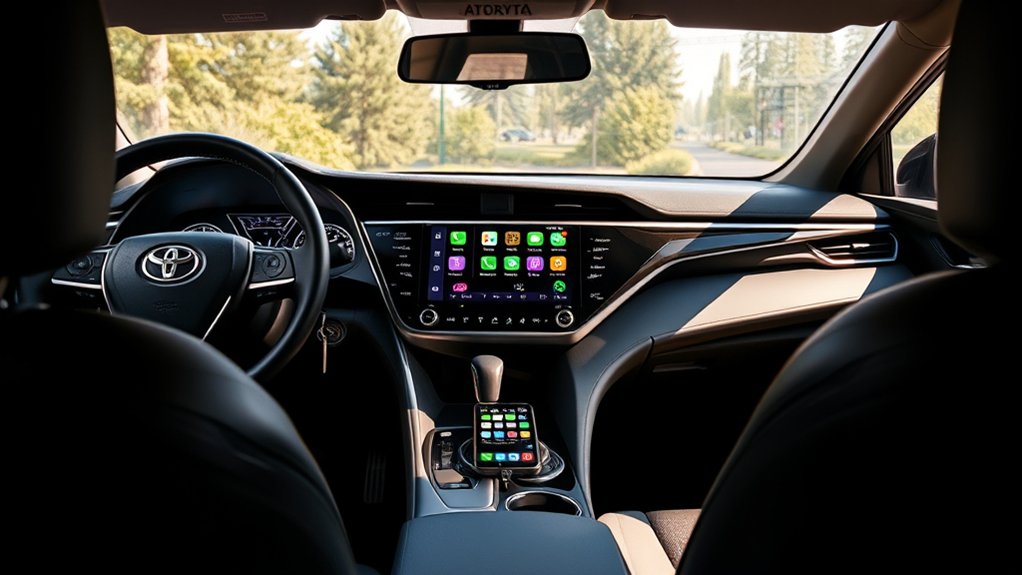
Toyota Camry Android Auto support depends mainly on model year. U.S.-market 2020–2024 Camrys use factory Android Auto through the USB media port, while 2025–2026 Camrys add standard wireless Android Auto and still support a wired connection. If you have a 2019-or-earlier U.S. Camry with the original factory system, do not assume Android Auto is available without an aftermarket receiver.
Last updated: September 19, 2026 — Toyota’s 2020, 2024, 2025, and 2026 Camry compatibility information and Google’s current Android Auto phone requirements were rechecked for this update.
Quick Answer
To use Android Auto in a Toyota Camry, place the vehicle in Park, connect a compatible Android phone through the USB media port or pair it wirelessly on an equipped model, approve the on-screen permissions, and select Android Auto. U.S.-market Camrys gained factory Android Auto for the 2020 model year.
Key Takeaways
- Factory Android Auto became standard on the U.S.-market Toyota Camry for model year 2020.
- The 2020–2024 Camry primarily uses a USB data connection; the 2024 Toyota guide states that wireless Android Auto is not supported.
- The redesigned 2025 and 2026 Camry supports wireless Android Auto as well as a wired connection.
- Google currently requires Android 9.0 or higher for wired Android Auto; wireless projection requires a compatible phone with Android 11.0 and 5 GHz Wi-Fi support.
- Complete the first setup while parked, and use voice controls only when road and traffic conditions allow.
At a Glance
| Time Required | About 5–10 minutes for the first connection |
| Difficulty | Easy |
| Tools Needed | Compatible Android phone; high-quality USB data cable for wired setup |
| Cost | No Android Auto subscription fee; mobile data and paid app subscriptions may apply |
Warning: Complete pairing, permission changes, launcher customization, and destination entry while the Camry is safely parked. Android Auto can reduce some visual and manual interaction, but hands-free operation does not eliminate driver distraction.
What Is Android Auto and How Does It Work in the Toyota Camry?
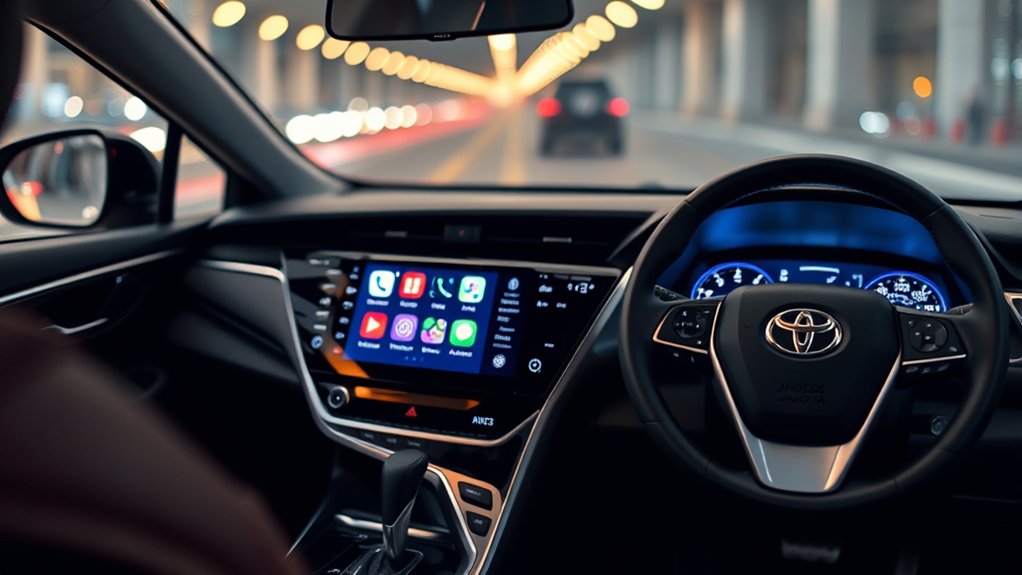
Android Auto projects a driving-focused interface from a compatible Android phone onto the Camry’s multimedia screen. It gives you access to supported navigation, communication, and media apps without mirroring every function or app on the phone.
You can use Google Maps or Waze for directions, place calls, listen to incoming messages, dictate replies, and play music, podcasts, or audiobooks. Depending on your phone and Google’s current rollout, voice requests may be handled by Gemini or Google Assistant.
Android Auto is separate from Toyota Connected Services. Android Auto runs compatible phone apps and generally uses the phone’s mobile-data connection. Toyota services such as Remote Connect, Service Connect, or Drive Connect are separate vehicle services and may have their own trials, registrations, or subscription charges.
Which Toyota Camry Years Have Android Auto?
Toyota added standard Android Auto compatibility to the U.S.-market Camry for model year 2020. Earlier factory multimedia systems should not be assumed to support Android Auto, even if they support Bluetooth audio or Apple CarPlay.
| Camry Model Year | Factory Android Auto | Typical Connection |
|---|---|---|
| 2019 and earlier | Not offered from the factory on the U.S.-market Camry | An aftermarket receiver may be required |
| 2020–2024 | Yes | USB data cable; Toyota’s 2024 Camry guide states that wireless Android Auto is not supported |
| 2025–2026 | Yes | Wireless or USB, with compatible equipment and phone |
Note: Equipment and menu names can vary by country, trim, multimedia unit, phone, and software update. Check the multimedia manual for your exact Camry model year before purchasing a cable, adapter, or replacement stereo.
Fast model-year rule: For a stock U.S. Camry, think 2019 or earlier = no factory Android Auto, 2020–2024 = wired through the USB media port, and 2025–2026 = wireless or wired. This model-year check prevents wasted troubleshooting on a connection method the factory system does not support.
Android Auto Requirements for a Toyota Camry
Before connecting, confirm that you have:
- A Camry multimedia system that supports Android Auto.
- A compatible Android phone with an active mobile-data plan.
- Android 9.0 or higher for a wired connection.
- Android 11.0 for wireless projection, plus a compatible phone with 5 GHz Wi-Fi support.
- Bluetooth, Wi-Fi, and Location enabled during first-time wireless setup.
- A short, high-quality USB data cable for a wired connection.
- Access to the Camry’s USB media port rather than a charge-only port.
Google now describes Android Auto as integrated into compatible Android phones, so you do not need to install a separate Android Auto app from the Play Store. Keep the phone’s operating system, Google Play services, and the apps you use through Android Auto updated.
For current phone requirements, see Google’s Android Auto requirements.
Set Up Android Auto in Your Toyota Camry
Start the Camry, leave it in Park, unlock the phone, and allow several minutes for the first connection. The exact button names may differ between the older Toyota Audio system and the newer Toyota Audio Multimedia interface.
This article keeps setup concise so it can focus on model-year compatibility and how Android Auto works. For a dedicated walkthrough, see How to Set Up Android Auto in a Toyota Camry.
Set Up Android Auto With a USB Cable
- Confirm Android Auto is enabled in the phone’s settings.
- Connect the phone directly to the Camry’s USB media port with a data-capable cable. Do not use a USB hub.
- Unlock the phone and accept the Android Auto terms, permissions, contact access, and notification requests you want to use.
- When the Toyota display asks whether to enable Android Auto, select Yes, Enable, or Always Enable.
- Select the Android Auto icon on the Toyota display if the interface does not open automatically.
- Wait for the Android Auto dashboard or app launcher to appear.
Pro Tip: A cable that charges the phone may still fail to transfer data. If Android Auto disconnects when the phone moves, replace the cable with a short, high-quality data cable before changing other settings.
Set Up Wireless Android Auto
Use this method only when both the Camry and phone support wireless Android Auto. The 2025 and 2026 Camry support wireless projection; the 2024 U.S. Camry guide states that wireless Android Auto is not supported.
- Turn on the phone’s Bluetooth, Wi-Fi, and Location services.
- On the Camry display, open Settings and select Bluetooth & Devices.
- Select Add another device or Search for devices.
- Choose the phone’s name and confirm that the PIN shown on both screens matches.
- Approve contact, message, and notification permissions as desired.
- When prompted to use Android Auto, select Yes.
- If it does not launch, open the phone under Bluetooth & Devices and enable Use for Android Auto.
Toyota’s current connection instructions are available through its Android Auto setup support page.
Setup Checklist
| Action | What to Check |
|---|---|
| Park the Camry | Complete first-time pairing and permissions before driving. |
| Choose the connection | Use USB for 2020–2024 models; use USB or wireless on an equipped 2025–2026 model. |
| Grant permissions | Allow the contacts, microphone, messages, and notifications needed for your preferred features. |
| Launch Android Auto | Select the Android Auto icon if projection does not begin automatically. |
Navigating With Google Maps in Your Camry
Open Google Maps from the Android Auto dashboard, select the search field, and enter a destination while parked. You can also activate Gemini or Google Assistant and say:
- “Navigate to 125 Main Street.”
- “Take me home.”
- “Find a gas station along my route.”
- “Find a coffee shop nearby.”
The map displays upcoming turns and estimated arrival information while spoken guidance plays through the Camry’s speakers. Traffic information, search results, and route changes normally require a working mobile-data connection unless the needed map area has been downloaded for offline use.
Keep your preferred home, work, and frequent destinations updated in Google Maps so you can start routes with shorter voice commands.
Text Messaging With Android Auto: How to Stay Connected
Android Auto can announce notifications and read messages from compatible apps. To hear a message, tap its notification when safe or ask Gemini or Google Assistant to read it aloud.
Useful commands include:
- “Send a text to Alex.”
- “Message Priya on WhatsApp.”
- “Reply to Jordan.”
- “Read my messages.”
After you dictate a reply, the assistant normally reads it back and asks whether it should send, change, or cancel the message. Available messaging functions depend on the installed app, its permissions, the phone, and regional restrictions.
Note: Android Auto may share information such as contacts, message content, location, or vehicle movement data with Google and the compatible apps you use. Review the phone’s permissions and each app’s privacy settings before connecting.
Switching Back to the Toyota Audio System
To leave Android Auto without disconnecting the phone, select the Toyota icon shown within Android Auto or use the Toyota quick-access taskbar to return to the multimedia home screen. The exact icon position depends on the multimedia system and software version.
You can then use the Toyota radio, vehicle settings, camera views, or other native functions. Select the Android Auto icon again to return to the projected interface.
On older Camry systems with physical controls, pressing Menu or Home may also return you to Toyota’s interface. Do not rely on a generic “app-shaped” button because the controls differ between model years.
Exploring More With Android Auto: Podcasts and Audiobooks
Android Auto supports compatible media apps installed on the phone. Available apps and controls can change when an app, Android Auto, or the phone’s operating system is updated.
Accessing Podcasts Easily
Open a supported podcast app from the launcher or ask the voice assistant to play a show or resume the latest episode. Examples include:
- “Play the latest episode of [podcast name].”
- “Resume my podcast.”
- “Skip forward 30 seconds.”
- “Pause the podcast.”
Download episodes before leaving home when you expect poor cellular coverage or want to reduce mobile-data use.
Listening to Audiobooks Seamlessly
Compatible audiobook apps can display the current title, playback progress, and basic chapter controls. You can ask to resume a book, pause it, or play a specific title without browsing the phone while driving.
Some audiobook, music, and podcast services require a separate paid subscription even though Android Auto itself does not charge a monthly fee.
Tips for Maximizing Your Android Auto Experience in the Camry
Use Voice Commands Efficiently
Depending on the phone, settings, and current Google rollout, you can start Gemini or Google Assistant in one of three common ways:
- Say “Hey Google” when voice activation is enabled.
- Tap the microphone icon on the Android Auto display.
- Press and hold the voice-command switch on the steering wheel until the assistant responds.
Use a specific command with a contact, destination, app, or title. For example, “Navigate to Toronto Pearson Airport” is more reliable than saying only “airport.”
Customize the App Layout
Customize the Android Auto launcher from the phone rather than trying to drag icons on the Camry display. Menu names vary, but the usual process is:
- Open Settings on the Android phone.
- Search for and open Android Auto.
- Select Customize launcher.
- Reorder compatible apps or clear the check box beside apps you do not want displayed.
- Reconnect Android Auto to refresh the launcher if the change does not appear immediately.
Only apps designed and approved for Android Auto appear in the vehicle launcher. A normal phone app cannot necessarily be added to the car display.
Reduce Data and Battery Use
- Download maps, playlists, podcasts, or audiobooks before a long trip.
- Use a wired connection when you want the phone to charge during projection.
- Keep the phone out of direct sunlight, especially during wireless use and wireless charging.
- Close unnecessary high-power apps if the phone becomes hot or Android Auto slows down.
Troubleshooting Toyota Camry Android Auto
Work through these checks in order before resetting the entire multimedia system. If the connection still fails after the quick checks below, use the dedicated Toyota Camry Android Auto not working guide for deeper diagnosis.
| Problem | What to Try |
|---|---|
| Android Auto icon is missing | Confirm the Camry model year supports Android Auto, unlock the phone, enable Android Auto in the Toyota projection or Bluetooth settings, and accept any pending phone prompts. |
| Phone charges but Android Auto does not start | Use the USB media port instead of a charge-only port, replace the cable with a data-capable cable, and connect directly without a hub. |
| Connection repeatedly drops | Inspect and clean the phone port, replace the cable, restart the phone, and update Android Auto, Google Play services, and the phone software. |
| Wireless Android Auto will not connect | Confirm the Camry actually supports wireless projection, then turn on Bluetooth, Wi-Fi, and Location. Remove the pairing from both the phone and Camry and pair them again while parked. |
| Wrong phone connects | Open Bluetooth & Devices, select the preferred phone, enable Use for Android Auto, and disconnect the other paired phone. Only one projected Android Auto session can be active at a time. |
| Messages or contacts are unavailable | Review Bluetooth, Android Auto, notification, microphone, contact, and messaging permissions on the phone. |
| Apps are missing from the launcher | Open the app on the phone, update it, confirm it supports Android Auto, and check Customize launcher in the phone’s Android Auto settings. |
If Android Auto previously worked over USB and suddenly stopped, Google recommends testing a different high-quality cable. Google also recommends a cable under 3 feet (1 meter) and avoiding USB hubs or extensions. See Google’s Android Auto connection troubleshooting guide.
A wireless charging pad does not establish a wireless Android Auto connection by itself. Wireless projection still requires a supported Camry multimedia system and a compatible phone connected through Bluetooth and Wi-Fi.
Frequently Asked Questions
How do you use Android Auto in a Toyota Camry?
Place the Camry in Park, connect a compatible phone to the USB media port or pair it wirelessly on a 2025–2026 U.S. model, approve the phone and vehicle prompts, and select Android Auto on the multimedia display. Use the launcher, microphone, or steering-wheel voice switch to access compatible apps.
Which Toyota Camry years have Android Auto?
Factory Android Auto became standard on the U.S.-market Toyota Camry for model year 2020. U.S. 2020–2024 factory systems use a USB connection, while 2025 and 2026 Camrys support standard wireless Android Auto as well as wired projection.
Does the 2024 Toyota Camry have wireless Android Auto?
No. Toyota’s U.S. documentation for the 2024 Camry describes wired Android Auto, and the 2024 quick reference guide states that wireless Android Auto is not supported. Use the USB media port with a data-capable cable.
Does the 2019 Toyota Camry have factory Android Auto?
No. Toyota added standard Android Auto compatibility to the U.S.-market Camry for model year 2020. A 2019 Camry with its original factory multimedia system should not be assumed to support Android Auto; an aftermarket receiver may be needed.
Why is Android Auto not connecting to my Camry?
Common causes include using a charge-only USB port, a poor or charge-only cable, disabled Android Auto settings, pending phone permissions, outdated software, or trying wireless projection in a Camry that supports wired Android Auto only. Verify model-year compatibility first, then test the cable and media port.
Is there a monthly fee for Android Auto?
Android Auto itself does not require a monthly subscription. Your mobile carrier may charge for data, and music, audiobook, satellite-radio, or other third-party apps may require their own paid subscriptions.
Conclusion
Android Auto gives a compatible Toyota Camry convenient access to navigation, calls, messages, podcasts, audiobooks, and music through the vehicle display. The key is matching the setup method to the Camry’s model year: use the USB media port on 2020–2024 models, or choose wired or wireless projection on a compatible 2025–2026 model.
Complete the first connection while parked, use a reliable data cable when needed, and keep the phone and multimedia software updated. Once connected, use the Toyota icon to move back to the native multimedia system and rely on concise voice commands only when driving conditions make them safe.
If you need more detail, use the dedicated Camry Android Auto setup guide or the Camry Android Auto troubleshooting guide rather than repeating the same setup or repair steps here.
Sources
- Toyota: 2020 Toyota Camry — confirms that Android Auto compatibility became standard for model year 2020.
- Toyota 2024 Camry Quick Reference Guide — documents USB setup and states that wireless Android Auto is not supported.
- Toyota 2025 Camry Quick Reference Guide — documents wireless Android Auto support and current Toyota multimedia controls.
- Toyota Support: How to Set Up Android Auto — provides Toyota’s wired and wireless pairing procedures.
- Google Android Auto Requirements — covers phone, operating-system, cable, Wi-Fi, and wireless compatibility requirements.
- NHTSA Driver Distraction Guidelines — supports completing demanding visual and manual tasks while the vehicle is stationary.
- Toyota: 2026 Camry — confirms standard wireless Android Auto compatibility for the 2026 Camry.
- Google: Android Auto Troubleshooting — recommends a high-quality cable under 3 feet (1 meter) and no USB hubs or extensions.
