
Apple CarPlay can place compatible iPhone navigation, calling, messaging, audio, and calendar features on your Toyota Camry’s multimedia display. The correct setup depends on the Camry’s model year and multimedia system: some vehicles use a USB data cable, newer models support wireless CarPlay, and certain 2018 Camrys need a Toyota software enhancement before CarPlay will work.
Quick Answer
Park the Camry, turn on Siri, and connect a compatible iPhone through the USB media port or pair it wirelessly if the vehicle supports wireless CarPlay. U.S. 2019–2024 Camrys generally use a data cable; 2025–2026 models support wireless CarPlay. Certain 2018 Camrys need Toyota’s dealer-installed multimedia enhancement first.
Key Takeaways
- Confirm the Camry’s model year, market, multimedia equipment, and CarPlay capability before attempting setup.
- Use the USB media port and a direct data-capable cable for wired CarPlay; a cable that only charges the phone will not work.
- Wireless CarPlay requires a compatible Camry plus both Bluetooth and Wi-Fi on the iPhone.
- CarPlay itself does not require a separate Toyota subscription, but cellular data and paid app services may still cost extra.
At a Glance
| Time Required | About 5–10 minutes after compatibility is confirmed |
| Difficulty | Easy |
| Tools Needed | Compatible iPhone; data-capable Lightning or USB-C cable for a wired connection |
| Cost | No additional CarPlay fee when equipped; dealer pricing may apply to the 2018 multimedia enhancement |
Warning: Complete pairing, permissions, app arrangement, and troubleshooting while the vehicle is safely parked. Voice control can reduce the need to touch the screen, but it does not eliminate driver distraction.
Check Compatibility and Prepare Your iPhone
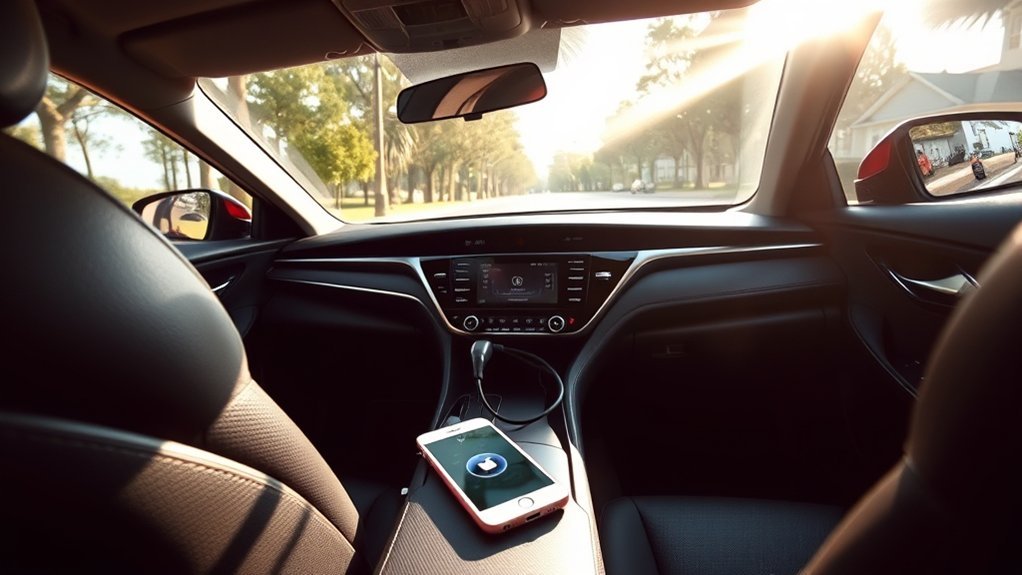
Start by confirming the model year and multimedia system in your Camry. Features can vary by country, trim, production date, and previous software updates, so use the following table as a guide for U.S.-market vehicles and verify your exact vehicle in its multimedia manual.
| Camry model year | Typical CarPlay availability | Connection method |
|---|---|---|
| 2017 and older | No Toyota factory CarPlay support | A compatible aftermarket receiver is normally required |
| 2018 | Certain U.S. vehicles are eligible for Toyota’s dealer-installed multimedia software enhancement | Wired after the enhancement is installed |
| 2019–2024 | Factory Apple CarPlay on U.S.-market Camrys | Generally wired through the USB media port |
| 2025–2026 | Standard wireless Apple CarPlay on U.S.-market Camrys | Wireless or compatible USB connection |
Toyota’s U.S. program allows eligible 2018 Camrys to receive a software enhancement at a dealer. The program and price can differ outside the United States, so contact Toyota or a local dealer with the VIN before assuming a 2018 vehicle can be upgraded. Toyota describes the enhancement in its official 2018 Camry retrofit announcement.
Prepare the iPhone
- Use an iPhone shown on Apple’s current CarPlay compatibility page.
- Install the latest iOS version available for that iPhone.
- Turn on Siri under Settings > Apple Intelligence & Siri or Settings > Siri & Search, depending on the iPhone and iOS version.
- Check Settings > Screen Time > Content & Privacy Restrictions. If restrictions are enabled, make sure CarPlay is allowed under Allowed Apps or Allowed Apps & Features.
- For wireless CarPlay, turn on both Bluetooth and Wi-Fi.
Choose the Correct USB Cable
For wired CarPlay, use a short, direct cable that supports data transfer. Use a Lightning cable with an iPhone that has a Lightning connector and a USB-C cable with an iPhone that has a USB-C connector. Match the other end of the cable to the Camry’s USB media port.
A phone can charge through a damaged or charge-only cable even though CarPlay cannot exchange data. If the iPhone charges but CarPlay does not appear, test a different data-capable cable before changing other settings.
Pro Tip: Connect to the USB media port identified by a smartphone, CarPlay, or media symbol. Other console or rear-seat ports may provide charging only.
Connect Your iPhone to the Toyota Camry
Place the Camry in Park, switch on the vehicle or multimedia system, unlock the iPhone, and use the method supported by your Camry.
Set Up Wired Apple CarPlay
- Confirm that Siri is enabled on the iPhone.
- Connect the iPhone directly to the Camry’s USB media port with a data-capable cable.
- Watch the multimedia display for a CarPlay prompt. Select Yes, Enable Once, or Always Enable, depending on the system.
- On the iPhone, tap Allow when asked whether CarPlay may operate while the phone is locked.
- If the CarPlay home screen does not open automatically, select the Apple CarPlay icon on the multimedia display.
Toyota’s wired instructions for earlier multimedia systems specify the USB media port, an Apple-approved cable, Siri, and the “Always Enable” permission. The exact words and screen appearance can vary by model year.
Set Up Wireless Apple CarPlay
Use these instructions only if the Camry’s multimedia system supports wireless CarPlay, including U.S.-market 2025 and 2026 Camrys.
- Turn on Bluetooth, Wi-Fi, and Siri on the iPhone.
- On the Toyota multimedia display, open Settings and then Bluetooth & Devices.
- Select Add Device or the equivalent pairing option.
- Select the iPhone and confirm that the pairing code shown on both screens matches.
- Choose Use for Apple CarPlay or select Yes when the system asks whether to enable CarPlay.
- On the iPhone, allow CarPlay to operate while the phone is locked.
- Select the Apple CarPlay icon on the Toyota screen if the interface does not launch automatically.
Note: Ordinary Bluetooth audio pairing is not the same as wireless CarPlay. A wired-only Camry will not gain wireless CarPlay merely because the iPhone is paired over Bluetooth.
Complete the Initial Setup for Apple CarPlay
During the first connection, the Camry and iPhone may show several permissions. Read each prompt before accepting it.
| Prompt or action | What it does |
|---|---|
| Enable Once | Permits CarPlay for the current connection without automatically enabling it on every drive. |
| Always Enable | Allows the Camry to launch CarPlay automatically when the phone reconnects. |
| Allow while locked | Lets CarPlay operate without requiring the iPhone to remain unlocked. |
| Sync contacts or favorites | Supports calling and contact access. Review the permission according to your privacy preference. |
| Use for Apple CarPlay | Assigns the paired iPhone as a CarPlay device rather than a Bluetooth-audio-only device. |
CarPlay itself does not require a separate Toyota subscription on an eligible vehicle. However, navigation, music, podcasts, and messaging may use the iPhone’s cellular-data allowance, and some third-party apps require their own subscriptions.
Discover Apple CarPlay Features and Functions
CarPlay displays compatible iPhone apps in a simplified in-vehicle interface. Available functions depend on the iPhone, installed apps, region, data connection, and app permissions.
Navigation and Directions Access
You can use compatible navigation apps such as Apple Maps, Google Maps, and Waze from the Camry’s display. Depending on the app and connection, CarPlay can provide turn-by-turn guidance, estimated arrival times, traffic information, alternative routes, and nearby points of interest.
To request directions without navigating menus, press and hold the voice-command button on the steering wheel until Siri responds, then state the destination. Wake-word activation is also available in vehicles and configurations that support it.
Hands-Free Communication Options
Siri can place calls, read incoming messages, dictate replies, access contacts, and control compatible audio apps. Press and hold the steering-wheel voice-command button to activate Siri. You can also touch and hold the CarPlay dashboard or Home button on the display.
Keep requests brief and avoid reading or entering information on the touchscreen while the Camry is moving. Voice control reduces physical interaction but can still take attention away from driving.
Customize CarPlay Apps and Their Order
While parked, open Settings > General > CarPlay on the iPhone, select the Camry, and tap Customize. You can add or remove supported apps and drag them into the order you want to see on the vehicle display.
Only apps designed to work with CarPlay appear in this list. CarPlay does not mirror every iPhone app, and it does not provide normal video-app playback while driving.
Return to the Toyota Multimedia System
To leave CarPlay without disconnecting the phone, select the Toyota icon inside CarPlay or use the Camry’s Menu or Home control and choose the Toyota audio, settings, or vehicle screen you want to open. The wording depends on the multimedia generation.
Troubleshoot Apple CarPlay Connection Issues
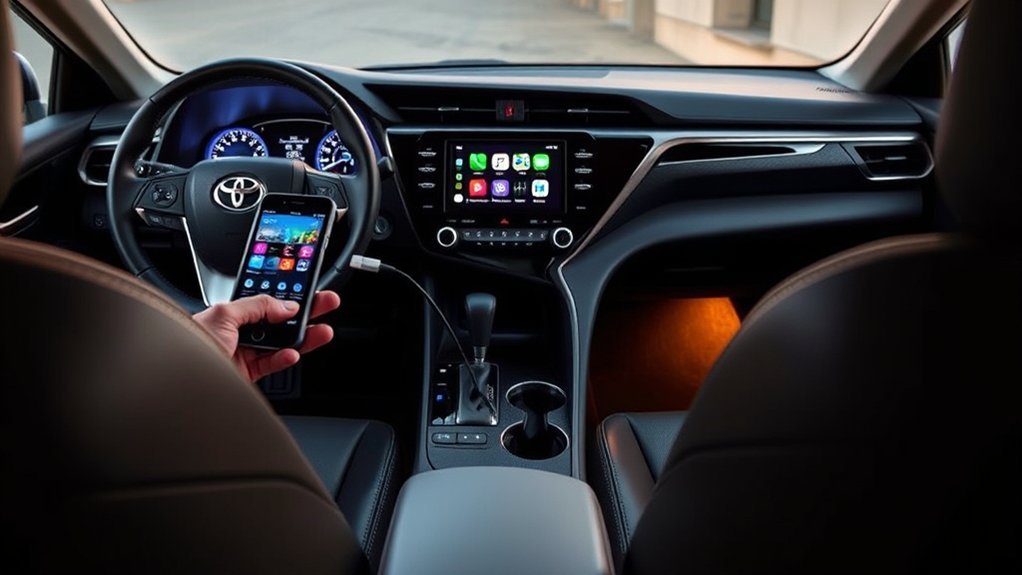
Check CarPlay after each troubleshooting step. Changing one item at a time helps identify the actual cause.
| Symptom | Checks and fixes |
|---|---|
| The phone charges, but CarPlay does not appear | Use the USB media port, unlock the iPhone, try another data-capable cable, and look for the CarPlay icon on the Toyota display. |
| Wired CarPlay disconnects over bumps | Replace the cable, remove adapters where possible, inspect both connectors, and carefully clear lint or debris from the iPhone port. |
| Wireless CarPlay will not connect | Confirm the Camry supports wireless CarPlay, turn on Bluetooth and Wi-Fi, enable Auto-Join for the CarPlay network, and check that the iPhone is set to “Use for Apple CarPlay.” |
| CarPlay worked before but has disappeared | Restart the iPhone and Camry, update iOS, open the CarPlay icon manually, and confirm that CarPlay is not blocked by Screen Time restrictions. |
| Siri does not respond | Enable Siri in iPhone settings, verify that the phone has a data connection when needed, and press and hold rather than briefly tap the steering-wheel voice button. |
| The wrong phone connects automatically | Open Bluetooth & Devices on the Toyota screen, change the preferred CarPlay device, disconnect the other phone, or disable automatic CarPlay for that device. |
Forget and Pair the Camry Again
- On the iPhone, open Settings > General > CarPlay.
- Select the Camry and tap Forget This Car.
- Delete the iPhone from the Camry’s Bluetooth & Devices menu.
- Restart both the iPhone and the vehicle.
- Repeat the wired or wireless setup from the beginning.
Check for Multimedia Software Updates
Use Toyota’s official multimedia software update portal to check whether an update is available for a U.S.-market vehicle. Follow only the instructions supplied for the exact model and multimedia unit.
The 2018 CarPlay enhancement is a separate dealer procedure. Do not assume that a general downloadable firmware file will add CarPlay to an unequipped vehicle.
How to Get Help With Your Apple CarPlay Setup
Contact Toyota or a Local Dealership
If the Camry does not show a CarPlay option after the steps above, contact a Toyota dealership in your area. Provide the VIN, model year, trim, multimedia screen size, iPhone model, iOS version, and whether the connection is wired or wireless.
Owners of a 2018 Camry should specifically ask whether the vehicle is eligible for Toyota’s Apple CarPlay multimedia enhancement and whether it has already been installed.
Use Official Online Resources
For vehicle-specific instructions, find the exact guide through Toyota’s owner-manual library. For current iPhone setup and troubleshooting, use Apple’s CarPlay setup guide and CarPlay troubleshooting guide.
Frequently Asked Questions
How do I set up Apple CarPlay on a Toyota Camry?
Park the Camry, enable Siri, and connect the iPhone to the USB media port with a data-capable cable. For a wireless-capable Camry, turn on Bluetooth and Wi-Fi and pair the phone through Bluetooth & Devices. Accept the CarPlay and “Allow while locked” prompts, then select the CarPlay icon.
Why is Apple CarPlay not working in my Toyota Camry?
Check the model-year compatibility, use the USB media port, test another data cable, enable Siri, remove Screen Time restrictions, and restart both devices. For wireless CarPlay, confirm that Wi-Fi and Bluetooth are on. If needed, forget the Camry on the iPhone and pair it again.
How do I activate Apple CarPlay after connecting the phone?
Select “Yes,” “Enable Once,” or “Always Enable” on the Toyota screen and tap “Allow” on the iPhone when asked whether CarPlay may run while locked. If it does not launch automatically, select the Apple CarPlay icon on the multimedia display.
Does a 2018 Toyota Camry have Apple CarPlay?
Apple CarPlay was not simply standard on every 2018 Camry. Toyota offered a dealer-installed multimedia software enhancement for eligible 2018 U.S. Camrys. Contact Toyota or a dealer with the VIN to confirm eligibility and whether the enhancement has already been installed.
Which Toyota Camry years have wireless Apple CarPlay?
U.S.-market 2025 and 2026 Camrys have standard wireless Apple CarPlay. Earlier 2019–2024 Camrys generally use wired CarPlay, and an eligible retrofitted 2018 Camry uses a wired connection. Equipment can differ in other markets.
Can I add Apple CarPlay to an older Toyota Camry?
Certain 2018 Camrys may qualify for Toyota’s software enhancement. For most 2017-or-older Camrys, adding CarPlay requires a compatible aftermarket receiver. Confirm that the installation will retain required features such as the backup camera, steering-wheel controls, factory amplifier, and vehicle settings.
Does Apple CarPlay require a subscription in a Toyota Camry?
Toyota does not charge a separate CarPlay subscription fee on an eligible vehicle. The iPhone may use cellular data, and services such as music streaming or premium navigation apps may require their own subscriptions.
Conclusion
Setting up Apple CarPlay in a Toyota Camry is straightforward once you match the instructions to the vehicle’s model year. Certain 2018 Camrys need a dealer enhancement, 2019–2024 models generally use the USB media port, and 2025–2026 models support wireless CarPlay. Use a compatible iPhone, the correct data cable when required, and complete all permissions while parked.
If CarPlay does not appear, start with the connection method, USB media port, cable, Siri, Wi-Fi, Bluetooth, and Screen Time settings before resetting the pairing. A model-specific Toyota multimedia manual or local dealership can confirm equipment that cannot be identified from the screen alone.
Sources
- Apple Support: Use CarPlay with your iPhone — official wired and wireless setup instructions.
- Apple Support: If you need help with CarPlay — connection, restriction, re-pairing, and software troubleshooting.
- Toyota Support: How do I set up Apple CarPlay? — Toyota’s first-time setup process.
- Toyota: 2018 Camry CarPlay Multimedia Enhancement — eligibility and dealer-installed software information.
- Toyota: 2025 Camry Technology — standard wireless Apple CarPlay information.
- Toyota: 2026 Camry Technology — continued standard wireless Apple CarPlay compatibility.
