Last Updated: September 22, 2026
If Android Auto is not working in your Toyota Camry, first confirm that the car actually supports the connection type you are trying to use. In the U.S., Toyota added standard factory Android Auto to the 2020 Camry, while the 2025 and 2026 Camry support standard wireless Android Auto. On a compatible Camry, the fastest fixes are to use the correct media USB port and a short data cable for wired connections, make sure Android Auto is enabled, restart both systems, and rebuild the saved phone connection.
Quick Answer
If Toyota Camry Android Auto is not working, park the car and check compatibility first. For a wired connection, use the designated media USB port and a short data-capable cable. Then confirm Android Auto is enabled, restart the phone and multimedia system, delete the saved connection on both sides, and pair again. If two known-good phones or cables fail in the same Camry, the vehicle-side port, settings, firmware, or head unit needs closer diagnosis.
Key Takeaways
- For U.S.-market Camrys, factory Android Auto became standard for 2020; 2025 and 2026 models support standard wireless Android Auto. Other markets and head units can differ.
- For wired Android Auto, use the designated media/data USB port and a short, high-quality data cable without a hub or extension.
- Wireless Android Auto is not ordinary Bluetooth. Initial pairing uses Bluetooth, while the projected interface also depends on Wi-Fi and a compatible wireless head unit.
- If basic fixes fail, test a second cable and phone to determine whether the fault is in the phone, port, cable, or Camry multimedia system.
At a Glance
| Time Required | 10–30 minutes for basic diagnosis |
| Difficulty | Easy; no mechanical work normally required |
| Tools Needed | Compatible Android phone, short data-capable USB cable, flashlight, and optional second phone or cable |
| Cost | Usually $0 for basic checks; cable, adapter, diagnostic, or repair costs vary |
Warning: Perform pairing, menu changes, cable inspection, and resets only while the Camry is safely parked. Do not look at or operate the phone while driving. Never insert a metal tool or liquid cleaner into a USB port.
Does Your Toyota Camry Support Android Auto?
For U.S.-market Camrys, Toyota’s own model information provides a clearer starting point than a generic compatibility claim. Toyota listed Android Auto as unavailable on the 2019 Camry, then announced standard Android Auto compatibility for the 2020 Camry. The redesigned 2025 Camry introduced standard wireless Android Auto, and Toyota lists the same standard wireless compatibility for 2026. If your Camry was sold outside the U.S. or has a replaced head unit, verify the exact multimedia manual because regional equipment can differ.
| U.S. Camry Model Year | Factory Android Auto Status | What to Check |
|---|---|---|
| 2019 | Not listed as factory-compatible by Toyota | Do not assume a USB port adds Android Auto; verify any aftermarket or region-specific equipment |
| 2020 | Standard Android Auto added | Use the USB media/data connection described in the vehicle guide |
| 2021–2024 | Android Auto compatibility continued; Toyota’s 2024 materials specifically identify wired Android Auto | Check the exact year’s multimedia guide before troubleshooting wireless operation |
| 2025–2026 | Standard wireless Android Auto | For wireless setup, Bluetooth starts pairing and Wi-Fi carries the projected connection |
Sources: Toyota’s 2019 Camry comparison, 2020 Camry announcement, 2024 Camry overview, 2025 Camry announcement, and 2026 Camry technology overview. For setup and feature behavior, see our Toyota Camry Android Auto explained guide.
Why Your Android Auto Might Not Be Working
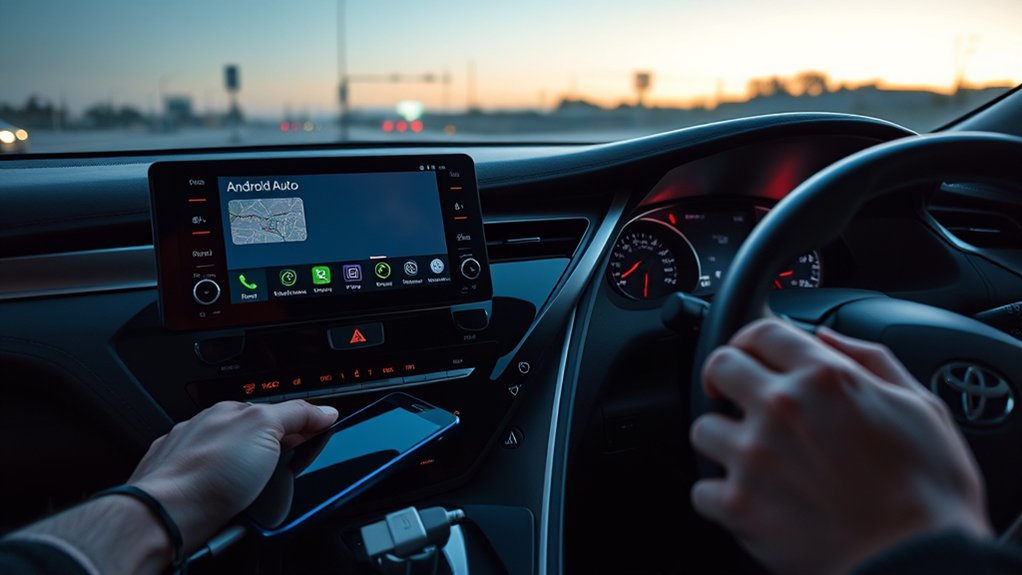
Android Auto depends on several systems working together: the phone, its Android software, the USB or wireless connection, and the Camry’s multimedia unit. A failure at any one of these points can stop Android Auto from starting, make it disconnect repeatedly, or leave the phone charging without displaying the Android Auto interface.
The symptom often provides the fastest clue:
| Symptom | Likely Area | First Check |
|---|---|---|
| The phone charges, but Android Auto does not open | Charging-only port, cable, permission prompt, or incompatible head unit | Use the media USB port and a verified data cable |
| Android Auto connects and disconnects | Loose plug, damaged cable, dirty port, or software fault | Try a short replacement cable and inspect both ports |
| Bluetooth calls work, but Android Auto does not | Android Auto compatibility or projection setup | Confirm wired or wireless Android Auto support for the exact head unit |
| Wired Android Auto works, but wireless does not | Wireless compatibility, Bluetooth pairing, or Wi-Fi | Verify that the Camry supports wireless Android Auto |
| The Android Auto icon is missing | Feature disabled or unsupported multimedia unit | Check the Camry’s projection or smartphone settings and exact manual |
A working USB charging port does not prove that a vehicle supports Android Auto. The car or aftermarket receiver must explicitly support Android Auto projection.
What Does Android Auto Require on a Toyota Camry?
Before changing advanced settings, confirm the basic requirements. According to Google’s current Android Auto requirements, wired Android Auto needs an Android phone running Android 9 or later, an active data plan, a compatible vehicle or stereo, and a high-quality USB cable.
Wireless Android Auto requires all of the following:
- An Android phone running Android 11 or later
- 5 GHz Wi-Fi support on the phone
- A Camry multimedia unit or aftermarket receiver that specifically supports wireless Android Auto
- Bluetooth, Wi-Fi, and Location Services enabled during initial setup
- An active mobile data plan for connected navigation and online services
Android Auto is integrated into supported Android phones, so a separate app download is not normally required. Android Go edition devices are not supported. Keep Android, Google Play services, Android Auto components, and phone security updates current when updates are offered.
Note: Android Auto availability can differ by country, model year, trim, and installed multimedia unit. Confirm your exact Camry through the Toyota manuals portal, the vehicle’s multimedia settings, or a Toyota dealer.
Common Reasons Your Toyota Camry Android Auto Isn’t Working
The most common causes fall into two groups: an unstable physical or wireless connection, and a compatibility or configuration conflict. Start with the simple checks before clearing data or resetting any system.
Connection Stability Issues
A wired Android Auto connection may fail when the cable is too long, damaged internally, designed only for charging, or loose in either port. Lint in the phone’s USB-C socket can also stop the plug from seating fully. A phone case may prevent the connector from entering all the way.
Wireless Android Auto can fail when an old Bluetooth profile is corrupted, Wi-Fi is disabled, the phone is connected to a competing hotspot, or the Camry supports wired Android Auto but not wireless projection. Ordinary Bluetooth calling and music may continue working because those features do not use the complete Android Auto connection.
Compatibility and Settings Conflicts
Do not use a blanket model-year rule such as “all 2016 or newer Camrys.” Instead, verify the exact model year, market, trim, and multimedia unit. The Android Auto vehicle compatibility database is a useful starting point, but Google also recommends confirming the exact vehicle with its manufacturer.
Android Auto may also be disabled in the Camry’s projection or smartphone settings. On the phone, a first-time connection can remain incomplete if the device is locked or if setup prompts were dismissed. When the phone presents a USB preference, choose Android Auto or a data-transfer option rather than charging only. Manually forcing MTP is not a universal requirement.
Battery optimization, background restrictions, work-profile security policies, or a managed corporate phone can sometimes interfere with connection services. Treat these as secondary checks after compatibility, cable, port, and pairing issues have been ruled out.
Try These Android Auto Fixes in Order
- Park the Camry and unlock the phone. Keep the infotainment system on and allow time for all setup prompts to appear.
- Verify exact compatibility. Check the multimedia manual or Toyota support information for the vehicle’s model year and head unit.
- Restart both systems. Restart the phone, turn the Camry off, open and close the driver’s door if appropriate, and then restart the vehicle.
- Confirm Android Auto is enabled. Look for Android Auto, smartphone projection, or projection settings in the multimedia system.
- For wired use, change the cable and verify the port. Use the designated media/data port rather than a charging-only outlet.
- Forget and reconnect the vehicle. Remove the Camry from Android Auto’s previously connected cars and remove the phone from the Toyota Bluetooth device list.
- Update the phone. Install available Android, Google Play system, Google Play services, Android Auto, and phone-manufacturer updates.
- Clear Android Auto’s cache. Clear storage only if the cache reset and reconnection do not work.
- Test a second cable or phone. This determines whether the fault follows the phone or remains with the Camry.
- Seek service if the fault stays with the car. A damaged media port, frozen head unit, or required firmware update may need Toyota or installer support.
Why Does My Phone Charge but Android Auto Not Start?
For wired Android Auto, the USB connection must carry stable data—not merely electrical power. Use the port identified for media or smartphone projection in the Camry’s manual. Other console ports may be intended only for charging.
Inspect USB Cable Quality
Google recommends a high-quality cable that is less than 3 feet or 1 meter long. Avoid USB hubs, adapters, and extension cables while diagnosing the connection. The cable supplied by the phone manufacturer is a good first test when it has the correct connectors.
| Cable Condition | Data Capability | Recommended Action |
|---|---|---|
| Short, high-quality cable | Confirmed | Use for testing |
| Charging-only cable | No | Replace with a data cable |
| Frayed, bent, or loose cable | Unreliable | Replace immediately |
| Cable used with a hub or extension | May be unstable | Connect directly |
| Unknown cable | Unknown | Test a second verified cable |
Inspect the phone and vehicle ports with a flashlight. If the connector does not seat firmly, turn the devices off and have the port cleaned or repaired safely. Do not scrape a port with a pin, paper clip, or other metal object.
Pro Tip: If Android Auto disconnects when the phone or cable moves, suspect a loose connector, compacted lint, worn cable end, or damaged USB port before changing software settings.
Verify Connection Settings
After connecting the phone to the correct media port:
- Unlock the phone and keep its screen on during first-time setup.
- Accept the Android Auto terms, permissions, and pairing prompts.
- If a USB notification appears, select Android Auto or an option that permits data transfer rather than charging only.
- Confirm that Android Auto or smartphone projection is enabled in the Camry’s multimedia settings.
- Disconnect other phones temporarily so the system does not automatically select the wrong device.
- Remove any USB hub, splitter, extension, or wireless adapter during testing.
If the phone previously worked with another vehicle, open the Android Auto settings on the phone, find Previously connected cars, choose Forget all cars, and then connect the Camry again. Menu names can vary by phone manufacturer and Android version.
Should You Clear Android Auto Cache or Update the Phone?
A corrupted temporary file can prevent Android Auto from launching correctly. On many phones, the typical path is Settings > Apps > See all apps > Android Auto > Storage and cache. Some phones require you to display system apps before Android Auto appears.
- Disconnect the phone from the Camry.
- Open Android Auto’s app information screen.
- Tap Clear cache.
- Restart the phone and reconnect it while the Camry is parked.
- If the problem continues, return to the same screen and use Clear storage or Clear data.
Clearing storage is a deeper reset. It can remove previously connected cars, launch preferences, and permission choices, so Android Auto will need to be configured again.
Also install available updates for:
- The Android operating system
- Google Play services
- The Google Play system
- Android Auto components shown in Google Play
- The phone manufacturer’s security and firmware packages
If the problem began immediately after an update, restart the phone once more after all pending updates finish. Testing with another compatible phone can show whether the issue is specific to the updated device.
What to Do When Wireless Android Auto or Bluetooth Pairing Fails
Bluetooth has two different roles in this situation. It can provide ordinary hands-free calls and audio streaming, and it is also used to begin wireless Android Auto setup. However, Bluetooth alone does not project Android Auto onto the Camry’s display. Wireless Android Auto also uses Wi-Fi.
Follow these steps while parked:
- Confirm that the exact Camry multimedia unit supports wireless Android Auto, not only wired Android Auto.
- Turn on Bluetooth, Wi-Fi, mobile data, and Location Services on the phone.
- Turn off the phone’s mobile hotspot temporarily.
- Delete the Camry from the phone’s Bluetooth list.
- Delete the phone from the Camry’s saved-device list.
- Restart the phone and the multimedia system.
- Pair the phone again through the Camry’s add-device or phone menu.
- Accept the Android Auto prompts on both screens.
- Tap the Android Auto icon on the vehicle display if it does not open automatically.
If wired Android Auto works but wireless Android Auto never appears, the factory head unit may support wired projection only. A wireless adapter normally converts an existing wired Android Auto connection; it does not add Android Auto to a radio that lacks Android Auto support entirely. If ordinary calls or audio pairing are also failing, troubleshoot the underlying connection separately with our Toyota Camry Bluetooth troubleshooting guide.
What If the Camry Head Unit Does Not Support Android Auto?
Older Camry multimedia systems may provide Bluetooth calling, Bluetooth audio, or USB playback without supporting Android Auto projection. Confirm the exact equipment through the vehicle’s multimedia manual rather than relying only on its model year.
If the factory unit is incompatible, the practical options are:
- Continue using the factory Bluetooth and audio features
- Use a securely mounted phone for navigation where permitted by local law
- Install an Android Auto-compatible aftermarket receiver
- Use a separate dashboard display designed for Android Auto
An aftermarket receiver should be selected carefully. Verify compatibility with the Camry’s steering-wheel controls, factory amplifier, JBL system if equipped, microphone, backup camera, vehicle settings, dashboard trim, and any original safety-related display functions. Professional installation is advisable when wiring interfaces or factory equipment must be retained.
For factory-system support, use Toyota’s Audio Multimedia and Connected Services resources or the vehicle-specific owner’s manual. For an aftermarket receiver, obtain firmware and troubleshooting instructions from the receiver manufacturer.
Is the Problem the Phone, Cable, or Camry?
Changing one component at a time prevents unnecessary resets and repair costs.
| Test | Result | What It Suggests |
|---|---|---|
| Use a second verified data cable | Android Auto begins working | The original cable is faulty or unstable |
| Use a second compatible Android phone | The second phone works | The issue is likely in the first phone or its settings |
| Use the original phone in another compatible car | The phone works elsewhere | The Camry port, settings, or head unit needs attention |
| Test two phones and two cables in the Camry | None work | Compatibility, port damage, firmware, or head-unit failure is likely |
| Wiggle-free direct connection still drops | Disconnections continue | Software or head-unit service may be required |
Community Tips for Fixing Android Auto Issues
These practical checks can resolve less obvious connection problems after the official compatibility, cable, pairing, and update steps have been completed:
- Remove a thick phone case temporarily so the USB plug can seat fully.
- Disconnect unused phones from the Camry during setup.
- Do not diagnose through a USB splitter, hub, extension, or wireless adapter.
- Allow every first-time permission prompt while the vehicle is parked.
- Check whether the Android Auto icon must be selected manually on the multimedia display.
- Temporarily remove aggressive battery restrictions from Android Auto and Google Play services if the phone manufacturer applies them.
- Use a direct wired connection to establish whether the basic Android Auto system works before troubleshooting wireless projection.
- Avoid a full multimedia-system factory reset unless the exact owner’s manual or Toyota support recommends it.
Contact Toyota, a qualified repair facility, or the aftermarket receiver installer when:
- The exact manual confirms Android Auto support, but the feature never appears
- Multiple compatible phones and cables fail in the same Camry
- The media USB port is loose, damaged, corroded, or does not retain the plug
- The multimedia system freezes, repeatedly reboots, or loses other functions
- A firmware update or diagnostic procedure is required
- The problem began after head-unit, amplifier, dashboard, battery, or electrical work
Frequently Asked Questions
What causes Android Auto to stop working?
Common causes include an incompatible or disabled head unit, a charging-only or damaged USB cable, use of the wrong USB port, an incomplete connection profile, outdated phone software, a damaged connector, or a wireless pairing and Wi-Fi problem. Test the simple physical connections before clearing data or resetting systems.
How do I reset Android Auto on a Toyota?
Disconnect the phone, restart the phone and Camry, remove the vehicle from Android Auto’s previously connected cars, remove the phone from the Toyota device list, and then pair or connect it again while parked. If necessary, clear Android Auto’s cache. Clear storage only as a deeper reset because it removes saved connection information.
Why does my Toyota Android Auto keep disconnecting?
Repeated disconnections commonly point to a worn cable, loose plug, dirty or damaged USB port, phone case interference, unstable wireless pairing, or software trouble. Start with a short replacement data cable connected directly to the media USB port, then test another phone to isolate the cause.
How do I turn on Android Auto in a Toyota Camry?
Park the Camry, turn on the multimedia system, enable Android Auto or smartphone projection in its settings, and connect a compatible unlocked phone to the designated media USB port. For a Camry that supports wireless Android Auto, enable Bluetooth, Wi-Fi, mobile data, and Location Services, then add the phone through the vehicle’s pairing menu.
Does every Toyota Camry support Android Auto?
No. Availability varies by country, model year, trim, and installed multimedia system. Bluetooth, USB charging, or a touchscreen does not prove Android Auto compatibility. Check the exact vehicle’s multimedia manual, Toyota support resources, or a Toyota dealer.
Why does Bluetooth work when Android Auto does not?
Bluetooth calling and audio are separate from Android Auto projection. Wired Android Auto needs a compatible data connection through the media USB port. Wireless Android Auto begins with Bluetooth pairing but also requires Wi-Fi and a head unit that specifically supports wireless projection.
Can Android Auto be added to an older Camry?
An older Camry can often gain Android Auto through a compatible aftermarket receiver or separate Android Auto display. Before installation, confirm compatibility with the factory amplifier, steering-wheel controls, microphone, backup camera, dashboard trim, and vehicle settings. A wireless adapter alone normally requires an existing wired Android Auto system.
Does a 2019 Toyota Camry have factory Android Auto?
For the U.S. market, Toyota did not list Android Auto as available on the 2019 Camry. Toyota added standard Android Auto compatibility for the 2020 Camry. A 2019 car may have different equipment if it was modified with an aftermarket receiver, so inspect the installed head unit rather than assuming support from the USB port alone.
Why does my phone charge but Android Auto not work?
Charging proves that power is reaching the phone, not that the connection is carrying usable data or that the head unit supports Android Auto. Use the designated USB media port, connect directly with a short high-quality data cable, unlock the phone, accept setup prompts, and confirm Android Auto is enabled in the Camry.
Conclusion
When Android Auto is not working in a Toyota Camry, begin with compatibility and connection type. In the U.S., factory Android Auto started with the 2020 Camry, while 2025 and 2026 models support standard wireless Android Auto. On a compatible car, work through the connection in a controlled order: restart both systems, enable projection, use the correct media port for wired use, test a short data cable, rebuild the saved connection, update the phone, and clear the cache if needed.
If another compatible phone and cable also fail in the same Camry, the problem is more likely to involve the media port, multimedia settings, firmware, or head unit. At that point, consult the exact Toyota manual or arrange qualified service instead of repeatedly resetting the phone.
Sources
- Google Android Auto Help: Get started with Android Auto — phone, data-plan, cable, wired, and wireless requirements
- Google Android Auto Help: Set up Android Auto — official wired and wireless setup sequence and safety guidance
- Google Android Auto Help: Android Auto is not working — compatibility, cable length, direct-connection, receiver, and previously connected car guidance
- Android Auto vehicle compatibility list — manufacturer-level compatibility reference
- Toyota Audio Multimedia and Connected Services — Toyota Android Auto setup and multimedia support
- Toyota Manuals and Warranties — vehicle-specific multimedia and feature documentation
- Toyota: 2019 Camry comparison — Android Auto listed as unavailable on the U.S.-market 2019 Camry
- Toyota USA Newsroom: 2020 Camry — standard Android Auto added for the U.S.-market 2020 Camry
- Toyota USA Newsroom: 2024 Camry — wired Android Auto compatibility
- Toyota USA Newsroom: 2025 Camry — standard wireless Android Auto on the redesigned Camry
- Toyota USA Newsroom: 2026 Camry — standard wireless Android Auto and USB-port layout

