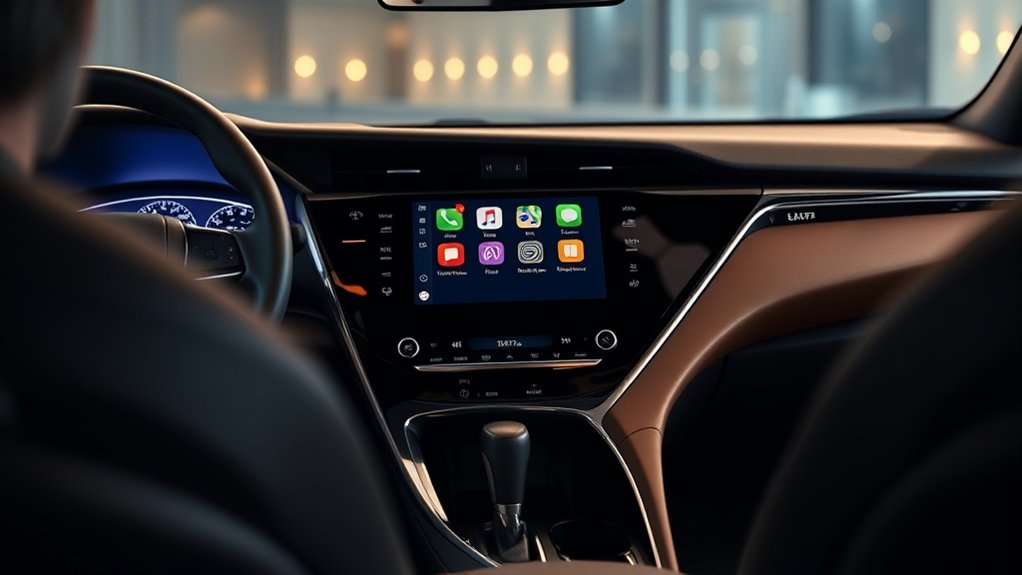
Toyota Camry Apple CarPlay setup depends on the model year and multimedia system. Eligible 2018 U.S. Camrys need Toyota’s dealer-installed multimedia enhancement, 2019–2024 factory systems use wired CarPlay through the USB media port, and 2025–2026 U.S. Camrys include standard wireless Apple CarPlay. Once connected, CarPlay provides supported iPhone navigation, calls, messages, podcasts, and music on the Camry display.
Last updated: September 19, 2026. Model-year guidance below applies primarily to U.S.-market Camrys with their original Toyota multimedia systems.
Quick Answer
To use Apple CarPlay in a Toyota Camry, first match the setup to the model year: an eligible 2018 may need Toyota’s dealer enhancement, 2019–2024 models normally connect through the USB media port, and 2025–2026 models support standard wireless CarPlay. Enable Siri, connect or pair the iPhone, accept the prompts on both screens, allow CarPlay while the phone is locked, and open the CarPlay icon.
Key Takeaways
- Eligible 2018 U.S. Camrys can receive Toyota’s dealer-installed CarPlay multimedia enhancement; Toyota says the enhancement program has no expiration.
- All 2019 U.S. Camry grades were factory CarPlay-compatible, and later U.S. Camrys continue that support.
- Factory CarPlay is normally wired on the 2019–2024 Camry; the 2025 and 2026 Camry support standard wireless CarPlay.
- A phone can charge without launching CarPlay if you use a charge-only port or a cable that cannot transfer data.
- CarPlay uses Siri—not Google Assistant—for calls, messages, music, and supported navigation commands.
- Toyota Connected Services operate mainly through the Toyota app and the vehicle’s native multimedia system; they are separate from the CarPlay interface.
Choose the Correct Setup Path
| 2018 Camry | Confirm that Toyota’s dealer-installed multimedia enhancement is present; eligible vehicles can still receive it |
| 2019–2024 Camry | Use wired CarPlay through the USB media port with a data-capable cable |
| 2025–2026 Camry | Use standard wireless CarPlay with Siri, Bluetooth, and Wi-Fi enabled |
| First-time setup | Park the vehicle, enable Siri, accept the CarPlay prompts, and allow CarPlay while the iPhone is locked |
| Toyota CarPlay fee | No separate CarPlay subscription on an eligible factory-equipped vehicle; Toyota directs 2018 owners to a dealer for enhancement pricing |
Warning: Park the Camry before pairing a phone, changing multimedia settings, or arranging apps. Voice control reduces the need to handle the phone, but it does not replace attentive driving or compliance with local distracted-driving laws.
What Is Apple CarPlay and How Does It Work in the Camry?
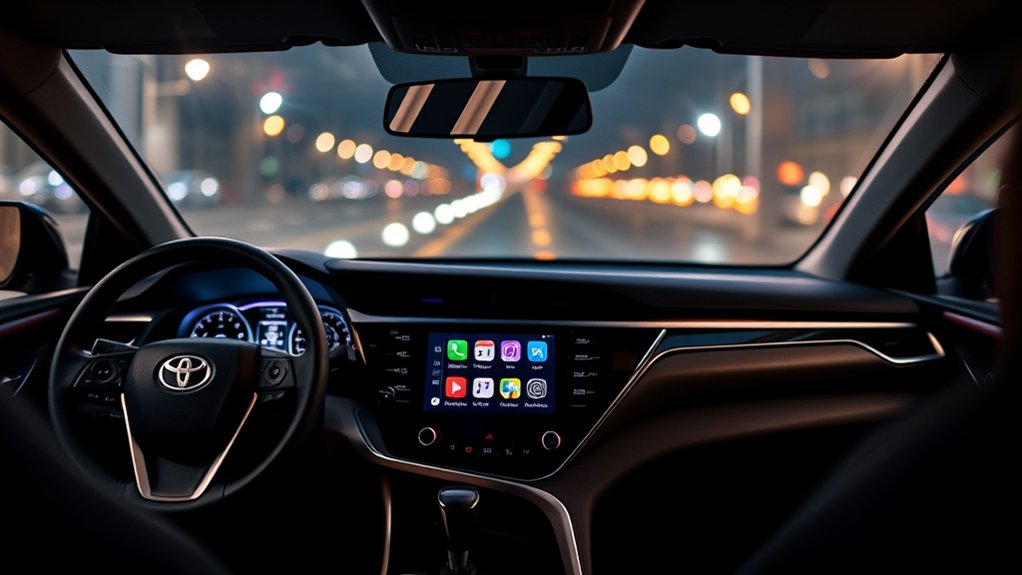
Apple CarPlay is a driving-focused interface that displays supported iPhone functions on the Toyota Camry’s multimedia screen. It does not duplicate every screen or app on the iPhone. Instead, it provides simplified access to compatible navigation, audio, calling, calendar, and messaging apps.
Depending on the Camry’s multimedia system, you can control CarPlay with the touchscreen, steering-wheel controls, Siri, and physical audio controls. You can use Apple Maps and other compatible navigation apps for turn-by-turn directions and traffic information, make or receive calls, hear and dictate messages, and play music, audiobooks, or podcasts.
For a wired connection, the iPhone sends data through the Camry’s USB media port. Wireless CarPlay initially uses Bluetooth to discover and pair the iPhone, then uses Wi-Fi for the active CarPlay connection. Bluetooth alone does not provide the full wireless CarPlay interface.
CarPlay generally uses the iPhone’s cellular connection for live traffic, searches, streaming, messages, and other online features. Availability and performance can therefore depend on cellular service, GPS reception, the app, and the phone’s data plan. Apple explains the supported functions in its official CarPlay setup guide.
Which Toyota Camry Years Have Apple CarPlay?
The following overview applies primarily to U.S.-market Camry models with their original Toyota multimedia systems. Equipment can differ by country, trim, production date, or an installed aftermarket receiver, so confirm the exact vehicle through its owner’s manual or VIN-specific Toyota information.
| Camry model year | Factory-system CarPlay status | Typical connection |
|---|---|---|
| 2017 and earlier | No factory Apple CarPlay on the original U.S. multimedia system | A compatible aftermarket receiver or standalone display is required |
| 2018 | Not originally enabled, but eligible vehicles can receive Toyota’s dealer-installed multimedia enhancement; Toyota says the enhancement has no expiration | Wired USB after the enhancement |
| 2019–2024 | Factory Apple CarPlay compatibility; Toyota confirmed all 2019 Camry grades were Apple CarPlay-compatible | Normally wired through the USB media port; Toyota’s 2024 Camry guide states that wireless CarPlay is not supported |
| 2025–2026 | Standard wireless Apple CarPlay compatibility | Wireless Bluetooth/Wi-Fi pairing or a supported wired USB connection; Toyota confirms wireless CarPlay for the 2025 Camry and 2026 Camry |
Note: A wireless charging pad does not add wireless CarPlay. The multimedia system itself must support wireless CarPlay, and the phone must first be paired with that system.
How to Connect Your iPhone to Toyota Camry Apple CarPlay
Before connecting, start the Camry and leave it in Park. Use a CarPlay-compatible iPhone with a current supported version of iOS, enable Siri, and accept any software or privacy prompts that appear on the phone or multimedia display.
Apple CarPlay Setup Checklist
- Confirm vehicle support: Check the model-year table above and the vehicle’s multimedia manual.
- Enable Siri: Open the iPhone’s Siri settings and make sure Siri is available.
- Use the correct port: Wired CarPlay requires the USB media or data port, not a charge-only port.
- Use a data cable: Choose a good-quality cable that fits both the iPhone and vehicle port. Older iPhones normally use Lightning; newer iPhones use USB-C.
- Allow locked-screen access: Select “Allow” when the iPhone asks whether CarPlay can work while the phone is locked.
- Enable Bluetooth and Wi-Fi for wireless use: Both must remain available for wireless CarPlay.
How to Connect Wired Apple CarPlay
- Start the Camry and keep the transmission in Park.
- Enable Siri on the iPhone.
- Connect the iPhone directly to the Camry’s USB media port with a data-capable cable. Do not use a USB hub.
- On the Toyota display, select Yes, Enable, or Always Enable when asked to start Apple CarPlay.
- On the iPhone, tap Allow if asked to use CarPlay while the phone is locked.
- Wait for the CarPlay home screen to appear. If the Toyota interface remains visible, tap the Apple CarPlay icon in the multimedia menu.
If the iPhone charges but CarPlay does not open, common causes include a charge-only USB port, a cable that supplies power but not data, disabled Siri, or CarPlay being turned off for that phone in the Toyota multimedia settings.
Pro Tip: For wired CarPlay, connect the iPhone directly with a data-capable USB cable instead of a hub or adapter chain. Apple notes that some adapter, cable, and vehicle combinations can disrupt wired CarPlay; see Apple’s CarPlay troubleshooting guidance.
Get the Most Out of Apple CarPlay Features in Your Camry
Once connected, tap an app on the CarPlay screen or use Siri to control supported functions. The exact app selection depends on what is installed on the iPhone and whether each developer supports CarPlay.
Use Navigation and Live Traffic
Apple Maps can provide turn-by-turn directions, lane guidance, estimated arrival times, and traffic-aware routing when the iPhone has the required network and location access. Other supported navigation apps may also appear in CarPlay.
Ask Siri for a destination with a command such as, “Give me directions to the nearest gas station,” or enter the destination while the vehicle is safely parked. When phone-based route guidance is active, avoid starting a second route in the Camry’s built-in navigation system because one route may replace the other.
Make Calls and Handle Messages
Press and hold the steering-wheel voice-command button to activate Siri, or use the Siri wake phrase when the iPhone and multimedia system support it. Siri can place calls, announce incoming messages, and help dictate replies without requiring you to type on the phone.
Keep requests brief and wait until road conditions allow you to interact safely. Hands-free does not mean distraction-free.
Play Music, Podcasts, and Audiobooks
You can use compatible apps such as Apple Music, Spotify, Podcasts, Audible, and other supported audio services. Some services require their own subscription, and streaming can use mobile data.
Use the Camry’s volume control while music or spoken guidance is playing to adjust the relevant audio level. If Siri or navigation is too quiet, adjust the volume while Siri or the navigation prompt is actively speaking.
Customize the CarPlay App Layout
To add, remove, or rearrange supported apps:
- Open Settings on the iPhone.
- Select General.
- Select CarPlay.
- Choose the Toyota Camry from the saved vehicles.
- Select Customize.
- Drag apps into the preferred order or use the add and remove controls.
Apple provides additional customization guidance in its CarPlay music and app settings documentation.
Reduce Notification Distractions
Use Driving Focus on the iPhone to limit interruptions while driving. You can also adjust whether message announcements and app suggestions appear through CarPlay. Configure these settings before beginning the trip.
Using Wireless Apple CarPlay: A Step-by-Step Guide
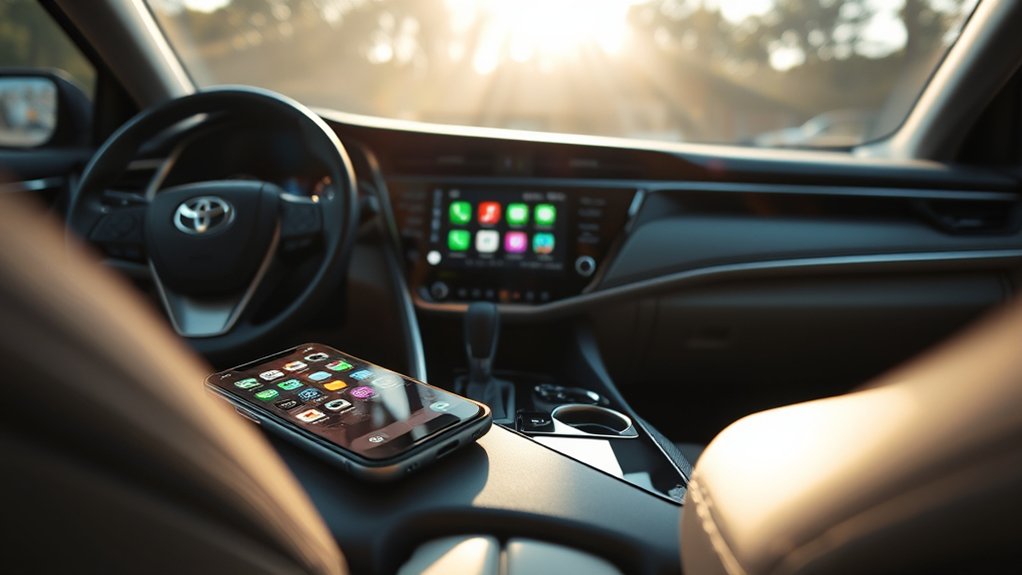
Wireless CarPlay is most relevant to the redesigned 2025 and 2026 U.S. Camry. Do not assume that a Camry has wireless CarPlay merely because it has Bluetooth or a wireless phone charger.
Verify Compatibility Requirements
| Requirement | What to check |
|---|---|
| Camry multimedia system | It must specifically support wireless Apple CarPlay |
| iPhone | Use a CarPlay-compatible iPhone running a current supported iOS version |
| Siri | Siri must be enabled |
| Bluetooth | Turn it on for discovery and initial pairing |
| Wi-Fi | Leave it enabled because wireless CarPlay uses Wi-Fi for the active connection |
Step-by-Step Pairing Process
- Start the Camry and keep it in Park.
- Turn on Siri, Bluetooth, and Wi-Fi on the iPhone.
- On the Toyota multimedia screen, open Settings.
- Select Bluetooth & Devices, then choose Add Another Device or Search for Devices. Menu wording can vary slightly.
- Select the iPhone when its name appears.
- Confirm that the pairing code shown on the Toyota display matches the code on the iPhone.
- Select Yes or Enable Apple CarPlay on the vehicle display.
- Accept the CarPlay prompts on the iPhone, including permission to use CarPlay while the phone is locked.
- Wait for the CarPlay home screen to appear. Future connections should normally occur automatically when the vehicle starts and the phone is nearby.
You can also open Settings > General > CarPlay on the iPhone and select the Camry from the available vehicles when the Toyota system is in pairing mode. Toyota publishes current menu guidance on its Apple CarPlay setup support page.
Utilizing Voice Control Features
Press and hold the steering-wheel voice-command button to activate Siri while CarPlay is connected. Depending on the iPhone settings and multimedia system, you may also be able to say “Hey Siri” or “Siri.”
Useful commands include:
- “Call Alex.”
- “Read my new messages.”
- “Tell Jordan I’ll arrive in 20 minutes.”
- “Navigate home.”
- “Play my road-trip playlist.”
- “Find a coffee shop along my route.”
Wired vs. Wireless CarPlay
| Feature | Wired CarPlay | Wireless CarPlay |
|---|---|---|
| Convenience | Requires plugging in the phone | Usually connects automatically after pairing |
| Charging | Charges the iPhone while connected | Requires a separate cable or charging pad to replenish the battery |
| Connection stability | Often more consistent when the cable and ports are in good condition | Can be affected by pairing problems or wireless interference |
| Battery use | Normally offsets phone battery drain by charging | Navigation and streaming can drain the phone more quickly |
What to Do When Your Apple CarPlay Isn’t Working
Start with the simplest checks before resetting the multimedia system. Apple and Toyota both recommend confirming compatibility, Siri, cable or wireless settings, and current software.
| Symptom | Likely cause | What to do |
|---|---|---|
| The iPhone charges, but CarPlay does not open | Charge-only USB port, charging-only cable, disabled CarPlay, or disabled Siri | Use the USB media port and a data-capable cable; enable Siri and CarPlay for the device |
| CarPlay is missing from the Toyota screen | The phone is paired only for calls or media | Open Bluetooth & Devices, select the iPhone, and turn on “Use for Apple CarPlay” |
| Wireless CarPlay will not connect | Unsupported model, Bluetooth or Wi-Fi disabled, stale pairing, or another phone taking priority | Confirm wireless support, enable Bluetooth and Wi-Fi, disconnect the other phone, and pair again |
| CarPlay repeatedly disconnects | Damaged cable, dirty port, wireless interference, or old pairing data | Try another data cable, clean the ports carefully, restart both systems, or forget and re-pair the vehicle |
| No CarPlay audio | Muted multimedia system, low guidance volume, or unsupported app output | Raise the volume while the relevant audio is playing and test another supported app |
| A 2018 Camry never shows CarPlay | The dealer enhancement may not have been installed | Ask a Toyota dealer to verify whether the eligible multimedia enhancement is present |
Complete Troubleshooting Sequence
- Confirm compatibility. Check that both the iPhone and the exact Camry multimedia system support the requested wired or wireless connection.
- Make sure Siri is enabled. CarPlay may not start correctly when Siri is unavailable.
- Check Screen Time restrictions. On the iPhone, open Settings > Screen Time > Content & Privacy Restrictions > Allowed Apps and make sure CarPlay is permitted.
- Inspect the wired connection. Try another data-capable cable and the correct USB media port. Connect directly without a hub.
- Check wireless settings. Turn on Bluetooth and Wi-Fi, and make sure Airplane Mode is off.
- Restart both systems. Restart the iPhone and restart the Camry, then test CarPlay again.
- Forget the connection. On the iPhone, open Settings > General > CarPlay, select the Camry, and tap Forget This Car. Delete the iPhone from the Toyota device list, then pair it again.
- Update the software. Install current iOS updates and check Toyota’s Audio Multimedia System Updates portal or contact a dealer for vehicle-specific firmware assistance.
- Test without another paired phone. Temporarily disable Bluetooth on other paired phones so the Camry does not connect to the wrong device first.
- Get support. If the problem continues, follow Apple’s CarPlay troubleshooting guide and consult the Camry multimedia manual or a Toyota dealer. If the Toyota screen itself is frozen or unresponsive, use the separate Toyota Camry infotainment reset guide.
How to Switch Between Paired iPhones
A Camry can remember more than one phone, but only one device can actively provide CarPlay at a time. Open the multimedia system’s Bluetooth & Devices menu, select the preferred phone, and enable it for Apple CarPlay. Disconnect or disable CarPlay on the currently active device if the second phone will not connect.
How Toyota Connected Services Work With Apple CarPlay
Apple CarPlay and Toyota Connected Services can be used in the same vehicle, but they are separate systems.
Apple CarPlay displays supported iPhone apps for navigation, calls, messages, and media. Toyota states that CarPlay itself has no additional Toyota subscription fee on an eligible vehicle. Mobile data, premium apps, and streaming services may still have separate charges.
Toyota Connected Services use the Toyota app, the vehicle’s embedded connection, or Toyota’s native multimedia system. Available services depend on the model, equipment, location, enrollment status, trial period, and subscription plan. Toyota describes these services on its official Connected Services page. For a Camry-focused breakdown, see the site’s Toyota Camry Connected Services guide.
- Remote Connect: May provide remote start, remote climate functions, door locking or unlocking, vehicle status, and vehicle-finder features on supported vehicles.
- Service Connect: May provide vehicle health reports, maintenance reminders, warning information, and service-related alerts through the Toyota app or My Toyota.
- Drive Connect: May provide Toyota’s native cloud navigation, Destination Assist, and Intelligent Assistant.
- Safety Connect: May include emergency assistance, automatic collision notification, roadside assistance, and Stolen Vehicle Locator.
Note: Stolen Vehicle Locator is not a standard live-tracking control inside CarPlay. Toyota instructs owners to file a stolen-vehicle police report, provide the report or case number to its response center, and then let response-center agents assist law enforcement using GPS location data.
You may use CarPlay for Apple Maps and entertainment while separately using the Toyota app for supported ownership and remote-vehicle functions. You generally cannot remote-start the Camry, view its health report, or schedule service from inside the standard CarPlay interface.
Apple CarPlay vs. Android Auto: Which Is Best for Your Camry?
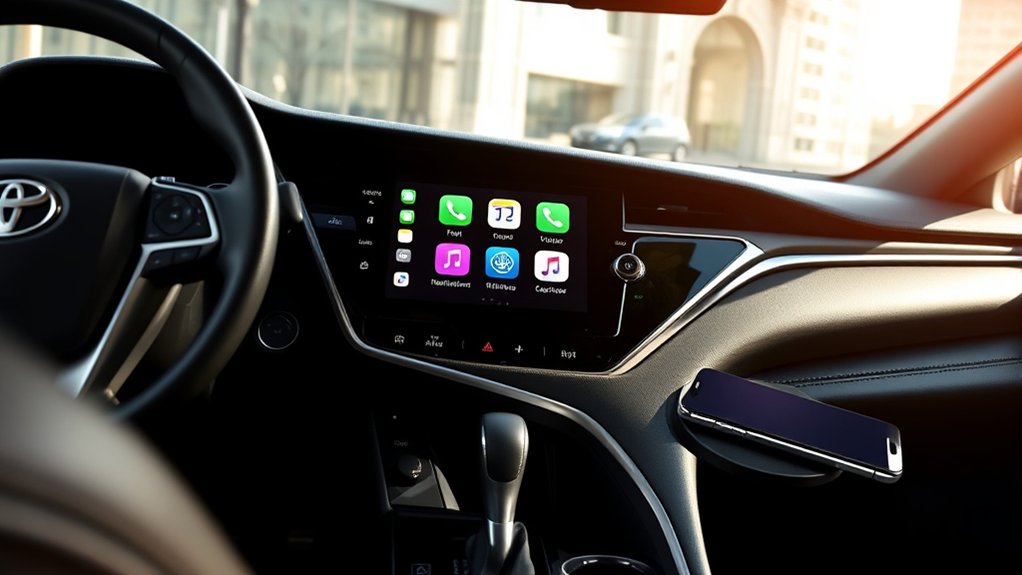
The best choice normally depends on the phone you already use. Apple CarPlay is designed for compatible iPhones, while Android Auto is designed for compatible Android phones. Neither system is universally better for every driver.
| Category | Apple CarPlay | Android Auto |
|---|---|---|
| Compatible phone | iPhone | Android phone |
| Voice control | Siri | Google’s supported voice-assistant experience |
| Navigation | Apple Maps and other supported apps | Google Maps, Waze, and other supported apps |
| Music and audio | Apple Music, Spotify, podcasts, audiobooks, and other supported apps | YouTube Music, Spotify, podcasts, audiobooks, and other supported apps |
| Connection in a 2024 Camry | Wired | Wired |
| Connection in a 2025–2026 Camry | Wireless or supported wired connection | Wireless or supported wired connection |
Choose CarPlay when you use an iPhone and want Siri and your supported iOS apps on the Camry display. Android Auto serves the equivalent role for compatible Android phones. Drivers who frequently switch phones should confirm which device is selected in the Toyota multimedia settings. For the Android side of the system, see Toyota Camry Android Auto explained.
Frequently Asked Questions
How do I use Apple CarPlay in a Toyota Camry?
Enable Siri, then connect the iPhone to the Camry’s USB media port with a data cable. On a Camry that supports wireless CarPlay, pair the phone through the Toyota Bluetooth & Devices menu with Bluetooth and Wi-Fi enabled. Accept the prompts and tap the CarPlay icon.
How exactly does Apple CarPlay work?
CarPlay sends a simplified interface for supported iPhone apps to the vehicle display. A wired connection carries data through USB. Wireless CarPlay uses Bluetooth for initial discovery and Wi-Fi for the active connection. Online features use the iPhone’s cellular data and GPS access.
How should I use Apple CarPlay without creating extra distraction?
Complete pairing, app arrangement, and destination entry while parked. Use Siri and the steering-wheel controls for brief commands, enable Driving Focus, and avoid reading or changing settings while the vehicle is moving.
Is there a monthly fee for Apple CarPlay?
Toyota does not charge an additional CarPlay subscription fee on an eligible factory-equipped vehicle. Your cellular plan, streaming services, paid apps, and optional Toyota Connected Services can have separate charges.
Which Toyota Camry model years have Apple CarPlay?
Eligible 2018 U.S. Camrys can receive Toyota’s dealer-installed software enhancement, and Toyota says that enhancement has no expiration. The 2019 and newer U.S. Camry include factory CarPlay compatibility. Connection type differs: 2019–2024 models normally use wired USB, while the 2025 and 2026 Camry support standard wireless CarPlay.
What year did the Toyota Camry get wireless Apple CarPlay?
For U.S.-market Camrys with the original Toyota multimedia system, standard wireless Apple CarPlay arrived with the redesigned 2025 model year and continues for 2026. The 2019–2024 factory systems normally use wired CarPlay, and an eligible enhanced 2018 Camry uses a wired connection.
Does the 2024 Toyota Camry have wireless Apple CarPlay?
No. Toyota’s U.S. 2024 Camry Quick Reference Guide states that wireless CarPlay is not supported. Use the USB media port and a data-capable cable with the original factory multimedia system.
Why does my iPhone charge without opening CarPlay?
The iPhone may be connected to a charge-only port or a cable that supplies power but cannot transfer data. Move it to the Camry’s USB media port, try a different data-capable cable, enable Siri, and confirm that the phone is enabled for CarPlay in the Toyota device settings.
Does Apple CarPlay use mobile data?
The CarPlay interface itself does not require a separate data plan, but live traffic, destination searches, message services, and streaming apps can use the iPhone’s mobile data. Downloaded music and offline map features may reduce data use.
Can I add Apple CarPlay to an older Toyota Camry?
Eligible 2018 Camry vehicles can receive Toyota’s dealer-installed software enhancement. A 2017 or older Camry generally needs a compatible aftermarket head unit or standalone CarPlay display. Confirm compatibility with the vehicle’s audio system, steering-wheel controls, backup camera, and installation requirements before purchasing equipment.
Conclusion
Using Apple CarPlay in a Toyota Camry is straightforward once you match the instructions to the correct model year. The 2018 Camry may need Toyota’s dealer enhancement, 2019–2024 models normally connect through the USB media port, and 2025–2026 models can connect wirelessly. Enable Siri, use the correct port or pairing menu, and accept the first-use prompts on both screens.
If CarPlay stops working, begin with the connection method, USB media port, data cable, Siri, Bluetooth, Wi-Fi, and device settings before resetting anything. If those checks fail, forget and re-pair the Camry, verify current iOS and Toyota multimedia software, and use the model-specific multimedia manual or Toyota support for the exact vehicle.
Sources
- Apple — Use CarPlay with your iPhone — official CarPlay features and wired or wireless setup guidance.
- Apple — If you need help with CarPlay — official troubleshooting steps, restrictions, pairing reset, and software guidance.
- Toyota — Apple CarPlay Audio Multimedia Enhancement FAQs — eligibility and process for the 2018 Camry dealer enhancement.
- Toyota — 2024 Camry Quick Reference Guide — wired setup instructions and confirmation that wireless CarPlay is not supported.
- Toyota — 2025 Camry Quick Reference Guide — setup prompts, CarPlay launch controls, and wireless support.
- Toyota — 2019 Camry press information — confirmation that all 2019 Camry grades were Apple CarPlay-compatible.
- Toyota — 2026 Audio Multimedia & Connected Services Feature Applicability — 2026 Camry wireless Apple CarPlay availability.
- Toyota — Connected Services — Remote Connect, Service Connect, Drive Connect, Safety Connect, and Toyota app distinctions.

