Last updated: September 22, 2026. This guide was rechecked against Toyota’s 2023 Camry brochure and Apple’s current CarPlay support guidance.
If Apple CarPlay is not working in a U.S.-market 2023 Toyota Camry, start with the wired USB connection. Toyota’s 2023 Camry brochure states that CarPlay uses a compatible iPhone connected with an approved data cable to the USB media port. If the phone charges but CarPlay does not appear, test the media port and a known-good data cable first; then check Siri and Screen Time, restart the iPhone and vehicle, and forget and reconnect the Camry. If two known-good cables and two compatible iPhones fail in the same media port, a vehicle-side fault becomes more likely.
Quick Answer
For a U.S.-market 2023 Toyota Camry, factory CarPlay is a wired USB-media-port connection. Start with that port and a known-good data cable. If CarPlay still does not appear, check Siri and Screen Time, restart the iPhone and Camry, then forget and reconnect the car before requesting service.
Key Takeaways
- Connect directly to the Camry’s USB media port; Toyota specifies that port for the factory CarPlay connection.
- Test a different data-capable cable before changing settings or resetting the infotainment system.
- Confirm that Siri and CarPlay are allowed, update iOS, restart the iPhone and vehicle, and reconnect the car.
- Contact a Toyota dealer when multiple cables and compatible iPhones fail or when the USB port or display appears damaged.
At a Glance
| Factory CarPlay Connection | Wired through the USB media port on the U.S.-market 2023 Camry |
| Time Required | 10–20 minutes for basic troubleshooting |
| Difficulty | Easy |
| Tools Needed | A known-good USB data cable; a second compatible iPhone is optional but useful |
| Cost | Basic checks require no paid service; a replacement cable or professional diagnosis can add cost |
Warning: Park the Camry in a safe location before changing phone or infotainment settings. Do not connect devices, read menus, or troubleshoot the display while driving.
Why Is Apple CarPlay Not Working in a 2023 Toyota Camry?
The 2023 Toyota Camry brochure lists Apple CarPlay across the U.S. lineup and specifies a compatible iPhone connected by an approved data cable to the USB media port. That makes the cable, media port, iPhone settings, and multimedia system the most useful places to troubleshoot first.
The iPhone Is Connected to the Wrong USB Port
Use the Camry’s USB media port, which carries both power and data. Some other USB connections may charge a phone without supplying the data link CarPlay needs. Look for a smartphone or media-port symbol and check the vehicle manual if the ports are not clearly marked.
The Cable Charges but Does Not Transfer Data Reliably
A cable can provide power even when its data connection is damaged or unreliable. Use a known-good data cable that directly connects the Camry’s USB media port to the iPhone, with the connector required by your iPhone model.
Remove USB hubs, extension cables, splitters, and wireless CarPlay adapters while troubleshooting. Apple notes that some adapter-and-cable combinations can interfere with wired CarPlay, so a direct connection is the best diagnostic test.
A charging symbol proves that the iPhone is receiving power. It does not prove that the cable and USB port have a working data connection.
The First-Connection Prompts Were Not Approved
Unlock the iPhone before connecting it. Accept any prompt asking whether to enable CarPlay, allow communication, or use CarPlay while the phone is connected. If CarPlay does not open automatically, select the CarPlay logo or projection option on the Camry display.
Siri or Screen Time Is Blocking CarPlay
Siri must be enabled for normal CarPlay operation. CarPlay can also be disabled under the iPhone’s Screen Time restrictions, even though the phone continues to charge and Bluetooth audio still works.
The iPhone or Vehicle Software Needs Attention
Install the latest iOS version available for the iPhone. Apple also recommends confirming that the vehicle stereo uses the latest manufacturer firmware. Vehicle firmware availability depends on the installed Toyota multimedia unit, so consult the 2023 Camry manual portal or a Toyota dealer.
The USB Port Is Dirty, Loose, or Damaged
Inspect the iPhone connector, cable ends, and vehicle USB port for lint, bent contacts, corrosion, looseness, or obvious damage. Turn the vehicle off before any cleaning. Do not insert liquid, metal pins, or other conductive objects into the USB port; if debris cannot be removed safely without probing the contacts, have the port inspected.
How Do You Fix CarPlay in a 2023 Toyota Camry?
Perform these checks in order and test CarPlay after every step. Changing one item at a time makes it easier to identify the actual fault.
- Park and start the vehicle. Keep the Camry in Park and wait for the multimedia system to finish starting.
- Use the USB media port. Do not assume every USB port in the vehicle supports phone projection.
- Connect the iPhone directly. Temporarily remove hubs, adapters, splitters, extension cables, and wireless conversion devices.
- Try a second data cable. A different cable is the quickest way to rule out a common charging-but-no-data failure.
- Unlock the iPhone and approve the prompts. Select CarPlay on the vehicle display if it does not launch automatically.
- Restart the iPhone and vehicle. Disconnect the phone, restart the iPhone, turn the vehicle off, start it again, and reconnect.
- Check Siri and Screen Time. Confirm Siri is enabled and CarPlay is included in the iPhone’s allowed apps.
- Update the iPhone. Install the newest iOS release supported by the device, then restart it once more.
- Forget and reconnect the Camry. On the iPhone, open Settings > General > CarPlay, select the Camry, and tap Forget This Car. Reconnect through the USB media port and approve the setup prompts again.
- Test another compatible iPhone. If another iPhone works with the same port, focus on the original phone or its settings. If two compatible phones and two known-good cables fail, the vehicle side becomes more likely.
- Check for Toyota firmware or service information. Use the manual portal or ask a Toyota dealer to identify the installed head unit and any available update.
- Reserve a factory data reset for last. A normal restart should not erase stored information. A factory reset can remove paired phones, presets, and personal settings, so use it only after reviewing the vehicle instructions or receiving dealer guidance.
Fast Isolation Test: Is the Problem the Phone, Cable, or Camry?
Use controlled swaps instead of changing several things at once. This does not prove a failed part, but it narrows the likely fault much faster.
| Test | Result | What It Points Toward |
|---|---|---|
| Same iPhone, same media port, second known-good data cable | CarPlay works | The first cable was the likely problem |
| Second compatible iPhone, same known-good cable and media port | Second iPhone works | Focus on the original iPhone, its settings, or its connector |
| Two compatible iPhones and two known-good cables in the same media port | All combinations fail | The Camry’s USB media port, wiring, firmware, or head unit becomes more likely |
Pro Tip: Label each test mentally as phone, cable, or vehicle. Two cables and two compatible iPhones failing in the same USB media port provide much stronger evidence of a vehicle-side fault than one failed connection.
Troubleshooting by Symptom
| Symptom | Likely Area | Best Next Step |
|---|---|---|
| The iPhone charges, but CarPlay never appears | Wrong port, charge-only cable, failed data contacts, or blocked permission | Use the USB media port, test another cable, unlock the phone, and check Screen Time |
| CarPlay connects and disconnects repeatedly | Loose cable, worn connector, debris, adapter, or port movement | Connect directly with a second known-good data cable and inspect both connectors |
| The CarPlay icon is missing | No data connection, setup prompt not accepted, or vehicle input not selected | Reconnect while the iPhone is unlocked and select the vehicle’s CarPlay or projection option |
| CarPlay opens, but Siri does not respond | Siri setting, microphone permission, or temporary phone issue | Confirm Siri is enabled and restart the iPhone |
| The display is frozen or black with every phone | Infotainment software or vehicle hardware | Restart the vehicle and arrange Toyota diagnosis if the problem returns |
What If CarPlay Stopped Working After an iOS Update?
If the problem began after an iOS update, do not assume the Camry suddenly became incompatible. Apple’s current troubleshooting sequence is to confirm the latest iOS version, check the wired connection, restart the iPhone and car, make sure Siri is on, confirm CarPlay is not restricted in Screen Time, then forget the car and set up CarPlay again. If another compatible iPhone works on the same known-good cable and USB media port, focus on the original iPhone. If both phones fail, the vehicle side deserves more attention. See Apple’s CarPlay troubleshooting guide.
Which iPhone Settings Can Block CarPlay?
Review these iPhone settings after the cable and USB media port have been tested:
- Update iOS: Open Settings > General > Software Update and install the latest version supported by the phone. Apple includes current CarPlay troubleshooting in its official CarPlay help guide.
- Enable Siri: Open Settings and search for “Siri” if the menu name differs on your iOS version. Confirm that Siri is enabled and can respond to the steering-wheel voice button or the CarPlay interface.
- Allow CarPlay in Screen Time: Open Settings > Screen Time > Content & Privacy Restrictions. If restrictions are enabled, open Allowed Apps and confirm that CarPlay is permitted.
- Review the saved vehicle: Open Settings > General > CarPlay. Select the Camry to review the connection, or tap Forget This Car and complete setup again.
- Check Bluetooth and Wi-Fi only when appropriate: These radios are required for genuine wireless CarPlay. They are not a substitute for the USB media connection used during normal wired setup.
Note: Bluetooth audio and Apple CarPlay are separate functions. A phone can pair for calls and music while CarPlay still fails because the USB data connection or CarPlay permission is not working.
How to Check Compatibility Between Your iPhone and Toyota Camry for CarPlay?
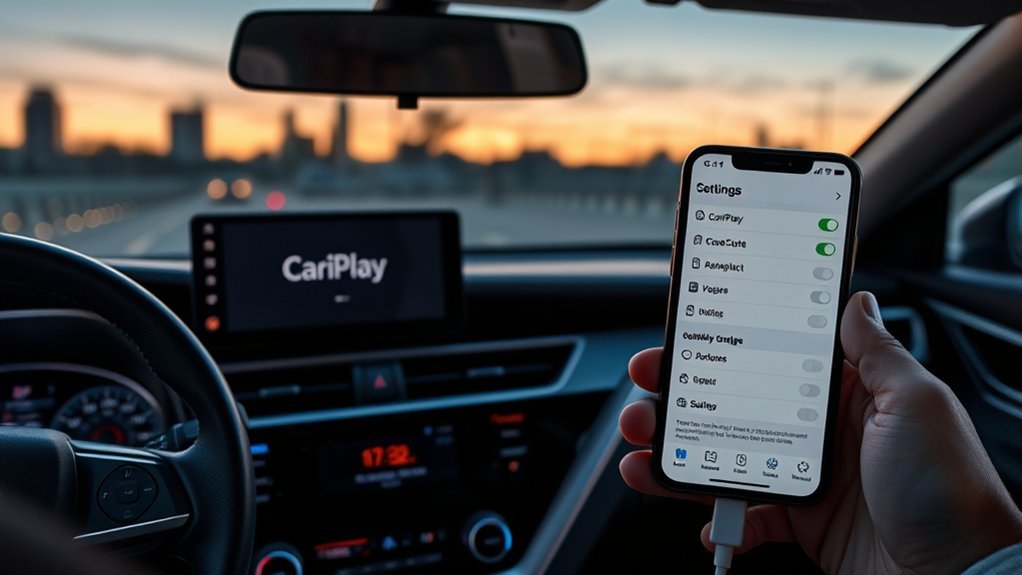
For a U.S.-market 2023 Camry, Toyota’s brochure lists Apple CarPlay compatibility with the available 7-inch and 9-inch multimedia systems across the lineup. Toyota also specifies an approved data cable connected to the USB media port for CarPlay, so a factory 2023 Camry should be troubleshot as a wired CarPlay system first.
For a different model year, consult Apple’s current CarPlay vehicle list. Apple presently lists the Toyota Camry for model years 2019–2025, but equipment can differ by market, configuration, and previous vehicle modifications.
Also confirm that:
- The iPhone is running the latest iOS version available for that device.
- CarPlay is available in the country or region where the phone and vehicle are being used.
- The vehicle still has its original compatible Toyota multimedia system or a compatible replacement head unit.
- CarPlay has not been disabled through Screen Time.
- The installed head unit has not been replaced with a system that supports only Bluetooth audio.
If CarPlay has never been configured on this vehicle, follow our Toyota Camry Apple CarPlay setup guide first. Keep this page focused on troubleshooting a connection that should already work.
Wired Versus Wireless CarPlay in a 2023 Camry
For the U.S.-market 2023 Camry, Toyota’s brochure specifies a compatible iPhone connected with an approved data cable to the USB media port. In other words, factory CarPlay should be treated as wired; Bluetooth pairing alone does not create the factory CarPlay connection.
If a 2023 Camry connects to CarPlay wirelessly, first determine whether it has a replacement head unit or a third-party wireless adapter. During troubleshooting, unplug the adapter and test the original wired USB connection first. An adapter adds another device, firmware layer, and pairing step that can fail independently of the Camry’s factory CarPlay connection.
When Should You Contact Toyota About CarPlay?
Toyota diagnosis becomes reasonable after you have tested the USB media port with at least two known-good data cables and, when available, two compatible iPhones. If the failure follows one iPhone while another iPhone works in the same Camry, focus on the phone or Apple support first; if multiple phones and cables fail only in the Camry, focus on Toyota’s USB port, wiring, firmware, or head unit.
Contact a Toyota dealer or qualified automotive electronics technician when:
- Multiple devices fail: Two compatible iPhones and two cables produce the same result in the USB media port.
- The USB port is physically damaged: The connection feels loose, the port moves, pins are bent, or the phone disconnects when the cable is touched.
- The display freezes or restarts: The multimedia system becomes black, unresponsive, or repeatedly reboots even when no phone is connected.
- A firmware update may be needed: The dealer can identify the exact multimedia unit and check Toyota service information or available software.
- The vehicle has wiring or head-unit modifications: An aftermarket stereo, alarm, adapter, or prior repair may be affecting the original USB data path.
- A factory reset did not help: Continued failure after a documented reset suggests that additional testing is needed.
Ask the dealer for the diagnostic charge and warranty determination before authorizing work. Coverage is not automatic; it depends on the vehicle’s in-service date, mileage, failure type, warranty terms, and any modifications.
Frequently Asked Questions
Why is Apple CarPlay not working in my Toyota Camry?
The first areas to check are the USB media port, data cable, first-connection prompts, Siri, Screen Time permissions, iOS, and vehicle software. Start with another data-capable cable and confirm that the phone is connected directly to the Camry’s USB media port.
What would cause Apple CarPlay to stop working suddenly?
A worn cable, debris in a connector, a changed Screen Time setting, an interrupted software update, a corrupted saved-car connection, or an infotainment glitch can stop a previously working connection. Restart both systems, test another cable, and forget and reconnect the Camry.
Why is Apple CarPlay not working even though my phone is charging?
Charging confirms only that electrical power reaches the phone. CarPlay also requires a working data connection. The cable may be damaged or charge-only, the phone may be connected to a power-only port, or CarPlay may be blocked in the iPhone settings.
How do I restart Apple CarPlay?
CarPlay does not have a separate force-restart control. Disconnect the iPhone, restart the phone, turn the vehicle off and start it again, then reconnect through the USB media port. If necessary, open Settings > General > CarPlay, forget the Camry, and complete setup again.
Does the 2023 Toyota Camry have wireless Apple CarPlay?
For the U.S.-market 2023 Camry, Toyota’s brochure specifies a compatible iPhone connected by an approved data cable to the USB media port. Treat the factory system as wired CarPlay. A 2023 Camry that connects wirelessly may have a replacement head unit or a third-party wireless adapter.
Which Toyota Camry model years support Apple CarPlay?
Apple’s current vehicle list identifies the Camry for model years 2019–2025. Support can vary by market, configuration, software history, and replacement equipment, so check the exact vehicle manual or ask Toyota to verify the system by VIN.
Can a Toyota dealer update the CarPlay system?
A dealer can identify the installed multimedia unit, check for applicable Toyota software or service information, and diagnose the USB port, wiring, or head unit. Whether an update or repair is available and covered depends on the vehicle and its warranty status.
Conclusion
Start with the physical connection: use the Camry’s USB media port, connect the iPhone directly with a known-good data cable, and approve the setup prompts. Then verify Siri and Screen Time, update iOS, restart both systems, and forget and reconnect the vehicle. If the failure follows one iPhone, focus on that phone. If two known-good cables and two compatible iPhones fail in the same Camry, document the tests and ask Toyota to inspect the USB media port, wiring, firmware, and multimedia unit.
Sources
- Apple Support: If you need help with CarPlay — official connection, settings, restart, restriction, reconnection, and firmware troubleshooting.
- Apple Support: Use CarPlay with your iPhone — official wired and wireless setup guidance.
- Apple CarPlay Available Models — current vehicle and model-year compatibility list.
- Toyota 2023 Camry Brochure — confirms Apple CarPlay compatibility across the U.S. model lineup.
- Toyota Audio Multimedia and Connected Services — Toyota’s USB media-port setup and Siri guidance.
- Toyota 2023 Camry Manuals and Warranties — vehicle-specific documentation and support resources.
