
Dynamic Radar Cruise Control (DRCC) can reduce the amount of accelerator and brake input needed during steady highway driving, but the controls and operating behavior vary by Toyota Camry model year. Before using it, identify your steering-wheel buttons, confirm that your Camry has DRCC, and review the instructions and limitations in the owner’s manual for your exact vehicle.
Quick Answer
On a suitable road, switch DRCC on, accelerate to the speed you want, and press the applicable SET or Driving Assist control shown in your Camry’s manual. Select a following-distance setting, watch the display, and remain ready to brake or steer. Recent U.S. Camrys normally require a set speed above 20 mph.
Key Takeaways
- DRCC helps maintain a selected speed and preset following distance, but it does not guarantee a safe gap or make the Camry self-driving.
- Button names and operating behavior differ by model year, so match the instructions to your steering-wheel controls and owner’s manual.
- Use the vehicle-to-vehicle distance control to choose a longer or shorter gap, and increase the gap when conditions require more stopping room.
- Pressing the brake pedal or cancel control temporarily cancels DRCC; the resume control may restore the saved speed if it remains in memory.
- Do not rely on DRCC in poor visibility, severe weather, dense city traffic, construction zones, or any situation that requires frequent driver intervention.
At a Glance
| Time Required | About 1–2 minutes once you know the controls |
| Difficulty | Easy, but requires continuous attention |
| Tools Needed | No tools; keep the model-year owner’s manual available |
| Cost | $0 when the vehicle is factory-equipped |
Warning: DRCC is driver assistance, not autonomous driving or a collision-avoidance guarantee. Keep watching the road, maintain control of the steering wheel, and be ready to brake or steer immediately. Cancel the system whenever traffic, weather, visibility, or road conditions make its operation unsuitable.
How Dynamic Radar Cruise Control Works in a Toyota Camry
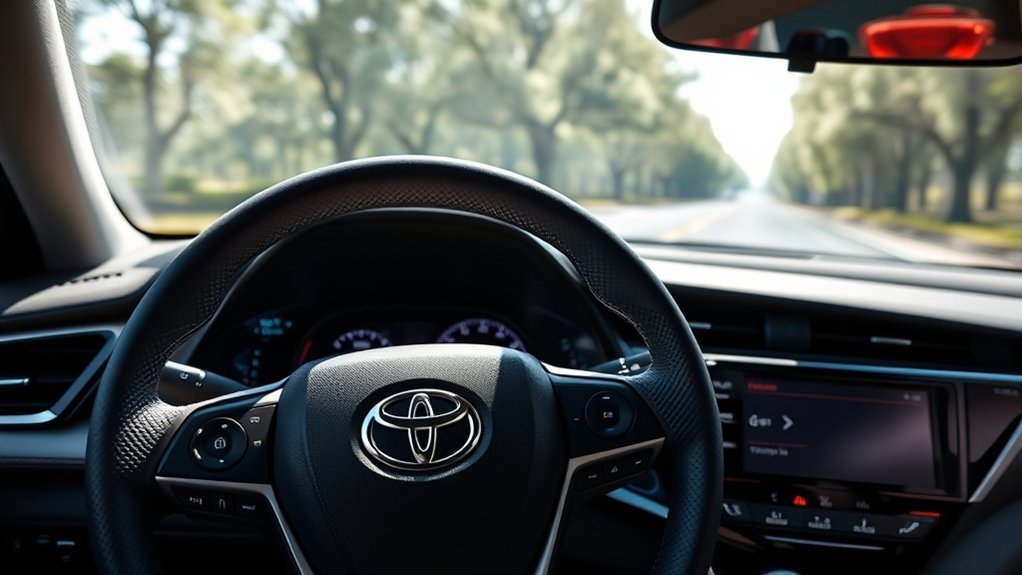
DRCC is Toyota’s name for adaptive cruise control. When the system detects a vehicle ahead, it can reduce or increase your Camry’s speed to help maintain the following-distance setting you selected. When the lane ahead clears, the system can accelerate toward the stored speed.
Recent U.S.-market Camrys use Full-Speed Range Dynamic Radar Cruise Control. For example, Toyota states that the 2025 Camry’s TSS 3.0 system is designed to be set above 20 mph and uses vehicle-to-vehicle distance control to help maintain a preset distance. Older Camrys may have different speed ranges, switches, displays, and low-speed behavior.
DRCC normally controls acceleration and braking. It does not, by itself, steer the car. On equipped Camrys, Lane Tracing Assist may provide separate steering support while DRCC is operating and its own conditions are met.
Confirm Your Camry’s Controls Before Driving
Look at the right side of the steering wheel or the cruise-control stalk, depending on the model year. You may find some or all of the following controls:
| Control | Typical Function |
|---|---|
| Cruise, Driving Assist, or mode switch | Selects or switches on the cruise-control mode. |
| SET/- | Stores the current speed or lowers the stored speed. |
| RES/+ | Resumes a stored speed or raises it. |
| CANCEL | Temporarily cancels speed control without necessarily switching the system off. |
| Vehicle-to-vehicle distance button | Cycles through the available following-distance settings. |
Note: Toyota has used different button layouts and labels across Camry generations. Do not assume an online image or another Toyota model has the same controls as your vehicle.
Before You Activate DRCC
Use DRCC only after checking that the driving environment is suitable:
- Choose a divided highway or another road with predictable traffic flow.
- Make sure the windshield area in front of the camera is clean and unobstructed.
- Keep the front Toyota emblem, grille radar area, or other sensor location clean as directed by the manual.
- Do not use the system when rain, snow, fog, spray, glare, or darkness prevents reliable detection.
- Avoid using it on sharply curving roads, steep grades, construction areas, crowded urban streets, or slippery surfaces.
- Confirm that no warning message says the radar, camera, or driver-assistance system is unavailable.
How to Activate Dynamic Radar Cruise Control
- Drive onto a suitable road. Keep normal control of the accelerator, brakes, and steering.
- Select or switch on DRCC. Press the cruise-control main switch, Driving Assist switch, or mode-select control specified for your Camry. Confirm that the DRCC indicator appears on the instrument display.
- Reach the speed you want. Recent U.S. Camrys generally require a set speed above 20 mph, but the threshold can differ on older vehicles.
- Store the speed. Press the applicable SET/- or Driving Assist control. Release the accelerator and verify that the set speed appears on the display.
- Select the following distance. Press the vehicle-to-vehicle distance button until the preferred gap indicator appears.
- Monitor traffic continuously. Keep enough room to take over if the detected vehicle changes lanes, brakes sharply, or is not recognized.
Pro Tip: Start with the longest available following-distance setting while learning the system. A longer setting generally provides more time to observe how your Camry reacts to traffic, although the driver must still decide whether the actual gap is appropriate.
Set and Change the Following Distance
The distance button normally cycles through several gap settings shown as bars or vehicle icons on the multi-information display. The displayed setting represents a time-based following interval rather than a fixed number of feet, so the physical distance usually grows as speed increases.
Use a longer setting when:
- Traffic is moving unpredictably.
- The road is wet or visibility is reduced.
- You are unfamiliar with the system.
- A vehicle ahead is braking frequently.
- You need a larger buffer for comfort or stopping room.
Even the longest setting may be inadequate for ice, snow, heavy rain, poor tires, or other hazardous conditions. In those situations, cancel DRCC and control the vehicle manually.
Adjust Your Stored Speed With DRCC

Use the steering-wheel or stalk controls to make small or larger changes while watching the stored-speed display:
- Press or briefly operate RES/+ to raise the set speed.
- Press or briefly operate SET/- to lower it.
- Hold the applicable control for a larger change if your model supports that operation.
- Release the control and confirm the new value on the display.
The exact increment produced by a brief or long press can vary by model year, market, selected units, and control design. Use the displayed set speed rather than assuming that every press changes it by exactly 1 mph.
Temporarily Accelerating
You can normally press the accelerator to pass or create space without deleting the stored speed. After you release the pedal, DRCC may return toward the set speed if operating conditions remain satisfied.
Acceleration can reduce the gap to the vehicle ahead. Do not use the accelerator to override the system unless you have confirmed that the lane and traffic conditions are safe.
Cancel, Resume, or Switch DRCC Off
Canceling Cruise Control
To temporarily cancel DRCC, press the brake pedal or the cancel control. The accelerator and braking control then return fully to you. Canceling does not stop the car for you and does not guarantee collision avoidance.
Some conditions can cancel DRCC automatically, including a system fault, sensor problem, stability-control intervention, or another operating condition listed in the owner’s manual.
Resuming the Stored Speed
If the set speed remains in memory and conditions permit, press RES/+ or the model-specific resume control. The Camry may accelerate toward the stored speed, so check the lane and traffic ahead before resuming.
Do not resume when the stored speed is too high for current traffic, weather, a curve, a work zone, or a reduced speed limit. Set a new, appropriate speed instead.
Switching DRCC Completely Off
Use the cruise-control main switch or Driving Assist control specified in the manual to switch the system off. Turning the vehicle off or fully disabling cruise control may erase the stored speed.
How Full-Speed Range DRCC Handles Stop-and-Go Traffic
On an equipped full-speed-range Camry, DRCC can slow the vehicle with traffic and may bring it to a stop behind a detected preceding vehicle. What happens next depends on the model year, how long the vehicle remains stopped, and whether all operating conditions remain satisfied.
The Camry may begin moving when the preceding vehicle moves, or it may require the driver to press RES/+ or lightly press the accelerator. Follow the prompt on the instrument display and the exact instructions in the owner’s manual.
Warning: Never assume DRCC will hold the vehicle indefinitely after it stops. Keep the brake pedal available, watch surrounding traffic, and apply the brake whenever necessary.
DRCC Versus Conventional Cruise Control
| Function | Dynamic Radar Cruise Control | Conventional Cruise Control |
|---|---|---|
| Primary purpose | Maintains a selected speed while adjusting to a detected vehicle ahead. | Maintains a selected speed without controlling the gap to traffic ahead. |
| Following-distance setting | Available when the system supports vehicle-to-vehicle distance control. | Not available; the driver must adjust speed for traffic. |
| Reaction to slower traffic | Can reduce speed when a preceding vehicle is detected. | Continues toward the selected speed until the driver intervenes. |
| Driver responsibility | Driver must monitor, steer, and intervene. | Driver must monitor, steer, and intervene. |
Some Camrys allow the driver to select conventional cruise control instead of DRCC. The method for changing modes varies, and choosing the wrong mode can change how the car responds to traffic. Check the active indicator before setting the speed.
Key Safety Features and Limitations
DRCC can control acceleration and braking within its operating range, display the selected gap, and warn the driver when intervention is required. These functions can make steady driving more convenient, but they depend on the radar, camera, software, road, weather, traffic, and vehicle conditions.
The driver remains responsible for choosing a suitable speed, maintaining an appropriate following distance, steering the vehicle, and responding to hazards.
DRCC may respond late, unexpectedly, or not at all when dealing with:
- A vehicle cutting suddenly into your lane
- A stopped or very slow vehicle in an unusual position
- Motorcycles, narrow vehicles, trailers, or vehicles carrying overhanging loads
- Vehicles partly outside your lane
- Sharp curves, hills, dips, or road crests
- Roadside objects, barriers, or vehicles in another lane
- Heavy rain, snow, fog, spray, dust, glare, or darkness
- A dirty, damaged, iced-over, blocked, or misaligned sensor area
Brake, steer, or cancel immediately whenever the system’s response is not appropriate.
When You Should Not Use DRCC
Avoid using Dynamic Radar Cruise Control when:
- The road is icy, snow-covered, flooded, muddy, or otherwise slippery.
- Visibility is poor or the sensors cannot reliably detect traffic.
- You are driving on winding roads, steep descents, or roads with frequent merging.
- Traffic requires constant braking, lane changes, or negotiation with pedestrians and cyclists.
- You are in a construction zone, toll area, parking facility, or similar complex environment.
- The vehicle is being towed, is towing in a situation prohibited by the manual, or has modifications that may affect sensor operation.
- A warning message indicates that DRCC or a related driver-assistance system is unavailable.
Troubleshooting Common DRCC Problems
| Problem | What to Check |
|---|---|
| DRCC will not switch on or set | Confirm that you selected DRCC rather than another mode, the vehicle is within the permitted speed range, no warning is displayed, and all model-specific operating conditions are satisfied. |
| Radar or camera unavailable message | Safely stop and inspect the windshield and front sensor area for dirt, snow, ice, condensation, stickers, damage, or accessories. Temporary weather or temperature conditions may also disable the system. |
| The system will not resume | The stored speed may have been erased, the stop may have lasted too long, or an operating condition may no longer be met. Set a new speed only when it is safe. |
| Braking or acceleration feels inappropriate | Take over immediately. Increase the selected distance, cancel DRCC, and wait for better traffic or road conditions before trying again. |
| Warning remains after cleaning the sensors | Stop using DRCC and have the vehicle inspected by a qualified Toyota technician. Sensor alignment can be affected by impacts, windshield replacement, front-end work, or component damage. |
Consult Your Owner’s Manual for Model-Specific Guidance

Your Camry’s owner’s manual is the controlling source for its DRCC controls, indicators, speed range, following-distance settings, stop-and-go behavior, warnings, and limitations. Toyota provides downloadable manuals through its official Manuals and Warranties portal.
When checking the manual, look for:
- Dynamic Radar Cruise Control or Full-Speed Range Dynamic Radar Cruise Control
- A diagram of the steering-wheel switches or cruise-control stalk
- The meanings of white, green, and warning indicators
- The minimum and maximum set-speed conditions
- Cancel and automatic-cancellation conditions
- Vehicle-to-vehicle distance settings
- Stop-and-resume instructions
- Radar and camera limitations
- Conventional cruise-control mode, if equipped
Toyota’s Safety Sense overview provides general feature descriptions, but it does not replace the instructions for your exact model year and market.
Frequently Asked Questions
How do I use Toyota Dynamic Radar Cruise Control?
Switch DRCC on, drive at an eligible speed, press the applicable SET or Driving Assist control, and select a following-distance setting. Watch the display and traffic continuously. Use the brake pedal or cancel control whenever you need to take over.
How do I use adaptive cruise control on a Toyota Camry?
Toyota calls its adaptive cruise system Dynamic Radar Cruise Control. Confirm the control layout in your model-year manual, activate DRCC, store a suitable speed, choose the preferred gap, and remain prepared to brake or steer.
How does DRCC differ from regular cruise control?
Regular cruise control normally tries to maintain the selected speed regardless of traffic ahead. DRCC can reduce or increase speed in response to a detected preceding vehicle and the selected following-distance setting.
How do I turn on Dynamic Radar Cruise Control?
Press the cruise-control main switch, Driving Assist switch, or mode-select control used by your Camry. Confirm that the DRCC indicator is displayed, reach an eligible speed, and press the model-specific SET control.
Does Toyota Camry DRCC work in stop-and-go traffic?
Full-speed-range versions can slow with traffic and may stop behind a detected vehicle. Restart behavior varies: the system may move automatically or require RES/+ or accelerator input. Keep the brake available and follow the display and owner’s manual.
Does DRCC steer the Toyota Camry?
DRCC primarily controls acceleration and braking. Lane Tracing Assist may provide separate steering support on equipped Camrys while DRCC is active, but the driver must continue steering, monitoring the road, and remaining ready to intervene.
Why does my Camry say radar cruise control is unavailable?
The front radar or camera may be blocked by dirt, snow, ice, condensation, heavy rain, glare, or another temporary condition. Clean only the areas specified in the manual. If the warning remains, stop using DRCC and arrange an inspection.
Conclusion
Dynamic Radar Cruise Control can make steady highway driving more convenient when it is used within its limits. The safest approach is to confirm your Camry’s controls, select a reasonable speed and following distance, watch the display and traffic, and take over as soon as conditions become unsuitable. Treat DRCC as assistance—not as a substitute for attentive driving.
Sources
- Toyota Manuals and Warranties — model-year owner’s manuals and vehicle-specific operating instructions.
- Toyota Safety Sense — official descriptions and limitations for Toyota driver-assistance features.
- Toyota USA Newsroom: 2025 Camry — confirms TSS 3.0 and Full-Speed Range Dynamic Radar Cruise Control specifications.
- Toyota Camry Official Vehicle Page — current U.S. Camry equipment and Toyota Safety Sense information.
- NHTSA Driver Assistance Technologies — adaptive cruise-control definition and driver-responsibility guidance.

