Adjusting your Toyota Camry’s adaptive cruise control following distance is usually a one-button task, but the exact control layout and available settings depend on the model year, trim, market, and Toyota Safety Sense generation. Toyota generally calls this feature Dynamic Radar Cruise Control, or DRCC. Confirm your vehicle’s procedure before relying on instructions written for another Camry.
Quick Answer
On a Toyota Camry equipped with Dynamic Radar Cruise Control, turn the cruise system on, set a speed, then press the vehicle-to-vehicle distance button—the car-and-bars icon—to cycle through the available gaps shown in the driver display. Select a longer gap whenever speed, traffic, visibility, weather, or road conditions call for more space.
Key Takeaways
- Toyota’s name for adaptive cruise control is usually Dynamic Radar Cruise Control, or DRCC.
- Use the vehicle-to-vehicle distance switch to cycle through the available following intervals shown in the driver display.
- The number of bars represents a relative gap, not a guaranteed number of feet, seconds, or car lengths.
- Button locations, minimum set speeds, display symbols, and default behavior vary by Camry model year and equipment.
- DRCC assists with speed and spacing, but you remain responsible for steering, braking, and avoiding a collision.
At a Glance
| Time Required | About 1 minute after identifying the controls |
| Difficulty | Easy |
| Tools Needed | None |
| Cost | $0 |
Warning: Dynamic Radar Cruise Control is a driver-assistance feature, not self-driving technology or a guarantee that the Camry will avoid a collision. Watch traffic continuously, keep a safe escape path, and be ready to steer or brake immediately.
Understand Dynamic Radar Cruise Control in Your Camry
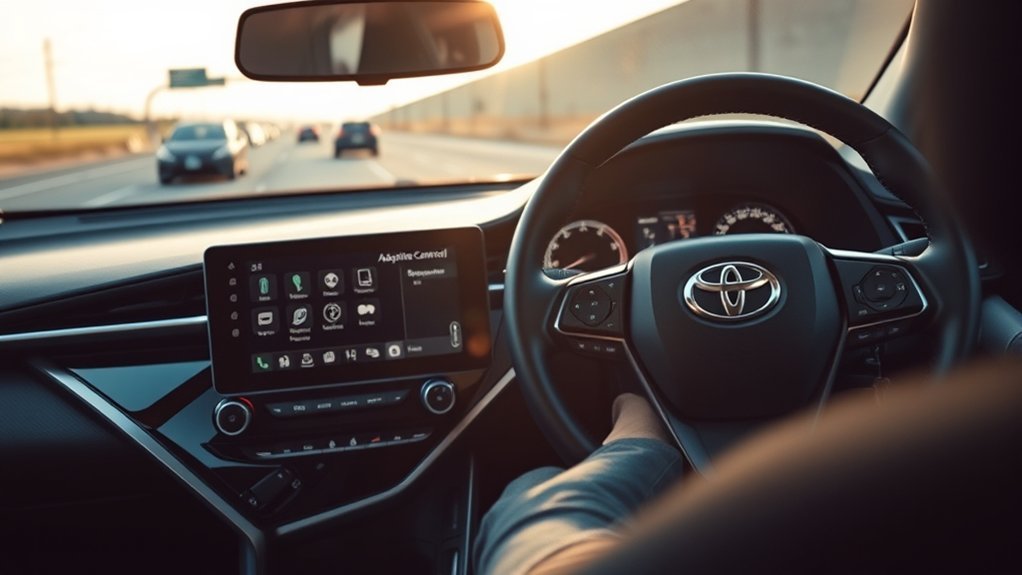
Adaptive Cruise Control, or ACC, is the generic name for a system that can adjust vehicle speed in response to traffic ahead. Toyota commonly calls its system Dynamic Radar Cruise Control. Depending on the Camry, the system may use a forward radar sensor, a windshield-mounted camera, or information from both.
When DRCC is active and recognizes a vehicle ahead, it can reduce or increase the Camry’s speed to help maintain the selected vehicle-to-vehicle interval. It cannot judge every hazard or respond correctly in every situation. The driver must continue to monitor the road and operate the steering wheel, accelerator, and brakes whenever necessary.
Toyota describes Full-Speed Range DRCC as a feature intended mainly for highway use. The exact capabilities differ across Toyota Safety Sense generations. For example, Toyota’s official 2025 U.S. Camry information identifies Toyota Safety Sense 3.0 and says its Full-Speed Range DRCC is designed to be set above 20 mph. Do not apply that threshold to every Camry; older systems and vehicles sold in other markets may operate differently.
The distance bars select a relative following interval. They do not replace your judgment or guarantee enough stopping distance for every speed, surface, and traffic condition.
Why Your Camry Model Year Matters
Some Camrys use a cruise-control stalk, while others place the cruise, SET, CANCEL, and distance controls on the steering-wheel spokes. Symbols, menus, operating speeds, and the number of available following intervals can also differ.
The instructions in your exact Toyota Owner’s Manual take priority over generalized online instructions. Select the correct model year and, when possible, verify the vehicle by its VIN or equipment description.
Note: The vehicle-to-vehicle distance setting is separate from pre-collision warning sensitivity. Do not change one setting while assuming that you are changing the other.
Confirm Your Camry Has Dynamic Radar Cruise Control
Before trying to change the following distance, confirm that your Camry has DRCC rather than conventional constant-speed cruise control. Look for the following:
- A cruise-control symbol accompanied by a vehicle or radar-style indicator in the gauge display.
- A steering-wheel or stalk button showing a vehicle with horizontal bars in front of it.
- A “Dynamic Radar Cruise Control,” “DRCC,” or “vehicle-to-vehicle distance” section in the model-year Owner’s Manual.
- A distance indicator in the multi-information display after the cruise system is switched on.
If the distance icon is absent, the vehicle may have conventional cruise control, a different control arrangement, or equipment that is not available on that trim. Do not assume that an unmarked button performs the same function.
Step-by-Step Guide to Activating Dynamic Radar Cruise Control
Use this model-year-neutral sequence only after reading the DRCC section of your Camry’s manual. Perform the setup while you have a clear view of the road and enough time to verify each indicator without distraction.
| Step | Action |
|---|---|
| 1 | Identify the cruise main switch, the SET control, the CANCEL control, and the vehicle-to-vehicle distance button. Use the symbols shown in your manual rather than relying only on a button location described online. |
| 2 | When road, visibility, weather, and traffic conditions are suitable, press the cruise main switch. Confirm that the DRCC or radar-cruise indicator appears in the driver display. |
| 3 | Drive at a speed that meets the operating requirement stated in your model-year manual. |
| 4 | Press the SET control to register the current speed. Confirm the set speed in the display before relaxing accelerator pressure. |
| 5 | Press the vehicle-to-vehicle distance button to display or change the selected following interval. |
If the display shows constant-speed cruise instead of radar cruise, stop changing controls until you have checked the manual. On models that offer more than one cruise mode, the distance function may not operate in conventional constant-speed mode.
How to Adjust Following Distance Settings
- Keep your eyes on traffic and verify that DRCC is switched on.
- Locate the button marked with a vehicle and one or more horizontal bars.
- Press and release the button once.
- Watch the multi-information display or digital gauge cluster as the selected interval changes.
- Press the button again to cycle to the next available interval.
- Stop when the display shows the gap appropriate for your speed, traffic, visibility, and road conditions.
On many Camrys with a three-setting display, three bars represent the longest interval, two bars the middle interval, and one bar the shortest interval. Treat that as a common layout rather than a specification for every Camry.
Pro Tip: Make the change when traffic is stable instead of waiting until you are already too close to another vehicle. If you feel crowded or the system reacts later than you prefer, increase the gap and be prepared to take manual control.
What Each Distance Setting Means for Safe Driving
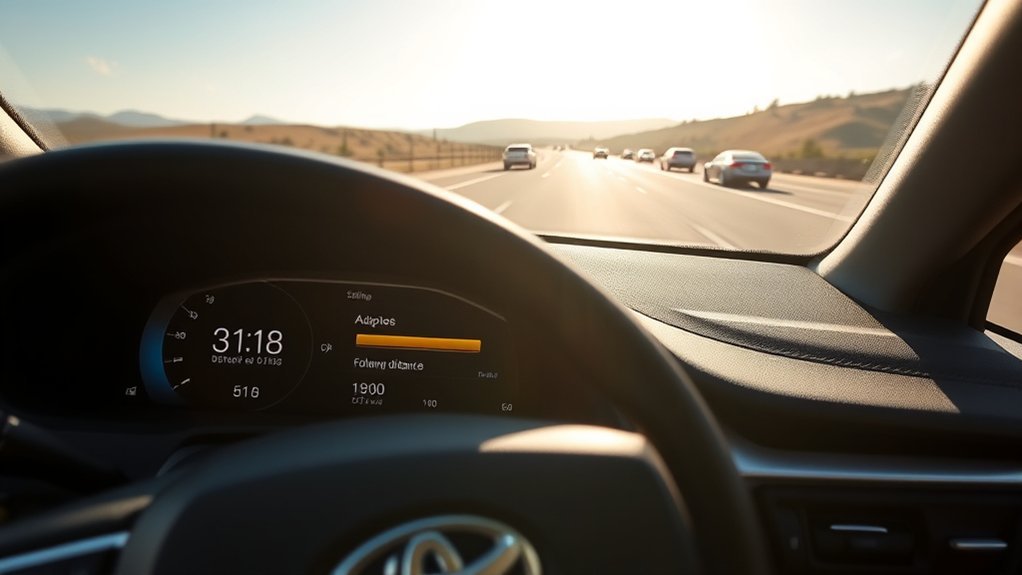
The display bars indicate the selected relative interval between your Camry and a recognized vehicle ahead. They should not be interpreted as exact car lengths or a fixed physical distance.
| Setting | What It Does | When to Consider It |
|---|---|---|
| Longest interval | Provides the greatest available programmed gap and generally allows the system to begin responding sooner to a slower recognized vehicle. | A sensible starting choice for higher speeds, unfamiliar roads, denser traffic, reduced visibility, or any time you prefer more space. |
| Middle interval | Uses an intermediate programmed gap. | May suit clear, stable traffic when the gap still provides enough room for you to react manually. |
| Shortest interval | Uses the smallest available programmed gap. | Use only when conditions and the Owner’s Manual permit it. It is not permission to tailgate and may provide less time for manual intervention. |
A longer interval may also allow other drivers to enter the gap. Expect cut-ins and be ready to reduce speed yourself. Do not select the shortest setting merely to prevent another vehicle from merging.
How Speed and Driving Conditions Affect the Gap
The same display setting does not represent one fixed distance at every speed. The physical space needed to slow safely increases as speed rises, and the DRCC system may vary the actual gap as driving conditions change.
Choose more space and consider switching to manual speed control when any of the following applies:
- Rain, snow, ice, fog, spray, glare, or poor visibility affects your ability to see or stop.
- The road is sharply curved, steep, narrow, under construction, or has unclear lane markings.
- Traffic repeatedly cuts in, merges, stops suddenly, or moves unpredictably.
- A motorcycle, small vehicle, partially in-lane vehicle, or roadside object may be difficult to classify.
- The radar or camera area may be covered by dirt, snow, ice, condensation, an accessory, or damage.
- You cannot maintain continuous attention or immediate access to the brake pedal.
Follow every prohibition and limitation in the DRCC section of your Owner’s Manual. If the conditions do not feel suitable, turn the system off and control speed manually.
Fixing Common Dynamic Radar Cruise Control Problems
A following-distance problem is not always caused by the selected interval. First determine whether the issue involves the switch, the display, traffic detection, sensor availability, or recent vehicle repairs.
The Distance Setting Does Not Change
- Confirm that you are pressing the vehicle-and-bars distance switch rather than the lane-assistance or pre-collision setting control.
- Verify that the cruise system is in radar cruise mode, not conventional constant-speed mode.
- Press and release the button instead of holding it unless the model-year manual specifically instructs otherwise.
- Check the driver display for a distance indicator or a message explaining why the function is unavailable.
- If the control still does not respond, cancel cruise control, stop in a safe place, and consult the exact manual.
Do not repeatedly press unfamiliar steering-wheel controls while concentrating on busy traffic.
Unexpected Braking or Unnecessary Slowdowns
DRCC may reduce speed when it interprets a vehicle, curve, merge, lane change, or roadside condition as relevant to your path. A longer interval may cause deceleration to begin earlier; it is not a repair for recurring false or abrupt responses.
If the Camry slows unexpectedly:
- Take control immediately with the accelerator, brake, steering wheel, CANCEL control, or cruise main switch as conditions require.
- Increase your distance from surrounding traffic.
- Note the road shape, weather, target vehicle, warning messages, and whether another vehicle was cutting into the lane.
- When safely parked, inspect only the radar and camera areas identified in the Owner’s Manual.
- Stop using DRCC and arrange an inspection if the behavior repeats, a warning remains displayed, or the system reacts dangerously.
Warning: Do not test a suspected DRCC fault by deliberately approaching another vehicle or obstacle. Disengage the feature and have the system checked under controlled service conditions.
System Unavailable or Sensor Blocked
A temporary unavailable message can appear when the system cannot obtain a reliable view. Depending on the Camry, inspect the front radar area, grille or emblem area, and the windshield around the forward camera.
- Remove ordinary dirt, snow, or ice only by the cleaning method permitted in the manual.
- Do not attach stickers, wraps, plates, accessories, paint, or metallic material over a sensor area.
- Do not use abrasive tools or chemicals that could damage a radar cover, emblem, lens, or windshield area.
- Allow condensation, heavy spray, or extreme environmental conditions to clear before assuming a permanent fault.
- Seek service if the warning persists after the vehicle and sensor areas are clean and conditions improve.
Engaging Manual Control
Use the normal cruise controls—not the distance button—to cancel or switch off speed control.
| Action | Typical Result |
|---|---|
| Press the brake pedal | Cancels active cruise speed control so the driver can slow the vehicle. Confirm the exact behavior in your manual. |
| Press CANCEL | Places cruise control in standby without necessarily switching off the main system. |
| Press the cruise main switch | Switches the cruise system off. |
| Use the accelerator | May temporarily override commanded acceleration on some models, but it is not a substitute for cancelling the system when continued assistance is unsafe. |
Steering and braking remain the driver’s responsibility even while DRCC is operating normally.
Calibration and Service
Do not attempt to calibrate DRCC by moving a radar sensor, bending a bracket, aiming a camera by eye, disconnecting the battery, or performing an improvised reset. Calibration may require model-specific measurements, targets, level-floor conditions, scan-tool commands, and Toyota service information.
Professional inspection or calibration may be necessary after work involving:
- The windshield or forward camera
- The front bumper, grille, emblem, radar cover, or radar sensor
- Collision repair or front-body alignment
- Suspension, ride height, or wheel-alignment changes that affect sensor aim
- A persistent radar, camera, pre-collision, or cruise-control warning
Toyota’s official Technical Information System contains repair, diagnostic, and calibration information for properly equipped technicians. A dealership or qualified repair facility should follow the procedure for the exact VIN and system.
Tips for Using Dynamic Radar Cruise Control Effectively in Traffic
- Begin with the longest available interval until you understand how your Camry responds.
- Increase the gap at higher speeds or whenever traffic becomes less predictable.
- Watch several vehicles ahead instead of focusing only on the car DRCC appears to be following.
- Expect another driver to merge into the selected gap and be ready to brake smoothly.
- Take over before entering a sharp curve, construction zone, poor-weather area, or confusing merge.
- Cancel DRCC if repeated acceleration or braking makes the ride uncomfortable or difficult to predict.
- Keep the radar and camera areas unobstructed and respond promptly to warning messages.
- Never use the system as a reason to look away from the road or use a handheld device.
In dense stop-and-go traffic, capabilities vary substantially by model. Some Full-Speed Range systems can assist at lower speeds, while older versions may cancel or have different restart requirements. Follow the exact low-speed and resume instructions in your manual.
Top Resources for Your Camry Features
Use resources in order of authority. Your model-year Owner’s Manual should control the operating procedure, while videos and owner communities can provide supplemental visual context.
Video Tutorials Available Online
A video can help you recognize a distance icon or see how the display changes, but confirm that the demonstration uses the same Camry model year, market, steering wheel, and Toyota Safety Sense generation as your vehicle.
Prefer official Toyota material. Pause the video and compare every control with the diagram in your manual before using it while driving. Videos from independent creators, including Camry-focused channels, should not override Toyota’s safety limitations or service procedures.
Community Support Groups
Forums and owner groups such as CamryTalk, ToyotaNation, Reddit communities, and Facebook Camry groups can help you compare experiences. They are useful for learning what an indicator looks like or whether another owner has seen a similar message.
Treat all repair, calibration, button-sequence, and safety claims from community sources as unverified until they match the manual or official Toyota service information. A procedure that works on another generation may be wrong for your Camry.
Official Owner’s Manual
The Toyota Manuals and Warranties portal is the best public starting point. The correct manual explains:
- Whether the vehicle has DRCC or Full-Speed Range DRCC
- The location and symbol for every cruise-control switch
- The available distance intervals and display indicators
- Minimum set speeds and low-speed behavior
- Cancellation, resume, and standby operation
- Weather, road, sensor, towing, and traffic limitations
- Warning messages and conditions requiring inspection
You can also review Toyota’s official Safety Sense overview for a general explanation of current driver-assistance features. Because the page covers multiple vehicles and system generations, the model-specific manual remains the final authority.
Related Guides
Frequently Asked Questions
How do you adjust the distance on Toyota Camry adaptive cruise control?
Switch on Dynamic Radar Cruise Control, set a permitted speed, and press the vehicle-to-vehicle distance button marked with a car and horizontal bars. Each press cycles through the available intervals shown in the driver display. Choose the longest interval whenever you need more time and space to react.
How do you change the cruise-control distance on a Camry with a stalk or steering-wheel buttons?
The switch location varies, but its function is the same: look for the vehicle-and-bars symbol. Do not assume that every stalk or steering-wheel layout works identically. Use the diagram in the model-year Owner’s Manual to identify the cruise main, SET, CANCEL, and distance controls.
Does one distance bar equal one car length?
No. The bars represent relative programmed intervals, not guaranteed car lengths, feet, or seconds. The actual physical gap can vary with speed, system generation, traffic, and operating conditions. Maintain enough space to intervene manually even when the longest setting is selected.
Why does the selected following distance change or reset?
Default and memory behavior vary by Camry model year and cruise mode. A setting may appear different after the system is switched off, the vehicle is restarted, or another cruise mode is selected. Check the manual before treating a changed display as a fault. Persistent erratic changes should be inspected.
How do you calibrate Toyota Camry adaptive cruise control?
Calibration is not an ordinary owner adjustment. Radar or camera calibration may require Toyota service specifications, targets, scan tools, precise measurements, and controlled conditions. Arrange qualified service after windshield or front-end repairs, sensor movement, collision damage, or a persistent system warning.
Is the following-distance indicator part of adaptive cruise control?
Yes, when the Camry is equipped with Dynamic Radar Cruise Control. The indicator shows the selected relative interval used by DRCC. It is not the same as the pre-collision warning-sensitivity setting, and it does not guarantee that the system has detected every vehicle or hazard.
Conclusion
To adjust your Camry’s adaptive cruise control following distance, identify the vehicle-to-vehicle distance button, activate DRCC, set an allowed speed, and press the distance button until the preferred interval appears. Use the longest setting whenever conditions call for more room, and never treat the display bars as a substitute for a safe gap you can manage yourself.
The exact controls and behavior vary across Camry generations. Follow the model-year Owner’s Manual, remain ready to brake or steer, and stop using the system when visibility, road conditions, warning messages, or repeated unexpected responses make its operation uncertain. Sensor alignment and calibration should be handled through the correct Toyota service procedure.
Sources
- Toyota Manuals and Warranties — model-specific controls, indicators, operation, warnings, and limitations
- Toyota Safety Sense — official overview of Dynamic Radar Cruise Control and Toyota driver-assistance systems
- Toyota 2025 Camry Product Information — TSS 3.0 and Full-Speed Range DRCC details for the 2025 U.S. Camry
- Toyota Camry Official Model Page — current Camry safety and equipment information
- NHTSA Driver Assistance Technologies — adaptive cruise-control description and driver-responsibility guidance
- Toyota Technical Information System — official repair, diagnostic, sensor, and calibration procedures

