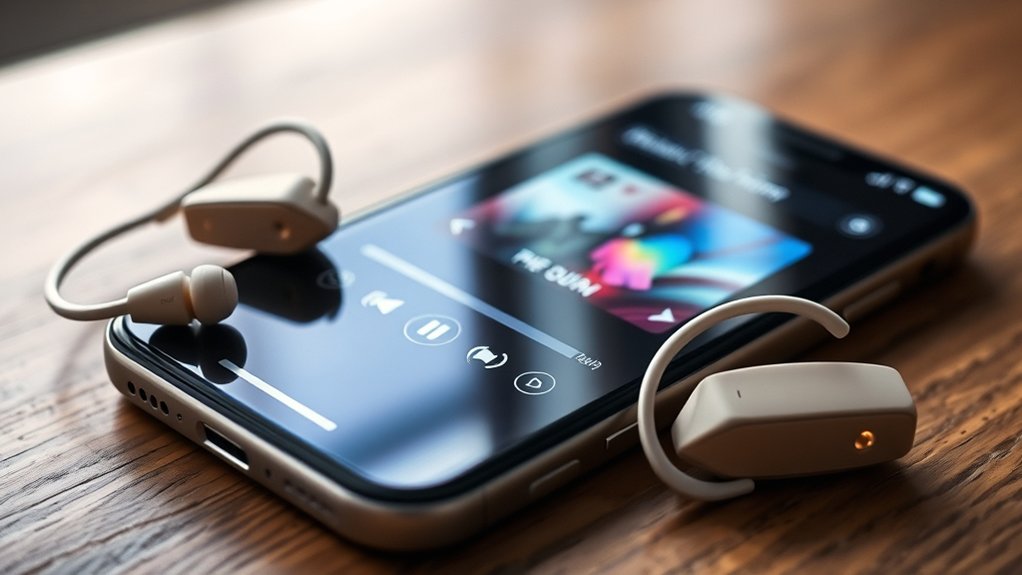
Having trouble using Spotify with Phonak hearing aids on your iPhone? Music may play through the iPhone speaker, cut out during listening, or fail to start even though Bluetooth shows a connection. Most problems can be traced to audio routing, Bluetooth pairing, app settings, or interference.
This guide explains how to connect your hearing aids, restore Spotify playback, improve music quality, and avoid common connection mistakes.
Quick Answer
To play Spotify through compatible Phonak hearing aids on an iPhone, enable Bluetooth, pair the hearing aids for audio streaming, and select them as the iPhone’s audio output. If music stops or cuts out, check the connection, restart the devices, and re-pair them if necessary. Some Phonak models require separate myPhonak and streaming connections.
At a Glance
| Difficulty | Beginner; basic iPhone settings |
| Tools Needed | iPhone, Bluetooth-compatible Phonak hearing aids, and Spotify app |
| Cost | No additional streaming accessory needed for compatible hearing aids |
Connecting Your Phonak Hearing Aids to Your iPhone
Compatible Phonak hearing aids connect to an iPhone through Bluetooth for music, videos, and phone calls. The setup differs slightly between older hearing aids and Infinio Ultra or newer models.
Follow these steps to establish a direct audio connection.
- Open Bluetooth settings. On your iPhone, open Settings > Bluetooth and turn Bluetooth on.
- Check the hearing aids. Make sure they are switched on and have enough battery power.
- Activate pairing mode. Restart the hearing aids. For rechargeable models, place them in a powered charger for at least 10 seconds, then remove them. For models with replaceable batteries, open the battery doors for five seconds and close them.
- Find the hearing aid. The devices should enter pairing mode for approximately three minutes. Look for a name such as R-Phonak hearing aid or L-Phonak hearing aid in the iPhone’s Bluetooth list. Your hearing care professional may have changed this name.
- Confirm the pairing. Tap the hearing aid’s name and accept the pairing request. A confirmation tone may sound.
- Test the connection. Open Spotify and play a song. Confirm that the audio comes through the hearing aids rather than the iPhone speaker.
These steps follow Phonak’s official iPhone Bluetooth pairing instructions.
Important: On many earlier-generation Phonak hearing aids, only one hearing aid appears as the main Bluetooth audio connection. That single pairing can send music to both hearing aids. You do not necessarily need two separate audio connections.
How Is myPhonak Pairing Different From Music Streaming?
The myPhonak app lets you manage compatible hearing aid settings. Its connection is not always the same as the Bluetooth connection used for Spotify music and phone calls.
On earlier models, the app uses Bluetooth Low Energy connections for controlling each hearing aid. You may see entries beginning with LE_R or LE_L in your iPhone’s Bluetooth settings.
Those entries can show “Not Connected” when myPhonak is closed. That does not automatically mean your music streaming connection has failed.
To connect the app:
- Install myPhonak from the App Store.
- Open the app and select the option to pair your hearing aids.
- Restart both hearing aids when instructed.
- Wait until both hearing aids appear in the app.
- Confirm each Bluetooth pairing request.
- Follow any additional instructions for phone calls and audio streaming.
Phonak’s myPhonak setup instructions explain an important difference: Infinio Ultra and newer models can establish audio streaming during initial myPhonak pairing. Earlier generations may need an additional pairing step.
If Spotify already plays through your hearing aids, you do not need to repeat pairing simply because the myPhonak app is disconnected.
Troubleshooting Common Bluetooth Issues With Spotify
If Spotify stops playing through your Phonak hearing aids, first identify whether the problem affects Bluetooth audio, Spotify itself, or the hearing aids. A quick playback test can often prevent unnecessary resets.
Start with the easiest checks before deleting any existing Bluetooth connections.
Bluetooth Connection Verification
A hearing aid may appear paired without receiving the music you expect. The iPhone might be sending audio to its speaker, another Bluetooth device, or a different Spotify playback destination.
- Check the connection. Open Settings > Bluetooth and find your Phonak streaming connection.
- Check the audio destination. Play a song, open Control Center, and select your Phonak hearing aids as the playback output if available.
- Adjust media volume. Increase the iPhone’s playback volume gradually and check that Spotify is not paused.
- Test another app. Play audio through another iPhone application. If that works through the hearing aids, the Bluetooth audio connection is probably functioning.
- Disconnect competing devices. Temporarily disconnect other Bluetooth headphones, speakers, or nearby paired devices that may be taking over audio output.
Apple explains how to change the iPhone’s Bluetooth audio destination from playback controls or Control Center.
If sound comes from neither hearing aid, verify that both devices are powered on and that their earpieces are not blocked. A hearing aid that produces no ordinary environmental sound may have a battery, wax-filter, or hardware issue rather than a Spotify problem.
Re-Pairing Hearing Aids Steps
Re-pairing can fix a damaged or outdated Bluetooth connection. Try restarting the iPhone and hearing aids first. If the issue continues, remove the affected pairing and connect again.
- Forget the streaming connection. Open Settings > Bluetooth, tap the information icon beside the Phonak streaming device, and choose Forget This Device.
- Refresh Bluetooth. Turn Bluetooth off in the iPhone Settings app, then turn it back on.
- Restart the hearing aids. Use the charger or battery-door method described earlier to activate pairing mode.
- Pair again. Select the Phonak audio device when it appears and accept the pairing request.
- Test Spotify. Play a song and check both hearing aids.
For earlier-generation models, do not remove LE_R and LE_L app connections unless you also need to repair myPhonak pairing. If both the app and audio streaming fail, remove the affected Phonak Bluetooth entries, use myPhonak’s device-forgetting option, and complete the setup again.
For Infinio Ultra and newer models, use the matching myPhonak setup procedure rather than assuming the older three-entry arrangement applies.
According to Spotify’s Bluetooth troubleshooting instructions, restarting connections, checking device range, and re-pairing are recommended when Bluetooth playback fails.
How to Get the Best Sound When Streaming Music
Good music quality depends on more than a successful Bluetooth connection. Your iPhone’s volume, hearing aid programming, listening environment, and streaming settings can all affect how Spotify sounds.
Use the following adjustments to improve clarity while keeping playback comfortable.
Optimize Bluetooth Settings
A stable Bluetooth signal helps prevent music from breaking up or dropping out. Signal interference can be more noticeable when the iPhone is far away or blocked by your body.
- Keep the iPhone nearby. Carry it close to your hearing aids rather than leaving it across a room or behind obstacles.
- Reduce wireless interference. Move away from crowded wireless equipment if sound becomes distorted or intermittent.
- Use the correct audio output. Confirm the hearing aids remain selected when switching between music, calls, and other media.
- Adjust volume gradually. Start with a comfortable level and increase it only as needed.
Phonak’s guidance on poor Bluetooth streaming quality identifies interference, phone performance, and pairing problems as possible causes of choppy sound.
Regular Firmware Updates
Firmware is the software built into your hearing aids. Updates may fix connection problems, improve compatibility, or address other known issues.
Keep iOS, Spotify, and myPhonak updated. For hearing aid firmware, check whether your compatible model offers an update through myPhonak. Your hearing care professional can also confirm the firmware version and assist with updates.
Some hearing aids support firmware updates through the app, while others need professional assistance. Do not assume every Phonak model uses the same process.
If an update repeatedly fails, make sure the hearing aids have enough battery power. Contact your hearing care professional if errors continue.
Manage Streaming Apps
Managing Spotify and myPhonak correctly helps separate music playback problems from hearing aid settings. The two apps serve different purposes.
- Spotify: Plays the music and controls tracks, playlists, and playback volume.
- myPhonak: Controls supported hearing aid settings, such as volume and sound adjustments. Available options depend on the hearing aid model.
- iPhone audio controls: Determine whether sound plays through the hearing aids or another output device.
Some Phonak hearing aids offer a Music program or settings that adjust the balance between streamed music and surrounding sounds. These options depend on the hearing aids and their programming.
If music sounds dull, harsh, or unbalanced even with a reliable connection, ask your audiologist to review the hearing aid’s music settings. Streaming adjustments that work well for speech may not produce your preferred sound for music.
Optimizing Battery Life While Streaming
Streaming Spotify uses additional hearing aid power because the devices must receive and process Bluetooth audio. Battery life can therefore be shorter during heavy streaming than during ordinary hearing aid use.
The amount of listening time available depends on the specific hearing aid model, battery condition, streaming duration, and listening settings. There is no single battery-life figure that applies to every rechargeable Phonak hearing aid.
To make longer listening sessions more practical:
- Begin with a full charge. Fully charge rechargeable hearing aids before extended music listening.
- Monitor battery levels. Use myPhonak’s battery display when your model supports it.
- Keep suitable charging equipment available. A compatible portable charger can help during long days away from home.
- Use comfortable volume levels. Avoid unnecessarily high streaming volume.
- Check battery health. If listening time becomes much shorter than usual, ask your hearing care professional to check the batteries and charging system.
Disposable-battery models also use additional power while streaming. Keep spare batteries available if you expect to listen for extended periods.
Bluetooth Low Energy connections used by myPhonak for remote controls should not be confused with the main audio-streaming connection. Having an LE connection does not by itself mean Spotify is using Bluetooth LE Audio.
Using Hands-Free Features With Spotify
Compatible Phonak hearing aids support useful hands-free functions, but the available controls depend on the model and its programming.
You can usually control Spotify playback from your iPhone, while supported hearing aids may provide additional physical-button or tap controls.
- Music playback: Use Spotify or the iPhone’s playback controls to play, pause, and skip songs. Certain hearing aid models also support pause and resume through Tap Control.
- Phone calls: Compatible hearing aids can stream incoming calls. Supported buttons or gestures may allow you to answer or end calls.
- Voice assistant: Some models support access to the iPhone’s voice assistant through a hearing aid control, depending on the configuration.
- Two-ear listening: When a compatible pair is connected correctly, music can stream to both hearing aids.
Phonak confirms that Tap Control functionality can include call handling, streaming pause and resume, and voice assistant access on supported models.
Tap Control is not available on every Phonak hearing aid. Track-skipping gestures and other controls should not be assumed to work unless your device supports them.
If a control does not respond, check its configuration in myPhonak or ask your hearing care professional whether the feature can be enabled.
Minimizing App Interference While Streaming
Background activity may affect streaming performance, especially if several applications compete for audio playback or system resources.
However, you do not need to close every iPhone app before using Spotify. Focus on apps that are playing sound, causing notifications, or creating noticeable performance problems.
The following table shows what to check and when each action is useful.
| Action | Purpose | Benefit |
|---|---|---|
| Close unnecessary apps | Reduce competing activity | May improve choppy playback |
| Restart the iPhone | Clear temporary software problems | Can restore normal playback |
| Check for app updates | Address known software problems | Improved app reliability |
| Reduce distance and obstacles | Limit Bluetooth signal disruption | More consistent audio |
| Limit competing audio apps | Avoid unwanted playback switching | Fewer unexpected interruptions |
Another common annoyance is the hearing aids switching into Bluetooth streaming mode when Spotify is not playing.
This may happen because your iPhone sends notification tones, keyboard clicks, lock sounds, or other system audio to the hearing aids.
Phonak explains these triggers in its guidance on unexpected Bluetooth streaming program changes.
If this happens frequently, review Settings > Sounds & Haptics on your iPhone. You can reduce unwanted keyboard, lock, or notification sounds without disabling Spotify streaming.
Community Tips for Using Spotify With Phonak Hearing Aids
Small changes in your daily listening routine can make Spotify more reliable through Phonak hearing aids. The most useful approach is to identify which device or application is causing a problem.
Try these practical habits:
- Use a familiar test song. When comparing settings, play the same track at a similar volume. This makes changes in clarity easier to notice.
- Check other connected devices. If audio unexpectedly changes when you enter a car or open a laptop, another Bluetooth connection may be taking priority.
- Make changes one at a time. Test playback after each adjustment instead of changing several settings together.
- Record recurring issues. Note whether dropouts happen in specific locations, after phone calls, or when battery power is low. These details can help your audiologist troubleshoot.
For longer listening sessions, charge your hearing aids beforehand and keep the iPhone in a consistent position. If a problem occurs only in a particular location, test music somewhere with less wireless interference.
If your hearing aids work well for ordinary conversation but music repeatedly sounds distorted or uncomfortable, professional adjustments may help more than additional Bluetooth resets.
What to Do When Spotify Doesn’t Recognize Your Hearing Aids?
Spotify does not pair directly with Phonak hearing aids in the same way that an iPhone does. The iPhone handles the Bluetooth connection, and Spotify plays through the selected audio output.
If your hearing aids do not appear inside Spotify, that does not necessarily mean they are incompatible.
Check Where Spotify Is Playing
Open Spotify and start a song. Then check the active playback device.
If Spotify is playing on another computer, speaker, or compatible device through Spotify Connect, switch playback back to the iPhone before selecting your hearing aids as the Bluetooth output.
Next, open the iPhone’s playback destination controls and choose the connected Phonak hearing aids.
Check Whether Bluetooth Streaming Is Disabled
Some newer Phonak hearing aids allow users to turn off Bluetooth streaming without removing their app connection.
For Infinio Ultra and newer models, open myPhonak, go to Devices, and select Streaming via Bluetooth. Make sure Bluetooth streaming is enabled.
Phonak documents this feature in its Bluetooth streaming controls for Infinio Ultra and newer hearing aids.
Earlier-generation models may not show this setting. Their streaming connection is managed through the iPhone’s Bluetooth menu.
Try a Spotify-Specific Fix
If another iPhone audio app streams correctly but Spotify does not, the problem may be within Spotify rather than the hearing aids.
- Close Spotify and open it again.
- Check your internet connection if you are streaming music online.
- Update Spotify through the App Store.
- Restart the iPhone if playback still fails.
- Reinstall Spotify only if the simpler steps do not help.
Warning: Reinstalling Spotify can remove music and podcasts downloaded for offline listening. You may need to download them again afterward. Avoid deleting the app until you have tried simpler fixes.
Spotify provides additional details in its official iPhone reinstall instructions.
When Should You Contact Your Audiologist?
Contact your hearing care professional if the hearing aids repeatedly disconnect after re-pairing, fail to produce normal sound, or behave differently after a firmware update.
An audiologist can check the hearing aid settings, firmware compatibility, wireless functions, and physical condition of the devices.
Note: If your hearing aids stop amplifying everyday sounds, do not treat the issue as a Spotify problem alone. Check the battery and earpiece, then seek professional hearing aid support if normal sound does not return.
Frequently Asked Questions
Why Does My Hearing Aid Keep Playing Music?
Your hearing aid may continue receiving audio because Spotify is still playing in the background or another application is sending sound. If you hear unexpected tones rather than music, check iPhone notifications and system sounds. Pause Spotify and confirm the selected playback device.
What iPhone Settings Affect Hearing Aid Use?
Bluetooth settings and audio output selection directly affect music streaming. iPhone volume, notification sounds, and software updates also matter. Call Audio Routing under Accessibility can affect phone calls, but it is not the main control for Spotify music. Location Services is not normally required for standard Bluetooth audio streaming.
How Do I Stream Music on My Phonak Hearing Aid?
Pair your compatible Phonak hearing aids with your iPhone for Bluetooth audio, then play music in Spotify and select the hearing aids as the output. The myPhonak app manages hearing aid settings rather than playing Spotify music. Some newer models establish streaming during myPhonak setup.
Why Does Only One Phonak Hearing Aid Appear in Bluetooth Settings?
On many earlier-generation Phonak models, one Bluetooth audio pairing is normal even when you wear two hearing aids. That connection can stream sound to both ears. Separate entries may appear for myPhonak app communication. If one hearing aid has no sound, check its battery, connection, and operation.
Can I Use Spotify With Phonak Hearing Aids Without the myPhonak App?
Yes, many Bluetooth-compatible Phonak hearing aids can stream Spotify through the iPhone without keeping myPhonak open. However, initial setup requirements differ by generation. Some newer models establish their streaming connection through myPhonak pairing. The app remains useful for adjusting supported hearing aid settings.
Why Is Spotify Connected but No Sound Comes Through My Hearing Aids?
The iPhone may be sending audio to another output, or Spotify may be playing on a different device. Check media volume and select the Phonak Bluetooth output. If other apps also have no sound, restart the devices and check the hearing aid connection before re-pairing.
Conclusion
Spotify streaming through Phonak hearing aids works best when the Bluetooth audio connection is correct, the iPhone sends sound to the intended device, and the hearing aid settings match your needs.
Start by checking audio output and playback volume. If the connection still fails, restart the devices and re-pair them using the procedure for your Phonak model. For persistent sound or hardware problems, contact your hearing care professional.
Sources
- Phonak: Connecting Hearing Aids to iPhone: Bluetooth audio pairing steps, pairing mode, and model differences.
- Phonak: Connecting Rechargeable Hearing Aids to myPhonak: App pairing and streaming setup differences between hearing aid generations.
- Apple Support: Play Audio on a Bluetooth Accessory: Selecting Bluetooth audio output and controlling playback.
- Spotify Support: Bluetooth Help: Bluetooth device connections and playback troubleshooting.
- Phonak: Troubleshooting Poor Bluetooth Audio: Interference, choppy audio, and connection stability.
- Phonak: Tap Control: Supported hands-free functions and model limitations.
- Phonak: Unexpected Bluetooth Streaming Program Changes: Notifications and system sounds triggering hearing aid streaming mode.
- Phonak: Bluetooth Streaming Settings for Infinio Ultra: Enabling or disabling streaming on supported newer models.
- Spotify Support: Reinstalling Spotify: iPhone reinstall steps and offline-download considerations.