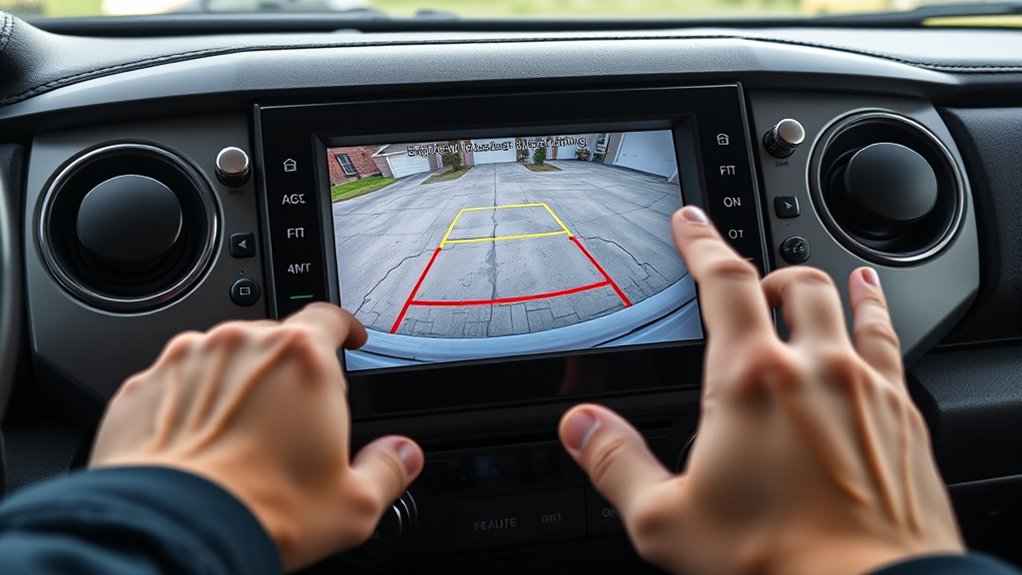
Your Toyota Tundra’s backup camera is designed to show the area behind the truck when you shift into reverse. You may also be able to change the rear view, switch guide-line modes, or use a Panoramic View Monitor, depending on the model year, trim, multimedia system, and installed packages. The safest approach is to learn the controls while parked and confirm unfamiliar icons in the owner’s manual for your exact truck.
Quick Answer
Shift into reverse with your foot on the brake to activate the Toyota Tundra backup camera. Use the on-screen camera or view button to change available views, and use the guide lines only as estimates. Clean the lens, adjust display brightness, and check your VIN for recalls if the image is black, green, frozen, or missing.
Key Takeaways
- The camera normally activates when the transmission is shifted into reverse.
- Available views and guide-line controls vary by model year, trim, screen, and camera package.
- Colored lines are visual distance or path guides. They are not proof that the area is clear.
- Most drivers can adjust the display or select a view, but camera aim and calibration are service procedures.
- If the screen is green, black, frozen, or blank, check for an open recall before paying for repairs.
At a Glance
| Time Required | 5–10 minutes to learn the controls or perform basic checks |
| Difficulty | Easy for normal use; professional service for calibration or electrical faults |
| Tools Needed | Clean microfiber cloth, water, and the manual for your exact model year |
| Cost | Usually $0 for setup and cleaning; repair costs vary unless covered by warranty or recall |
Activating Your Toyota Tundra Backup Camera
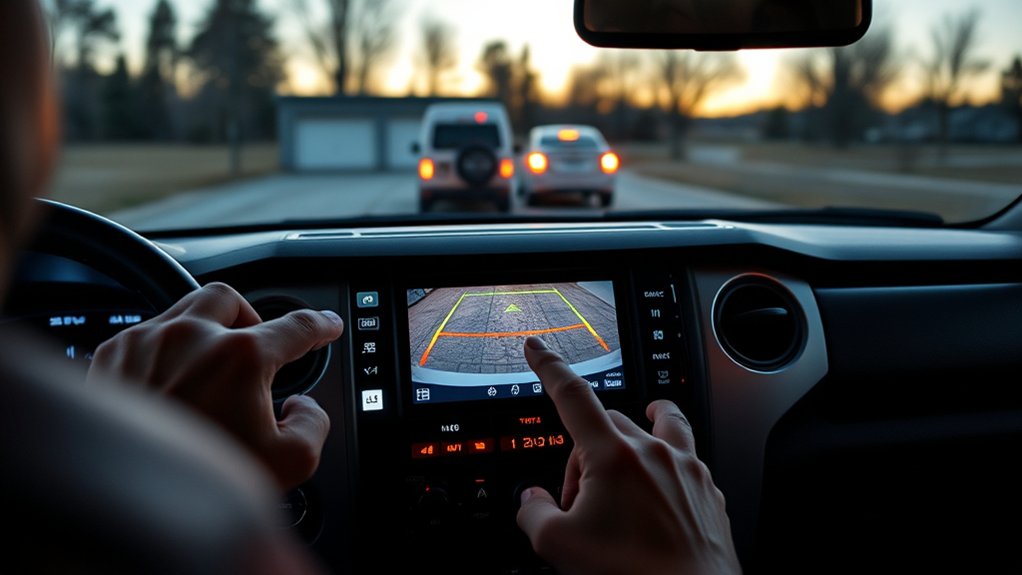
Start the truck, keep your foot firmly on the brake, and shift into reverse. The rearview image should appear on the multimedia display. Federal rear-visibility rules require covered vehicles to display the required rear image at the start of a backing event and keep it visible while reversing unless the driver changes the view.
Some Tundras show only a standard rear image. Others may add a wide rear view, a split display, a bed view, trailer-related views, or a Panoramic View Monitor. Availability depends on your truck’s equipment, so compare the screen with the Toyota manual for your model year.
Warning: A backup camera is an aid, not a replacement for checking mirrors, turning to look, and confirming that people, pets, vehicles, and low objects are clear. Stop immediately if the image is unclear or you are unsure what is behind the truck.
Rear, Wide-Angle, and Panoramic View Options
A standard rear view gives you a more direct look behind the tailgate. A wider view can show more of the areas approaching from the left and right, but wide-angle images may look curved or make objects appear farther away. A panoramic or bird’s-eye-style display, when equipped, combines multiple camera images to improve low-speed awareness around the truck.
Do not assume every Tundra has the same choices. Older systems, smaller screens, base trims, and trucks without the Panoramic View Monitor may offer fewer controls. The exact icon can also change between multimedia generations.
Understanding Backup Camera Guide Lines
The screen may show several guide-line patterns, but names such as “Blue X view,” “red-line view,” or “green-line view” are not reliable universal Toyota labels. Treat what you see as guide-line overlays whose colors, shapes, and behavior may vary by model year and selected display mode.
Fixed Distance and Vehicle-Width Lines
Fixed guide lines generally help you estimate the truck’s width and the distance behind the rear bumper. They do not move with the steering wheel. Use them as rough references only because the camera lens, road slope, cargo load, suspension position, and viewing angle can affect what you see.
Estimated Course Lines
On equipped trucks, estimated course lines may curve as you turn the steering wheel. They show the approximate path the truck could follow if you continue with the current steering angle. Straighten the wheel and pause if the path looks different from what you expect.
Guide Lines Versus Obstacle Warnings
A colored line is not an obstacle detector. Audible beeps, warning graphics, rear cross-traffic alerts, parking-support braking, or similar notices come from separate sensors and driver-assistance systems when equipped. A camera image can still miss an object that is low, close to the bumper, outside the lens area, hidden by glare, or obscured by dirt.
| Display Element | What It Usually Does | Important Limit |
|---|---|---|
| Vehicle-width lines | Estimate the space the truck needs | They may not include mirrors, trailer width, or an open tailgate |
| Distance lines | Provide rough spacing references behind the bumper | They are estimates, especially on slopes or uneven ground |
| Curved path lines | Estimate the path based on steering input | They do not steer, brake, or guarantee clearance |
How to Change Your Backup Camera View
- Stop in a safe, open area. Keep the brake applied and avoid learning the controls in traffic or a tight parking space.
- Shift into reverse. Wait for the rear image to appear.
- Find the camera or view-selection control. It may look like a camera, vehicle outline, split-screen symbol, or view icon. The exact symbol varies, so use the screen label or manual rather than relying on a nickname.
- Tap the control once. Cycle through only the views shown on your screen. Some systems use separate buttons for the image layout and guide-line mode.
- Compare the views while stationary. Note what each view includes and what it crops out.
- Select the clearest view for the task. A direct rear view can help with straight backing, while a wider view can help you scan cross-traffic areas.
- Shift into park when finished. Review the manual before changing unfamiliar settings.
Pro Tip: Place two lightweight cones in an empty lot and compare their real positions with each camera view. This helps you understand image distortion without risking contact with a wall, vehicle, or person.
How to Customize Your Backup Camera Settings
You may be able to adjust display brightness, contrast, or a day/night display setting through the multimedia controls. Make changes while parked, then recheck the image in the lighting conditions that caused the problem. Brightening the screen can help you see the display, but it cannot reveal an area the camera lens does not capture.
Most drivers cannot safely change the physical camera angle, optical calibration, or obstacle-sensor sensitivity from the camera screen. The system also does not normally provide a user-controlled “night vision” setting. Low-light performance depends on the camera, reverse lights, display, weather, and surrounding light.
If guide lines appear badly misaligned after collision repair, tailgate work, camera replacement, suspension changes, or electrical service, have a qualified Toyota technician inspect the system. Calibration is not the same as choosing a view.
How to Troubleshoot Common Backup Camera Problems
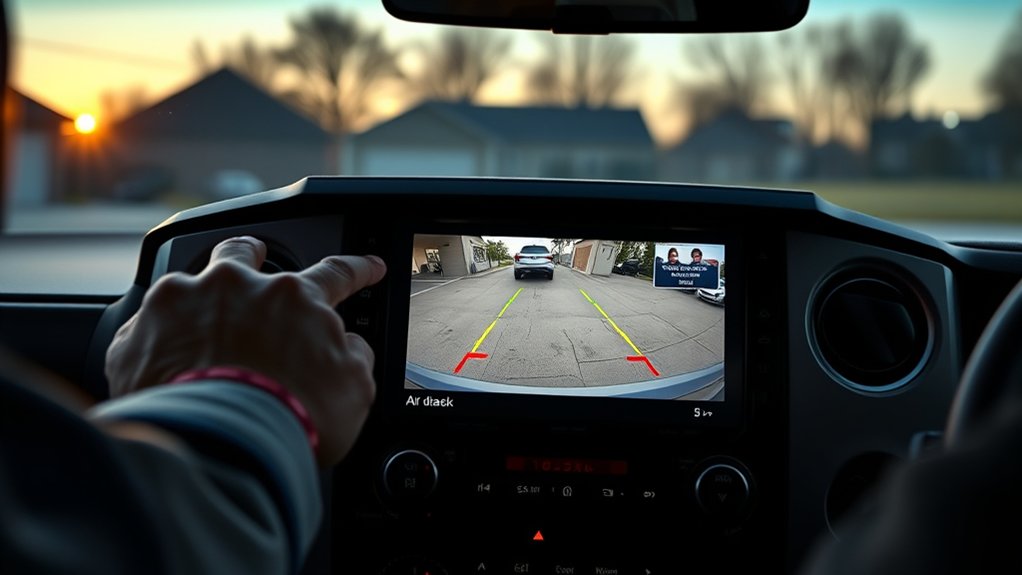
Start with simple checks before assuming the camera has failed. Keep the truck parked, set the parking brake, and avoid standing behind a vehicle that could move.
The Image Is Dirty, Blurry, or Foggy
- Inspect the rear camera lens for mud, road salt, snow, ice, wax, water droplets, or a protective film.
- Rinse loose grit with water, then wipe gently with a clean microfiber cloth.
- Do not use an abrasive pad, scraper, or strong solvent on the lens.
- Check whether condensation clears after the truck and camera reach a stable temperature. Persistent moisture inside the camera housing needs service.
The Screen Is Black, Green, Frozen, or Blank
- Keep the truck stopped and shift to park.
- Turn the vehicle off, wait briefly, restart it, and test reverse again.
- Confirm that the multimedia display works in other menus.
- Check the display brightness so a very dim screen is not mistaken for a failed camera.
- Check your VIN for an open safety recall before authorizing paid repairs.
Toyota announced a recall on October 1, 2025, involving certain 2022–2025 Tundra and Tundra hybrid models because the 14-inch multimedia display could show a half-green, full-green, or black screen. Toyota said dealers would update the multimedia software free of charge.
Toyota announced another recall on January 23, 2026, involving certain 2024–2025 Tundra and Tundra Hybrid vehicles because the display could become stuck on a camera view or show a black image, preventing the rearview image from appearing while reversing. Toyota said dealers would update the Parking Assist ECU software free of charge. Recall coverage is VIN-specific and can change, so use the Toyota recall lookup or the NHTSA recall lookup.
Guide Lines Are Missing, Frozen, or Misaligned
- Look for a guide-line selection button because some systems allow the overlay to be changed or hidden.
- Turn the steering wheel slightly while stopped to see whether dynamic lines respond on an equipped system.
- Do not treat missing lines as proof that the camera itself has failed.
- Arrange service if the lines remain badly misaligned, especially after body, tailgate, steering, camera, or suspension work.
The Image Is Delayed or Does Not Appear in Reverse
A brief startup transition can occur, but the rear image should not be repeatedly absent during a backing event. Stop using the camera as your primary rear view, check for recalls, and schedule service if the problem returns. Record the date, temperature, startup sequence, screen color, and any warning message because intermittent faults are easier to diagnose with details.
When to Get Professional Service
Contact a Toyota dealer or qualified repair facility when the camera remains blank, the image cuts in and out, the lens housing is damaged, moisture is trapped inside, guide lines are clearly wrong, or the issue follows collision or tailgate repair. Do not remove trim or probe camera wiring unless you have the correct service information and electrical training.
Parking Tips for Confidence
- Walk around first. Check for children, pets, bicycles, posts, curbs, and objects below the camera’s field of view.
- Back slowly. Keep your foot ready to brake and stop when the image or mirrors do not agree.
- Use every view available. Combine the camera with both outside mirrors and a direct shoulder check.
- Expect distortion. Wide-angle views improve coverage but can make distance harder to judge.
- Watch the truck’s corners. The screen may not show the full swing of the front end while you steer.
- Allow for attachments. A hitch, trailer, bike rack, lowered tailgate, or cargo can change what the lines mean.
The camera can improve rear visibility, but you remain responsible for steering, braking, checking the surroundings, and stopping when the path is not clear.
Using Owner Communities Without Relying on Guesswork
Tundra owner groups can help you recognize an icon, compare screen layouts, or learn whether another driver has seen the same symptom. Include your model year, trim, screen size, camera package, and a clear photo of the display when asking for help.
Use community advice as a starting point, not a substitute for the manual, recall lookup, or diagnosis. Interface labels can differ between model years, and a procedure that works on one multimedia system may not apply to another.
How to Enhance Your Overall Parking Experience
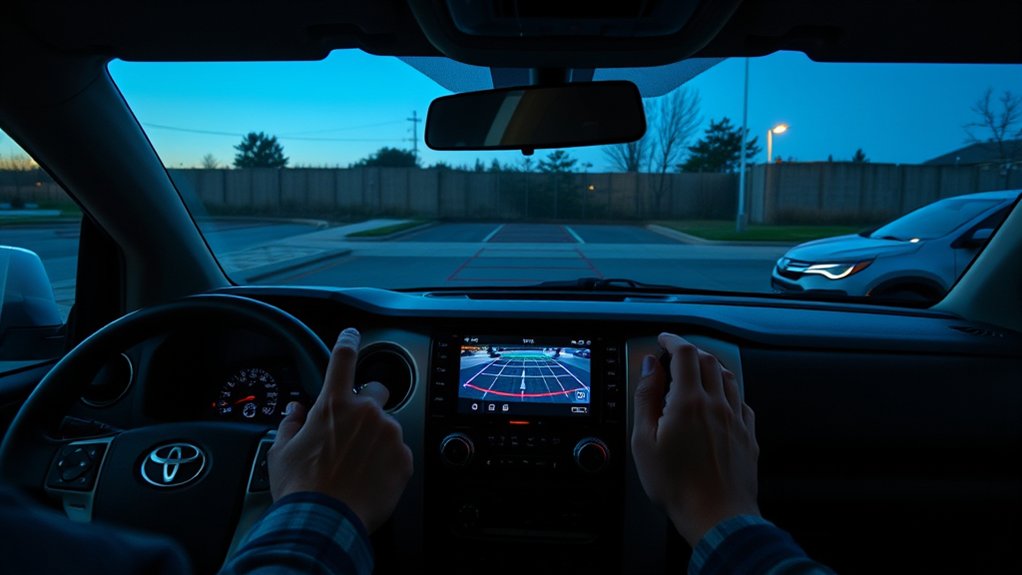
Keep the camera lens clean, learn each view in daylight, and repeat the exercise at night or in rain so you understand the system’s limits. If your truck has rear cross-traffic warning, parking sensors, or rear automatic braking, learn the separate alerts for those systems instead of assuming the camera lines provide warnings.
For trailer alignment, use any factory trailer or hitch view provided by your truck, but still use a spotter when clearance is tight. Agree on hand signals before moving, keep the spotter visible in a mirror, and stop immediately if you lose sight of that person.
Review the exact camera and parking-assist instructions after a software update, vehicle purchase, or change in drivers. A few minutes of practice in an open area can prevent confusion when you need the camera in a crowded lot or narrow driveway.
Related Guides
Frequently Asked Questions
How do you adjust the backup camera on a Toyota Tundra?
Shift into reverse while stopped, then use the on-screen camera or view-selection control to choose an available view or guide-line mode. You may also adjust display brightness. The physical camera angle and calibration should be handled as service procedures, not changed by tapping the image.
Can the Toyota Tundra backup camera angle be adjusted?
You can select different electronic views on equipped trucks, but that is not the same as moving the camera. If the image or guide lines are physically misaligned, have the mounting and calibration inspected by a qualified technician.
What do the colored backup camera lines mean?
They usually represent estimated vehicle width, distance, or steering path. Exact colors and meanings vary by system, so use your model-year manual. The lines are visual estimates and do not confirm that an obstacle has been detected.
Why did the guide lines disappear?
The overlay may have been switched off, a different view may not show the same lines, or the system may have a fault. Check the view and guide-line controls first. Seek service if the lines remain missing or misaligned after restarting the truck.
How do you reset a Toyota Tundra camera system?
There is no universal camera-reset sequence for every Tundra. While parked, shift to park, turn the vehicle off, restart it, and test again. If the display remains black, green, frozen, or blank, check for recalls and have the system diagnosed rather than repeatedly toggling views.
Why does the backup camera look distorted?
A wide-angle lens can curve straight lines and change how distance appears. Dirt, water, ice, glare, or a damaged lens can make the effect worse. Clean the lens and compare another available view before arranging service.
Conclusion
Use your Toyota Tundra backup camera by shifting into reverse, selecting only the views offered on your screen, and treating every guide line as an estimate. Keep the lens clean, combine the display with mirrors and a direct check, and avoid unsupported “sensitivity,” “night vision,” or do-it-yourself calibration adjustments.
If the image is black, green, frozen, delayed, or missing, restart the system once while parked, check your VIN for recalls, and schedule service if the fault returns. The safest setting is always the one that gives you the clearest view while you remain fully aware of the truck’s surroundings.
Sources
- Toyota Manuals and Warranties — model-year-specific operating instructions and feature availability.
- NHTSA Driver Assistance Technologies — backup-camera purpose, limitations, and driver responsibility.
- 49 CFR 571.111, Rear Visibility — federal rearview-image requirements.
- Toyota Tundra and Sequoia Rearview Display Recall Notice — October 1, 2025 recall details.
- Toyota Tundra Multimedia Display Recall Notice — January 23, 2026 recall details.
- NHTSA Recall Lookup — VIN and license-plate recall checks.