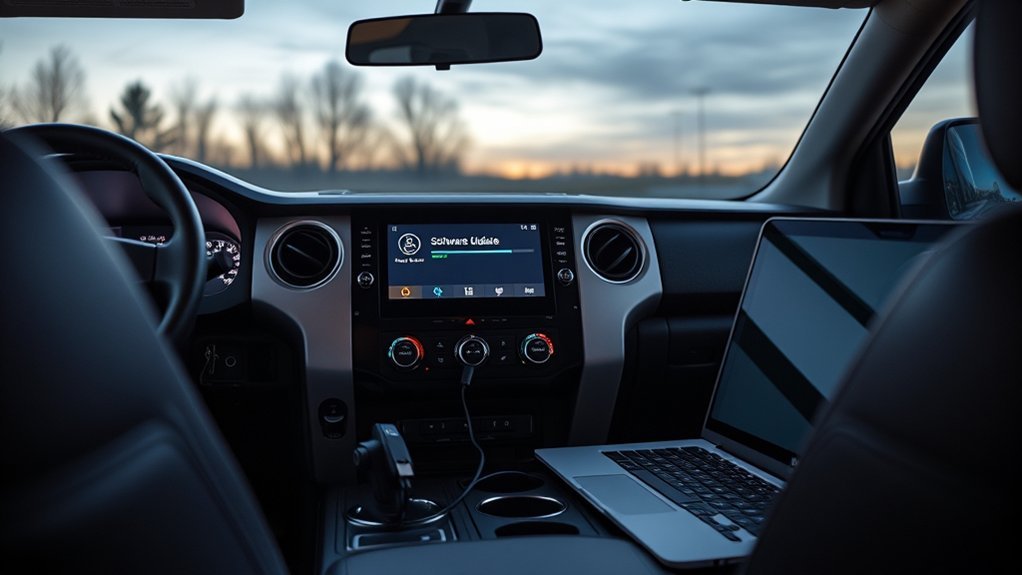
Updating your Toyota Tundra’s infotainment software starts with identifying the truck’s model year and installed multimedia system. Tundras do not all use the same update method. Depending on the head unit, an update may arrive through the multimedia display, a Toyota-provided USB download, or a Toyota dealer.
Quick Answer
Check your current software version, enter your vehicle information in Toyota’s official software portal, and follow the instructions provided for your exact Tundra. Use an in-vehicle update only when the display offers one. If no owner-installed update appears, check for recalls or contact a Toyota dealer.
Key Takeaways
- Update methods vary by Tundra model year, multimedia unit, region, and available software package.
- Do not assume that the Entune app, Wi-Fi, Bluetooth, or a specific USB format is required.
- Use only files and installation instructions supplied by Toyota for your exact vehicle.
- Never interrupt power, remove the USB drive, or drive the truck during installation unless the screen specifically says it is safe.
- Check your VIN for recalls or service campaigns when the display, camera, or update process continues to malfunction.
At a Glance
| Time Required | Varies by system and update size; set aside at least one uninterrupted hour |
| Difficulty | Easy to moderate |
| Tools Needed | Vehicle manual, computer and internet connection, plus a blank USB drive when Toyota provides a USB update |
| Cost | Owner-downloadable updates may be free; dealer charges can vary unless the repair is covered by a recall, campaign, or warranty |
Preparing Your Toyota Tundra for Infotainment Updates
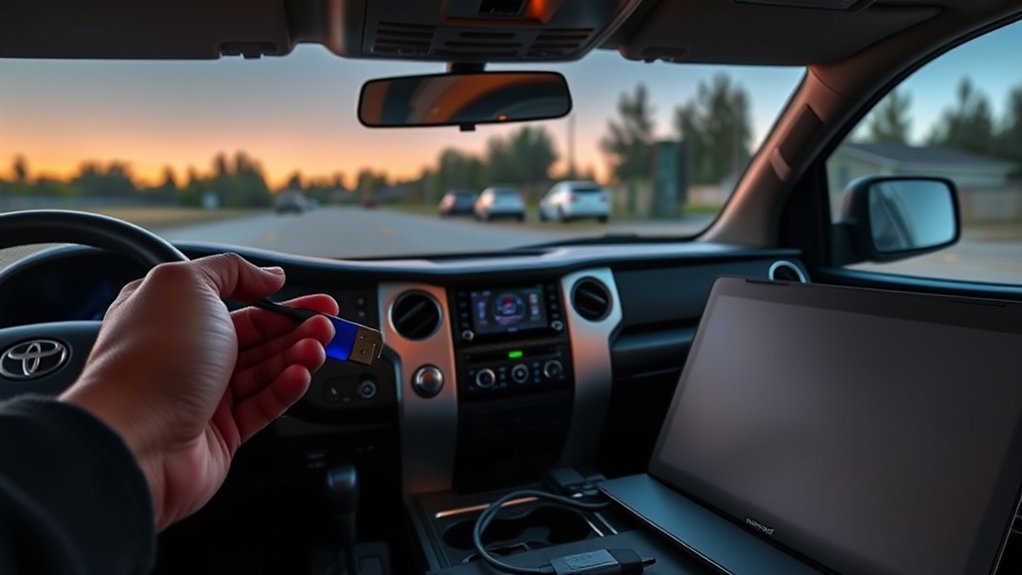
Before downloading anything, identify the multimedia system installed in your Tundra. The available procedure can differ between model years, trims, screen sizes, navigation packages, and replacement head units.
Open the system settings and record the software or firmware version shown under a menu such as System Information, Software Information, General, or About. Menu names vary, so use the Toyota owner’s manual library when you cannot find the version screen.
Next, enter the vehicle information requested by Toyota’s Audio Multimedia System Updates portal. The portal shows whether an owner-downloadable update is available for an eligible U.S.-market vehicle. Owners outside the supported U.S. region should use their regional Toyota website or contact a local Toyota dealer.
- Write down or photograph the current software version.
- Save radio presets, paired-phone details, and navigation favorites that you may need to restore.
- Confirm that the update matches the exact model, year, and multimedia unit.
- Read the complete vehicle installation instructions before starting.
- Check whether Toyota requires an in-vehicle download, USB drive, or dealer installation.
Warning: Never run the engine in a closed garage or other enclosed area. If Toyota’s instructions require the engine to remain on, move the truck outdoors or to a properly ventilated location and set the parking brake.
Troubleshooting Common Update Issues
Most failed updates come from an incompatible package, incorrect file placement, interrupted power, a damaged download, or an update that must be installed by a dealer. Avoid repeatedly attempting the same installation until you have checked the exact instructions for your vehicle.
Common Error Messages
Do not rely on a generic online definition for an error number. The same message can have different causes on different head units. Photograph the full message and note when it appeared.
- No update or no software found: The file may not match the head unit, may still be inside a compressed folder, or may be stored in the wrong location on the USB drive.
- Update unavailable: Your current version may already be current, no customer-installed package may be offered, or the update may require dealer equipment.
- Installation failed: The download may be incomplete, the USB drive may be unreadable, or power may have been interrupted.
- Invalid or incompatible file: The package may be for another model year, region, screen, or audio system.
If the same error returns, contact Toyota support or a dealer with your VIN, current version, downloaded file name, and a photo of the message.
Update Recognition Issues
When the Tundra does not detect a USB update, start with the simple checks below:
- Confirm that Toyota’s portal lists the update for your exact vehicle.
- Download the package again from the official source if the first download may be incomplete.
- Follow the supplied extraction and folder-placement instructions exactly.
- Make sure the update file is on the USB drive rather than remaining in your computer’s Downloads folder.
- Remove unrelated files from the drive.
- Insert the drive into the vehicle’s data-capable media port, not a charging-only port.
- Try another compatible USB drive if the system still cannot read it.
Formatting and USB Problems
Toyota’s public computer-download guide calls for a blank USB flash drive of at least 2 GB. The required capacity, file system, and folder structure may differ by update, so follow the instructions displayed with the package instead of assuming that every Tundra uses the same format.
Do not rename the downloaded files unless Toyota specifically tells you to do so. Do not add extra folders, combine packages from different vehicles, or install files shared through forums or cloud drives.
Pro Tip: Keep the original update file on your computer until you confirm that the installation succeeded. This lets you prepare another USB drive without downloading an unofficial copy.
Connecting to a Stable Wi-Fi Network
A Wi-Fi connection is relevant only when your Tundra’s multimedia system offers a network-based update. A truck that requires a USB or dealer-installed package will not gain an over-the-air option simply because it is connected to Wi-Fi.
Wi-Fi Network Selection Tips
When an update screen asks for a network connection, use a private and trusted network when possible. Public networks may require a browser sign-in page that the multimedia system cannot complete.
- Park where the Wi-Fi signal remains strong and consistent.
- Enter the network password carefully.
- Avoid starting a large update through a weak mobile hotspot.
- Do not drive while entering network details or reviewing update prompts.
Ensuring Strong Signal Strength
Move the truck closer to the router if the connection repeatedly drops. You can also pause other large downloads on the same network. Toyota does not publish one universal minimum internet speed for every Tundra update, so connection stability matters more than relying on an arbitrary speed number.
Wait until the system completes the download before moving the vehicle out of range. The installation stage may have different power and connectivity requirements, which will appear in the vehicle-specific instructions.
Troubleshooting Connection Issues
- Confirm that Wi-Fi is enabled in the multimedia settings.
- Forget the saved network and reconnect with the correct password.
- Restart the router if other devices also have connection problems.
- Restart the multimedia display using its approved power-button method.
- Try a different private network when the current one uses a sign-in page or restrictive firewall.
If the update option disappears or repeatedly fails after reconnecting, check Toyota’s software portal and manual. The system may require a USB package or dealer installation instead.
How to Access the Update Menu
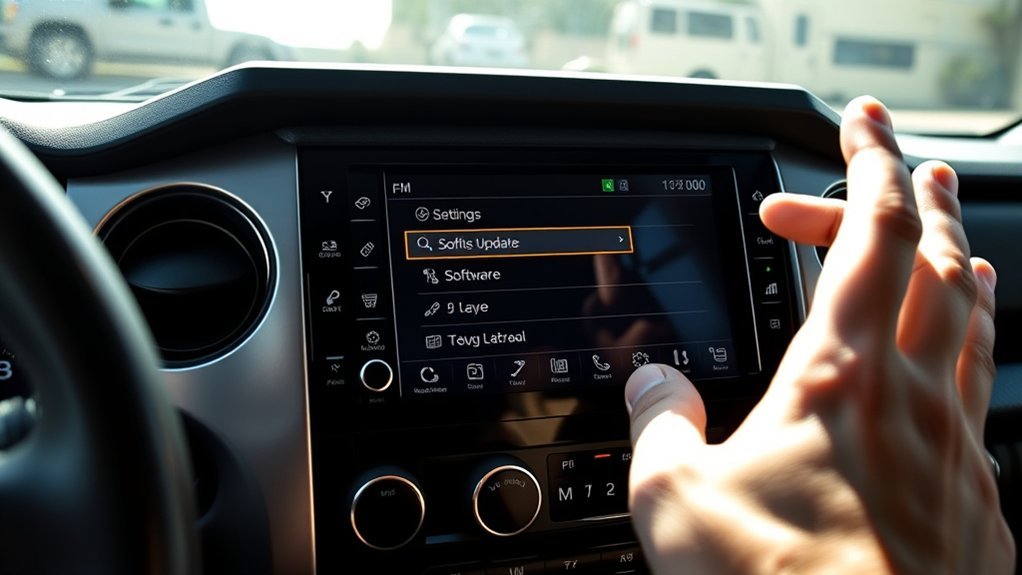
The exact menu path depends on the multimedia system. With the truck safely parked, open the main settings screen and look for options such as General, System, Software Update, System Information, or About.
Some systems automatically display an update notification. If the screen offers options such as Update Now or Update Later, read the full message before choosing. Do not assume these options will appear on every Tundra.
| What You See | What to Do |
|---|---|
| Update Now | Start only after the truck is parked, power requirements are met, and you have enough uninterrupted time. |
| Update Later | Delay the installation until you can follow the full procedure without interruption. |
| No Update Available | Check the installed version, Toyota’s portal, your manual, and any applicable recall or campaign. |
Checking for Available Updates and Version Information
Compare the version shown on the multimedia display with the information supplied for your vehicle in Toyota’s official portal or installation document. Do not use a release date or version number posted for another Tundra as proof that your truck needs the same package.
- Record the current version from the multimedia settings.
- Enter the requested vehicle details in Toyota’s software portal.
- Review the description, compatibility information, and installation instructions.
- Download only the package offered for your vehicle.
- After installation, return to the version screen and confirm that the number changed as expected.
Toyota’s multimedia software portal does not provide navigation-map updates. Map data may be handled through connected navigation services, separate media, or a Toyota dealer, depending on the system.
Initiating the Software Update Process
Begin only after you know which update path Toyota specifies. Do not switch between Wi-Fi, phone, Bluetooth, and USB methods unless the official instructions list those methods for your system.
Preparing Your Vehicle
- Park on a level surface and apply the parking brake.
- Move outdoors if the engine must remain running.
- Turn off unnecessary electrical accessories when instructed.
- Keep children and passengers from pressing multimedia controls.
- Do not begin immediately before an appointment or trip.
- Keep the key inside the vehicle when required by the instructions.
The correct ignition position may be accessory mode, ignition on, or engine running. Follow the installation screen or Toyota document for your exact package rather than using one rule for every Tundra.
Using the Correct Toyota App or Update Source
Do not assume that an Entune phone app is required. Current connected services use the Toyota app on supported vehicles, while firmware packages are checked through Toyota’s software portal or the multimedia display. A phone connection through USB or Bluetooth does not automatically transfer head-unit firmware.
Use the app only when the vehicle’s manual or on-screen instructions tell you to use it for that specific task. For general setup and connected-service information, consult Toyota’s Audio Multimedia and Connected Services page.
Selecting the Update Option
Review every warning before approving the installation. Once the update starts:
- Leave the vehicle parked.
- Do not remove the USB drive.
- Do not switch off the required power source.
- Do not press buttons unless the screen asks for input.
- Do not attempt to use navigation, cameras, audio, or phone functions during installation.
If the screen allows you to postpone the update, choose that option when you cannot complete the process safely.
What Happens During the Update?
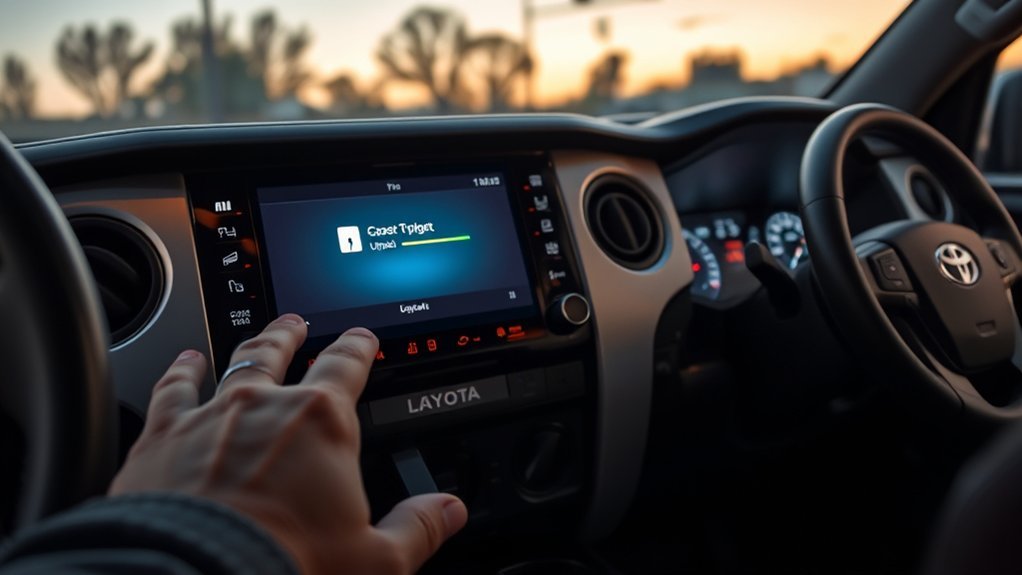
The multimedia display may show a progress bar, restart several times, go dark briefly, or make some features unavailable. These behaviors can be normal when they match the instructions provided with the update.
Do not assume that every installation pauses safely when the truck is turned off. Unless the screen specifically states otherwise, keep the required power state unchanged until the system confirms completion.
After installation, the unit may take several minutes to rebuild settings or reconnect to services. Wait for the normal home screen before removing the USB drive or changing the ignition state.
Note: A system reset normally does not restore an older firmware version. Contact Toyota before attempting to reinstall or downgrade software.
Restarting Your Infotainment System
A simple multimedia restart can clear a frozen screen or temporary connection problem. When the system is not actively installing software, press and hold the multimedia power or volume knob until the display restarts, if that method is supported by your unit.
Do not disconnect the vehicle battery as your first troubleshooting step. Battery disconnection can erase settings, produce warning messages, and complicate diagnosis. Use it only when the owner’s manual or a qualified Toyota technician specifically instructs you to do so.
Seek dealer assistance when:
- The screen remains black after a normal restart.
- The rearview camera image is missing, frozen, distorted, or unreliable.
- The unit restarts continuously.
- An update remains stuck for an unusually long time.
- The same installation error returns with the correct package.
- Bluetooth, audio, navigation, or cameras stop working after the update.
Tips for Keeping Your Infotainment System Updated
- Check the installed version when you notice repeated multimedia problems.
- Use only Toyota’s portal, manual, support resources, or dealer-supplied files.
- Keep the Toyota app current when your vehicle uses supported connected services.
- Review open recalls and service campaigns by VIN.
- Do not install files created for another model, region, or head unit.
- Keep a record of the update date, previous version, new version, and any error messages.
- Ask the dealer whether an update is customer-installable or requires service equipment.
Use Toyota’s Safety Recalls and Service Campaigns page or the NHTSA recall lookup to check your VIN. Recall and campaign repairs are different from ordinary feature updates and may be completed by a dealer at no charge when your vehicle qualifies.
Discovering New Features Post-Update
After the system restarts, review the release information and test the functions you normally use. Software updates often focus on bug fixes, stability, phone compatibility, display behavior, or connected-service performance.
An update does not guarantee new hardware-dependent features. Wireless phone projection, screen size, camera capability, navigation functions, and audio hardware depend on the equipment originally installed in the truck.
Complete this post-update check:
- Confirm the new software version.
- Test AM, FM, Bluetooth audio, and USB audio.
- Reconnect Apple CarPlay or Android Auto when necessary.
- Make a hands-free test call while parked.
- Check the rearview and available surround-view cameras.
- Review the clock, language, sound, privacy, and notification settings.
- Confirm that navigation and connected services load correctly.
- Restore any presets or paired devices that were removed.
Frequently Asked Questions
How do I update my Toyota Tundra infotainment system?
Record the current software version, check Toyota’s official software portal using your vehicle information, and follow the supplied instructions. Your Tundra may use an in-vehicle update, a Toyota-provided USB package, or a dealer-installed update.
Does every Tundra update require the Entune app?
No. The required method depends on the model year and multimedia system. Current connected services may use the Toyota app, while firmware updates may come through the display, Toyota’s software portal, a USB drive, or a dealer.
Does the USB drive have to be FAT32?
Not every Toyota update publishes the same USB requirements. Toyota’s public download guide calls for a blank USB drive of at least 2 GB, but you should follow the formatting, capacity, extraction, and folder instructions supplied with your exact update.
How long does a Toyota multimedia software update take?
The time varies with the system, download, and installation package. Set aside at least an uninterrupted hour and follow any time estimate shown on the multimedia screen. Do not start when you need to drive the truck soon.
Why does my Tundra say no software was found?
Common causes include an incompatible package, incorrect file placement, a compressed file that was not extracted, a charging-only USB port, an unreadable drive, or an update that is not owner-installable. Recheck Toyota’s vehicle-specific instructions before trying again.
Can a software update add wireless Android Auto or Apple CarPlay?
Only when Toyota releases an enhancement for compatible hardware. A routine firmware update cannot add features that require equipment your head unit does not have. Check the official release information for the exact changes included.
When should I take my Tundra to a dealer?
Contact a dealer when no customer update is offered, the installation repeatedly fails, the display remains black, the unit restarts continuously, camera functions are affected, or your VIN has an open recall or service campaign.
Conclusion
A successful Toyota Tundra infotainment software update depends on using the procedure intended for your exact truck and head unit. Record the current version, check Toyota’s official resources, follow every power and USB instruction, and verify the system after installation. When an update is unavailable or the display continues to malfunction, stop experimenting and contact a Toyota dealer.
Sources
- Toyota Audio Multimedia System Updates — checks whether an eligible owner-downloadable update is available for a specific vehicle.
- Toyota Multimedia System Updates Computer Download Guide — explains Toyota’s public USB download preparation steps.
- Toyota Manuals and Warranties — provides model-specific owner and multimedia instructions.
- Toyota Audio Multimedia and Connected Services — explains current Toyota app, multimedia, and connected-service resources.
- Toyota Safety Recalls and Service Campaigns — provides VIN-based Toyota campaign information.
- National Highway Traffic Safety Administration Recall Lookup — checks open vehicle safety recalls by VIN or license plate.