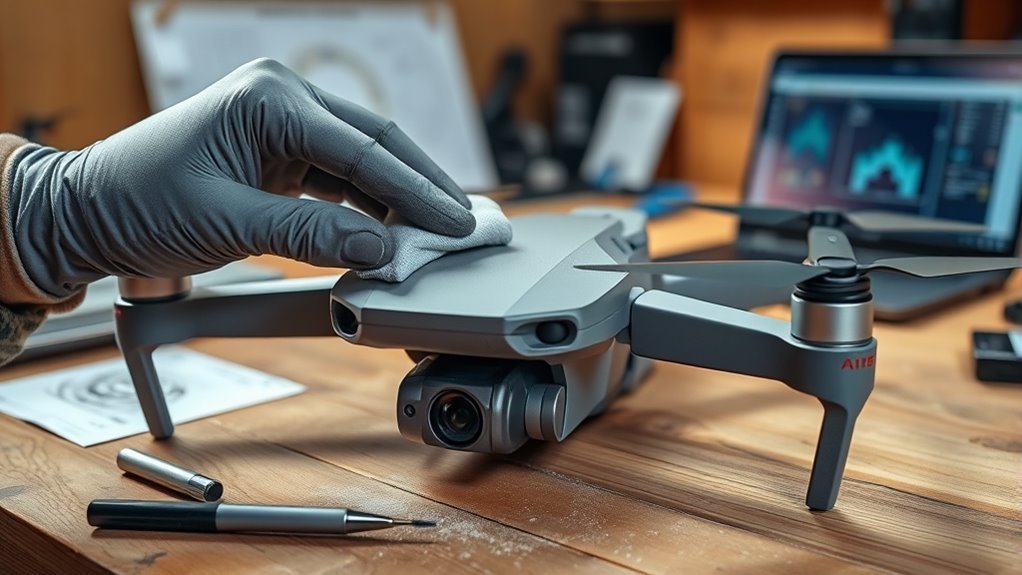
A DJI vision system error or obstacle sensor error usually means the aircraft cannot trust one or more of its sensing cameras or related sensors. Dirt, protective film, poor lighting, firmware problems, calibration issues, transport vibration, or hardware damage can all trigger a warning. Start with the safest checks, then use the calibration method DJI specifies for your model.
Quick Answer
Land the drone, confirm the exact warning, inspect and gently clean the vision sensors, and make sure the aircraft firmware is current. If calibration is requested, follow the method supported by your DJI model. If the error remains after those steps, stop relying on obstacle sensing and arrange professional diagnosis.
Last checked: October 5, 2026. Calibration support and troubleshooting steps were verified against official DJI sources.
At a Glance
| Difficulty | Basic troubleshooting first; professional repair may be needed for persistent hardware faults |
| Tools Needed | Clean soft cloth, DJI Fly, and for supported models a computer, USB cable, and DJI Assistant 2 |
Confirm the Vision Sensor Error
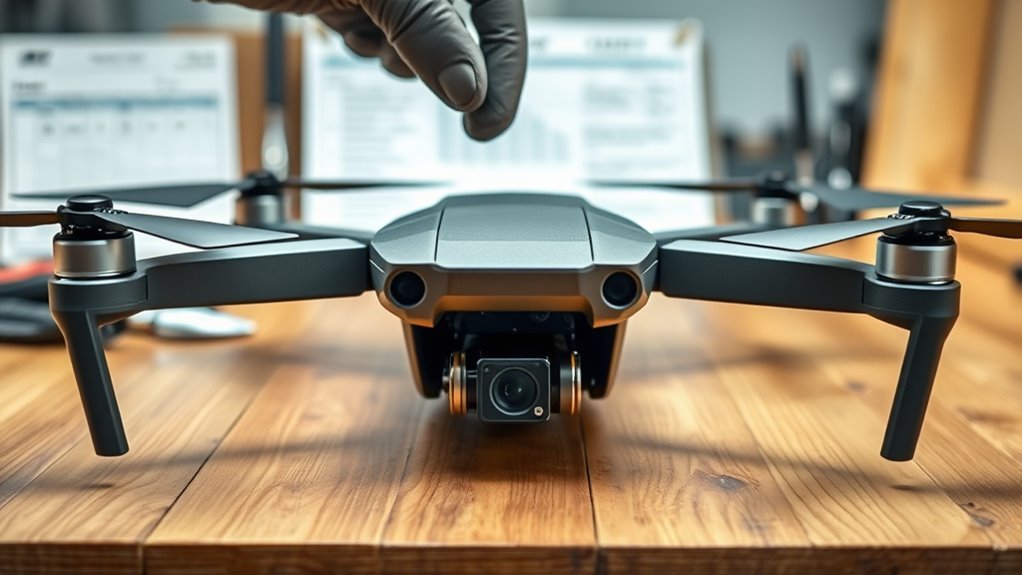
First, read the exact warning in DJI Fly, DJI GO 4, or the app used by your aircraft. DJI lists warnings such as a forward vision system error or a request to calibrate the aircraft as signs that the sensing system needs attention.
The error matters because vision sensors help with obstacle sensing, positioning, and some automated flight functions. Until you know why the warning appeared, do not assume obstacle avoidance will work normally.
Warning: If the app reports a vision-system fault, treat obstacle sensing as unavailable or unreliable until the warning has cleared and normal operation has been confirmed.
Restart the aircraft and controller once and check whether the warning returns. Also note the exact sensor named in the alert, such as forward, backward, or downward vision.
According to DJI’s vision-system error troubleshooting guidance, common causes include protective film left on a sensor, dirty optics, vibration during transport, long periods without use, firmware problems, and hardware damage.
Pro Tip: Take a screenshot of the warning and error code before restarting the aircraft. If the fault later needs repair, this gives the technician a clearer starting point.
Clean the Vision Sensors Safely
Dirty or covered sensor windows are among the easiest causes to correct. Power the aircraft off first, inspect every visible vision sensor, and remove any shipping film that may still cover the optics.
Cleaning advice varies between DJI models, so use the cleaning guidance for your aircraft whenever it is available. A clean, soft cloth is the safest general starting point.
Safe Sensor Cleaning
Work in a bright, clean area where you can see fingerprints, dust, dried droplets, and debris on each sensor window. Wipe gently rather than pressing hard on the optical surface.
DJI’s general vision-error guidance allows a clean cotton cloth lightly dampened with alcohol in some cases. However, model-specific advice can differ; for example, DJI’s Mavic 2 support guidance recommends a lint-free cloth and says not to use organic solvents.
Note: Do not assume one cleaning liquid is safe for every DJI model. If your manual gives specific lens-cleaning instructions, follow those instructions instead of using a generic cleaner.
Tools And Materials
For basic vision-sensor maintenance, you normally need only a clean, soft, lint-free cloth and good lighting. Avoid abrasive cloths, heavy pressure, and spraying liquid directly into a sensor opening.
If your model later needs computer-based calibration, you may also need a compatible computer, a reliable USB cable, and the correct DJI Assistant 2 version for that aircraft.
After-Cleaning Inspection
After cleaning, inspect each optical surface from several angles. Look for remaining streaks, dirt around the edges, cracked covers, dents, or signs that a sensor housing shifted after an impact.
Power the aircraft back on and check the app again. If the error is gone, confirm normal operation cautiously in a suitable open area before relying on obstacle sensing during a more demanding flight.
When a Vision Sensor Calibration Helps
Calibration is appropriate when the app specifically requests it or when DJI’s troubleshooting procedure directs you to calibrate after a vision-system error. It can also become relevant after impact, rough transport, or a sensor-related self-check problem.
The important point is that DJI does not use the same vision-calibration method on every aircraft. Current DJI vision sensor calibration instructions separate models that support computer calibration from models that use automatic app-based calibration.
| Calibration Method | Examples Listed by DJI | What You Do |
|---|---|---|
| DJI Assistant 2 | DJI Mini 3 Pro, DJI Air 2S, Mavic Air 2, Mavic Air, DJI Avata, DJI FPV, Phantom 4 Series, Mavic 2, Mavic Pro | Connect the aircraft to a computer and run the supported calibration workflow |
| Automatic calibration through DJI Fly when an error appears | DJI Mavic 3 Series, DJI Mini 4 Pro, DJI Air 3, DJI Avata 2, DJI Neo, DJI Air 3S, DJI Flip and other models listed by DJI | Follow the app prompt; DJI says no separate Assistant 2 vision-calibration operation is required |
This distinction prevents a common troubleshooting mistake: installing DJI Assistant 2 and expecting a Calibration button for an aircraft whose vision system is not designed to be calibrated that way.
Run a Vision Sensor Calibration
If your aircraft is on DJI’s Assistant 2 calibration list, use the official computer workflow rather than an unofficial service utility. DJI requires sufficient aircraft battery power and recommends more than 50% before starting the procedure.
- Install the DJI Assistant 2 version intended for your aircraft.
- Power on the aircraft.
- Connect it to the computer with a USB cable.
- Open DJI Assistant 2 and select the aircraft.
- Select Calibration, then Calibration Now.
- Follow the on-screen movements and alignment instructions.
- Restart the aircraft after calibration completes.
If your model uses automatic DJI Fly calibration instead, follow the prompt shown in the app. Do not substitute an unofficial “Service Tools” process simply because your model does not display the Assistant 2 calibration option.
Before troubleshooting calibration failures, also make sure the aircraft firmware is current. DJI documents firmware updates through either the app or DJI Assistant 2 in its official drone firmware update guide.
What to Do If the Error Remains?
If cleaning, restarting, firmware checks, and the correct calibration procedure do not clear the error, stop repeating the same steps. At that point, the problem may be a calibration failure, damaged sensor, driver problem, or another hardware issue.
Work from the least invasive checks toward professional diagnosis.
Check Sensor Connections
Inspect only the parts you can safely see without dismantling the aircraft. Check the outside of the sensor housings for cracks, impact marks, looseness, or anything blocking the optical path.
If the aircraft was recently repaired or opened and an internal connection is suspected, avoid repeatedly taking it apart unless you have the correct model-specific repair procedure and skills. Internal sensor alignment and connections can affect calibration.
- Check visible sensor windows and housings for impact damage.
- Make sure no protective film or accessory blocks a sensor.
- Use a known-good USB cable if Assistant 2 repeatedly disconnects.
- Record any sensor preview that appears black or gray during calibration.
DJI says a black or gray sensor image in the Assistant 2 calibration interface can indicate a sensor malfunction.
Recalibrate Vision System
If your aircraft officially supports Assistant 2 vision calibration and the first attempt fails, use DJI’s calibration-failure procedure rather than repeatedly changing settings at random.
The DJI calibration failure guide says to check the VISION driver when calibration cannot start, use the latest correct DJI Assistant 2 version, keep firmware current, restart the computer and aircraft, and use a flat display rather than a curved screen.
If calibration becomes stuck during processing, the same DJI guide recommends trying another computer if the normal corrections do not solve the problem.
A factory reset exists on many DJI aircraft, but DJI’s current vision-error instructions do not list it as a standard first-line fix for a vision sensor fault. If you are considering a reset, back up important files and settings and use it only when appropriate for your model or when directed by DJI Support.
Seek Professional Repair
Persistent vision-system errors after the supported troubleshooting steps can indicate damaged sensing hardware. DJI specifically recommends sending the aircraft for diagnosis when cleaning, firmware correction, and calibration do not solve the fault.
- Save the exact error code or screenshot.
- Note whether the aircraft was recently dropped, crashed, repaired, or transported roughly.
- List the cleaning, firmware, and calibration steps already completed.
- Keep repair records and proof of purchase if available.
Do not keep recalibrating a sensor that shows clear physical damage or produces a black or gray preview during the calibration process. That is a stronger reason to move to repair rather than software troubleshooting.
Common Causes of Vision Sensor Errors
DJI vision system errors are usually easier to diagnose when you separate an actual system fault from a temporary environmental limitation. The app message and flight conditions provide important clues.
- Dirty or covered sensors: fingerprints, debris, or protective film can interfere with the optical system.
- Transport vibration or long storage: DJI says either can contribute to a calibration warning during self-check.
- Firmware problems: outdated or abnormal firmware can contribute to sensor errors.
- Impact or hardware damage: cracked, displaced, or failed sensor hardware can cause persistent faults.
- Poor lighting: camera-based sensing becomes less reliable when there is not enough usable light.
- Low-detail or reflective surfaces: smooth, repetitive, transparent, or reflective scenes can make visual sensing difficult even when the sensor itself is healthy.
DJI’s obstacle avoidance system guidance explains that vision sensing depends on adequate lighting and useful surface detail. Smooth reflective surfaces such as mirrors or tiles can reduce sensing performance.
As a model-specific example, DJI specifies that the Air 3 and Mini 4 Pro vision systems require surfaces with discernible patterns and adequate lighting. Their downward sensing specifications also depend on suitable surface reflectivity. These operating limits should not be treated as evidence of a hardware failure by themselves.
Prevent Future Vision Sensor Problems
Good sensor care reduces false warnings and makes genuine faults easier to recognize. You do not need an elaborate maintenance routine; consistent visual checks are more useful.
- Inspect the vision sensors before flight and after transport.
- Keep the optical windows clean and unobstructed.
- Remove protective film before the aircraft’s first flight.
- Install firmware updates through the supported DJI method.
- After an impact, check the aircraft carefully before relying on obstacle sensing again.
- Avoid assuming obstacle detection will work normally in darkness or over difficult reflective surfaces.
- Record recurring warnings and error codes so you can identify a pattern.
Also remember that obstacle sensing has limits even when no error is present. Small branches, wires, low-texture surfaces, reflective areas, and difficult lighting can still challenge a functioning vision system.
Key Takeaways
- A vision-system warning can come from contamination, firmware, calibration, transport vibration, environmental conditions, or damaged hardware.
- DJI Assistant 2 vision calibration is supported only on specific aircraft; newer models may calibrate automatically through DJI Fly.
- Cleaning instructions can vary by model, so do not assume a solvent or lens cleaner is safe for every aircraft.
- Low light and reflective or low-detail surfaces can reduce obstacle sensing without proving that a sensor is defective.
- Persistent errors, visible damage, or a black or gray calibration preview are reasons to move from DIY troubleshooting to professional diagnosis.
Frequently Asked Questions
How Do I Recalibrate the Vision System on My DJI Drone?
Use the calibration method DJI supports for your exact aircraft. Models such as the Mini 3 Pro, Air 2S, Mavic Air 2, Mavic 2, and Phantom 4 Series can use DJI Assistant 2, while several newer models use automatic DJI Fly calibration when a vision-system error appears.
How Do I Calibrate the Vision Sensor on My Drone Hack?
Use DJI’s supported calibration method instead of an unofficial hack or hidden service utility. Current DJI instructions use DJI Assistant 2 on supported models and automatic app-based calibration on certain newer aircraft, so the correct procedure depends on the model.
How Do I Reset the Downward Vision Sensor Error on My DJI Mini 4 Pro?
Clean and inspect the Mini 4 Pro’s sensors, restart the aircraft, confirm its firmware is current, and follow any calibration prompt in DJI Fly. DJI currently lists the Mini 4 Pro among models that do not use DJI Assistant 2 for vision calibration; calibration is handled automatically through the app when required.
What Software Do I Need to Calibrate the Vision Sensor on My DJI Air 3?
For a DJI Air 3 vision-system error, follow the DJI Fly prompt because DJI lists the Air 3 among models that use automatic app-based vision calibration. DJI Assistant 2 can still be used for supported maintenance tasks such as firmware updates, but DJI does not list Air 3 for Assistant 2 vision calibration.
Can Low Light Cause a DJI Vision Sensor Warning?
Yes. DJI says vision systems depend on adequate lighting, and the app may warn that the ambient light is too weak for the vision system to operate normally. Move to a well-lit environment and distinguish that operating limitation from a persistent hardware or calibration error.
Conclusion
A DJI vision system error should be handled in a clear order: confirm the warning, inspect and clean the sensors, check firmware, and use the calibration method supported by your aircraft. Do not assume every DJI model uses DJI Assistant 2. If the fault survives the official troubleshooting process or there is visible sensor damage, professional diagnosis is the safer next step.
Sources
- DJI — Vision System Error or Calibration Required: Causes, cleaning guidance, calibration prompts, and repair recommendations.
- DJI — Aircraft Vision Sensor Calibration Instructions: Model-specific calibration support and DJI Assistant 2 procedure.
- DJI — Aircraft Vision Sensor Calibration Failure: Driver, monitor, firmware, and failed-calibration troubleshooting.
- DJI — Updating Your Drone Firmware: Official app and DJI Assistant 2 firmware-update procedures.
- DJI — Introduction to the Aircraft Obstacle Avoidance System: Vision-sensing limitations involving lighting and surface characteristics.

