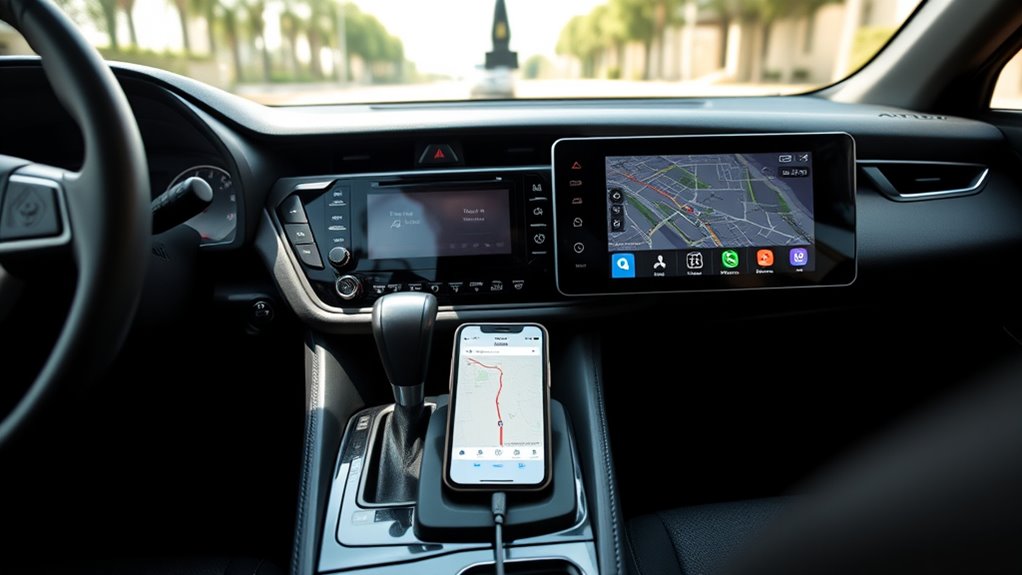
Google Maps will appear on a RAV4 screen through Apple CarPlay, not by direct iPhone mirroring. The iPhone should be connected with a certified Lightning cable, CarPlay must be enabled on the Toyota screen, and Siri should be turned on. Google Maps also needs to be installed and updated on the iPhone. If it still does not show, restarting both devices, checking USB ports, and updating software often fix the issue and reveal more useful steps.
Key Takeaways
- Connect your iPhone to the RAV4 with a certified Lightning cable to enable Apple CarPlay.
- Make sure Apple CarPlay and Siri are enabled on both the iPhone and the Toyota infotainment system.
- Open CarPlay on the RAV4 touchscreen, then tap Google Maps from the app list.
- Update iOS and RAV4 firmware if Google Maps does not appear or connect properly.
- Restart the iPhone and head unit, or try another USB port or cable if CarPlay fails.
Why Google Maps Won’t Show on RAV4
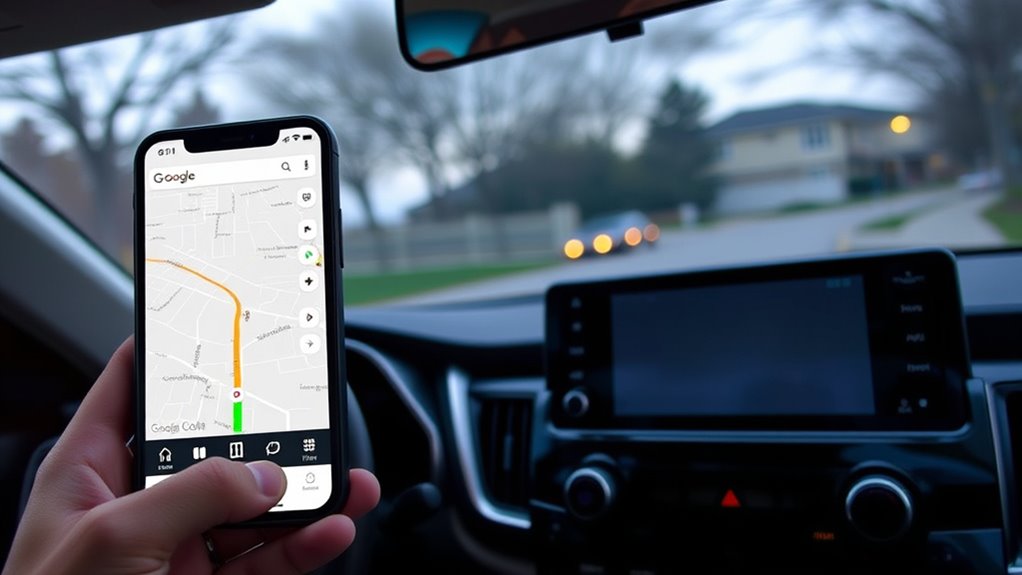
Google Maps may not appear on a RAV4 display if Apple CarPlay is not properly enabled on the touchscreen. In that case, Google Maps will not launch through the vehicle interface, even if the app is ready on the iPhone.
Google Maps may not appear on a RAV4 display if Apple CarPlay isn’t properly enabled on the touchscreen.
A wired Lightning connection is required, so the phone must be linked to the RAV4 USB port. Without that connection, CarPlay cannot present apps on the screen.
Siri must also be enabled, since CarPlay depends on voice control to function correctly. Outdated infotainment firmware can block app recognition, leaving Google Maps hidden from view.
If the system still resists, a restart of both the iPhone and the vehicle unit may clear the fault. CarPlay restrictions on the iPhone should also be checked, because blocked access can prevent display.
These checks help restore a freer, simpler driving setup.
Check Your iPhone and CarPlay Setup
The iPhone should first be confirmed as compatible with Apple CarPlay and updated to the latest iOS version.
CarPlay settings also need to be checked to verify Siri is enabled and the feature is not restricted in Screen Time.
Once the phone is connected to the RAV4 with a Lightning cable, CarPlay can be selected on the Toyota Entune 3.0 screen.
Verify CarPlay Settings
Before using Google Maps through CarPlay in a RAV4, the iPhone should be checked for basic compatibility and setup.
Apple CarPlay must be active on the phone and connected with a Lightning cable to the vehicle. Siri should also be enabled, since voice control supports CarPlay operation and hands-free direction.
On the Toyota Entune 3.0 screen, the vehicle settings should be opened, then Menu > General > Apple CarPlay selected to confirm the feature is turned on.
Any limits from Screen Time should be reviewed under Content & Privacy Restrictions, with CarPlay allowed.
If the connection still fails, both devices should be restarted. A different Lightning to USB cable or port may restore the link and return navigation to the driver.
Confirm iPhone Compatibility
Confirming iPhone compatibility starts with making sure the device is running iOS 13 or later, since that version supports Apple CarPlay and works best with Google Maps. A compatible iPhone keeps navigation smooth and helps drivers reclaim control of the road without distraction.
| Check | Result |
|---|---|
| iPhone iOS | iOS 13 or later |
| Siri | Enabled for voice control |
| Cable and updates | Certified Lightning cable; latest software |
Next, the iPhone should have Siri turned on, because voice commands depend on it. A certified Lightning to USB cable should connect the iPhone to the RAV4’s USB port for stable performance. It also helps to confirm updates on both devices, including the RAV4 multimedia system. With those basics in place, CarPlay and Google Maps can work with fewer interruptions.
Open Google Maps in Apple CarPlay
Plug the iPhone into the RAV4 with a Lightning cable, then open Apple CarPlay on the touchscreen and select Google Maps from the app list.
Once Google Maps appears in Apple CarPlay, the driver gains direct access to familiar navigation tools without leaving the vehicle interface. The app should already be installed on the iPhone and updated to the latest version so its features load smoothly.
Location services must also be enabled, allowing the map to deliver accurate directions and timely route changes.
For hands-free control, Siri can be used to start navigation or enter a destination by voice, reducing distraction while driving. This setup keeps the experience simple and free from unnecessary steps.
With Google Maps open through CarPlay, the RAV4 dashboard becomes a practical route center, giving the driver clearer movement, stronger control, and a more liberated path forward.
Connect Google Maps Step by Step
With Google Maps available through Apple CarPlay, the next step is to connect the system correctly so navigation is ready to use. The iPhone should be plugged into the RAV4’s USB port with a Lightning cable, creating the link that activates the phone’s apps on the dashboard.
After the connection is made, the driver should tap Apple CarPlay on the touchscreen and choose Google Maps from the app list. For reliable performance, Google Maps should be installed and updated on the iPhone before travel.
Once open, Siri can be used to speak destinations and directions, leaving hands free and attention forward. This same Apple CarPlay routine applies in Toyota Camry Apple CarPlay setups as well, giving drivers a simple path to navigation freedom.
If the system does not respond as expected, Siri should be enabled and the vehicle’s infotainment firmware kept current.
Fix Common CarPlay Problems
Common CarPlay issues in a RAV4 often start with the setup itself, so Siri should be enabled and the vehicle’s CarPlay settings should be checked against the manual.
If the connection still fails, updating the iPhone and the vehicle firmware can clear software-related problems.
Trying a certified Lightning cable or another USB port can also reveal whether the issue is with the cable or the connection point.
Check CarPlay Setup
Before Google Maps can work through Apple CarPlay in the RAV4, the iPhone should be updated to the latest iOS version and connected to the vehicle’s USB port with a Lightning cable.
With Apple CarPlay active, the driver gains a direct path to maps, calls, and messages without being trapped by a phone screen.
The RAV4 touchscreen should show Menu > General > Apple CarPlay, where CarPlay can be enabled if it is not already on.
Siri must also be switched on, since voice commands support safer, freer navigation through Google Maps.
If the connection still fails, both the iPhone and the vehicle can be restarted.
Trying another USB port may reveal which port carries data and which does not.
Update iPhone And Firmware
Keeping the iPhone and RAV4 firmware up to date helps prevent many Apple CarPlay problems before they start. A current iPhone running the latest iOS stays aligned with CarPlay and Google Maps, reducing dropped links and navigation delays. The RAV4 also benefits from firmware updates, since older software can weaken CarPlay performance. Siri should remain enabled on the iPhone, because it supports CarPlay commands and helps Maps respond smoothly. A certified USB cable supports stable data transfer and protects the connection from avoidable disruption. If problems continue, restarting both devices can refresh the system.
| Check | Why it matters | Result |
|---|---|---|
| iPhone iOS | CarPlay compatibility | Smoother linking |
| RAV4 firmware | System stability | Better navigation |
| Siri enabled | CarPlay control | Easier activation |
Try Another Cable
Swapping the Lightning to USB cable is a practical next step when Apple CarPlay in a RAV4 fails to connect properly, since some cables support charging only and cannot transfer data. A fresh Apple-certified cable can restore data flow and prevent needless frustration.
Testing a few USB ports helps reveal whether the issue is the cable or the vehicle’s connection point.
- Check for fraying, bent connectors, or loose ends.
- Use an Apple-certified cable for dependable CarPlay access.
- Try another port before blaming the iPhone or android auto setup.
Keeping iOS and the RAV4 firmware current also supports smoother syncing.
This simple test can free the driver from avoidable troubleshooting and move Google Maps back onto the screen with less delay.
Try Other Navigation Apps
If Google Maps does not meet every driving preference, RAV4 owners can also try other navigation apps through Apple CarPlay, such as Waze or MapQuest.
These navigation apps can offer different route choices, traffic alerts, and map layouts, giving drivers more freedom to choose what works best. To use any app smoothly, the iPhone should have the app installed and updated before connecting to the vehicle. A stable internet connection is also important, since live updates depend on data.
Apple CarPlay keeps the process simple on the RAV4 touchscreen, and Siri can still provide hands-free directions when supported. Trying another app can be a practical way to move without friction, especially when one service feels limited or outdated.
The goal is not to depend on a single platform, but to select the tool that supports confident, independent travel.
Frequently Asked Questions
How to Display Google Maps on RAV4 Screen?
Display Google Maps on the RAV4 screen by connecting the iPhone through Apple CarPlay, then opening Google Maps. Navigation tips: confirm Siri, iOS, and firmware updates, and guarantee multimedia access settings permit mirroring.
How Do I Get Google Maps on My iPhone to My Car Screen?
A commuter named Alex connected an iPhone by Lightning cable, enabled Apple CarPlay, and Google Maps appeared on the car screen. App Compatibility, updated iOS, and Siri support keep navigation practical, freeing hands and attention.
How Do I Get Google Maps to Come up on My Car Screen?
It appears by connecting the iPhone with a certified Lightning cable, selecting CarPlay on the car screen, and opening Google Maps. If needed, enable Siri for Voice Commands, then restart both devices.
How Do I Mirror My iPhone to My Car Display?
Like a bridge of light, Screen Mirroring works only if the vehicle supports Apple CarPlay or wireless CarPlay. Connect the iPhone, select CarPlay on the display, and enable Siri for hands-free access.
Conclusion
In the end, getting Google Maps to appear on a RAV4 screen often comes down to one small setting, one loose cable, or one missed permission. The answer may seem close, yet not quite visible. Once CarPlay is set correctly, the route opens with surprising ease. But if the screen stays blank, another hidden issue may be waiting. The driver learns that connection is never just connection; it is a chain of details.
