Setting up a printer manually on a Chromebook is usually simple if the printer supports ChromeOS, Wi‑Fi, or USB. The Chromebook may detect it automatically, but manual setup can be done through Settings > Device > Printers & Scanners. The printer must be on the same Wi‑Fi network, or connected by the correct USB cable. If needed, enter the printer name and IP address. Scanning is available only on supported multi-function printers, with more steps below.
Key Takeaways
- Chromebook manual printer setup uses Settings → Device → Printers & Scanners.
- If automatic detection fails, enter the printer name and IP address manually.
- The printer must support Chromebook printing and be on the same Wi-Fi network or connected by USB.
- Compatible printers often save without drivers, and mDNS may need enabling for multi-function printers.
- For scanning, use a compatible MFP and choose scan settings before saving to local storage or Google Drive.
What You Need to Add a Printer
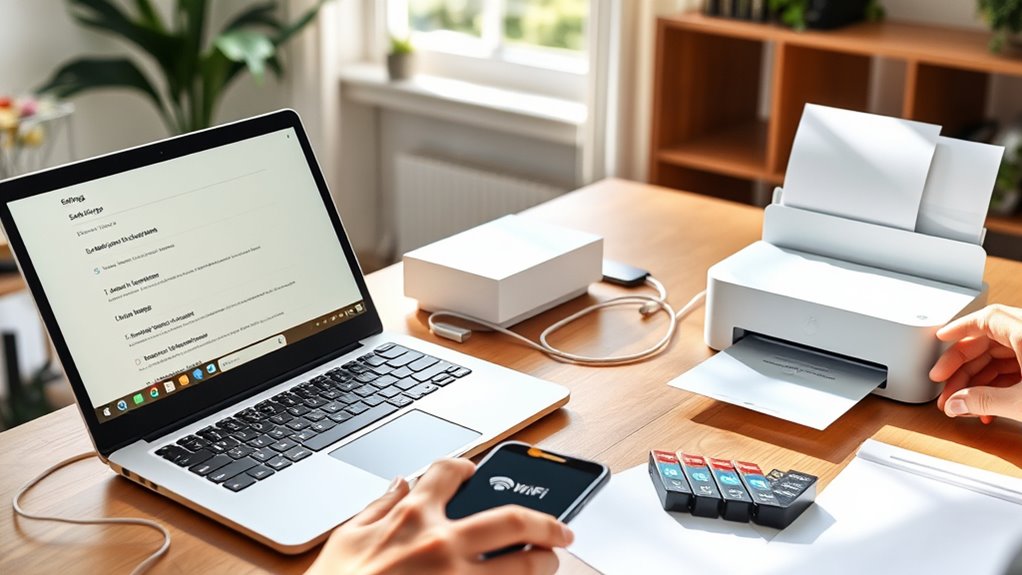
Before a printer can be added to a Chromebook, it must be compatible with Chromebook printing and support either Wi-Fi or USB connections. That printer compatibility is the first requirement for a smooth setup.
The next step is to confirm the available connection types. For wireless use, the Chromebook and printer should be on the same Wi-Fi network. For a direct link, the correct USB cable must be available, whether USB-A or USB-C.
Once those basics are in place, the Chromebook’s printer settings can be opened through Settings → Device → Printers & Scanners. If the printer is not detected automatically, manual entry may be needed. In that case, the printer’s name and IP address should be ready.
These steps give the user control over the process and reduce dependence on guesswork.
How Chromebook Printing Works
Chromebook printing works through a direct Wi-Fi or USB connection, so no traditional printer drivers are needed.
Wireless printing requires a compatible printer on the same network, while USB offers a simple direct setup.
Chromebooks can often detect printers automatically in the settings, making setup quicker when the device is recognized.
Chromebook Print Basics
Printing on a Chromebook is designed to be simple, with no traditional drivers required for most compatible printers.
Chromebook printing depends on automatic detection, so printer compatibility matters from the start. Compatible Wi-Fi printers appear when the Chromebook and printer share the same network. USB printers must be connected by cable for recognition.
To add a device, the user opens Settings from the time in the bottom-right corner, then selects Device and Printers & Scanners. If a printer does not appear, manual setup allows entry of the printer’s name and IP address.
Bluetooth printing is unsupported, so reliable Wi-Fi or USB access is essential. These basics support independence and offer practical troubleshooting tips when setup does not proceed automatically.
Wireless Vs USB Setup
Wireless printing works best when the printer and Chromebook are on the same Wi-Fi network, allowing compatible devices to appear automatically without drivers in most cases. This path offers wireless advantages: fewer cables, more freedom, and easier placement. USB setup remains direct and dependable, but usb limitations, include the need for a matching USB-A or USB-C cable and a fixed physical link.
| Setup | Effect |
|---|---|
| Wi-Fi | More flexible |
| USB | More immediate |
Both methods require Chromebook compatibility, and neither uses Bluetooth. For users seeking control, Wi-Fi reduces clutter; for those needing certainty, USB delivers a simple tether. When hardware matches the Chromebook, either option supports practical, liberated printing without unnecessary complexity or delay.
Automatic Printer Detection
Once the printer is on the same network as a Chromebook, compatible Wi‑Fi models are often detected automatically, making setup straightforward and driver-free in most cases. This reflects Chromebook printing’s simple design and supports printer compatibility without extra software.
Users can open printer settings from the time in the bottom-right corner to review detected devices and manage them freely. USB printers usually trigger an automatic pop-up after connection.
- Confirm the printer and Chromebook share the same network.
- Check the settings panel for detected devices.
- For MFPs, verify mDNS is enabled.
- If detection fails, use setup troubleshooting by entering the printer name and IP address manually.
When detection works, printing becomes fast, open, and uncomplicated.
Add a Printer Automatically
Automatic printer detection on a Chromebook works best when the printer and Chromebook are on the same Wi-Fi network.
In Settings, under Device and Printers & Scanners, the available printers should appear for selection.
After choosing the printer, the settings should be saved so it is listed under Saved Printers for future use.
Automatic Printer Detection
To add a printer automatically on a Chromebook, both the Chromebook and the printer should be powered on and connected to the same Wi-Fi network. This automatic setup supports printer compatibility without extra drivers or software, keeping the process simple and self-directed.
- Click the time in the bottom-right corner.
- Open Settings.
- Go to Device → Printers & Scanners.
- Select the detected printer and add it.
Available printers should appear in the list when detection works properly. If the device is not shown, the network connection or printer compatibility may need review.
When automatic detection succeeds, the Chromebook recognizes the printer and makes access easier. When it fails, manual setup may be required.
Save Printer Settings
After the Chromebook displays the available printers on the same Wi-Fi network, the user should select the printer from the list and click Save to add it to the saved printers for future use.
This action stores the device in printer preferences, allowing quicker access without repeating setup. The user can reach these controls by opening Settings from the time menu, then choosing Device and Printers & Scanners.
Once saved, the printer should appear under “Saved Printers,” confirming that the saved configurations were applied correctly. This step reduces dependence on repeated setup and supports smoother, more independent printing.
If no printer appears, a manual setup may be needed using the printer name and IP address.
Set Up a Printer Manually
Manual printer setup on a Chromebook begins in the printer settings, which are reached by clicking the time in the bottom-right corner and opening Settings, then Device, then Printers & Scanners.
If the printer does not appear automatically, a manual add keeps the user in control and avoids waiting on detection. Reliable printer setup tips start with checking that the Chromebook and printer share the same Wi-Fi network. For USB models, connect the cable and let the Chromebook prompt for completion.
- Open Printers & Scanners.
- Confirm network or USB connection.
- Add the printer when it appears.
- Review saved devices for later use.
These troubleshooting steps support a smoother setup and faster access to printing.
After the printer is added, it should appear in Saved Printers, ready for future jobs without repeated configuration.
Enter Printer Name and IP Address
Once the printer settings are open, the printer’s name and IP address are entered in the designated fields so the Chromebook can identify it on the network. The name should match the printer label or model name used in the network settings, while the IP address should be taken from the printer’s display menu or a printed network configuration page.
Accuracy matters, because even one wrong digit can block detection and slow printer troubleshooting. The Chromebook and printer must remain on the same Wi-Fi network to support direct communication.
After both fields are filled, the user selects Save to register the device. The printer then appears under Saved Printers for later access. This step gives the user more control over setup without relying on automated discovery, which can fail on some networks.
Clear entry of these details helps secure reliable access and keeps the process simple, efficient, and ready for independent use.
Print From Your Chromebook
To print from a Chromebook, the printer must be on the same Wi-Fi network or connected directly by USB. From there, the process stays simple and practical, supporting independent use without extra drivers or complex setup.
- Open Settings by clicking the time in the bottom-right corner.
- Go to Device, then Printers & Scanners.
- Let the Chromebook detect compatible printers automatically, or add one manually with its name and IP address.
- Choose the printer in the print dialog and send the job.
This system works with most modern printers and keeps printing apps and cloud printing available when supported.
If a printer appears in the list, it is ready for use. If not, manual entry usually resolves the gap. The result is direct, efficient printing that reduces dependence on locked-down systems and gives users more control over their documents.
Scan Documents on a Chromebook
Scanning on a Chromebook begins with a compatible multi-function printer that is powered on and connected by Wi‑Fi or USB. The device must support scanning; plain printers cannot complete this task.
After confirming compatibility, the user opens Settings, then Device, then Printers & Scanners, and selects the printer. From there, the Scan option appears. Before starting, scan settings can be adjusted to match the document. Resolution controls detail, while color mode helps choose between color and grayscale.
Once the scan starts, the Chromebook sends the file to local storage or Google Drive, depending on the selected destination. This keeps documents accessible without extra control from outside systems.
Practical scanning tips include placing pages flat, checking alignment, and choosing a clear file location before beginning. With these steps, scanning becomes direct, efficient, and available to the user.
Fix Chromebook Printer Connection Problems
When a Chromebook fails to find a printer, the first step is to confirm that both devices are on the same Wi‑Fi network and that the printer is powered on and ready. This basic network configuration check resolves many printer troubleshooting cases and keeps users in control of their workflow.
- Verify Wi‑Fi: both devices must share the same network.
- Check power: the printer must be awake and ready.
- Add manually: open Settings → Device → Printers & Scanners, then enter the printer name and IP address.
- Inspect mDNS: confirm multicast DNS is enabled on MFPs for Chromebook compatibility.
If the printer still does not connect, restart both devices. A simple reboot often clears temporary glitches and restores communication without extra steps.
When these checks are done carefully, printing becomes reliable, accessible, and free of unnecessary obstacles.
Use Older Printers on Chromebook
Older printers can still work with a Chromebook, but they often need a little more setup than newer models. Printer compatibility should be checked first, especially for older models that may lack ChromeOS support without special drivers. If a USB cable is available, direct connection may solve many connection issues quickly. For network printing, the printer should be powered on and on the same Wi-Fi network as the Chromebook. If automatic detection fails, the printer’s name and IP address can be entered manually in settings. Multi-Function Printers need mDNS enabled to be found and used properly.
| Setup path | What to verify |
|---|---|
| USB | Cable fit and power |
| Wi-Fi | Same network and IP address |
A quick compatibility check helps prevent wasted effort and keeps the user in control of the process.
Frequently Asked Questions
Why Is My Chromebook Not Recognizing My Printer?
The Chromebook often fails to recognize a printer because of printer troubleshooting and connectivity issues: mismatched Wi‑Fi, power or sleep mode, loose USB connections, outdated firmware, or a needed restart of both devices.
How Do I Set up My Printer on My Chromebook?
Like a free hand opening a locked door, they should answer by entering printer settings on the Chromebook, selecting the printer, and saving it. For wireless printing, both devices must share Wi‑Fi or use USB.
How Do I Get My Chromebook to Recognize My HP Printer?
It should connect the Chromebook and HP printer to the same Wi‑Fi, then check Settings → Device → Printers & Scanners. If absent, use troubleshooting tips: verify power, printer compatibility, IP address, and mDNS.
Do All Printers Work With a Chromebook?
No, not all printers work with a Chromebook. Printer compatibility depends on wireless printing or USB support; Bluetooth and Google Cloud Print will not help. A quick compatibility check before setup saves frustration.
Conclusion
Setting up a printer manually on a Chromebook can feel technical at first, but it is usually straightforward once the printer name and IP address are known. Even older printers can often be brought back into service with a few careful steps. Instead of a blank screen and a silent printer tray, the result is a familiar page coming through cleanly. With the right setup, Chromebook printing becomes reliable, simple, and ready for everyday use.

