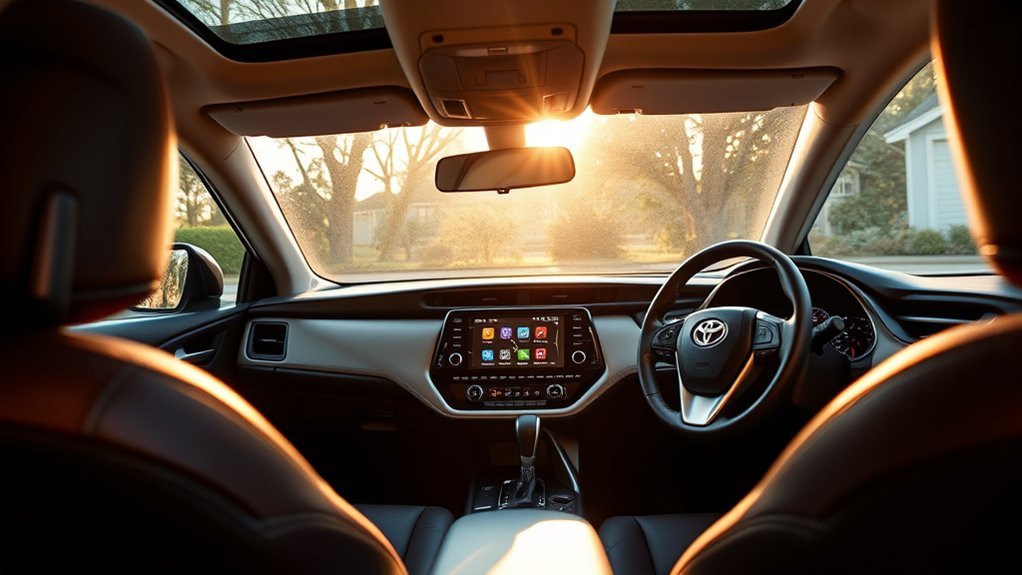
Yes, a Toyota RAV4 can provide navigation, but the available system depends on the model year, market, multimedia hardware, and option package. Newer RAV4s can display directions through Apple CarPlay, Android Auto, or Toyota’s connected navigation service. Older models may use factory navigation, a phone mount, or a standalone GPS.
Quick Answer
Toyota RAV4 navigation varies by year. U.S. 2020–2022 models support Apple CarPlay and Android Auto, usually through USB. The 2023–2026 RAV4 offers wireless phone integration, while compatible newer vehicles can use Toyota Drive Connect Cloud Navigation with an active trial or subscription.
Key Takeaways
- The model year and multimedia system matter more than the trim name alone.
- The 2019 U.S. RAV4 supports Apple CarPlay, while Android Auto joined the full U.S. lineup for 2020.
- The 2023–2026 RAV4 offers standard wireless Apple CarPlay and Android Auto compatibility.
- Toyota Cloud Navigation requires compatible hardware, a vehicle network connection, and an active Drive Connect trial or subscription.
- Older RAV4s can still use phone navigation or a standalone GPS even when factory navigation is unavailable.
Common Navigation Challenges for RAV4 Owners
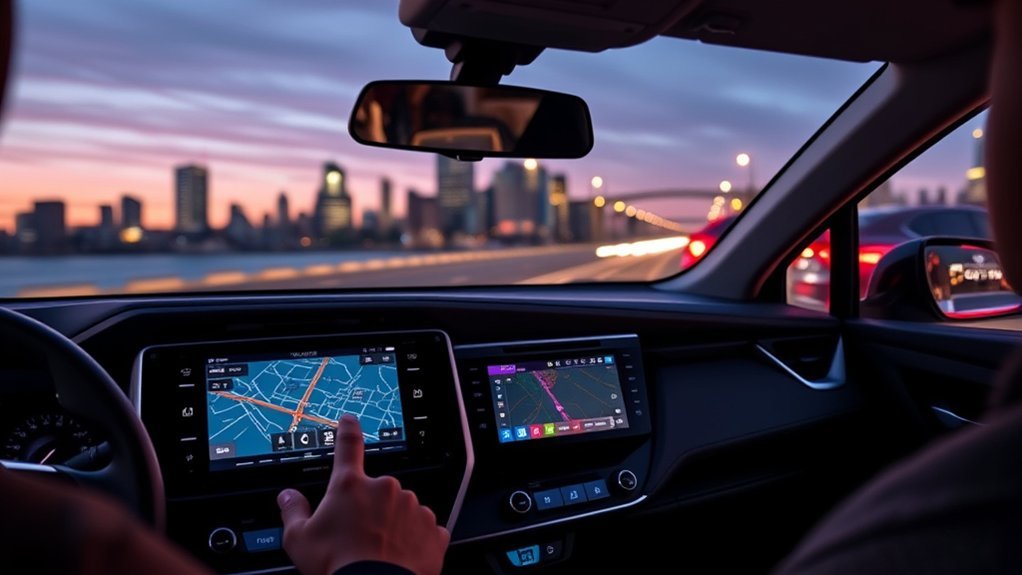
RAV4 navigation can be confusing because two vehicles with the same trim may have different multimedia packages. A Limited or XSE badge does not automatically confirm that the vehicle has embedded navigation.
For example, the 2022 RAV4 brochure lists Dynamic Navigation with certain Premium Audio configurations. The separately named Advanced Technology Package focused on equipment such as parking assistance, cameras, wireless charging, and convenience features.
Owners also use the phrase “built-in navigation” for different systems. It may refer to an older map database stored in the vehicle, Toyota Dynamic Navigation, newer Drive Connect Cloud Navigation, or a phone app displayed on the dashboard.
Note: This guide focuses on U.S.-market RAV4 models. Features, package names, subscriptions, and phone compatibility can differ in Canada and other markets.
What Navigation Options Are Available on the Toyota RAV4?
You can navigate in a RAV4 through Toyota’s native system, smartphone projection, or a separate GPS device. The right choice depends on your vehicle and whether you want an integrated screen, offline capability, or a subscription-free option.
| Navigation option | Typical availability | Main requirements | Best for |
|---|---|---|---|
| Drive Connect Cloud Navigation | Compatible newer Toyota Audio Multimedia systems | Active trial or subscription and vehicle network connection | Integrated routes, traffic information, voice assistance, and destination help |
| Dynamic Navigation | Select older Premium Audio systems | Compatible head unit and service eligibility | Drivers who prefer an embedded Toyota map interface |
| Apple CarPlay or Android Auto | Apple CarPlay on the U.S. RAV4 from 2019; both systems from 2020 | Compatible phone, cable or wireless connection, and app data unless offline maps are saved | Most drivers who already use Google Maps, Apple Maps, or Waze |
| Standalone GPS | Any model year | Separate device, mount, and power cable | Older vehicles, weak-cell-service areas, and drivers who do not want phone projection |
Toyota describes Drive Connect as a connected service that can include Cloud Navigation, Destination Assist, and Intelligent Assistant. Exact availability and trial terms depend on the vehicle.
RAV4 Navigation by Model Year
The following overview covers common U.S.-market factory configurations. Always confirm the exact equipment in the individual vehicle.
| Model year | What to expect |
|---|---|
| 2018 and older | Factory navigation availability depends on the trim, package, head unit, and year. Factory Apple CarPlay and Android Auto are generally unavailable, so a phone mount or standalone GPS may be the easiest solution. |
| 2019 | Apple CarPlay compatibility is available on the redesigned U.S. RAV4. Android Auto was not yet included in the RAV4 lineup. |
| 2020–2022 | Apple CarPlay and Android Auto are supported across the U.S. lineup, commonly through a USB connection. Select Premium Audio configurations may include Dynamic Navigation. |
| 2023–2025 | Toyota Audio Multimedia provides standard wireless Apple CarPlay and Android Auto compatibility. Compatible systems may also offer Drive Connect Cloud Navigation through a trial or paid plan. |
| 2026 | The redesigned RAV4 includes standard wireless Apple CarPlay and Android Auto. Native navigation can appear through the multimedia system and digital gauge cluster when an active Drive Connect trial or subscription is available. |
Toyota announced that Android Auto joined Apple CarPlay across the 2020 RAV4 lineup. The company later introduced standard wireless phone compatibility with the 2023 RAV4 multimedia system.
For 2026, Toyota’s updated multimedia platform supports wireless phone projection and native navigation features tied to Drive Connect. The 2026 Toyota multimedia announcement states that an active Drive Connect trial or subscription is required for connected native navigation.
How to Check Whether Your RAV4 Has Navigation
- Confirm the model year and market. Compatibility can differ between U.S., Canadian, and other versions.
- Look for a Map or Navigation icon. Open it while the vehicle is safely parked. A subscription or activation message may appear if the hardware supports connected navigation.
- Check the multimedia system name. Audio, Audio Plus, Premium Audio, Toyota Audio Multimedia, Dynamic Navigation, and Drive Connect do not mean the same thing.
- Open the Toyota app. Add the vehicle by VIN and review the available Connected Services plans.
- Review the original window sticker. It should identify factory packages and premium multimedia equipment.
- Check the correct manual. Use Toyota’s Manuals and Warranties portal and select the exact year and model.
Pro Tip: When shopping for a used RAV4, ask for a photo of the multimedia home screen and the original window sticker. A trim name alone does not confirm embedded navigation.
Why the Tech Package Name Can Be Misleading
A package with “Technology” in its name may improve cameras, parking assistance, charging, mirrors, or convenience features without adding navigation. Package contents can also change between model years.
On the 2022 RAV4, for example, Dynamic Navigation was listed with applicable Premium Audio equipment. The Advanced Technology Package was a separate group of features and did not serve as a universal navigation package.
For newer Toyota Audio Multimedia systems, compatible vehicles may access Cloud Navigation by activating Drive Connect. In that situation, navigation eligibility depends on the installed multimedia hardware and service availability rather than a generic Tech Package label.
The most reliable way to confirm RAV4 navigation is to check the exact multimedia system and VIN, not the trim badge or package nickname.
How to Use Apple CarPlay and Android Auto for Better Navigation
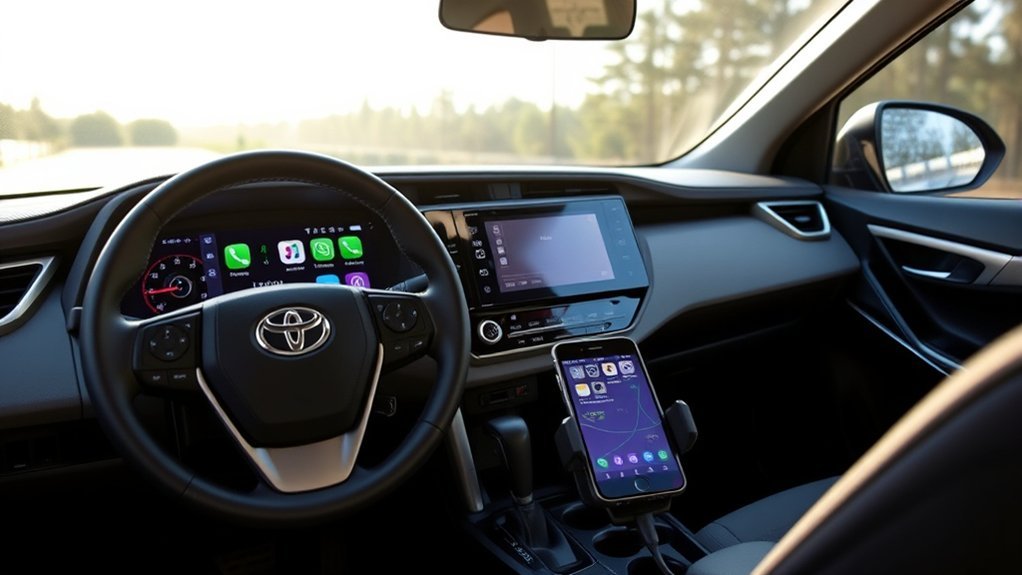
Apple CarPlay and Android Auto let you display compatible phone apps on the RAV4’s multimedia screen. You can use Apple Maps, Google Maps, or Waze, depending on your phone and app support.
Wireless Setup for Newer RAV4 Models
- Park the vehicle and turn on Bluetooth and Wi-Fi on your phone.
- Open the multimedia system’s settings menu.
- Select Bluetooth & Devices or the equivalent connection menu.
- Choose Add Device and select your phone.
- Confirm that the pairing codes match.
- Approve Apple CarPlay or Android Auto when prompted on the phone and vehicle screen.
- Open your preferred navigation app and enter the destination before driving.
USB Setup for Applicable RAV4 Models
- Use a data-capable USB cable, not a charge-only cable.
- Connect the phone to the multimedia USB port rather than a charging-only port.
- Unlock the phone and accept the connection prompts.
- Enable Siri for Apple CarPlay or complete the Android Auto permissions on an Android phone.
- Select the CarPlay or Android Auto icon on the vehicle screen.
You can start a route with “Hey Siri” or “Hey Google” when the feature is connected and voice activation is enabled. Traffic information and alternate routes depend on the navigation app, phone settings, and available data.
Warning: Pair the phone, choose the app, and enter the destination while parked. Do not type, change settings, or troubleshoot the multimedia system while driving.
How to Fix Common RAV4 Navigation Problems
CarPlay or Android Auto Icon Is Missing
- Confirm that your RAV4 model year supports the service.
- Unlock the phone and approve all connection prompts.
- Check that CarPlay or Android Auto is enabled for that device in the multimedia settings.
- Try the media USB port if wireless pairing is unavailable.
The Phone Keeps Disconnecting
- Restart the phone and multimedia system.
- Delete the phone from the vehicle, remove the vehicle from the phone, and pair them again.
- Replace a damaged or charge-only USB cable with a short, data-capable cable.
- Temporarily disconnect other paired phones that may be taking priority.
- Install available phone, app, and vehicle multimedia software updates.
Navigation Guidance Is Too Quiet or Too Loud
Adjust the guidance volume while a spoken direction is playing, or open the multimedia voice and navigation settings. Music volume and navigation-prompt volume may use separate controls.
Drive Connect Shows a Subscription Message
Open the Toyota app and check whether the vehicle is eligible for Drive Connect. An expired trial may require a paid plan. You can still use Apple CarPlay, Android Auto, or a separate GPS when those options are compatible with your vehicle.
Navigation Stops in a Weak-Signal Area
Cloud Navigation requires a vehicle network connection. Smartphone apps may also lose live traffic or routing data without phone service. Before traveling through remote areas, download offline maps to your phone or carry a standalone GPS or printed backup route.
Built-in Navigation vs. Apps: Which Is Better?
| Choice | Advantages | Limitations |
|---|---|---|
| Toyota native navigation | Integrated controls, no phone projection required, voice features, and display integration on supported models | May require compatible hardware, a subscription, and a vehicle network connection |
| Phone navigation apps | Familiar interface, frequent app updates, live traffic, saved locations, and downloadable offline maps | Depends on a compatible phone, battery power, connection stability, and data unless offline maps are stored |
| Standalone GPS | Works with older RAV4s and can provide dedicated offline navigation | Adds another screen, mount, cable, and update process |
Phone apps are often the easiest choice because you already know the interface and can save offline maps. Toyota navigation may be preferable when you want an integrated display and do not want to mount or handle a phone.
A standalone GPS remains useful for an older RAV4, long trips through weak-service areas, or situations where you want a dedicated navigation device.
How RAV4 Navigation Map Updates Work
The correct update method depends on the type of navigation system:
- Drive Connect Cloud Navigation: Map, traffic, and routing information is delivered through the vehicle’s network while the service is active.
- Legacy Dynamic Navigation: Connected map information may refresh through the service, but update eligibility and procedures vary by head unit and model year.
- Multimedia software: Compatible systems may receive over-the-air updates. Other systems may require a USB update or dealer assistance.
- Apple CarPlay and Android Auto: Update the navigation app and phone operating system through the phone. Refresh downloaded offline-map areas before a long trip.
- Standalone GPS: Follow the device manufacturer’s map-update instructions and confirm whether updates or traffic services are included.
Use the Toyota owner’s manual for your exact model year before installing an update. Do not assume that a procedure written for another RAV4 generation will work with your head unit.
Related Guides
Frequently Asked Questions
Can I Upgrade My RAV4 to Include Navigation Later?
Possibly, but not every RAV4 supports an OEM navigation upgrade. A compatible newer vehicle may be able to activate Drive Connect through the Toyota app. An older vehicle may require a different head unit, wiring, or aftermarket equipment. Check the VIN, multimedia manual, and dealer compatibility before paying for an upgrade.
Is Navigation Included in All RAV4 Trim Levels?
No. Native Toyota navigation availability depends on the model year, multimedia system, package, and subscription eligibility. However, U.S. 2020-and-newer RAV4 models support both Apple CarPlay and Android Auto, giving compatible-phone users another way to display navigation.
Does the Tech Package Affect Warranty Coverage?
A factory-installed package is covered according to the vehicle’s applicable Toyota warranty terms. A dealer-installed accessory or aftermarket multimedia replacement may have separate coverage. Review the warranty guide for the exact vehicle and ask the installer how added equipment is covered.
Can I Use Navigation Without a Smartphone?
Yes, if your RAV4 has active native Toyota navigation or you use a standalone GPS. Drive Connect does not require phone projection for the map display, but it does require compatible vehicle hardware, an active service, and a vehicle network connection.
How Do I Update Navigation Maps on My RAV4?
First identify the multimedia system. Cloud Navigation receives connected map information through the vehicle network. Older systems may use online, USB, or dealer-assisted updates. Check the multimedia owner’s manual for your exact model year before starting.
Does Toyota Navigation Work Without Cell Service?
Cloud Navigation needs a vehicle network connection for current cloud-based information. A phone app may continue with downloaded offline maps, and a standalone GPS can provide offline routing when its maps are stored on the device.
Is Drive Connect the Same as Remote Connect?
No. Drive Connect covers eligible cloud-based in-vehicle features such as navigation, destination assistance, and voice functions. Remote Connect covers eligible remote vehicle controls through the Toyota app. Availability and subscription terms vary.
Conclusion
The Toyota RAV4 offers several practical ways to get navigation, but no single answer applies to every year. Older models may rely on factory equipment, a phone mount, or a standalone GPS. U.S. 2020–2022 models support Apple CarPlay and Android Auto, while 2023–2026 models add standard wireless phone integration.
Compatible newer RAV4s can also use Toyota Drive Connect Cloud Navigation, although an active service and network connection may be required. Before buying a vehicle or paying for an upgrade, confirm the exact multimedia system through the VIN, window sticker, Toyota app, and model-specific manual.
Sources
- Toyota: 2020 RAV4 Multimedia Enhancements — confirms Android Auto was added across the 2020 U.S. RAV4 lineup.
- Toyota 2022 RAV4 Brochure — documents 2022 multimedia, Premium Audio, Dynamic Navigation, and package availability.
- Toyota: 2023 RAV4 Hybrid Multimedia — confirms standard wireless Apple CarPlay and Android Auto compatibility.
- Toyota: 2026 Audio Multimedia System — explains wireless phone compatibility, native navigation integration, and Drive Connect requirements.
- Toyota Connected Services Plans — describes Drive Connect, Cloud Navigation, Destination Assist, and Intelligent Assistant.
- Toyota Manuals and Warranties — provides model-specific multimedia instructions, update guidance, and warranty information.

