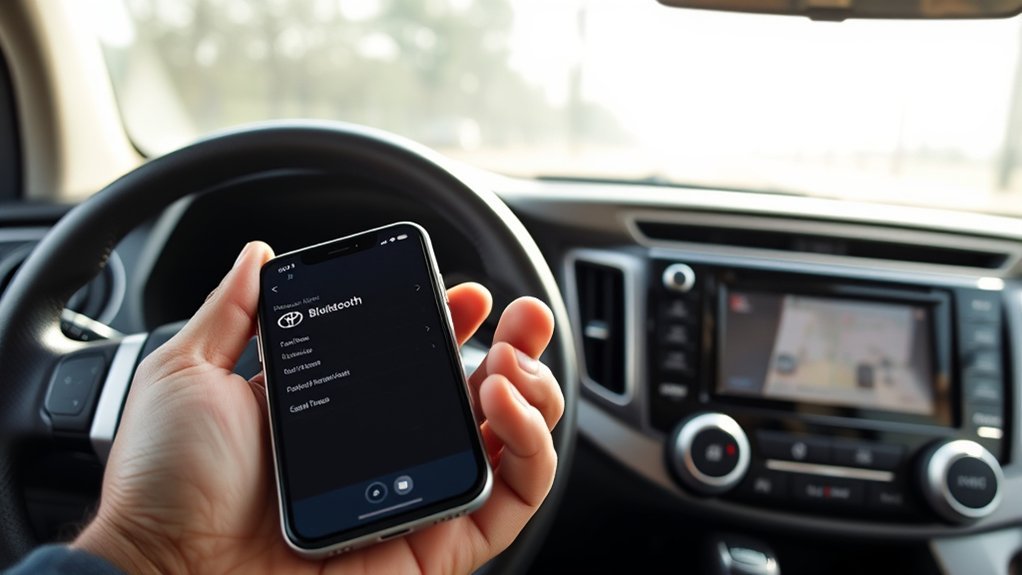
Pairing an iPhone 11 Pro with a 2014 Toyota RAV4 is usually a quick Bluetooth setup, but the exact first button depends on which factory Entune audio system the vehicle has. The safest approach is to park the RAV4, turn Bluetooth on from the iPhone’s Settings app, open the Toyota Bluetooth setup, add the phone, and confirm the same PIN on both screens.
Quick Answer
To pair an iPhone 11 Pro with a 2014 Toyota RAV4, park the vehicle, turn on Bluetooth under Settings > Bluetooth, open the RAV4 Bluetooth setup, choose Add, select the Toyota on the iPhone, and confirm the same PIN on both screens. The exact Toyota button path depends on the installed Entune audio system.
Key Takeaways
- Use Settings > Bluetooth on the iPhone 11 Pro for pairing rather than relying only on Control Center.
- On a 2014 RAV4 with Entune Audio, start with the SETUP button. Entune Audio Plus and Premium systems use APPS, then Setup.
- Choose Bluetooth > Add on the Toyota screen, select the vehicle on the iPhone, and confirm the matching PIN.
- A successfully paired phone should normally reconnect automatically when the RAV4 is in ACC or ON.
- A stock 2014 RAV4 does not have factory Apple CarPlay; Bluetooth is the normal factory wireless connection method.
At a Glance
| Time Required | About 5–10 minutes |
| Difficulty | Easy |
| Tools Needed | iPhone 11 Pro and a Bluetooth-equipped 2014 RAV4 factory audio system |
| Cost | $0 |
Warning: Complete Bluetooth pairing while the RAV4 is parked. Do not work through phone or infotainment menus while driving.
Before You Start: Check Your 2014 RAV4 Audio System
The 2014 RAV4 was offered with more than one factory Entune audio configuration, so the first button is not identical on every vehicle. On the basic Entune Audio system, press the physical SETUP button. On Entune Audio Plus, Entune Premium Audio with Navigation and App Suite, or the JBL-equipped Premium system, press APPS and then select Setup on the display.
After reaching Setup, the documented 2014 Toyota sequence is Bluetooth > Add. If an aftermarket stereo has replaced the factory Toyota unit, use the stereo manufacturer’s pairing instructions instead because its menus may be completely different.
Turn On Bluetooth on Your iPhone 11 Pro
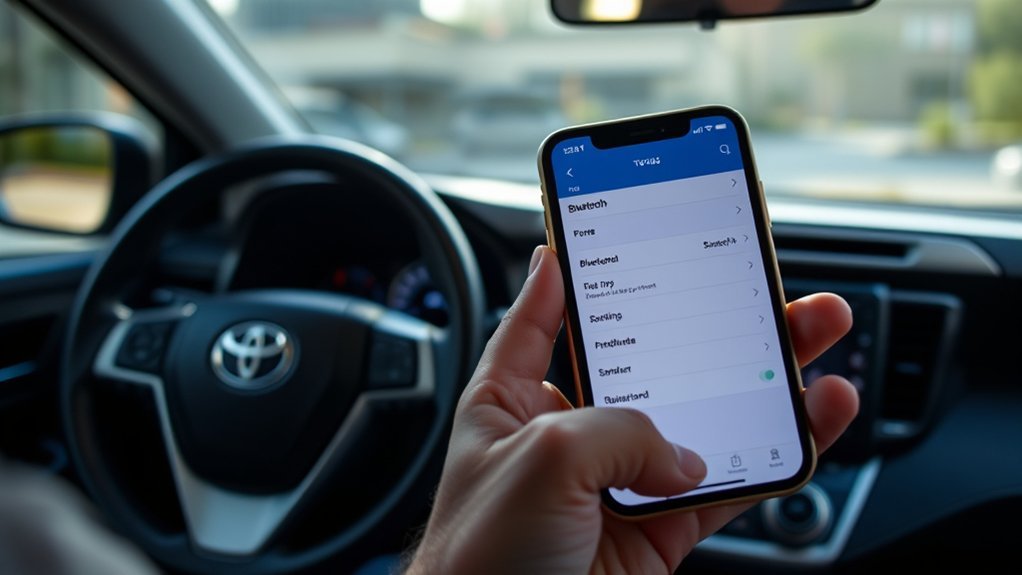
On the iPhone 11 Pro, open Settings > Bluetooth and turn Bluetooth on. Leave this screen open while beginning the Toyota pairing process so the RAV4 can appear in the device list.
Apple recommends using the Bluetooth page in Settings when pairing an accessory. This is more reliable than treating the Bluetooth button in Control Center as the main setup method.
Note: The Bluetooth control in iPhone Control Center is not the same as fully switching Bluetooth off in Settings. For pairing and troubleshooting, use Settings > Bluetooth.
Keep the iPhone close to the dashboard during setup and make sure it is not already connected to another car stereo that could interfere with the process.
Open Bluetooth Pairing on Your 2014 RAV4
With the RAV4 safely parked, place the ignition in ACC or ON or start the vehicle. Then open the Bluetooth setup using the path that matches the installed factory audio system.
Access Entune Settings
For the standard Entune Audio unit, press the physical SETUP button. For Entune Audio Plus, Entune Premium Audio with Navigation and App Suite, or Premium JBL systems, press APPS and then touch Setup on the screen.
Next, touch Bluetooth and then Add. The RAV4 is now ready for a new Bluetooth device.
Enable Pairing Mode
| Step | 2014 RAV4 Action | iPhone 11 Pro Action |
|---|---|---|
| 1 | Park and place ignition in ACC/ON | Unlock the iPhone |
| 2 | Press SETUP, or APPS > Setup depending on the audio system | Open Settings |
| 3 | Touch Bluetooth | Tap Bluetooth |
| 4 | Touch Add | Make sure Bluetooth is on |
| 5 | Wait for the phone to be detected | Select the Toyota/RAV4 device when it appears |
| 6 | Confirm the PIN | Confirm the same PIN or tap Pair |
The exact Bluetooth device name shown on the iPhone can vary with the installed Toyota multimedia unit. Select the entry that clearly corresponds to the RAV4, then follow the confirmation prompts on both screens.
Pair Your iPhone 11 Pro With the RAV4
When the Toyota appears on the iPhone under Settings > Bluetooth, tap its name. The vehicle and phone should then display a pairing request or PIN.
Follow the prompts until the RAV4 reports that the connection has completed. Pairing creates the saved Bluetooth relationship needed for hands-free calling and Bluetooth audio.
After successful registration, Toyota states that the Bluetooth device can automatically reconnect when the engine switch is placed in ACC or ON, provided Bluetooth is enabled and the phone is available.
Confirm the Bluetooth Code on iPhone and RAV4
Compare the PIN or pairing code shown on the RAV4 display with the code shown on the iPhone 11 Pro. If the numbers match, approve the request by selecting OK or Pair as prompted.
If the numbers do not match, cancel the pairing request rather than approving it. Return to the RAV4 Bluetooth setup, select Add again, and restart the pairing attempt.
Keep the iPhone on its Bluetooth screen until the connection finishes. Avoid starting several pairing attempts at once because multiple pending requests can make it harder to tell which prompt belongs to the current connection.
Enable Calls and Audio in the RAV4
After pairing, test both major Bluetooth functions rather than looking for a specific pair of “Call” and “Audio” switches, because the available controls can differ by factory audio system and phone software.
First, make a short hands-free call while safely parked and confirm that the RAV4 microphone and speakers are being used. Then play music or a podcast on the iPhone. If the sound remains on the phone, open the Toyota audio source menu and select Bluetooth or Bluetooth Audio if that option is available.
A successful pairing is not fully tested until both a hands-free call and Bluetooth audio playback work through the vehicle.
Pro Tip: If calls work but music does not, select Bluetooth as the RAV4’s audio source before deleting the pairing. The phone may already be connected correctly for hands-free calling.
Fix iPhone 11 Pro Pairing Problems
If the iPhone 11 Pro does not pair with the 2014 RAV4, start with the least disruptive fixes first:
- Confirm Bluetooth is on under Settings > Bluetooth on the iPhone.
- Return the RAV4 to Bluetooth > Add using the correct factory-audio-system path.
- Restart the iPhone and cycle the RAV4 infotainment system off and back on.
- Check whether another previously paired phone is connected to the vehicle.
- Forget the RAV4 on the iPhone and delete the iPhone from the Toyota’s saved-device list, then pair again.
- Install the latest iPhone software available for the iPhone 11 Pro.
- If problems continue, check whether Toyota or a Toyota dealer has an applicable multimedia software update for the specific installed head unit.
This order resolves common connection conflicts without immediately wiping unrelated network settings from the phone.
Reset Bluetooth Settings
There is no separate iPhone menu called “Reset Bluetooth Settings.” For most Bluetooth problems, first open Settings > Bluetooth, tap the information button beside the Toyota entry, choose Forget This Device, and then pair the RAV4 again.
You can also switch Bluetooth off under Settings > Bluetooth, wait about five seconds, and turn it back on before retrying.
If broader wireless problems continue after ordinary troubleshooting, the current deeper-reset path is Settings > General > Transfer or Reset iPhone > Reset > Reset Network Settings.
Warning: Reset Network Settings is not a Bluetooth-only reset. It also removes saved Wi-Fi networks and passwords and resets other network-related settings, so use it only after simpler fixes fail.
Clear RAV4 Paired Devices
If the RAV4 still refuses to connect, open its Bluetooth device list and remove old phones that are no longer used. Then remove the RAV4 from the iPhone’s saved Bluetooth devices as well.
| Action | What It Helps With |
|---|---|
| Forget RAV4 on iPhone | Removes the phone’s old pairing record |
| Delete old devices from RAV4 | Removes stale vehicle-side records |
| Restart both systems | Clears temporary connection problems |
| Pair again from Bluetooth > Add | Creates a fresh connection |
After deleting the old records, restart both systems and perform the pairing sequence again from the beginning.
Make Your iPhone Reconnect Automatically
Once the iPhone 11 Pro has been successfully registered, leave Bluetooth enabled on the phone. Toyota’s 2014 RAV4 guidance states that a connected Bluetooth device is automatically connected when the engine switch is in ACC or ON.
If automatic reconnection stops working, check whether a different saved phone connects first. Disconnect that device if necessary, then manually select the iPhone or create a fresh pairing.
If the RAV4 remains listed under the iPhone’s Bluetooth settings but repeatedly fails to reconnect, forget the Toyota on the iPhone, delete the phone from the RAV4, restart both systems, and pair them again.
Reset Bluetooth on Your iPhone or RAV4
Start with a simple Bluetooth refresh. On the iPhone, open Settings > Bluetooth, switch Bluetooth off, wait about five seconds, and turn it back on. Restart the RAV4’s infotainment system or switch the vehicle off and back on while safely parked.
Use the least disruptive reset first: restart Bluetooth and both devices before deleting pairings or resetting network settings.
- Confirm the iPhone is not actively connected to another vehicle or Bluetooth audio device.
- Remove the iPhone from the RAV4 Bluetooth device list if the saved connection appears corrupted.
- Tap the information button beside the Toyota on the iPhone and choose Forget This Device before pairing again.
- Install current software available for the iPhone 11 Pro.
- Reserve Reset Network Settings for persistent problems because it also affects saved Wi-Fi and other network configuration.
If another compatible phone pairs with the RAV4 normally but the iPhone 11 Pro does not, the problem is more likely to be on the iPhone side. If no phones will pair with the RAV4, the vehicle’s multimedia system or its stored Bluetooth configuration deserves closer attention.
Does a 2014 RAV4 Have Apple CarPlay?
A factory-equipped 2014 Toyota RAV4 does not have factory Apple CarPlay. Apple’s current compatible-model list begins Toyota RAV4 CarPlay support with the 2019 model year.
That does not prevent an iPhone 11 Pro from working with a 2014 RAV4. The factory system can still use Bluetooth for compatible hands-free calling and audio streaming. If the vehicle has an aftermarket CarPlay stereo, follow the aftermarket unit’s instructions instead of the factory 2014 Toyota menu paths in this guide.
Frequently Asked Questions
Why Won’t My iPhone Connect to My Toyota RAV4?
Common causes include Bluetooth being off, the RAV4 not being in Add Device mode, a stale pairing record, another phone already connecting, or a temporary software problem. Restart both devices, forget the old connection on each side, and pair them again before using a deeper network reset.
Why Isn’t My Bluetooth Working in My Toyota RAV4?
Check that the RAV4 is using the correct Bluetooth setup menu, remove unused saved devices, restart the infotainment system, and try pairing again. If no compatible phone can connect, check the vehicle manual or ask a Toyota dealer whether the installed multimedia unit has an applicable software update or fault.
Why Won’t My iPhone Connect to My Car Through Bluetooth?
Make sure Bluetooth is enabled under Settings > Bluetooth, put the car stereo into pairing mode, and confirm any matching PIN. If the connection previously worked, forget the car on the iPhone, delete the iPhone from the car, restart both systems, and pair them again.
How Do I Set up Bluetooth in My 2012 Toyota RAV4?
A 2012 RAV4 can use different audio hardware from the 2014 model discussed here, so do not assume that the 2014 Entune menu sequence is identical. Put the 2012 factory audio system into its documented Bluetooth pairing mode, then open Settings > Bluetooth on the iPhone, select the Toyota device, and confirm the pairing code. Use the 2012 owner’s or audio-system manual for the exact vehicle-side buttons.
Does a 2014 Toyota RAV4 Support Apple CarPlay?
Not with the original factory system. Apple’s compatible-model list starts RAV4 CarPlay support with the 2019 model year. A 2014 RAV4 can still connect an iPhone through Bluetooth, or it may gain CarPlay if a compatible aftermarket stereo has been installed.
Conclusion
To connect an iPhone 11 Pro to a 2014 Toyota RAV4, use Settings > Bluetooth on the iPhone and the correct factory Toyota setup path: SETUP on basic Entune Audio, or APPS > Setup on Entune Audio Plus and Premium systems. Select Bluetooth > Add, choose the Toyota on the phone, and confirm the matching PIN.
After pairing, test both a hands-free call and Bluetooth audio. The phone should normally reconnect automatically when the RAV4 is in ACC or ON. If it does not, restart both devices and recreate the pairing before resorting to Reset Network Settings. Remember that the stock 2014 RAV4 uses Bluetooth rather than factory Apple CarPlay.
Sources
- Toyota 2014 RAV4 Quick Reference Guide — factory Bluetooth pairing sequence, audio-system variations, PIN confirmation, and automatic reconnection.
- Apple Support: Connect a Third-Party Bluetooth Accessory — current iPhone Bluetooth pairing and Forget This Device procedure.
- Apple Support: Use Bluetooth and Wi-Fi in Control Center — explains how the Control Center Bluetooth control differs from fully disabling Bluetooth in Settings.
- Apple CarPlay Compatible Models — confirms listed Toyota RAV4 CarPlay support begins with the 2019 model year.

