
Updating your Toyota RAV4’s multimedia software can correct documented display, audio, Bluetooth, navigation-interface, voice-control, or connectivity issues. The exact method depends on the RAV4’s model year, region, trim, and installed head unit, so identify your system before downloading a file or changing a USB drive’s format.
Quick Answer
Park safely and open your RAV4’s software-update menu. Use an over-the-air, DCM, or Wi-Fi update when offered. For USB updates, follow Toyota’s vehicle-specific portal instructions; some RAV4s must first write vehicle information to the USB drive. Never install another vehicle’s file or remove the drive during installation.
Key Takeaways
- Update methods and menu names vary by RAV4 model year and multimedia system.
- Use the official Toyota software portal or the update offered on the vehicle’s display.
- Do not assume every Toyota USB update requires FAT32; follow the downloaded instructions for your exact system.
- Multimedia software updates do not normally update embedded navigation maps or complete a safety recall.
- During a USB installation, do not remove the drive or turn off the vehicle unless Toyota’s on-screen instructions explicitly say otherwise.
At a Glance
| Time Required | About 15–60 minutes for many updates; a large download or activation can take longer |
| Difficulty | Easy for OTA; easy to moderate for USB |
| Tools Needed | Vehicle display, internet connection, and—when required—a blank compatible USB drive plus a computer |
| Cost | The update package may be offered without charge; data, subscriptions, navigation services, or dealer labor may cost extra |
Warning: Complete all menu operations while parked. Do not keep a gasoline engine running in an enclosed garage to maintain electrical power. A multimedia update is also not a substitute for a dealer-performed recall, service campaign, or control-module update.
Why Software Updates Matter for Your RAV4
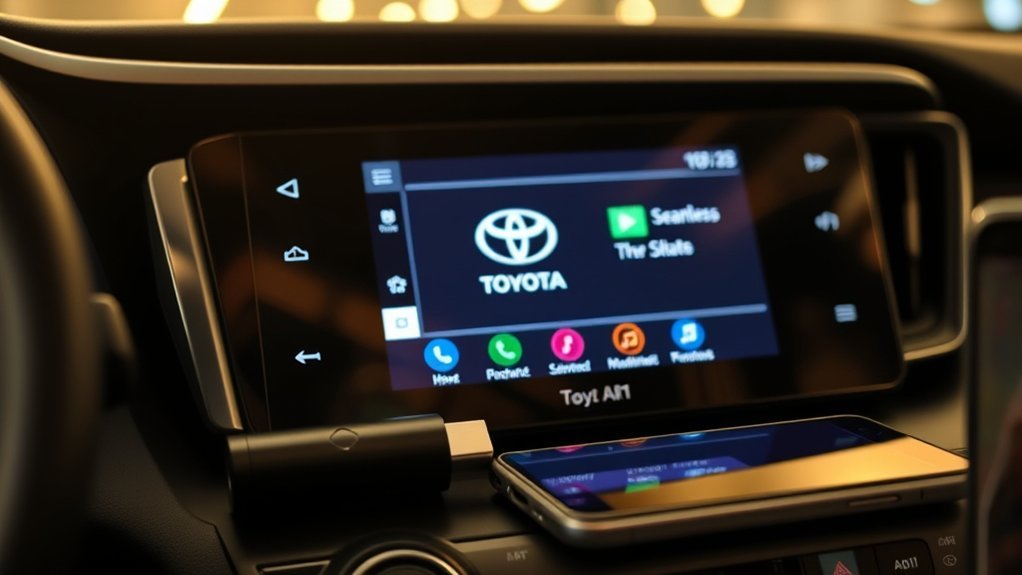
Toyota periodically releases software updates for supported Audio Multimedia systems. Depending on the update, it may improve system stability, correct a known malfunction, change an interface, add a supported function, or improve compatibility with phones and connected services.
An update can be useful when you experience symptoms such as:
- Bluetooth connections that drop or fail to reconnect.
- Apple CarPlay or Android Auto connection problems.
- A slow, frozen, or unexpectedly restarting display.
- Audio, USB, Wi-Fi, voice-recognition, or navigation-interface problems.
- A Toyota notification or technical service bulletin that identifies a newer head-unit version.
For example, Toyota published a 2026 service bulletin covering a head-unit software update for certain 2023–2024 RAV4, RAV4 Hybrid, and RAV4 Prime vehicles. That does not mean every vehicle needs the same update; eligibility depends on the installed system and software version.
Note: Audio Multimedia software is not the same as embedded map data, the Toyota phone app, engine-control software, hybrid-system programming, or a safety-recall remedy. Toyota’s U.S. firmware portal states that navigation and map updates are not provided through that portal.
Identify Your RAV4’s Update Method Before You Start
Toyota has used several multimedia generations in the RAV4, and the available update method can differ even between nearby model years. The 2026 RAV4 introduced another generation of Toyota Audio Multimedia, so instructions written for an earlier display should not automatically be applied to it.
- Confirm the model year and market. The U.S. download portal is intended for eligible vehicles manufactured for use in the continental United States, Alaska, and Hawaii.
- Open the software-information screen. Look for a gear icon or a Vehicle & Settings, Settings, or Software update menu.
- Record the current version. Photograph the Model Info, software version, or update-history screen before changing anything.
- Check the matching manual. Use Toyota’s Manuals and Warranties directory and select the exact RAV4 model year.
- Choose only a method offered by the vehicle. Depending on the equipment, that may be DCM/OTA, Wi-Fi, USB, or dealer installation.
The main update paths are:
- DCM or over-the-air update: The vehicle uses its Data Communication Module to check Toyota’s server. A home Wi-Fi network may not be necessary.
- Wi-Fi update: The RAV4 connects to a supported access point and downloads the package through the multimedia system.
- USB update: You use a computer and a compatible USB drive, following instructions generated for the exact vehicle or head unit.
- Dealer update: A dealer may be needed when the display cannot start, the consumer portal has no applicable package, a bulletin requires dealer equipment, or the update is part of a recall or service campaign.
Pro Tip: Save a photo of the current software version, paired-phone list, radio presets, and important settings. Toyota notes that some settings may reset after an update.
Preparing Your USB Drive for a Successful Update
Use a blank, reliable USB flash drive that meets the requirements in the instructions for your specific RAV4. Do not assume that one size or file system applies to every Toyota multimedia unit.
For example, the 2024 U.S. RAV4 multimedia manual calls for a drive with more than 2 GB of available space. Other Toyota multimedia manuals specify more than 4 GB. Toyota’s U.S. consumer portal describes the requirement as a compatible USB drive and supplies vehicle-specific installation instructions.
Prepare the drive as follows:
- Copy any personal files off the drive because formatting or clearing it will erase them.
- Delete unrelated files so the drive is blank before beginning.
- Use the capacity and file system specified by Toyota’s downloaded instructions.
- Do not format the drive to FAT32 merely because a generic website recommends it. Use FAT32 only when Toyota’s instructions for your head unit require it.
- Use a standard data-capable flash drive rather than a phone, card reader, external hard drive, or USB charging device.
- Insert it into the RAV4’s multimedia USB data port, not a charge-only port.
On supported RAV4 systems, the first USB step takes place in the vehicle: the multimedia system writes vehicle-identification data to the drive. Keep those files on the drive until the complete update and reporting process has finished.
USB Update Process: Step-by-Step
The following workflow matches supported RAV4 systems that include an Output info to USB memory option. If your menu does not contain that option, use the instructions supplied by Toyota for your exact head unit instead.
Prepare the USB Drive Correctly
- Park the RAV4 in a safe, well-ventilated location.
- Turn on the multimedia system and open the main settings menu.
- Select Software update.
- Insert the blank compatible drive into the multimedia USB port.
- Select Output info to USB memory.
- Wait for the vehicle-information files to finish copying.
- Select OK or follow the displayed instruction before removing the drive.
- Connect the same drive to an internet-connected computer.
Do not delete the information created by the vehicle. Toyota uses it to identify the applicable multimedia system and update package.
Follow the Update Prompts Carefully
- Open the official Toyota Audio Multimedia Software Portal.
- Follow the portal’s instructions to identify the vehicle or read the information written to the USB drive.
- Download only the update offered for that system.
- Follow Toyota’s directions regarding extraction, file names, and folders. Do not rename or modify package files unless the instructions explicitly require it.
- Copy the update data to the top level, or root directory, of the USB drive when instructed.
- Keep the vehicle-information files on the drive.
- Eject the USB drive safely from the computer.
- Return to the parked RAV4 and open Software update.
- Insert the drive and select Update software.
- Review the update information and terms, then approve the installation.
- Leave the USB drive connected through any required restart.
- Remove it only after the screen says the update is complete or instructs you to remove it.
Warning: During a USB installation, do not remove the flash drive, turn off the vehicle, disconnect the 12-volt battery, or attempt to drive away. Follow the on-screen instructions until the update and any required restart have finished.
Confirm Update Completion Successfully
- Read the completion message. Do not treat a blank screen or unexpected reboot as proof that the update succeeded.
- Allow the requested restart. Leave the USB connected until the multimedia system says it is safe to remove.
- Check Model Info or update history. Compare the displayed version with the version recorded before installation.
- Upload the completion report when required. The 2024 RAV4 manual states that an offline update can create report data on the USB drive that must be uploaded to the portal.
- Retest important functions. Check audio, Bluetooth, Apple CarPlay or Android Auto, voice control, Wi-Fi, and the camera-display behavior available on your vehicle.
Download Your Toyota RAV4 Software Update File
Use only the official Toyota portal, the package offered directly by your vehicle, or files supplied by an authorized Toyota dealer. A file for another model year, trim, region, or head-unit part number can be incompatible even when the dashboard looks similar.
For a U.S.-market vehicle:
- Go to the Toyota Audio Multimedia Software Portal.
- Enter or provide the requested vehicle and multimedia-system information.
- Download the computer instructions and vehicle-installation instructions.
- Use the same drive containing exported vehicle information when your RAV4’s manual requires it.
- Copy the package exactly as instructed.
- Do not substitute a file found on a forum, file-sharing service, video description, or another owner’s USB drive.
If the portal says no update is available, that can mean the installed system is already current, no consumer-download package exists for it, the update is being distributed OTA, or a dealer must perform the work.
Note: The U.S. multimedia-software portal does not provide navigation-map updates. Contact a Toyota dealer or consult the navigation-service information for your exact system when you need embedded map data rather than head-unit software.
Essential Precautions to Prevent USB Update Failures
- Use the matching file. Verify the model year, multimedia system, region, and displayed software information.
- Follow the supplied USB specification. Capacity and file-system requirements vary.
- Keep the drive simple. Remove unrelated files and use the exact folder structure required by Toyota.
- Use the multimedia data port. A charge-only USB port will not communicate with the head unit.
- Protect vehicle power. Do not begin when the 12-volt battery is weak or the vehicle has recently needed a jump-start.
- Park outside or in a ventilated area. Never idle a gasoline engine in an enclosed garage.
- Do not operate the display unnecessarily. Toyota notes that some multimedia operations may be slow or unavailable during installation.
- Do not attempt a downgrade. Toyota manuals state that an installed version generally cannot be restored to the previous version.
Some newer systems include an activation stage after downloading and installing the package. Toyota warns that the vehicle can be immobilized briefly during this stage. Park where the vehicle can safely remain stationary and follow the activation message exactly.
The safest update is the one matched to the exact RAV4 multimedia system—not merely to the vehicle name printed on the tailgate.
Ensuring a Stable Wi-Fi Connection for Wireless Updates
First determine whether your RAV4 needs Wi-Fi. A supported DCM or over-the-air update may use the vehicle’s built-in data connection without connecting to your home router.
When the multimedia system specifically offers a Wi-Fi update:
- Park within reliable range of a home, work, or approved mobile-hotspot connection.
- Open the vehicle’s Wi-Fi settings.
- Turn the Wi-Fi function on.
- Select the network and enter its password.
- Confirm that the display shows an active connection.
- Keep the vehicle within range while the package downloads.
A phone hotspot can work when the vehicle supports it, but confirm that the phone has adequate data, remains connected to power, and will not automatically disable the hotspot during the download.
A speed test is optional and does not prove that Toyota’s server connection will remain active. The more useful checks are a strong signal, a stable network, and enough time to let the download finish without moving the vehicle.
How to Check for Wireless Software Updates
Menu labels differ, but supported RAV4 systems generally provide a software-update page in the main settings area. Leave update notifications enabled so the vehicle can alert you when Toyota makes an applicable package available.
Verify the Available Connection
- Check whether the vehicle is using its DCM or a selected Wi-Fi network.
- If Wi-Fi is required, confirm that the access point is connected and the vehicle is within range.
- Pause large downloads or streaming on the same hotspot when bandwidth is limited.
- Do not begin an activation step until the vehicle is safely parked.
If the vehicle shows an update notification while no home Wi-Fi is connected, the package may be available through its built-in communication system. Follow the message rather than forcing a different connection method.
Access the Software Update Settings
On many supported RAV4 displays, the process is similar to the following:
- Touch the gear or settings icon.
- Select Software update.
- Select View, Updates available, or the equivalent displayed option.
- Read the update description and terms.
- Approve the download and installation when you are ready.
- Complete a separate Activate step if the screen requests it.
If the menu says No updates available, do not install an unrelated file. Record your current version and check Toyota’s portal, applicable service information, or a dealer only when you have a problem that may require a newer package.
Wirelessly Update Your RAV4 Like a Pro
- Read the entire prompt first. Check the package name, expected restrictions, and whether activation will be required.
- Park before installation or activation. Do not perform setup steps while driving.
- Let the download finish. Download time depends on the connection and package size.
- Follow the vehicle’s power instructions. On supported systems, a DCM or Wi-Fi installation may resume after the next start if interrupted. Do not assume that behavior applies to USB.
- Approve the restart or activation. Some functions may remain unavailable until this final step is complete.
- Read any updated operating information. Toyota notes that controls or functions can change after a software update.
Pro Tip: Do not repeatedly tap the screen when an installation appears slow. Give the system time to process the package, and use the restart procedure in the owner’s manual only when the display has clearly stopped responding.
What to Do After Completing the Software Update
- Confirm the success message. Look for a completion notification rather than assuming a reboot means success.
- Check the installed version. Open Model Info, software information, or update history.
- Complete the portal report. Upload USB completion-report data when Toyota’s instructions require it.
- Review reset settings. Restore radio presets, display preferences, notification settings, paired devices, and other options that changed.
- Test the original problem. Repeat the action that led you to seek an update.
- Reconnect phones if necessary. Remove and pair a device again only when the existing pairing no longer works.
- Update phone software separately. Current iOS, Android, Toyota app, Apple CarPlay, and Android Auto components are managed on the phone and are not replaced by a RAV4 head-unit update.
- Check for recalls or campaigns. Enter the VIN at Toyota’s Safety Recall and Service Campaign lookup.
A completed multimedia update does not close an open recall unless Toyota’s recall instructions specifically identify that update as the remedy and an authorized repair record confirms completion.
Troubleshooting Common Issues With Your RAV4 Software Update
Update File Not Found
Check the following:
- The package came from Toyota’s official portal.
- It matches the exact multimedia system and region.
- The file was copied to the location required by Toyota.
- The update is not hidden inside an extra folder created during extraction.
- The file name and extension were not changed.
- Vehicle-information files exported by the RAV4 remain on the drive.
- The portal did not state that no update is currently available.
Do not keep downloading files for similar model years until one is recognized. An incompatible package is not a valid troubleshooting method.
USB Drive Not Recognized
- Confirm that you are using the multimedia media/data port rather than a charge-only port.
- Remove unrelated files from the drive.
- Check the capacity and file-system requirements in Toyota’s instructions.
- Reformat the drive only to the file system specified for the exact update.
- Try a different reliable flash drive when the instructions permit it.
- Restart the multimedia system using the procedure in the owner’s manual.
- Inspect the USB port for obvious debris or damage without inserting tools into it.
If phones and music drives are also not recognized by the same data port, the problem may be the port or multimedia hardware rather than the update package.
Installation Process Stalled
First determine which stage has stalled:
- Wireless download: Check the DCM or Wi-Fi connection and wait for the system to retry.
- Wireless installation: Some supported systems resume after the next vehicle start.
- USB installation: Do not remove the drive or cycle the vehicle’s power unless the Toyota instructions direct you to do so.
- Activation: Keep the vehicle parked and allow the stated immobilization period to finish.
- Restart: Wait for the displayed restart prompt before pressing controls repeatedly.
Contact a Toyota dealer when an error remains after the documented retry procedure, the display no longer starts, the update repeatedly returns to the same percentage, or the 12-volt battery cannot maintain stable power.
No Software Update Menu or No Update Available
A missing menu can mean the vehicle uses an older head unit, a different menu path, a dealer-only procedure, or software that does not support consumer OTA updates. Check the exact multimedia owner’s manual and the Toyota portal.
When the portal and vehicle both show no update:
- The system may already be current.
- Toyota may not have released a package for that hardware.
- The package may be distributed only through DCM/OTA.
- A technical service bulletin may require dealer equipment.
- The reported problem may have another cause, such as a phone, cable, USB port, subscription, or hardware fault.
When a Toyota Dealer Should Handle the Update
Schedule dealer service instead of continuing a home update when:
- The multimedia display is blank and will not restart.
- The vehicle has an open recall or service campaign.
- A Toyota bulletin specifies dealer tools or a dealer-installed package.
- The portal offers no file but Toyota has identified a newer applicable version.
- The update fails repeatedly with more than one compatible USB drive.
- The 12-volt battery is weak or has recently gone flat.
- The USB data port is damaged or cannot recognize any supported device.
- You are unsure which head unit or regional package is installed.
Ask the dealer whether the work is covered by a recall, service campaign, new-vehicle warranty, technical service bulletin, or customer-pay repair before authorizing charges.
Related Guides
Frequently Asked Questions
How often should I update my Toyota RAV4 software?
Toyota does not publish one universal six-month schedule for every RAV4 multimedia system. Leave update notifications enabled, install applicable updates when Toyota offers them, and check the current version when troubleshooting a documented multimedia problem.
Can I use any USB drive for an update?
No. Use a blank, compatible drive with the capacity and file system specified in the instructions for your exact multimedia system. Requirements vary, and the drive must be connected to the vehicle’s multimedia data port rather than a charge-only port.
What happens if the update is interrupted?
The result depends on the method. Supported DCM or Wi-Fi installations may resume the next time the RAV4 starts. During a USB installation, Toyota warns not to remove the drive or turn the vehicle off. Follow the on-screen and manual instructions for the specific system.
Are Toyota RAV4 software updates free?
An OTA or consumer-download package may be offered without a separate file charge. Internet data, connected-service subscriptions, navigation services, or dealer labor can still cost money. A safety-recall remedy is performed without charge when the VIN is included in the recall.
Will a multimedia update improve fuel economy or engine performance?
Normally, no. The consumer portal covers Audio Multimedia software. It may improve the display, audio, voice, Bluetooth, USB, Wi-Fi, navigation interface, or phone integration, but it should not be described as an engine, hybrid-system, transmission, or fuel-economy update unless Toyota specifically documents that result.
Does a RAV4 multimedia update include new navigation maps?
Not through Toyota’s U.S. multimedia-software portal. Embedded navigation maps and multimedia operating software are separate. Ask a Toyota dealer or consult the applicable Dynamic Navigation or Drive Connect information for your vehicle.
Can I install an update while driving?
Do not operate update menus while driving. Park before reviewing terms, beginning installation, or completing activation. Some newer systems may temporarily immobilize the vehicle during activation.
Sources
- Toyota Audio Multimedia System Updates — official overview of OTA, USB, and dealer update options
- Toyota Audio Multimedia Software Portal — official U.S. consumer software downloads and navigation-map limitation
- 2024 Toyota RAV4 Multimedia Owner’s Manual — RAV4 DCM, Wi-Fi, USB, vehicle-information export, installation, and completion-report procedures
- Current RAV4 Multimedia System Owner’s Manual — update notifications, activation precautions, restart behavior, and current-system guidance
- Toyota Head Unit Software Update Version 1861 Bulletin — current update information for certain 2023–2024 RAV4-family vehicles
- Toyota Safety Recall and Service Campaign Lookup — VIN-based check for dealer-required safety and service actions
Conclusion
The correct Toyota RAV4 software-update method depends on the installed multimedia system—not just the RAV4 name or model year. Start by recording the current version and checking the matching Toyota manual. Use an offered OTA or Wi-Fi update when available, and follow the official portal’s exact drive and file instructions for USB installations.
Keep multimedia software separate from navigation maps, phone-app updates, recalls, and dealer control-module programming. When the display cannot start, an update repeatedly fails, or Toyota identifies a recall or dealer-only bulletin, schedule professional service rather than experimenting with unrelated files.

