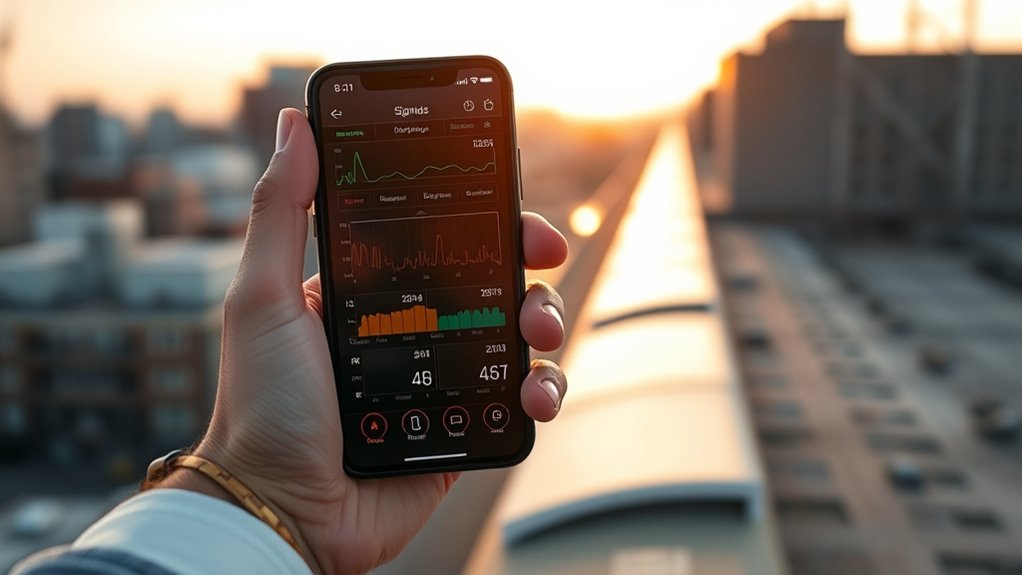
iPhone Field Test Mode gives a more exact view of cellular reception than the standard signal bars. By entering `*3001#12345#*`, a user can inspect values such as dBm, RSRP, and SINR, which help measure real network quality. Those numbers can explain why one location performs well while another does not. The key question is how to interpret them correctly and decide whether a stronger fix is needed.
What Is Field Test Mode?
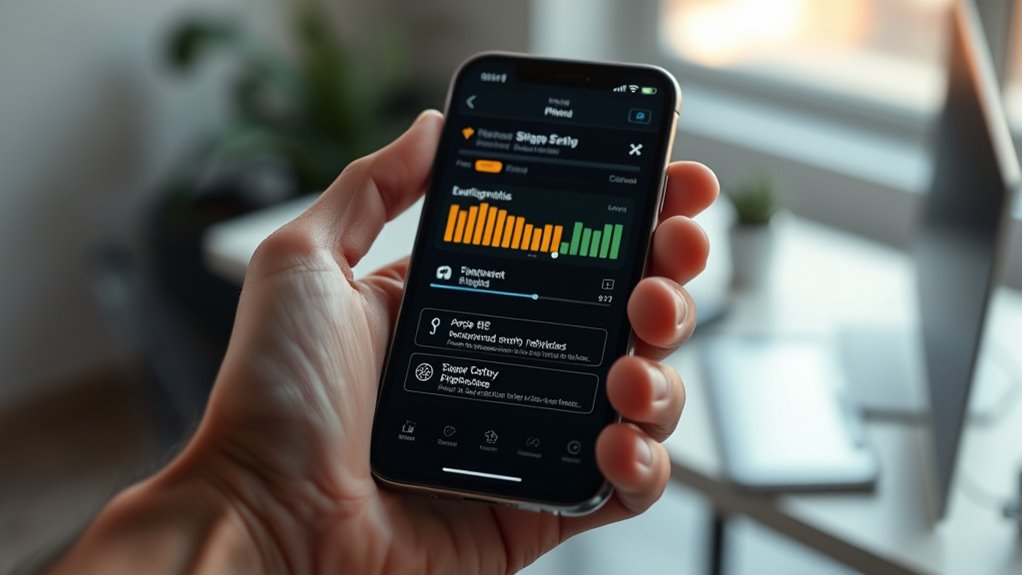
Field Test Mode is a hidden iPhone diagnostic interface that reveals detailed cellular network metrics beyond the standard signal bars. It converts vague cellular signal icons into measurable data, letting the user check signal strength in dBm and evaluate RSRP, which reflects received power, and SINR, which indicates signal clarity.
This technical view helps expose congestion, weak coverage, and other conditions behind connectivity issues. Rather than trusting a simplified display, a technician or informed user can access field test mode to assess whether the iPhone is receiving a stable, usable connection.
The interface is primarily used for analysis, antenna optimization, and network troubleshooting, but it also serves ordinary users who want freedom from guesswork. By reading precise values instead of approximate bars, Field Test Mode supports disciplined diagnosis and clearer decisions about placement, movement, or carrier performance.
How to Open Field Test Mode on iPhone
To open Field Test Mode on an iPhone, the user should launch the Phone app, dial `*3001#12345#*`, and tap the call button.
Before doing so, Wi-Fi Calling should be disabled in Settings, because it can distort cellular signal strength readings.
Once Field Test Mode appears, the path to freedom from guesswork is `Serving Cell Measurements`, where RSRP and RSRQ become visible as precise indicators of signal strength.
Once Field Test Mode appears, open Serving Cell Measurements to view RSRP and RSRQ as precise signal indicators.
Values are shown in dBm, allowing a technical assessment of the radio link without carrier interpretation.
- A hand enters the keypad, entering the code with exact intent.
- The screen shifts from normal dialing to Field Test Mode.
- A compact panel exposes Serving Cell Measurements and network metrics.
- The user can later exit Field Test Mode with a swipe up or home button.
This procedure gives the iPhone owner direct access to the raw cellular signal landscape.
How to Read iPhone Signal Numbers
Reading iPhone signal numbers begins with recognizing that the display is measured in dBm, where values nearer to zero indicate a stronger cellular link and numbers below about -100 dBm usually reflect weak service.
In Field Test Mode, entered by dialing *3001#12345#* in the Phone app, the user can inspect iPhone signal strength with greater precision. The most relevant figure is RSRP, found under Serving Cell Measurements, because it serves as the primary indicator of signal strength.
A value around -45 dBm suggests strong signal and efficient cellular connection, while readings approaching -140 dBm indicate weak signal and degraded signal quality.
SINR may also be observed, but it complements rather than replaces RSRP. Small numeric shifts matter: a 3 dBm gain represents roughly double the power, so modest changes can meaningfully alter connectivity.
This measurement framework helps the user read the network objectively, beyond vague impressions, and claim clearer understanding of wireless conditions.
Why Signal Bars Don’t Tell the Full Story
Signal bars offer only a rough, relative estimate of cellular reception, not a standardized measurement of actual link quality. They compress complex radio conditions into a simple icon, so the same signal bars can mask very different dBm values across devices. For accurate measurement, dBm values matter: around -50 dBm indicates strong service, while a weak one near -120 dBm reflects poor signal and unstable cellular data.
- A tower hidden behind concrete walls
- A handset held beside a window
- A moving train crossing coverage zones
- A screen showing Reference Signal Received Quality
Environmental factors alter perceived signal strength, and that variability complicates troubleshooting. A 3 dBm shift may change performance noticeably, yet signal bars may remain unchanged. Such coarse feedback can obscure the true state of the link.
Environmental factors can shift signal by 3 dBm without changing bars, obscuring the true link quality.
Reading field data replaces guesswork with precision, allowing users to assess network conditions directly and reclaim informed control over connectivity.
How to Improve Weak iPhone Signal
Weak iPhone signal can often be improved by reducing attenuation from building materials.
Placement near a window typically provides a more favorable radio path to the cell tower.
Field Test Mode can verify whether this change produces a measurable increase in RSRP or dBm values.
If readings remain poor, a cellular signal booster may be required to amplify reception in persistently shielded environments.
Move Closer To Window
When an iPhone is used farther from exterior openings, cellular reception often degrades because walls, insulation, and building materials attenuate the radio signal. Moving to a window can raise signal strength by reducing obstruction between the device and cellular signals, sometimes shifting a poor cell phone reading toward the ideal -50 to -80 dBm range.
In Field Test Mode (*3001#12345#*), one can check whether dBm values improve after relocation. A clearer path to the nearest cell tower may cut losses of 20 dB or more, restoring usable performance and greater communicative freedom.
- Glass pane facing open air
- Concrete wall blocking radio waves
- Phone beside bright daylight
- Field Test Mode reading stabilizing
If the window offers no boost, a cell phone signal booster may be considered later.
Use A Signal Booster
A signal booster can materially improve a weak iPhone cellular link by amplifying usable outdoor signal and redistributing it indoors, often raising performance from unusable levels near -110 dBm to approximately -70 dBm or better.
| Component | Function |
|---|---|
| Outdoor antenna | Captures cellular signal |
| Amplifier | Raises signal strength |
| Indoor antenna | Re-radiates use signal |
| Field Test Mode | Locates ideal placement |
A precise installation begins with a Field Test Mode survey to map dBm readings and identify the strongest external point for the outdoor antenna. In large buildings or obstructed zones, a properly matched signal booster from reputable brands can improve call quality and data stability. By converting weak signal into usable coverage, the system supports a more liberated, reliable mobile experience without dependence on fragile hotspots.
When to Use Apps or a Signal Booster
Signal analysis apps such as NetMonster or Network Cell Info Lite can quantify RSRP, RSRQ, and SINR, providing a more complete assessment than basic signal bars.
If Field Test Mode or app readings show RSRP below -100 dBm, a signal booster becomes a practical option, particularly in structures with concrete or metal attenuation.
In weak-signal environments, a high-quality booster from vendors such as weBoost or SureCall can raise connectivity to usable levels and improve call stability and data throughput.
Use Signal Apps
Applications such as NetMonster and Network Cell Info Lite can complement iPhone Field Test Mode by displaying real-time RSRP, RSRQ, and SINR values, giving a fuller picture of cellular signal quality.
These signal apps translate raw data into readable trends, helping users measure signal strength across rooms, streets, and elevations.
- A hallway where cell signal fades at the threshold
- A rooftop where SINR sharpens under open sky
- A basement where RSRQ drops beside concrete walls
- A map of signal strength changing with movement
Field Test Mode remains precise, yet signal apps make analysis accessible.
When readings stay weak, the combined evidence clarifies whether repositioning, relocation, or signal boosters should later be considered, without surrendering technical control.
Add a Signal Booster
When iPhone field test readings drop below about -100 dBm RSRP, the cellular link is often weak enough to justify a booster rather than further app-based analysis alone.
In Field Test Mode, persistent weak signal strength, low RSRP, and poor SINR or RSRQ indicate limited coverage that can degrade calls and data transfer.
In such cases, cell phone signal boosters can boost reception by amplifying and redistributing the signal indoors. Selection should match the carrier’s frequency bands; otherwise, performance will remain constrained.
Smaller rooms may need one unit, while large buildings often require multiple boosters to achieve uniform coverage.
Apps remain useful for diagnosis, but when measurement confirms structural blockage or chronic weak service, a properly matched booster offers a practical path toward reliable connectivity and restored user autonomy.
Frequently Asked Questions
What Does Field Test Mean on iPhone?
Field test on iPhone means a hidden diagnostic mode for signal measurement and network performance. It is accessed through iPhone settings with a dialed code, revealing cellular technology data such as RSRP, RSRQ, and SINR.
Technicians use these diagnostic tools for troubleshooting methods, while users inspect signal strength and mobile connectivity. Among iPhone features, it offers technical insight into reception, helping individuals assess and improve their own communications environment.
What Does Dialing *3001-12345#* Do?
Dialing *3001#12345#* opens a hidden menu for signal measurement on an iPhone, exposing cellular technology diagnostics.
It reveals iPhone features for data analysis, including RSRP, SINR, and RSRQ, to evaluate network performance and reception issues.
This access to carrier settings and troubleshooting signals provides technical insights beyond standard interfaces.
What Does *#33 Do on iPhone?
*#33 on iPhone checks call barring status, revealing whether outgoing calls are restricted; it changes nothing.
When it returns its message, coincidence and clarity align, guiding Network diagnostics, Carrier settings, and iPhone troubleshooting.
This iPhone signal check can help distinguish Call forwarding issues from Cellular technology limits, network bands, or signal boosters.
It does not measure Data usage, yet it complements iPhone features and carrier control for liberation through precision.
What Does *#43 Do on iPhone?
*#43# on an iPhone checks and toggles call waiting, a practical iPhone feature for managing incoming calls during an active call.
It supports Signal troubleshooting and reflects Network settings affected by Carrier updates, Call forwarding, Data usage, Device performance, Mobile security, Voicemail access, and Software updates.
Users seeking autonomy can also control it in Settings > Phone > Call Waiting, enabling precise, self-directed communication management without dependence on opaque defaults.
Conclusion
Field Test Mode reveals what the bars conceal: the actual radio conditions shaping an iPhone’s connection. Yet the most important number is not always the strongest one. As dBm, RSRP, and SINR shift, so does the device’s ability to maintain stable service. The next step is clear but unresolved—whether adjustment, software tools, or a signal booster will finally tip the balance between marginal reception and reliable performance.

