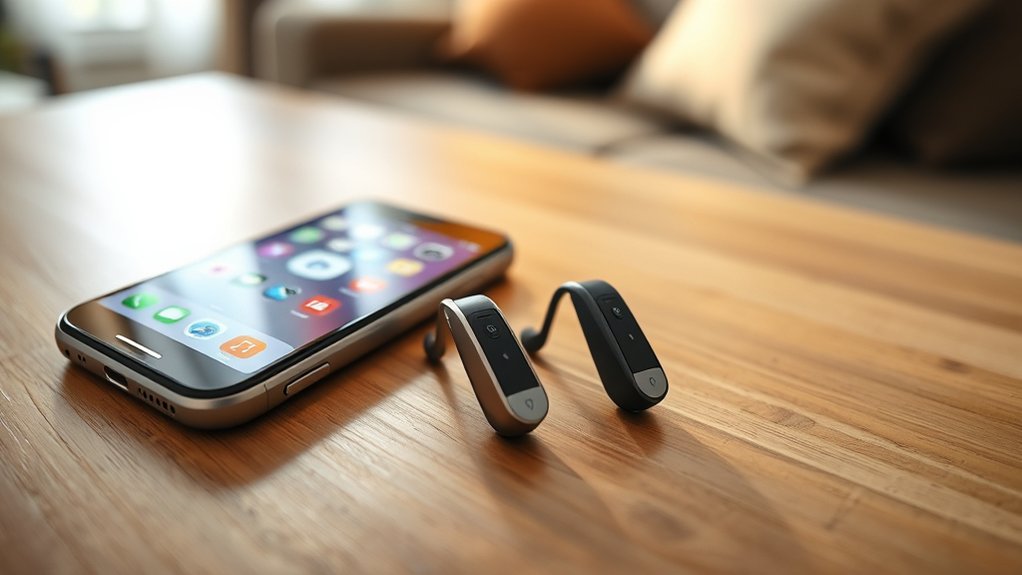
To stream audio from Phonak Audio Sphere hearing aids to an iPhone, first verify Bluetooth is enabled in the iPhone’s settings. Pair the hearing aids by entering pairing mode, and confirm their connection when they appear in the Bluetooth list. Once paired, users can control audio and stream directly through the myPhonak app, allowing for customization of settings. Should issues arise during streaming, further troubleshooting techniques are available to enhance the experience.
How to Pair Your Phonak Audio Sphere Hearing Aids for Streaming With iPhone
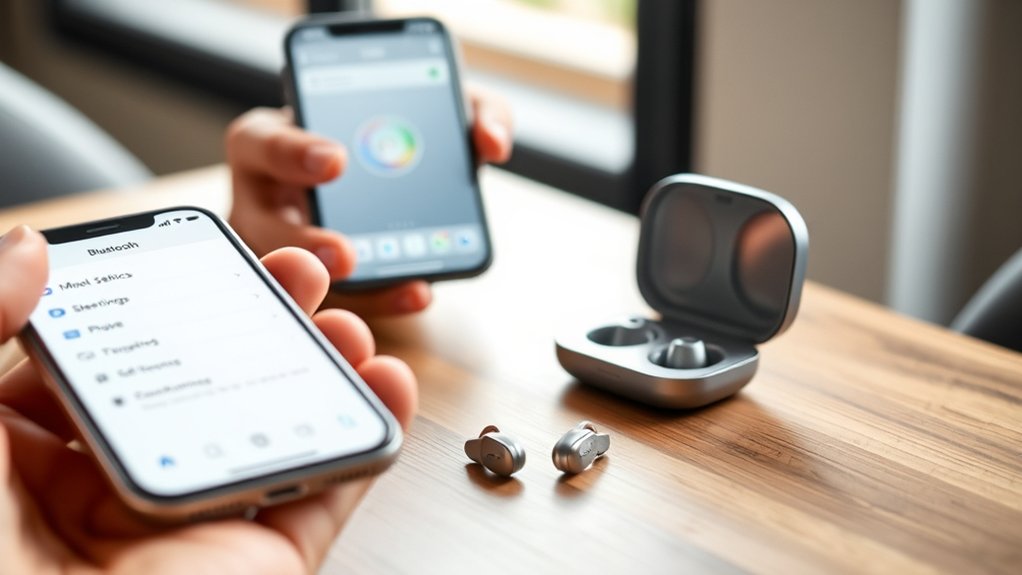
Pairing Phonak Audio Sphere hearing aids with an iPhone for seamless audio streaming begins with a few straightforward steps.
First, verify Bluetooth is enabled on the iPhone by accessing “Settings” and selecting “Bluetooth.”
Verify that Bluetooth is enabled on your iPhone by navigating to “Settings” and selecting “Bluetooth.”
Next, to enter pairing mode, restart the hearing aids by placing rechargeable models in their charger for 10 seconds or by opening and closing the battery doors for those with replaceable batteries.
Once in pairing mode, wait for the hearing aids, identified as R-Phonak or L-Phonak, to appear in the Bluetooth devices list on the iPhone. This may take a few seconds.
Select the appropriate hearing aid name, and a beep will confirm successful pairing, allowing for audio streaming and phone calls directly through the aids.
If utilizing the myPhonak app, verify both hearing aids appear for ideal setup and functionality during pairing.
Ensuring Bluetooth Is Enabled on Your iPhone
Ensuring Bluetooth is enabled on an iPhone is an essential step for effective audio streaming with Phonak Audio Sphere hearing aids. By enabling Bluetooth, users can access a world of seamless connectivity and enhanced audio experiences.
- Access the “Settings” app on your iPhone.
- Locate the “Bluetooth” option and slide the toggle to the “on” position.
- Wait a few seconds for your Phonak hearing aids to appear in the Bluetooth devices list.
If the hearing aids do not show up, confirm they are in pairing mode, typically active for three minutes after restarting.
Successful Bluetooth connectivity allows your Phonak hearing aids to stream audio directly from your iPhone, enriching calls and media consumption.
Embracing this technology empowers users to experience sound like never before, offering liberation through clarity and connection.
Troubleshooting Common Pairing Issues With Phonak Hearing Aids
When troubleshooting common pairing issues with Phonak hearing aids, it is essential to follow the correct pairing process and check connection visibility in the Bluetooth settings of the iPhone.
Users should also verify Bluetooth compatibility by ensuring the hearing aids are properly recognized as R-Phonak and L-Phonak.
Addressing these factors can help resolve connectivity challenges and enhance streaming functionality.
Pairing Process Steps
To successfully connect Phonak hearing aids to an iPhone, users must follow a sequence of straightforward steps.
Begin by enabling Bluetooth in the iPhone settings. Next, verify both hearing aids are restarted, either by placing them in their charger for 10 seconds or manually switching them off and on. This allows the devices to enter pairing mode for three minutes.
- Confirm that R-Phonak and L-Phonak appear in the Bluetooth list.
- If only one device shows, reboot both aids and retry.
- Check that the myPhonak app isn’t interfering with the pairing process.
Connection Visibility Issues
Connection visibility issues can arise during the pairing process of Phonak hearing aids with an iPhone, often leading to frustration for users.
To troubleshoot, first confirm all three Bluetooth items—R-Phonak, LE_L-Phonak, and LE_R-Phonak—are present in the iPhone’s Bluetooth settings. If any are missing, a pairing issue exists.
For rechargeable hearing aids, restart them by placing them in the charger for 10 seconds. If only one aid appears, reboot both aids and retry pairing for effective audio streaming.
Verify Bluetooth is enabled on the iPhone and check detectability within the three-minute pairing window. If connection problems persist, consult the myPhonak app for guidance, including unpairing and re-pairing to rectify installation errors.
Bluetooth Compatibility Checks
Pairing Phonak hearing aids with an iPhone can often lead to connection visibility issues, necessitating a careful examination of Bluetooth compatibility.
To guarantee a successful pairing, consider the following:
- Model Check: Verify that your hearing aids are compatible models, such as Sphere Infinio, Lumity, or Paradise.
- Bluetooth Settings: Confirm Bluetooth is enabled on your iPhone and both hearing aids are in pairing mode. Restarting them may help.
- Connection Verification: Look for R-Phonak for audio streaming and LE_L-Phonak and LE_R-Phonak for the myPhonak app in Bluetooth settings. If R-Phonak is absent, a pairing issue exists.
Regularly updating your iPhone and the myPhonak app can also enhance compatibility and performance, guaranteeing a seamless audio streaming experience.
Select and Control Audio Streaming From Your iPhone
Streaming audio from an iPhone to Phonak Audio Sphere hearing aids requires a few simple steps to guarantee peak performance.
First, verify Bluetooth is activated and the R-Phonak hearing aid is paired and listed as connected in the Bluetooth settings.
Next, select the desired audio source, whether for phone calls or music apps, confirming the R-Phonak hearing aid is chosen in the audio output options.
Volume control can be adjusted directly from the iPhone or through the myPhonak app, which offers independent volume settings for each hearing aid.
If connection issues arise, check that the hearing aids are powered on and within range, ideally keeping the iPhone within 33 feet to maintain a robust Bluetooth connection.
Restarting both devices may also help refresh the connection, verifying a seamless streaming experience for the user.
How to Customize Audio Streaming Settings in the MyPhonak App
Customizing audio settings in the myPhonak app allows users to enhance their listening experience with Phonak Audio Sphere hearing aids. This app provides a range of features that empower users to tailor their audio streaming preferences.
- Equalizer Settings: Users can select from four presets—Default, Comfort, Clarity, Surrounding—or adjust a three-band equalizer for a personalized sound experience.
- Volume Control: The app facilitates independent volume control for each hearing aid, ensuring maximum comfort during streaming sessions.
- Tap Control: Customizable gestures for actions like answering calls or controlling playback add a layer of convenience, making interactions effortless.
With these features, the myPhonak app offers a liberating way to engage with the world of audio streaming. This allows users to embrace their unique listening needs and preferences confidently.
Tips for Improving Call Quality While Streaming
Enhancing call quality while using Phonak hearing aids can greatly improve the user experience. To achieve ideal audio streaming, users should first verify that their mobile phone signal strength is robust; relocating can help if the signal is weak.
A clear line of sight between the iPhone and hearing aids is vital, as physical barriers can disrupt the Bluetooth connection. Regularly checking the hearing aids’ battery levels is also important, as low power can diminish call quality.
Additionally, users should confirm that the audio output is set to the R-Phonak hearing aid in the phone’s call settings, directing sound correctly through the hearing aids instead of the phone speaker.
Finally, utilizing the myPhonak app allows users to adjust volume levels and equalizer settings, enhancing the audio experience based on their environment during calls.
These tips collectively improve call quality, facilitating a more liberated communication experience.
What to Do If Audio Streaming Stops Working?
When audio streaming suddenly ceases, users should first check the connection between their Phonak hearing aids and iPhone, as a lost connection can disrupt functionality.
To rectify the issue, they can follow these steps:
- Check Bluetooth Settings: Confirm the R-Phonak hearing aid is listed and selected for audio streaming.
- Restart Hearing Aids: Place them in the charger for 10 seconds or open and close the battery doors to reset.
- Verify Battery Levels: Ensure the hearing aids are charged and within Bluetooth range, as low battery or distance can interfere with the connection.
If problems persist, toggle Bluetooth off and on again on the iPhone, then attempt to reconnect the hearing aids.
Taking these steps can restore audio streaming, allowing users to fully enjoy the freedom and clarity that Phonak hearing aids provide.
Frequently Asked Questions
How Do I Stream Music on myPhonak Hearing Aid?
To stream music on myPhonak hearing aids, utilize Bluetooth connectivity for device compatibility. Explore app features for volume control, ensuring ideal audio quality. For troubleshooting tips, restart hearing aids and reinitiate pairing as needed.
Does Phonak Work With iPhone?
Phonak hearing aids exhibit excellent compatibility with iPhones, utilizing Bluetooth connectivity for seamless device pairing. Enhanced app functionality enriches the user experience, allowing customization of hearing aid features and streamlined audio streaming from various sources.
Conclusion
To summarize, successfully streaming audio from your Phonak Audio Sphere hearing aids to your iPhone can transform the listening experience into a symphony of sound. By following the outlined steps and troubleshooting tips, users can guarantee seamless connectivity and enhanced audio quality. Just as a conductor harmonizes an orchestra, mastering these features will allow users to fine-tune their auditory environment, assuring every note is crisp and clear. Embrace the technology to enjoy a richer soundscape.

