
You can add maps to a Toyota RAV4 by projecting a compatible navigation app from your phone through Apple CarPlay or Android Auto. Depending on your RAV4’s model year and multimedia system, the connection may be wired or wireless. Some newer RAV4s also offer Toyota’s own Cloud Navigation through Drive Connect. The correct method therefore depends on the year, market, phone, and multimedia system in your vehicle.
Quick Answer
To put maps on your Toyota RAV4 screen, connect a compatible iPhone through Apple CarPlay or an Android phone through Android Auto, then open Google Maps, Apple Maps, or another supported navigation app. Use the RAV4’s USB media port for a wired connection, or pair wirelessly on models that support wireless projection.
Key Takeaways
- Apple CarPlay and Android Auto let you display compatible phone-based navigation apps on the RAV4 touchscreen.
- Wireless projection uses Bluetooth during pairing and also relies on Wi-Fi; ordinary Bluetooth audio by itself does not display maps.
- U.S.-market compatibility changed by model year: the 2019 RAV4 added Apple CarPlay, 2020 added Android Auto, and 2023 brought standard wireless Apple CarPlay and Android Auto across RAV4 grades.
- Toyota Drive Connect/Cloud Navigation is a separate built-in connected service and may require an active trial or subscription.
- Complete the initial pairing and troubleshooting while the vehicle is safely parked.
At a Glance
| Time Required | Usually 5–10 minutes for first-time setup |
| Difficulty | Easy |
| Tools Needed | Compatible smartphone; data-capable USB cable for wired projection |
| Cost | No Toyota subscription is required for Apple CarPlay or Android Auto; phone data charges and optional Toyota connected-service fees may apply |
Warning: Perform the initial phone pairing, permission setup, and troubleshooting only while your RAV4 is safely parked. Toyota, Apple, and Google all advise against performing first-time setup while driving.
Check Your RAV4 Model Year and Multimedia System First
Before connecting a phone, confirm what your specific RAV4 supports. Features can vary by model year, market, multimedia system, and trim.
| U.S. RAV4 Model Year | Key Smartphone-Map Compatibility |
|---|---|
| 2019 | Apple CarPlay compatibility was included; Android Auto was not yet part of the U.S. RAV4 multimedia package. |
| 2020–2022 | Android Auto joined Apple CarPlay. Connection method depends on the multimedia system and model year, so check the vehicle manual. |
| 2023 and newer | Toyota introduced its newer Audio Multimedia system with standard wireless Apple CarPlay and wireless Android Auto compatibility across U.S. RAV4 grades. |
Toyota documents current multimedia and connected-service features on its Audio Multimedia and Connected Services page. If your RAV4 is from another market, check the manual for that country because specifications can differ.
How to Connect Maps to Your Toyota RAV4
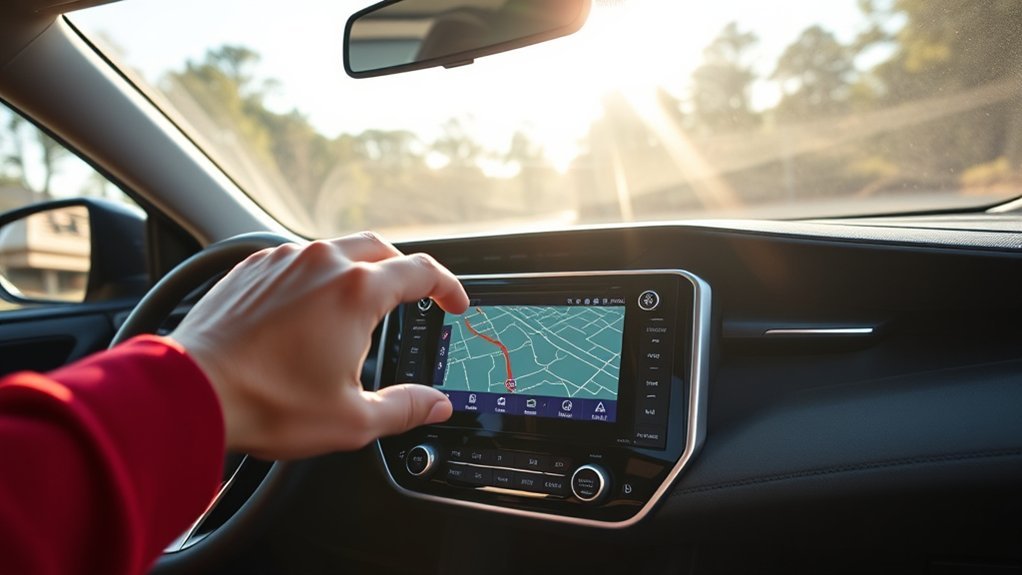
The simplest way to display maps in most compatible RAV4s is through Apple CarPlay or Android Auto. These systems mirror supported navigation functions from your phone to the vehicle’s multimedia display.
- Park the RAV4 and turn on the multimedia system.
- Unlock your phone and confirm Bluetooth and Wi-Fi are enabled if you plan to connect wirelessly.
- For a wired connection, connect the phone to the RAV4’s USB media port using a reliable data-capable cable.
- For a wireless connection, open the RAV4’s phone/Bluetooth device menu and begin pairing your phone.
- Accept the Apple CarPlay or Android Auto prompts on both the phone and vehicle display.
- Open the projection interface on the RAV4 screen if it does not appear automatically.
- Select Google Maps, Apple Maps, Waze, or another compatible navigation app.
- Enter your destination before driving whenever possible.
Pro Tip: Not every USB port in a RAV4 necessarily carries multimedia data. If your phone charges but CarPlay or Android Auto does not start, try the USB media port identified in your owner’s or multimedia manual and use a known-good data cable.
How to Connect Your Smartphone to the RAV4
Your RAV4 can connect to a phone in several ways, but ordinary Bluetooth and smartphone projection are not the same thing.
- Bluetooth only: Commonly handles hands-free calling and audio streaming. Bluetooth by itself does not normally place Google Maps or Apple Maps on the vehicle display.
- Wired Apple CarPlay or Android Auto: Uses the vehicle’s compatible USB media port and a data-capable cable.
- Wireless Apple CarPlay or Android Auto: Starts with Bluetooth pairing and also requires wireless networking functionality. Keep Wi-Fi enabled on the phone.
Apple’s current CarPlay troubleshooting guidance specifically tells wireless users to keep both Bluetooth and Wi-Fi enabled. Google’s Android Auto instructions likewise use Bluetooth for initial wireless pairing and require a compatible phone and vehicle with wireless Android Auto support.
For official setup requirements, see Apple’s CarPlay support guide and Google’s Android Auto setup guide.
Set Up Android Auto for Your RAV4
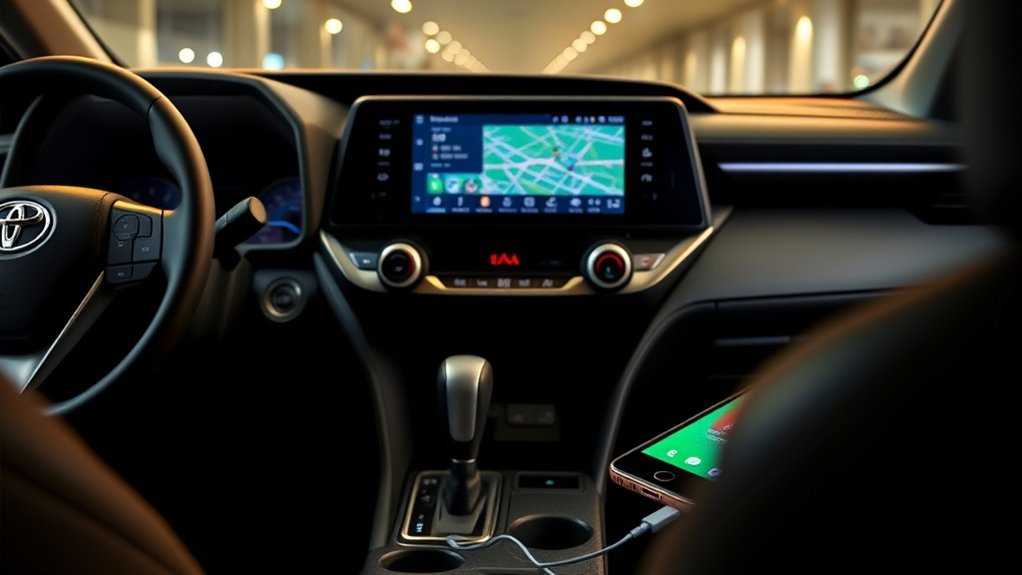
Android Auto lets a compatible Android phone provide navigation, calls, messages, music, and other supported functions through the RAV4 display.
Wired Android Auto Setup
- Park the RAV4 and switch on its multimedia system.
- Connect your Android phone to the USB media port with a good data-capable cable.
- Unlock the phone and accept any requested permissions.
- Approve Android Auto on the vehicle display when prompted.
- Select the Android Auto icon if the interface does not launch automatically.
- Open Google Maps or another compatible navigation app.
Wireless Android Auto Setup
If your RAV4 and phone support wireless Android Auto, keep Bluetooth, Wi-Fi, and Location Services enabled during initial setup. Pair the phone through the RAV4’s Bluetooth/device menu and accept the Android Auto prompts. After pairing, Android Auto should start automatically or become available from the multimedia screen.
Google notes that Android Auto is now integrated into supported Android phones, so most users do not need to install a separate Android Auto app. Keep your Android system, Google Maps, Google Play services, and other relevant phone software current.
Launch Apple CarPlay on Your RAV4
Apple CarPlay provides access to Apple Maps, Google Maps, compatible third-party navigation apps, calls, messages, music, and Siri through the RAV4 display.
Wired Apple CarPlay Setup
- Start the RAV4 and leave it parked.
- Make sure Siri is enabled on your iPhone.
- Connect the iPhone to the RAV4’s compatible USB media port.
- Approve the CarPlay prompt on the iPhone and vehicle screen.
- Select the CarPlay icon if CarPlay does not open automatically.
- Open your preferred navigation app.
Wireless Apple CarPlay Setup
If your RAV4 supports wireless CarPlay, turn on both Bluetooth and Wi-Fi on the iPhone. Put the RAV4 multimedia system into phone-pairing mode, select the vehicle on the iPhone, and approve the CarPlay connection. Apple also recommends confirming that Auto-Join is enabled for the CarPlay network if wireless CarPlay has trouble reconnecting.
You can use Siri for hands-free navigation commands. Depending on the system, pressing and holding the steering-wheel voice button can activate the phone’s voice assistant while CarPlay is active.
Troubleshooting Connection Issues
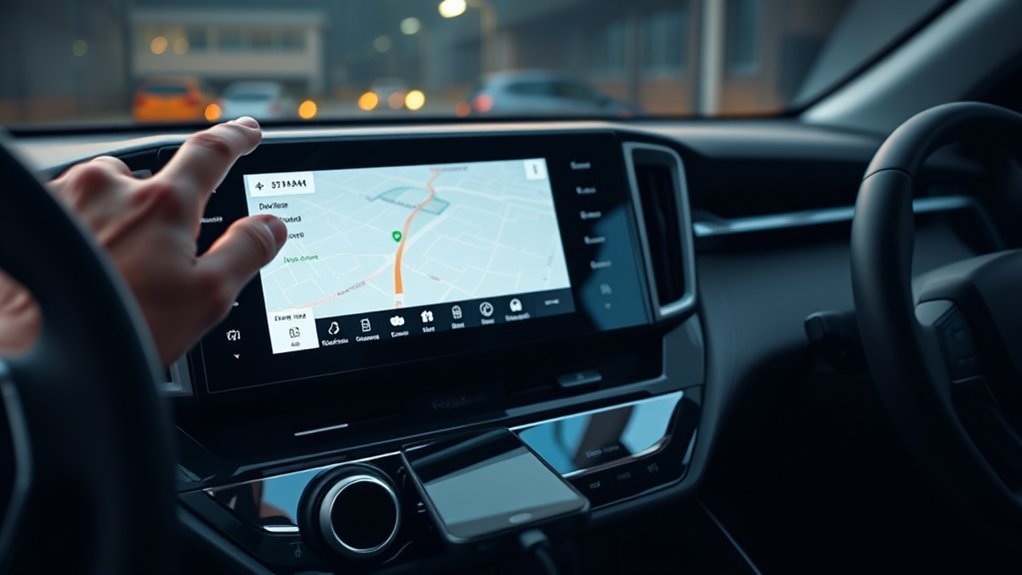
If maps do not appear on your RAV4 screen, work through the following checks before assuming the multimedia system has failed.
| Problem | Likely Cause | What to Try |
|---|---|---|
| Phone charges but maps never appear | Charging-only port or cable | Use the RAV4’s USB media port and a data-capable cable |
| CarPlay or Android Auto option is missing | Vehicle/model year may not support that feature | Check the multimedia manual and model-year compatibility |
| Wireless connection will not start | Bluetooth or Wi-Fi disabled | Enable both and repeat pairing while parked |
| Connection repeatedly drops | Cable, wireless interference, phone software, or saved-pairing issue | Try another cable, restart both systems, or remove and re-pair the phone |
| CarPlay will not detect the iPhone | Siri, CarPlay permission, or saved connection issue | Enable Siri, check CarPlay permissions, or use “Forget This Car” and pair again |
| Android Auto will not launch | Compatibility, permissions, phone software, or connection problem | Check Android Auto compatibility, update the phone, approve permissions, and reconnect |
| Wrong phone connects automatically | Multiple saved devices | Open the RAV4’s Bluetooth/devices menu and select or prioritize the desired phone |
| Persistent multimedia problems | Outdated vehicle software | Check for an eligible Toyota multimedia update or contact a Toyota dealer |
Note: If ordinary Bluetooth calling and music work but phone-based maps do not appear, that does not prove CarPlay or Android Auto is working. Smartphone projection must be supported and enabled separately.
Using Google Maps in Your RAV4
Google Maps can appear on a compatible RAV4 display through Android Auto or Apple CarPlay. The phone performs the navigation while the vehicle display provides a larger interface, map graphics, voice guidance, and supported controls.
Connection Methods Explained
For a wired setup, connect your phone to the RAV4’s compatible USB media port. For a supported wireless setup, pair the phone through the multimedia system while keeping the phone’s Bluetooth and Wi-Fi functions enabled.
After Android Auto or Apple CarPlay starts, select Google Maps from the app launcher. You can then search for a destination on the touchscreen when appropriate or use the supported voice assistant.
Navigation Features Overview
With an active internet connection, Google Maps can provide features such as turn-by-turn directions, traffic information, estimated arrival times, rerouting, lane guidance where available, and searches for destinations or businesses.
The exact layout and available features can differ between Android Auto, Apple CarPlay, phone operating-system versions, and geographic regions.
Using Google Maps Offline
You can download an area to Google Maps on your phone before a trip and use it when cellular service is weak or unavailable. Open Google Maps on your phone, go to your profile menu, choose Offline maps, and download the area you expect to travel through.
Google states that offline driving navigation works when the route is contained within the downloaded area. However, offline mode does not provide live traffic information or alternate routes. Offline-map availability can also vary by country or region.
See Google’s official offline maps instructions for current limitations and download steps.
Customizing Your Navigation Experience
Once your preferred map app is running, you can adjust routing, voice guidance, saved destinations, and other settings from the navigation app itself.
Personalizing Navigation Preferences
Depending on the map app, useful settings can include:
- Avoiding toll roads, highways, or ferries.
- Saving Home, Work, and frequent destinations.
- Changing map orientation or display appearance.
- Turning voice guidance up, down, or off.
- Enabling traffic information when an internet connection is available.
- Downloading offline Google Maps before entering areas with weak cellular service.
Configure these options in Google Maps, Apple Maps, Waze, or your chosen app rather than assuming the Toyota app controls the projected navigation app.
Utilizing Voice Commands
The available voice assistant depends on which navigation system you are using.
| System | Voice Control | Typical Uses |
|---|---|---|
| Apple CarPlay | Siri | Destinations, calls, messages, music, supported app commands |
| Android Auto | Supported Android voice assistant | Navigation, calls, messages, music, supported app commands |
| Toyota Drive Connect | Toyota Intelligent Assistant where equipped and subscribed | Toyota navigation searches and supported vehicle/multimedia functions |
On vehicles equipped with Toyota’s newer Audio Multimedia system and an active eligible Drive Connect service, Intelligent Assistant can provide Toyota-specific connected functions. This is separate from Siri or the voice assistant used through Android Auto.
Exploring Map Features
Your navigation experience can also vary according to the app you choose. Google Maps emphasizes traffic-aware routing and broad place information; Apple Maps integrates closely with iPhone and Siri; Waze emphasizes community-reported road conditions and traffic events.
Choose the app that best fits your driving needs, then manage route and alert settings inside that app.
Toyota Built-In Navigation vs. Phone Maps
Some RAV4 owners can choose between phone-based navigation and Toyota’s native connected navigation.
- Apple CarPlay/Android Auto: Uses compatible navigation apps from your smartphone. Toyota does not require a CarPlay or Android Auto subscription.
- Toyota Drive Connect: On compatible vehicles, this connected service can include Cloud Navigation, Destination Assist, and Intelligent Assistant. An active trial or subscription may be required.
- Older factory navigation systems: Update procedures vary by multimedia generation and should be checked against the specific vehicle’s navigation manual or Toyota dealer guidance.
Toyota’s current Connected Services information lists Drive Connect separately from Apple CarPlay and Android Auto.
Keep Your RAV4’s Software Updated
Keeping both the phone and the RAV4’s multimedia software current can solve compatibility problems and improve stability. However, phone-app updates, multimedia firmware, and navigation-map data are different things.
- Phone apps: Keep iOS or Android and your navigation apps updated through the phone’s normal software-update system.
- Newer Toyota Audio Multimedia systems: Eligible vehicles can receive over-the-air multimedia software updates through the vehicle display.
- Eligible USB updates: Toyota provides downloadable multimedia firmware for some systems that can be installed using a compatible USB drive.
- Navigation/map updates: Do not assume they come from Toyota’s general firmware-download portal. Toyota explicitly states that navigation and map updates are not supplied through that portal.
Use Toyota’s official multimedia software update portal to check eligible firmware updates, and refer to the owner’s or multimedia manual for the exact procedure for your RAV4.
Top Navigation Apps for Your Toyota RAV4
If your RAV4 supports Apple CarPlay or Android Auto, several navigation options may be available:
- Google Maps: Useful for traffic-aware routing, location searches, turn-by-turn navigation, and downloadable offline areas.
- Apple Maps: A convenient choice for iPhone users, with close integration with Siri and Apple CarPlay.
- Waze: Useful for community-reported traffic, hazards, road closures, and other road information where supported.
- Toyota Cloud Navigation: Available on compatible vehicles through eligible Drive Connect service and separate from smartphone projection.
App availability, features, and projection compatibility can change, so check your phone’s current CarPlay or Android Auto app list if an app does not appear on the RAV4 display.
Tips for Efficient Navigation With Maps
A few simple habits can make navigation more reliable and reduce distractions:
- Enter your destination before you begin driving.
- Keep Bluetooth and Wi-Fi enabled when using wireless CarPlay or Android Auto.
- Use a reliable data-capable cable for wired projection.
- Download Google Maps offline areas before traveling through places with weak cellular service.
- Keep your phone operating system and navigation apps current.
- Use voice controls for simple requests instead of typing while driving.
- Follow road signs and traffic laws even if a navigation instruction conflicts with current road conditions.
| Action | Benefit |
|---|---|
| Connect through CarPlay or Android Auto | Displays compatible phone navigation on the RAV4 screen |
| Download an offline area before a trip | Provides basic driving navigation when cellular service is unavailable |
| Use voice controls | Reduces the need to touch or type on the screen |
| Keep software current | Helps prevent compatibility and connection problems |
Frequently Asked Questions
Can I use offline maps in my Toyota RAV4?
Yes. For example, Google Maps lets you download an area to your phone before a trip. Offline driving navigation can work when the route is within the downloaded area, but live traffic and alternate routes are unavailable while offline.
What compatibility issues might arise with older smartphone models?
An older phone may run an unsupported operating-system version, lack the Wi-Fi capability required for wireless Android Auto, or no longer support current navigation software. Check Apple or Google’s current requirements as well as your RAV4 multimedia manual.
Are there subscription fees for map updates?
Apple CarPlay and Android Auto do not require a Toyota subscription. Google Maps and Apple Maps projected from your phone are separate from Toyota’s connected navigation. Toyota Drive Connect, which can include Cloud Navigation on compatible vehicles, may require an active trial or paid subscription. Older factory navigation systems can have different map-update procedures.
How often should I update my navigation apps?
There is no universal three-month schedule. Enable automatic app updates when practical and install important operating-system and navigation-app updates as they become available. Update downloaded offline maps before a trip if the app reports that they are expiring or outdated.
Can I customize voice settings for navigation directions?
Yes, although the available controls depend on the navigation system. Google Maps, Apple Maps, CarPlay, Android Auto, and Toyota’s native multimedia system have different voice and guidance settings. Adjust projected-app settings primarily through the phone or navigation app.
Can Bluetooth alone display Google Maps on my RAV4 screen?
Usually no. Ordinary Bluetooth can handle calls and audio, but displaying Google Maps requires Android Auto or Apple CarPlay on a compatible RAV4. Wireless projection begins with Bluetooth pairing and also uses Wi-Fi.
Which Toyota RAV4 model years have Apple CarPlay and Android Auto?
For U.S.-market RAV4s, Apple CarPlay arrived with the 2019 model, Android Auto was added for 2020, and Toyota made wireless Apple CarPlay and Android Auto standard across RAV4 grades for 2023. Features can differ in other markets, so verify your specific vehicle.
Why does my phone charge but Android Auto or CarPlay not appear?
The USB port may be intended only for charging, the cable may not carry data, smartphone projection may be disabled, or your RAV4 may not support that projection system. Try the designated USB media port with a known-good data cable and check your multimedia settings.
Conclusion
Adding maps to a Toyota RAV4 is straightforward once you know which multimedia system your vehicle has. Use Apple CarPlay or Android Auto for compatible phone-based navigation, and remember that wireless projection requires more than ordinary Bluetooth pairing. On newer compatible RAV4s, Toyota Drive Connect can provide a separate Cloud Navigation option. Check your model year, use the correct USB media port or wireless setup, keep your software current, and configure the system while parked for the safest and most reliable experience.
Sources
- Toyota Audio Multimedia and Connected Services — Apple CarPlay, Android Auto, Drive Connect, Cloud Navigation, and Intelligent Assistant information.
- Toyota USA Newsroom: What’s New for 2023 — confirms standard wireless Apple CarPlay and Android Auto across 2023 RAV4 grades.
- Google Android Auto Help — official wired and wireless Android Auto setup requirements.
- Apple Support: CarPlay Troubleshooting and Setup — official wired and wireless CarPlay connection requirements.
- Google Maps Help: Offline Maps — offline map downloads and limitations.
- Toyota Software Updates — multimedia USB-update information and clarification that navigation/map updates are not provided through the general firmware portal.

