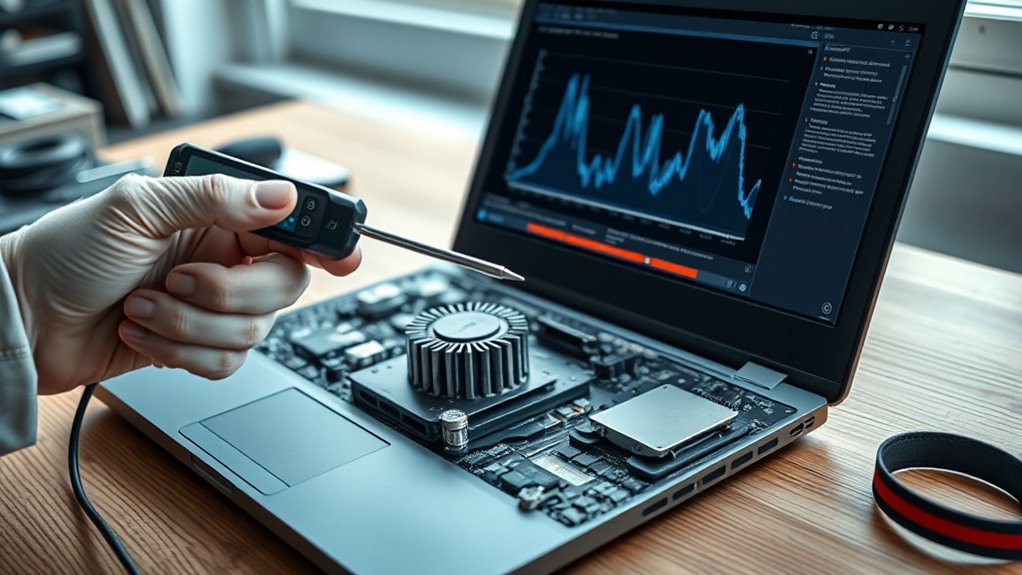
A laptop thermal sensor helps the system track internal heat and protect its components. If your laptop reports strange temperatures, runs its fans constantly, or shuts down without warning, the sensor may be involved. However, cooling problems, heavy background tasks, and firmware settings can cause the same symptoms.
Quick Answer
To test a laptop thermal sensor, monitor CPU temperature with HWiNFO or HWMonitor while the laptop is idle, working, and cooling down. A functioning reading should respond to changing workloads. Frozen values, impossible temperatures, or repeated thermal errors deserve investigation, but first rule out cooling faults, software problems, and firmware settings.
At a Glance
| Difficulty | Beginner for software checks; professional help for hardware faults |
| Tools Needed | HWiNFO, HWMonitor, or another compatible temperature-monitoring utility |
What You Should Know Before Testing
Key Takeaways
- A working sensor usually reports temperature changes as CPU or GPU activity changes.
- High fan speed does not automatically mean the sensor is faulty. Dust, background tasks, and performance settings also affect fans.
- Two monitoring programs can display the same underlying sensor data, so agreement is reassuring but not independent proof of accuracy.
- CPU temperature limits vary by processor model. A brief reading near 90°C does not establish sensor failure.
- BIOS readings and built-in hardware diagnostics may help, but their availability depends on the laptop.
- Persistent thermal warnings, shutdowns, or impossible readings require further troubleshooting rather than an immediate sensor replacement.
How to Tell if a Laptop Thermal Sensor Works
)
The easiest laptop thermal sensor test is to observe how reported temperatures change during ordinary use. A healthy reading should respond to changes in processor activity rather than remain fixed regardless of workload.
Most laptops have several temperature sensors. The CPU, graphics processor (GPU), and other components may report different values because they measure different locations.
Follow these steps to check the sensor without opening the laptop.
- Place the laptop on a firm surface. Keep its air vents clear and allow it to operate under normal conditions. Avoid testing on a bed, blanket, or other surface that blocks airflow.
- Open a temperature-monitoring program. Use HWiNFO or HWMonitor to locate the CPU package temperature, available core temperatures, and GPU temperature if supported.
- Check the idle reading. Close demanding applications and watch how the reported temperature behaves. Small changes are normal because background processes still use the CPU.
- Run a normal workload. Open several browser tabs, play a video, or use an application you normally run. Watch for a temperature increase as processor activity rises.
- Watch the cooling response. The fan may speed up as heat builds. Some laptops intentionally delay fan changes or keep fans off at low temperatures.
- Let the laptop return to idle. Stop the workload and watch whether CPU temperature begins to fall. The fan may continue running until the system cools.
A normal result is a believable temperature trend that responds to activity and cooling. Brief spikes are not automatically faults because processors can increase power and frequency very quickly.
If one reading remains frozen while other measurements change, check whether the tool supports that sensor correctly. A missing or unsupported reading does not necessarily mean the physical sensor has failed.
Also, a laptop can have a working CPU sensor but a separate problem with its fan controller, motherboard sensor, or cooling hardware.
Signs Your Laptop Temperature Reading May Be Wrong
A questionable laptop temperature reading usually conflicts with other evidence. The most useful warning signs are impossible values, readings that never respond to workload, and repeated hardware thermal errors.
Fan noise, throttling, and shutdowns deserve attention, but each has several possible causes.
Unusual Fan Behavior
A laptop fan that stays loud during light use may indicate a cooling or control problem. It does not prove that the temperature sensor is defective.
Common warning signs include:
- Constant high fan speed when CPU usage is low
- Abrupt fan-speed changes without an obvious workload change
- Repeated high-low fan cycling
- A fan that does not run when the laptop becomes unusually hot
- Excessive heat despite noticeable airflow
Before suspecting the sensor, check CPU usage in Task Manager. Windows updates, background applications, and startup programs can keep the processor active even when you are not using the laptop.
Also check whether the system is using a performance, quiet, or cooling profile. These settings can change fan behavior without any sensor failure.
Some laptops use fan-stop modes, where the fan remains off until a temperature threshold is reached. Fan response can also be delayed to prevent constant speed changes.
The key question is whether the fan behavior matches the reported temperatures, workload, and selected cooling profile.
Sudden Shutdowns
Unexpected shutdowns during gaming, video rendering, or other demanding tasks may indicate overheating. They can also result from battery, power-delivery, motherboard, or other hardware problems.
If CPU temperature rises sharply before the laptop powers off, a cooling problem may be more likely than a faulty sensor.
Possible causes include:
- Blocked cooling vents or dust-covered heatsink fins
- A failing or disconnected cooling fan
- Poor contact between the processor and heatsink
- Deteriorated thermal interface material
- Incorrect thermal-management settings
- Faulty temperature reporting or control electronics
- Battery or power-delivery faults
Repeated shutdowns while the reported temperature remains normal need a wider diagnosis. Do not assume that the sensor is sending false readings.
Warning: Stop using the laptop and disconnect its power adapter if you notice battery swelling, a burning or chemical smell, or extreme heat after shutdown. Do not open a swollen battery or continue stress testing. Arrange professional service.
Temperature Reading Mismatches
Conflicting temperature values can indicate a reporting problem, but different sensor labels are often the real explanation. A CPU package temperature, individual core temperature, and motherboard temperature do not necessarily measure the same point.
Watch for these patterns:
- A temperature value that never changes during different workloads
- A negative or otherwise impossible reading for the environment
- A sensor that repeatedly disappears from monitoring software
- An implausible value reported only by one application
- A constant overheating warning while other available readings remain normal
Compare measurements with matching labels. Two applications showing different CPU-related temperatures may simply be displaying different sensors.
Also remember that the outer laptop case is cooler than some internal components. A mildly warm keyboard does not prove the processor is cool, and a hot chassis does not establish sensor inaccuracy.
The strongest evidence comes from repeated abnormal readings combined with diagnostic errors or behavior that cannot be explained by workload, cooling, or software support.
What Causes Laptop Temperature Reading Errors?
Laptop temperature errors can result from monitoring software, firmware, sensor communication, or damaged hardware. Genuine overheating may also appear to be a sensor problem when the cooling system is not working properly.
Common causes include:
- Unsupported sensor readings: A monitoring utility may not recognize a newer CPU, GPU, or motherboard sensor correctly.
- Firmware problems: BIOS or embedded-controller software can affect how some temperature and fan information is reported.
- Outdated drivers: Missing or outdated chipset and thermal-management components may affect system cooling behavior.
- Blocked airflow: Dust, fabric, and restricted vents can cause real temperature increases even if the sensor works correctly.
- Cooling hardware faults: A damaged fan, heatsink, or thermal interface can cause genuine overheating.
- Physical damage: Impact damage, corrosion, manufacturing defects, or motherboard faults can disrupt sensor communication.
Sensor design and reporting also differ between laptops. A utility may show detailed CPU core temperatures on one model but fewer values on another.
That difference alone is not evidence of poor sensor quality.
For example, if HWiNFO reports increasing CPU temperatures during gaming and the fans respond, the sensor data is behaving plausibly. If the machine still overheats, inspect the cooling path before blaming the sensor.
Check Laptop Temperature With Software
Temperature-monitoring software is the most practical way to examine laptop thermal behavior while Windows is running. It lets you compare CPU activity, temperature readings, and available fan information without disassembling the computer.
Use an application that supports your hardware and download it from its official source.
Temperature Monitoring Tools
HWiNFO and HWMonitor are useful starting points because they report hardware sensor information. Other tools may work well, depending on the processor and laptop model.
| Tool | Useful Features | Best Use |
|---|---|---|
| HWiNFO | Detailed sensor monitoring and logging | Checking temperature trends and available thermal-status readings |
| HWMonitor | CPU and GPU temperatures, fan speeds, and other supported sensors | Quick hardware monitoring |
| Open Hardware Monitor | Supported CPU, GPU, load, and fan readings | Alternative monitoring on compatible hardware |
| Core Temp | Supported CPU core temperature readings | CPU-focused monitoring |
| Speccy | Hardware overview and supported temperature readings | Basic system information and temperature checks |
The official HWiNFO documentation describes its real-time monitoring and logging capabilities.
Likewise, CPUID’s HWMonitor documentation confirms support for temperatures, fan speeds, power measurements, and other hardware sensors.
Older utilities such as MobileMeter may provide information on some legacy laptops, but hardware compatibility should be checked. A modern application with support for your processor is generally a better starting point.
Pro Tip: Record or log the same CPU temperature sensor during idle, normal activity, and recovery. A temperature trend is more useful for diagnosis than a single reading taken at an unknown workload.
Reading CPU Temps
To check CPU temperature correctly, identify which sensor your monitoring software is displaying. Look for readings labeled CPU Package, Core Temperature, or the processor’s equivalent temperature label.
Keep the same sensor selected throughout the test.
Follow this procedure:
- Open the monitoring utility and locate the CPU temperature values.
- Observe the current reading while the processor is lightly loaded.
- Run a familiar application that increases CPU activity.
- Watch whether the temperature responds to the workload.
- Check the maximum recorded temperature and any available thermal-throttling indicators.
- Stop the workload and observe how the reading changes.
CPU temperature changes can happen quickly, especially when a processor briefly increases clock speed. Do not confuse rapid but believable changes with impossible sensor output.
Some laptop monitoring applications show only part of the available sensor information. Missing fan RPM values, for example, do not automatically mean the fans or their sensors are broken.
If two programs show the same temperature, they may be reading the same internal hardware sensor. That agreement supports the reading’s consistency, but it does not independently prove its accuracy.
Comparing Normal Ranges
There is no single safe CPU temperature range that applies to every laptop. The correct limits depend on the processor model, laptop design, power settings, and workload.
Intel explains that the maximum junction temperature, called Tjunction max, varies by processor and commonly falls between 100°C and 110°C. Its thermal controls can reduce performance as the processor approaches the limit.
See Intel’s processor temperature guidance for the official explanation.
For comparison, the AMD Ryzen 7 7840HS specifications list a maximum operating temperature of 100°C.
These are processor-specific limits, not recommended operating targets for every laptop.
| Temperature Behavior | What It Means | What to Do |
|---|---|---|
| Temperature changes at idle | Usually normal background activity | Check whether CPU activity explains the changes |
| Temperature rises under load | Expected processor behavior | Check sustained temperatures against the CPU’s limits |
| Temperature approaches the model’s thermal limit | Thermal control or throttling may occur | Inspect cooling performance and thermal indicators |
| Reading stays fixed or is impossible | Possible unsupported sensor or reporting fault | Cross-check another tool or available firmware diagnostics |
A brief spike above 90°C does not automatically indicate a bad sensor. Some processors can approach their thermal limits during demanding work and then reduce power to protect themselves.
However, repeated thermal throttling, uncomfortable surface heat, or unexplained shutdowns deserve attention even if a recorded temperature falls below the manufacturer’s stated maximum.
Compare actual CPU package or core readings with the appropriate processor specifications. Do not compare CPU temperature directly with room temperature or assume the GPU must report the same value.
Check Laptop Temperature in BIOS and Command Prompt
Some laptops display temperature or fan information in BIOS or UEFI firmware settings. This can provide another way to inspect hardware behavior without relying on the normal Windows environment.
However, many laptops do not expose a CPU temperature reading in their firmware menus.
To check:
- Save your work and restart the laptop.
- Use the manufacturer’s startup key or documented method to enter BIOS or UEFI setup.
- Look for a hardware-monitoring, system-health, or thermal-management section if available.
- Read the temperature or fan information the firmware provides.
- Exit without changing settings you do not understand.
BIOS temperature and Windows temperature should not be expected to match exactly. The processor may have a different workload, power state, and cooling profile in each environment.
Therefore, compare broad behavior and sensor identity rather than treating small numerical differences as calibration errors.
What about Command Prompt and PowerShell?
Older Windows instructions often recommend this WMIC command:
wmic /namespace:\\root\wmi PATH MSAcpi_ThermalZoneTemperature get CurrentTemperature
However, Microsoft has removed WMIC from currently supported Windows 11 versions. See the official WMIC removal guidance.
The underlying Windows Management Instrumentation system remains available.
PowerShell can still query supported WMI classes using the documented Get-CimInstance command.
For example:
Get-CimInstance -Namespace root/wmi -ClassName MSAcpi_ThermalZoneTemperature
If the class is available and returns a valid CurrentTemperature value, the traditional conversion is to divide by 10 and subtract 273.15 to obtain Celsius.
For example, a reported value of 3032 converts to 30.05°C.
Important limitation: This query concerns ACPI thermal-zone information, not necessarily the processor’s internal core temperature. Many computers return no usable value, and an available value may represent a different thermal zone.
Older PowerShell examples using Get-WmiObject may also appear in troubleshooting guides. Neither method should be considered a reliable replacement for direct CPU monitoring on every laptop.
For an accurate picture of CPU thermal behavior, use a supported hardware-monitoring utility or the laptop manufacturer’s diagnostics.
Fix Laptop Thermal Sensor Problems
Most suspected laptop thermal sensor problems should be investigated with software and cooling checks before attempting hardware repair. Start with the simplest possible causes and move toward firmware or professional diagnostics only when needed.
Follow these steps in order.
- Restart the laptop. A restart can clear temporary software or controller-related problems. Recheck the same temperature sensor afterward.
- Check CPU usage. Open Task Manager and identify background processes using significant processor resources. Close unnecessary applications rather than assuming high fan speed means faulty sensing.
- Inspect external airflow. Remove anything blocking the intake or exhaust vents. Clean accessible exterior vents using the manufacturer’s recommended method.
- Check the cooling profile. Review the laptop’s manufacturer-provided power and thermal settings. Use a normal or balanced profile while troubleshooting.
- Update the monitoring software. Install a compatible version from the developer’s official website. Older versions may not recognize some modern hardware sensors.
- Update supported drivers. Use your laptop manufacturer’s support resources to obtain applicable chipset, power-management, and thermal-management updates.
- Review BIOS updates. If the manufacturer documents a relevant update, follow its official instructions. Do not interrupt a firmware update or install firmware intended for another model.
- Run manufacturer hardware diagnostics. If available, test the fan and relevant components. Record any reported error or failure code.
- Retest temperature behavior. Repeat the same normal workload and compare the results with your earlier readings.
How can you tell whether the fix worked? The temperature should respond plausibly to workload, cooling should operate as expected, and the original warning or shutdown problem should no longer occur.
Check temperature trends, CPU activity, and fan behavior together before treating a sensor reading as defective.
If the laptop remains hot despite clear vents and functioning fans, the problem may involve the heatsink, internal dust, or thermal interface material.
Replacing thermal paste or cleaning internal cooling components may require disassembly. Follow the service manual or use a qualified technician, especially for sealed or warranty-covered laptops.
Do not disable temperature monitoring, thermal shutdown protection, or fan safeguards to hide an overheating warning.
A stable reading after software changes suggests the original problem may have been in the reporting path rather than the sensor hardware itself.
If the same fault persists across compatible software and manufacturer diagnostics, hardware investigation becomes more reasonable.
When to Call a Laptop Repair Shop
Seek professional repair when the laptop repeatedly overheats, unexpectedly powers off, or reports persistent thermal errors after basic troubleshooting. A technician can distinguish genuine heat problems from failed cooling components, firmware issues, and damaged sensor circuitry.
Professional diagnosis is especially appropriate when:
- The laptop repeatedly shuts down during ordinary workloads.
- Temperature readings remain impossible or frozen across supported tools.
- Built-in diagnostics report a fan or thermal-related hardware failure.
- The cooling fan makes grinding noises or does not operate when required.
- The laptop remains excessively hot despite clear airflow.
- Physical damage, liquid exposure, or motherboard problems are suspected.
- The laptop is under warranty and internal repair is needed.
Manufacturer troubleshooting guidance provides a useful starting point. For example, Dell’s overheating and shutdown guide recommends checking cooling, CPU load, thermal settings, and supported hardware diagnostics before seeking repair.
Some thermal sensors are integrated into processors or motherboard components rather than installed as easy-to-replace parts. Repair options therefore depend on the exact laptop model and failed component.
A qualified technician may need to inspect the fan, heatsink, motherboard, sensor connections, or embedded controller.
Before visiting a repair shop, save your files if the laptop remains safe to operate. Record the laptop model, temperature symptoms, monitoring results, and any diagnostic error codes.
This information can help the technician reproduce the problem and avoid replacing functioning parts unnecessarily.
Frequently Asked Questions
How to Test Laptop Thermals?
Test laptop thermals by monitoring CPU and GPU temperatures during normal use and checking whether the cooling system responds. Tools such as HWiNFO and HWMonitor can show temperature changes and available thermal indicators. Prime95 and FurMark create demanding synthetic loads, but they are unnecessary for an initial sensor check and should be avoided on an already overheating laptop.
How to Test a Thermal Sensor?
Test a thermal sensor by watching whether its reading changes plausibly with workload and cooling. Check the same sensor using compatible monitoring tools and any available manufacturer diagnostics. If readings remain impossible or unresponsive, investigate software support and firmware before concluding that the sensor hardware needs repair.
How Do I Tell if My Temperature Sensor Is Working?
A working temperature sensor usually reports believable readings that rise when the processor works harder and fall as it cools. Normal fan operation and a lack of hardware errors provide additional reassurance. However, software readings alone cannot guarantee perfect accuracy or rule out separate cooling problems.
How to Check a Laptop Heating Issue?
Check a laptop heating issue by examining CPU usage, temperature readings, cooling vents, and fan behavior. Remove airflow restrictions and review the laptop’s power settings. If overheating continues, a technician may need to inspect internal dust, the heatsink, thermal paste, or fan hardware.
Can a Laptop Temperature Sensor Be Replaced?
A laptop temperature sensor may be repairable or replaceable, depending on where it is located. Some sensors are integrated into the CPU or motherboard and cannot be replaced as separate user-serviceable parts. A technician should confirm the failed component before recommending board-level repair or replacement.
Why Do Two Temperature Programs Show Different Readings?
Two monitoring programs may show different temperatures because they display different sensors, refresh readings at different times, or interpret unsupported hardware differently. Compare matching CPU package or core labels before assuming something is wrong. A large unexplained mismatch may require another compatible tool or manufacturer diagnostics.
Conclusion
A laptop thermal sensor is probably reporting useful information when its temperature readings respond to workload and cooling in a believable way. A frozen or impossible reading deserves investigation, but fan noise, high temperatures, and shutdowns do not prove sensor failure.
Start with a supported monitoring tool, check the cooling system, and use manufacturer diagnostics where available. If the same abnormal symptoms continue, professional testing can identify whether the problem involves the sensor, firmware, fan, or motherboard.
Sources
- HWiNFO: Official information about hardware sensor monitoring and logging.
- CPUID HWMonitor: Hardware temperature, fan-speed, and related sensor-monitoring capabilities.
- Intel Processor Temperature Guidance: Tjunction max, thermal-control behavior, and processor-specific temperature limits.
- AMD Ryzen 7 7840HS Specifications: Official maximum operating temperature for the example processor.
- Dell Overheating and Shutdown Troubleshooting: Fan diagnostics, cooling checks, power-related problems, and repair guidance.
- Microsoft WMIC Removal Guidance: Removal of the WMIC utility and supported alternatives.
- Microsoft Get-CimInstance Documentation: Supported PowerShell syntax for querying Windows management classes.

