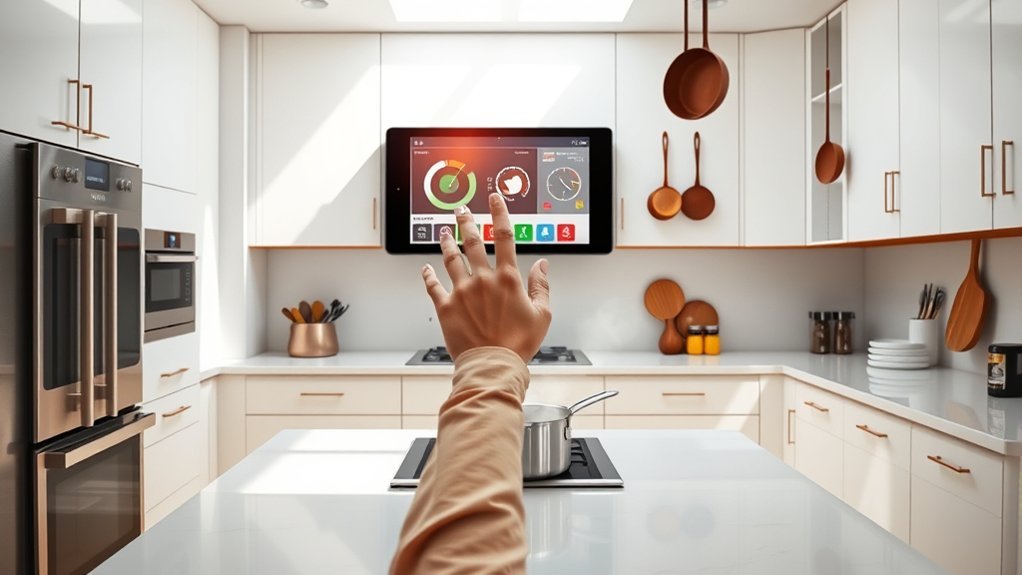
Kitchen monitors help restaurant teams manage orders, track preparation, and communicate between the counter and kitchen. The right kitchen display system (KDS) can reduce missed tickets and make busy service easier to manage. Screen size, software compatibility, durability, and staff interaction matter more than simply buying the largest display.
Quick Answer
For a small restaurant, a compatible tablet or compact touchscreen can provide an effective kitchen display system. Medium and high-volume kitchens benefit from larger commercial-grade monitors or monitor-and-bump-bar setups. Choose hardware that supports your POS software, displays tickets clearly, tolerates kitchen conditions, and lets staff complete orders quickly.
Last checked: September 26, 2026. Vendor-specific specifications, compatibility information, and listed prices were checked against official sources.
Key Takeaways
- Confirm software compatibility before purchasing a display. Not every KDS works with every tablet, monitor, or POS system.
- Consider separate preparation and expediter screens when several cooking stations handle the same order.
- Check the manufacturer’s operating temperature, moisture protection, mounting requirements, and cleaning instructions.
- Budget for software subscriptions, mounting hardware, connectivity, and replacement costs—not just the screen.
The Importance of Kitchen Monitors in Modern Cooking
Kitchen monitors are the visible part of a kitchen display system, or KDS. They replace or supplement printed tickets by showing incoming orders electronically.
A typical system connects to restaurant point-of-sale (POS) software. When a server enters an order, the kitchen receives the ticket with its items, quantities, and special instructions.
Staff can then track preparation and mark items complete without relying entirely on verbal communication.
This matters when several employees prepare different parts of one order. A grill cook may need to see the main dish, while another station handles sides or desserts.
A properly configured KDS sends each item to the appropriate preparation area.
How Does a Kitchen Display System Work?
A KDS follows an order from entry through preparation and final handoff. The exact workflow depends on the restaurant’s software.
- A customer places an order through the POS, online ordering system, or another connected channel.
- The system creates a digital ticket containing the order details and modifications.
- Kitchen routing sends the ticket or individual items to the correct preparation station.
- Staff prepare the food and mark items or tickets as complete.
- An expediter checks the full order before it leaves the kitchen.
For example, Toast’s kitchen configuration documentation explains how preparation stations and expediter displays receive different ticket information.
These workflows help teams identify outstanding items and coordinate food preparation. Their effectiveness still depends on accurate menu setup and staff training.
Key Factors for Choosing the Best Kitchen Monitor
The best kitchen monitor is one that fits your kitchen’s order volume, physical environment, and existing software.
Start with compatibility. A durable screen has little value if your POS cannot send orders to it.
Evaluate these factors before choosing equipment:
- Screen size: Make sure employees can read tickets from their normal working positions.
- Durability: Look for operating temperature and environmental protection specifications.
- Interaction: Choose between touchscreen controls and physical bump bars.
- Visibility: Check brightness, glare, text size, and viewing angles.
- Compatibility: Confirm the supported operating system, KDS software, and hardware requirements.
- Installation: Consider mounting, cable routing, power access, and cleaning space.
- Support: Review warranty coverage, replacement options, and technical support.
Commercial-grade displays are generally better suited to demanding environments than ordinary consumer tablets. However, the actual protection depends on the individual model.
Do not assume that every commercial display is resistant to heat, humidity, grease, or water.
Check Software Compatibility Before Buying
Kitchen display software may require specific hardware or an operating system. Some systems also require the same vendor’s POS platform.
For example, Square’s KDS setup documentation identifies compatible Android hardware and recommends kitchen-grade devices for environments exposed to grease and heat.
Its listed MicroTouch screen sizes include 10.1, 15.6, and 21.5 inches.
Square also specifies minimum requirements for other Android devices, including Android 9 or above, Google Play Store access, and at least 3 GB of RAM.
This illustrates why checking the software requirements should come before selecting a screen.
Should You Choose a Tablet or Touchscreen Monitor?
Tablets are practical for compact kitchens and simple order workflows. Larger touchscreen monitors provide more room for multiple tickets and detailed instructions.
The choice depends on your available space, order complexity, and supported software.
Choosing between a tablet and a touchscreen monitor involves screen size, total cost, durability, software compatibility, and the way kitchen staff handle orders.
Tablets for Smaller Kitchens
Consumer tablets commonly used for KDS applications have screens around 10 to 13 inches.
The original planning estimate of $300–$500 per station provides a starting point, although actual costs depend on the device and accessories.
Tablets offer several advantages:
- Compact dimensions for limited counter or wall space.
- Touchscreen interaction without a separate keypad.
- Flexible mounting and repositioning.
- Potentially lower initial hardware costs.
However, a tablet may require a protective case, reliable charging, and additional protection from kitchen conditions.
A smaller screen can also become crowded when many tickets arrive together.
Compatibility warning: Do not assume that an iPad supports every KDS application.
For example, Square discontinued its iOS KDS application. According to Square’s official migration notice, the iOS application was fully disabled on January 12, 2026.
Restaurants using Square KDS need supported Android hardware or a compatible alternative.
Touchscreen Monitors for Larger Operations
Commercial touchscreen monitors often provide displays around 15 to 22 inches or larger.
The original article’s estimated budget of $600–$1,200 per station remains a useful planning range rather than a confirmed universal price.
These screens can make it easier to view several active tickets, read modifications, and follow preparation progress.
They are useful in kitchens where employees frequently interact with the display.
However, touch controls may be less convenient when hands are wet, greasy, or covered by gloves that the screen cannot detect.
In those conditions, a non-touch monitor with physical controls may be more practical.
Benefits of Monitor + Bump Bar Setups
A monitor-and-bump-bar setup combines a display with a physical keypad for managing kitchen tickets.
Instead of touching the screen, employees press buttons to move through orders, mark items complete, or perform other supported actions.
This arrangement is particularly useful in high-volume kitchens where quick, repeatable controls matter.
Enhanced Order Management
A bump bar lets staff control orders without reaching across the display or touching its surface.
The physical buttons provide tactile feedback, making common actions easier to repeat during busy periods.
The original article estimates a complete monitor-and-bump-bar station at $500–$900. Actual pricing depends on whether the display, controller, and keypad are sold separately.
Before purchasing, confirm that the bump bar supports your specific KDS software. A generic keypad is not automatically compatible with every system.
Increased Efficiency and Speed
Physical controls can reduce the time spent moving through digital menus. They also give employees a consistent way to manage tickets.
A monitor-and-bump-bar setup can support:
- Faster navigation through active orders.
- Direct access to commonly used ticket actions.
- Reduced dependence on touchscreen responsiveness.
- More consistent operation when staff wear suitable kitchen gloves.
The original article cites a potential throughput improvement of up to 20%. That figure should be treated as an unverified performance claim rather than a guaranteed result.
Actual improvements depend on the restaurant’s workflow, order complexity, training, and previous ticket-management process.
Improved Durability and Longevity
Physical controls can reduce repeated contact with the monitor’s display surface.
This may help limit fingerprints and wear associated with constant touchscreen interaction.
However, durability depends on the actual hardware. Not every monitor or bump bar is designed for harsh kitchen conditions.
Some commercial systems offer IP54-rated enclosures, but that rating should never be assumed across an entire product category.
Also compare replacement costs. A separate bump bar may be easier to replace than an integrated touchscreen, depending on the system’s design.
How Kitchen Environment Impacts Monitor Performance
Heat, humidity, grease, and airborne particles can affect kitchen monitor reliability.
A device intended for ordinary office use may not tolerate the same conditions as dedicated restaurant hardware.
Choose equipment according to the conditions at its intended installation point, not simply the temperature of the restaurant’s dining area.
Heat Resistance Capability
Heat resistance determines whether a display can operate reliably near cooking equipment.
Some commercial units have a wider operating temperature range than consumer monitors. The manufacturer’s specification establishes the supported range.
For example, the Oracle Express Station 400 is designed for demanding kitchen environments.
The Oracle KDS product information describes its fanless construction, anti-glare display, and optional bump bar.
Its promotional material lists an operating range of -10°C to 60°C. However, Oracle’s technical documentation specifies 0°C to 60°C.
Use the technical specification for the exact hardware revision when planning installation.
Important features to examine include:
- Manufacturer-rated operating temperature.
- Fanless cooling where appropriate.
- Protective enclosure construction.
- Suitable ventilation or passive heat dissipation.
- Safe placement away from direct heat and cooking equipment.
Fanless construction can reduce the movement of airborne grease and dust through internal cooling fans. It does not eliminate the need for proper placement and cleaning.
Humidity Impact Considerations
High humidity can affect electronics, especially when condensation forms inside a device.
Commercial kitchen monitors may include sealed enclosures and moisture-resistant construction to reduce exposure.
One useful specification is the IP rating, which describes protection against solid particles and water ingress.
For example, IP54 indicates dust protection and resistance to splashing water. It does not mean that a device is waterproof or suitable for pressure washing.
The Oracle Express Station technical specifications state that the enclosure is IP44 without port plugs and IP54 with the plugs installed.
The same documentation lists a maximum relative humidity of 90%, under non-condensing conditions.
This distinction matters because condensation and direct water exposure are different hazards.
Keep electrical connections protected and avoid positioning monitors where water can collect around the device.
Grease and Dirt Protection
Grease can build up on display surfaces and around controls, reducing visibility and making equipment harder to operate.
Regular cleaning helps maintain readability and reliable interaction.
Pay attention to these common problems:
- Grease films that make text difficult to read.
- Moisture interfering with touchscreen operation.
- Dirt accumulating around buttons and connectors.
- Cleaning liquids entering unprotected openings.
Use the cleaning method recommended by the device manufacturer. Apply cleaning products to an appropriate cloth rather than spraying liquid directly into the monitor.
Warning: An IP54 rating does not make a monitor safe to wash with high-pressure water or place directly beside exposed water sources. Keep electrical connections protected and follow the manufacturer’s cleaning instructions.
Evaluating Screen Size and Visibility for Your Kitchen
The right screen size depends on viewing distance, ticket volume, and the number of employees sharing the display.
Small screens save space, while larger monitors can show more order details at once.
Typical kitchen display sizes range from approximately 10 to 22 inches, although larger commercial units are available.
Use the following factors when comparing options:
| Factor | Recommendation |
|---|---|
| Screen Size | Choose according to viewing distance and the number of visible tickets. |
| Brightness | Select a display that remains readable under kitchen lighting. |
| Monitor Type | Use touchscreen controls for direct interaction or a compatible bump bar for physical controls. |
| Environmental Impact | Check resistance to heat, humidity, and the actual installation conditions. |
Screen resolution and text size are also important. A large screen is not automatically more readable if the software displays very small text.
Consider testing the display with realistic tickets containing several items and modifications.
Staff should be able to identify the order number, preparation instructions, and ticket status without leaning toward the screen.
Position the monitor where it is visible but does not obstruct food preparation or employee movement.
Cost Considerations for Home vs. Commercial Kitchen Monitors
Kitchen monitor costs depend on whether you need a simple home display, a consumer tablet, or dedicated commercial KDS hardware.
The original article estimates home kitchen monitors at $100–$600 and commercial displays at $600–$1,200. These are broad planning ranges, not fixed market prices.
For restaurants, the complete system may cost more than the monitor itself.
Typical Hardware Budget Considerations
| Display Type | Original Planning Range | Main Consideration |
|---|---|---|
| Home kitchen monitor | $100–$600 | General display use and limited environmental protection. |
| Tablet KDS station | $300–$500 | Compact hardware with software-dependent compatibility. |
| Commercial touchscreen | $600–$1,200 | Larger display and purpose-built construction. |
| Monitor with bump bar | $500–$900 | Physical controls and separate hardware components. |
Actual products may fall outside these estimates.
For a concrete US example, the Square hardware store listed the following KDS touchscreens when checked:
- 10.1-inch touchscreen: $699.
- 15.6-inch touchscreen: $749.
- 21.5-inch touchscreen: $899.
Those prices cover the listed hardware, not every expense involved in operating a complete restaurant system.
Remember the Ongoing Software Costs
Many KDS platforms charge recurring software fees. Some also require an eligible POS subscription.
For example, Square’s published US KDS pricing lists:
- $30 per month per device with Square Plus.
- $20 per month per device with Square Premium.
The applicable Square subscription is an additional requirement.
Include installation, mounting equipment, network connectivity, replacement parts, and technical support when comparing the total cost.
A less expensive screen may not deliver better long-term value if it needs frequent replacement or cannot support your preferred software.
Top Kitchen Monitor Models to Consider
The most useful kitchen monitor options include integrated commercial systems, touchscreen displays, tablets, and monitors with bump bars.
The Oracle Express Station 400 is a named commercial system, while the other entries below describe hardware categories. Their suitability depends on the software and kitchen environment.
| Model | Features | Best Use |
|---|---|---|
| Oracle Express Station 400 | 23.8-inch display; touch and non-touch options; fanless construction; technical operating range of 0°C to 60°C. | Commercial kitchens using compatible Oracle systems. |
| Commercial-grade touchscreen | Typically larger displays, direct interaction, and model-specific environmental protection. | Medium to high-volume kitchens. |
| Tablets | Compact touchscreens; original planning estimate of $300–$500. | Small kitchens and flexible installations. |
| Monitor + bump bar setups | Physical controls; original planning estimate of $500–$900. | High-volume kitchens that prefer tactile controls. |
| IP54-rated monitors | Dust protection and splash resistance when the stated rating conditions are met. | Demanding environments where moisture protection matters. |
Before selecting any system, confirm the exact product configuration. Screen dimensions, operating temperature, accessories, and compatibility can vary between models.
How to Set Up Kitchen Monitors for Better Workflow
Hardware selection is only part of an effective KDS installation. The software must display the right information to the right employee.
Use this setup sequence:
- Identify preparation stations. List the areas that need separate order information, such as grill, cold preparation, and expo.
- Assign order routing. Configure menu items and modifications to appear at the appropriate stations.
- Place each display. Select a position that provides clear visibility without interfering with food preparation.
- Connect the hardware. Follow the vendor’s approved power, network, and mounting instructions.
- Configure ticket appearance. Set readable text sizes, order layouts, and alerts where supported.
- Test a complete order. Include multiple items and special instructions to confirm correct routing.
- Train employees. Practice completing, recalling, and managing tickets before relying on the system during busy service.
If the system supports separate preparation and expediter displays, test both views to make sure completed items reach the final handoff correctly.
What Happens if the Internet or KDS Stops Working?
Offline operation depends on the specific POS platform and local network configuration.
Some systems can continue handling certain orders during an internet outage, while others may lose important functions.
For example, Toast’s offline-mode documentation explains that eligible configurations can continue receiving new in-store orders on KDS devices during an internet or service disruption.
This capability requires the appropriate local network configuration and hardware. Online orders may still be unavailable during an outage.
Restaurants should establish a backup ticket process and train employees to use it.
If orders stop appearing, check the following:
- The display’s power and network connection.
- Whether the correct restaurant location and device are selected.
- Order routing and preparation-station assignments.
- Whether the POS and KDS applications are operating normally.
- Any service interruption reported by the software provider.
Test the system again after restoring connectivity or correcting configuration problems.
Pro Tip: Include an order with several items and a special modification in your setup test. This helps reveal routing mistakes that a simple single-item order may not expose.
Frequently Asked Questions
What Is the Best Kitchen Display System?
The best kitchen display system is one that works with your POS, fits your kitchen layout, and provides readable order information. Small kitchens may prefer compact touchscreens, while larger operations often benefit from commercial monitors, separate preparation screens, and physical bump-bar controls.
What Is a KDS Screen Used for in a Kitchen?
A KDS screen displays incoming food orders, preparation instructions, and ticket status. Kitchen employees use it to track active orders and mark items complete. It helps coordinate work between preparation stations and the employee responsible for checking completed orders.
How Much Does a KDS Typically Cost?
The original article estimates approximately $300–$1,200 for common KDS station configurations. Actual costs vary by hardware, software, and installation. Commercial systems may also require monthly subscriptions, mounting accessories, and additional displays for separate preparation stations.
How Do KDS Work?
A kitchen display system receives order information from connected ordering software and displays it electronically. The system routes tickets to preparation stations, tracks progress, and allows employees to mark items or orders complete. Available functions depend on the software and configuration.
Can You Use a Regular Tablet as a Kitchen Monitor?
Yes, a regular tablet can work as a kitchen monitor if the KDS software supports it. Confirm the operating system, hardware requirements, and available mounting options. Consumer tablets may need additional protection from heat, grease, and moisture.
Do Kitchen Display Systems Work Without Internet?
Some kitchen display systems can continue handling certain orders without internet access. This depends on their offline capabilities and local network configuration. Online ordering and other connected functions may remain unavailable until service returns.
Is a Touchscreen Better Than a Bump Bar?
A touchscreen offers direct interaction, while a bump bar provides physical controls for managing tickets. Touchscreens suit many compact installations. Bump bars can be more convenient when employees need tactile feedback or frequently work with wet or gloved hands.
Conclusion
Choosing the right kitchen monitor starts with your POS compatibility, order volume, and working environment. A compact tablet may be enough for a small operation, while larger commercial displays and bump bars offer advantages for more demanding workflows.
The original article cites a figure that 60% of professional chefs report improved workflow from digital displays. That figure requires a supporting survey before it can be treated as a reliable industry benchmark.
Compare complete system costs, test realistic orders, and confirm that staff can use the display comfortably before committing to a kitchen-wide installation.
Sources
- Toast Kitchen Configuration Documentation: Preparation stations, ticket routing, and expediter workflows.
- Square KDS Setup Documentation: Supported hardware, device requirements, and configuration.
- Square iOS Migration Notice: iOS KDS discontinuation and migration requirements.
- Oracle Kitchen Display Systems: Express Station 400 features, display options, and promotional specifications.
- Oracle Express Station Technical Specifications: Operating temperature, enclosure protection, humidity, and hardware specifications.
- Square Hardware Store: Listed US prices for KDS touchscreens.
- Square KDS Pricing: Published monthly software fees and subscription requirements.
- Toast Offline Mode Documentation: KDS operation and limitations during connectivity disruptions.

