
Pairing a Samsung Galaxy S7 with a Toyota RAV4 is usually a five-minute job, although the menu names vary by RAV4 model year and multimedia system. A successful Bluetooth connection can provide hands-free calls, contact access, and wireless audio. Complete the setup while parked, then test both calling and music before driving.
Quick Answer
On the Galaxy S7, open Settings > Connections > Bluetooth and leave that screen open. In the parked RAV4, open Menu or Settings, choose Bluetooth, and select Add Device. Choose the phone, confirm the same PIN on both screens, approve permissions, and select Bluetooth Audio to test music.
Key Takeaways
- Park the RAV4 before opening the phone or vehicle pairing menus.
- Toyota menu wording varies, but look for Bluetooth, Add Device, Add New Device, or Search for Devices.
- Confirm that the PIN is identical on the Galaxy S7 and RAV4 before accepting the connection.
- Allow call, contact, message, and media permissions according to the features you plan to use.
- Bluetooth calling and audio can work even though the Galaxy S7 does not meet current Android Auto software requirements.
At a Glance
| Time Required | About 5 minutes |
| Difficulty | Easy |
| Tools Needed | Samsung Galaxy S7 and a Bluetooth-equipped Toyota RAV4 |
| Cost | Free |
Warning: Complete all pairing, permission, and troubleshooting steps while safely parked. Toyota instructs drivers not to attempt Bluetooth pairing while driving, and the National Highway Traffic Safety Administration recommends pulling over and parking before interacting with a phone.
Before You Pair the Galaxy S7 With Your RAV4
Prepare both devices before opening the pairing menus:
- Park the RAV4 and switch on its multimedia system.
- Keep the Galaxy S7 within a few feet of the dashboard.
- Temporarily disable Bluetooth on other nearby phones if the RAV4 keeps connecting to the wrong device.
- Remove an incomplete previous pairing from both devices if an earlier attempt failed.
- Check the Toyota interactive manual if your screen labels differ from the examples below.
Note: The phone may appear under a customized device name instead of “Samsung Galaxy S7.” You can check its name at the top of the Galaxy S7 Bluetooth settings screen.
Step 1: Turn On Bluetooth on the Samsung Galaxy S7
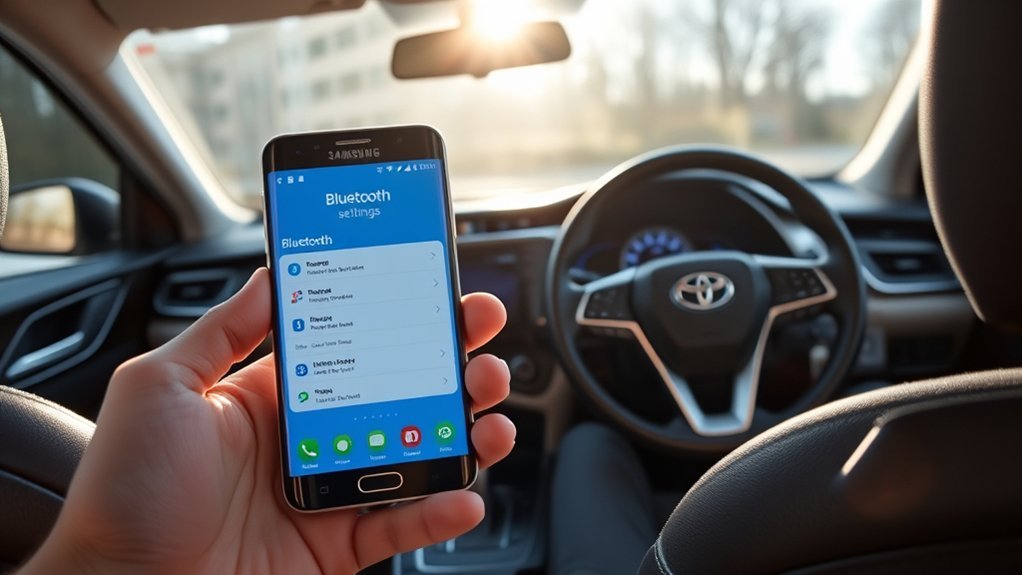
Open Settings on the Galaxy S7, select Connections, and tap Bluetooth. Turn Bluetooth on and leave the Bluetooth settings screen open while the RAV4 searches for the phone.
You can also swipe down from the top of the phone and press and hold the Bluetooth icon to open the same settings. Depending on the carrier and Android version, the wording may differ slightly. You do not need to find a separate “visible to all devices” switch; keeping the Bluetooth screen open allows the phone to scan and respond to pairing requests.
Step 2: Put the Toyota RAV4 in Bluetooth Pairing Mode
Toyota has used several multimedia systems in the RAV4, so follow the path that most closely matches your display.
Common Entune-Style Menu
- Press Menu on the multimedia system.
- Select Setup.
- Select Bluetooth.
- Choose Add New Device or Add Device.
This sequence matches Toyota’s official Bluetooth pairing guide.
Newer Toyota Audio Multimedia Menu
- Open Settings using the gear icon.
- Select Bluetooth & Devices.
- Choose Search for Devices, Add Another Device, or similar wording.
Some RAV4 systems also begin pairing when you select the Phone screen or press the steering-wheel phone button while no phone is connected. Follow the prompts displayed by your specific system.
Step 3: Select the Galaxy S7 From the Device List

Wait for the RAV4 to display nearby Bluetooth devices. This may take several seconds. Select Samsung Galaxy S7 or the customized name shown on your phone.
If the RAV4 does not find the phone, tap Scan on the Galaxy S7 Bluetooth screen and restart the vehicle’s device search. Also confirm that the phone is not actively connected to another car, speaker, or accessory.
Step 4: Verify the Bluetooth PIN and Accept Pairing

A numerical pairing code should appear on both the Toyota display and the Galaxy S7. Compare the numbers carefully.
- If the codes match, tap Pair or OK on the phone and confirm the request on the RAV4 if prompted.
- If the codes do not match, cancel the request on both devices and start the pairing process again.
- Do not accept a connection when the displayed codes are different.
Both screens should display a confirmation once the connection is complete.
Step 5: Allow Calls, Contacts, Messages, and Media
The Galaxy S7 may display one or more permission requests after pairing. Approve only the functions you want to use:
- Phone or Call audio: Enables hands-free calling through the RAV4.
- Contact sharing: Lets the vehicle display names and phone-book entries.
- Message access: Allows supported systems to display or announce compatible messages.
- Media audio: Enables music, podcasts, and other phone audio through the vehicle speakers.
Toyota’s pairing instructions note that Android users may need to allow message access during setup. You can skip that permission without disabling ordinary calls or music.
Pro Tip: If music works but calls do not—or calls work but music does not—open the Galaxy S7 Bluetooth settings, tap the gear beside the Toyota connection, and confirm that both Call audio and Media audio are enabled.
Test Hands-Free Calls and Bluetooth Audio
Test each feature separately before driving.
Test a Call
- Open the RAV4’s Phone screen.
- Place a brief call using a saved contact or the dial pad while parked.
- Confirm that the caller’s voice plays through the vehicle speakers and that the vehicle microphone carries your voice clearly.
If the contact list is empty, unlock the Galaxy S7 and approve the contact-sharing request. You may need to disconnect and reconnect the phone before the list refreshes.
Test Music or Podcasts
- Open the RAV4’s audio-source menu.
- Select Bluetooth Audio or Bluetooth.
- Start music or a podcast on the Galaxy S7.
- Adjust the phone volume and vehicle volume to comfortable levels.
You may be able to control play, pause, and track changes from the Toyota screen or steering-wheel controls. Available controls depend on the RAV4’s multimedia system and the app playing the audio.
Bluetooth, Apple CarPlay, and Android Auto Compatibility
Bluetooth pairing is separate from Apple CarPlay and Android Auto. The three technologies should not be treated as interchangeable.
| Feature | Galaxy S7 Compatibility | What to Know |
|---|---|---|
| Bluetooth calls | Generally supported | Requires a Bluetooth-equipped RAV4 and Call audio permission. |
| Bluetooth music | Generally supported | Select Bluetooth Audio and enable Media audio on the phone. |
| Apple CarPlay | Not supported | Apple CarPlay requires an iPhone, so it cannot run on a Samsung Galaxy S7. |
| Current Android Auto | Not supported on official Galaxy S7 software | Google currently requires Android 9 or later. Samsung’s official Galaxy S7 materials document Android 8.0. |
Some older Android Auto versions historically supported earlier Android releases, but current support requirements no longer include a Galaxy S7 running its official Android 8 software. Avoid installing obsolete Android Auto packages from unverified third-party sites.
Vehicle compatibility also varies. In the United States, Toyota identified Android Auto as a new feature across the 2020 RAV4 lineup. Earlier factory RAV4 systems may still support Bluetooth calls and audio even when they do not support Android Auto.
Troubleshoot Galaxy S7 and RAV4 Bluetooth Problems
The RAV4 Does Not Find the Galaxy S7
- Keep the Galaxy S7 Bluetooth settings screen open.
- Tap Scan on the phone and restart the Toyota device search.
- Move the phone closer to the center display.
- Disconnect the Galaxy S7 from other Bluetooth accessories.
- Restart the phone and turn the RAV4 multimedia system off and back on.
The PIN Does Not Appear or Does Not Match
Cancel the incomplete request on both devices. Delete any partial Toyota entry from the Galaxy S7 and any partial Galaxy entry from the RAV4, then begin again. Never approve a mismatched PIN.
Calls Work but Music Does Not
- Select Bluetooth Audio as the Toyota audio source.
- Open the phone’s Bluetooth settings and enable Media audio for the Toyota connection.
- Raise the media volume on the phone.
- Pause any app that may be sending audio to another Bluetooth device.
Music Works but Calls Do Not
- Enable Call audio for the Toyota connection on the Galaxy S7.
- Confirm that the RAV4 shows the Galaxy S7 as the active phone, not only the active audio player.
- Delete and recreate the connection if the phone profile failed to register.
Contacts or Messages Do Not Sync
Unlock the Galaxy S7 and look for a contact-sharing or message-access prompt. You can also open the Toyota entry in the phone’s Bluetooth settings and enable contact sharing. Disconnect and reconnect the phone after changing the permission.
The Wrong Phone Connects Automatically
Turn off Bluetooth on the other phone or disconnect it through the Toyota device menu. If the multimedia system offers a primary-device or preferred-device setting, assign the Galaxy S7 to that role. Availability depends on the model year and head unit.
The Connection Keeps Dropping
- Restart the Galaxy S7 and the RAV4 multimedia system.
- Install the latest software still offered for the phone and vehicle system.
- Remove the pairing from both devices.
- Restart both devices again.
- Create a fresh pairing and approve the required permissions.
Samsung also recommends checking whether the Bluetooth device is already connected elsewhere and repeating the scan from the phone’s Bluetooth menu when a connection fails.
Manage or Remove Paired Phones
A RAV4 can usually store more than one registered phone, but the exact capacity and active-device behavior vary by multimedia system. Do not rely on a universal seven-device limit.
Remove a Phone From the RAV4
Open the vehicle’s Bluetooth or Bluetooth & Devices menu, select the registered phone, and choose Remove, Delete, or Forget. Toyota’s newer systems commonly use Settings > Bluetooth & Devices > device name > Forget.
Remove the RAV4 From the Galaxy S7
- Open Settings > Connections > Bluetooth.
- Tap the gear icon beside the Toyota connection.
- Select Unpair.
Privacy Note: Remove your phone and delete synced contacts, call history, and message data before selling, trading, returning, or lending the vehicle for an extended period.
Related Guides
Frequently Asked Questions
Can I connect multiple phones to my Toyota RAV4?
Most RAV4 multimedia systems can register multiple Bluetooth devices, but the exact limit varies. Only selected devices will be active for calls and audio at a given time. Use the Bluetooth device menu to switch phones or set a preferred device when that option is available.
How do I remove a paired Galaxy S7 from the RAV4?
Open the RAV4’s Bluetooth or Bluetooth & Devices settings, select the Galaxy S7, and choose Remove, Delete, or Forget. Then open the Galaxy S7 Bluetooth settings, tap the gear beside the Toyota connection, and select Unpair.
Will the Galaxy S7 connect automatically the next time I start the RAV4?
It usually can reconnect when Bluetooth is enabled and no higher-priority paired phone connects first. Automatic behavior depends on the RAV4’s multimedia system, its preferred-device settings, and which paired devices are nearby.
What should I do if the Galaxy S7 does not appear in the device list?
Leave the Galaxy S7 Bluetooth settings screen open, tap Scan, restart the RAV4’s device search, and disconnect the phone from other Bluetooth accessories. If it still does not appear, restart both devices and remove any incomplete previous pairing.
Is there a fixed limit on the number of Bluetooth devices a RAV4 can store?
No single limit applies to every RAV4. Capacity varies by model year and multimedia system. If the system will not register another phone, remove unused devices or check the multimedia owner’s manual for your exact vehicle.
Can a Samsung Galaxy S7 use Android Auto in a Toyota RAV4?
Not under current official requirements. Google now requires Android 9 or later for wired Android Auto, while the Galaxy S7’s official software support ended with Android 8. Bluetooth calls and wireless audio may still work independently of Android Auto.
Can I pair the Galaxy S7 if my RAV4 does not support Android Auto?
Yes. Bluetooth pairing for calls and audio is separate from Android Auto. A Bluetooth-equipped RAV4 may support hands-free calls and music even when its factory multimedia system has no Android Auto capability.
Conclusion
To pair a Samsung Galaxy S7 with a Toyota RAV4, turn on Bluetooth, open the RAV4’s Add Device menu, select the phone, verify the matching PIN, and approve the features you need. Test calls and Bluetooth Audio separately while parked. If pairing fails, remove the connection from both devices and create it again from the beginning.
The Galaxy S7 can still be useful for ordinary Bluetooth calls and audio, but it should not be presented as compatible with Apple CarPlay or current Android Auto requirements.
Sources
- Toyota Bluetooth Pairing Guide — official pairing sequence, PIN confirmation, permissions, and parked-vehicle warning.
- Toyota Support: Pairing a Smartphone — official Toyota Bluetooth menu guidance.
- Samsung Galaxy S7 Support and Specifications — Bluetooth profiles and official Android 8.0 documentation.
- Google Android Auto Requirements — current phone, vehicle, and cable requirements.
- Toyota 2020 RAV4 Multimedia Announcement — introduction of Android Auto across the U.S. RAV4 lineup.
- NHTSA Distracted Driving Guidance — safe phone use and the recommendation to pull over and park.
