
Pairing your phone with a Toyota RAV4 lets you use Bluetooth audio, hands-free calls, contact syncing, and, on compatible models, Apple CarPlay or Android Auto. Menu names can vary by model year, but most newer Toyota Audio Multimedia systems use Settings, Bluetooth & Devices, and Search for Devices.
Quick Answer
Park your RAV4, turn on Bluetooth on your phone, then open Settings > Bluetooth & Devices on the Toyota touchscreen. Select Search for Devices, choose your phone, confirm the matching code, then allow contacts and audio permissions. Choose CarPlay or Android Auto only if you want phone projection.
Key Takeaways
- Complete phone setup while parked, not while driving.
- Use Bluetooth & Devices on newer Toyota Audio Multimedia systems to pair, connect, disconnect, or forget a device.
- Confirm the same pairing code on your phone and the RAV4 screen before you approve the connection.
- Choose Yes for Apple CarPlay or Android Auto if you want phone projection. Choose No if you only want regular Bluetooth calling and audio.
- If pairing fails, restart both systems, delete old pairings, check permissions, and update your phone software.
At a Glance
| Time Required | 3 to 5 minutes |
| Difficulty | Easy |
| Tools Needed | Your smartphone, Toyota touchscreen, and vehicle parked safely |
| Cost | Free, unless your phone plan charges for data used by apps |
Warning: Do not pair your phone, approve permissions, read messages, or change display settings while driving. Park in a safe place first, then finish setup before you move.
Before You Start: Check Compatibility and Safety
Before you connect your phone to a Toyota RAV4, put the vehicle in Park and keep your phone unlocked. You should also know whether you want basic Bluetooth or full phone projection.
- Bluetooth only: Best for hands-free calls, contact syncing, and streaming audio.
- Apple CarPlay: Best for iPhone navigation, calls, messages, Siri, and supported apps on the vehicle display.
- Android Auto: Best for Android navigation, calls, messages, Google Assistant, and supported apps on the vehicle display.
On Toyota’s latest Audio Multimedia system, up to five devices can be stored, and two can be connected at the same time. Older RAV4 systems may use different menu names or device limits, so check your owner’s manual if your screen does not match these steps.
Note: Bluetooth range is not a fixed number. It depends on your phone, the vehicle antenna, interference, and obstacles. For pairing, keep your phone inside the RAV4 and close to the touchscreen.
How to Enable Bluetooth on Your Smartphone
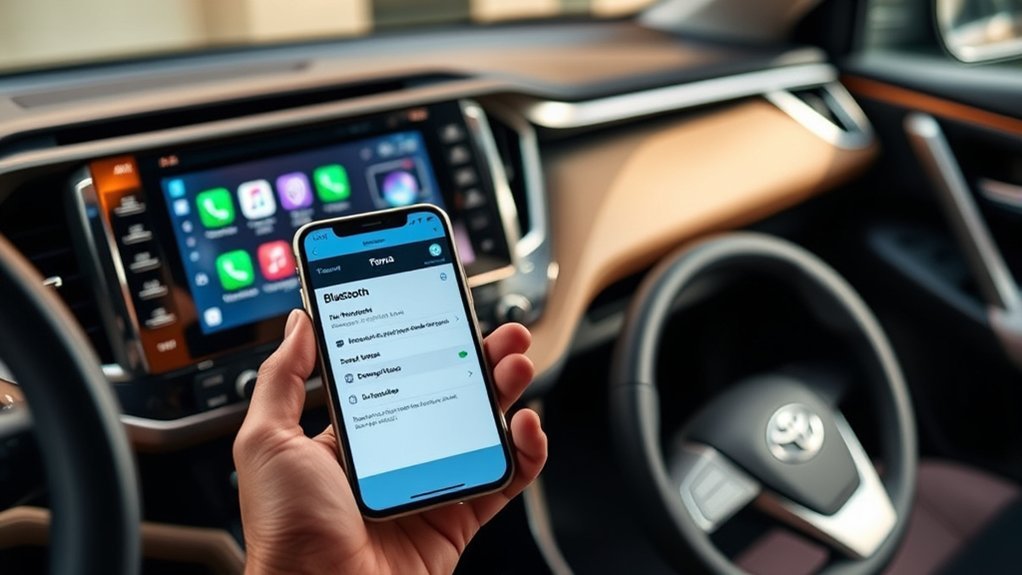
Start with your phone because the RAV4 needs to find a Bluetooth-ready device. Keep the Bluetooth settings screen open during pairing so your phone stays easy to detect.
Turn On Bluetooth on iPhone
- Open Settings on your iPhone.
- Tap Bluetooth.
- Turn Bluetooth on.
- Leave this screen open while you search from the RAV4.
Turn On Bluetooth on Android
- Open Settings on your Android phone.
- Tap Connected devices, Connections, or Bluetooth. The exact name depends on your phone brand.
- Turn Bluetooth on.
- Keep the Bluetooth screen open until the RAV4 finishes pairing.
Some Android phones may also show a permission prompt for contacts, calls, messages, or audio. Approve the options you want to use through the Toyota system.
Pairing Your iPhone With the Toyota RAV4
Pairing an iPhone with your Toyota RAV4 usually takes only a few minutes. Use these steps for newer Toyota Audio Multimedia systems.
- Park the RAV4 and turn on the multimedia system.
- On the Toyota touchscreen, select Settings.
- Select Bluetooth & Devices.
- Select Search for Devices. If another phone is already saved, choose Add another device.
- Choose your iPhone from the device list.
- Check the code on your iPhone and the Toyota screen. If the code matches, approve pairing on both screens.
- Allow contact syncing, calls, and audio permissions if you want hands-free calling and music.
- Choose Yes if you want to enable Apple CarPlay on a compatible RAV4. Choose No if you want the phone to work as a standard Bluetooth device only.
- Select Done or follow the final on-screen prompt.
Pro Tip: If you only need calls and music, choose Bluetooth-only setup. If you want maps, messages, Siri, and supported iPhone apps on the RAV4 screen, enable Apple CarPlay instead.
If Apple CarPlay does not start, make sure Siri is enabled on your iPhone. For wired CarPlay, use a good Apple cable and plug into the USB media port, not a charge-only port.
Connecting Your Android Device to the RAV4
Connecting an Android phone follows a similar process, but your phone may show different permission prompts based on the Android version and phone brand.
- Park the RAV4 and keep your Android phone unlocked.
- On the Toyota touchscreen, select Settings.
- Select Bluetooth & Devices.
- Select Search for Devices. If another phone is already stored, choose Add another device.
- Select your Android phone when it appears on the RAV4 screen.
- Confirm that the pairing code matches on both screens.
- Approve calls, contacts, messages, and media audio if you want those features.
- Choose Yes if you want Android Auto on a compatible RAV4. Choose No if you want regular Bluetooth only.
For Android Auto, most wired setups need Android 9.0 or later, while wireless Android Auto and some newer vehicles may need Android 11.0 or later. You also need a compatible vehicle, compatible phone, and supported country or region.
How to Connect a Saved Phone or Switch Between Phones
If your phone was already paired before, you do not need to repeat the full setup process. You can reconnect it from the device list.
- Open Settings on the Toyota touchscreen.
- Select Bluetooth & Devices.
- Choose the saved phone from the list.
- Select Connect. If another device is active, approve the switch when prompted.
On some newer Toyota systems, you can also set one phone as the Primary Device. This helps the RAV4 decide which phone to connect first when multiple saved phones are nearby.
Troubleshooting Bluetooth Connection Issues
If your phone will not connect to your Toyota RAV4, start with the simple fixes first. Most pairing problems come from old saved connections, missed permission prompts, or a phone that is not visible during setup.
If the RAV4 Does Not Find Your Phone
- Make sure Bluetooth is turned on.
- Keep the phone on the Bluetooth settings screen.
- Move the phone closer to the Toyota touchscreen.
- Turn Bluetooth off and back on.
- Restart your phone.
- Restart the RAV4 multimedia system if the screen seems frozen or slow.
If the Pairing Code Does Not Match
Do not approve the connection if the codes are different. Cancel pairing on both screens, delete the failed connection if it appears, and start the search again.
If Calls Work but Music Does Not
- Open Bluetooth & Devices and select your phone.
- Make sure the phone is enabled for media audio.
- Open the RAV4 audio screen and choose your phone as the audio source.
- Raise volume on both the phone and the vehicle.
If Contacts or Messages Do Not Sync
- Check your phone for a permission prompt.
- Allow contact sharing or message access if you want those features.
- Forget the device on both the phone and RAV4, then pair again.
If Old Devices Cause Conflicts
Remove phones you no longer use. On the Toyota screen, go to Settings > Bluetooth & Devices, choose the old device, then select Disconnect or Forget. On your phone, also forget the Toyota Bluetooth connection before pairing again.
Note: If your RAV4 uses an older multimedia system, the menu may say Menu, Setup, Phone, or Bluetooth instead of Bluetooth & Devices.
Using Bluetooth for Music and Calls
Once your smartphone is paired, you can use Bluetooth for calls and audio without holding your phone. Use the Phone icon for contacts and calls, and use the audio or music source screen for Bluetooth audio.
Here’s a quick reference on managing Bluetooth features:
| Feature | Action |
|---|---|
| Bluetooth Audio | Open the audio source screen and choose your phone or Bluetooth audio. |
| Hands-Free Calling | Tap the Phone icon, choose a contact, or use voice control when available. |
| Contact Sync | Approve contact sharing on your phone during pairing. |
| Switch Devices | Go to Settings, Bluetooth & Devices, choose the saved phone, and select Connect. |
Bluetooth helps reduce the need to handle your phone, but it does not remove every distraction. Keep your eyes on the road, use voice controls when practical, and stop safely before changing settings.
Related Guides
Frequently Asked Questions
Can I connect multiple phones to my Toyota RAV4?
Yes, many newer Toyota Audio Multimedia systems can store up to five devices and connect two at the same time. Older RAV4 systems may have different limits. To switch phones, open Settings > Bluetooth & Devices, choose the saved phone, and select Connect.
Will connecting my phone drain the car’s battery?
Normal Bluetooth use while the RAV4 is running should not meaningfully drain the vehicle battery. The bigger concern is leaving the vehicle in accessory mode with the engine or hybrid system off for a long time. If you are parked for extended setup or troubleshooting, avoid running the multimedia system longer than needed.
How do I reset the Bluetooth settings in the RAV4?
For most connection problems, you do not need a full system reset. Open Settings > Bluetooth & Devices, select the problem phone, then choose Forget or Disconnect. On your phone, forget the Toyota connection too. Then restart both systems and pair again.
Is there a limit to the number of paired devices?
Yes. Toyota’s latest Audio Multimedia Bluetooth guide says the system can store up to five devices and connect two at the same time. If your RAV4 will not save another phone, delete an old device from the Bluetooth list and try again.
Can I use my phone’s navigation without Bluetooth?
Yes, you can use navigation directly on your phone without Bluetooth, as long as your phone has GPS and a working map app. However, to hear directions through the RAV4 speakers or show navigation on the vehicle display, you usually need Bluetooth audio, USB, Apple CarPlay, or Android Auto.
Why does my RAV4 ask for Apple CarPlay or Android Auto during Bluetooth pairing?
Newer Toyota systems can start Apple CarPlay or Android Auto during the Bluetooth pairing process. Select Yes if you want compatible apps, maps, messages, and voice control on the vehicle display. Select No if you only want Bluetooth calls and audio.
Conclusion
Connecting your phone to your Toyota RAV4 is simple when you know which connection you want. Use Bluetooth for calls and music, or choose Apple CarPlay or Android Auto if your phone and RAV4 support full app projection. Start while parked, confirm the pairing code, approve the right permissions, and remove old devices if the connection fails.
Sources
- Toyota Bluetooth Pairing on Toyota Audio Multimedia Guide — supports Bluetooth pairing steps, saved device management, and device limits.
- Toyota Apple CarPlay and Android Auto on Toyota Audio Multimedia Guide — supports CarPlay and Android Auto activation during Bluetooth pairing.
- Apple Support: Use CarPlay with your iPhone — supports Apple CarPlay setup, Siri, and supported iPhone functions.
- Google Android Auto — supports Android Auto compatibility, wired and wireless requirements, and supported app categories.
- Bluetooth SIG: Understanding Bluetooth Range — supports Bluetooth range and interference guidance.
- NHTSA Distracted Driving — supports the warning to avoid phone and infotainment setup while driving.

